Set date FORD RANGER 2019 Owners Manual
[x] Cancel search | Manufacturer: FORD, Model Year: 2019, Model line: RANGER, Model: FORD RANGER 2019Pages: 512, PDF Size: 7.63 MB
Page 383 of 512
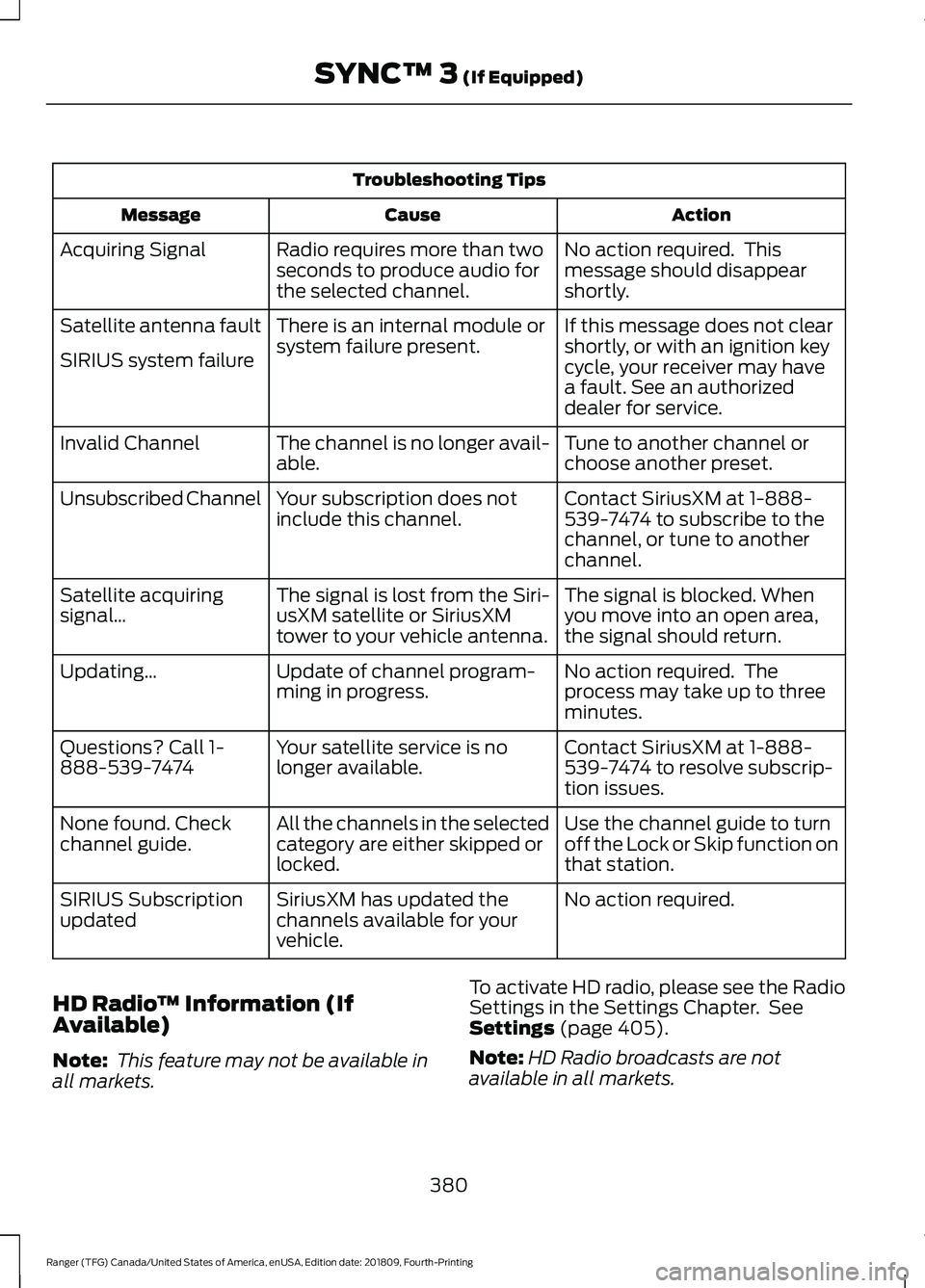
Troubleshooting Tips
Action
Cause
Message
No action required. This
message should disappear
shortly.
Radio requires more than two
seconds to produce audio for
the selected channel.
Acquiring Signal
If this message does not clear
shortly, or with an ignition key
cycle, your receiver may have
a fault. See an authorized
dealer for service.
There is an internal module or
system failure present.
Satellite antenna fault
SIRIUS system failure
Tune to another channel or
choose another preset.
The channel is no longer avail-
able.
Invalid Channel
Contact SiriusXM at 1-888-
539-7474 to subscribe to the
channel, or tune to another
channel.
Your subscription does not
include this channel.
Unsubscribed Channel
The signal is blocked. When
you move into an open area,
the signal should return.
The signal is lost from the Siri-
usXM satellite or SiriusXM
tower to your vehicle antenna.
Satellite acquiring
signal…
No action required. The
process may take up to three
minutes.
Update of channel program-
ming in progress.
Updating…
Contact SiriusXM at 1-888-
539-7474 to resolve subscrip-
tion issues.
Your satellite service is no
longer available.
Questions? Call 1-
888-539-7474
Use the channel guide to turn
off the Lock or Skip function on
that station.
All the channels in the selected
category are either skipped or
locked.
None found. Check
channel guide.
No action required.
SiriusXM has updated the
channels available for your
vehicle.
SIRIUS Subscription
updated
HD Radio ™ Information (If
Available)
Note: This feature may not be available in
all markets. To activate HD radio, please see the Radio
Settings in the Settings Chapter. See
Settings (page 405).
Note: HD Radio broadcasts are not
available in all markets.
380
Ranger (TFG) Canada/United States of America, enUSA, Edition date: 201809, Fourth-Printing SYNC™ 3
(If Equipped)
Page 384 of 512
HD Radio technology is the digital
evolution of analog AM/FM radio. Your
system has a special receiver that allows
it to receive digital broadcasts (where
available) in addition to the analog
broadcasts, it already receives. Digital
broadcasts provide a better sound quality
than analog broadcasts with free,
crystal-clear audio and no static or
distortion. For more information, and a
guide to available stations and
programming, please visit:
Website
www.hdradio.com
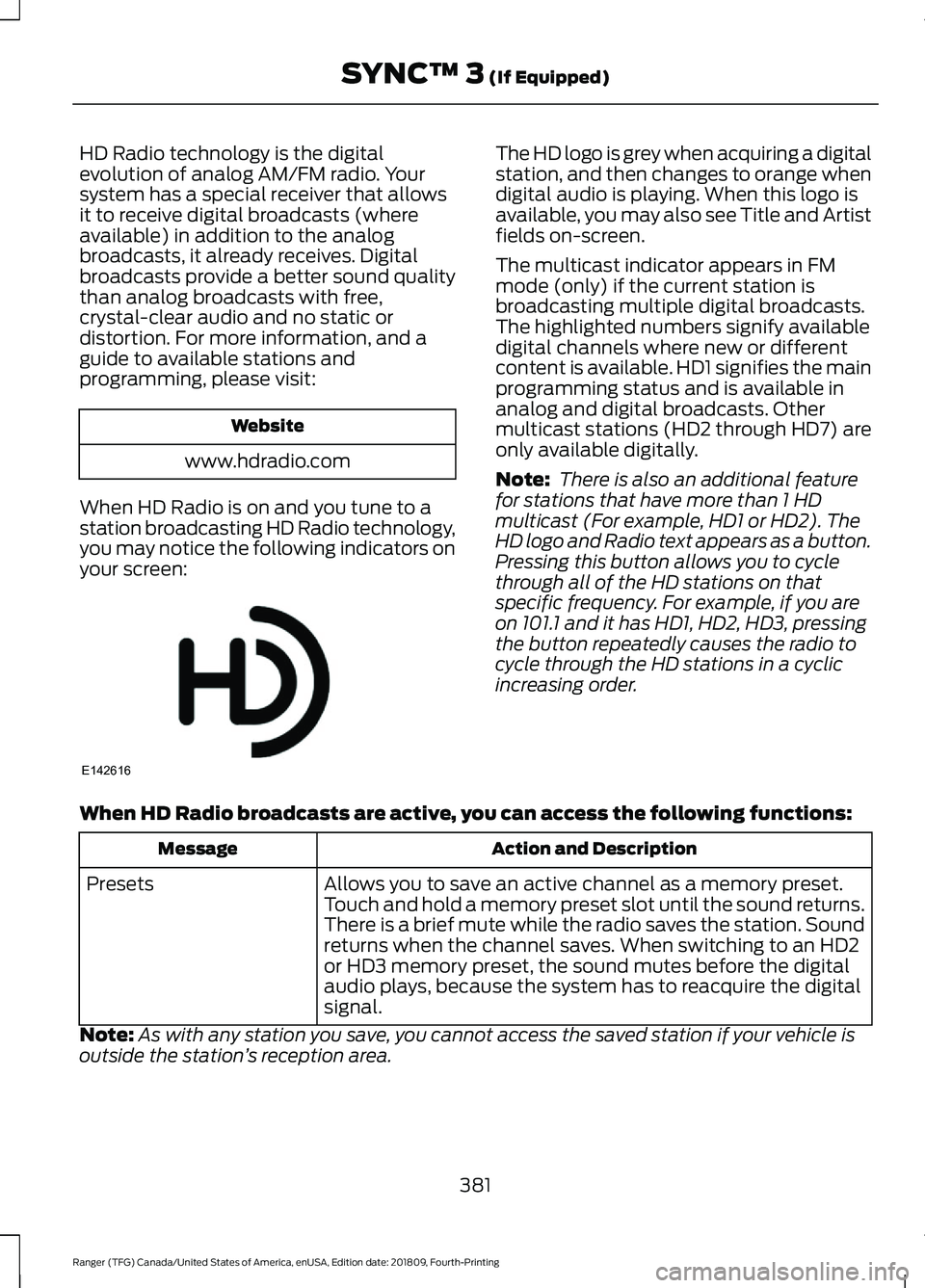
When HD Radio is on and you tune to a
station broadcasting HD Radio technology,
you may notice the following indicators on
your screen: The HD logo is grey when acquiring a digital
station, and then changes to orange when
digital audio is playing. When this logo is
available, you may also see Title and Artist
fields on-screen.
The multicast indicator appears in FM
mode (only) if the current station is
broadcasting multiple digital broadcasts.
The highlighted numbers signify available
digital channels where new or different
content is available. HD1 signifies the main
programming status and is available in
analog and digital broadcasts. Other
multicast stations (HD2 through HD7) are
only available digitally.
Note:
There is also an additional feature
for stations that have more than 1 HD
multicast (For example, HD1 or HD2). The
HD logo and Radio text appears as a button.
Pressing this button allows you to cycle
through all of the HD stations on that
specific frequency. For example, if you are
on 101.1 and it has HD1, HD2, HD3, pressing
the button repeatedly causes the radio to
cycle through the HD stations in a cyclic
increasing order.
When HD Radio broadcasts are active, you can access the following functions: Action and Description
Message
Allows you to save an active channel as a memory preset.
Touch and hold a memory preset slot until the sound returns.
There is a brief mute while the radio saves the station. Sound
returns when the channel saves. When switching to an HD2
or HD3 memory preset, the sound mutes before the digital
audio plays, because the system has to reacquire the digital
signal.
Presets
Note: As with any station you save, you cannot access the saved station if your vehicle is
outside the station ’s reception area.
381
Ranger (TFG) Canada/United States of America, enUSA, Edition date: 201809, Fourth-Printing SYNC™ 3 (If Equipped)E142616
Page 385 of 512
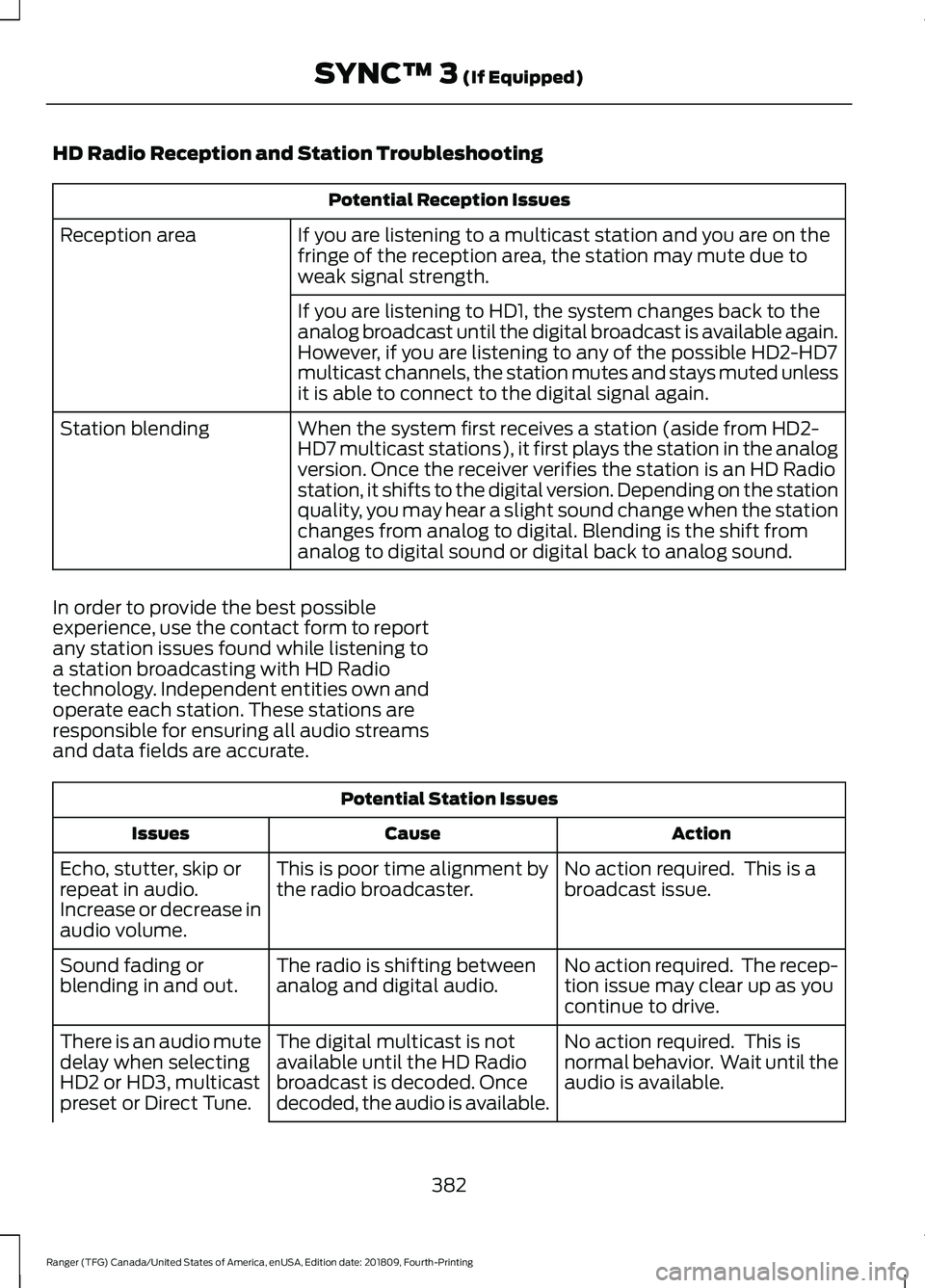
HD Radio Reception and Station Troubleshooting
Potential Reception Issues
If you are listening to a multicast station and you are on the
fringe of the reception area, the station may mute due to
weak signal strength.
Reception area
If you are listening to HD1, the system changes back to the
analog broadcast until the digital broadcast is available again.
However, if you are listening to any of the possible HD2-HD7
multicast channels, the station mutes and stays muted unless
it is able to connect to the digital signal again.
When the system first receives a station (aside from HD2-
HD7 multicast stations), it first plays the station in the analog
version. Once the receiver verifies the station is an HD Radio
station, it shifts to the digital version. Depending on the station
quality, you may hear a slight sound change when the station
changes from analog to digital. Blending is the shift from
analog to digital sound or digital back to analog sound.
Station blending
In order to provide the best possible
experience, use the contact form to report
any station issues found while listening to
a station broadcasting with HD Radio
technology. Independent entities own and
operate each station. These stations are
responsible for ensuring all audio streams
and data fields are accurate. Potential Station Issues
Action
Cause
Issues
No action required. This is a
broadcast issue.
This is poor time alignment by
the radio broadcaster.
Echo, stutter, skip or
repeat in audio.
Increase or decrease in
audio volume.
No action required. The recep-
tion issue may clear up as you
continue to drive.
The radio is shifting between
analog and digital audio.
Sound fading or
blending in and out.
No action required. This is
normal behavior. Wait until the
audio is available.
The digital multicast is not
available until the HD Radio
broadcast is decoded. Once
decoded, the audio is available.
There is an audio mute
delay when selecting
HD2 or HD3, multicast
preset or Direct Tune.
382
Ranger (TFG) Canada/United States of America, enUSA, Edition date: 201809, Fourth-Printing SYNC™ 3 (If Equipped)
Page 386 of 512
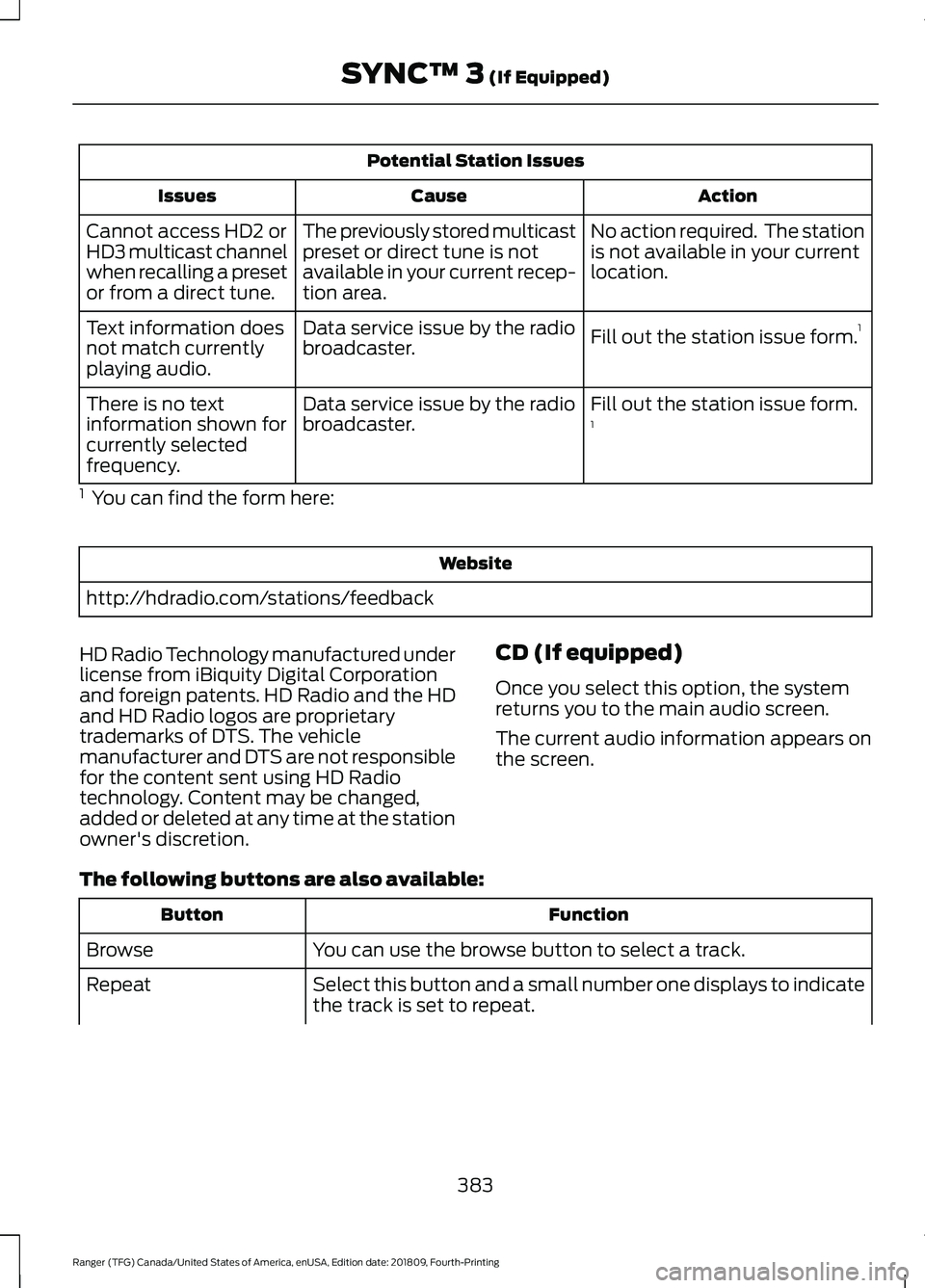
Potential Station Issues
Action
Cause
Issues
No action required. The station
is not available in your current
location.
The previously stored multicast
preset or direct tune is not
available in your current recep-
tion area.
Cannot access HD2 or
HD3 multicast channel
when recalling a preset
or from a direct tune.
Fill out the station issue form.1
Data service issue by the radio
broadcaster.
Text information does
not match currently
playing audio.
Fill out the station issue form.
1
Data service issue by the radio
broadcaster.
There is no text
information shown for
currently selected
frequency.
1 You can find the form here: Website
http://hdradio.com/stations/feedback
HD Radio Technology manufactured under
license from iBiquity Digital Corporation
and foreign patents. HD Radio and the HD
and HD Radio logos are proprietary
trademarks of DTS. The vehicle
manufacturer and DTS are not responsible
for the content sent using HD Radio
technology. Content may be changed,
added or deleted at any time at the station
owner's discretion. CD (If equipped)
Once you select this option, the system
returns you to the main audio screen.
The current audio information appears on
the screen.
The following buttons are also available: Function
Button
You can use the browse button to select a track.
Browse
Select this button and a small number one displays to indicate
the track is set to repeat.
Repeat
383
Ranger (TFG) Canada/United States of America, enUSA, Edition date: 201809, Fourth-Printing SYNC™ 3 (If Equipped)
Page 387 of 512
Function
Button
For MP3 CDs, this button allows you to toggle through repeat
off, repeat one track (a small number one displays), and repeat
current folder (a small folder displays).
Select the shuffle symbol to have the audio on the disk play
in random order.
Shuffle
You can use the forward, reverse, pause or
play buttons to control the audio playback. Bluetooth Stereo or USB
Bluetooth Stereo and USB allow you to
access media that you store on your
Bluetooth device or USB device such as
music, audio books or podcasts.
The following buttons are available for Bluetooth and USB: Function
Button
Pressing the repeat button toggles the repeat setting through
three modes: repeat off (button not highlighted), repeat all
(button highlighted) and repeat track (button highlighted with
a small number one).
Repeat
Play the tracks in random order.
Shuffle
You can use the forward, reverse, pause or
play buttons to control the audio playback.
To get more information about the
currently playing track, press the cover art
or Info button. For some devices, SYNC 3 is able to
provide 30-second skip buttons when you
listen to audio books or podcasts. These
buttons allow you to skip forward or
backward within a track.
While playing audio from a USB device you
can look for certain music by selecting the
following: Function
Button
If available, displays the list of tracks in the
Now Playing playlist.
Browse
This option, which is available under
browse, allows you to play all tracks or to
filter the available media into one of the
below categories.
New Search
Play All
384
Ranger (TFG) Canada/United States of America, enUSA, Edition date: 201809, Fourth-Printing SYNC™ 3 (If Equipped)
Page 389 of 512
Supported USB file systems include: FAT,
exFAT, and NTFS.
SYNC 3 is also able to organize the media
from your USB device by metadata tags.
Metadata tags, which are descriptive
software identifiers embedded in the
media files, provide information about the
file.
If your indexed media files contain no
information embedded in these metadata
tags, SYNC 3 may classify the empty
metadata tags as unknown.
SYNC 3 is capable of indexing up to
50,000 songs per USB device, for up to 10
devices.
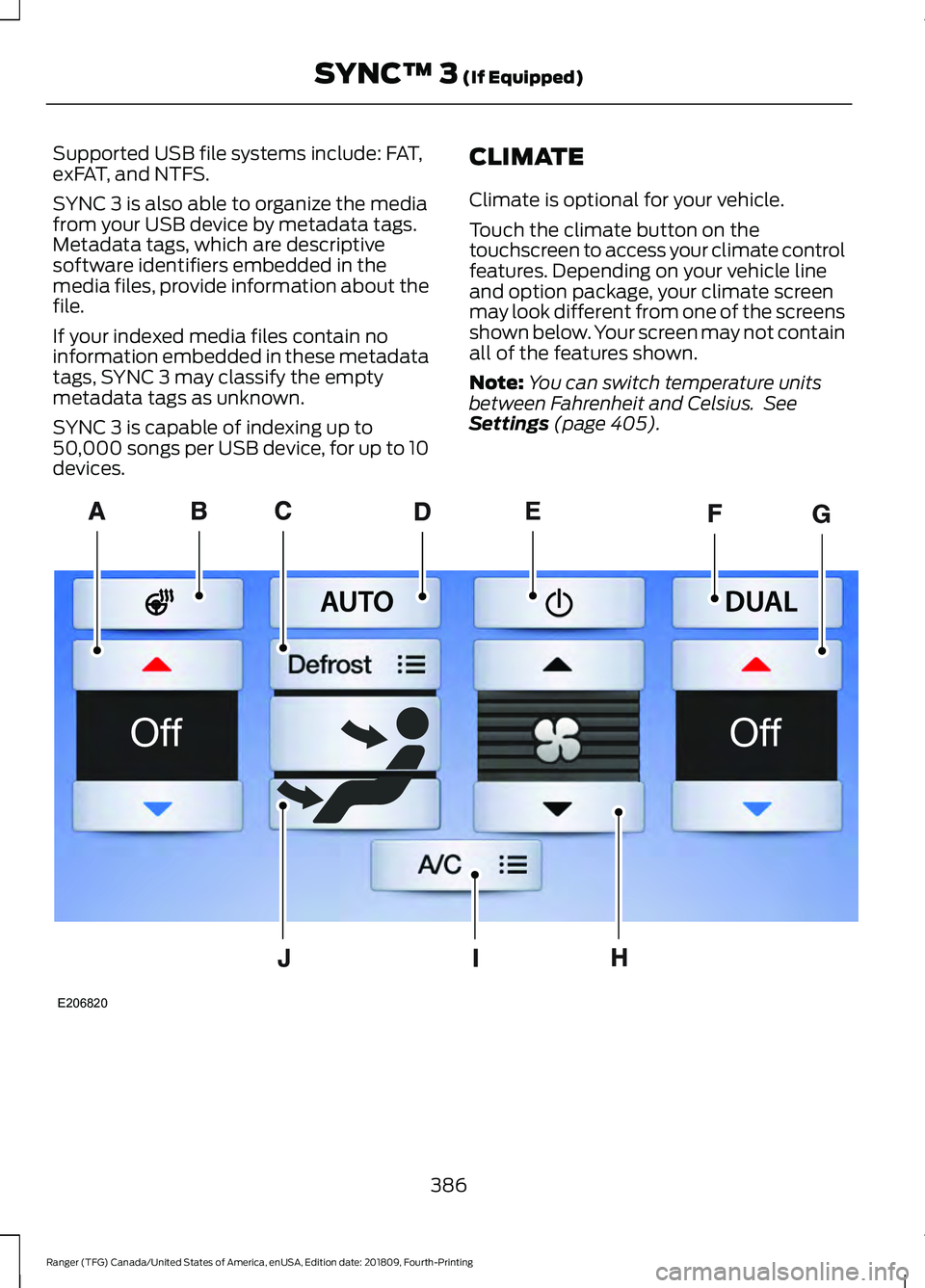
CLIMATE
Climate is optional for your vehicle.
Touch the climate button on the
touchscreen to access your climate control
features. Depending on your vehicle line
and option package, your climate screen
may look different from one of the screens
shown below. Your screen may not contain
all of the features shown.
Note:
You can switch temperature units
between Fahrenheit and Celsius. See
Settings (page 405). 386
Ranger (TFG) Canada/United States of America, enUSA, Edition date: 201809, Fourth-Printing SYNC™ 3
(If Equipped)E206820
Page 390 of 512
Description
Item
Callout
Touch up or down to adjust the temperature.
Left-hand front
seat temper-
ature:
A
Touch the heated steering wheel icon to switch the
heated steering wheel on and off (if equipped).
Heated steering
wheel:
B
A pop up appears on the screen to display the defrost
options.
Defrost
C
Touch the button to maximize defrosting.
Outside air flows through the windshield
vents, the fan automatically adjusts to the
highest speed and the temperature dial
returns to the full heat position. You can
use this setting to defog or clear a thin
covering of ice from the windshield. The
heated rear window also automatically
turns on when you select MAX Defrost.
Touch this button again to return to the
previous airflow selection.
MAX
Defrost:
Touch to clear the windshield of fog and
thin ice. Touch again to return to the
previous airflow selection. When on,
defrost provides outside air to reduce
window fogging and distributes air through
the windshield defroster vents and
demister vents.
Defrost
Note: To prevent window fogging, you
cannot select recirculated air when Defrost
is on.
Touch the button to switch on automatic operation.
Select the desired temperature using the temperature
control. The system adjusts fan speed, air distribution,
air conditioning operation, and selects outside air or
recirculated air to heat or cool the vehicle in order to
maintain the desired temperature.
AUTO
D
Touch the button to switch the system on and off.
Switching off the climate control system prevents
outside air from entering the vehicle.
Power
E
387
Ranger (TFG) Canada/United States of America, enUSA, Edition date: 201809, Fourth-Printing SYNC™ 3
(If Equipped)
Page 394 of 512
Action and Description
Menu Item
Item
Displays the name of your phone and takes you to the
phone settings options.
Phone
Settings
C
From this menu, you can pair subsequent devices, set ring
tones and alerts.
Gives you access to the list of paired or connected
Bluetooth devices allowing you to change or select a
device.
Change
Device
D
Displays all recent text messages.
Text
Messages
E
Use this keypad to dial in a phone number.
Phone
Keypad
F
Use the backspace button to delete numbers.
Press this button to begin a
call.
Call
Touch this button to reject all incoming calls automatic-
ally. Text message notifications do not display on the
screen. All ringtones and alerts are set to silent.
Do Not
Disturb
G
Users with phones having voice services
may see a button to access the feature.
For example, iPhone users see a Siri button.
A press and hold of the voice button on the
steering wheel also accesses this feature.
Making Calls
There are many ways to make calls from
the SYNC 3 system, including using voice
commands. See Using Voice
Recognition (page 369). You can use the
touchscreen to place calls as well.
391
Ranger (TFG) Canada/United States of America, enUSA, Edition date: 201809, Fourth-Printing SYNC™ 3
(If Equipped)
Page 396 of 512
Item
Immediately end a
phone call. You can
also press the
button on the
steering wheel.
End Call
Press this to access
the phone keypad.
Keypad
You can switch the
microphone off so
the caller does not
hear you.
Mute Item
Privacy Transfer the call to
the cell phone or
back to SYNC 3.
Text Messaging
Note: Downloading and sending text
messages using Bluetooth are cell
phone-dependent features.
Note: Certain features in text messaging
are speed-dependent and not available
when your vehicle is traveling at speeds over
3 mph (5 km/h).
Receiving a Text Message
When a new message arrives, an audible tone sounds and the screen displays a
pop-up with the sender name and ID, if supported by your cell phone. You can
select: Action and Description
Menu Item
Have SYNC 3 read the message to you.
Hear It
View the text on the touchscreen.
View
To call the sender.
Call
You can select from 15 preset messages. Press the message
that you would like to use and confirm to send the message.
SYNC 3 confirms when the message is sent successfully.
Reply
To exit the screen.
Close
Smartphone Connectivity (If Equipped)
SYNC 3 allows you to use Apple CarPlay
and Android Auto to access your phone.
When you use Apple CarPlay or Android
Auto, you can:
• Make calls.
• Send and receive messages.
• Listen to music.
• Use your phone's voice assistant. Apple CarPlay and Android Auto disable
some SYNC 3 features.
Most Apple CarPlay and Android Auto
features use mobile data.
Apple CarPlay
Apple CarPlay requires an iPhone 5 or
newer with iOS 7.1 or newer. Updating to
the latest iOS version is recommended.
1. Plug your phone into a USB port. See
USB Port
(page 337).
393
Ranger (TFG) Canada/United States of America, enUSA, Edition date: 201809, Fourth-Printing SYNC™ 3
(If Equipped)
Page 397 of 512
2. Follow the prompts on the
touchscreen.
3. Follow the prompts that appear on your phone to allow access to Apple
CarPlay.
After completing the setup, your phone
connects to CarPlay automatically when
plugged into a USB port.
To disable this feature from the
Settings screen, select: Menu Item
Apple CarPlay Preferences
Your device is listed if SYNC detects
Apple CarPlay. Select the name of your
device and set the Apple CarPlay switch
to off.
To return to SYNC 3, go to the Apple
CarPlay home screen and select the SYNC
app.
Note: Contact Apple for Apple CarPlay
support.
Android Auto
Android Auto is compatible with most
devices with Android 5.0 or newer.
1. Download the Android Auto app to your device from Google Play to
prepare your device (this may require
mobile data usage).
Note: The Android Auto App may not be
available within your current market.
2. Plug your device into a USB port. See USB Port (page 337).
3. Follow the prompt on the touchscreen.
4. Follow the prompts that appear on your device.
Note: You may be prompted to update
additional apps on your device (this may
require mobile data usage). To disable this feature from the
Settings screen, select: Menu Item
Android Auto Preferences
Your device is listed if SYNC detects
Android Auto. Select the name of your
device and set the Android Auto switch
to off.
Note: You may need to slide your Settings
screen to the left to select
Apple CarPlay
Preferences or Android Auto Preferences.
To return to SYNC 3, select the
speedometer icon in the Android Auto
menu bar at the bottom of the
touchscreen, and then touch the option to
return to SYNC.
Note: Contact Google for Android Auto
support.
NAVIGATION
Your navigation system is comprised of
two main features, destination mode and
map mode.
Map Mode
Map mode shows advanced viewing
comprised of 2D city maps, 3D landmarks
and 3D city models (when available). 2D
city maps show detailed outlines of
buildings, visible land use, landscape
features, and detailed railroad
infrastructure for the most essential cities
around the globe.
3D landmarks appear as clear, visible
objects that are typically recognizable and
have a certain tourism value.
394
Ranger (TFG) Canada/United States of America, enUSA, Edition date: 201809, Fourth-Printing SYNC™ 3
(If Equipped)