reset FORD RANGER 2019 User Guide
[x] Cancel search | Manufacturer: FORD, Model Year: 2019, Model line: RANGER, Model: FORD RANGER 2019Pages: 512, PDF Size: 7.63 MB
Page 96 of 512
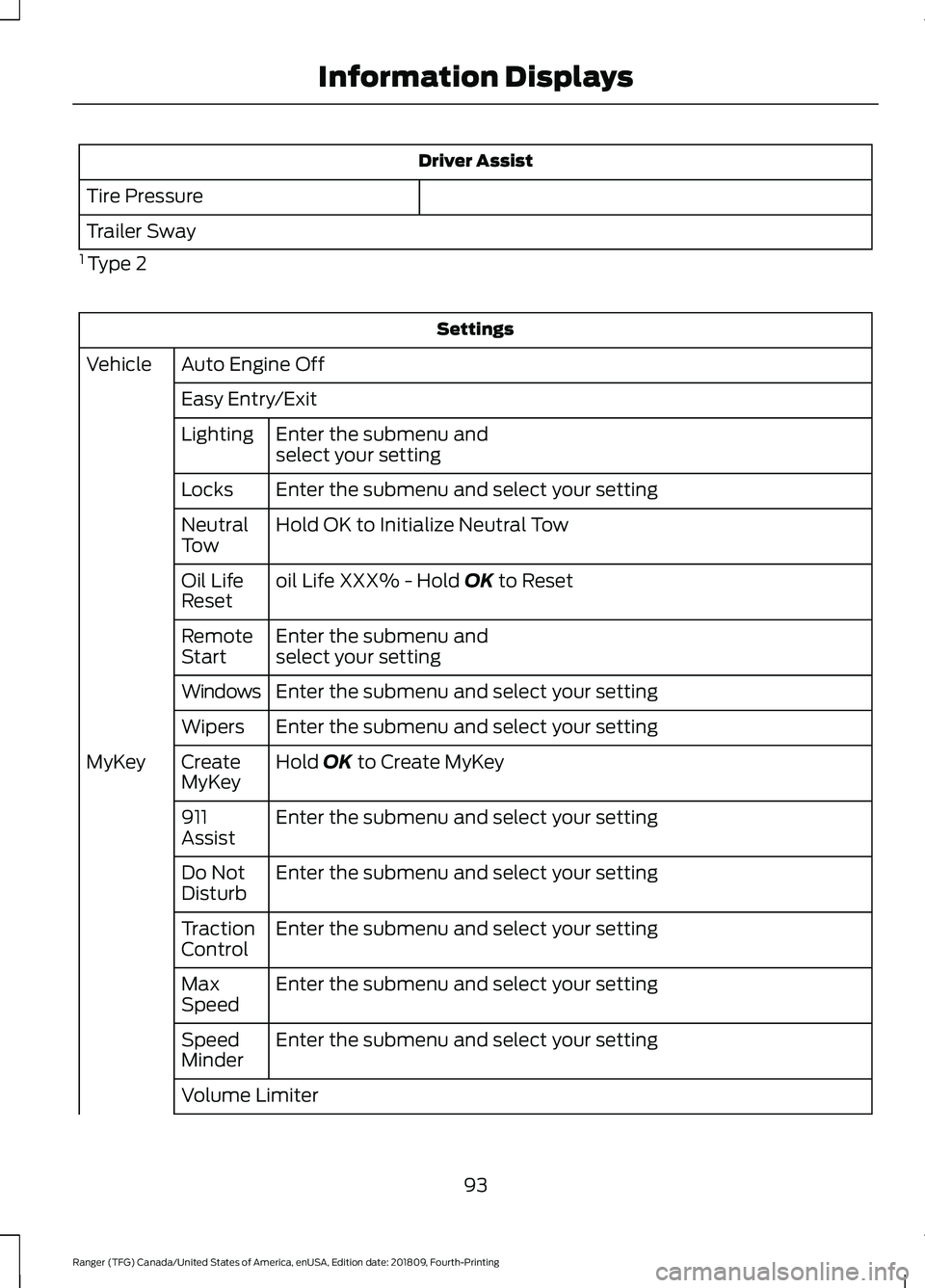
Driver Assist
Tire Pressure
Trailer Sway
1 Type 2 Settings
Auto Engine Off
Vehicle
Easy Entry/ExitEnter the submenu and
select your setting
Lighting
Enter the submenu and select your setting
Locks
Hold OK to Initialize Neutral Tow
Neutral
Tow
oil Life XXX% - Hold OK to Reset
Oil Life
Reset
Enter the submenu and
select your setting
Remote
Start
Enter the submenu and select your setting
Windows
Enter the submenu and select your setting
Wipers
Hold
OK to Create MyKey
Create
MyKey
MyKey
Enter the submenu and select your setting
911
Assist
Enter the submenu and select your setting
Do Not
Disturb
Enter the submenu and select your setting
Traction
Control
Enter the submenu and select your setting
Max
Speed
Enter the submenu and select your setting
Speed
Minder
Volume Limiter
93
Ranger (TFG) Canada/United States of America, enUSA, Edition date: 201809, Fourth-Printing Information Displays
Page 98 of 512
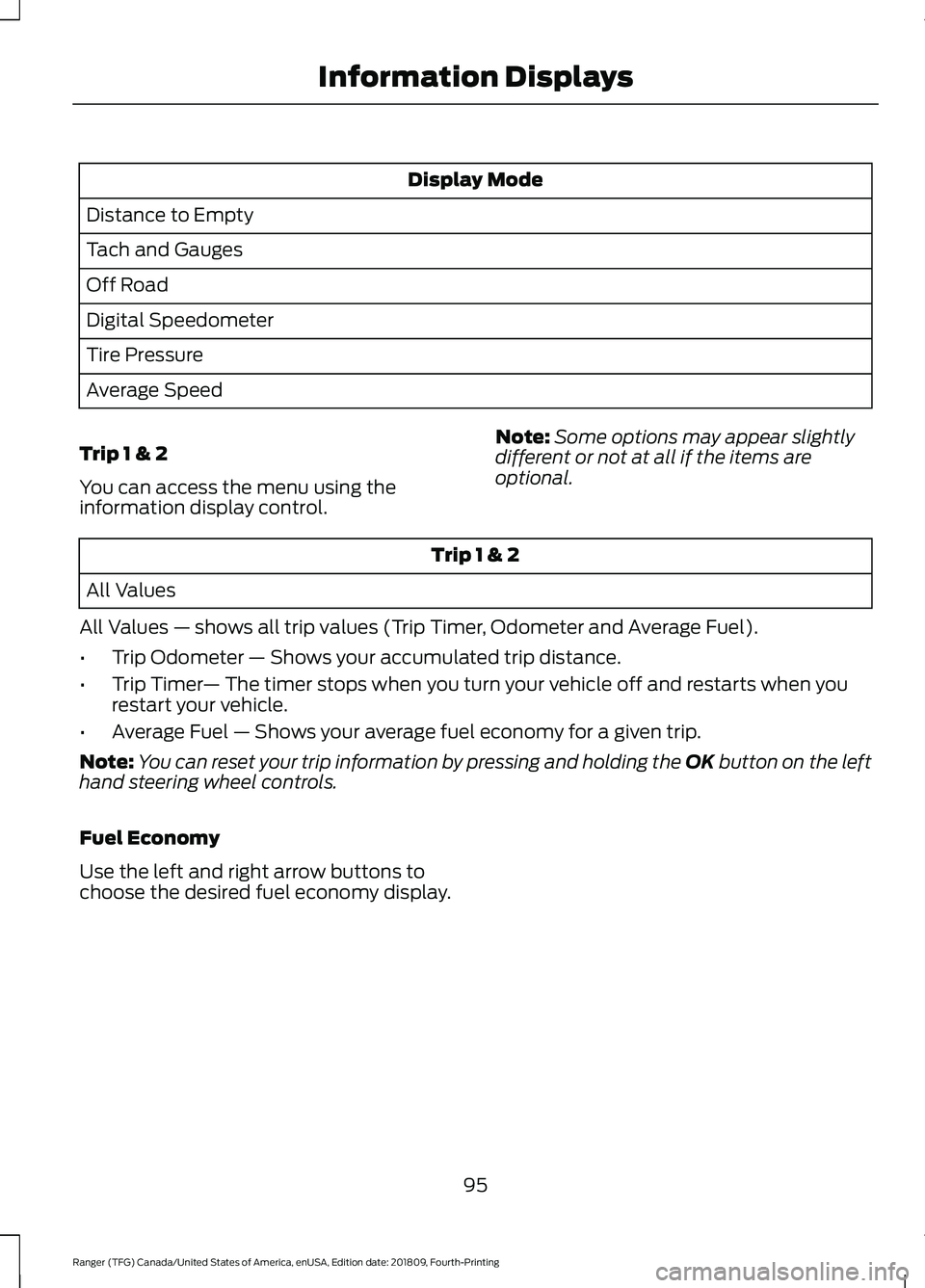
Display Mode
Distance to Empty
Tach and Gauges
Off Road
Digital Speedometer
Tire Pressure
Average Speed
Trip 1 & 2
You can access the menu using the
information display control. Note:
Some options may appear slightly
different or not at all if the items are
optional. Trip 1 & 2
All Values
All Values — shows all trip values (Trip Timer, Odometer and Average Fuel).
• Trip Odometer — Shows your accumulated trip distance.
• Trip Timer — The timer stops when you turn your vehicle off and restarts when you
restart your vehicle.
• Average Fuel — Shows your average fuel economy for a given trip.
Note: You can reset your trip information by pressing and holding the OK button on the left
hand steering wheel controls.
Fuel Economy
Use the left and right arrow buttons to
choose the desired fuel economy display.
95
Ranger (TFG) Canada/United States of America, enUSA, Edition date: 201809, Fourth-Printing Information Displays
Page 99 of 512
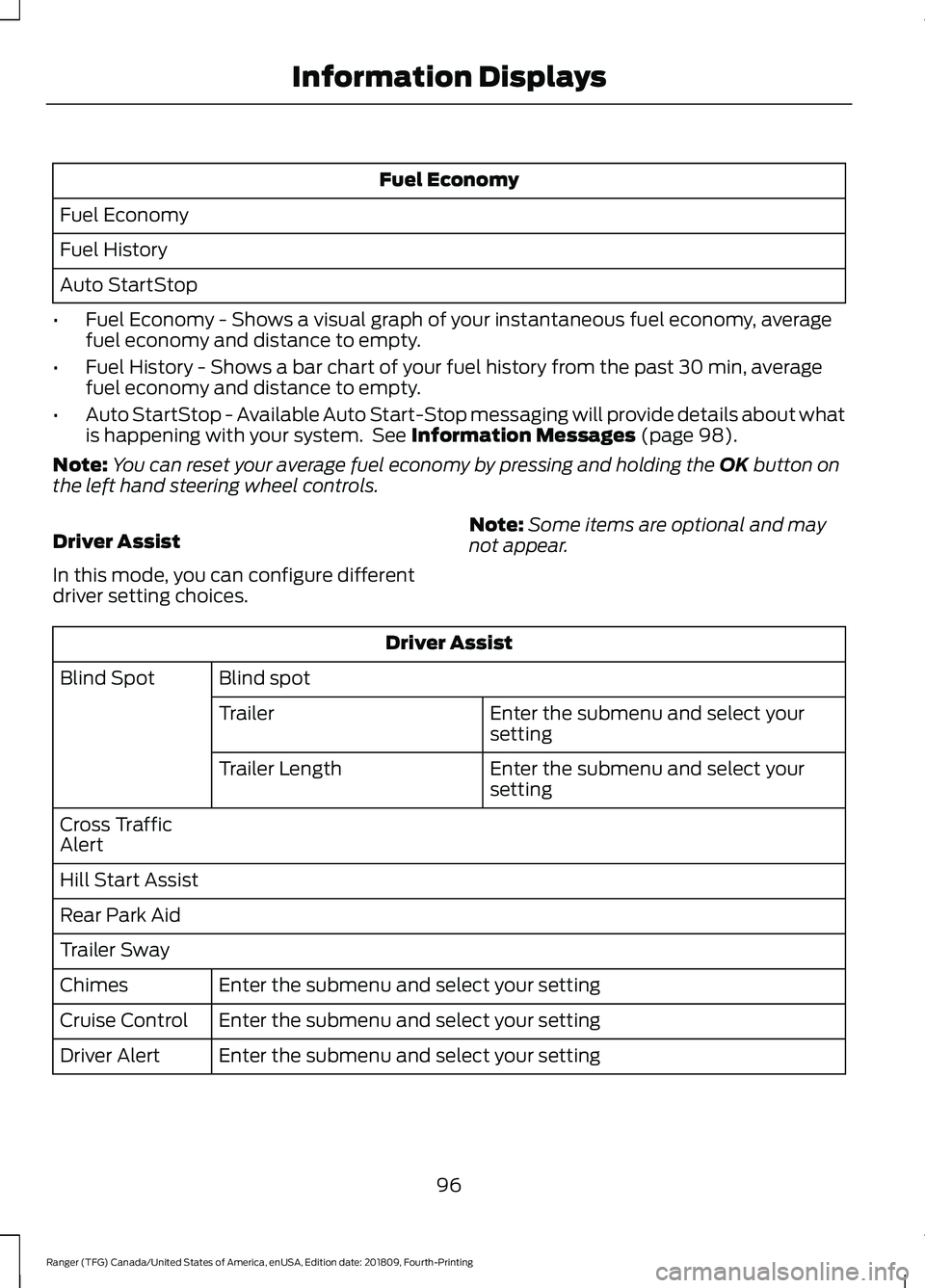
Fuel Economy
Fuel Economy
Fuel History
Auto StartStop
• Fuel Economy - Shows a visual graph of your instantaneous fuel economy, average
fuel economy and distance to empty.
• Fuel History - Shows a bar chart of your fuel history from the past 30 min, average
fuel economy and distance to empty.
• Auto StartStop - Available Auto Start-Stop messaging will provide details about what
is happening with your system. See Information Messages (page 98).
Note: You can reset your average fuel economy by pressing and holding the
OK button on
the left hand steering wheel controls.
Driver Assist
In this mode, you can configure different
driver setting choices. Note:
Some items are optional and may
not appear. Driver Assist
Blind spot
Blind Spot
Enter the submenu and select your
setting
Trailer
Enter the submenu and select your
setting
Trailer Length
Cross Traffic
Alert
Hill Start Assist
Rear Park Aid
Trailer Sway Enter the submenu and select your setting
Chimes
Enter the submenu and select your setting
Cruise Control
Enter the submenu and select your setting
Driver Alert
96
Ranger (TFG) Canada/United States of America, enUSA, Edition date: 201809, Fourth-Printing Information Displays
Page 100 of 512
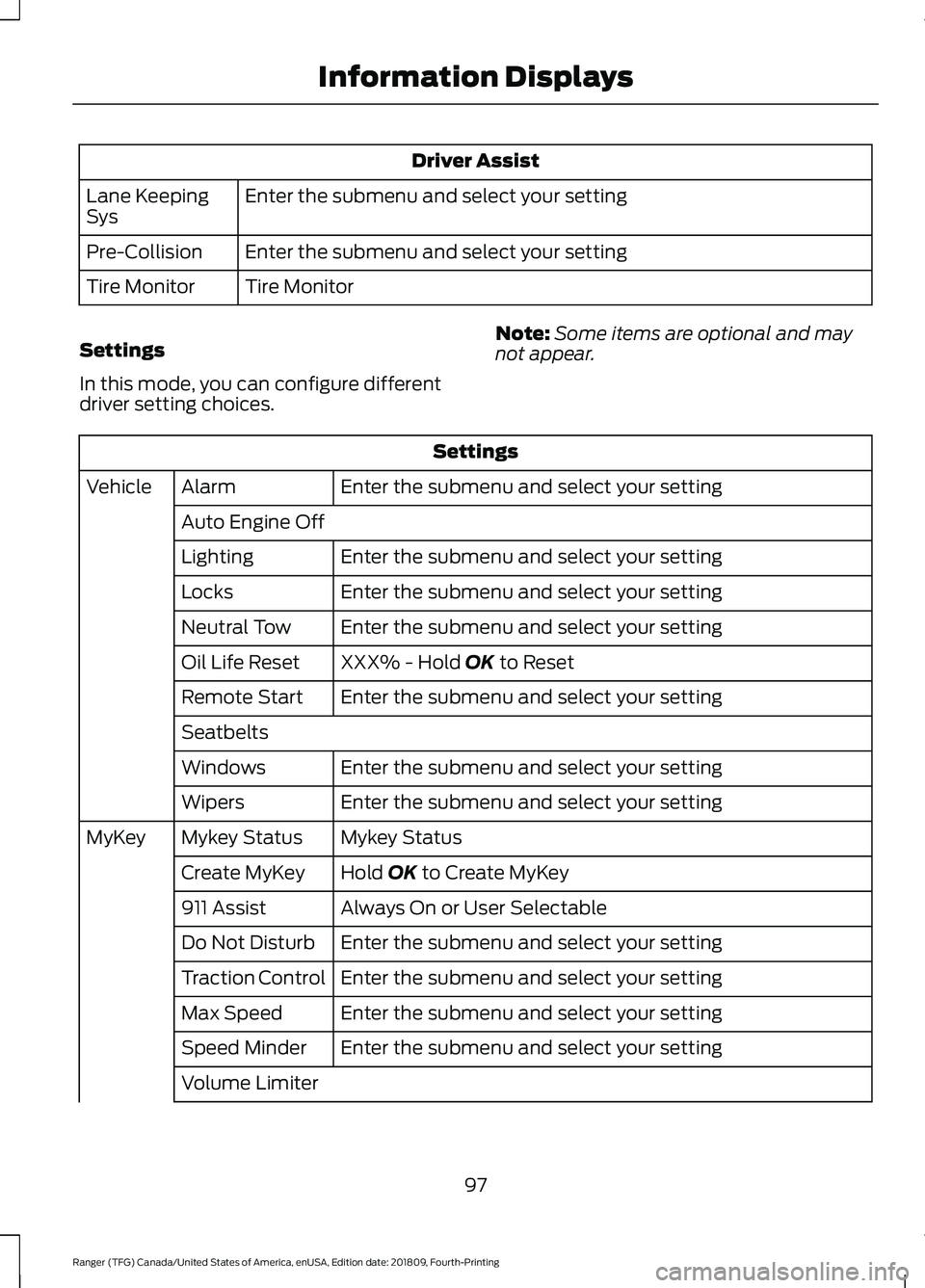
Driver Assist
Enter the submenu and select your setting
Lane Keeping
Sys
Enter the submenu and select your setting
Pre-Collision
Tire Monitor
Tire Monitor
Settings
In this mode, you can configure different
driver setting choices. Note:
Some items are optional and may
not appear. Settings
Enter the submenu and select your setting
Alarm
Vehicle
Auto Engine Off Enter the submenu and select your setting
Lighting
Enter the submenu and select your setting
Locks
Enter the submenu and select your setting
Neutral Tow
XXX% - Hold OK to Reset
Oil Life Reset
Enter the submenu and select your setting
Remote Start
Seatbelts
Enter the submenu and select your setting
Windows
Enter the submenu and select your setting
Wipers
Mykey Status
Mykey Status
MyKey
Hold
OK to Create MyKey
Create MyKey
Always On or User Selectable
911 Assist
Enter the submenu and select your setting
Do Not Disturb
Enter the submenu and select your setting
Traction Control
Enter the submenu and select your setting
Max Speed
Enter the submenu and select your setting
Speed Minder
Volume Limiter
97
Ranger (TFG) Canada/United States of America, enUSA, Edition date: 201809, Fourth-Printing Information Displays
Page 123 of 512
Installing the Head Restraint
Align the steel stems into the guide sleeves
and push the head restraint down until it
locks.
Folding the Head Restraint
Note:
The rear seat outermost head
restraints may fold forward for improved
visibility.
1. Press and hold button E.
2. Pull the head restraint back up to reset.
Tilting Head Restraints (If Equipped)
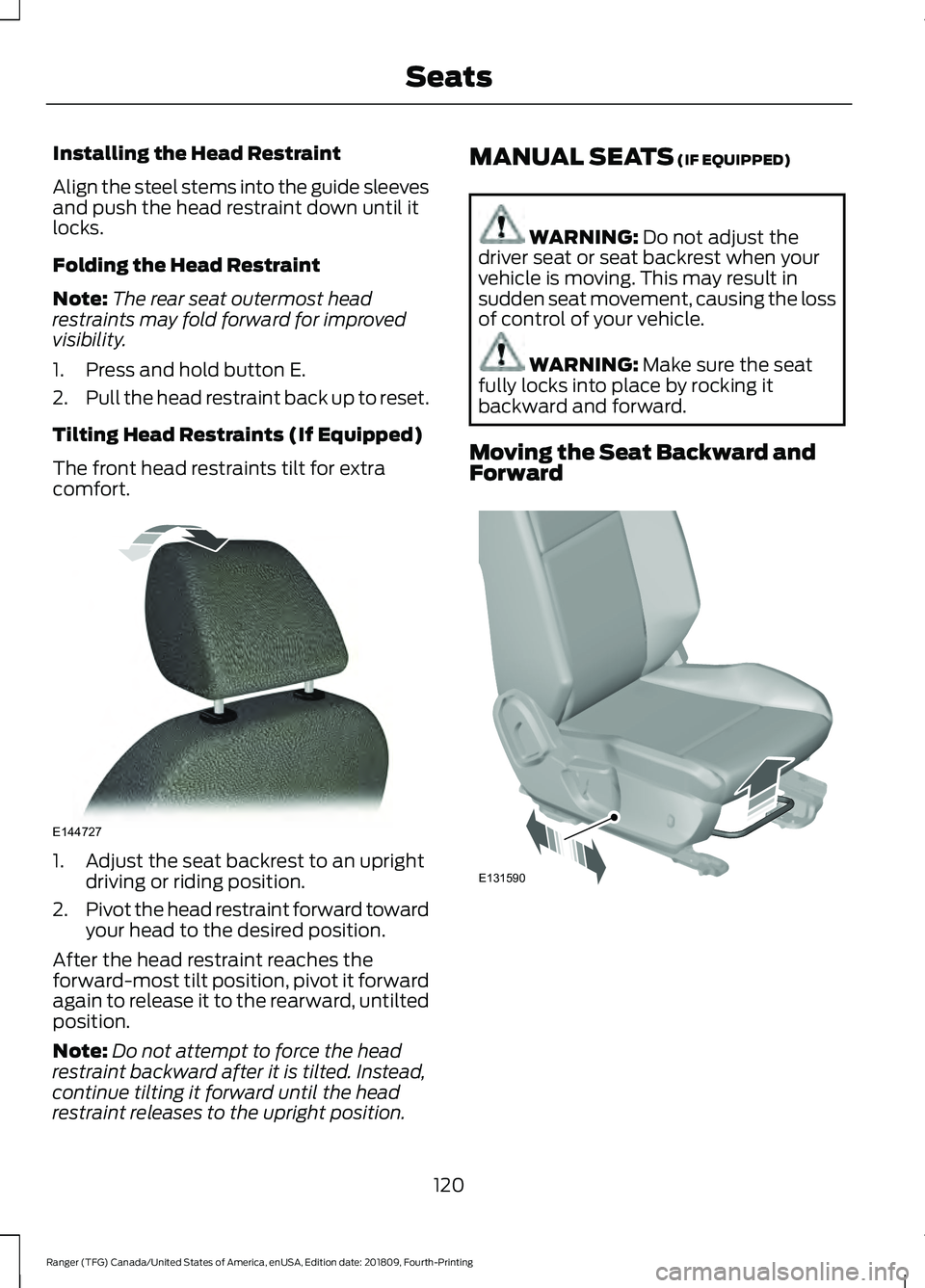
The front head restraints tilt for extra
comfort. 1. Adjust the seat backrest to an upright
driving or riding position.
2. Pivot the head restraint forward toward
your head to the desired position.
After the head restraint reaches the
forward-most tilt position, pivot it forward
again to release it to the rearward, untilted
position.
Note: Do not attempt to force the head
restraint backward after it is tilted. Instead,
continue tilting it forward until the head
restraint releases to the upright position. MANUAL SEATS (IF EQUIPPED) WARNING:
Do not adjust the
driver seat or seat backrest when your
vehicle is moving. This may result in
sudden seat movement, causing the loss
of control of your vehicle. WARNING:
Make sure the seat
fully locks into place by rocking it
backward and forward.
Moving the Seat Backward and
Forward 120
Ranger (TFG) Canada/United States of America, enUSA, Edition date: 201809, Fourth-Printing SeatsE144727 E131590
Page 133 of 512
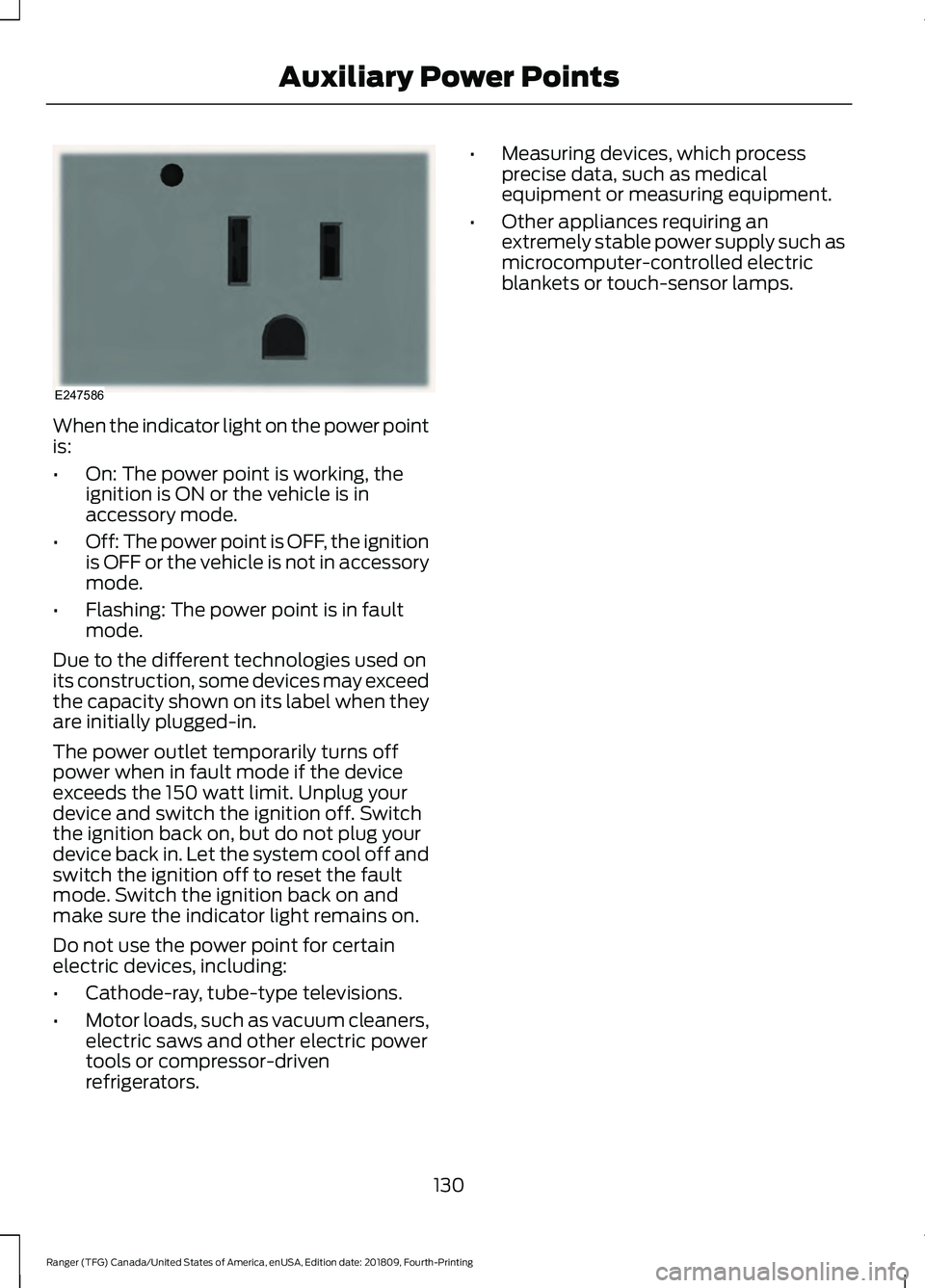
When the indicator light on the power point
is:
•
On: The power point is working, the
ignition is ON or the vehicle is in
accessory mode.
• Off: The power point is OFF, the ignition
is OFF or the vehicle is not in accessory
mode.
• Flashing: The power point is in fault
mode.
Due to the different technologies used on
its construction, some devices may exceed
the capacity shown on its label when they
are initially plugged-in.
The power outlet temporarily turns off
power when in fault mode if the device
exceeds the 150 watt limit. Unplug your
device and switch the ignition off. Switch
the ignition back on, but do not plug your
device back in. Let the system cool off and
switch the ignition off to reset the fault
mode. Switch the ignition back on and
make sure the indicator light remains on.
Do not use the power point for certain
electric devices, including:
• Cathode-ray, tube-type televisions.
• Motor loads, such as vacuum cleaners,
electric saws and other electric power
tools or compressor-driven
refrigerators. •
Measuring devices, which process
precise data, such as medical
equipment or measuring equipment.
• Other appliances requiring an
extremely stable power supply such as
microcomputer-controlled electric
blankets or touch-sensor lamps.
130
Ranger (TFG) Canada/United States of America, enUSA, Edition date: 201809, Fourth-Printing Auxiliary Power PointsE247586
Page 149 of 512
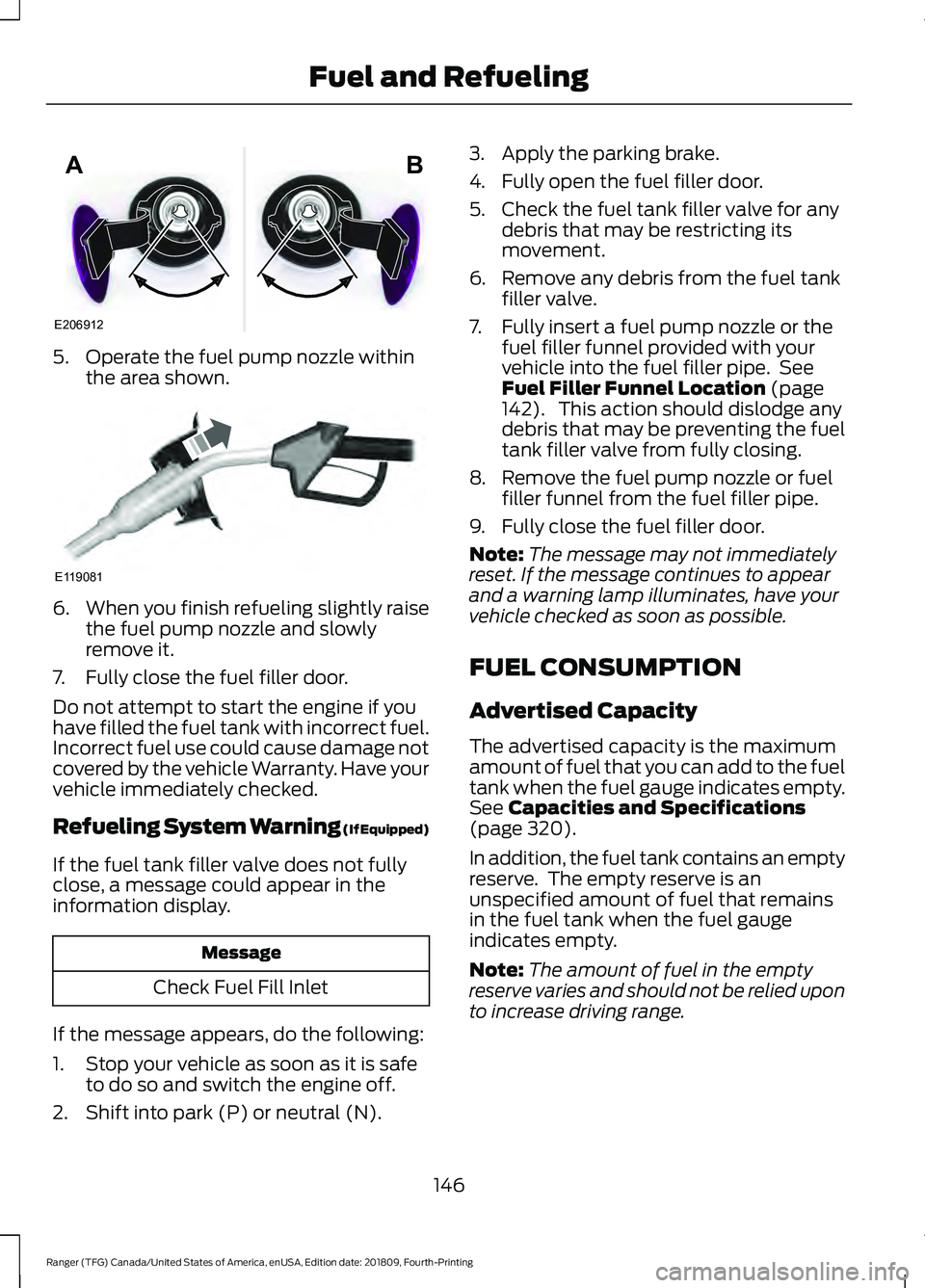
5. Operate the fuel pump nozzle within
the area shown. 6.
When you finish refueling slightly raise
the fuel pump nozzle and slowly
remove it.
7. Fully close the fuel filler door.
Do not attempt to start the engine if you
have filled the fuel tank with incorrect fuel.
Incorrect fuel use could cause damage not
covered by the vehicle Warranty. Have your
vehicle immediately checked.
Refueling System Warning (If Equipped)
If the fuel tank filler valve does not fully
close, a message could appear in the
information display. Message
Check Fuel Fill Inlet
If the message appears, do the following:
1. Stop your vehicle as soon as it is safe to do so and switch the engine off.
2. Shift into park (P) or neutral (N). 3. Apply the parking brake.
4. Fully open the fuel filler door.
5. Check the fuel tank filler valve for any
debris that may be restricting its
movement.
6. Remove any debris from the fuel tank filler valve.
7. Fully insert a fuel pump nozzle or the fuel filler funnel provided with your
vehicle into the fuel filler pipe. See
Fuel Filler Funnel Location (page
142). This action should dislodge any
debris that may be preventing the fuel
tank filler valve from fully closing.
8. Remove the fuel pump nozzle or fuel filler funnel from the fuel filler pipe.
9. Fully close the fuel filler door.
Note: The message may not immediately
reset. If the message continues to appear
and a warning lamp illuminates, have your
vehicle checked as soon as possible.
FUEL CONSUMPTION
Advertised Capacity
The advertised capacity is the maximum
amount of fuel that you can add to the fuel
tank when the fuel gauge indicates empty.
See
Capacities and Specifications
(page 320).
In addition, the fuel tank contains an empty
reserve. The empty reserve is an
unspecified amount of fuel that remains
in the fuel tank when the fuel gauge
indicates empty.
Note: The amount of fuel in the empty
reserve varies and should not be relied upon
to increase driving range.
146
Ranger (TFG) Canada/United States of America, enUSA, Edition date: 201809, Fourth-Printing Fuel and RefuelingE206912
AB E119081
Page 178 of 512
TRAIL CONTROL – TROUBLESHOOTING
Trail Control – Information Messages
Action
Message
Displays when you must reduce your vehicle speed touse trail control.
Reduce Speed To Enter Trail
Control
Displays when you must release the park brake to usetrail control.
Trail Control Not Available with
Park Brake Applied
Displays when you must switch off the trailer backupassist to use trail control.
Trail Control Not Available
While Pro Trailer Backup Assist™ Active
Displays when you successfully enabled trail controland can set a speed with the SET+ or SET- control.
Trail Control Enabled Use SET
Button to Set Speed
Displays when a system fault has occurred when trail
control was active and the driver must resume control.
Trail Control Off Driver Resume
Control
Displays when the system has turned off.
Trail Control Off
Displays when a system fault is present. See the trailcontrol section in your Owner's Manual.
Trail Control Fault See Manual
Displays when you must be in drive (D), neutral (N) orreverse (R) to use trail control.
Trail Control To Activate Select
Gear
Displays when you must switch the cruise control offto use trail control.
Trail Control Not Available with
Cruise Control Active
Displays when you must close the driver door to usetrail control.
Trail Control Not Available with
Driver Door Open
Displays when the system detects you may be stuckin sand and turns trail control on to the lowest set speed.
Set Trail Control to 2 km/h to
Aid in Getting Unstuck in Sand
You switched Descent Control off, causing the systemto turn trail control propulsion off. The vehicle still
brakes if descending a hill. You must press the trail
control switch to reset the system and switch it off.
You can press the switch again to switch this system on.
Descent Control Now Active
Press Trail Control Switch To Exit
175
Ranger (TFG) Canada/United States of America, enUSA, Edition date: 201809, Fourth-Printing Trail Control
Page 188 of 512
When a vehicle ahead of you enters the
same lane or a slower vehicle is ahead in
the same lane, the vehicle speed adjusts
to maintain a preset gap distance. A
vehicle graphic illuminates in the
instrument cluster.
Your vehicle maintains a consistent gap
from the vehicle ahead until:
•
The vehicle in front of you accelerates
to a speed above the set speed.
• The vehicle in front of you moves out
of the lane you are in.
• Your vehicle speed falls below 12 mph
(20 km/h).
• You set a new gap distance.
The system applies the brakes to slow your
vehicle to maintain a safe gap distance
from the vehicle in front. The system only
applies limited braking. You can override
the system by applying the brakes.
If the system determines that its maximum
braking level is not sufficient, an audible
warning sounds, a message appears in the
information display and an indicator
flashes when the system continues to
brake. Take immediate action.
Setting the Gap Distance
You can decrease or increase the distance
between your vehicle and the vehicle in
front by pressing the gap control. Press and release to decrease
the gap distance.
Press and release to increase the
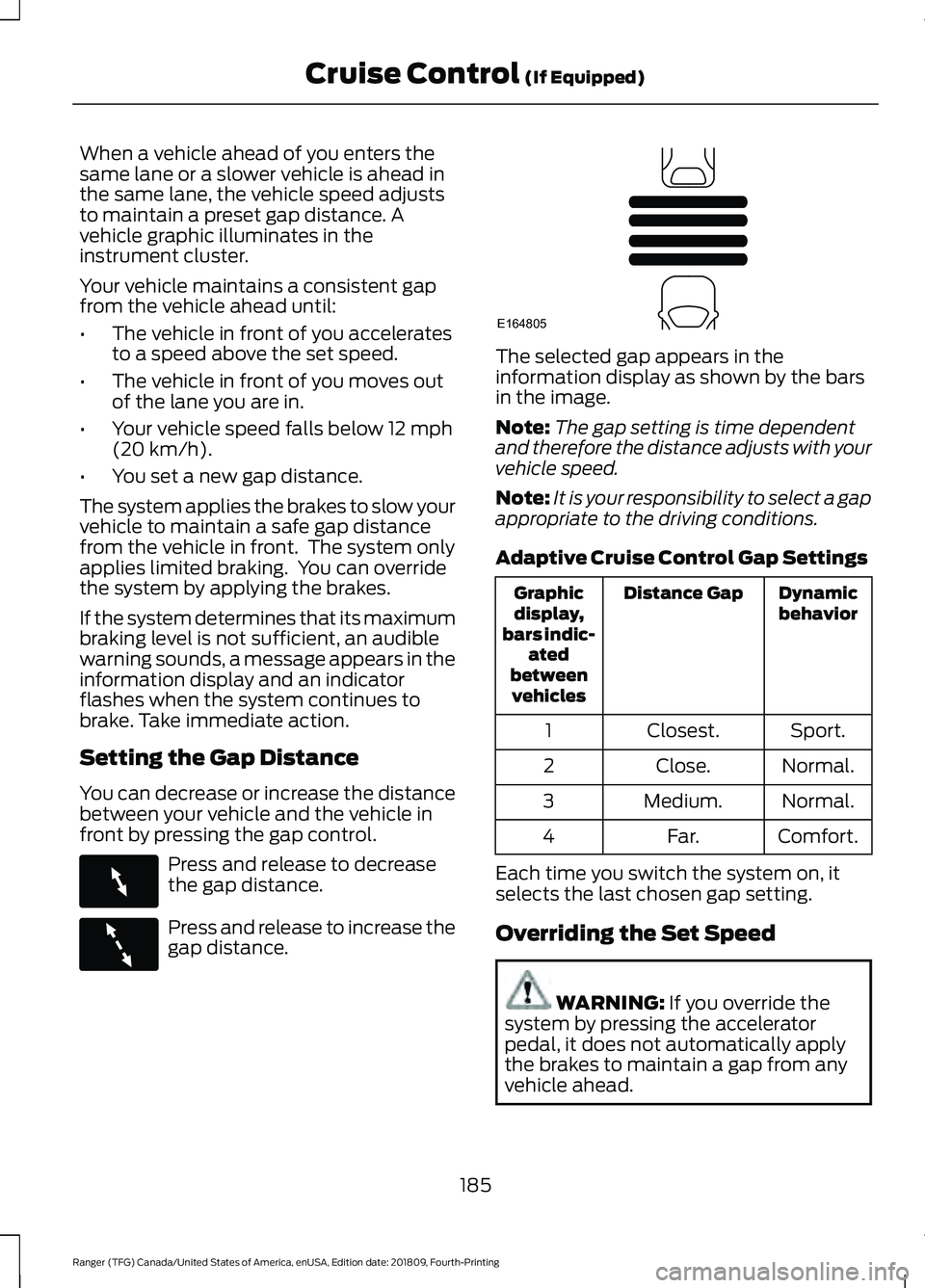
gap distance. The selected gap appears in the
information display as shown by the bars
in the image.
Note:
The gap setting is time dependent
and therefore the distance adjusts with your
vehicle speed.
Note: It is your responsibility to select a gap
appropriate to the driving conditions.
Adaptive Cruise Control Gap Settings Dynamic
behavior
Distance Gap
Graphic
display,
bars indic- ated
between vehicles
Sport.
Closest.
1
Normal.
Close.
2
Normal.
Medium.
3
Comfort.
Far.
4
Each time you switch the system on, it
selects the last chosen gap setting.
Overriding the Set Speed WARNING:
If you override the
system by pressing the accelerator
pedal, it does not automatically apply
the brakes to maintain a gap from any
vehicle ahead.
185
Ranger (TFG) Canada/United States of America, enUSA, Edition date: 201809, Fourth-Printing Cruise Control
(If Equipped)E263697 E263696 E164805
Page 194 of 512
System Warnings
Note:
The system does not issue warnings
below approximately 40 mph (64 km/h).
The warning system has two stages. First,
the system issues a temporary warning
that you need to take a rest. This message
only appears for a short time. If the system
detects further reduction in driving
alertness, it may issue another warning
that remains in the information display for
a longer time. You can press OK on the
steering wheel control to clear the warning.
System Display
When active, the system runs
automatically in the background and only
issues a warning if required. You can view
the status at any time using the
information display.
See General
Information (page 90).
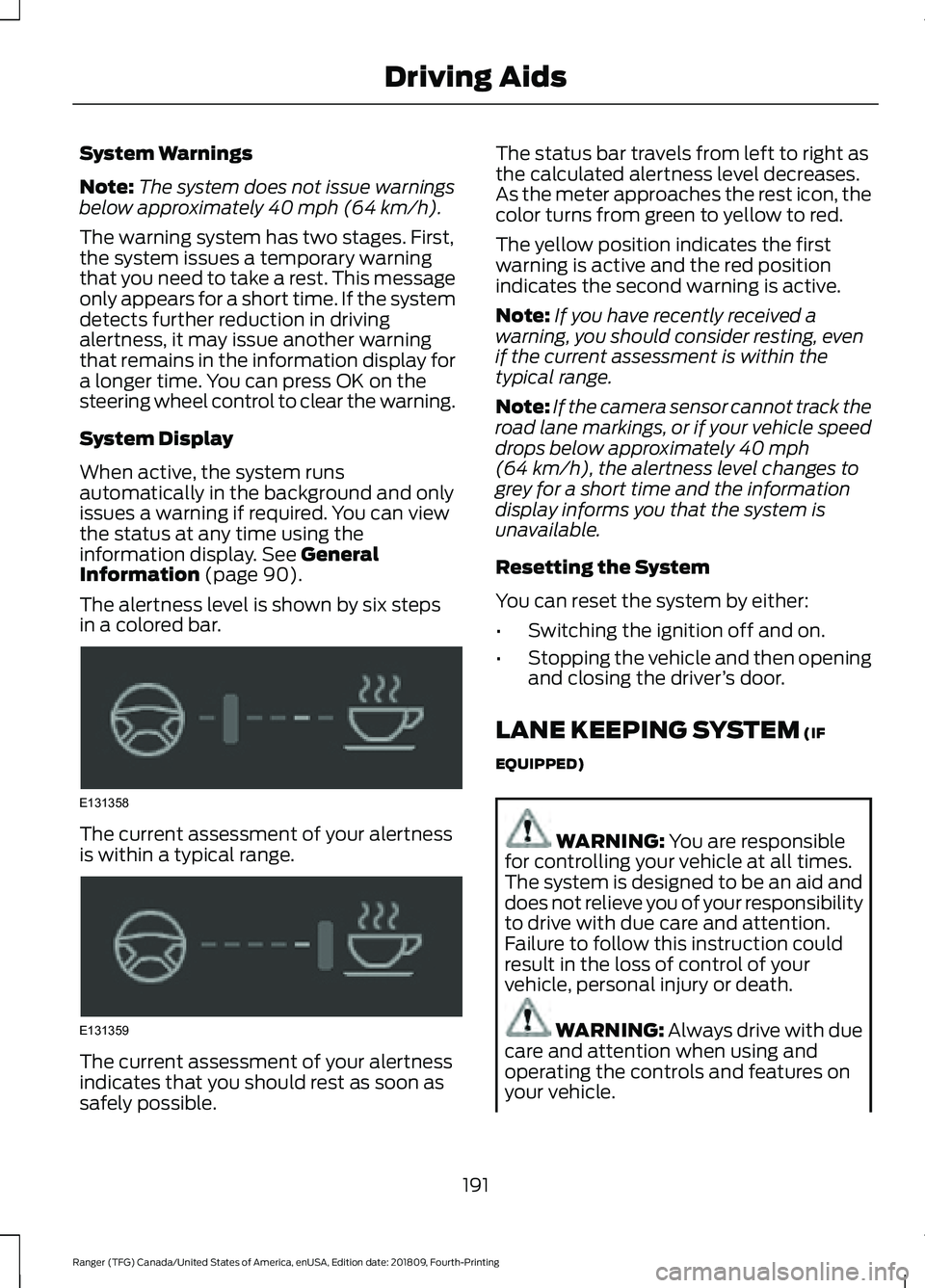
The alertness level is shown by six steps
in a colored bar. The current assessment of your alertness
is within a typical range.
The current assessment of your alertness
indicates that you should rest as soon as
safely possible. The status bar travels from left to right as
the calculated alertness level decreases.
As the meter approaches the rest icon, the
color turns from green to yellow to red.
The yellow position indicates the first
warning is active and the red position
indicates the second warning is active.
Note:
If you have recently received a
warning, you should consider resting, even
if the current assessment is within the
typical range.
Note: If the camera sensor cannot track the
road lane markings, or if your vehicle speed
drops below approximately
40 mph
(64 km/h), the alertness level changes to
grey for a short time and the information
display informs you that the system is
unavailable.
Resetting the System
You can reset the system by either:
• Switching the ignition off and on.
• Stopping the vehicle and then opening
and closing the driver ’s door.
LANE KEEPING SYSTEM
(IF
EQUIPPED) WARNING:
You are responsible
for controlling your vehicle at all times.
The system is designed to be an aid and
does not relieve you of your responsibility
to drive with due care and attention.
Failure to follow this instruction could
result in the loss of control of your
vehicle, personal injury or death. WARNING:
Always drive with due
care and attention when using and
operating the controls and features on
your vehicle.
191
Ranger (TFG) Canada/United States of America, enUSA, Edition date: 201809, Fourth-Printing Driving AidsE131358 E131359