message FORD RANGER 2019 Repair Manual
[x] Cancel search | Manufacturer: FORD, Model Year: 2019, Model line: RANGER, Model: FORD RANGER 2019Pages: 512, PDF Size: 7.63 MB
Page 358 of 512
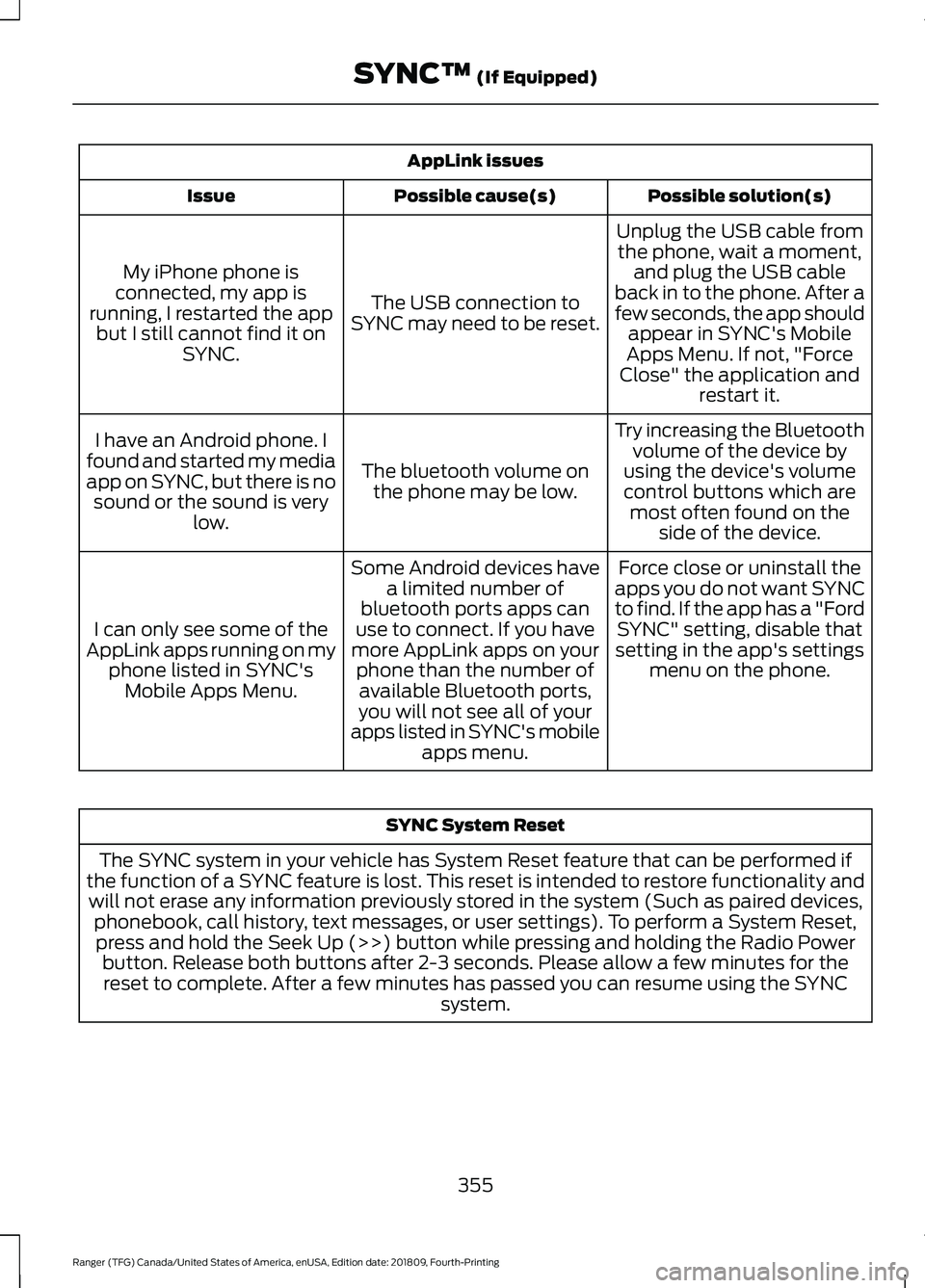
AppLink issues
Possible solution(s)
Possible cause(s)
Issue
Unplug the USB cable fromthe phone, wait a moment, and plug the USB cable
back in to the phone. After a
few seconds, the app should appear in SYNC's Mobile
Apps Menu. If not, "Force
Close" the application and restart it.
The USB connection to
SYNC may need to be reset.
My iPhone phone is
connected, my app is
running, I restarted the app but I still cannot find it on SYNC.
Try increasing the Bluetoothvolume of the device by
using the device's volume control buttons which are most often found on the side of the device.
The bluetooth volume on
the phone may be low.
I have an Android phone. I
found and started my media
app on SYNC, but there is no sound or the sound is very low.
Force close or uninstall the
apps you do not want SYNC
to find. If the app has a "Ford SYNC" setting, disable that
setting in the app's settings menu on the phone.
Some Android devices have
a limited number of
bluetooth ports apps can
use to connect. If you have
more AppLink apps on your phone than the number ofavailable Bluetooth ports,
you will not see all of your
apps listed in SYNC's mobile apps menu.
I can only see some of the
AppLink apps running on my phone listed in SYNC'sMobile Apps Menu. SYNC System Reset
The SYNC system in your vehicle has System Reset feature that can be performed if
the function of a SYNC feature is lost. This reset is intended to restore functionality and will not erase any information previously stored in the system (Such as paired devices, phonebook, call history, text messages, or user settings). To perform a System Reset,press and hold the Seek Up (>>) button while pressing and holding the Radio Power button. Release both buttons after 2-3 seconds. Please allow a few minutes for thereset to complete. After a few minutes has passed you can resume using the SYNC system.
355
Ranger (TFG) Canada/United States of America, enUSA, Edition date: 201809, Fourth-Printing SYNC™ (If Equipped)
Page 360 of 512
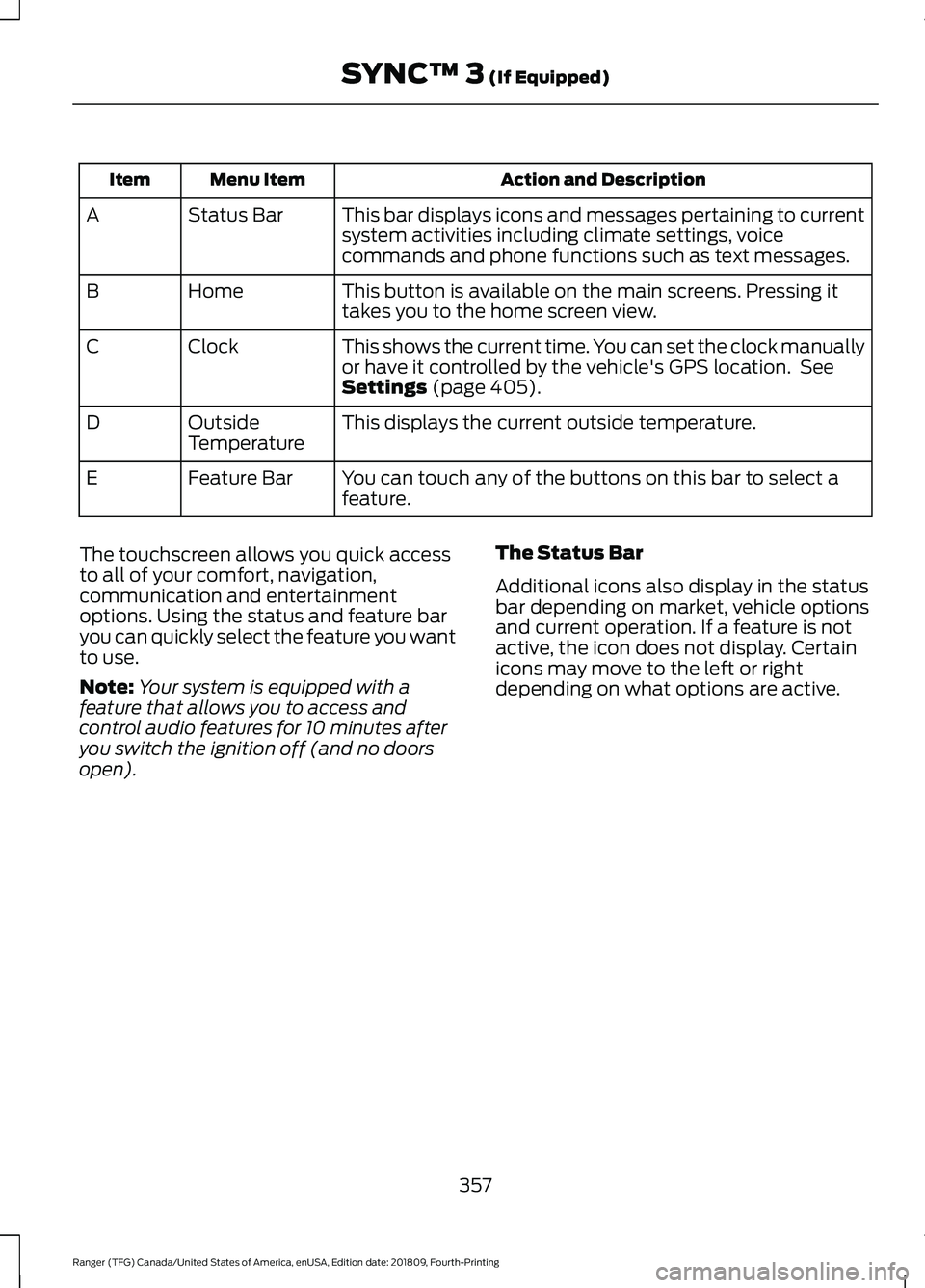
Action and Description
Menu Item
Item
This bar displays icons and messages pertaining to current
system activities including climate settings, voice
commands and phone functions such as text messages.
Status Bar
A
This button is available on the main screens. Pressing it
takes you to the home screen view.
Home
B
This shows the current time. You can set the clock manually
or have it controlled by the vehicle's GPS location. See
Settings (page 405).
Clock
C
This displays the current outside temperature.
Outside
Temperature
D
You can touch any of the buttons on this bar to select a
feature.
Feature Bar
E
The touchscreen allows you quick access
to all of your comfort, navigation,
communication and entertainment
options. Using the status and feature bar
you can quickly select the feature you want
to use.
Note: Your system is equipped with a
feature that allows you to access and
control audio features for 10 minutes after
you switch the ignition off (and no doors
open). The Status Bar
Additional icons also display in the status
bar depending on market, vehicle options
and current operation. If a feature is not
active, the icon does not display. Certain
icons may move to the left or right
depending on what options are active.
357
Ranger (TFG) Canada/United States of America, enUSA, Edition date: 201809, Fourth-Printing SYNC™ 3
(If Equipped)
Page 362 of 512
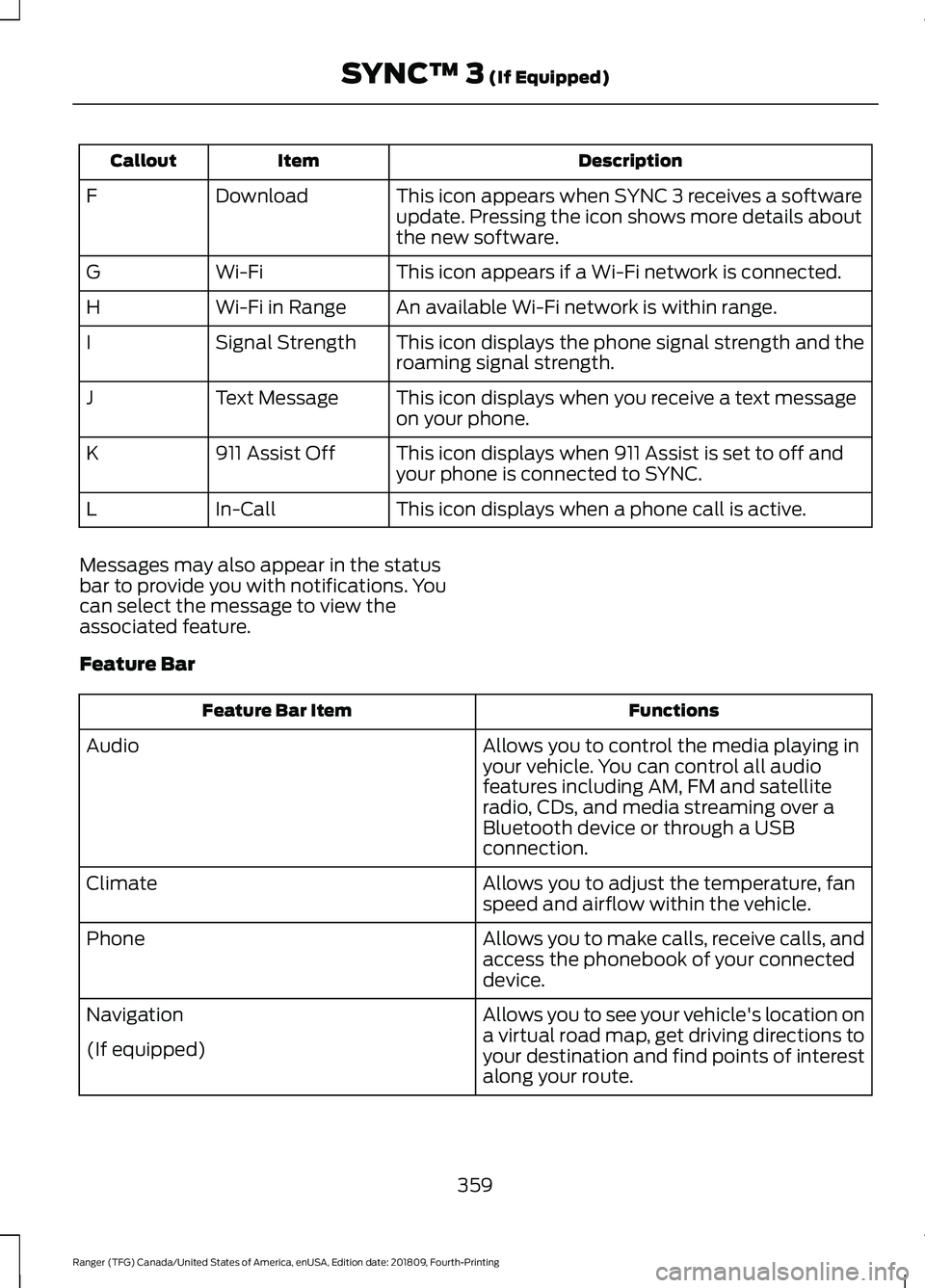
Description
Item
Callout
This icon appears when SYNC 3 receives a software
update. Pressing the icon shows more details about
the new software.
Download
F
This icon appears if a Wi-Fi network is connected.
Wi-Fi
G
An available Wi-Fi network is within range.
Wi-Fi in Range
H
This icon displays the phone signal strength and the
roaming signal strength.
Signal Strength
I
This icon displays when you receive a text message
on your phone.
Text Message
J
This icon displays when 911 Assist is set to off and
your phone is connected to SYNC.
911 Assist Off
K
This icon displays when a phone call is active.
In-Call
L
Messages may also appear in the status
bar to provide you with notifications. You
can select the message to view the
associated feature.
Feature Bar Functions
Feature Bar Item
Allows you to control the media playing in
your vehicle. You can control all audio
features including AM, FM and satellite
radio, CDs, and media streaming over a
Bluetooth device or through a USB
connection.
Audio
Allows you to adjust the temperature, fan
speed and airflow within the vehicle.
Climate
Allows you to make calls, receive calls, and
access the phonebook of your connected
device.
Phone
Allows you to see your vehicle's location on
a virtual road map, get driving directions to
your destination and find points of interest
along your route.
Navigation
(If equipped)
359
Ranger (TFG) Canada/United States of America, enUSA, Edition date: 201809, Fourth-Printing SYNC™ 3 (If Equipped)
Page 366 of 512
Note:
Every phone operates differently.
While SYNC 911 Assist works with most
cellular phones, some may have trouble
using this feature.
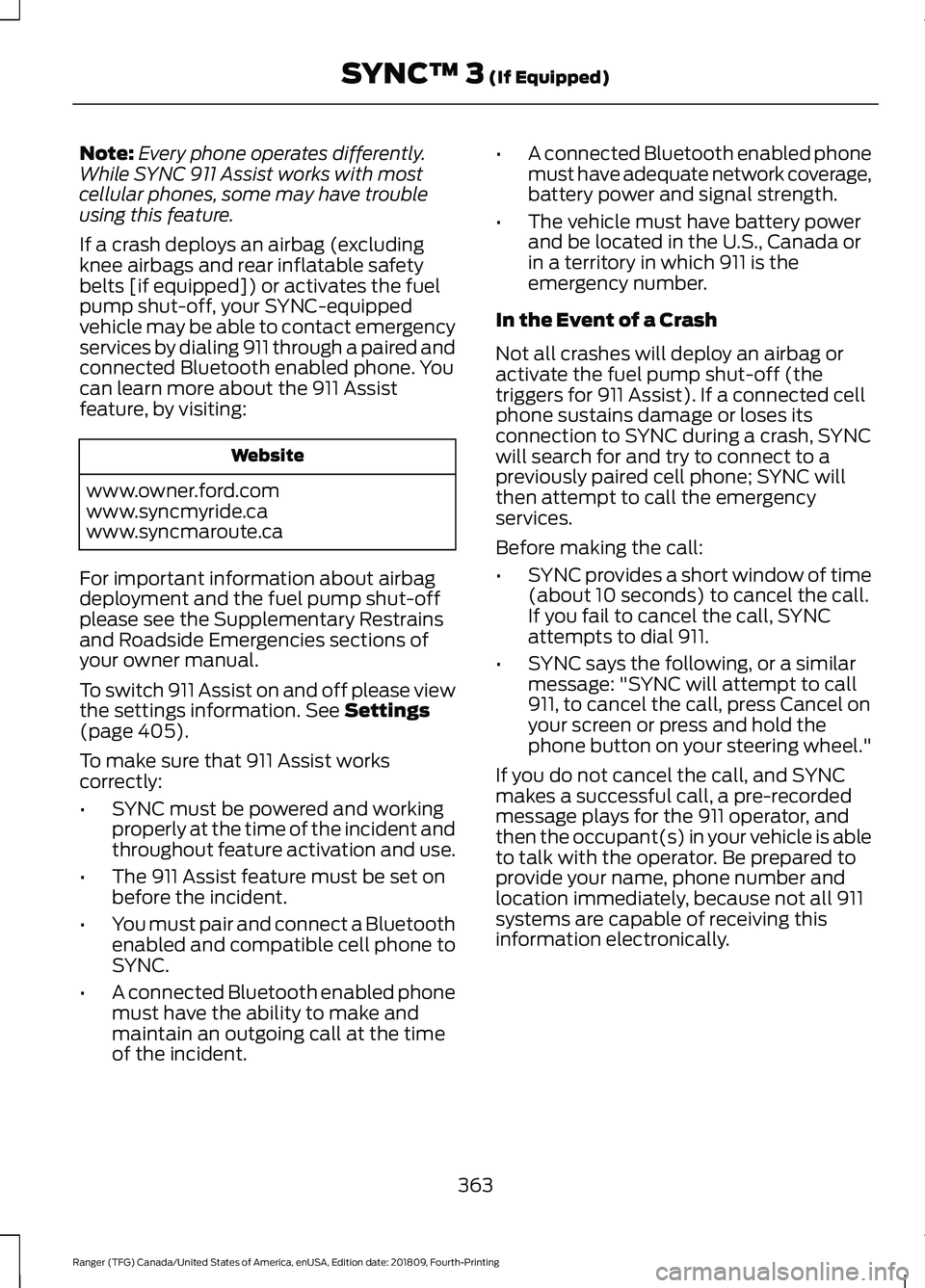
If a crash deploys an airbag (excluding
knee airbags and rear inflatable safety
belts [if equipped]) or activates the fuel
pump shut-off, your SYNC-equipped
vehicle may be able to contact emergency
services by dialing 911 through a paired and
connected Bluetooth enabled phone. You
can learn more about the 911 Assist
feature, by visiting: Website
www.owner.ford.com
www.syncmyride.ca
www.syncmaroute.ca
For important information about airbag
deployment and the fuel pump shut-off
please see the Supplementary Restrains
and Roadside Emergencies sections of
your owner manual.
To switch 911 Assist on and off please view
the settings information. See Settings
(page 405).
To make sure that 911 Assist works
correctly:
• SYNC must be powered and working
properly at the time of the incident and
throughout feature activation and use.
• The 911 Assist feature must be set on
before the incident.
• You must pair and connect a Bluetooth
enabled and compatible cell phone to
SYNC.
• A connected Bluetooth enabled phone
must have the ability to make and
maintain an outgoing call at the time
of the incident. •
A connected Bluetooth enabled phone
must have adequate network coverage,
battery power and signal strength.
• The vehicle must have battery power
and be located in the U.S., Canada or
in a territory in which 911 is the
emergency number.
In the Event of a Crash
Not all crashes will deploy an airbag or
activate the fuel pump shut-off (the
triggers for 911 Assist). If a connected cell
phone sustains damage or loses its
connection to SYNC during a crash, SYNC
will search for and try to connect to a
previously paired cell phone; SYNC will
then attempt to call the emergency
services.
Before making the call:
• SYNC provides a short window of time
(about 10 seconds) to cancel the call.
If you fail to cancel the call, SYNC
attempts to dial 911.
• SYNC says the following, or a similar
message: "SYNC will attempt to call
911, to cancel the call, press Cancel on
your screen or press and hold the
phone button on your steering wheel."
If you do not cancel the call, and SYNC
makes a successful call, a pre-recorded
message plays for the 911 operator, and
then the occupant(s) in your vehicle is able
to talk with the operator. Be prepared to
provide your name, phone number and
location immediately, because not all 911
systems are capable of receiving this
information electronically.
363
Ranger (TFG) Canada/United States of America, enUSA, Edition date: 201809, Fourth-Printing SYNC™ 3
(If Equipped)
Page 368 of 512
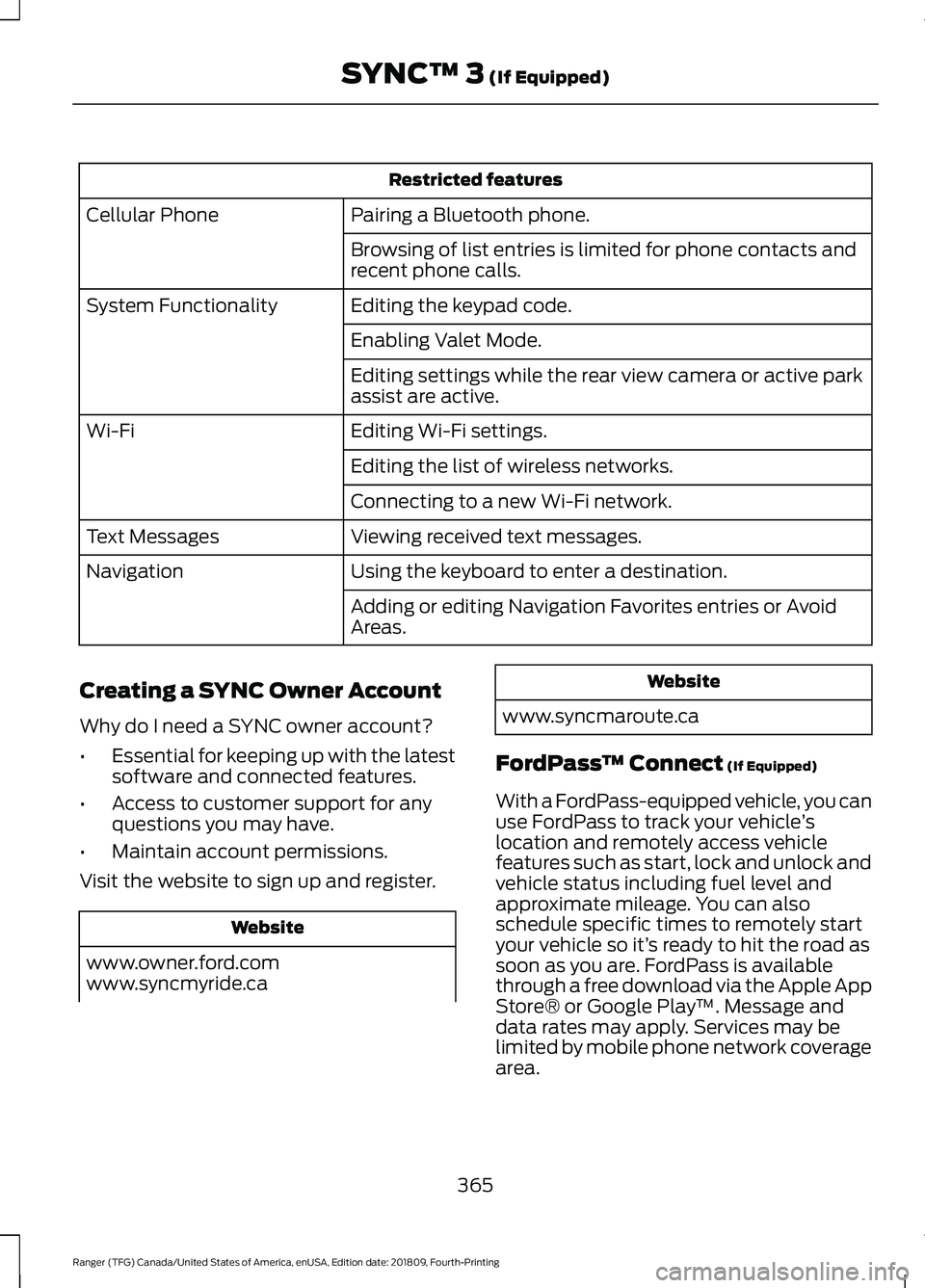
Restricted features
Pairing a Bluetooth phone.
Cellular Phone
Browsing of list entries is limited for phone contacts and
recent phone calls.
Editing the keypad code.
System Functionality
Enabling Valet Mode.
Editing settings while the rear view camera or active park
assist are active.
Editing Wi-Fi settings.
Wi-Fi
Editing the list of wireless networks.
Connecting to a new Wi-Fi network.
Viewing received text messages.
Text Messages
Using the keyboard to enter a destination.
Navigation
Adding or editing Navigation Favorites entries or Avoid
Areas.
Creating a SYNC Owner Account
Why do I need a SYNC owner account?
• Essential for keeping up with the latest
software and connected features.
• Access to customer support for any
questions you may have.
• Maintain account permissions.
Visit the website to sign up and register. Website
www.owner.ford.com
www.syncmyride.ca Website
www.syncmaroute.ca
FordPass ™ Connect (If Equipped)
With a FordPass-equipped vehicle, you can
use FordPass to track your vehicle ’s
location and remotely access vehicle
features such as start, lock and unlock and
vehicle status including fuel level and
approximate mileage. You can also
schedule specific times to remotely start
your vehicle so it’ s ready to hit the road as
soon as you are. FordPass is available
through a free download via the Apple App
Store® or Google Play ™. Message and
data rates may apply. Services may be
limited by mobile phone network coverage
area.
365
Ranger (TFG) Canada/United States of America, enUSA, Edition date: 201809, Fourth-Printing SYNC™ 3
(If Equipped)
Page 370 of 512
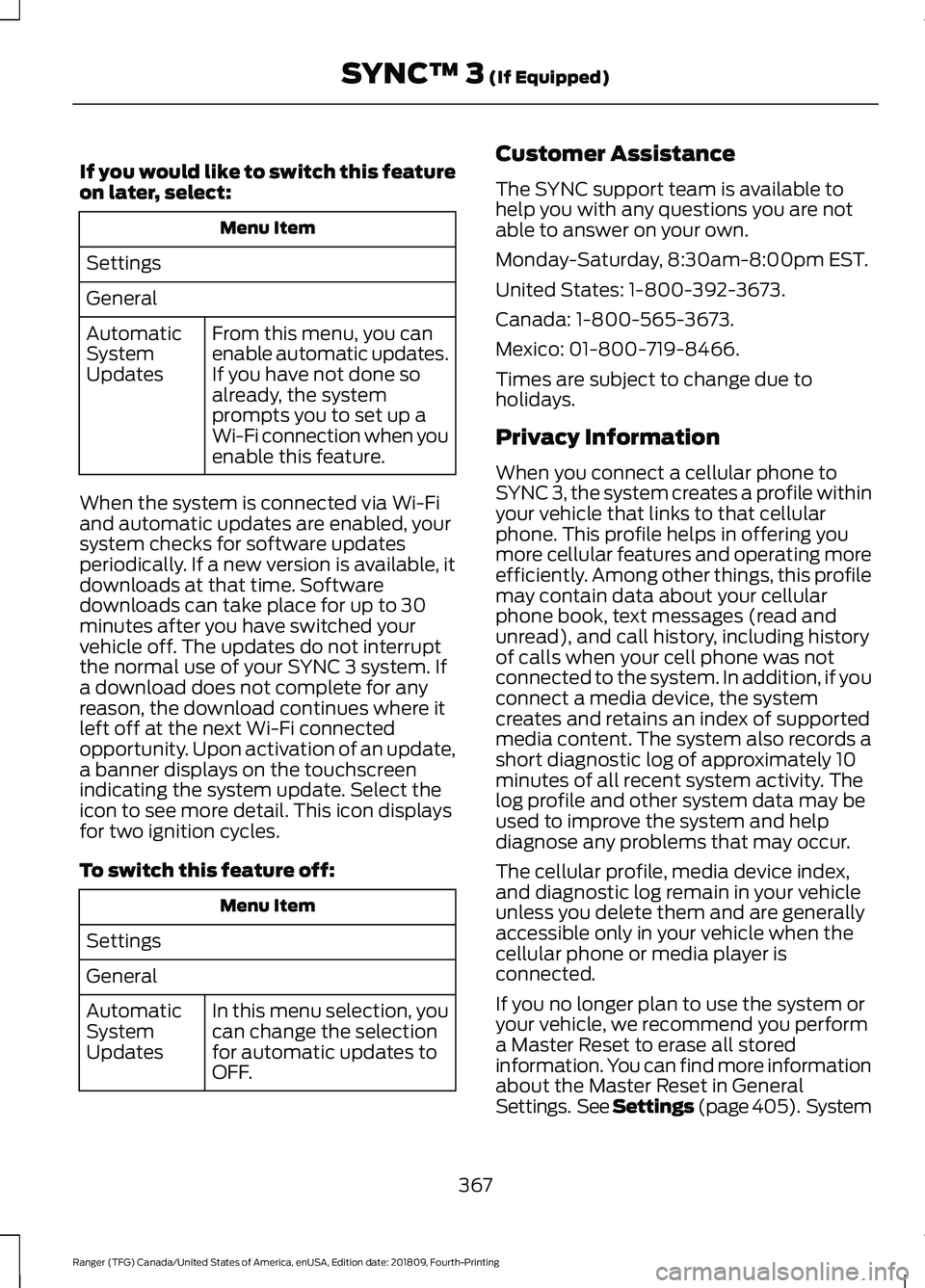
If you would like to switch this feature
on later, select:
Menu Item
Settings
General From this menu, you can
enable automatic updates.
If you have not done so
already, the system
prompts you to set up a
Wi-Fi connection when you
enable this feature.
Automatic
System
Updates
When the system is connected via Wi-Fi
and automatic updates are enabled, your
system checks for software updates
periodically. If a new version is available, it
downloads at that time. Software
downloads can take place for up to 30
minutes after you have switched your
vehicle off. The updates do not interrupt
the normal use of your SYNC 3 system. If
a download does not complete for any
reason, the download continues where it
left off at the next Wi-Fi connected
opportunity. Upon activation of an update,
a banner displays on the touchscreen
indicating the system update. Select the
icon to see more detail. This icon displays
for two ignition cycles.
To switch this feature off: Menu Item
Settings
General In this menu selection, you
can change the selection
for automatic updates to
OFF.
Automatic
System
Updates Customer Assistance
The SYNC support team is available to
help you with any questions you are not
able to answer on your own.
Monday-Saturday, 8:30am-8:00pm EST.
United States: 1-800-392-3673.
Canada: 1-800-565-3673.
Mexico: 01-800-719-8466.
Times are subject to change due to
holidays.
Privacy Information
When you connect a cellular phone to
SYNC 3, the system creates a profile within
your vehicle that links to that cellular
phone. This profile helps in offering you
more cellular features and operating more
efficiently. Among other things, this profile
may contain data about your cellular
phone book, text messages (read and
unread), and call history, including history
of calls when your cell phone was not
connected to the system. In addition, if you
connect a media device, the system
creates and retains an index of supported
media content. The system also records a
short diagnostic log of approximately 10
minutes of all recent system activity. The
log profile and other system data may be
used to improve the system and help
diagnose any problems that may occur.
The cellular profile, media device index,
and diagnostic log remain in your vehicle
unless you delete them and are generally
accessible only in your vehicle when the
cellular phone or media player is
connected.
If you no longer plan to use the system or
your vehicle, we recommend you perform
a Master Reset to erase all stored
information. You can find more information
about the Master Reset in General
Settings. See Settings (page 405). System
367
Ranger (TFG) Canada/United States of America, enUSA, Edition date: 201809, Fourth-Printing SYNC™ 3
(If Equipped)
Page 375 of 512
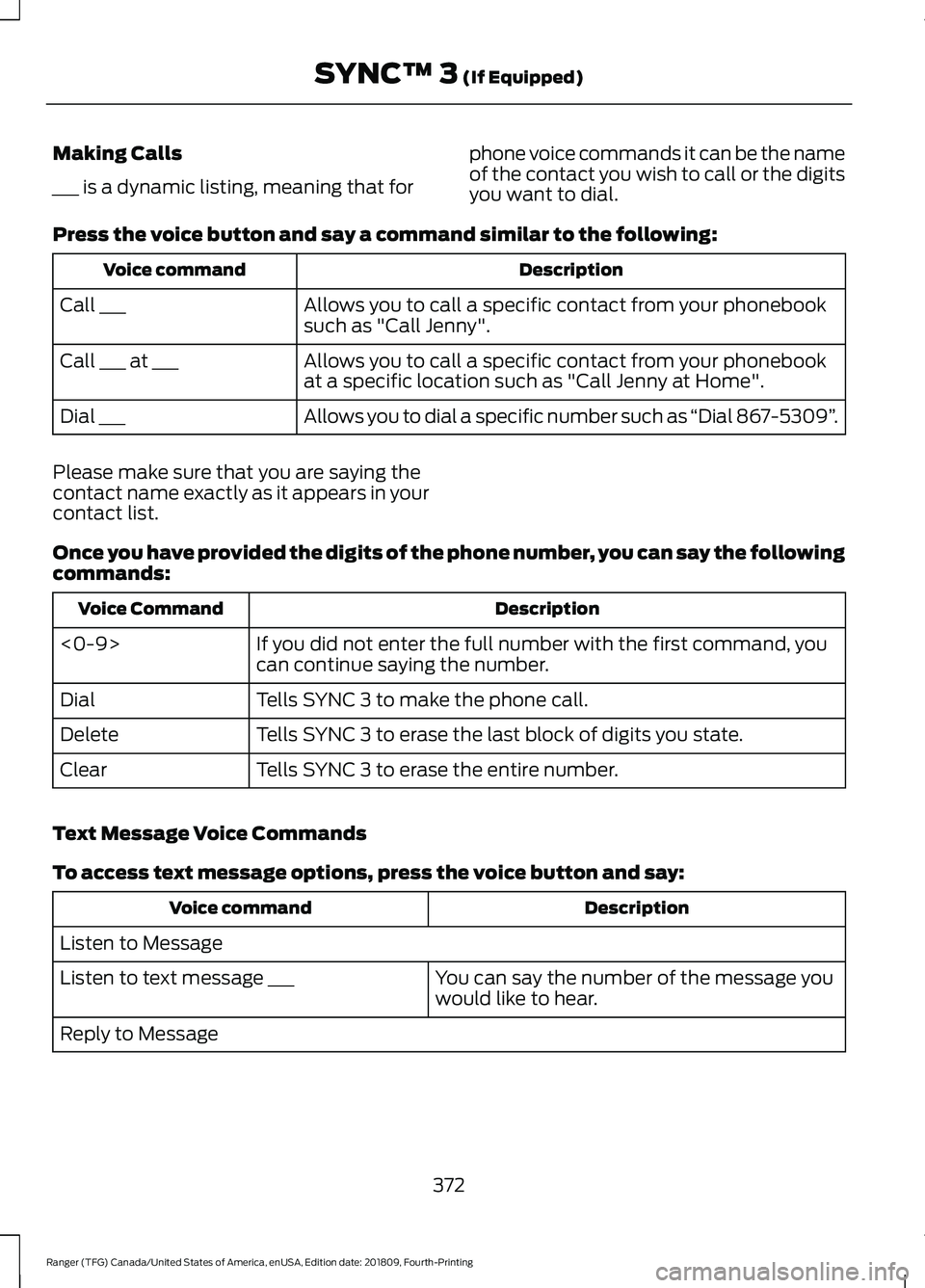
Making Calls
___ is a dynamic listing, meaning that for
phone voice commands it can be the name
of the contact you wish to call or the digits
you want to dial.
Press the voice button and say a command similar to the following: Description
Voice command
Allows you to call a specific contact from your phonebook
such as "Call Jenny".
Call ___
Allows you to call a specific contact from your phonebook
at a specific location such as "Call Jenny at Home".
Call ___ at ___
Allows you to dial a specific number such as “Dial 867-5309”.
Dial ___
Please make sure that you are saying the
contact name exactly as it appears in your
contact list.
Once you have provided the digits of the phone number, you can say the following
commands: Description
Voice Command
If you did not enter the full number with the first command, you
can continue saying the number.
<0-9>
Tells SYNC 3 to make the phone call.
Dial
Tells SYNC 3 to erase the last block of digits you state.
Delete
Tells SYNC 3 to erase the entire number.
Clear
Text Message Voice Commands
To access text message options, press the voice button and say: Description
Voice command
Listen to Message You can say the number of the message you
would like to hear.
Listen to text message ___
Reply to Message
372
Ranger (TFG) Canada/United States of America, enUSA, Edition date: 201809, Fourth-Printing SYNC™ 3 (If Equipped)
Page 379 of 512
To disable this automatic fan speed
reduction feature during voice sessions,
press and hold the climate control AC and
Recirculated air buttons simultaneously,
release and then increase fan speed within
2 seconds. To re-enable this feature, repeat
the above sequence.
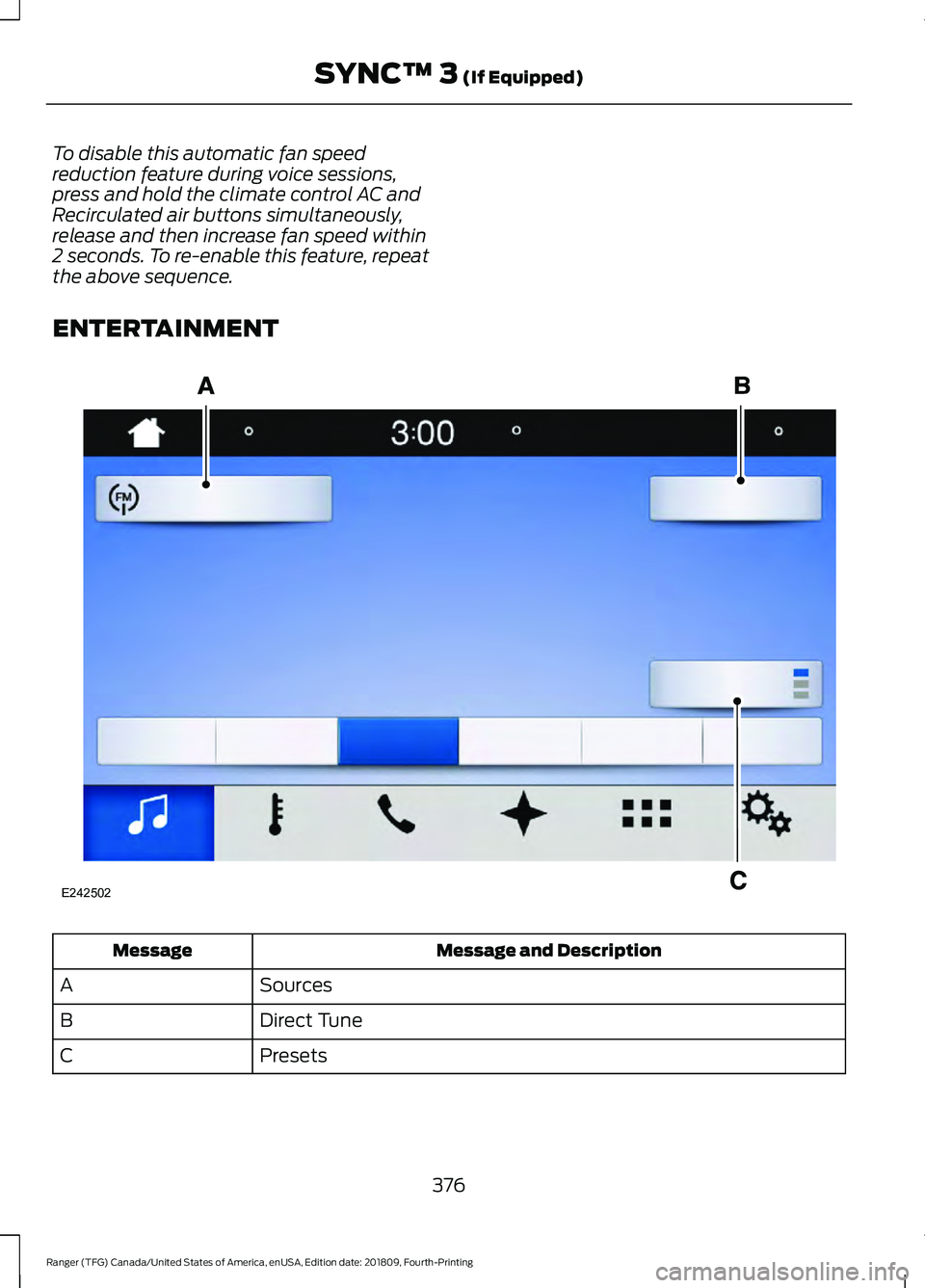
ENTERTAINMENT
Message and Description
Message
Sources
A
Direct Tune
B
Presets
C
376
Ranger (TFG) Canada/United States of America, enUSA, Edition date: 201809, Fourth-Printing SYNC™ 3 (If Equipped)E242502
Page 383 of 512
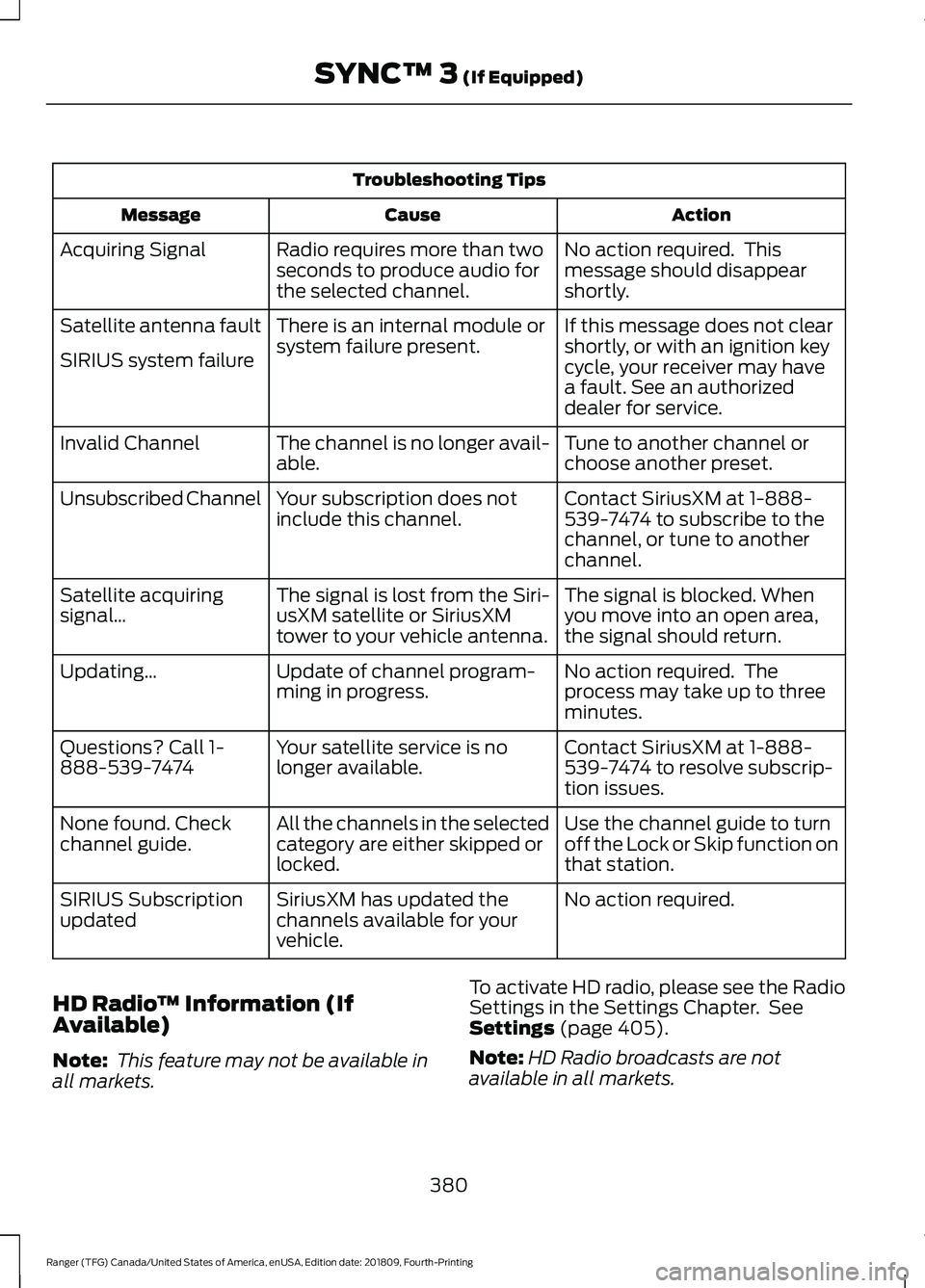
Troubleshooting Tips
Action
Cause
Message
No action required. This
message should disappear
shortly.
Radio requires more than two
seconds to produce audio for
the selected channel.
Acquiring Signal
If this message does not clear
shortly, or with an ignition key
cycle, your receiver may have
a fault. See an authorized
dealer for service.
There is an internal module or
system failure present.
Satellite antenna fault
SIRIUS system failure
Tune to another channel or
choose another preset.
The channel is no longer avail-
able.
Invalid Channel
Contact SiriusXM at 1-888-
539-7474 to subscribe to the
channel, or tune to another
channel.
Your subscription does not
include this channel.
Unsubscribed Channel
The signal is blocked. When
you move into an open area,
the signal should return.
The signal is lost from the Siri-
usXM satellite or SiriusXM
tower to your vehicle antenna.
Satellite acquiring
signal…
No action required. The
process may take up to three
minutes.
Update of channel program-
ming in progress.
Updating…
Contact SiriusXM at 1-888-
539-7474 to resolve subscrip-
tion issues.
Your satellite service is no
longer available.
Questions? Call 1-
888-539-7474
Use the channel guide to turn
off the Lock or Skip function on
that station.
All the channels in the selected
category are either skipped or
locked.
None found. Check
channel guide.
No action required.
SiriusXM has updated the
channels available for your
vehicle.
SIRIUS Subscription
updated
HD Radio ™ Information (If
Available)
Note: This feature may not be available in
all markets. To activate HD radio, please see the Radio
Settings in the Settings Chapter. See
Settings (page 405).
Note: HD Radio broadcasts are not
available in all markets.
380
Ranger (TFG) Canada/United States of America, enUSA, Edition date: 201809, Fourth-Printing SYNC™ 3
(If Equipped)
Page 384 of 512
HD Radio technology is the digital
evolution of analog AM/FM radio. Your
system has a special receiver that allows
it to receive digital broadcasts (where
available) in addition to the analog
broadcasts, it already receives. Digital
broadcasts provide a better sound quality
than analog broadcasts with free,
crystal-clear audio and no static or
distortion. For more information, and a
guide to available stations and
programming, please visit:
Website
www.hdradio.com
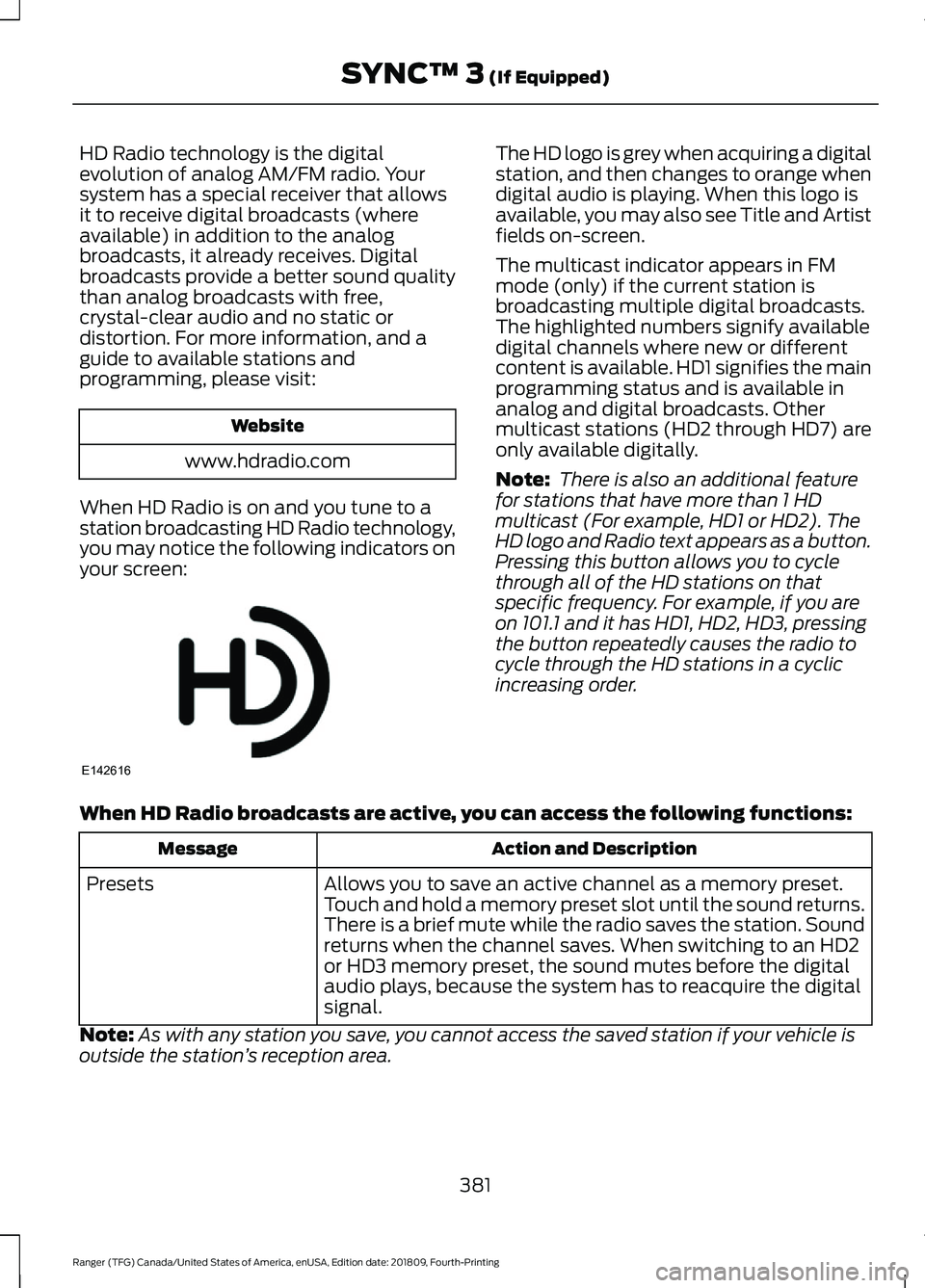
When HD Radio is on and you tune to a
station broadcasting HD Radio technology,
you may notice the following indicators on
your screen: The HD logo is grey when acquiring a digital
station, and then changes to orange when
digital audio is playing. When this logo is
available, you may also see Title and Artist
fields on-screen.
The multicast indicator appears in FM
mode (only) if the current station is
broadcasting multiple digital broadcasts.
The highlighted numbers signify available
digital channels where new or different
content is available. HD1 signifies the main
programming status and is available in
analog and digital broadcasts. Other
multicast stations (HD2 through HD7) are
only available digitally.
Note:
There is also an additional feature
for stations that have more than 1 HD
multicast (For example, HD1 or HD2). The
HD logo and Radio text appears as a button.
Pressing this button allows you to cycle
through all of the HD stations on that
specific frequency. For example, if you are
on 101.1 and it has HD1, HD2, HD3, pressing
the button repeatedly causes the radio to
cycle through the HD stations in a cyclic
increasing order.
When HD Radio broadcasts are active, you can access the following functions: Action and Description
Message
Allows you to save an active channel as a memory preset.
Touch and hold a memory preset slot until the sound returns.
There is a brief mute while the radio saves the station. Sound
returns when the channel saves. When switching to an HD2
or HD3 memory preset, the sound mutes before the digital
audio plays, because the system has to reacquire the digital
signal.
Presets
Note: As with any station you save, you cannot access the saved station if your vehicle is
outside the station ’s reception area.
381
Ranger (TFG) Canada/United States of America, enUSA, Edition date: 201809, Fourth-Printing SYNC™ 3 (If Equipped)E142616