turn off FORD RANGER 2019 Manual Online
[x] Cancel search | Manufacturer: FORD, Model Year: 2019, Model line: RANGER, Model: FORD RANGER 2019Pages: 512, PDF Size: 7.63 MB
Page 309 of 512
WARNING: The jack should be
used on level firm ground wherever
possible. WARNING:
Check that the vehicle
jack is not damaged or deformed and
the thread is lubricated and clean. WARNING:
Never place anything
between the vehicle jack and the ground. WARNING:
Never place anything
between the vehicle jack and your
vehicle. WARNING:
It is recommended
that the wheels of the vehicle be
chocked, and that no person should
remain in a vehicle that is being jacked.
Note: Only use the spare tire carrier to stow
the tire and wheel combination provided
with your vehicle. Other tire and wheel
combinations will cause the tire carrier to
fail.
Note: Do not use impact tools or power
tools on the spare tire carrier, as this could
cause a winch malfunction and prevent a
secure fit. The spare tire carrier tightening
torque should be
29.50 lb.ft (40 Nm) +/-
4.43 lb.ft (6 Nm).
Note: When jacking the vehicle passengers
should not be in the vehicle.
Park on a level surface, activate the hazard
flashers and set the parking brake. Then,
place the transmission in park (P) and turn
the engine off. Vehicle Jack WARNING:
Ensure screwthread is
adequately lubricated before use. WARNING:
The jack should be
used on level firm ground wherever
possible. WARNING:
Switch the ignition off
and apply the park brake fully before
lifting vehicle. WARNING:
It is recommended
that the wheels of the vehicle be
chocked, and that no person should
remain in a vehicle that is being jacked. WARNING:
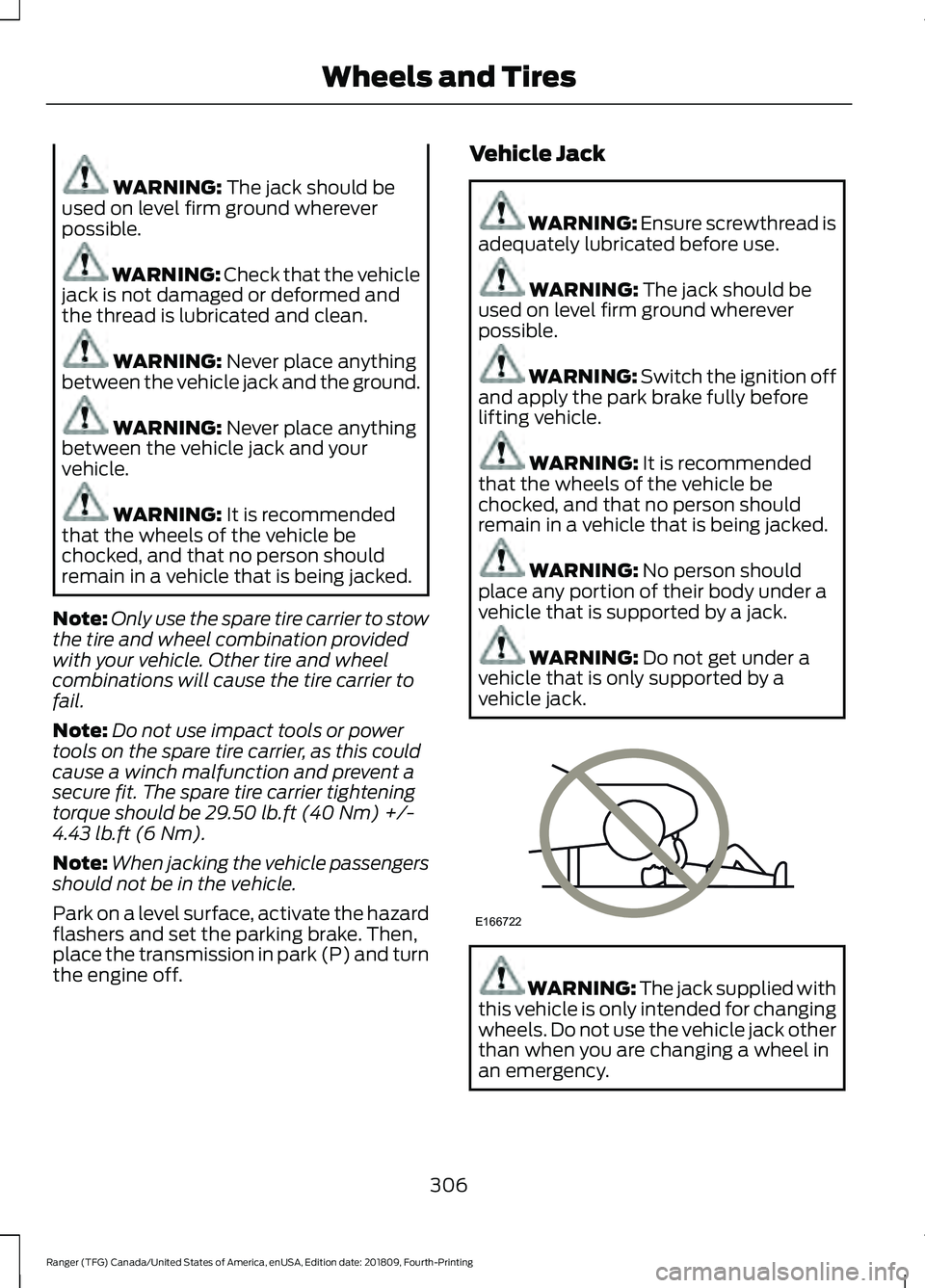
No person should
place any portion of their body under a
vehicle that is supported by a jack. WARNING:
Do not get under a
vehicle that is only supported by a
vehicle jack. WARNING: The jack supplied with
this vehicle is only intended for changing
wheels. Do not use the vehicle jack other
than when you are changing a wheel in
an emergency.
306
Ranger (TFG) Canada/United States of America, enUSA, Edition date: 201809, Fourth-Printing Wheels and TiresE166722
Page 330 of 512
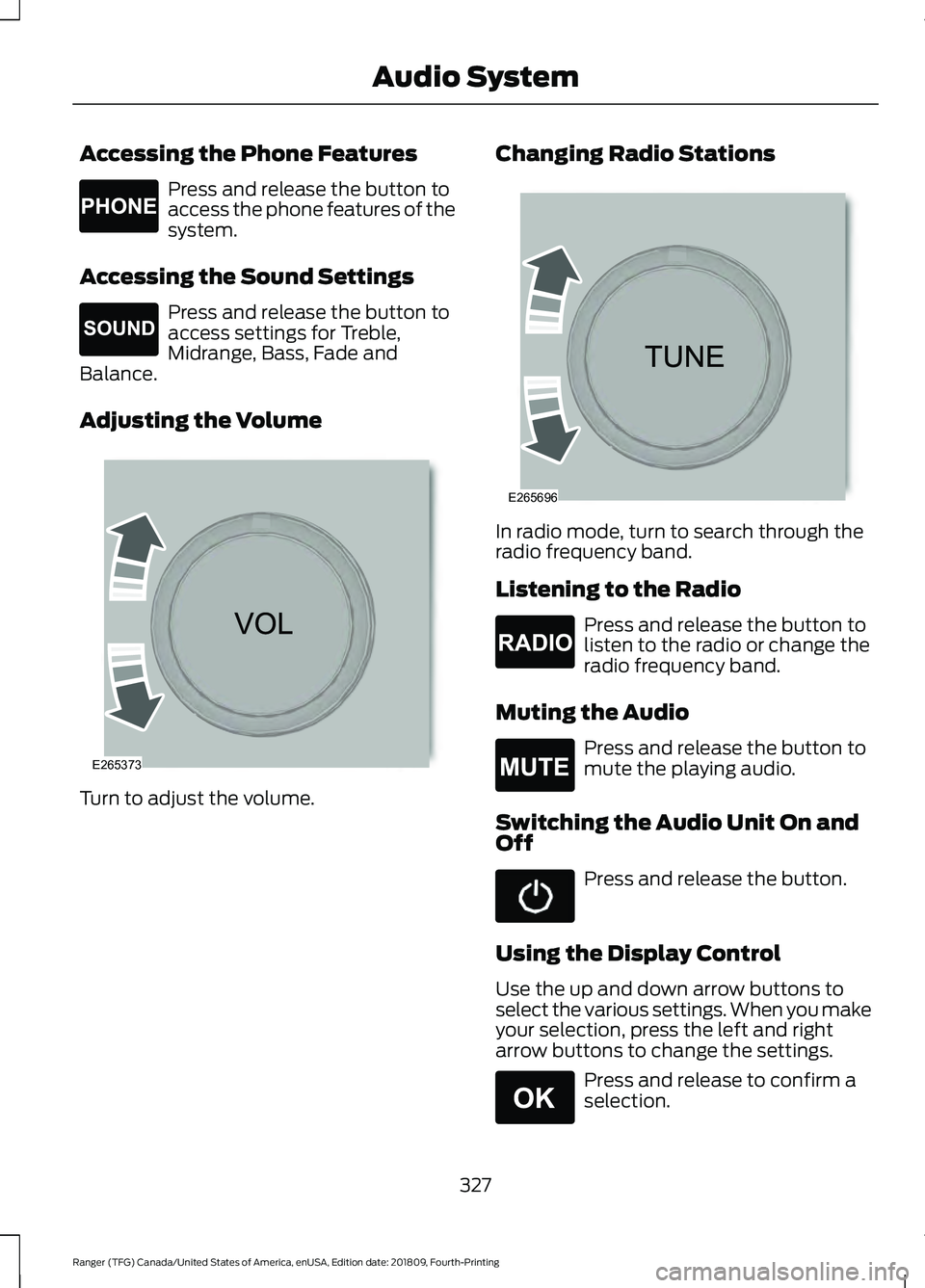
Accessing the Phone Features
Press and release the button to
access the phone features of the
system.
Accessing the Sound Settings Press and release the button to
access settings for Treble,
Midrange, Bass, Fade and
Balance.
Adjusting the Volume Turn to adjust the volume. Changing Radio Stations In radio mode, turn to search through the
radio frequency band.
Listening to the Radio
Press and release the button to
listen to the radio or change the
radio frequency band.
Muting the Audio Press and release the button to
mute the playing audio.
Switching the Audio Unit On and
Off Press and release the button.
Using the Display Control
Use the up and down arrow buttons to
select the various settings. When you make
your selection, press the left and right
arrow buttons to change the settings. Press and release to confirm a
selection.
327
Ranger (TFG) Canada/United States of America, enUSA, Edition date: 201809, Fourth-Printing Audio SystemE265037 E265271 E265373 E265696 E265033 E265043 E265041
Page 331 of 512
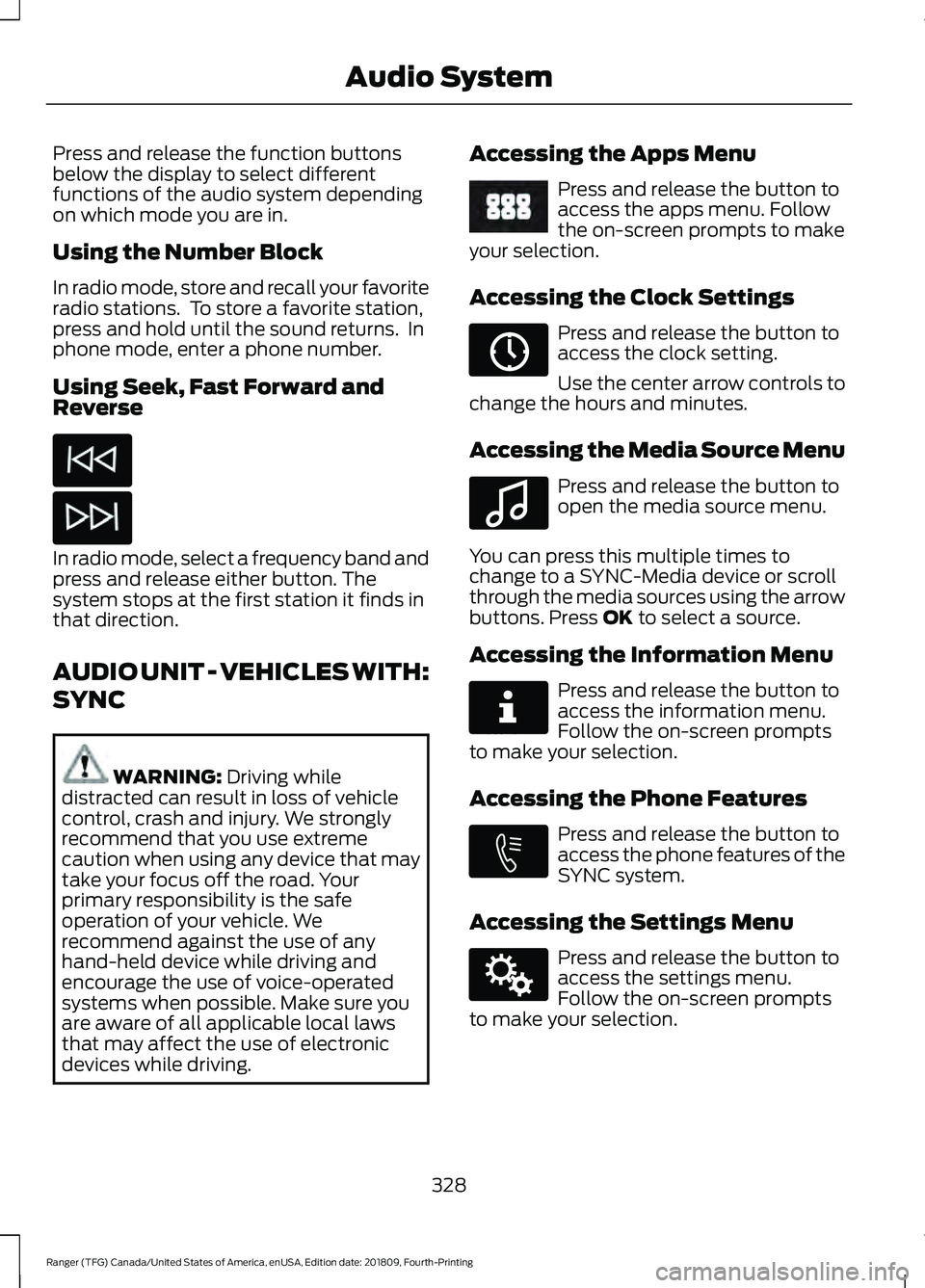
Press and release the function buttons
below the display to select different
functions of the audio system depending
on which mode you are in.
Using the Number Block
In radio mode, store and recall your favorite
radio stations. To store a favorite station,
press and hold until the sound returns. In
phone mode, enter a phone number.
Using Seek, Fast Forward and
Reverse
In radio mode, select a frequency band and
press and release either button. The
system stops at the first station it finds in
that direction.
AUDIO UNIT - VEHICLES WITH:
SYNC
WARNING: Driving while
distracted can result in loss of vehicle
control, crash and injury. We strongly
recommend that you use extreme
caution when using any device that may
take your focus off the road. Your
primary responsibility is the safe
operation of your vehicle. We
recommend against the use of any
hand-held device while driving and
encourage the use of voice-operated
systems when possible. Make sure you
are aware of all applicable local laws
that may affect the use of electronic
devices while driving. Accessing the Apps Menu Press and release the button to
access the apps menu. Follow
the on-screen prompts to make
your selection.
Accessing the Clock Settings Press and release the button to
access the clock setting.
Use the center arrow controls to
change the hours and minutes.
Accessing the Media Source Menu Press and release the button to
open the media source menu.
You can press this multiple times to
change to a SYNC-Media device or scroll
through the media sources using the arrow
buttons. Press
OK to select a source.
Accessing the Information Menu Press and release the button to
access the information menu.
Follow the on-screen prompts
to make your selection.
Accessing the Phone Features Press and release the button to
access the phone features of the
SYNC system.
Accessing the Settings Menu Press and release the button to
access the settings menu.
Follow the on-screen prompts
to make your selection.
328
Ranger (TFG) Canada/United States of America, enUSA, Edition date: 201809, Fourth-Printing Audio System E249410 E265036 E100027 E268570 E272546 E142607
Page 332 of 512
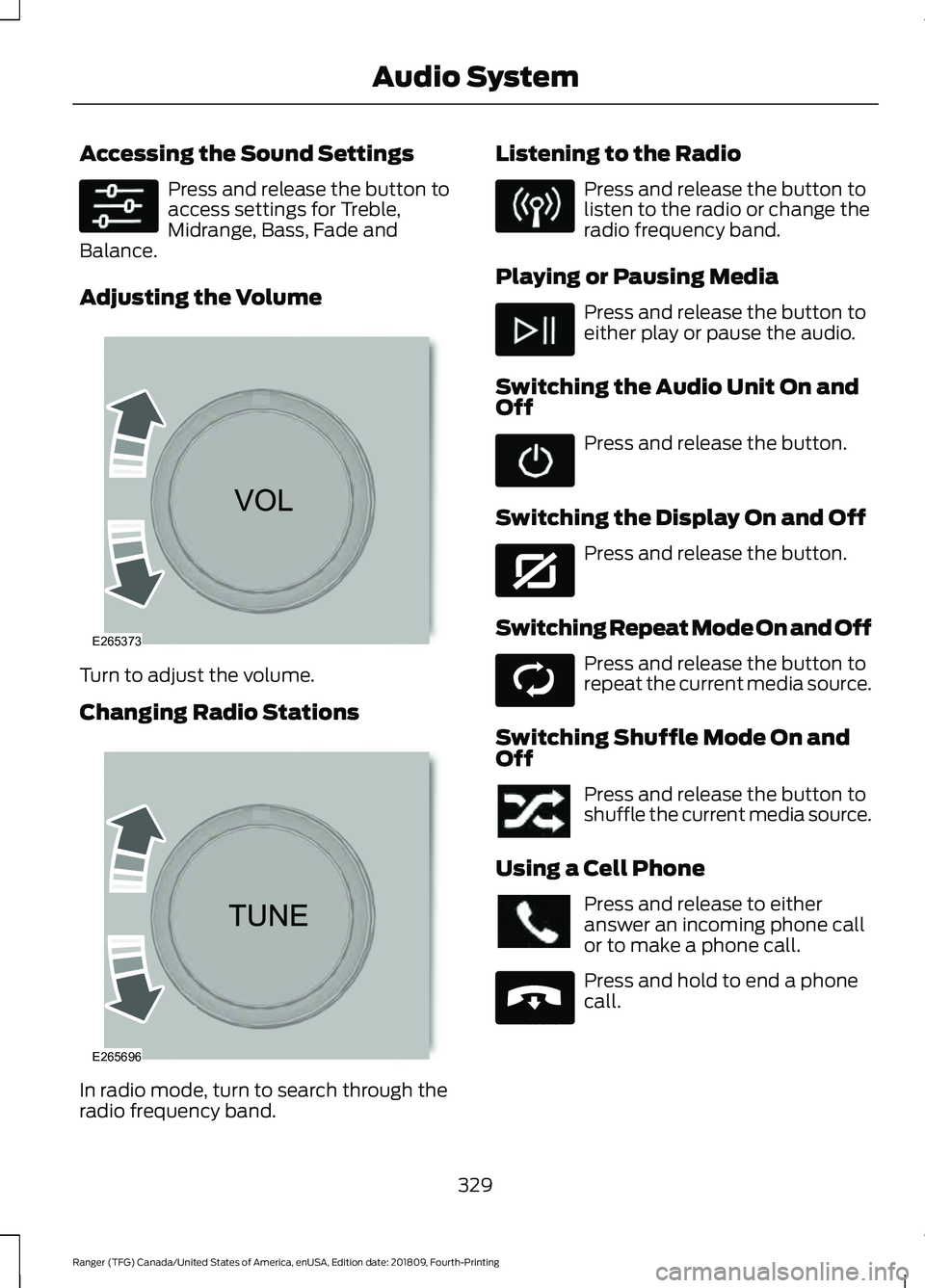
Accessing the Sound Settings
Press and release the button to
access settings for Treble,
Midrange, Bass, Fade and
Balance.
Adjusting the Volume Turn to adjust the volume.
Changing Radio Stations
In radio mode, turn to search through the
radio frequency band. Listening to the Radio Press and release the button to
listen to the radio or change the
radio frequency band.
Playing or Pausing Media Press and release the button to
either play or pause the audio.
Switching the Audio Unit On and
Off Press and release the button.
Switching the Display On and Off Press and release the button.
Switching Repeat Mode On and Off Press and release the button to
repeat the current media source.
Switching Shuffle Mode On and
Off Press and release the button to
shuffle the current media source.
Using a Cell Phone Press and release to either
answer an incoming phone call
or to make a phone call.
Press and hold to end a phone
call.
329
Ranger (TFG) Canada/United States of America, enUSA, Edition date: 201809, Fourth-Printing Audio System E265373 E265696 E272035 E268569 E265040
Page 333 of 512
Using the Display Control
Use the up and down arrow buttons to
select the various settings. When you make
your selection, press the left and right
arrow buttons to change the settings.
Press and release to confirm a
selection.
Using the Number Block
In radio mode, store and recall your favorite
radio stations. To store a favorite station
press and hold until the sound returns.
In phone mode, enter a phone number.
Using Seek, Fast Forward and
Reverse In radio mode, select a frequency band and
press and release either button. The
system stops at the first station it finds in
that direction.
AUDIO UNIT - VEHICLES WITH:
SYNC 3
WARNING: Driving while
distracted can result in loss of vehicle
control, crash and injury. We strongly
recommend that you use extreme
caution when using any device that may
take your focus off the road. Your
primary responsibility is the safe
operation of your vehicle. We
recommend against the use of any hand-held device while driving and
encourage the use of voice-operated
systems when possible. Make sure you
are aware of all applicable local laws
that may affect the use of electronic
devices while driving.
Note: The touchscreen system controls
most of the audio features.
Note: Some features, such as satellite
radio, may not be available in your location.
Check with an authorized dealer.
Adjusting the Volume Turn to adjust the volume.
330
Ranger (TFG) Canada/United States of America, enUSA, Edition date: 201809, Fourth-Printing Audio SystemE265041 E265373
Page 334 of 512
Changing Radio Stations
In radio mode, turn to search through the
radio frequency band.
In satellite radio mode, turn to find the
previous or next available satellite radio
station.
Playing or Pausing Media
Press and release the button to
either play or pause the audio.
Switching the Audio Unit On and
Off Press and release the button. Using Seek, Fast Forward and
Reverse In radio mode, select a frequency band and
press and release either button. The
system stops at the first station it finds in
that direction.
In satellite radio mode, press and release
to select the next or previous satellite radio
station. If you select a specific category
such as jazz, rock or news, press to find the
next or previous station in that category.
CONNECTING A BLUETOOTH
DEVICE - VEHICLES WITHOUT:
SYNC
Pairing a Device
Press the button.
Select BT Devices and follow the
instructions on the screen.
Note: When pairing a new device, you can
choose to download contacts and set this
as the primary device.
331
Ranger (TFG) Canada/United States of America, enUSA, Edition date: 201809, Fourth-Printing Audio SystemE265696 E265037
Page 339 of 512
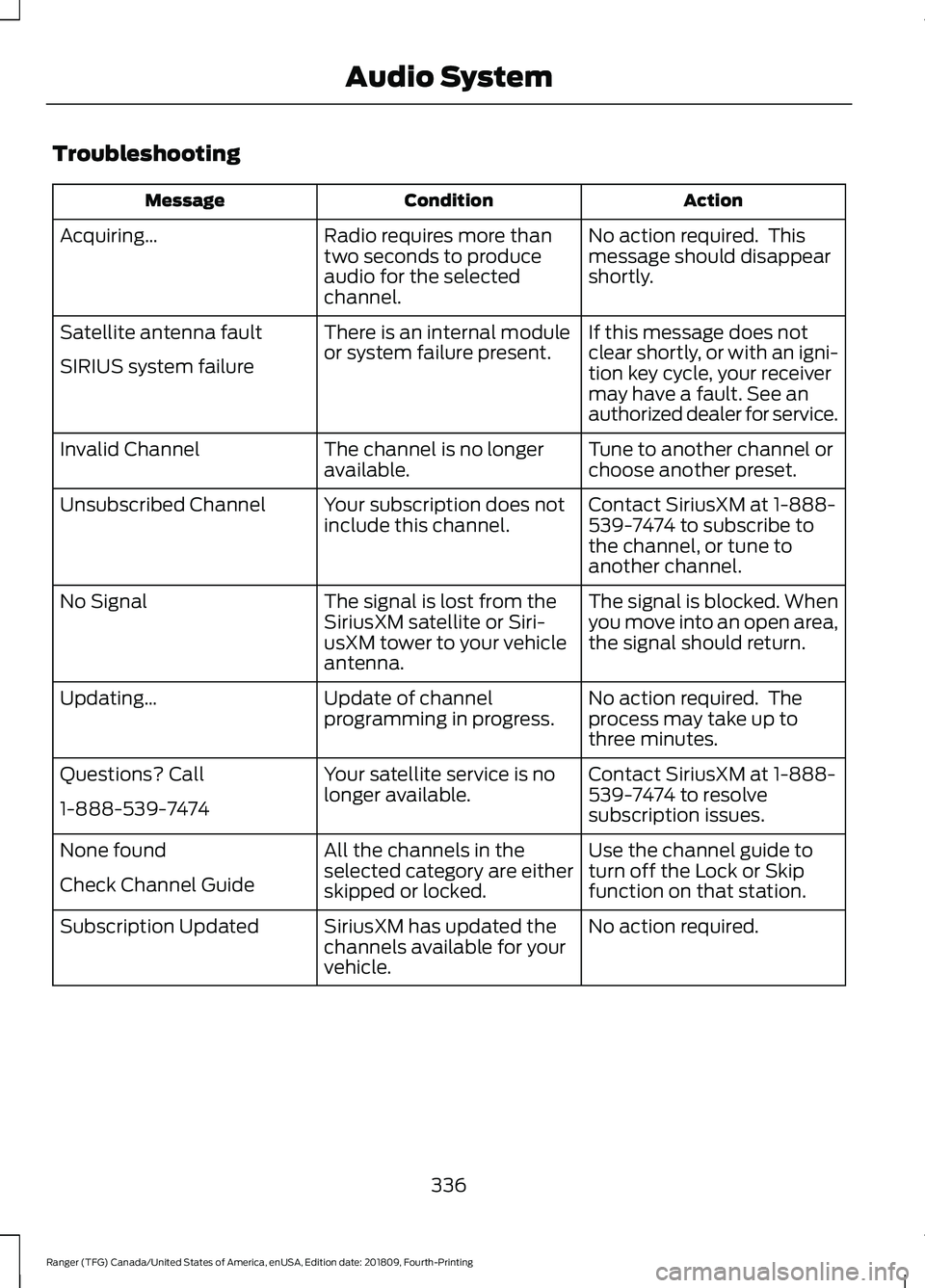
Troubleshooting
Action
Condition
Message
No action required. This
message should disappear
shortly.
Radio requires more than
two seconds to produce
audio for the selected
channel.
Acquiring…
If this message does not
clear shortly, or with an igni-
tion key cycle, your receiver
may have a fault. See an
authorized dealer for service.
There is an internal module
or system failure present.
Satellite antenna fault
SIRIUS system failure
Tune to another channel or
choose another preset.
The channel is no longer
available.
Invalid Channel
Contact SiriusXM at 1-888-
539-7474 to subscribe to
the channel, or tune to
another channel.
Your subscription does not
include this channel.
Unsubscribed Channel
The signal is blocked. When
you move into an open area,
the signal should return.
The signal is lost from the
SiriusXM satellite or Siri-
usXM tower to your vehicle
antenna.
No Signal
No action required. The
process may take up to
three minutes.
Update of channel
programming in progress.
Updating…
Contact SiriusXM at 1-888-
539-7474 to resolve
subscription issues.
Your satellite service is no
longer available.
Questions? Call
1-888-539-7474
Use the channel guide to
turn off the Lock or Skip
function on that station.
All the channels in the
selected category are either
skipped or locked.
None found
Check Channel Guide
No action required.
SiriusXM has updated the
channels available for your
vehicle.
Subscription Updated
336
Ranger (TFG) Canada/United States of America, enUSA, Edition date: 201809, Fourth-Printing Audio System
Page 351 of 512
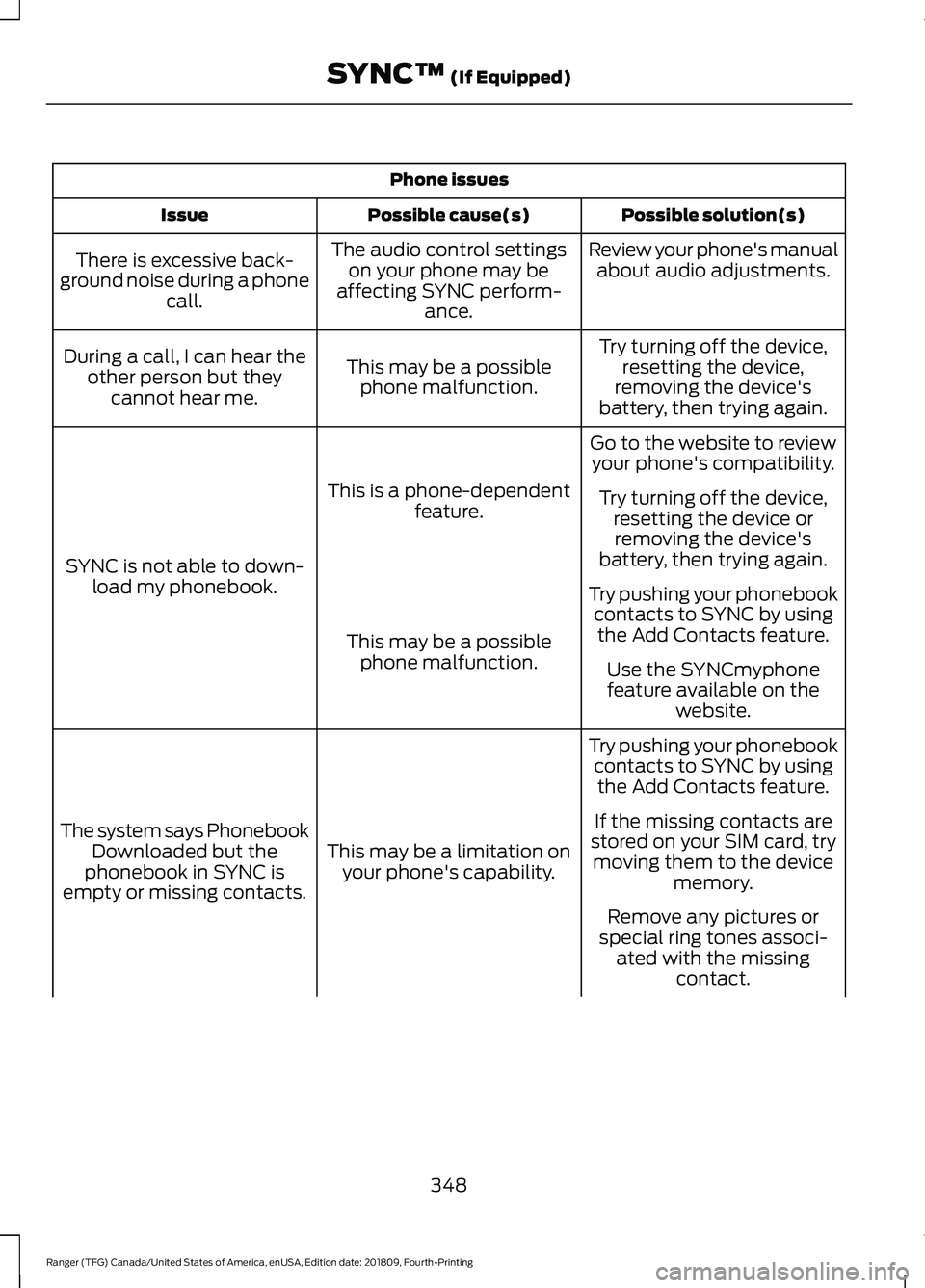
Phone issues
Possible solution(s)
Possible cause(s)
Issue
Review your phone's manualabout audio adjustments.
The audio control settings
on your phone may be
affecting SYNC perform- ance.
There is excessive back-
ground noise during a phone call.
Try turning off the device,resetting the device,
removing the device's
battery, then trying again.
This may be a possible
phone malfunction.
During a call, I can hear the
other person but theycannot hear me.
Go to the website to reviewyour phone's compatibility.
This is a phone-dependent feature.
SYNC is not able to down- load my phonebook. Try turning off the device,
resetting the device orremoving the device's
battery, then trying again.
Try pushing your phonebook contacts to SYNC by usingthe Add Contacts feature.
This may be a possible
phone malfunction. Use the SYNCmyphone
feature available on the website.
Try pushing your phonebook contacts to SYNC by usingthe Add Contacts feature.
This may be a limitation on your phone's capability.
The system says Phonebook
Downloaded but the
phonebook in SYNC is
empty or missing contacts. If the missing contacts are
stored on your SIM card, try moving them to the device memory.
Remove any pictures or
special ring tones associ- ated with the missing contact.
348
Ranger (TFG) Canada/United States of America, enUSA, Edition date: 201809, Fourth-Printing SYNC™ (If Equipped)
Page 352 of 512
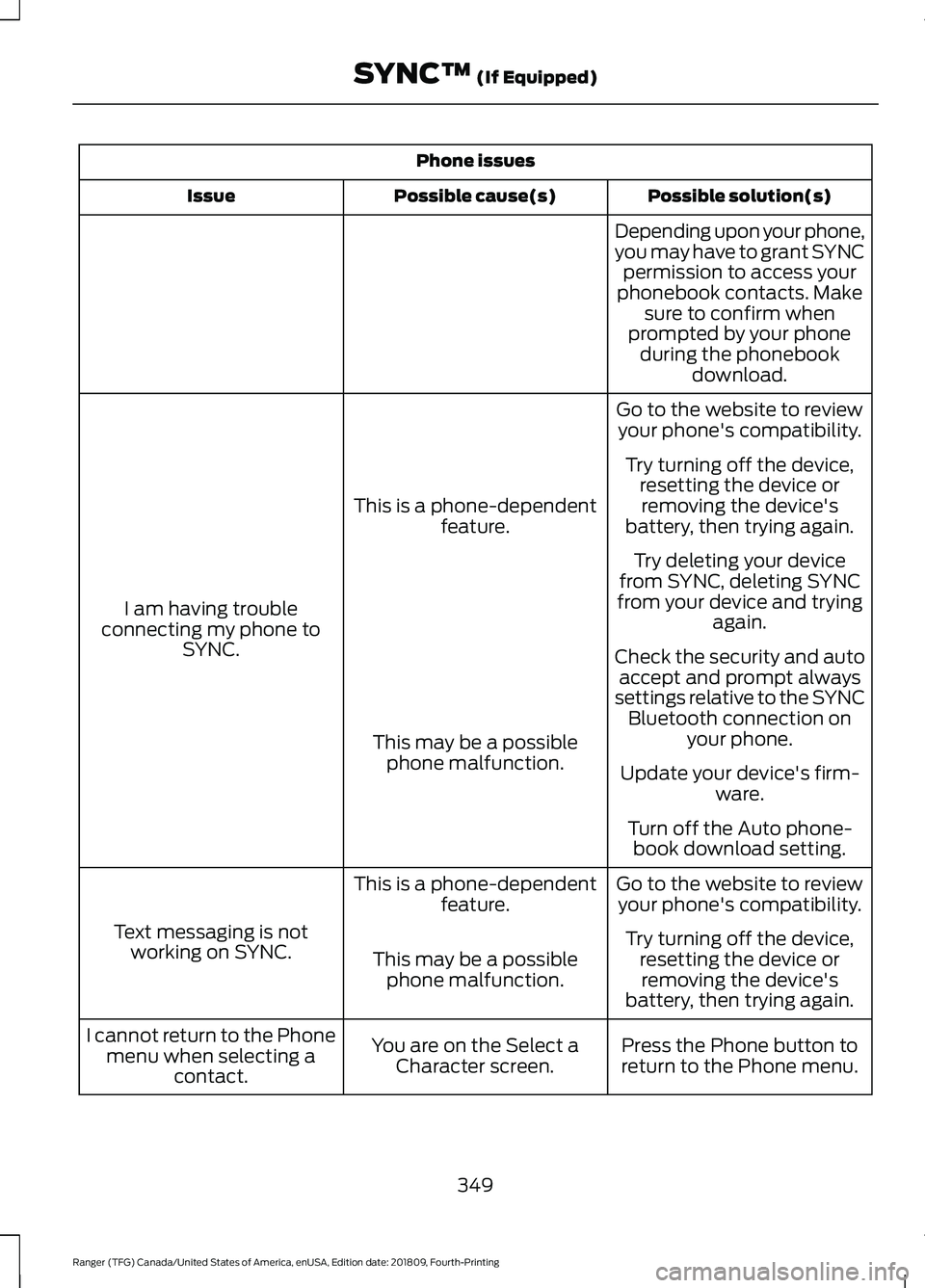
Phone issues
Possible solution(s)
Possible cause(s)
Issue
Depending upon your phone,
you may have to grant SYNCpermission to access your
phonebook contacts. Make sure to confirm when
prompted by your phone during the phonebook download.
Go to the website to review your phone's compatibility.
This is a phone-dependent feature.
I am having trouble
connecting my phone to SYNC. Try turning off the device,
resetting the device orremoving the device's
battery, then trying again.
Try deleting your device
from SYNC, deleting SYNC
from your device and trying again.
Check the security and auto accept and prompt always
settings relative to the SYNC Bluetooth connection on your phone.
This may be a possible
phone malfunction. Update your device's firm-
ware.
Turn off the Auto phone- book download setting.
Go to the website to review your phone's compatibility.
This is a phone-dependent
feature.
Text messaging is not working on SYNC. Try turning off the device,
resetting the device orremoving the device's
battery, then trying again.
This may be a possible
phone malfunction.
Press the Phone button to
return to the Phone menu.
You are on the Select a
Character screen.
I cannot return to the Phone
menu when selecting a contact.
349
Ranger (TFG) Canada/United States of America, enUSA, Edition date: 201809, Fourth-Printing SYNC™ (If Equipped)
Page 353 of 512
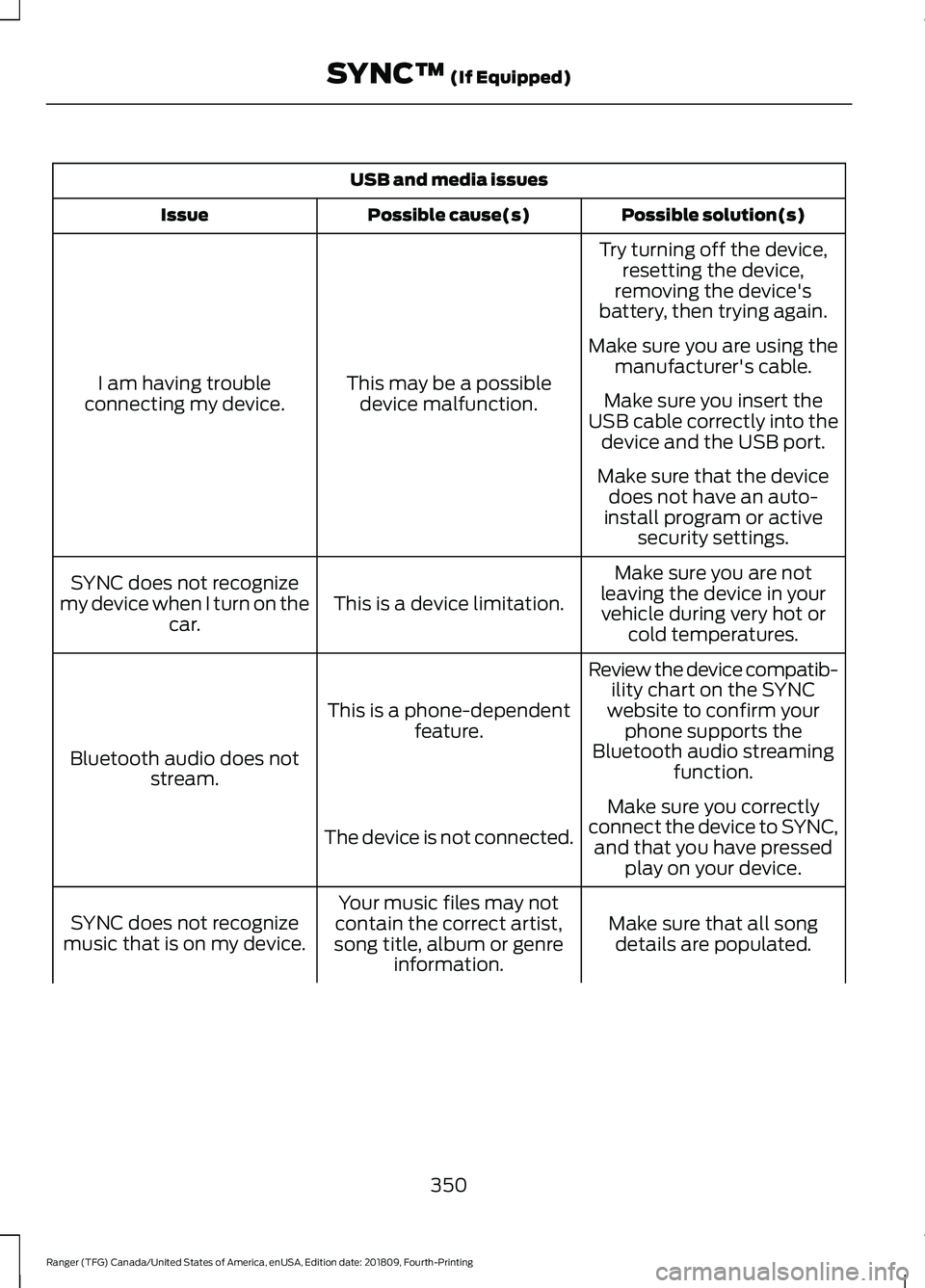
USB and media issues
Possible solution(s)
Possible cause(s)
Issue
Try turning off the device,resetting the device,
removing the device's
battery, then trying again.
This may be a possible device malfunction.
I am having trouble
connecting my device. Make sure you are using the
manufacturer's cable.
Make sure you insert the
USB cable correctly into the device and the USB port.
Make sure that the device does not have an auto-
install program or active security settings.
Make sure you are not
leaving the device in your vehicle during very hot or cold temperatures.
This is a device limitation.
SYNC does not recognize
my device when I turn on the car.
Review the device compatib-ility chart on the SYNC
website to confirm your phone supports the
Bluetooth audio streaming function.
This is a phone-dependent
feature.
Bluetooth audio does not stream.
Make sure you correctly
connect the device to SYNC, and that you have pressed play on your device.
The device is not connected.
Make sure that all songdetails are populated.
Your music files may not
contain the correct artist,
song title, album or genre information.
SYNC does not recognize
music that is on my device.
350
Ranger (TFG) Canada/United States of America, enUSA, Edition date: 201809, Fourth-Printing SYNC™ (If Equipped)