warning FORD SUPER DUTY 2013 3.G Owners Manual
[x] Cancel search | Manufacturer: FORD, Model Year: 2013, Model line: SUPER DUTY, Model: FORD SUPER DUTY 2013 3.GPages: 563, PDF Size: 7.27 MB
Page 436 of 563
Vehicle Health Report
WARNING:Always follow scheduled maintenance instructions,
regularly inspect your vehicle, and seek repair for any damage or
problem you suspect. Vehicle Health Report supplements, but cannot
replace normal maintenance and vehicle inspection. Vehicle Health
Report only monitors certain systems that are electronically monitored
by the vehicle and will not monitor or report the status of any other
system, (i.e., brake lining wear). Failure to perform scheduled
maintenance and regularly inspect your vehicle may result in vehicle
damage and serious injury.
Note:Your Vehicle Health Report feature requires activation prior to
use. Visit www.SYNCMyRide.com to register. There is no fee or
subscription associated with Vehicle Health Report, but you must register
to use this feature.
Note:This feature may not function properly if you have enabled caller
ID blocking on your mobile phone. Before running a report, review the
Vehicle Health Report privacy notice.
Note:In order to allow a break-in period for your vehicle, you may not
be able to create a Vehicle Health Report until your vehicle odometer has
reached 200 miles.
Register for Vehicle Health Report and set your report preferences at
www.SYNCMyRide.com. After registering, you can request a Vehicle
Health Report (inside your vehicle). Return to your account at
www.SYNCMyRide.com to view your report. You can also choose for
SYNC to automatically remind you to run reports at specific mileage
intervals. Cellular phone airtime usage may apply when reporting.
The system allows you to check your vehicle’s overall health in the form
of a diagnostic report card. The vehicle health report contains valuable
information such as:
•Vehicle Diagnostic Information
•Scheduled maintenance
•Open Recalls and Field Service Actions
•Unserviced items from vehicle inspections by your authorized dealer.
You can run a report (after the vehicle has been running a minimum of
60 seconds) by pressing the voice button and saying “Vehicle health
report”, or pressing the phone button.
SYNC®435
2013 F-250/350/450/550(f23)
Owners Guide gf, 1st Printing
USA(fus)
Page 459 of 563
INTRODUCTION
WARNING:Driving while distracted can result in loss of vehicle
control, accident and injury. Ford strongly recommends that
drivers use extreme caution when using any device or feature that may
take their focus off the road. Your primary responsibility is the safe
operation of the vehicle. We recommend against the use of any
handheld device while driving, encourage the use of voice-operated
systems when possible and that you become aware of applicable state
and local laws that may affect use of electronic devices while driving.
Note:Some features are not available while your vehicle is moving.
Note:Your system is equipped with a feature that allows you to access
and control audio features for 30 minutes after you switch the ignition
off (and no doors open).
This system uses a four-corner strategy to provide quick access several
vehicle features and settings. The touchscreen provides easy interaction
with your cellular phone, multimedia, climate control and navigation
system. The corners display any active modes within those menus, such
as phone status or the climate temperature.
SETTINGS
Press to select any of the following:
•Clock
•Display
•Sound
•Vehicle
•Settings
•Help
INFORMATION
Press to select any of the following:
•SYNC® Services
•SIRIUS® Travel Link™
•Alerts
•Calendar
•SYNC Apps
If the icon is yellow, seeAlertsin theInformationsection of this chapter.
458MyFord Touch® (If Equipped)
2013 F-250/350/450/550(f23)
Owners Guide gf, 1st Printing
USA(fus)
Page 462 of 563
Support
The SYNC support team is available to help you with any questions you
aren’t able to answer on your own.
Monday-Saturday, 8:30 am-8pm EST
In the United States, call: 1–888–270–1055
In Canada, call: 1–800–565–3673
Times are subject to change due to holidays.
Safety information
WARNING:Driving while distracted can result in loss of vehicle
control, accident and injury. Ford strongly recommends that
drivers use extreme caution when using any device that may take their
focus off the road. Your primary responsibility is the safe operation of
the vehicle. We recommend against the use of any handheld device
while driving, encourage the use of voice-operated systems when
possible and that you become aware of applicable state and local laws
that may affect use of electronic devices while driving.
•Do not attempt to service or repair SYNC®. See your authorized
dealer.
•Do not operate playing devices if the power cords and/or cables are
broken, split or damaged. Carefully place cords and/or cables where
they will not be stepped on or interfere with the operation of pedals,
seats and/or compartments, or safe driving abilities.
•Do not leave playing devices in the vehicle in extreme conditions as it
could cause damage to your device. Refer to your device’s user guide
for further information.
•For your safety, some SYNC® functions are speed dependent and
cannot be performed when the vehicle is traveling at speeds greater
than 3 mph (5 km/h).
•Ensure that you review your device’s user guide before using with
SYNC®.
MyFord Touch® (If Equipped)461
2013 F-250/350/450/550(f23)
Owners Guide gf, 1st Printing
USA(fus)
Page 489 of 563
Bluetooth Voice Commands
“Browse all artists” “Browse genre
“Browse all
audiobooks””Browse playlist
“Browse all authors” ”Browse podcast
“Browse all
composers”“Next” “Previous”
“Browse all folders” “Pause” “Repeat all”
“Browse all genres” “Play” “Repeat off”
“Browse all playlists” “Play album
“Browse all podcasts” “Play artist
“Browse all songs” “Play audiobook
“Browse artist
“Browse audiobook
“Browse author
A/V Inputs
WARNING:Driving while distracted can result in loss of vehicle
control, accident and injury. We strongly recommend that you use
extreme caution when using any device or feature that may take your
focus off the road. Your primary responsibility is the safe operation of
your vehicle. We recommend against the use of any handheld device
while driving and encourage the use of voice-operated systems when
possible. Make sure that you are aware of applicable state and local
laws that may affect use of electronic devices while driving.
WARNING:For safety reasons, do not connect or adjust the
settings on your portable music player while your vehicle is moving.
488MyFord Touch® (If Equipped)
2013 F-250/350/450/550(f23)
Owners Guide gf, 1st Printing
USA(fus)
Page 490 of 563
WARNING:Store the portable music player in a secure location,
such as the center console or the glove box, when your vehicle is
moving. Hard objects may become projectiles in a crash or sudden stop,
which may increase the risk of serious injury. The audio extension cable
must be long enough to allow the portable music player to be safely
stored while your vehicle is moving.
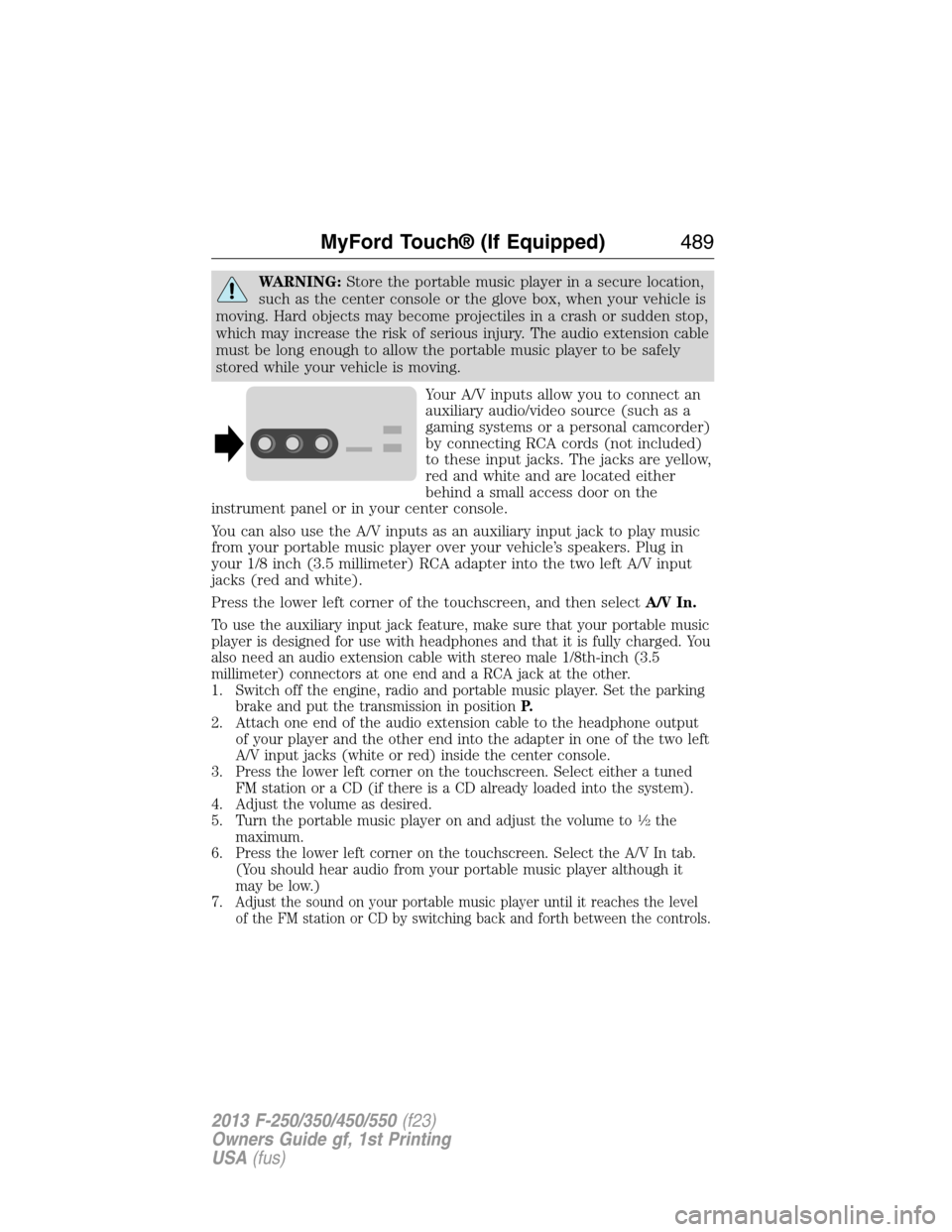
Your A/V inputs allow you to connect an
auxiliary audio/video source (such as a
gaming systems or a personal camcorder)
by connecting RCA cords (not included)
to these input jacks. The jacks are yellow,
red and white and are located either
behind a small access door on the
instrument panel or in your center console.
You can also use the A/V inputs as an auxiliary input jack to play music
from your portable music player over your vehicle’s speakers. Plug in
your 1/8 inch (3.5 millimeter) RCA adapter into the two left A/V input
jacks (red and white).
Press the lower left corner of the touchscreen, and then selectA/V In.
To use the auxiliary input jack feature, make sure that your portable music
player is designed for use with headphones and that it is fully charged. You
also need an audio extension cable with stereo male 1/8th-inch (3.5
millimeter) connectors at one end and a RCA jack at the other.
1. Switch off the engine, radio and portable music player. Set the parking
brake and put the transmission in positionP.
2. Attach one end of the audio extension cable to the headphone output
of your player and the other end into the adapter in one of the two left
A/V input jacks (white or red) inside the center console.
3. Press the lower left corner on the touchscreen. Select either a tuned
FM station or a CD (if there is a CD already loaded into the system).
4. Adjust the volume as desired.
5. Turn the portable music player on and adjust the volume to
12the
maximum.
6. Press the lower left corner on the touchscreen. Select the A/V In tab.
(You should hear audio from your portable music player although it
may be low.)
7.
Adjust the sound on your portable music player until it reaches the level
of the FM station or CD by switching back and forth between the controls.
MyFord Touch® (If Equipped)489
2013 F-250/350/450/550(f23)
Owners Guide gf, 1st Printing
USA(fus)
Page 492 of 563
Pairing Your Phone for the First Time
WARNING:Driving while distracted can result in loss of vehicle
control, accident and injury. Ford strongly recommends that
drivers use extreme caution when using any device that may take their
focus off the road. Your primary responsibility is the safe operation of
the vehicle. We recommend against the use of any handheld device
while driving, encourage the use of voice-operated systems when
possible and that you become aware of applicable state and local laws
that may affect use of electronic devices while driving.
The first thing you must do to use the phone features of SYNC is to pair
your Bluetooth-enabled cellular phone with SYNC. This allows you to use
your phone in a hands-free manner.
Note:Put the transmission in positionP.Turn on your vehicle ignition
and the radio.
1. TouchAdd Phonein the upper left corner of the touchscreen.
2. Make sure that Bluetooth is set toOnand that your cellular phone is
in the proper mode. See your phone’s user guide if necessary.
3. When prompted on your phone’s display, enter the six-digit PIN
provided by SYNC in the radio display. The display indicates when
the pairing is successful and asks you if you want to download your
phonebook.
SYNC may prompt you with more phone options. For more information
on your phone’s capability, see your phone’s user guide and visit the
website.
Pairing Subsequent Phones
Note:Put the transmission in positionP.Turn on your vehicle ignition
and the radio.
1. Press thePhonecorner of the touchscreen >Settings>BT
Devices>Add Device.
2. Make sure that Bluetooth is set toOnand that your cellular phone is
in the proper mode. See your phone’s user guide if necessary.
3. When prompted on your phone’s display, enter the six-digit PIN
provided by SYNC on the screen. The display indicates when the
pairing is successful. The system asks you if you want to download
your phonebook.
SYNC may prompt you with more phone options. For more information
on your phone’s capability, see your phone’s user guide and visit the
website.
MyFord Touch® (If Equipped)491
2013 F-250/350/450/550(f23)
Owners Guide gf, 1st Printing
USA(fus)
Page 497 of 563
If you select: You can:
911 AssistTurn on or turn off the 911 Assist™ feature. See
911 Assist®in theSYNC Services and
Applicationssection.
Phone RingerSelect what ring tone you would like to hear
when you receive a call. Choose from possible
system ring tones, your currently paired phone’s
ring tone, a beep, text-to-speech or if you would
like the notification to be silent.
Text Message
NotificationSelect a text message notification, if supported
by your phone. Choose from possible system
alert tones, text-to-speech or silent.
Internet Data
Connection
*Use this screen to adjust your internet data
connection. Select to make your connection
profile with the personal area network or to turn
off your connection. You can also choose to
adjust your settings or have the system always
connect, never connect when roaming or query
on connect. Press?for more information.
Manage PhonebookAccess features, such as automatic phonebook
download, re-download your phonebook, add
contacts from your phone as well as delete or
upload your phonebook.
Roaming WarningBe alerted to when your phone is in roaming
mode.
*If compatible.
Phone Voice Commands
Press the voice button on the steering wheel control. After the
tone, say any of the following commands:
“PHONE”
“Bluetooth off” “Hold call off”*
“Bluetooth on” “Hold on”*
“Call” “Join calls”*
“Call
“Call
496MyFord Touch® (If Equipped)
2013 F-250/350/450/550(f23)
Owners Guide gf, 1st Printing
USA(fus)
Page 502 of 563
SYNC Services Quick Tips
PortableYour subscription is associated with your
Bluetooth-enabled cellular phone number, not
your VIN (Vehicle Identification Number). You
can pair and connect your phone to any
vehicle equipped with Traffic, Directions and
Information and continue enjoying your
personalized services.
SYNC Services Voice Commands
When a route has been downloaded (non-navigation systems),
press the voice button on the steering wheel control. When
prompted, say any of the following commands:
“SERVICES”
“Cancel route”
“Navigation voice off”
“Navigation voice on”
“Next turn”
“Route status”
“Route summary”
“Services”
“Update route”
“Help”
SIRIUS Travel Link (If Equipped and If Activated)
WARNING:Driving while distracted can result in loss of vehicle
control, accident and injury. Ford strongly recommends that
drivers use extreme caution when using any device or feature that may
take their focus off the road. Your primary responsibility is the safe
operation of the vehicle. We recommend against the use of any
handheld device while driving, encourage the use of voice-operated
systems when possible and that you become aware of applicable state
and local laws that may affect use of electronic devices while driving.
Note:In order to use SIRIUS Travel Link, your vehicle must be equipped
with navigation and your navigation SD card must be in the SD card slot.
MyFord Touch® (If Equipped)501
2013 F-250/350/450/550(f23)
Owners Guide gf, 1st Printing
USA(fus)
Page 506 of 563
911 Assist® (If Equipped)
WARNING:Unless the 911 Assist setting is set on before a
crash, the system will not dial for help, which could delay
response time, potentially increasing the risk of serious injury or death
after a crash.
WARNING:Do not wait for 911 Assist to make an emergency
call if you can do it yourself. Dial emergency services
immediately to avoid delayed response time, which could increase the
risk of serious injury or death after a crash. If you do not hear 911
Assist within five seconds of the crash, the system or phone may be
damaged or non-functional.
WARNING:Always place your phone in a secure location in your
vehicle so it does not become a projectile or damaged in a crash.
Failure to do so may cause serious injury to someone or damage the
phone, which could prevent 911 Assist from working properly.
Note:The SYNC 911 Assist feature must be set on prior to the incident.
Note:Before setting this feature on, make sure that you read the 911
Assist privacy notice later in this section for important information.
Note:If any user turns 911 Assist on or off, that setting applies for all
paired phones. If 911 Assist is turned off, either a voice message plays or
a display message (or icon) comes on (or both) when your vehicle is
started after a previously paired phone connects.
Note:Every phone operates differently. While SYNC 911 Assist works
with most cellular phones, some may have trouble using this feature.
If a crash deploys an airbag (excludes knee airbags and rear inflatable
safety belts [if equipped]) or activates the fuel pump shut-off, your
SYNC-equipped vehicle may be able to contact emergency services by
dialing 911 through a paired and connected Bluetooth-enabled phone.
You can learn more about the 911 Assist feature, visit
www.SYNCMyRide.com, www.SYNCMyRide.ca or www.syncmaroute.ca.
•For information on airbag deployment, see theSupplementary
Restraints Systemchapter.
•For information on the fuel pump shut-off, see theRoadside
Emergencieschapter.
MyFord Touch® (If Equipped)505
2013 F-250/350/450/550(f23)
Owners Guide gf, 1st Printing
USA(fus)
Page 508 of 563
911 Assist May Not Work If
•Your cellular phone or 911 Assist hardware sustains damage in a
crash.
•The vehicle’s battery or SYNC system has no power.
•The phone(s) thrown from your vehicle are the ones paired and
connected to the system.
911 Assist Privacy Notice
When you turn on 911 Assist, it may disclose to emergency services that
your vehicle has been in a crash involving the deployment of an airbag or
activation of the fuel pump shut-off. Certain versions or updates to 911
Assist may also be capable of electronically or verbally disclosing to 911
operators your vehicle location or other details about your vehicle or
crash to assist 911 operators to provide the most appropriate emergency
services. If you do not want to disclose this information, do not turn the
feature on.
Vehicle Health Report (If Equipped, U.S. Only)
WARNING:Always follow scheduled maintenance instructions,
regularly inspect your vehicle, and seek repair for any damage or
problem you suspect. Vehicle Health Report supplements, but cannot
replace, normal maintenance and vehicle inspection. Vehicle Health
Report only monitors certain systems electronically monitored by your
vehicle and will not monitor or report the status of any other system,
(such as brake lining wear). Failure to perform scheduled maintenance
and regularly inspect your vehicle may result in vehicle damage and
serious injury.
Note:Your Vehicle Health Report feature requires activation prior to
use. Visit www.SYNCMyRide.com to register. There is no fee or
subscription associated with Vehicle Health Report, but you must register
to use this feature.
Note:This feature may not function properly if you have enabled caller
ID blocking on your mobile phone. Before running a report, review the
Vehicle Health Report Privacy Notice.
MyFord Touch® (If Equipped)507
2013 F-250/350/450/550(f23)
Owners Guide gf, 1st Printing
USA(fus)