USB FORD SUPER DUTY 2013 3.G Owner's Manual
[x] Cancel search | Manufacturer: FORD, Model Year: 2013, Model line: SUPER DUTY, Model: FORD SUPER DUTY 2013 3.GPages: 563, PDF Size: 7.27 MB
Page 485 of 563
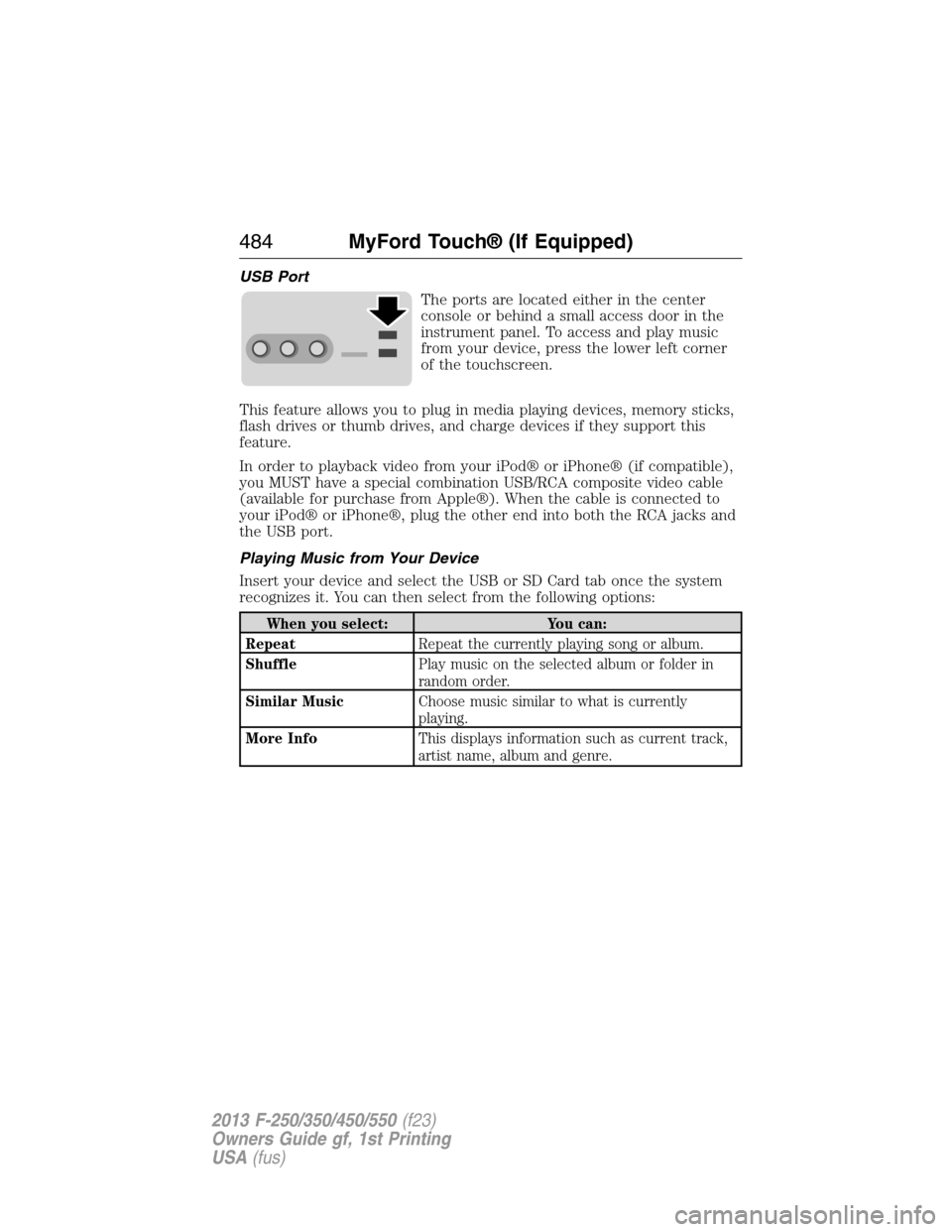
USB Port
The ports are located either in the center
console or behind a small access door in the
instrument panel. To access and play music
from your device, press the lower left corner
of the touchscreen.
This feature allows you to plug in media playing devices, memory sticks,
flash drives or thumb drives, and charge devices if they support this
feature.
In order to playback video from your iPod® or iPhone® (if compatible),
you MUST have a special combination USB/RCA composite video cable
(available for purchase from Apple®). When the cable is connected to
your iPod® or iPhone®, plug the other end into both the RCA jacks and
the USB port.
Playing Music from Your Device
Insert your device and select the USB or SD Card tab once the system
recognizes it. You can then select from the following options:
When you select: You can:
RepeatRepeat the currently playing song or album.
ShufflePlay music on the selected album or folder in
random order.
Similar MusicChoose music similar to what is currently
playing.
More InfoThis displays information such as current track,
artist name, album and genre.
484MyFord Touch® (If Equipped)
2013 F-250/350/450/550(f23)
Owners Guide gf, 1st Printing
USA(fus)
Page 486 of 563
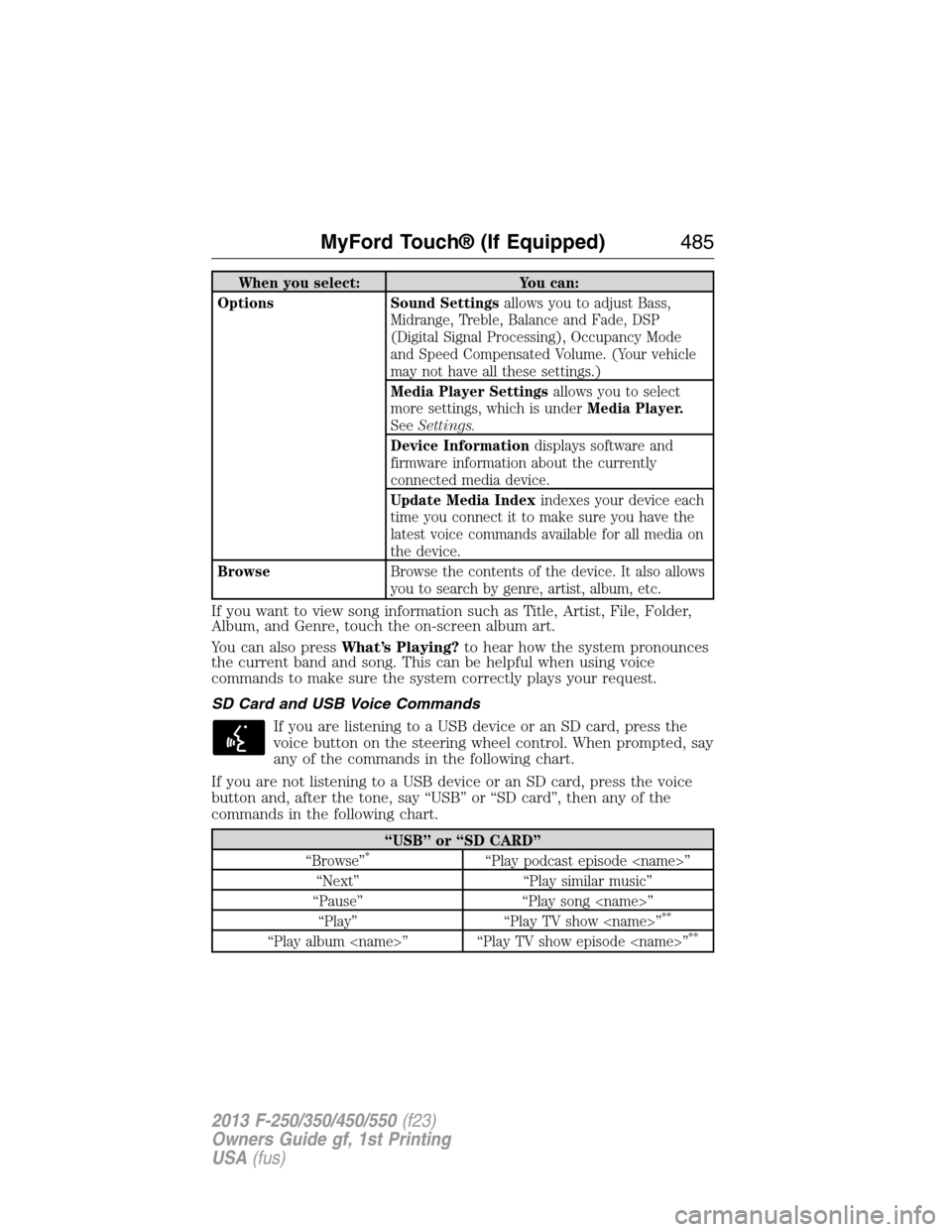
When you select: You can:
Options Sound Settingsallows you to adjust Bass,
Midrange, Treble, Balance and Fade, DSP
(Digital Signal Processing), Occupancy Mode
and Speed Compensated Volume. (Your vehicle
may not have all these settings.)
Media Player Settingsallows you to select
more settings, which is underMedia Player.
SeeSettings.
Device Informationdisplays software and
firmware information about the currently
connected media device.
Update Media Indexindexes your device each
time you connect it to make sure you have the
latest voice commands available for all media on
the device.
BrowseBrowse the contents of the device. It also allows
you to search by genre, artist, album, etc.
If you want to view song information such as Title, Artist, File, Folder,
Album, and Genre, touch the on-screen album art.
You can also pressWhat’s Playing?to hear how the system pronounces
the current band and song. This can be helpful when using voice
commands to make sure the system correctly plays your request.
SD Card and USB Voice Commands
If you are listening to a USB device or an SD card, press the
voice button on the steering wheel control. When prompted, say
any of the commands in the following chart.
If you are not listening to a USB device or an SD card, press the voice
button and, after the tone, say “USB” or “SD card”, then any of the
commands in the following chart.
“USB” or “SD CARD”
“Browse”*“Play podcast episode
“Next” “Play similar music”
“Pause” “Play song
“Play” “Play TV show
**
“Play album
MyFord Touch® (If Equipped)485
2013 F-250/350/450/550(f23)
Owners Guide gf, 1st Printing
USA(fus)
Page 487 of 563
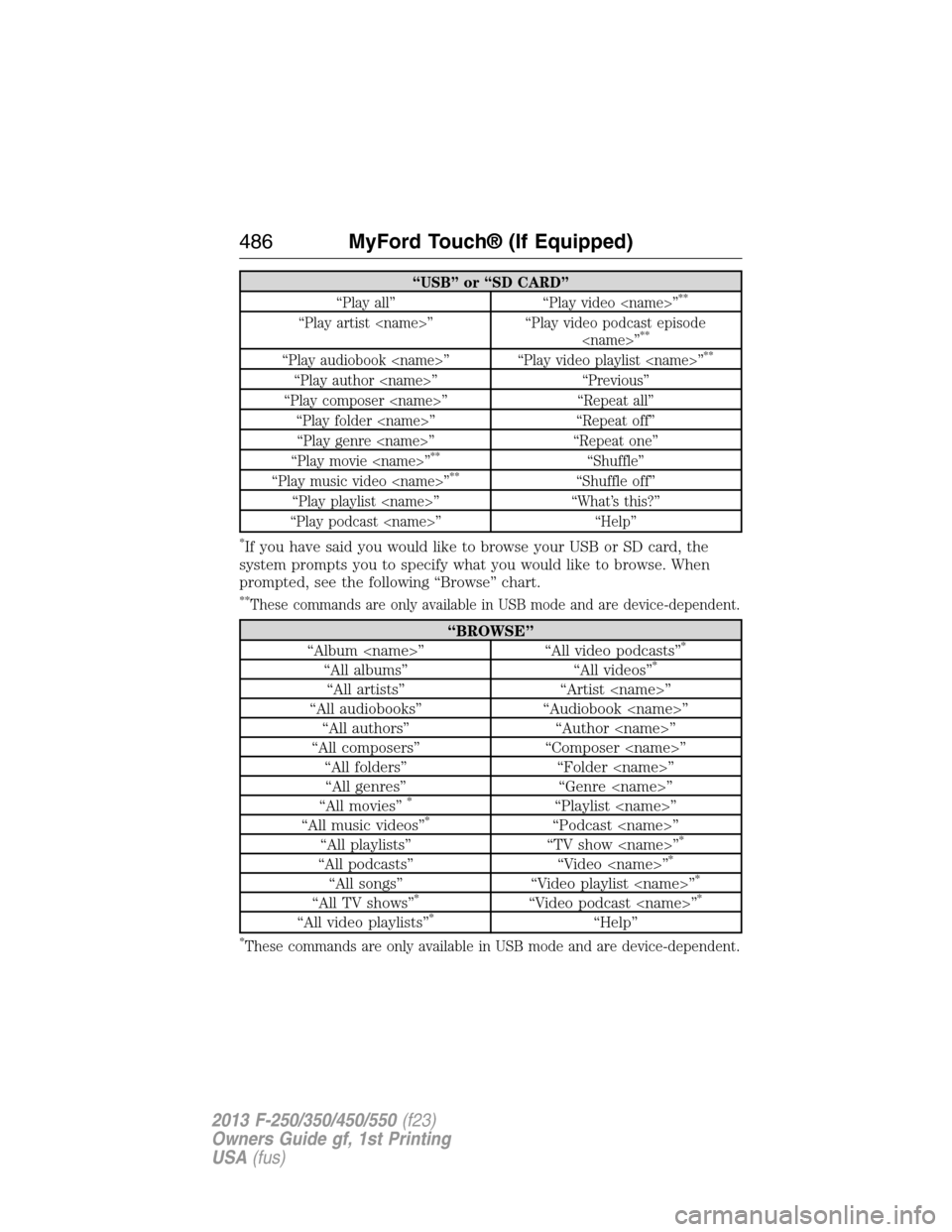
“USB” or “SD CARD”
“Play all” “Play video
“Play artist
“Play audiobook
“Play author
“Play composer
“Play folder
“Play genre
“Play movie
**“Shuffle”
“Play music video
“Play playlist
“Play podcast
*If you have said you would like to browse your USB or SD card, the
system prompts you to specify what you would like to browse. When
prompted, see the following “Browse” chart.
**These commands are only available in USB mode and are device-dependent.
“BROWSE”
“Album
“All albums” “All videos”*
“All artists” “Artist
“All audiobooks” “Audiobook
“All authors” “Author
“All composers” “Composer
“All folders” “Folder
“All genres” “Genre
“All movies”
*“Playlist
“All music videos”*“Podcast
“All playlists” “TV show
“All podcasts” “Video
“All songs” “Video playlist
“All TV shows”*“Video podcast
“All video playlists”*“Help”
*These commands are only available in USB mode and are device-dependent.
486MyFord Touch® (If Equipped)
2013 F-250/350/450/550(f23)
Owners Guide gf, 1st Printing
USA(fus)
Page 488 of 563
Supported Media Players, Formats and Metadata Information
SYNC is capable of hosting nearly any digital media player, including
iPod®, Zune™, plays from device players, and most USB drives.
Supported audio formats include MP3, WMA, WAV and AAC.
It is also able to organize your indexed media from your playing device by
metadata tags. Metadata tags, which are descriptive software identifiers
embedded in the media files, provide information about the file.
If your indexed media files contain no information embedded in these
metadata tags, SYNC may classify the empty metadata tags as
Unknown.
In order to playback video from your iPod® or iPhone®, (if compatible),
you MUST have a special combination USB/RCA composite video cable
(which you can buy from Apple®). When the cable is connected to your
iPod® or iPhone®, plug the other end into both the RCA jacks and the
USB port.
Bluetooth Audio
Your system allows you to stream audio over your vehicle’s speakers from
your connected, Bluetooth-enabled cellular phone.
To access, press the lower left corner on the touchscreen, then
select theBT Stereotab.
Bluetooth Audio Voice Commands
If you are listening to a Bluetooth audio device, press the voice
button on the steering wheel control. When prompted, say any
of the commands in the following chart.
If you are not listening to a Bluetooth audio device, press the voice
button and, after the tone, say “Bluetooth Audio”, then any of the
commands in the following chart.
Note:If your Bluetooth device supports streaming metadata, all the
commands below are available. If your device does not, only “Next song”,
“Pause”, “Play” and “Previous song” are available.
Bluetooth Voice Commands
“Browse album
“Browse all albums” “Browse folder
MyFord Touch® (If Equipped)487
2013 F-250/350/450/550(f23)
Owners Guide gf, 1st Printing
USA(fus)
Page 491 of 563
In order to playback video from your iPod® or iPhone® (if compatible),
you must have a special combination USB/RCA composite video cable
(which you can buy from Apple®). When the cable is connected to your
iPod® or iPhone®, plug the other end into both the RCA jacks and the
USB port.
Troubleshooting
•Do not connect the audio input jack to a line level output. The jack
only works correctly with devices that have a headphone output with
a volume control.
•Do not set the portable music player’s volume level higher than is
necessary to match the volume of the CD or FM radio as this causes
distortion and reduces sound quality.
•If the music sounds distorted at lower listening levels, turn the
portable music player volume down. If the problem persists, replace or
recharge the batteries in the portable media player.
•Control the portable media player in the same manner when used with
headphones, as the auxiliary input jack does not provide control (such
as Play or Pause) over the attached portable media player.
PHONE
Hands-free calling is one of the main features of SYNC®. Once you pair
your phone, you can access many options using the touchscreen or voice
commands. While the system supports a variety of features, many are
dependent on your cellular phone’s functionality. At a minimum, most
cellular phones with Bluetooth wireless technology support the following
functions:
•Answering an incoming call
•Ending a call
•Using privacy mode
•Dialing a number
•Redialing
•Call waiting notification
•Caller ID.
Other features, such as text messaging using Bluetooth and automatic
phonebook download, are phone-dependent features. To check your
phone’s compatibility, see your phone’s user manual and visit
www.SYNCMyRide.com, www.SYNCMyRide.ca or www.syncmaroute.ca.
490MyFord Touch® (If Equipped)
2013 F-250/350/450/550(f23)
Owners Guide gf, 1st Printing
USA(fus)
Page 495 of 563
Text Messaging
Note:Downloading and sending text messages using Bluetooth are
phone-dependent features.
Note:Certain features in text messaging are speed-dependent and not
available when your vehicle is traveling at speeds over 3 mph (5 km/h).
Note:SYNC does not download read text messages from your phone.
You can send and receive text messages using Bluetooth, read them
aloud and translate text messaging acronyms, such as LOL.
1. Touch the top left corner of the display to access thePhonemenu.
2. SelectMessaging.
3. Choose from the following:
•Listen(speaker icon)
•Dial
•Send Text
•Vi e w
•Delete.
Composing a Text Message
Note:This is a speed-dependent feature. It is unavailable when your
vehicle is traveling at speeds over 5 mph (8 km/h).
Note:Downloading and sending text messages using Bluetooth are
phone-dependent features.
1. Touch the top left corner of the display to access thePhonemenu.
2. TouchMessaging>Send Text.
3. Enter a phone number or choose from your phone book.
4. You can select from the following options:
•Sendwhich sends the message as it is.
•Edit Textallows you to customize the pre-defined message or
create a message on your own.
You can then preview the message, verify the recipient as wells as
update the message list, and send it to a connected device (such as a
USB drive).
Pre-defined Text Message Options
I’ll call you back in a few minutes.
I just left, I’ll be there soon.
Can you give me a call?
I’m on my way.
494MyFord Touch® (If Equipped)
2013 F-250/350/450/550(f23)
Owners Guide gf, 1st Printing
USA(fus)
Page 511 of 563
Uploading Photos for Your Home Screen Wallpaper
Note:You cannot load photos directly from your camera. You must
access the photos either from your USB mass storage device or from an
SD card.
Note:Photographs with extremely large dimensions (i.e., 2048 x 1536)
may not be compatible and appear as a blank (black) image on the
display.
Your system allows you to upload and view up to 32 photos.
To access, press theSettingsicon >Display>Edit Wallpaper,and
then follow the system prompts to upload your photographs.
Only the photograph(s), which meets the following conditions, display:
•Compatible file formats are as follows: .jpg, .gif, .png, .bmp.
•Each file must be 1.5 MB or less.
•Recommended dimensions: 800 x 384.
Sound
Press theSettingsicon >Sound,then select from the following:
Sound Settings
Bass THX Deep Note Demo*
Midrange DSP*
Treble Occupancy Mode*
Set Balance and Fade Speed Compensated Volume
*If equipped.
Vehicle
Press theSettingsicon >Vehicle,then select from the following:
•Active Park Assist
•Ambient Lighting
•Vehicle Health Report
•Door Keypad Code
•Rear View Camera
•Enable Valet Mode.
Active Park Assist
When activated, your system displays directions for you regarding the
active park assist process.
For complete information on this system, seeActive park assistin the
Driving Aidschapter.
510MyFord Touch® (If Equipped)
2013 F-250/350/450/550(f23)
Owners Guide gf, 1st Printing
USA(fus)
Page 518 of 563
Wireless & Internet
Your system has a Wi-Fi feature that creates a wireless network within
your vehicle, thereby allowing other devices (such as personal computers
or phones) in your vehicle to speak to each other, share files or play
games. Using this Wi-Fi feature, everyone in your vehicle can also gain
access the internet if you have a USB mobile broadband connection
inside your vehicle, your phone supports personal area networking and if
you park outside a wireless hotspot.
Press theSettingsicon >Settings>Wireless & Internet,then select
from the following:
Wireless & Internet
Wi-Fi Settings Wi-Fi Network (Client) Modeturns the
Wi-Fi feature on and off in your vehicle. Make
sure you turn it on for connectivity purposes.
Choose a Wireless Networkallows you to
use a previously stored wireless network. You
can categorize by alphabetical listing, priority
and signal strength. You can also choose to
search for a network, connect to a network,
disconnect from a network, receive more
information, prioritize a network or delete a
network.
Gateway (Access Point) Modemakes
SYNC an access point for a phone or a
computer when turned on. This forms the
local area network within your vehicle for
things, such as game playing, file transfer and
internet browsing. Press?for more
information.
Gateway (Access Point) Settingsallows
you to view and change settings for using
SYNC as the internet gateway.
Gateway (Access Point) Device List
allows you to view recent connections to your
Wi-Fi system.
MyFord Touch® (If Equipped)517
2013 F-250/350/450/550(f23)
Owners Guide gf, 1st Printing
USA(fus)
Page 519 of 563
Wireless & Internet
USB Mobile
BroadbandInstead of using Wi-Fi, your system can also
use a USB mobile broadband connection to
access the internet. (You must turn on your
mobile broadband device on your personal
computer before connecting it to the system.)
This screen allows you to set up what is your
typical area for your USB mobile broadband
connection. (USB mobile broadband settings
may not display if the device is already on.)
You can select the following: Country, Carrier,
Phone Number, User Name and Password.
Bluetooth SettingsShows you the currently paired devices as
well as giving you your typical Bluetooth
options to connect, disconnect, set as favorite,
delete and add device. Bluetooth is a
registered trademark of the Bluetooth SIG.
Prioritize
Connection MethodsChoose your connection methods and change
them as needed. You can select to Change
Order and have the system either always
attempt to connect using a USB mobile
broadband or using Wi-Fi.
The Wi-Fi CERTIFIED Logo is a
certification mark of the Wi-Fi Alliance.
518MyFord Touch® (If Equipped)
2013 F-250/350/450/550(f23)
Owners Guide gf, 1st Printing
USA(fus)
Page 520 of 563
Wi-Fi
Your system has a Wi-Fi feature which creates a wireless network within
your vehicle, thereby allowing other devices (i.e. personal computers or
phones) in your vehicle to speak to each other, share files, play games,
etc. Using this Wi-Fi feature, everyone in your vehicle can also gain
access the internet if:
•You have a USB mobile broadband connection inside the vehicle
•Your phone supports PAN (personal area networking)
•You are parked outside of a wireless hotspot
To access, press the Menu icon > Settings > Wireless and Internet >
Wi-Fi settings, then select from the following options:
•Wi-Fi Network (Client) Mode:Turn the wi-fi feature on and off in
your vehicle. Make sure it is turned on for connectivity purposes.
•Choose a Wireless Network:Use a previously stored wireless
network. You can categorize by alphabetical listing, priority and signal
strength. You can also choose to search for a network, connect to a
network, disconnect from a network, receive more information,
prioritize a network or delete a network.
•Gateway Access Point Mode:Make SYNC an access point for a
phone or a computer by turning this feature on. This forms the local
area network within the vehicle for things such as game playing, file
transfer, internet browsing, etc. Press ? for more information.
•Gateway (Access Point) Settings:View and change settings for
using SYNC as the internet gateway.
•Gateway Access Point Device List:View who has connected to
your Wi-Fi connection recently.
Press the ? button (if available) for additional information.
The Wi-Fi CERTIFIED Logo is a
certification mark of the Wi-Fi Alliance.
MyFord Touch® (If Equipped)519
2013 F-250/350/450/550(f23)
Owners Guide gf, 1st Printing
USA(fus)