radio FORD SUPER DUTY 2013 3.G Service Manual
[x] Cancel search | Manufacturer: FORD, Model Year: 2013, Model line: SUPER DUTY, Model: FORD SUPER DUTY 2013 3.GPages: 563, PDF Size: 7.27 MB
Page 475 of 563
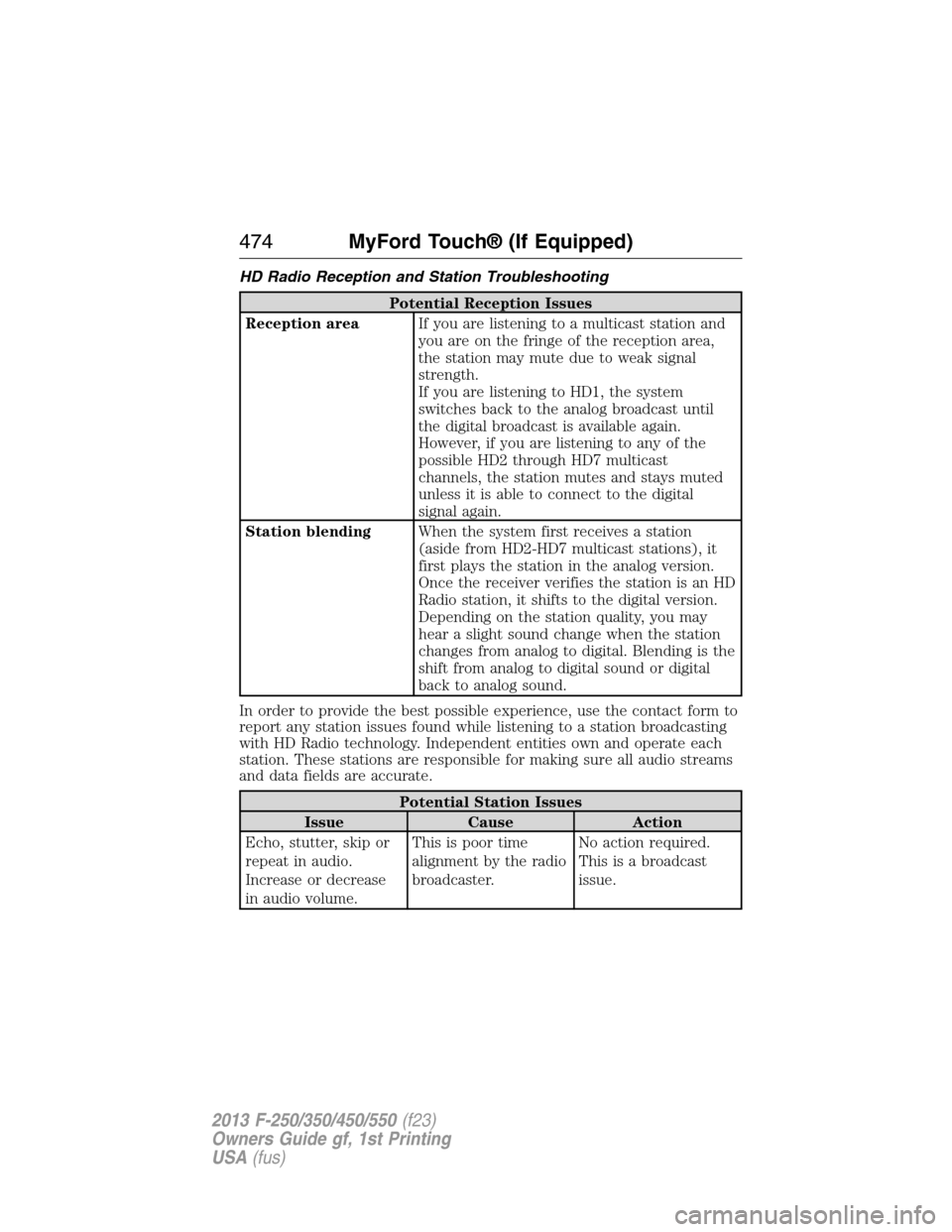
HD Radio Reception and Station Troubleshooting
Potential Reception Issues
Reception areaIf you are listening to a multicast station and
you are on the fringe of the reception area,
the station may mute due to weak signal
strength.
If you are listening to HD1, the system
switches back to the analog broadcast until
the digital broadcast is available again.
However, if you are listening to any of the
possible HD2 through HD7 multicast
channels, the station mutes and stays muted
unless it is able to connect to the digital
signal again.
Station blendingWhen the system first receives a station
(aside from HD2-HD7 multicast stations), it
first plays the station in the analog version.
Once the receiver verifies the station is an HD
Radio station, it shifts to the digital version.
Depending on the station quality, you may
hear a slight sound change when the station
changes from analog to digital. Blending is the
shift from analog to digital sound or digital
back to analog sound.
In order to provide the best possible experience, use the contact form to
report any station issues found while listening to a station broadcasting
with HD Radio technology. Independent entities own and operate each
station. These stations are responsible for making sure all audio streams
and data fields are accurate.
Potential Station Issues
Issue Cause Action
Echo, stutter, skip or
repeat in audio.
Increase or decrease
in audio volume.This is poor time
alignment by the radio
broadcaster.No action required.
This is a broadcast
issue.
474MyFord Touch® (If Equipped)
2013 F-250/350/450/550(f23)
Owners Guide gf, 1st Printing
USA(fus)
Page 476 of 563
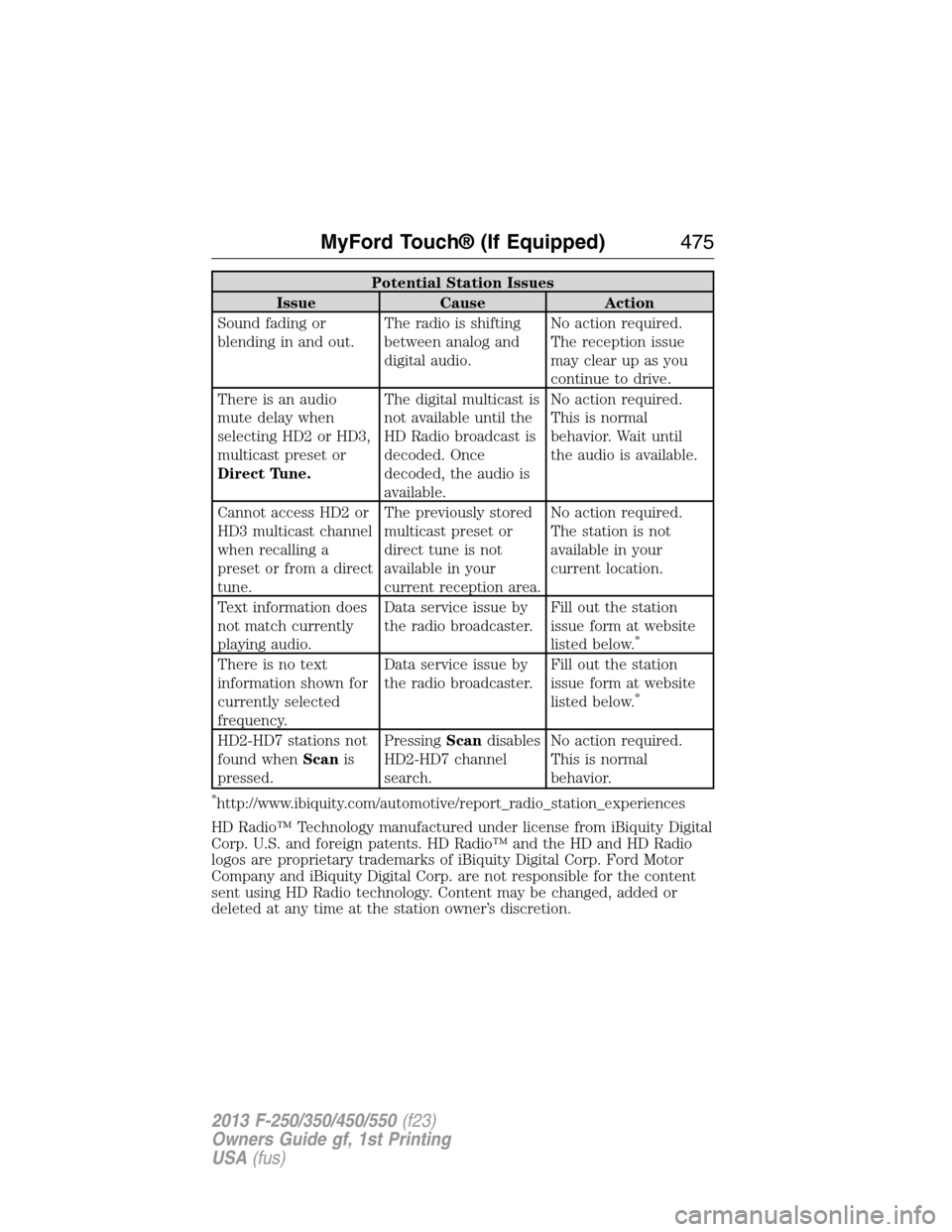
Potential Station Issues
Issue Cause Action
Sound fading or
blending in and out.The radio is shifting
between analog and
digital audio.No action required.
The reception issue
may clear up as you
continue to drive.
There is an audio
mute delay when
selecting HD2 or HD3,
multicast preset or
Direct Tune.The digital multicast is
not available until the
HD Radio broadcast is
decoded. Once
decoded, the audio is
available.No action required.
This is normal
behavior. Wait until
the audio is available.
Cannot access HD2 or
HD3 multicast channel
when recalling a
preset or from a direct
tune.The previously stored
multicast preset or
direct tune is not
available in your
current reception area.No action required.
The station is not
available in your
current location.
Text information does
not match currently
playing audio.Data service issue by
the radio broadcaster.Fill out the station
issue form at website
listed below.
*
There is no text
information shown for
currently selected
frequency.Data service issue by
the radio broadcaster.Fill out the station
issue form at website
listed below.
*
HD2-HD7 stations not
found whenScanis
pressed.PressingScandisables
HD2-HD7 channel
search.No action required.
This is normal
behavior.
*http://www.ibiquity.com/automotive/report_radio_station_experiences
HD Radio™ Technology manufactured under license from iBiquity Digital
Corp. U.S. and foreign patents. HD Radio™ and the HD and HD Radio
logos are proprietary trademarks of iBiquity Digital Corp. Ford Motor
Company and iBiquity Digital Corp. are not responsible for the content
sent using HD Radio technology. Content may be changed, added or
deleted at any time at the station owner’s discretion.
MyFord Touch® (If Equipped)475
2013 F-250/350/450/550(f23)
Owners Guide gf, 1st Printing
USA(fus)
Page 477 of 563
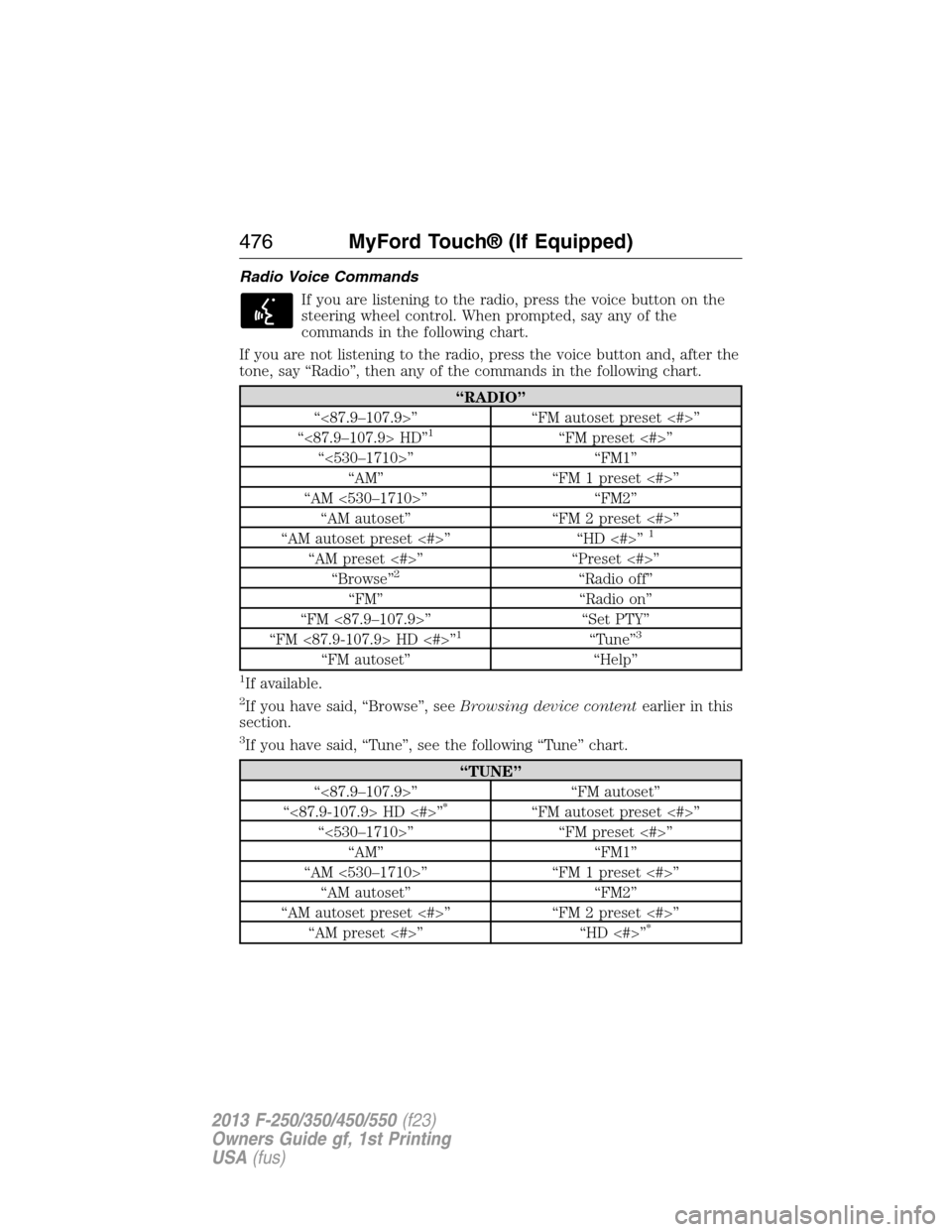
Radio Voice Commands
If you are listening to the radio, press the voice button on the
steering wheel control. When prompted, say any of the
commands in the following chart.
If you are not listening to the radio, press the voice button and, after the
tone, say “Radio”, then any of the commands in the following chart.
“RADIO”
“<87.9–107.9>” “FM autoset preset <#>”
“<87.9–107.9> HD”
1“FM preset <#>”
“<530–1710>” “FM1”
“AM” “FM 1 preset <#>”
“AM <530–1710>” “FM2”
“AM autoset” “FM 2 preset <#>”
“AM autoset preset <#>” “HD <#>”
1
“AM preset <#>” “Preset <#>”
“Browse”2“Radio off”
“FM” “Radio on”
“FM <87.9–107.9>” “Set PTY”
“FM <87.9-107.9> HD <#>”
1“Tune”3
“FM autoset” “Help”
1If available.
2If you have said, “Browse”, seeBrowsing device contentearlier in this
section.
3If you have said, “Tune”, see the following “Tune” chart.
“TUNE”
“<87.9–107.9>” “FM autoset”
“<87.9-107.9> HD <#>”
*“FM autoset preset <#>”
“<530–1710>” “FM preset <#>”
“AM” “FM1”
“AM <530–1710>” “FM 1 preset <#>”
“AM autoset” “FM2”
“AM autoset preset <#>” “FM 2 preset <#>”
“AM preset <#>” “HD <#>”
*
476MyFord Touch® (If Equipped)
2013 F-250/350/450/550(f23)
Owners Guide gf, 1st Printing
USA(fus)
Page 478 of 563
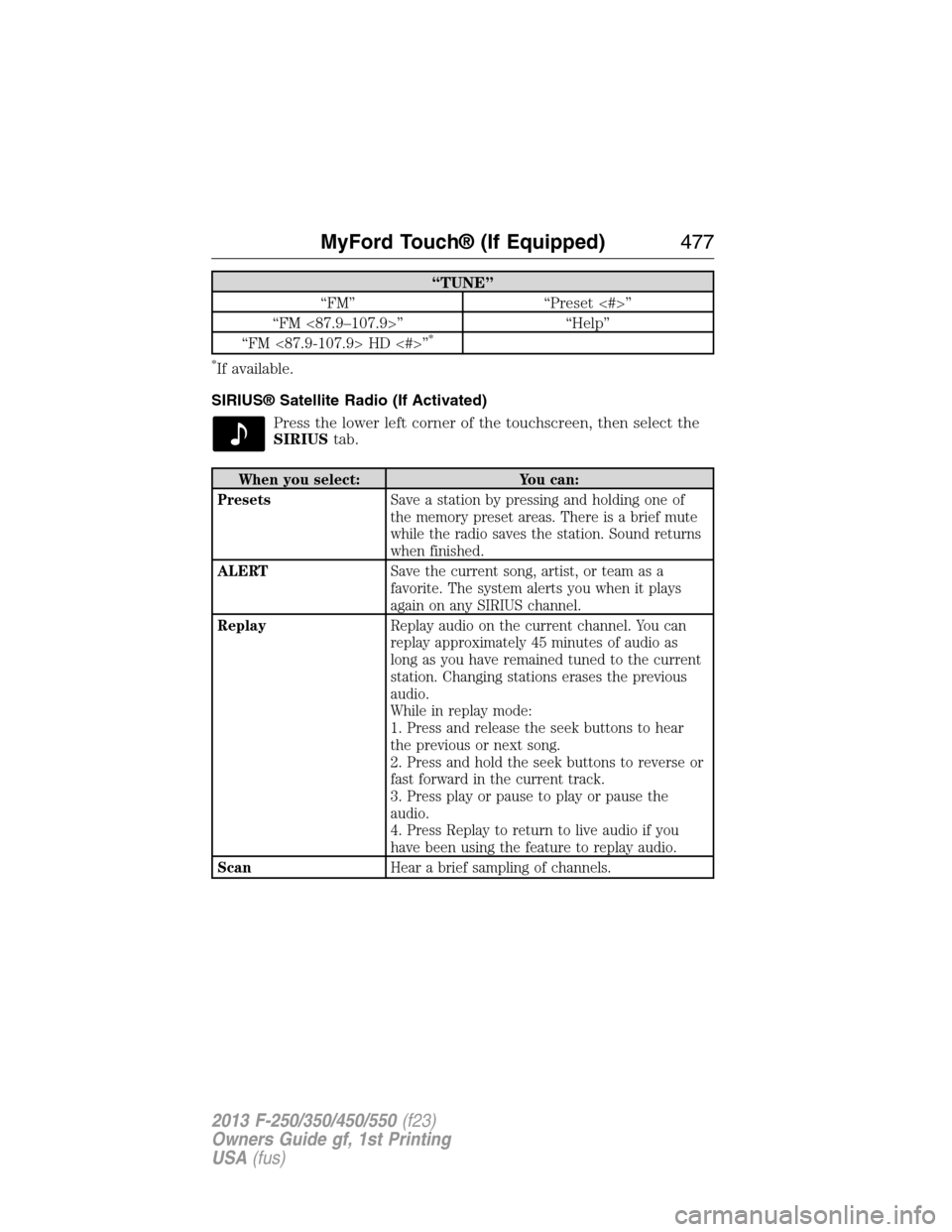
“TUNE”
“FM” “Preset <#>”
“FM <87.9–107.9>” “Help”
“FM <87.9-107.9> HD <#>”
*
*
If available.
SIRIUS® Satellite Radio (If Activated)
Press the lower left corner of the touchscreen, then select the
SIRIUStab.
When you select: You can:
PresetsSave a station by pressing and holding one of
the memory preset areas. There is a brief mute
while the radio saves the station. Sound returns
when finished.
ALERTSave the current song, artist, or team as a
favorite. The system alerts you when it plays
again on any SIRIUS channel.
ReplayReplay audio on the current channel. You can
replay approximately 45 minutes of audio as
long as you have remained tuned to the current
station. Changing stations erases the previous
audio.
While in replay mode:
1. Press and release the seek buttons to hear
the previous or next song.
2. Press and hold the seek buttons to reverse or
fast forward in the current track.
3. Press play or pause to play or pause the
audio.
4. Press Replay to return to live audio if you
have been using the feature to replay audio.
ScanHear a brief sampling of channels.
MyFord Touch® (If Equipped)477
2013 F-250/350/450/550(f23)
Owners Guide gf, 1st Printing
USA(fus)
Page 479 of 563
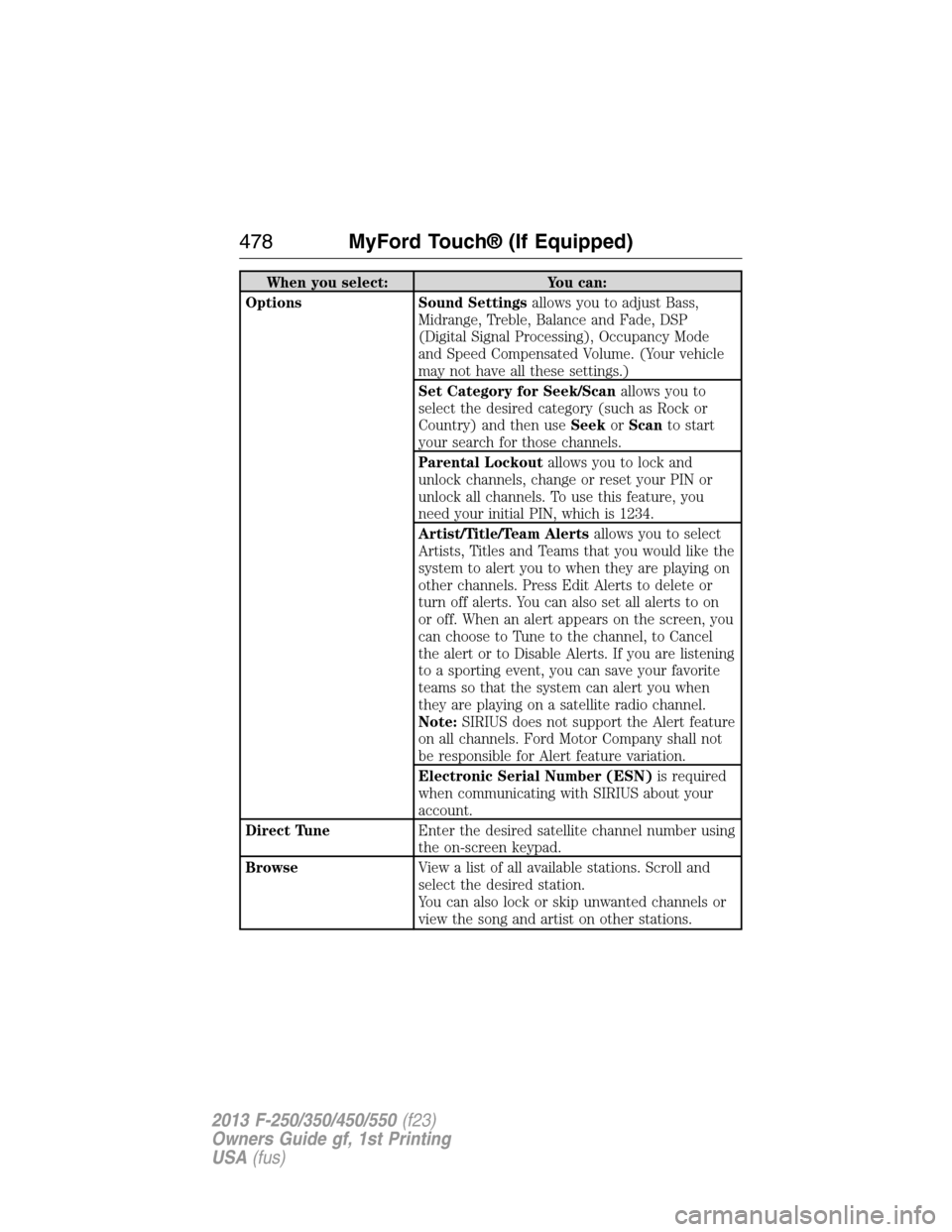
When you select: You can:
Options Sound Settingsallows you to adjust Bass,
Midrange, Treble, Balance and Fade, DSP
(Digital Signal Processing), Occupancy Mode
and Speed Compensated Volume. (Your vehicle
may not have all these settings.)
Set Category for Seek/Scanallows you to
select the desired category (such as Rock or
Country) and then useSeekorScanto start
your search for those channels.
Parental Lockoutallows you to lock and
unlock channels, change or reset your PIN or
unlock all channels. To use this feature, you
need your initial PIN, which is 1234.
Artist/Title/Team Alertsallows you to select
Artists, Titles and Teams that you would like the
system to alert you to when they are playing on
other channels. Press Edit Alerts to delete or
turn off alerts. You can also set all alerts to on
or off. When an alert appears on the screen, you
can choose to Tune to the channel, to Cancel
the alert or to Disable Alerts. If you are listening
to a sporting event, you can save your favorite
teams so that the system can alert you when
they are playing on a satellite radio channel.
Note:SIRIUS does not support the Alert feature
on all channels. Ford Motor Company shall not
be responsible for Alert feature variation.
Electronic Serial Number (ESN)is required
when communicating with SIRIUS about your
account.
Direct TuneEnter the desired satellite channel number using
the on-screen keypad.
BrowseView a list of all available stations. Scroll and
select the desired station.
You can also lock or skip unwanted channels or
view the song and artist on other stations.
478MyFord Touch® (If Equipped)
2013 F-250/350/450/550(f23)
Owners Guide gf, 1st Printing
USA(fus)
Page 480 of 563
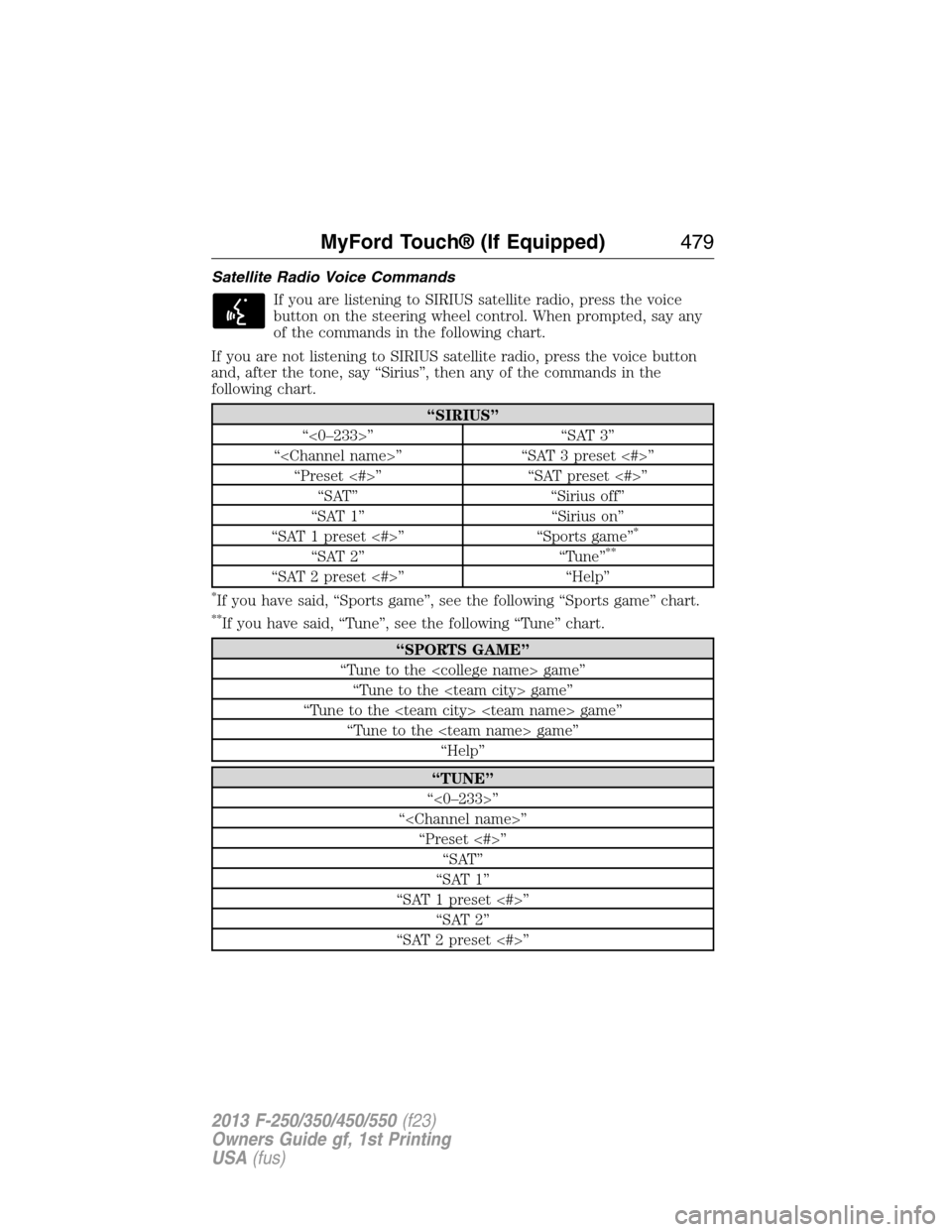
Satellite Radio Voice Commands
If you are listening to SIRIUS satellite radio, press the voice
button on the steering wheel control. When prompted, say any
of the commands in the following chart.
If you are not listening to SIRIUS satellite radio, press the voice button
and, after the tone, say “Sirius”, then any of the commands in the
following chart.
“SIRIUS”
“<0–233>” “SAT 3”
“
“Preset <#>” “SAT preset <#>”
“SAT” “Sirius off”
“SAT 1” “Sirius on”
“SAT 1 preset <#>” “Sports game”
*
“SAT 2” “Tune”**
“SAT 2 preset <#>” “Help”
*If you have said, “Sports game”, see the following “Sports game” chart.
**If you have said, “Tune”, see the following “Tune” chart.
“SPORTS GAME”
“Tune to the
“Tune to the
“Tune to the
“Tune to the
“Help”
“TUNE”
“<0–233>”
“
“Preset <#>”
“SAT”
“SAT 1”
“SAT 1 preset <#>”
“SAT 2”
“SAT 2 preset <#>”
MyFord Touch® (If Equipped)479
2013 F-250/350/450/550(f23)
Owners Guide gf, 1st Printing
USA(fus)
Page 481 of 563
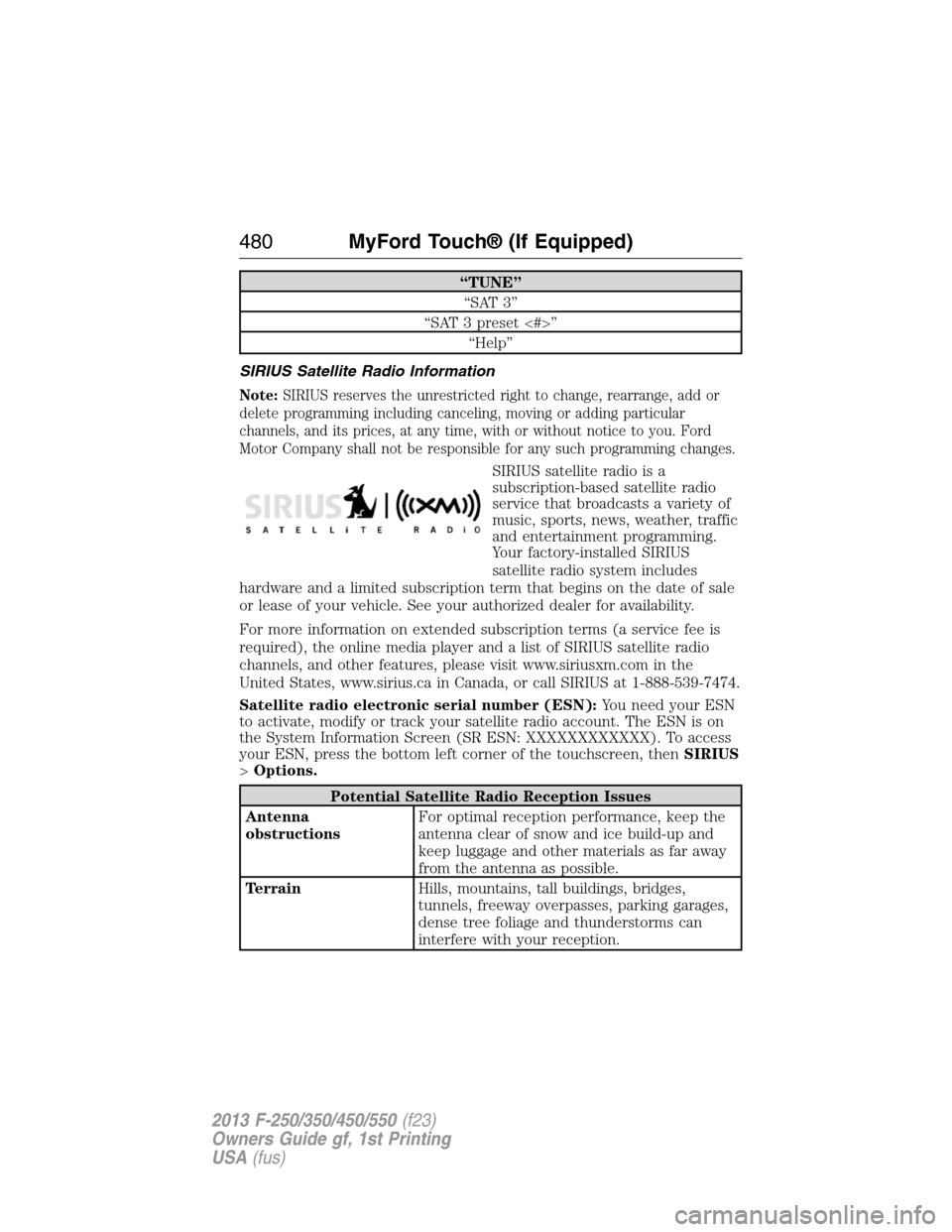
“TUNE”
“SAT 3”
“SAT 3 preset <#>”
“Help”
SIRIUS Satellite Radio Information
Note:SIRIUS reserves the unrestricted right to change, rearrange, add or
delete programming including canceling, moving or adding particular
channels, and its prices, at any time, with or without notice to you. Ford
Motor Company shall not be responsible for any such programming changes.
SIRIUS satellite radio is a
subscription-based satellite radio
service that broadcasts a variety of
music, sports, news, weather, traffic
and entertainment programming.
Your factory-installed SIRIUS
satellite radio system includes
hardware and a limited subscription term that begins on the date of sale
or lease of your vehicle. See your authorized dealer for availability.
For more information on extended subscription terms (a service fee is
required), the online media player and a list of SIRIUS satellite radio
channels, and other features, please visit www.siriusxm.com in the
United States, www.sirius.ca in Canada, or call SIRIUS at 1-888-539-7474.
Satellite radio electronic serial number (ESN):You need your ESN
to activate, modify or track your satellite radio account. The ESN is on
the System Information Screen (SR ESN: XXXXXXXXXXXX). To access
your ESN, press the bottom left corner of the touchscreen, thenSIRIUS
>Options.
Potential Satellite Radio Reception Issues
Antenna
obstructionsFor optimal reception performance, keep the
antenna clear of snow and ice build-up and
keep luggage and other materials as far away
from the antenna as possible.
TerrainHills, mountains, tall buildings, bridges,
tunnels, freeway overpasses, parking garages,
dense tree foliage and thunderstorms can
interfere with your reception.
480MyFord Touch® (If Equipped)
2013 F-250/350/450/550(f23)
Owners Guide gf, 1st Printing
USA(fus)
Page 482 of 563
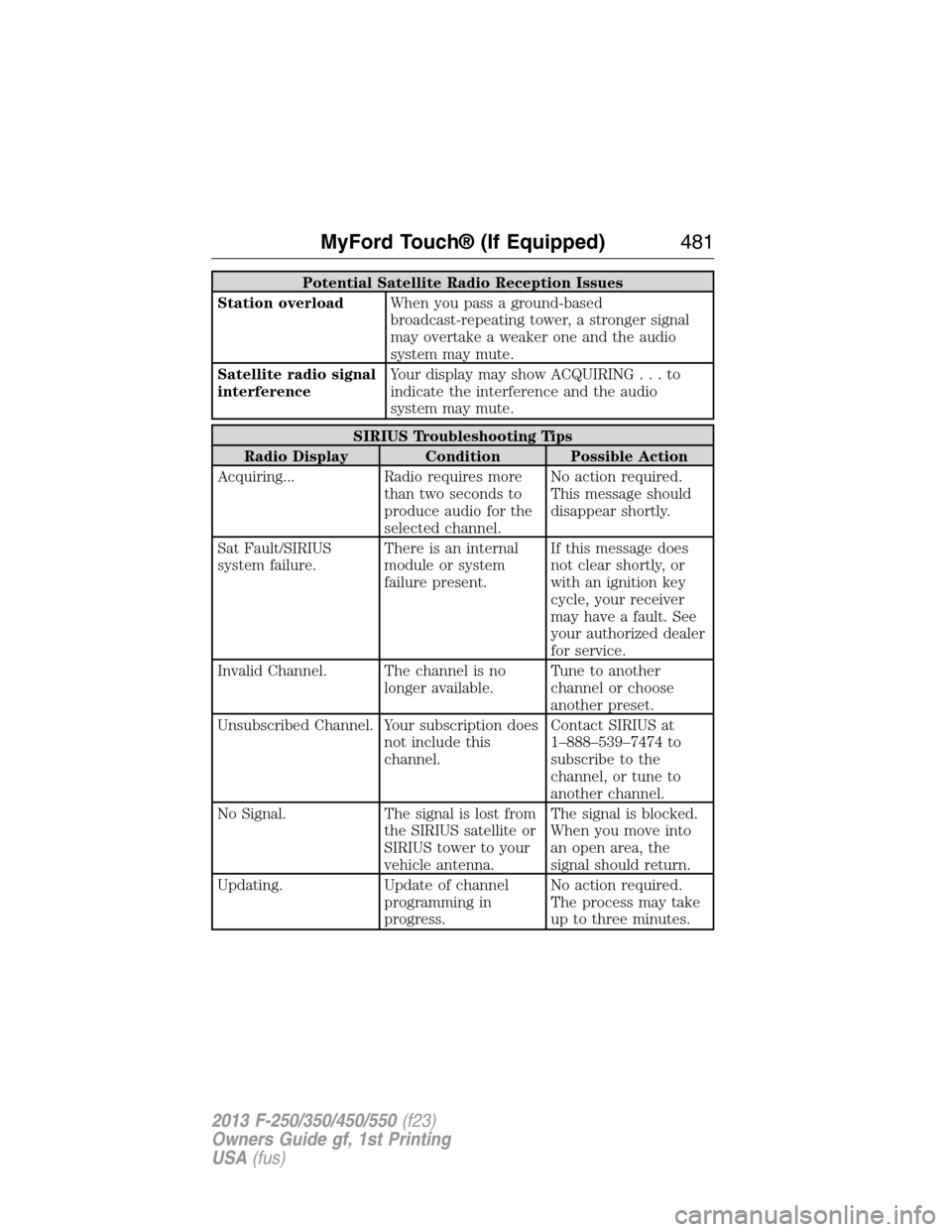
Potential Satellite Radio Reception Issues
Station overloadWhen you pass a ground-based
broadcast-repeating tower, a stronger signal
may overtake a weaker one and the audio
system may mute.
Satellite radio signal
interferenceYour display may show ACQUIRING...to
indicate the interference and the audio
system may mute.
SIRIUS Troubleshooting Tips
Radio Display Condition Possible Action
Acquiring... Radio requires more
than two seconds to
produce audio for the
selected channel.No action required.
This message should
disappear shortly.
Sat Fault/SIRIUS
system failure.There is an internal
module or system
failure present.If this message does
not clear shortly, or
with an ignition key
cycle, your receiver
may have a fault. See
your authorized dealer
for service.
Invalid Channel. The channel is no
longer available.Tune to another
channel or choose
another preset.
Unsubscribed Channel. Your subscription does
not include this
channel.Contact SIRIUS at
1–888–539–7474 to
subscribe to the
channel, or tune to
another channel.
No Signal. The signal is lost from
the SIRIUS satellite or
SIRIUS tower to your
vehicle antenna.The signal is blocked.
When you move into
an open area, the
signal should return.
Updating. Update of channel
programming in
progress.No action required.
The process may take
up to three minutes.
MyFord Touch® (If Equipped)481
2013 F-250/350/450/550(f23)
Owners Guide gf, 1st Printing
USA(fus)
Page 483 of 563
SIRIUS Troubleshooting Tips
Radio Display Condition Possible Action
Call SIRIUS
1–888–539–7474.Your satellite service is
no longer available.Contact SIRIUS at
1-888-539-7474 to
resolve subscription
issues.
No Channels Available. All the channels in the
selected channels are
either skipped or
locked.Use the channel guide
to turn off theLock
orSkipfunction on
that station.
Subscription Updated. SIRIUS has updated
the channels available
for your vehicle.No action required.
CD
Press the lower left corner of the touchscreen, and then select
theCDtab.
When you select: You can:
RepeatChoose to repeat the currently playing track,
all tracks on the disc or turn the feature off if
already on.
ShufflePlay the tracks or entire albums in random
order, or turn the feature off if already on.
ScanHear a brief sampling of all available tracks.
More InfoSee disc information.
Options Sound:Adjust Bass, Treble, Midrange,
Balance and Fade, DSP (Digital Signal
Processing), Occupancy Mode, and Speed
Compensated Volume settings. (Your vehicle
may not have all these settings.)
Compression:Turn the compression feature
on and off.
BrowseLook through all available audio sources.
You can also advance and reverse the current track or current folder (if
applicable).
482MyFord Touch® (If Equipped)
2013 F-250/350/450/550(f23)
Owners Guide gf, 1st Printing
USA(fus)
Page 490 of 563
WARNING:Store the portable music player in a secure location,
such as the center console or the glove box, when your vehicle is
moving. Hard objects may become projectiles in a crash or sudden stop,
which may increase the risk of serious injury. The audio extension cable
must be long enough to allow the portable music player to be safely
stored while your vehicle is moving.
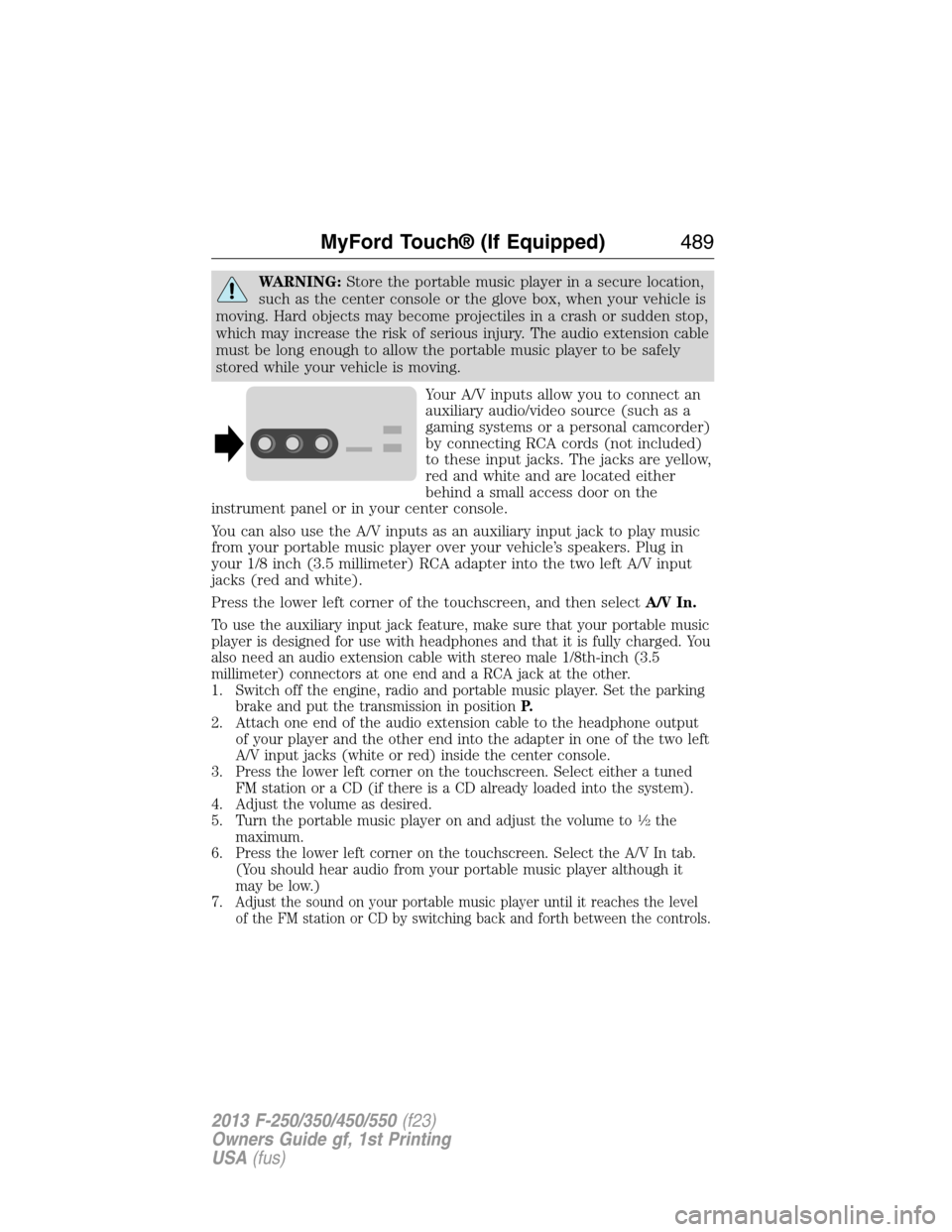
Your A/V inputs allow you to connect an
auxiliary audio/video source (such as a
gaming systems or a personal camcorder)
by connecting RCA cords (not included)
to these input jacks. The jacks are yellow,
red and white and are located either
behind a small access door on the
instrument panel or in your center console.
You can also use the A/V inputs as an auxiliary input jack to play music
from your portable music player over your vehicle’s speakers. Plug in
your 1/8 inch (3.5 millimeter) RCA adapter into the two left A/V input
jacks (red and white).
Press the lower left corner of the touchscreen, and then selectA/V In.
To use the auxiliary input jack feature, make sure that your portable music
player is designed for use with headphones and that it is fully charged. You
also need an audio extension cable with stereo male 1/8th-inch (3.5
millimeter) connectors at one end and a RCA jack at the other.
1. Switch off the engine, radio and portable music player. Set the parking
brake and put the transmission in positionP.
2. Attach one end of the audio extension cable to the headphone output
of your player and the other end into the adapter in one of the two left
A/V input jacks (white or red) inside the center console.
3. Press the lower left corner on the touchscreen. Select either a tuned
FM station or a CD (if there is a CD already loaded into the system).
4. Adjust the volume as desired.
5. Turn the portable music player on and adjust the volume to
12the
maximum.
6. Press the lower left corner on the touchscreen. Select the A/V In tab.
(You should hear audio from your portable music player although it
may be low.)
7.
Adjust the sound on your portable music player until it reaches the level
of the FM station or CD by switching back and forth between the controls.
MyFord Touch® (If Equipped)489
2013 F-250/350/450/550(f23)
Owners Guide gf, 1st Printing
USA(fus)