key FORD SUPER DUTY 2016 3.G Workshop Manual
[x] Cancel search | Manufacturer: FORD, Model Year: 2016, Model line: SUPER DUTY, Model: FORD SUPER DUTY 2016 3.GPages: 510, PDF Size: 5.42 MB
Page 296 of 510
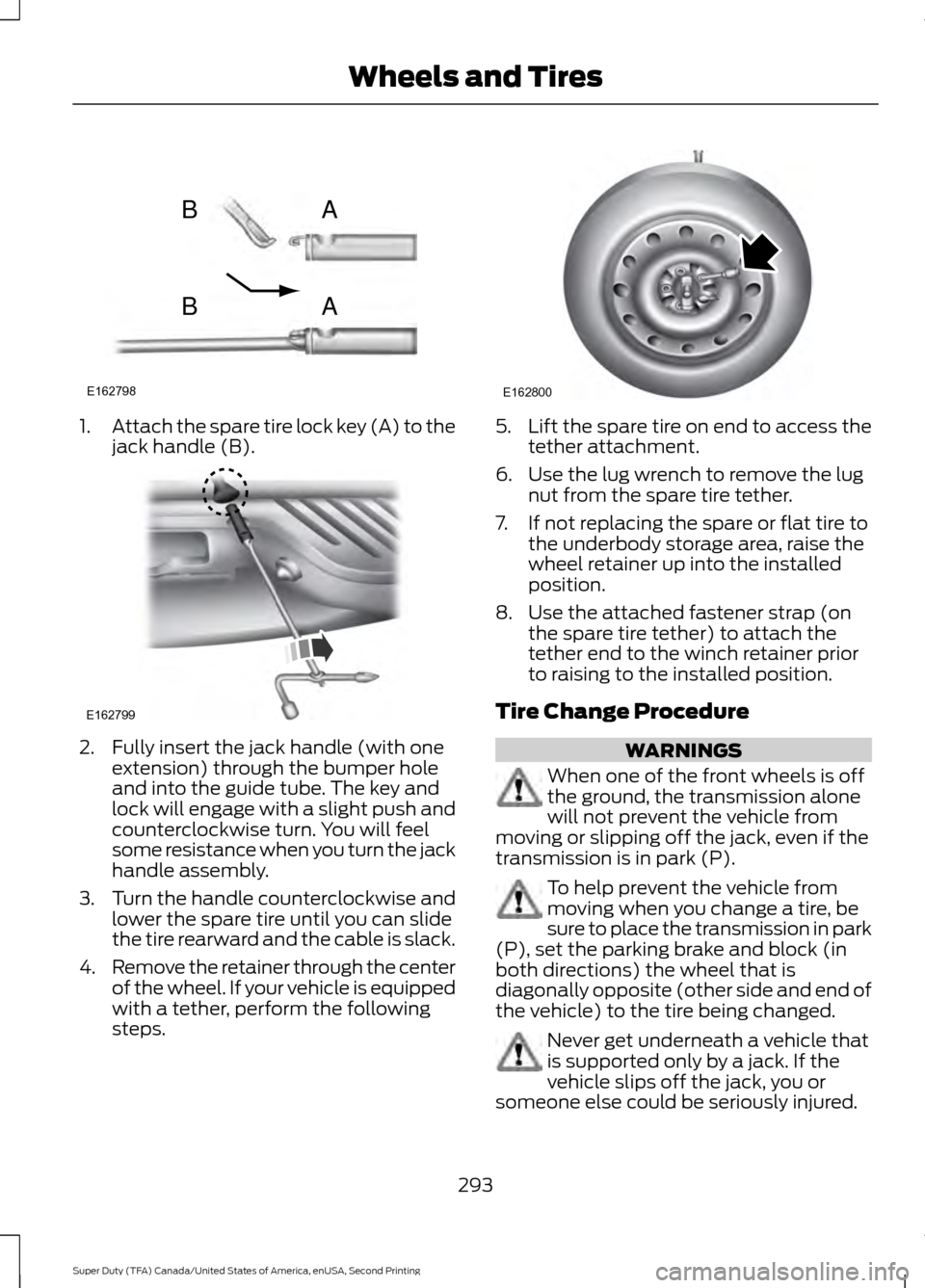
1.
Attach the spare tire lock key (A) to the
jack handle (B). 2. Fully insert the jack handle (with one
extension) through the bumper hole
and into the guide tube. The key and
lock will engage with a slight push and
counterclockwise turn. You will feel
some resistance when you turn the jack
handle assembly.
3. Turn the handle counterclockwise and
lower the spare tire until you can slide
the tire rearward and the cable is slack.
4. Remove the retainer through the center
of the wheel. If your vehicle is equipped
with a tether, perform the following
steps. 5.
Lift the spare tire on end to access the
tether attachment.
6. Use the lug wrench to remove the lug nut from the spare tire tether.
7. If not replacing the spare or flat tire to the underbody storage area, raise the
wheel retainer up into the installed
position.
8. Use the attached fastener strap (on the spare tire tether) to attach the
tether end to the winch retainer prior
to raising to the installed position.
Tire Change Procedure WARNINGS
When one of the front wheels is off
the ground, the transmission alone
will not prevent the vehicle from
moving or slipping off the jack, even if the
transmission is in park (P). To help prevent the vehicle from
moving when you change a tire, be
sure to place the transmission in park
(P), set the parking brake and block (in
both directions) the wheel that is
diagonally opposite (other side and end of
the vehicle) to the tire being changed. Never get underneath a vehicle that
is supported only by a jack. If the
vehicle slips off the jack, you or
someone else could be seriously injured.
293
Super Duty (TFA) Canada/United States of America, enUSA, Second Printing Wheels and TiresE162798
AB
AB E162799 E162800
Page 304 of 510
7.
Repeat this tightness check procedure
when servicing the spare tire pressure
(every six months, per scheduled
maintenance information), or at any
time that the spare tire is disturbed through service of other components.
8. If removed, install the spare tire lock into the bumper drive tube with the
spare tire lock key and jack handle.
TECHNICAL SPECIFICATIONS
Wheel Lug Nut Torque Specifications WARNING
When a wheel is installed, always remove any corrosion, dirt or foreign materials
present on the mounting surfaces of the wheel or the surface of the wheel hub,
brake drum or brake disc that contacts the wheel. Make sure that any fasteners
that attach the rotor to the hub are secured so they do not interfere with the mounting
surfaces of the wheel. Installing wheels without correct metal-to-metal contact at the
wheel mounting surfaces can cause the wheel nuts to loosen and the wheel to come off
while the vehicle is in motion, resulting in loss of control. lb.ft (Nm)
Bolt size
165 lb.ft (224 Nm)
M14 x 1.5
* Torque specifications are for nut and bolt threads free of dirt and rust. Use only Ford
recommended replacement fasteners.
On vehicles equipped with single rear wheels, retighten the lug nuts to the specified torque
at 100 miles (160 kilometers) after any wheel disturbance (such as tire rotation, changing
a flat tire, wheel removal).
On vehicles equipped with dual rear wheels, retighten the wheel lug nuts to the specified
torque at 100 miles (160 kilometers), and again at 500 miles (800 kilometers) of new
vehicle operation and after any wheel disturbance (such as tire rotation, changing a flat
tire, wheel removal).
It is important to follow the proper wheel mounting and lug nut torque procedures.
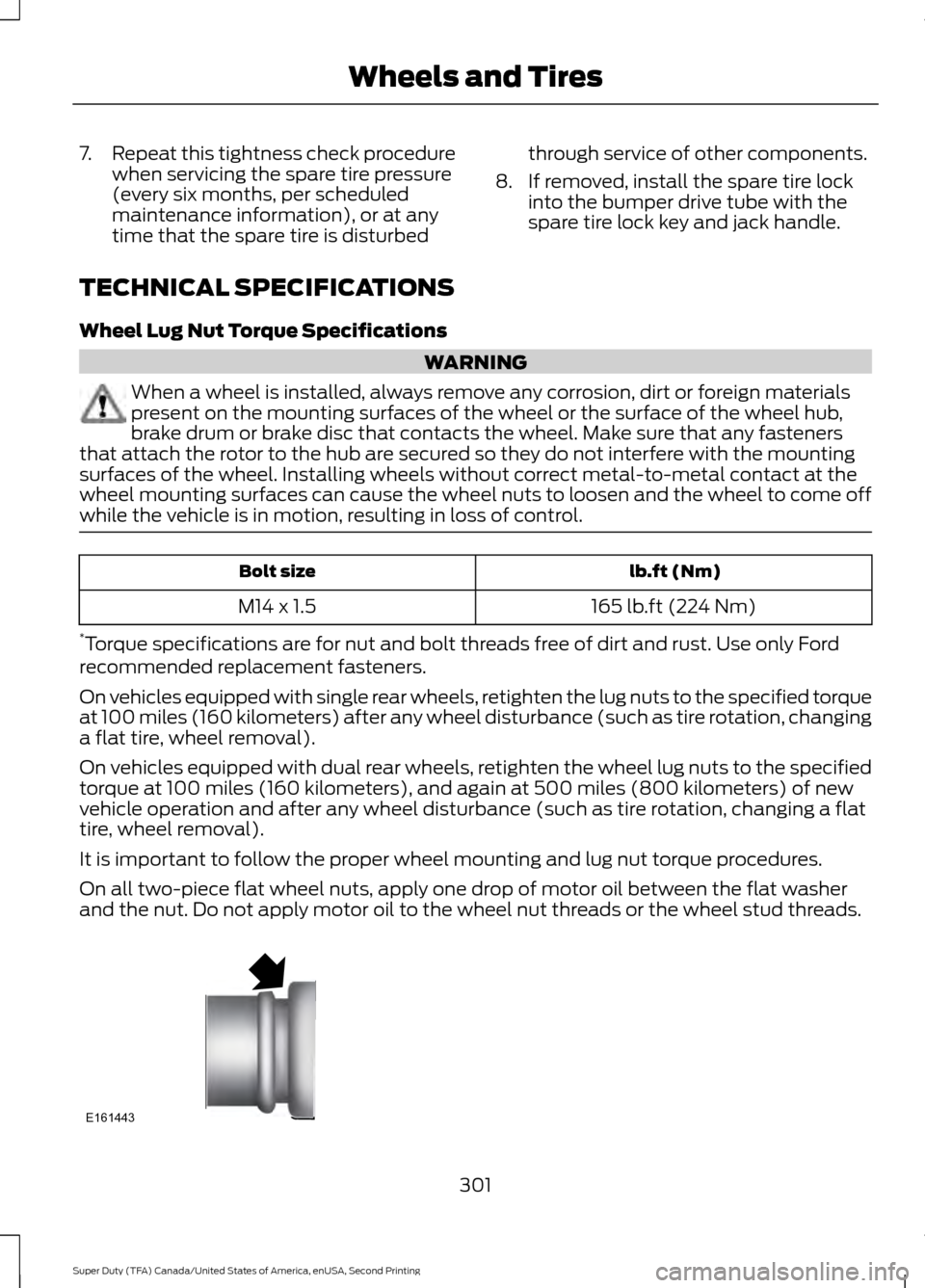
On all two-piece flat wheel nuts, apply one drop of motor oil between the flat washer
and the nut. Do not apply motor oil to the wheel nut threads or the wheel stud threads. 301
Super Duty (TFA) Canada/United States of America, enUSA, Second Printing Wheels and TiresE161443
Page 330 of 510
Troubleshooting
Action
Condition
Message
No action required. This
message should disappear
shortly.
Radio requires more than
two seconds to produce
audio for the selected
channel.
Acquiring…
If this message does not
clear shortly, or with an igni-
tion key cycle, your receiver
may have a fault. See an
authorized dealer for service.
There is an internal module
or system failure present.
Satellite antenna fault
SIRIUS system failure
Tune to another channel or
choose another preset.
The channel is no longer
available.
Invalid Channel
Contact SIRIUS at 1-888-
539-7474 to subscribe to
the channel, or tune to
another channel.
Your subscription does not
include this channel.
Unsubscribed Channel
The signal is blocked. When
you move into an open area,
the signal should return.
The signal is lost from the
SIRIUS satellite or SIRIUS
tower to your vehicle
antenna.
No Signal
No action required. The
process may take up to
three minutes.
Update of channel
programming in progress.
Updating…
Contact SIRIUS at 1-888-
539-7474 to resolve
subscription issues.
Your satellite service is no
longer available.
Questions? Call
1-888-539-7474
Use the channel guide to
turn off the Lock or Skip
function on that station.
All the channels in the
selected category are either
skipped or locked.
None found
Check Channel Guide
No action required.
SIRIUS has updated the
channels available for your
vehicle.
Subscription Updated
327
Super Duty (TFA) Canada/United States of America, enUSA, Second Printing Audio System
Page 343 of 510
Action and Description
Message
Repeat entering letters to narrow yoursearch. When you are satisfied with
your entry press the right arrow key on the bezel.
SYNC will jump to the phonebook
contact name that matches your entry. Press OK.
In addition to the Phonebook entry
name, the phone number label (Work, Cell, Home or Other) shows on thedisplay. If there are multiple phone
number entries for a particular Phone-
book name, you can scroll through the different phone labels at this time.
Once you have the desired phone label on the screen press
OK.
The phone number that is stored under
the selected label will be shown on the display. Press
OK to dial this number.
Press the
OK button to send, download, read and delete text
messages. 1
TEXT MESSAGE
View your cell phone's status, set ring tones, select your message
notification, change phonebook entries and automatically download
your cell phone content among other features. 1
PHONE SETNGS
Access the SYNC Services portal where you can request various
types of information, for example traffic reports and directions. 3
SYNC Services
Automatically place an emergency call to a 911 operator following
a crash.4
911 Assist
Create and receive a diagnostic report card on your vehicle. 3
Vehicle Health
Interact with SYNC-capable mobile applications on your smart-
phone.
APPLICATIONS
340
Super Duty (TFA) Canada/United States of America, enUSA, Second Printing SYNC™
(If Equipped)
Page 383 of 510
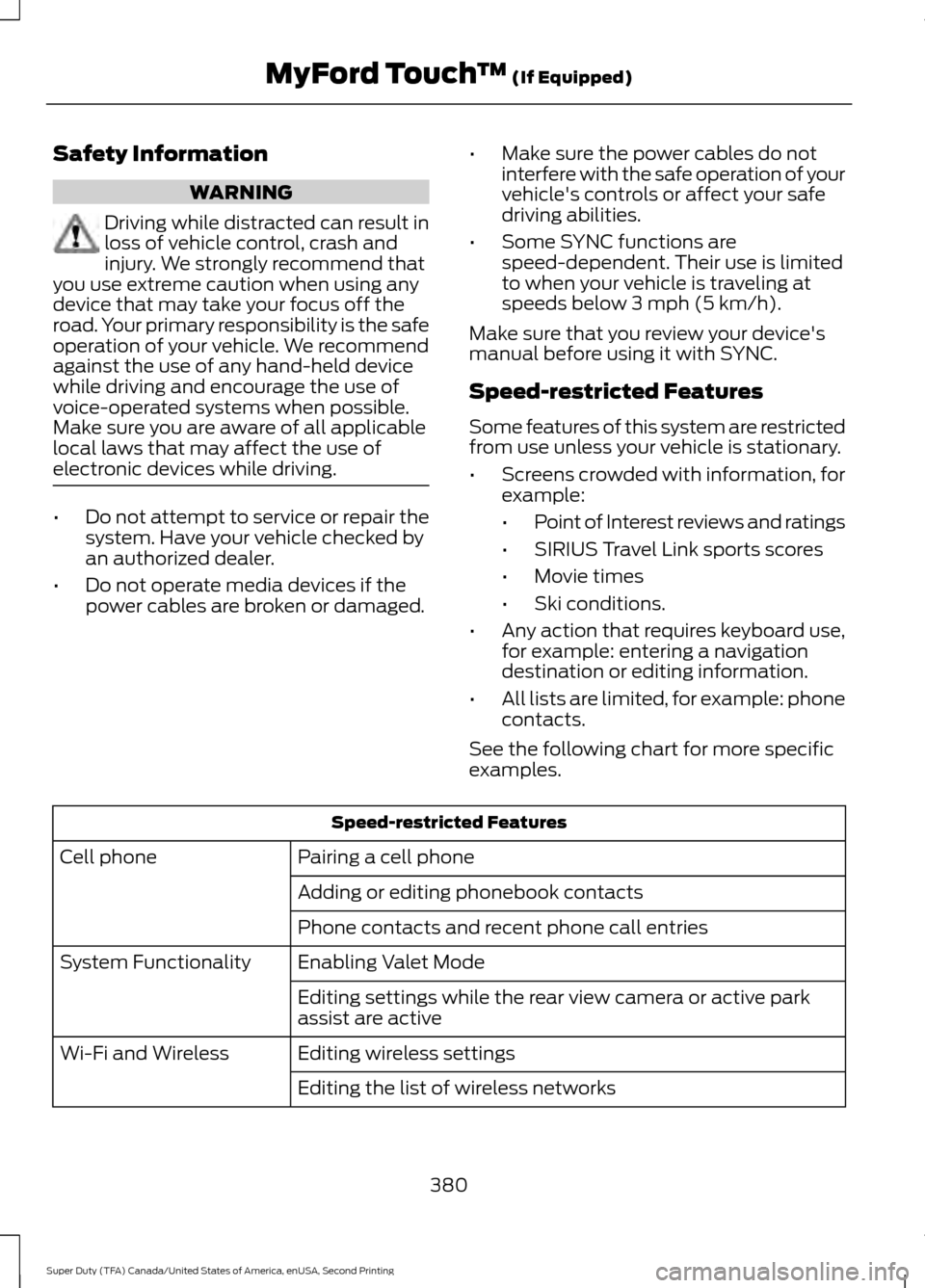
Safety Information
WARNING
Driving while distracted can result in
loss of vehicle control, crash and
injury. We strongly recommend that
you use extreme caution when using any
device that may take your focus off the
road. Your primary responsibility is the safe
operation of your vehicle. We recommend
against the use of any hand-held device
while driving and encourage the use of
voice-operated systems when possible.
Make sure you are aware of all applicable
local laws that may affect the use of
electronic devices while driving. •
Do not attempt to service or repair the
system. Have your vehicle checked by
an authorized dealer.
• Do not operate media devices if the
power cables are broken or damaged. •
Make sure the power cables do not
interfere with the safe operation of your
vehicle's controls or affect your safe
driving abilities.
• Some SYNC functions are
speed-dependent. Their use is limited
to when your vehicle is traveling at
speeds below 3 mph (5 km/h).
Make sure that you review your device's
manual before using it with SYNC.
Speed-restricted Features
Some features of this system are restricted
from use unless your vehicle is stationary.
• Screens crowded with information, for
example:
•Point of Interest reviews and ratings
• SIRIUS Travel Link sports scores
• Movie times
• Ski conditions.
• Any action that requires keyboard use,
for example: entering a navigation
destination or editing information.
• All lists are limited, for example: phone
contacts.
See the following chart for more specific
examples. Speed-restricted Features
Pairing a cell phone
Cell phone
Adding or editing phonebook contacts
Phone contacts and recent phone call entries
Enabling Valet Mode
System Functionality
Editing settings while the rear view camera or active park
assist are active
Editing wireless settings
Wi-Fi and Wireless
Editing the list of wireless networks
380
Super Duty (TFA) Canada/United States of America, enUSA, Second Printing MyFord Touch
™ (If Equipped)
Page 384 of 510
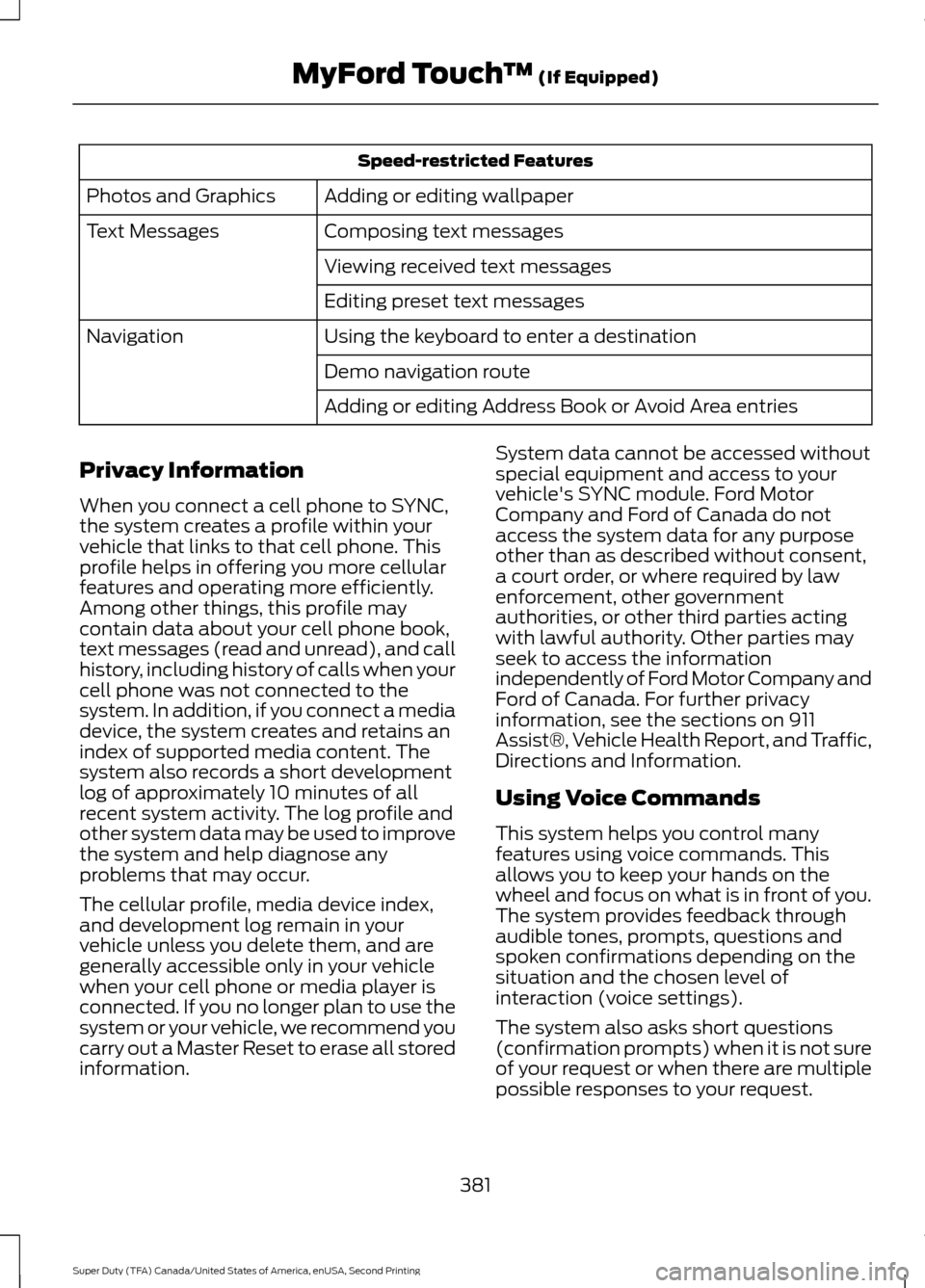
Speed-restricted Features
Adding or editing wallpaper
Photos and Graphics
Composing text messages
Text Messages
Viewing received text messages
Editing preset text messages
Using the keyboard to enter a destination
Navigation
Demo navigation route
Adding or editing Address Book or Avoid Area entries
Privacy Information
When you connect a cell phone to SYNC,
the system creates a profile within your
vehicle that links to that cell phone. This
profile helps in offering you more cellular
features and operating more efficiently.
Among other things, this profile may
contain data about your cell phone book,
text messages (read and unread), and call
history, including history of calls when your
cell phone was not connected to the
system. In addition, if you connect a media
device, the system creates and retains an
index of supported media content. The
system also records a short development
log of approximately 10 minutes of all
recent system activity. The log profile and
other system data may be used to improve
the system and help diagnose any
problems that may occur.
The cellular profile, media device index,
and development log remain in your
vehicle unless you delete them, and are
generally accessible only in your vehicle
when your cell phone or media player is
connected. If you no longer plan to use the
system or your vehicle, we recommend you
carry out a Master Reset to erase all stored
information. System data cannot be accessed without
special equipment and access to your
vehicle's SYNC module. Ford Motor
Company and Ford of Canada do not
access the system data for any purpose
other than as described without consent,
a court order, or where required by law
enforcement, other government
authorities, or other third parties acting
with lawful authority. Other parties may
seek to access the information
independently of Ford Motor Company and
Ford of Canada. For further privacy
information, see the sections on 911
Assist®, Vehicle Health Report, and Traffic,
Directions and Information.
Using Voice Commands
This system helps you control many
features using voice commands. This
allows you to keep your hands on the
wheel and focus on what is in front of you.
The system provides feedback through
audible tones, prompts, questions and
spoken confirmations depending on the
situation and the chosen level of
interaction (voice settings).
The system also asks short questions
(confirmation prompts) when it is not sure
of your request or when there are multiple
possible responses to your request.
381
Super Duty (TFA) Canada/United States of America, enUSA, Second Printing MyFord Touch
™ (If Equipped)
Page 392 of 510
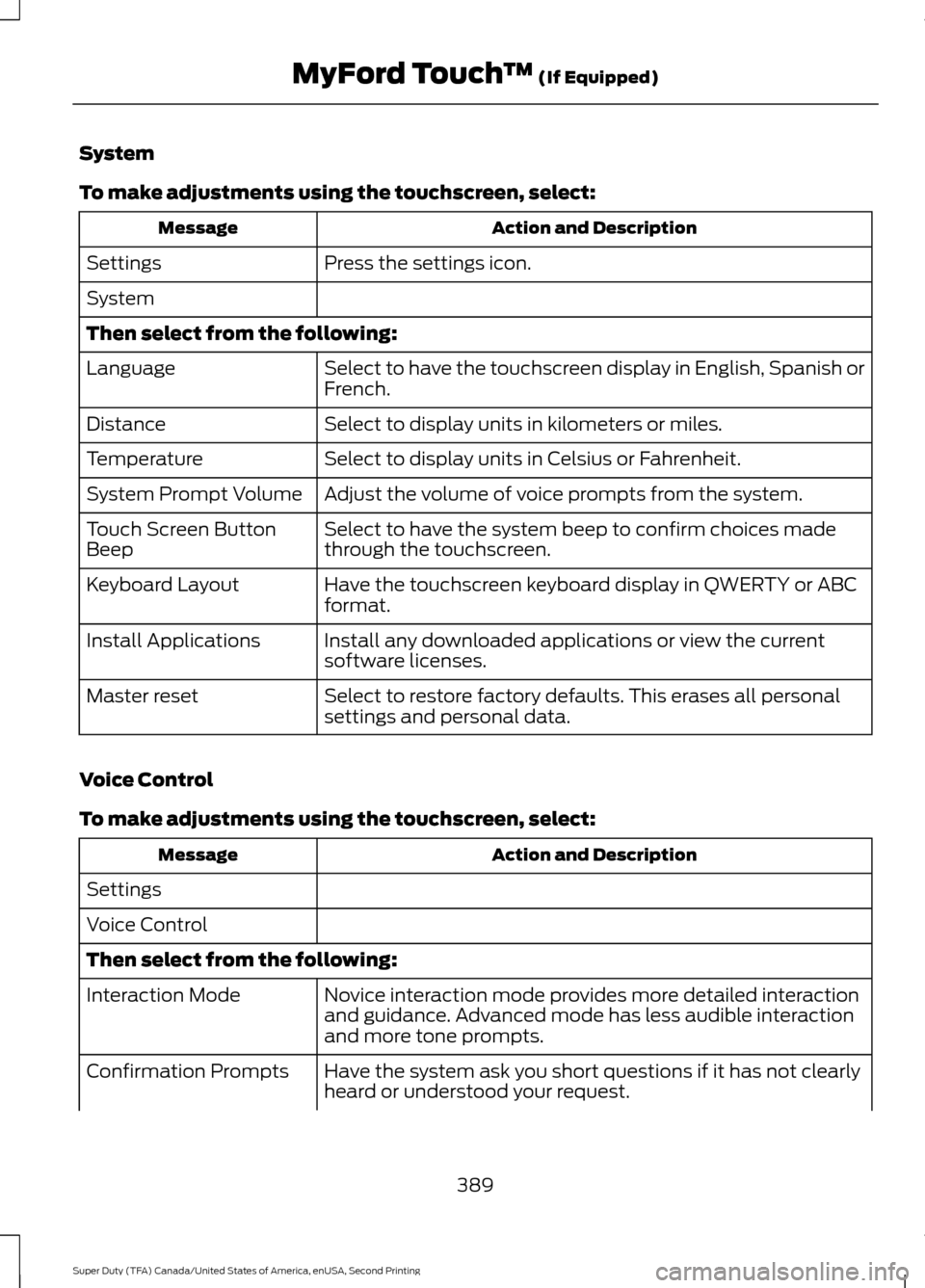
System
To make adjustments using the touchscreen, select:
Action and Description
Message
Press the settings icon.
Settings
System
Then select from the following:
Select to have the touchscreen display in English, Spanish or
French.
Language
Select to display units in kilometers or miles.
Distance
Select to display units in Celsius or Fahrenheit.
Temperature
Adjust the volume of voice prompts from the system.
System Prompt Volume
Select to have the system beep to confirm choices made
through the touchscreen.
Touch Screen Button
Beep
Have the touchscreen keyboard display in QWERTY or ABC
format.
Keyboard Layout
Install any downloaded applications or view the current
software licenses.
Install Applications
Select to restore factory defaults. This erases all personal
settings and personal data.
Master reset
Voice Control
To make adjustments using the touchscreen, select: Action and Description
Message
Settings
Voice Control
Then select from the following: Novice interaction mode provides more detailed interaction
and guidance. Advanced mode has less audible interaction
and more tone prompts.
Interaction Mode
Have the system ask you short questions if it has not clearly
heard or understood your request.
Confirmation Prompts
389
Super Duty (TFA) Canada/United States of America, enUSA, Second Printing MyFord Touch
™ (If Equipped)
Page 409 of 510
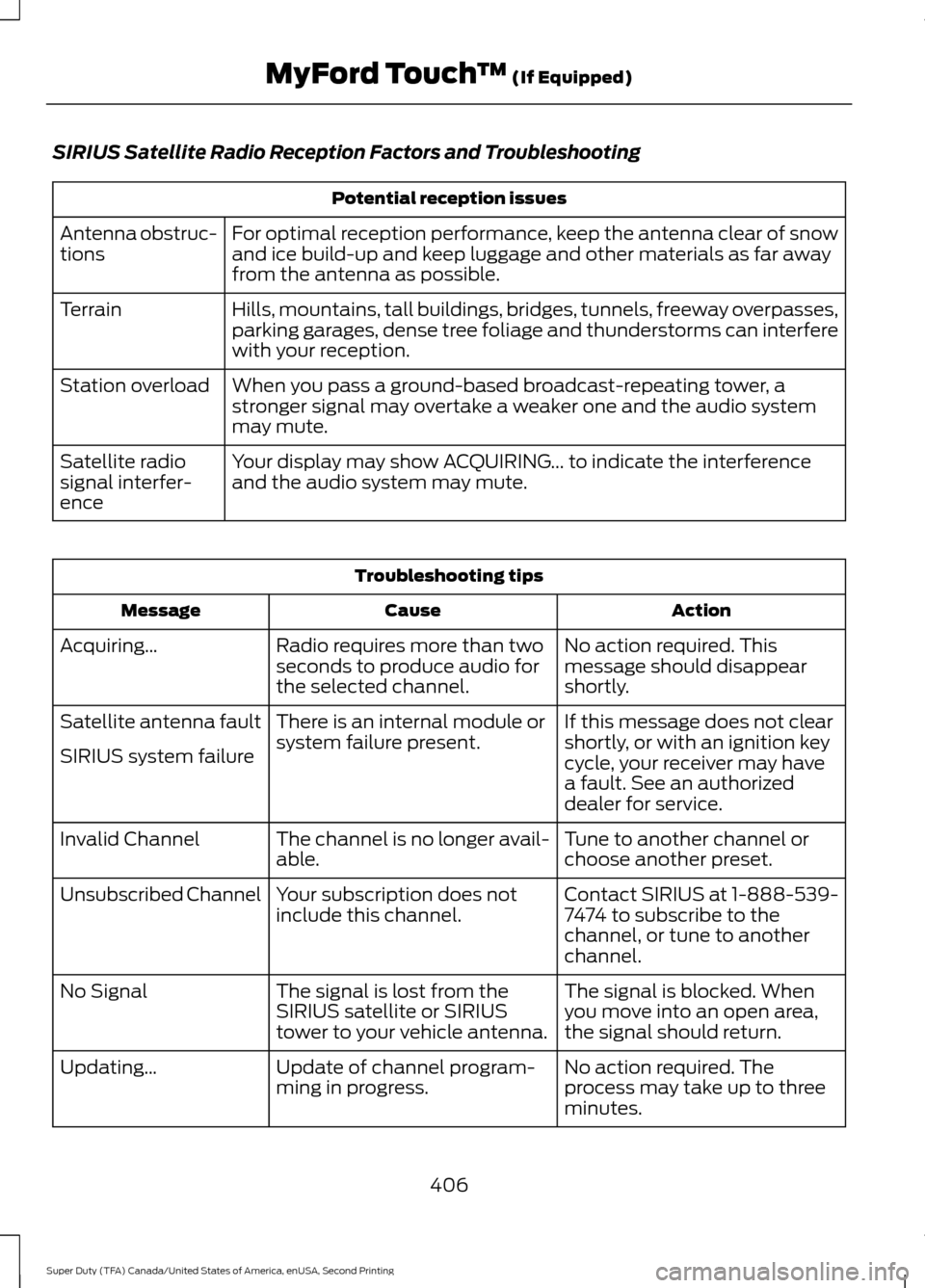
SIRIUS Satellite Radio Reception Factors and Troubleshooting
Potential reception issues
For optimal reception performance, keep the antenna clear of snow
and ice build-up and keep luggage and other materials as far away
from the antenna as possible.
Antenna obstruc-
tions
Hills, mountains, tall buildings, bridges, tunnels, freeway overpasses,
parking garages, dense tree foliage and thunderstorms can interfere
with your reception.
Terrain
When you pass a ground-based broadcast-repeating tower, a
stronger signal may overtake a weaker one and the audio system
may mute.
Station overload
Your display may show ACQUIRING... to indicate the interference
and the audio system may mute.
Satellite radio
signal interfer-
ence Troubleshooting tips
Action
Cause
Message
No action required. This
message should disappear
shortly.
Radio requires more than two
seconds to produce audio for
the selected channel.
Acquiring…
If this message does not clear
shortly, or with an ignition key
cycle, your receiver may have
a fault. See an authorized
dealer for service.
There is an internal module or
system failure present.
Satellite antenna fault
SIRIUS system failure
Tune to another channel or
choose another preset.
The channel is no longer avail-
able.
Invalid Channel
Contact SIRIUS at 1-888-539-
7474 to subscribe to the
channel, or tune to another
channel.
Your subscription does not
include this channel.
Unsubscribed Channel
The signal is blocked. When
you move into an open area,
the signal should return.
The signal is lost from the
SIRIUS satellite or SIRIUS
tower to your vehicle antenna.
No Signal
No action required. The
process may take up to three
minutes.
Update of channel program-
ming in progress.
Updating…
406
Super Duty (TFA) Canada/United States of America, enUSA, Second Printing MyFord Touch
™ (If Equipped)
Page 453 of 510
For a complete listing of the accessories
that are available for your vehicle, please
contact your authorized dealer or visit the
online store web site:
Web Address (United States)
www.Accessories.Ford.com Web Address (Canada)
www.Accessories.Ford.ca
Ford Accessories are available for your
vehicle through an authorized Ford dealer.
Ford Motor Company will repair or replace
any properly authorized dealer-installed
Ford Original Accessory found to be
defective in factory-supplied materials or
workmanship during the warranty period,
as well as any component damaged by the
defective accessories.
Ford Motor Company will warrant your
vehicle through the warranty that provides
the greatest benefit:
• 24 months, unlimited mileage.
• The remainder of your new vehicle
limited warranty.
Contact an authorized dealer for details
and a copy of the warranty.
Exterior style
• Bug shields.
• Commercial graphics.*
• Commercial LED warning strobe lights.
• Deflectors.
• Exhaust tip.
• Fog lamps.
• Running boards.
• Splash guards.
• Stainless-steel wheel covers.* •
Step bars.
• Wheel well liners.
Interior style
• Cargo organizers.
• Custom seat covers.*
• Floor mats.
Lifestyle
• Ash cup / smoker's package.
• Bed extender.
• Bedliners and bedmats.
• Racks and carriers.*
• Rear-seat entertainment.*
• Sportliner cargo liner.*
• Tonneau covers*.
• Trailer hitches, wiring harnesses and
accessories.
• Truck bed camping tent.*
Peace of mind
• Back-up alarm.*
• Bed hooks.*
• Bumper and hitch-mounted parking
sensors.*
• Cable lock.*
• Ford Telematics.
• Keyless entry keypad.
• Protective seat covers.*
• Remote start and alarms.
• Speed/Cruise control.
• Tool or Cargo boxes.*
• Wheel locks.
450
Super Duty (TFA) Canada/United States of America, enUSA, Second Printing Accessories
Page 455 of 510
•
An authorized dealer needs to install
mobile communications systems.
Improper installation may harm the
operation of your vehicle, particularly
if the manufacturer did not design the
mobile communication system
specifically for automotive use.
• If you or an authorized Ford dealer add
any non-Ford electrical or electronic
accessories or components to your
vehicle, you may adversely affect
battery performance and durability. In
addition, you may also adversely affect
the performance of other electrical
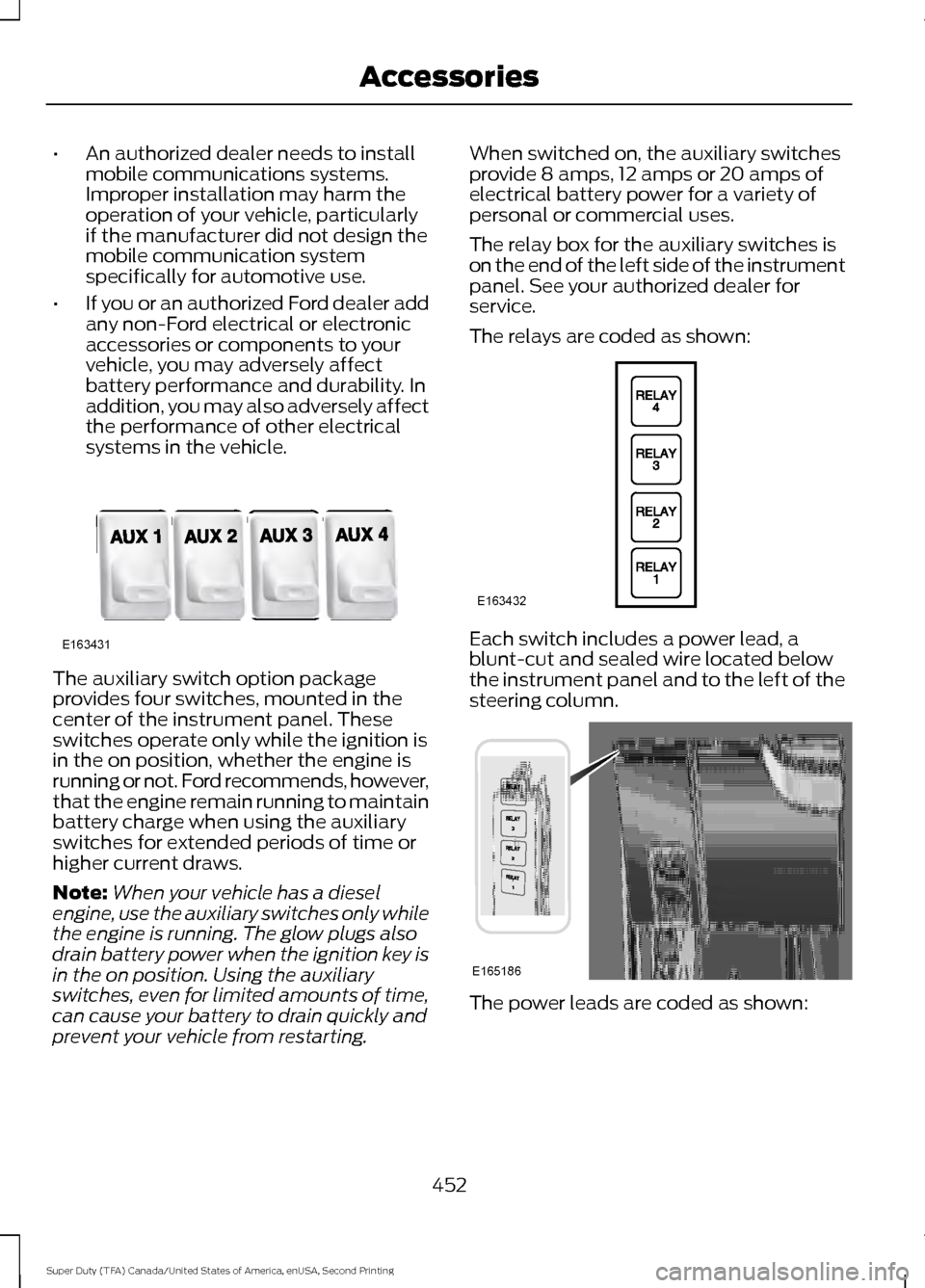
systems in the vehicle. The auxiliary switch option package
provides four switches, mounted in the
center of the instrument panel. These
switches operate only while the ignition is
in the on position, whether the engine is
running or not. Ford recommends, however,
that the engine remain running to maintain
battery charge when using the auxiliary
switches for extended periods of time or
higher current draws.
Note:
When your vehicle has a diesel
engine, use the auxiliary switches only while
the engine is running. The glow plugs also
drain battery power when the ignition key is
in the on position. Using the auxiliary
switches, even for limited amounts of time,
can cause your battery to drain quickly and
prevent your vehicle from restarting. When switched on, the auxiliary switches
provide 8 amps, 12 amps or 20 amps of
electrical battery power for a variety of
personal or commercial uses.
The relay box for the auxiliary switches is
on the end of the left side of the instrument
panel. See your authorized dealer for
service.
The relays are coded as shown:
Each switch includes a power lead, a
blunt-cut and sealed wire located below
the instrument panel and to the left of the
steering column.
The power leads are coded as shown:
452
Super Duty (TFA) Canada/United States of America, enUSA, Second Printing AccessoriesE163431 E163432 E165186