ECO mode FORD SUPER DUTY 2016 3.G Manual PDF
[x] Cancel search | Manufacturer: FORD, Model Year: 2016, Model line: SUPER DUTY, Model: FORD SUPER DUTY 2016 3.GPages: 510, PDF Size: 5.42 MB
Page 338 of 510
Depending on your cell phone's capability
and your market, the system may prompt
you with questions, such as setting the
current cell phone as the primary cell
phone (the cell phone SYNC automatically
tries to connect with first upon vehicle
start-up) and downloading your
phonebook.
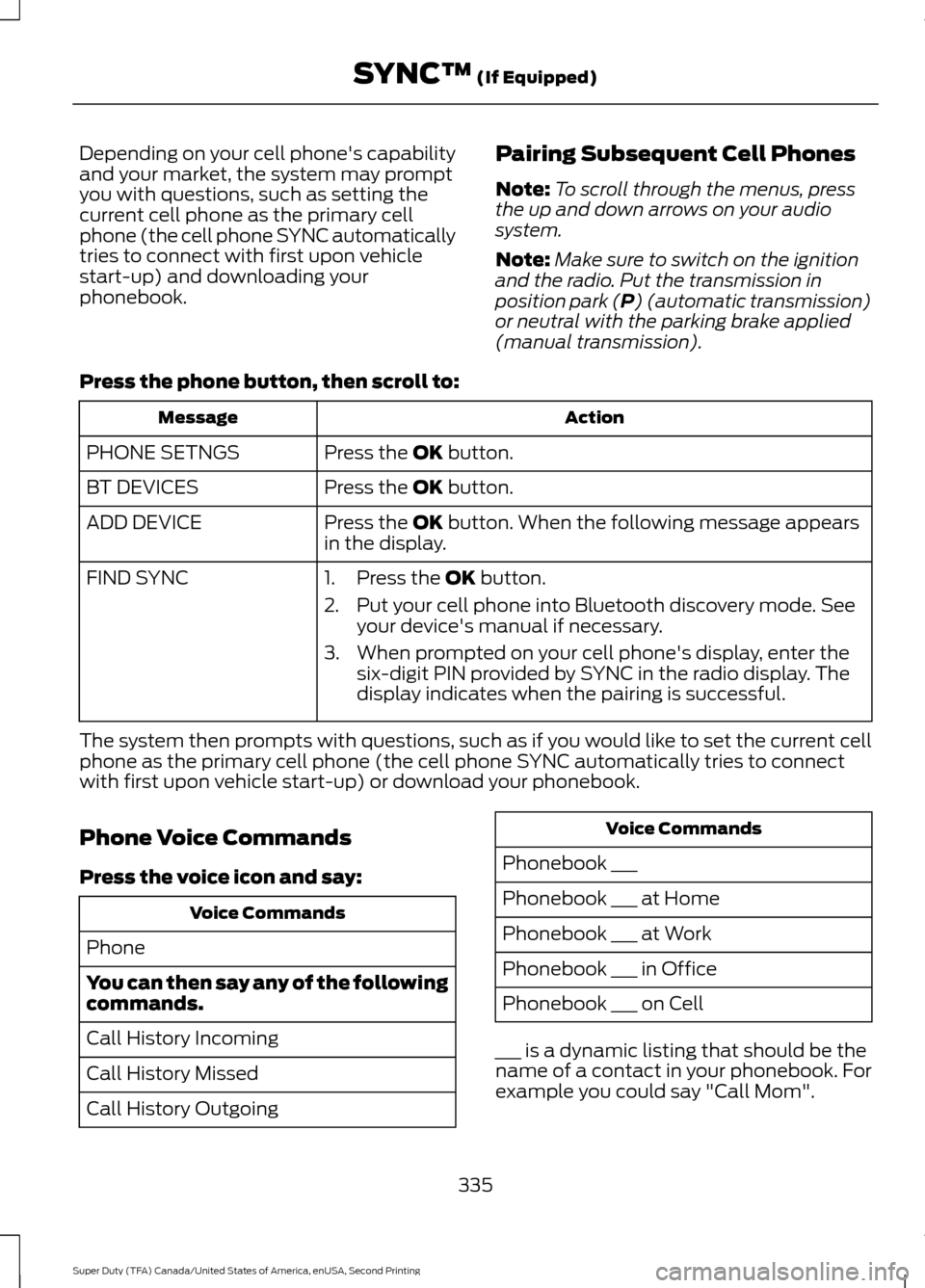
Pairing Subsequent Cell Phones
Note:
To scroll through the menus, press
the up and down arrows on your audio
system.
Note: Make sure to switch on the ignition
and the radio. Put the transmission in
position park (P) (automatic transmission)
or neutral with the parking brake applied
(manual transmission).
Press the phone button, then scroll to: Action
Message
Press the
OK button.
PHONE SETNGS
Press the
OK button.
BT DEVICES
Press the
OK button. When the following message appears
in the display.
ADD DEVICE
FIND SYNC
1. Press the
OK button.
2. Put your cell phone into Bluetooth discovery mode. See your device's manual if necessary.
3. When prompted on your cell phone's display, enter the six-digit PIN provided by SYNC in the radio display. The
display indicates when the pairing is successful.
The system then prompts with questions, such as if you would like to set the current cell
phone as the primary cell phone (the cell phone SYNC automatically tries to connect
with first upon vehicle start-up) or download your phonebook.
Phone Voice Commands
Press the voice icon and say: Voice Commands
Phone
You can then say any of the following
commands.
Call History Incoming
Call History Missed
Call History Outgoing Voice Commands
Phonebook ___
Phonebook ___ at Home
Phonebook ___ at Work
Phonebook ___ in Office
Phonebook ___ on Cell
___ is a dynamic listing that should be the
name of a contact in your phonebook. For
example you could say "Call Mom".
335
Super Duty (TFA) Canada/United States of America, enUSA, Second Printing SYNC™
(If Equipped)
Page 339 of 510
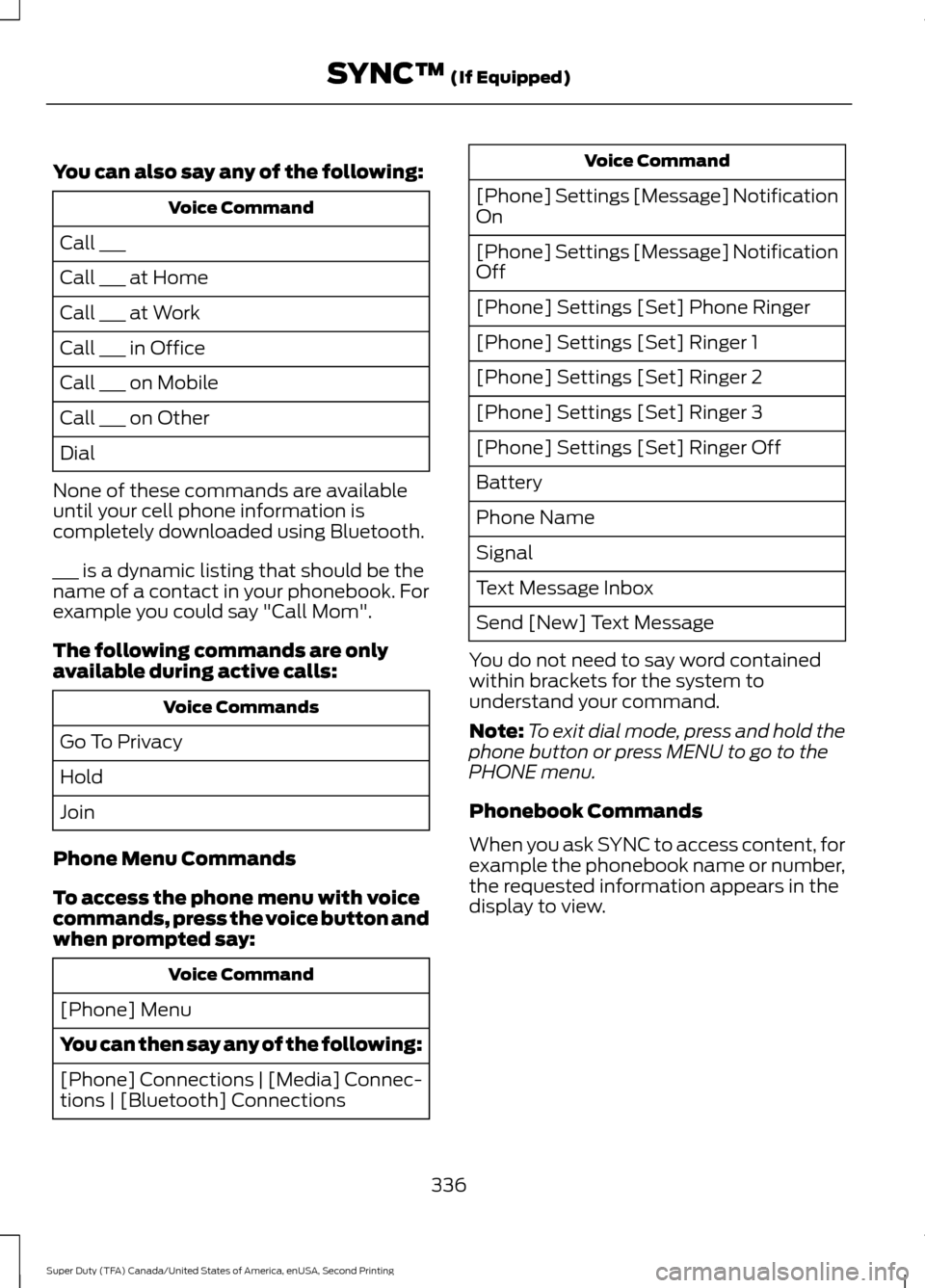
You can also say any of the following:
Voice Command
Call ___
Call ___ at Home
Call ___ at Work
Call ___ in Office
Call ___ on Mobile
Call ___ on Other
Dial
None of these commands are available
until your cell phone information is
completely downloaded using Bluetooth.
___ is a dynamic listing that should be the
name of a contact in your phonebook. For
example you could say "Call Mom".
The following commands are only
available during active calls: Voice Commands
Go To Privacy
Hold
Join
Phone Menu Commands
To access the phone menu with voice
commands, press the voice button and
when prompted say: Voice Command
[Phone] Menu
You can then say any of the following:
[Phone] Connections | [Media] Connec-
tions | [Bluetooth] Connections Voice Command
[Phone] Settings [Message] Notification
On
[Phone] Settings [Message] Notification
Off
[Phone] Settings [Set] Phone Ringer
[Phone] Settings [Set] Ringer 1
[Phone] Settings [Set] Ringer 2
[Phone] Settings [Set] Ringer 3
[Phone] Settings [Set] Ringer Off
Battery
Phone Name
Signal
Text Message Inbox
Send [New] Text Message
You do not need to say word contained
within brackets for the system to
understand your command.
Note: To exit dial mode, press and hold the
phone button or press MENU to go to the
PHONE menu.
Phonebook Commands
When you ask SYNC to access content, for
example the phonebook name or number,
the requested information appears in the
display to view.
336
Super Duty (TFA) Canada/United States of America, enUSA, Second Printing SYNC™ (If Equipped)
Page 354 of 510
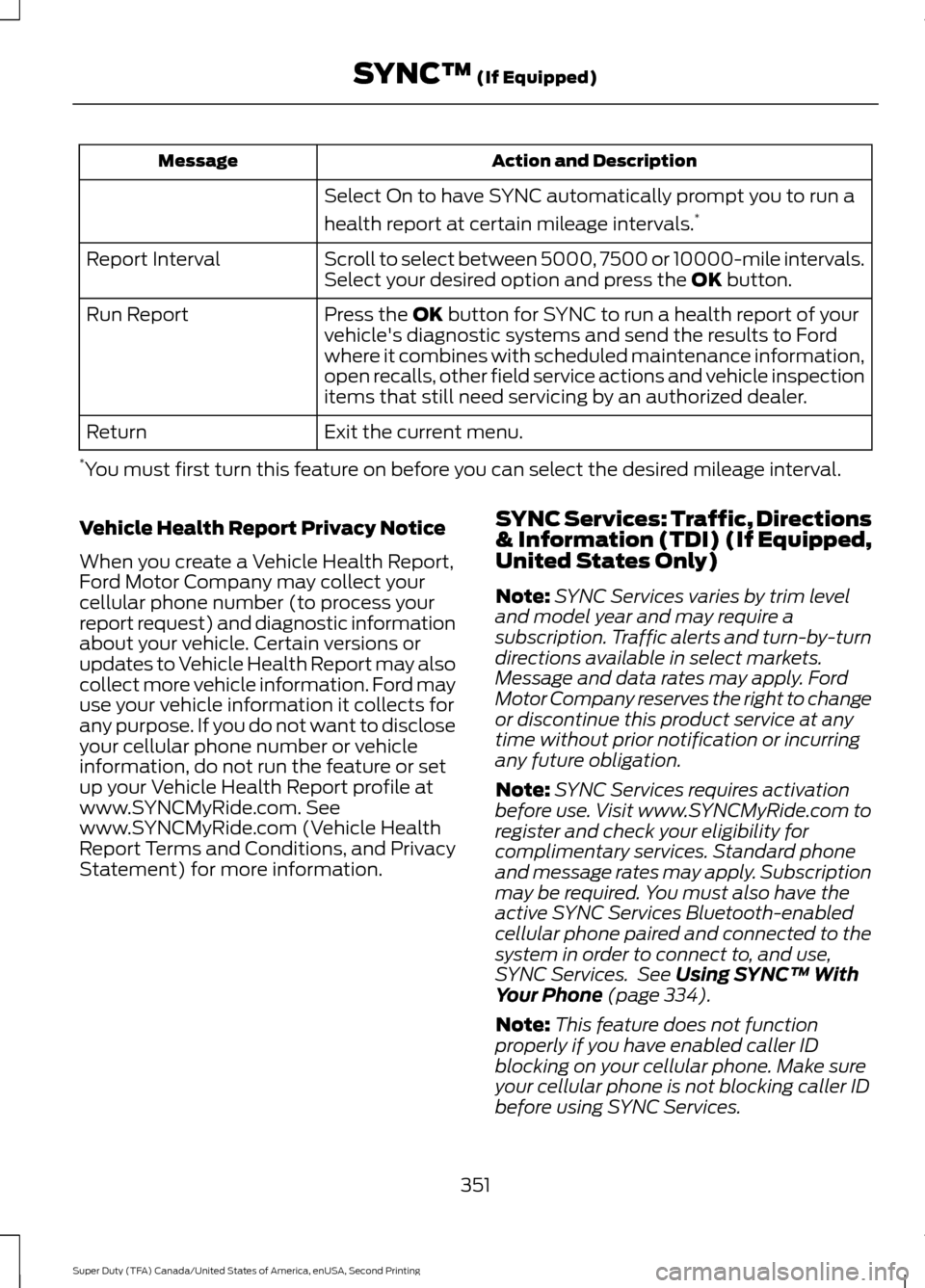
Action and Description
Message
Select On to have SYNC automatically prompt you to run a
health report at certain mileage intervals. *
Scroll to select between 5000, 7500 or 10000-mile intervals.
Select your desired option and press the OK button.
Report Interval
Press the
OK button for SYNC to run a health report of your
vehicle's diagnostic systems and send the results to Ford
where it combines with scheduled maintenance information,
open recalls, other field service actions and vehicle inspection
items that still need servicing by an authorized dealer.
Run Report
Exit the current menu.
Return
* You must first turn this feature on before you can select the desired mileage interval.
Vehicle Health Report Privacy Notice
When you create a Vehicle Health Report,
Ford Motor Company may collect your
cellular phone number (to process your
report request) and diagnostic information
about your vehicle. Certain versions or
updates to Vehicle Health Report may also
collect more vehicle information. Ford may
use your vehicle information it collects for
any purpose. If you do not want to disclose
your cellular phone number or vehicle
information, do not run the feature or set
up your Vehicle Health Report profile at
www.SYNCMyRide.com. See
www.SYNCMyRide.com (Vehicle Health
Report Terms and Conditions, and Privacy
Statement) for more information. SYNC Services: Traffic, Directions
& Information (TDI) (If Equipped,
United States Only)
Note:
SYNC Services varies by trim level
and model year and may require a
subscription. Traffic alerts and turn-by-turn
directions available in select markets.
Message and data rates may apply. Ford
Motor Company reserves the right to change
or discontinue this product service at any
time without prior notification or incurring
any future obligation.
Note: SYNC Services requires activation
before use. Visit www.SYNCMyRide.com to
register and check your eligibility for
complimentary services. Standard phone
and message rates may apply. Subscription
may be required. You must also have the
active SYNC Services Bluetooth-enabled
cellular phone paired and connected to the
system in order to connect to, and use,
SYNC Services. See
Using SYNC™ With
Your Phone (page 334).
Note: This feature does not function
properly if you have enabled caller ID
blocking on your cellular phone. Make sure
your cellular phone is not blocking caller ID
before using SYNC Services.
351
Super Duty (TFA) Canada/United States of America, enUSA, Second Printing SYNC™
(If Equipped)
Page 363 of 510
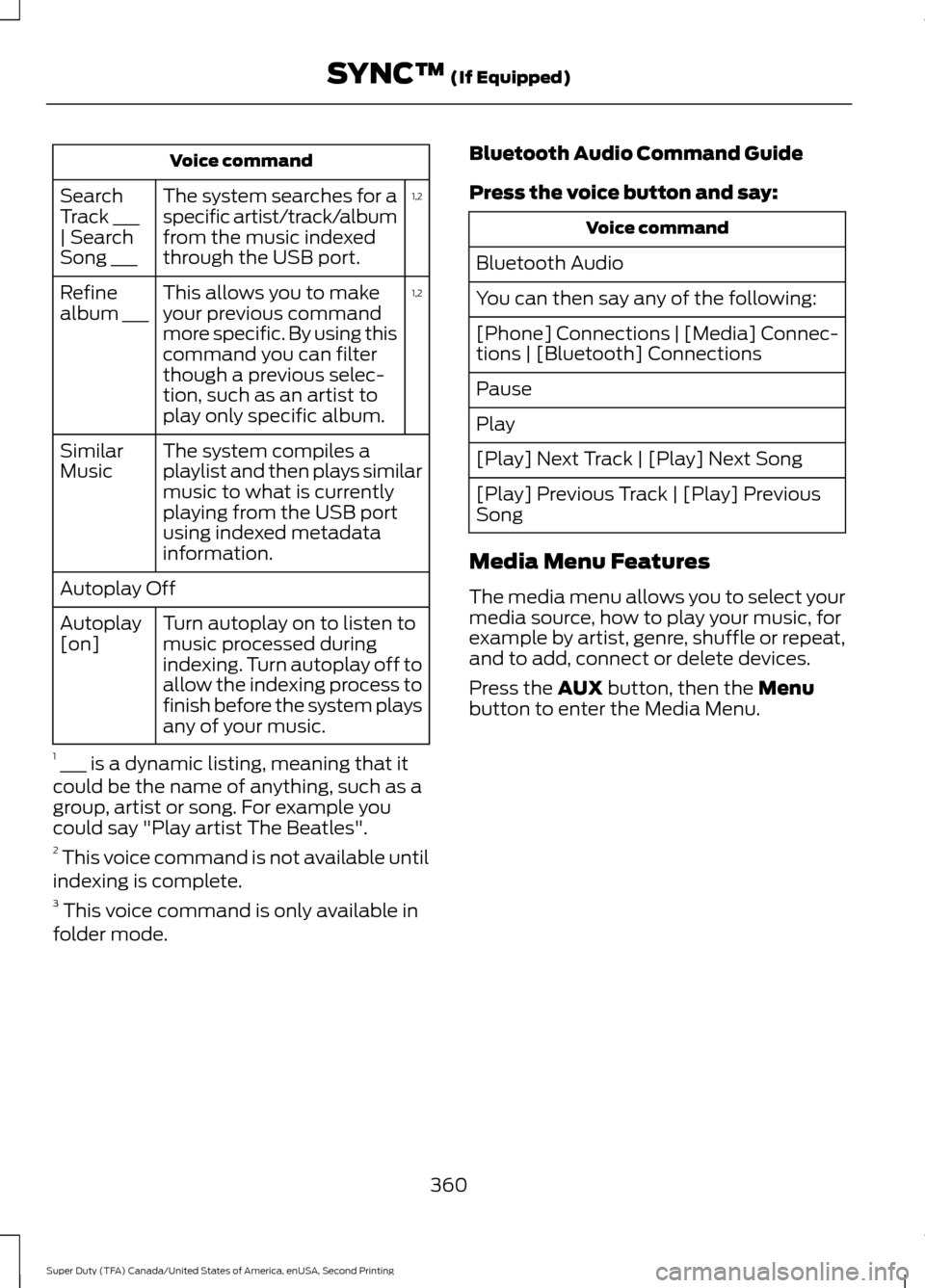
Voice command
1,2
The system searches for a
specific artist/track/album
from the music indexed
through the USB port.
Search
Track ___
| Search
Song ___
1,2
This allows you to make
your previous command
more specific. By using this
command you can filter
though a previous selec-
tion, such as an artist to
play only specific album.
Refine
album ___
The system compiles a
playlist and then plays similar
music to what is currently
playing from the USB port
using indexed metadata
information.
Similar
Music
Autoplay Off
Turn autoplay on to listen to
music processed during
indexing. Turn autoplay off to
allow the indexing process to
finish before the system plays
any of your music.
Autoplay
[on]
1 ___ is a dynamic listing, meaning that it
could be the name of anything, such as a
group, artist or song. For example you
could say "Play artist The Beatles".
2 This voice command is not available until
indexing is complete.
3 This voice command is only available in
folder mode. Bluetooth Audio Command Guide
Press the voice button and say: Voice command
Bluetooth Audio
You can then say any of the following:
[Phone] Connections | [Media] Connec-
tions | [Bluetooth] Connections
Pause
Play
[Play] Next Track | [Play] Next Song
[Play] Previous Track | [Play] Previous
Song
Media Menu Features
The media menu allows you to select your
media source, how to play your music, for
example by artist, genre, shuffle or repeat,
and to add, connect or delete devices.
Press the AUX button, then the Menu
button to enter the Media Menu.
360
Super Duty (TFA) Canada/United States of America, enUSA, Second Printing SYNC™
(If Equipped)
Page 365 of 510
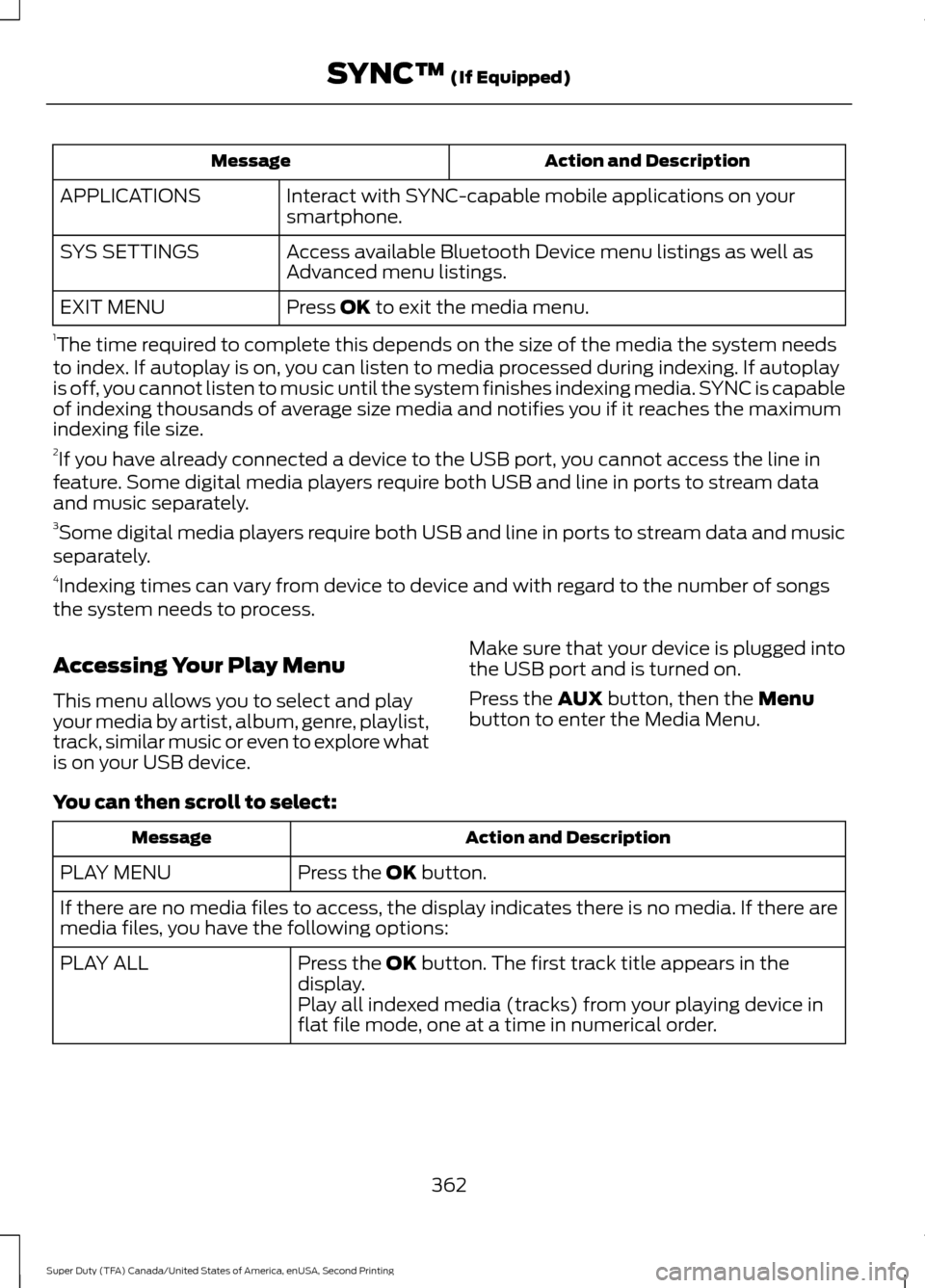
Action and Description
Message
Interact with SYNC-capable mobile applications on your
smartphone.
APPLICATIONS
Access available Bluetooth Device menu listings as well as
Advanced menu listings.
SYS SETTINGS
Press OK to exit the media menu.
EXIT MENU
1 The time required to complete this depends on the size of the media the system needs
to index. If autoplay is on, you can listen to media processed during indexing. If autoplay
is off, you cannot listen to music until the system finishes indexing media. SYNC is capable
of indexing thousands of average size media and notifies you if it reaches the maximum
indexing file size.
2 If you have already connected a device to the USB port, you cannot access the line in
feature. Some digital media players require both USB and line in ports to stream data
and music separately.
3 Some digital media players require both USB and line in ports to stream data and music
separately.
4 Indexing times can vary from device to device and with regard to the number of songs
the system needs to process.
Accessing Your Play Menu
This menu allows you to select and play
your media by artist, album, genre, playlist,
track, similar music or even to explore what
is on your USB device. Make sure that your device is plugged into
the USB port and is turned on.
Press the
AUX button, then the Menu
button to enter the Media Menu.
You can then scroll to select: Action and Description
Message
Press the
OK button.
PLAY MENU
If there are no media files to access, the display indicates there is no media. If there are
media files, you have the following options:
Press the
OK button. The first track title appears in the
display.
PLAY ALL
Play all indexed media (tracks) from your playing device in
flat file mode, one at a time in numerical order.
362
Super Duty (TFA) Canada/United States of America, enUSA, Second Printing SYNC™
(If Equipped)
Page 366 of 510
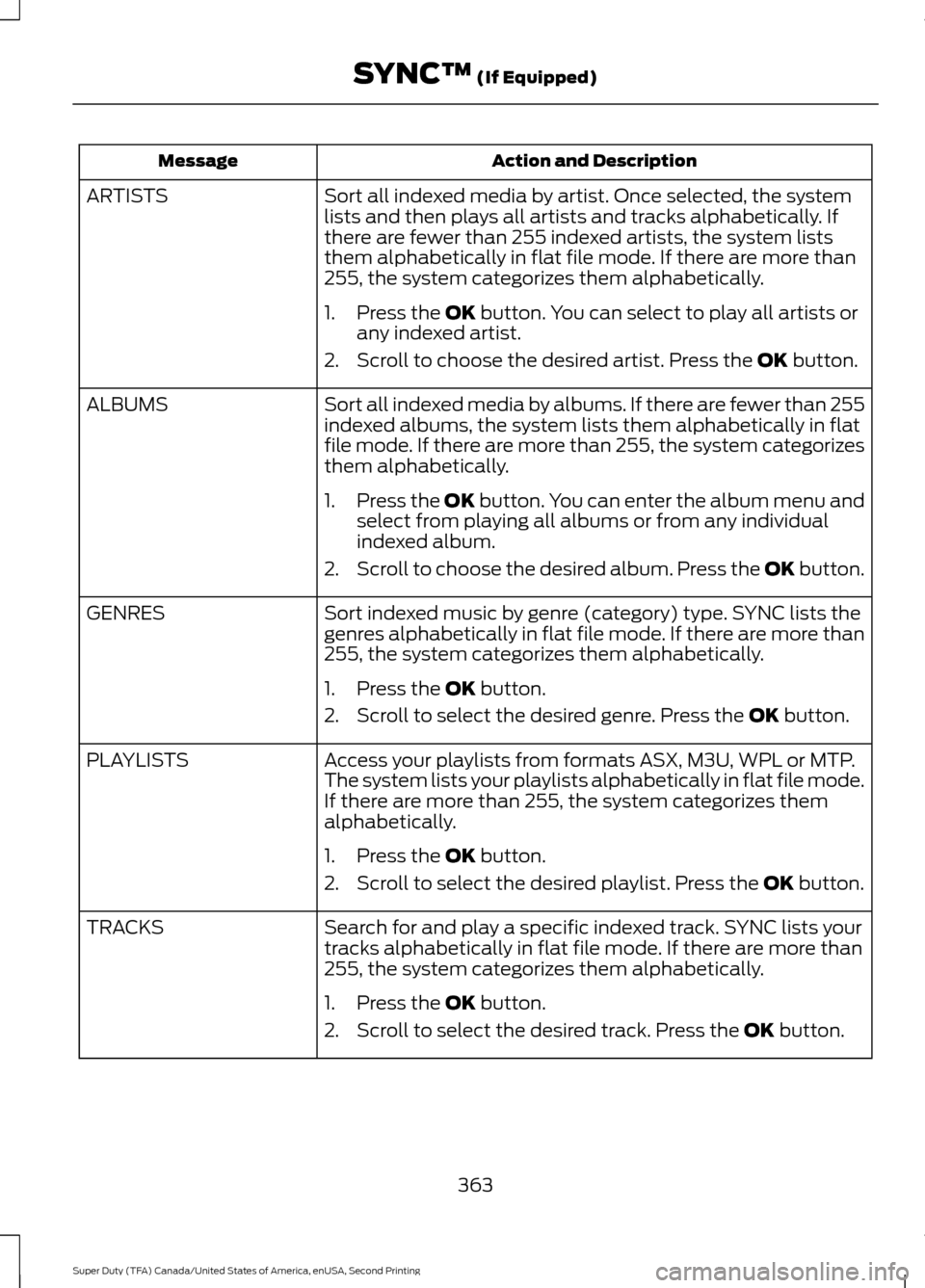
Action and Description
Message
Sort all indexed media by artist. Once selected, the system
lists and then plays all artists and tracks alphabetically. If
there are fewer than 255 indexed artists, the system lists
them alphabetically in flat file mode. If there are more than
255, the system categorizes them alphabetically.
ARTISTS
1. Press the OK button. You can select to play all artists or
any indexed artist.
2. Scroll to choose the desired artist. Press the
OK button.
Sort all indexed media by albums. If there are fewer than 255
indexed albums, the system lists them alphabetically in flat
file mode. If there are more than 255, the system categorizes
them alphabetically.
ALBUMS
1.Press the
OK button. You can enter the album menu and
select from playing all albums or from any individual
indexed album.
2. Scroll to choose the desired album. Press the OK button.
Sort indexed music by genre (category) type. SYNC lists the
genres alphabetically in flat file mode. If there are more than
255, the system categorizes them alphabetically.
GENRES
1. Press the
OK button.
2. Scroll to select the desired genre. Press the
OK button.
Access your playlists from formats ASX, M3U, WPL or MTP.
The system lists your playlists alphabetically in flat file mode.
If there are more than 255, the system categorizes them
alphabetically.
PLAYLISTS
1. Press the
OK button.
2. Scroll to select the desired playlist. Press the
OK button.
Search for and play a specific indexed track. SYNC lists your
tracks alphabetically in flat file mode. If there are more than
255, the system categorizes them alphabetically.
TRACKS
1. Press the
OK button.
2. Scroll to select the desired track. Press the
OK button.
363
Super Duty (TFA) Canada/United States of America, enUSA, Second Printing SYNC™
(If Equipped)
Page 367 of 510
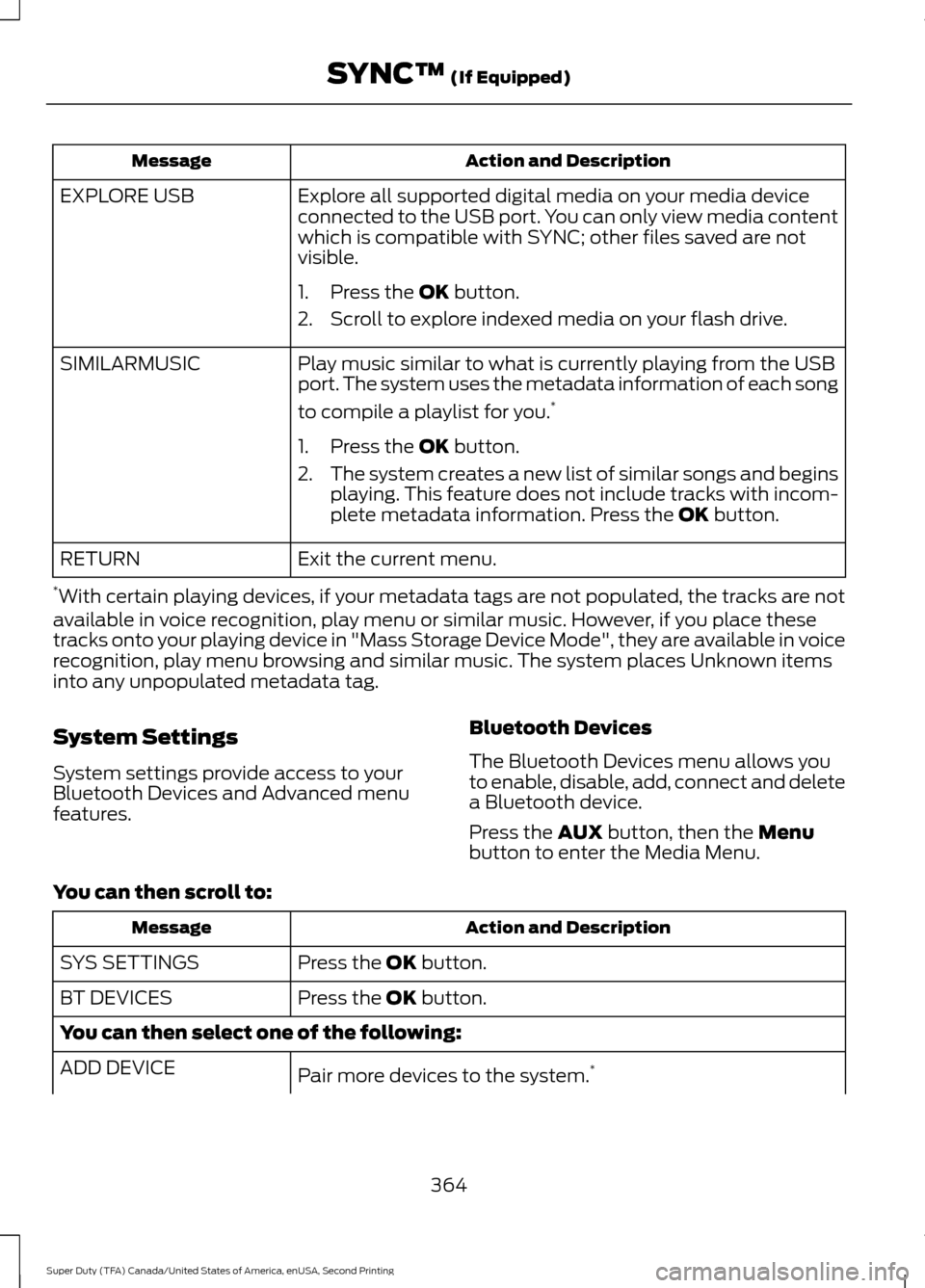
Action and Description
Message
Explore all supported digital media on your media device
connected to the USB port. You can only view media content
which is compatible with SYNC; other files saved are not
visible.
EXPLORE USB
1. Press the OK button.
2. Scroll to explore indexed media on your flash drive.
Play music similar to what is currently playing from the USB
port. The system uses the metadata information of each song
to compile a playlist for you. *
SIMILARMUSIC
1. Press the
OK button.
2. The system creates a new list of similar songs and begins
playing. This feature does not include tracks with incom-
plete metadata information. Press the
OK button.
Exit the current menu.
RETURN
* With certain playing devices, if your metadata tags are not populated, the tracks are not
available in voice recognition, play menu or similar music. However, if you place these
tracks onto your playing device in "Mass Storage Device Mode", they are available in voice
recognition, play menu browsing and similar music. The system places Unknown items
into any unpopulated metadata tag.
System Settings
System settings provide access to your
Bluetooth Devices and Advanced menu
features. Bluetooth Devices
The Bluetooth Devices menu allows you
to enable, disable, add, connect and delete
a Bluetooth device.
Press the
AUX button, then the Menu
button to enter the Media Menu.
You can then scroll to: Action and Description
Message
Press the
OK button.
SYS SETTINGS
Press the
OK button.
BT DEVICES
You can then select one of the following:
Pair more devices to the system. *
ADD DEVICE
364
Super Duty (TFA) Canada/United States of America, enUSA, Second Printing SYNC™
(If Equipped)
Page 368 of 510
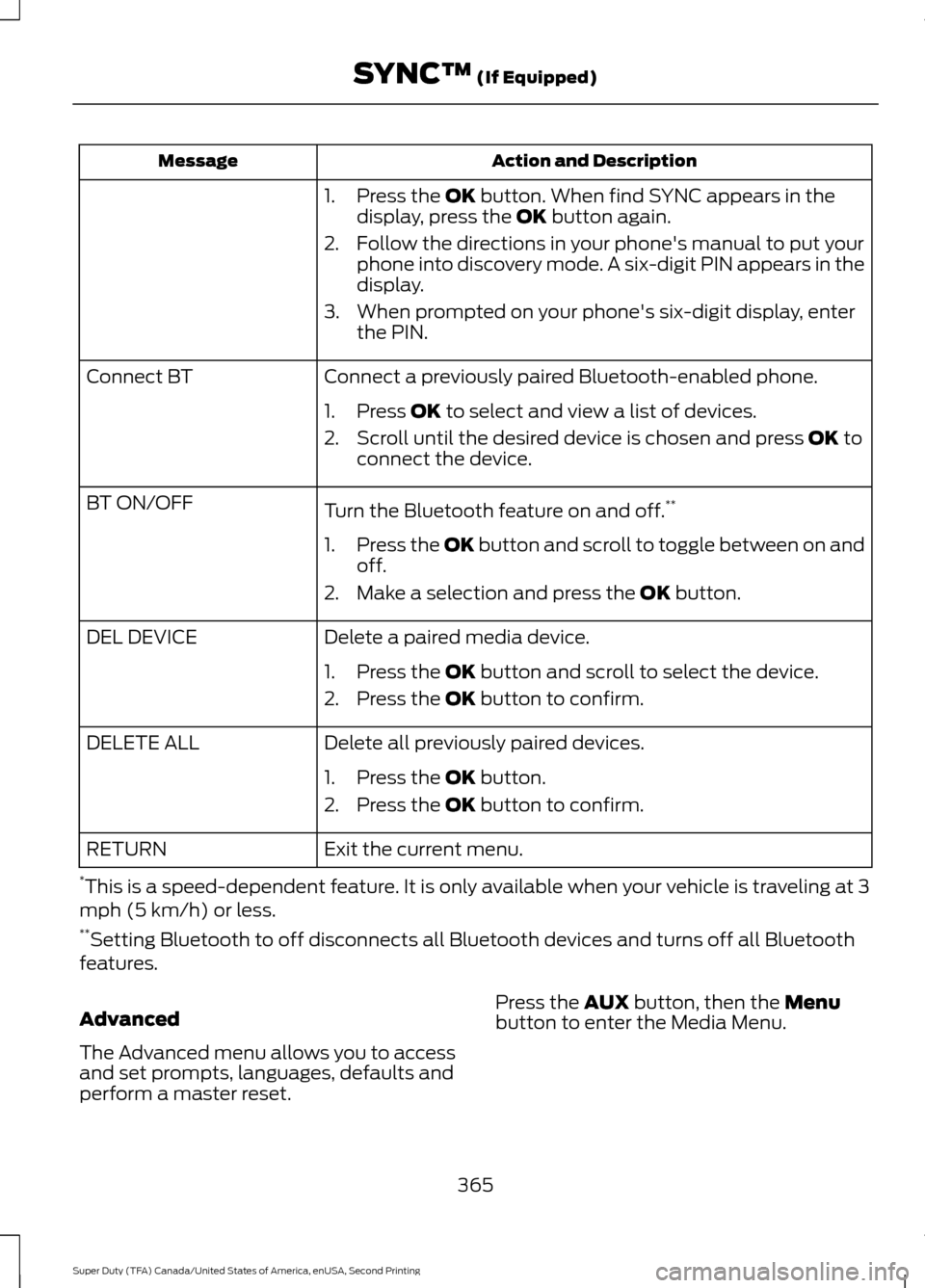
Action and Description
Message
1. Press the OK button. When find SYNC appears in the
display, press the OK button again.
2. Follow the directions in your phone's manual to put your phone into discovery mode. A six-digit PIN appears in the
display.
3. When prompted on your phone's six-digit display, enter the PIN.
Connect a previously paired Bluetooth-enabled phone.
Connect BT
1. Press
OK to select and view a list of devices.
2. Scroll until the desired device is chosen and press
OK to
connect the device.
Turn the Bluetooth feature on and off. **
BT ON/OFF
1.Press the OK button and scroll to toggle between on and
off.
2. Make a selection and press the
OK button.
Delete a paired media device.
DEL DEVICE
1. Press the
OK button and scroll to select the device.
2. Press the
OK button to confirm.
Delete all previously paired devices.
DELETE ALL
1. Press the
OK button.
2. Press the
OK button to confirm.
Exit the current menu.
RETURN
* This is a speed-dependent feature. It is only available when your vehicle is traveling at 3
mph (5 km/h) or less.
** Setting Bluetooth to off disconnects all Bluetooth devices and turns off all Bluetooth
features.
Advanced
The Advanced menu allows you to access
and set prompts, languages, defaults and
perform a master reset. Press the
AUX button, then the Menu
button to enter the Media Menu.
365
Super Duty (TFA) Canada/United States of America, enUSA, Second Printing SYNC™
(If Equipped)
Page 380 of 510
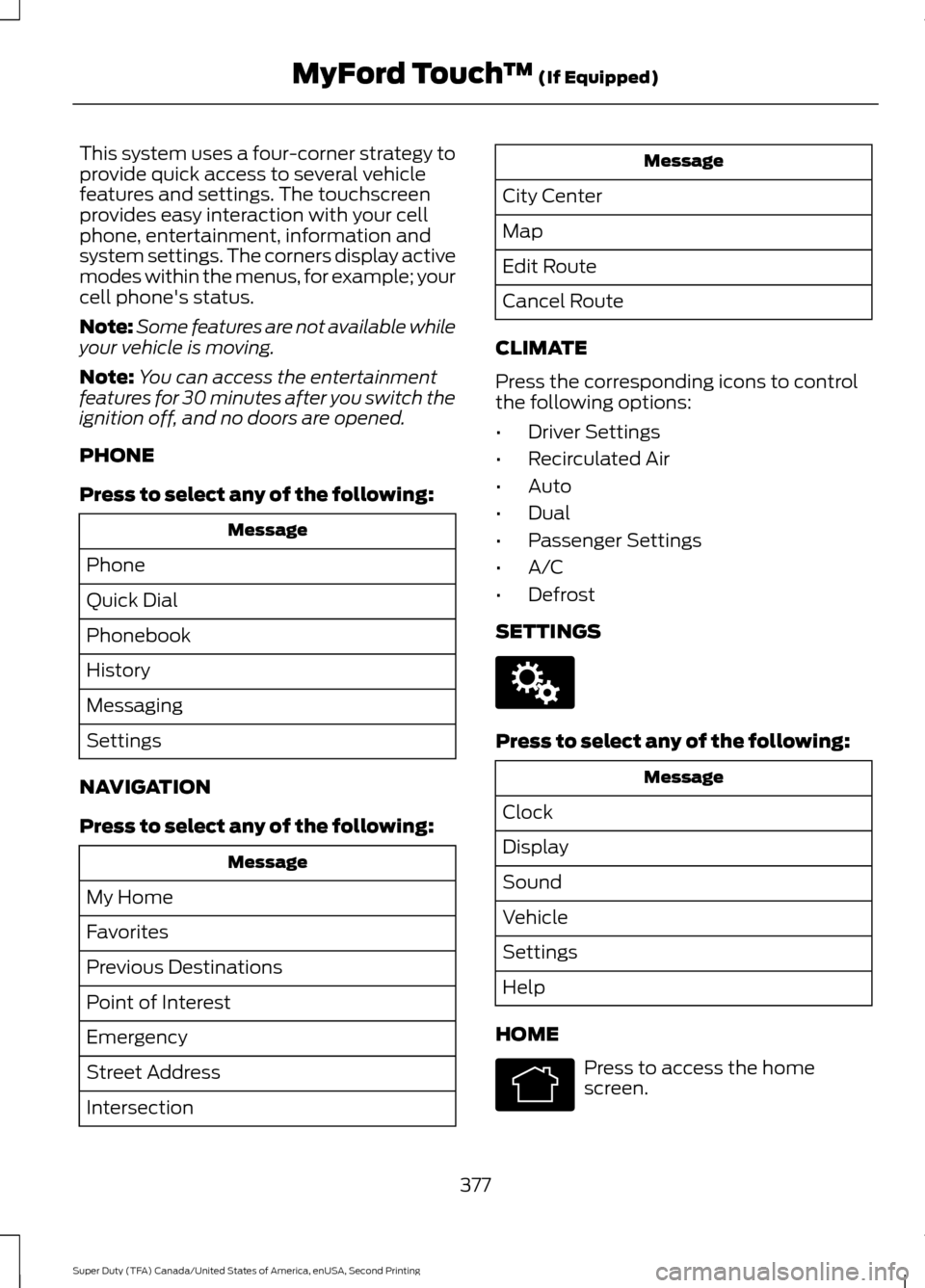
This system uses a four-corner strategy to
provide quick access to several vehicle
features and settings. The touchscreen
provides easy interaction with your cell
phone, entertainment, information and
system settings. The corners display active
modes within the menus, for example; your
cell phone's status.
Note:
Some features are not available while
your vehicle is moving.
Note: You can access the entertainment
features for 30 minutes after you switch the
ignition off, and no doors are opened.
PHONE
Press to select any of the following: Message
Phone
Quick Dial
Phonebook
History
Messaging
Settings
NAVIGATION
Press to select any of the following: Message
My Home
Favorites
Previous Destinations
Point of Interest
Emergency
Street Address
Intersection Message
City Center
Map
Edit Route
Cancel Route
CLIMATE
Press the corresponding icons to control
the following options:
• Driver Settings
• Recirculated Air
• Auto
• Dual
• Passenger Settings
• A/C
• Defrost
SETTINGS Press to select any of the following:
Message
Clock
Display
Sound
Vehicle
Settings
Help
HOME Press to access the home
screen.
377
Super Duty (TFA) Canada/United States of America, enUSA, Second Printing MyFord Touch
™ (If Equipped)E142607 E142613
Page 381 of 510
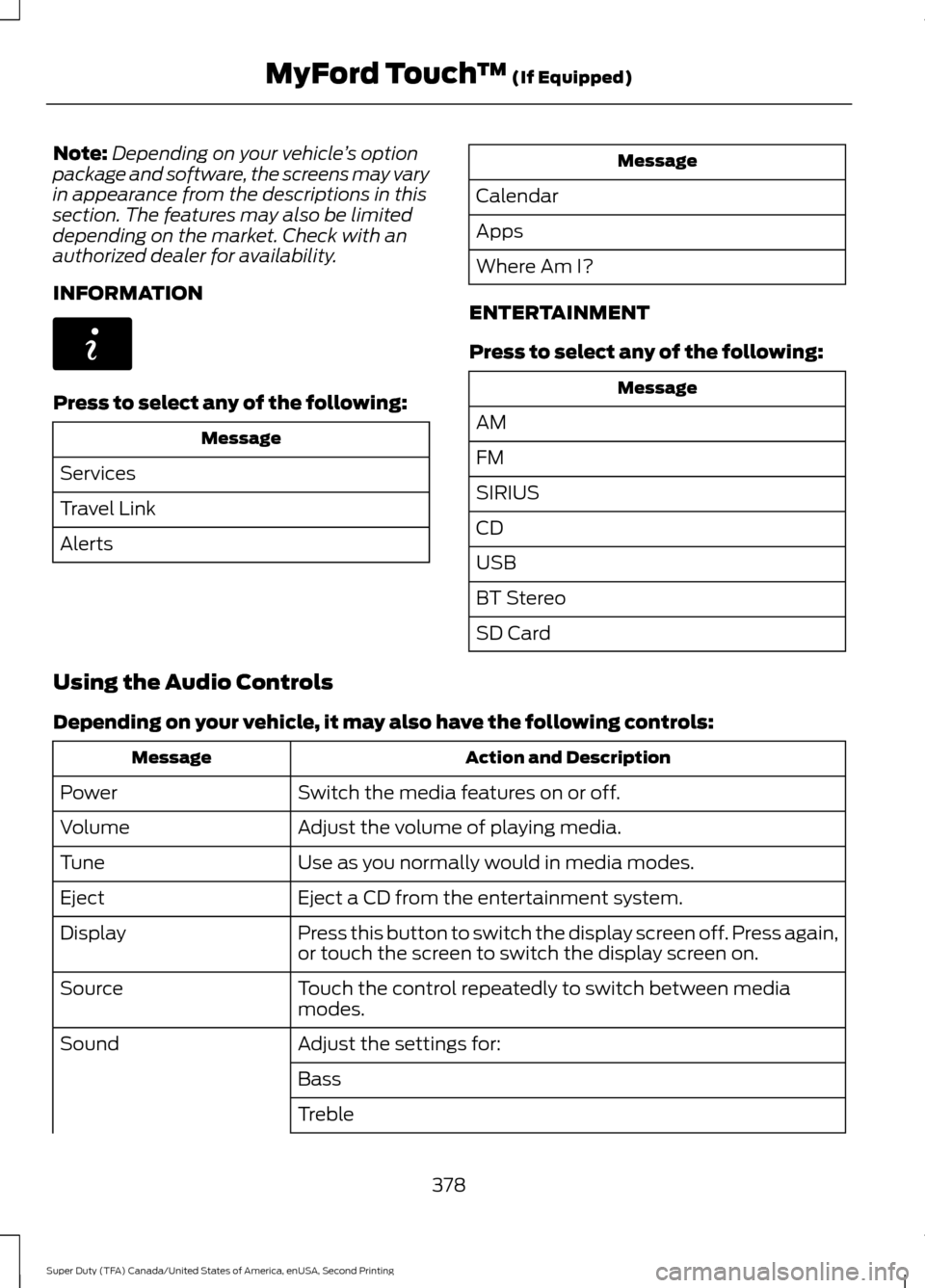
Note:
Depending on your vehicle ’s option
package and software, the screens may vary
in appearance from the descriptions in this
section. The features may also be limited
depending on the market. Check with an
authorized dealer for availability.
INFORMATION Press to select any of the following:
Message
Services
Travel Link
Alerts Message
Calendar
Apps
Where Am I?
ENTERTAINMENT
Press to select any of the following: Message
AM
FM
SIRIUS
CD
USB
BT Stereo
SD Card
Using the Audio Controls
Depending on your vehicle, it may also have the following controls: Action and Description
Message
Switch the media features on or off.
Power
Adjust the volume of playing media.
Volume
Use as you normally would in media modes.
Tune
Eject a CD from the entertainment system.
Eject
Press this button to switch the display screen off. Press again,
or touch the screen to switch the display screen on.
Display
Touch the control repeatedly to switch between media
modes.
Source
Adjust the settings for:
Sound
Bass
Treble
378
Super Duty (TFA) Canada/United States of America, enUSA, Second Printing MyFord Touch
™ (If Equipped)E142608