ignition FORD SUPER DUTY 2016 3.G Manual PDF
[x] Cancel search | Manufacturer: FORD, Model Year: 2016, Model line: SUPER DUTY, Model: FORD SUPER DUTY 2016 3.GPages: 510, PDF Size: 5.42 MB
Page 337 of 510
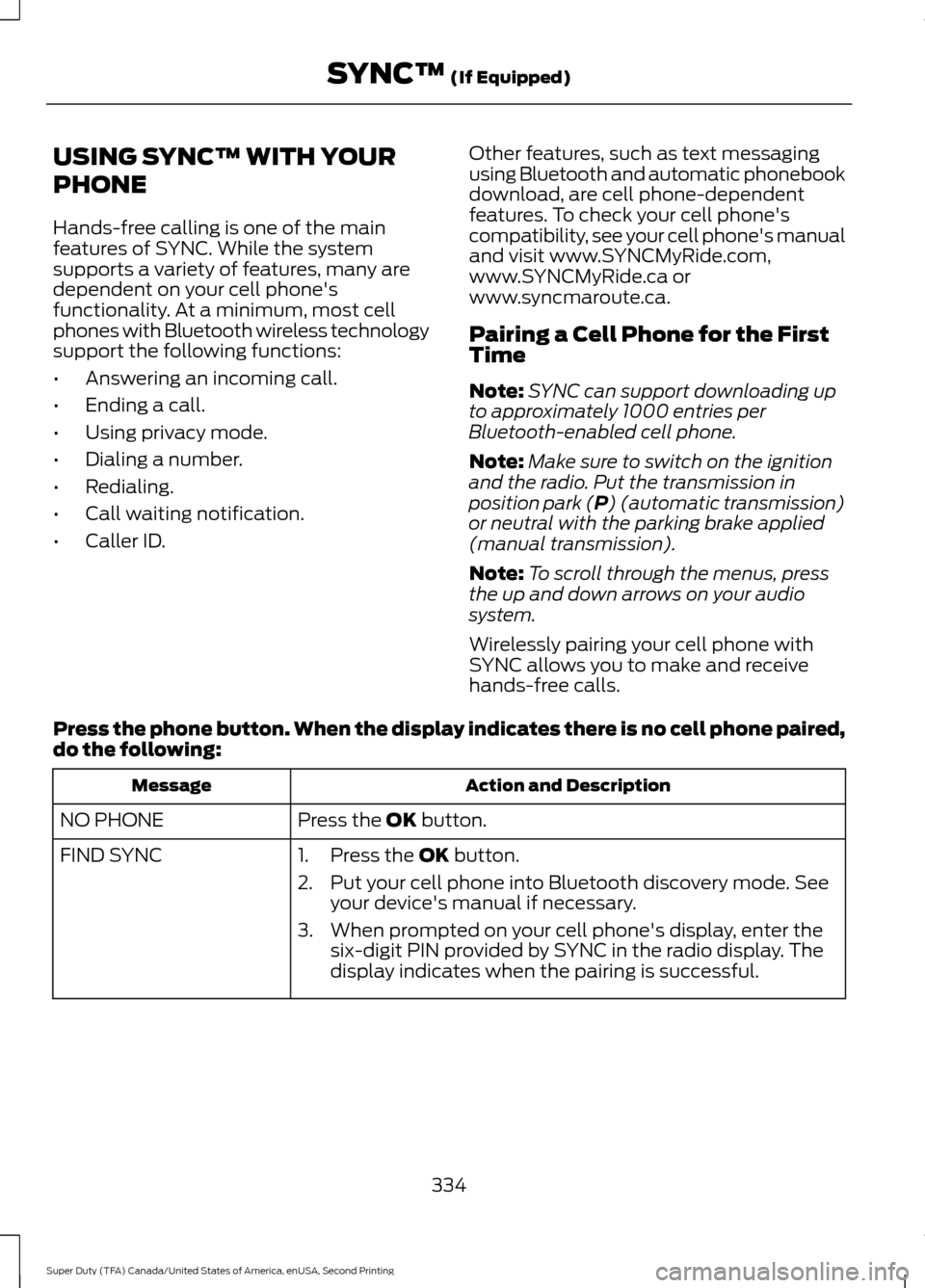
USING SYNC™ WITH YOUR
PHONE
Hands-free calling is one of the main
features of SYNC. While the system
supports a variety of features, many are
dependent on your cell phone's
functionality. At a minimum, most cell
phones with Bluetooth wireless technology
support the following functions:
•
Answering an incoming call.
• Ending a call.
• Using privacy mode.
• Dialing a number.
• Redialing.
• Call waiting notification.
• Caller ID. Other features, such as text messaging
using Bluetooth and automatic phonebook
download, are cell phone-dependent
features. To check your cell phone's
compatibility, see your cell phone's manual
and visit www.SYNCMyRide.com,
www.SYNCMyRide.ca or
www.syncmaroute.ca.
Pairing a Cell Phone for the First
Time
Note:
SYNC can support downloading up
to approximately 1000 entries per
Bluetooth-enabled cell phone.
Note: Make sure to switch on the ignition
and the radio. Put the transmission in
position park (P) (automatic transmission)
or neutral with the parking brake applied
(manual transmission).
Note: To scroll through the menus, press
the up and down arrows on your audio
system.
Wirelessly pairing your cell phone with
SYNC allows you to make and receive
hands-free calls.
Press the phone button. When the display indicates there is no cell phone paired,
do the following: Action and Description
Message
Press the
OK button.
NO PHONE
FIND SYNC 1. Press the
OK button.
2. Put your cell phone into Bluetooth discovery mode. See your device's manual if necessary.
3. When prompted on your cell phone's display, enter the six-digit PIN provided by SYNC in the radio display. The
display indicates when the pairing is successful.
334
Super Duty (TFA) Canada/United States of America, enUSA, Second Printing SYNC™
(If Equipped)
Page 338 of 510
Depending on your cell phone's capability
and your market, the system may prompt
you with questions, such as setting the
current cell phone as the primary cell
phone (the cell phone SYNC automatically
tries to connect with first upon vehicle
start-up) and downloading your
phonebook.
Pairing Subsequent Cell Phones
Note:
To scroll through the menus, press
the up and down arrows on your audio
system.
Note: Make sure to switch on the ignition
and the radio. Put the transmission in
position park (P) (automatic transmission)
or neutral with the parking brake applied
(manual transmission).
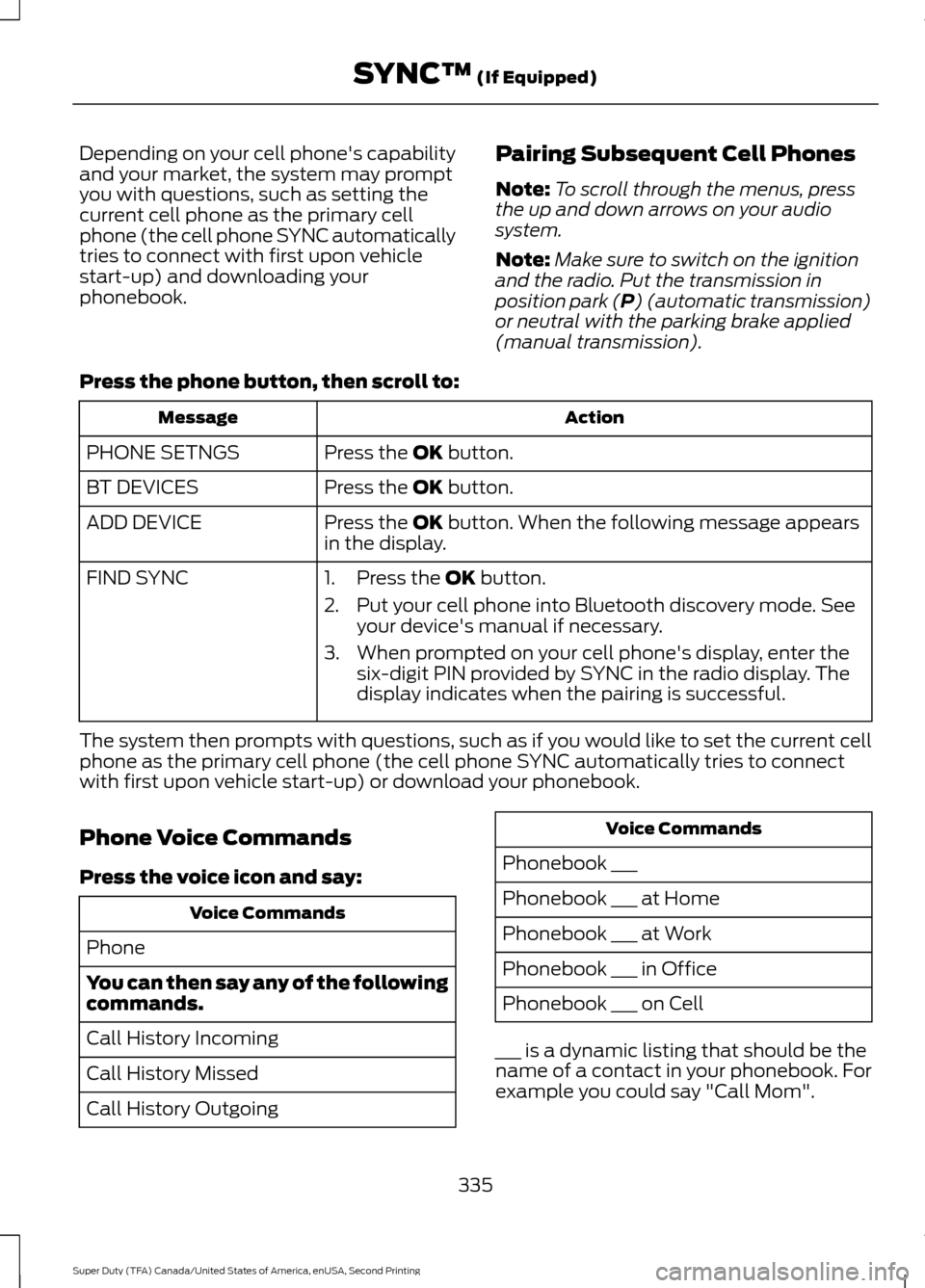
Press the phone button, then scroll to: Action
Message
Press the
OK button.
PHONE SETNGS
Press the
OK button.
BT DEVICES
Press the
OK button. When the following message appears
in the display.
ADD DEVICE
FIND SYNC
1. Press the
OK button.
2. Put your cell phone into Bluetooth discovery mode. See your device's manual if necessary.
3. When prompted on your cell phone's display, enter the six-digit PIN provided by SYNC in the radio display. The
display indicates when the pairing is successful.
The system then prompts with questions, such as if you would like to set the current cell
phone as the primary cell phone (the cell phone SYNC automatically tries to connect
with first upon vehicle start-up) or download your phonebook.
Phone Voice Commands
Press the voice icon and say: Voice Commands
Phone
You can then say any of the following
commands.
Call History Incoming
Call History Missed
Call History Outgoing Voice Commands
Phonebook ___
Phonebook ___ at Home
Phonebook ___ at Work
Phonebook ___ in Office
Phonebook ___ on Cell
___ is a dynamic listing that should be the
name of a contact in your phonebook. For
example you could say "Call Mom".
335
Super Duty (TFA) Canada/United States of America, enUSA, Second Printing SYNC™
(If Equipped)
Page 348 of 510
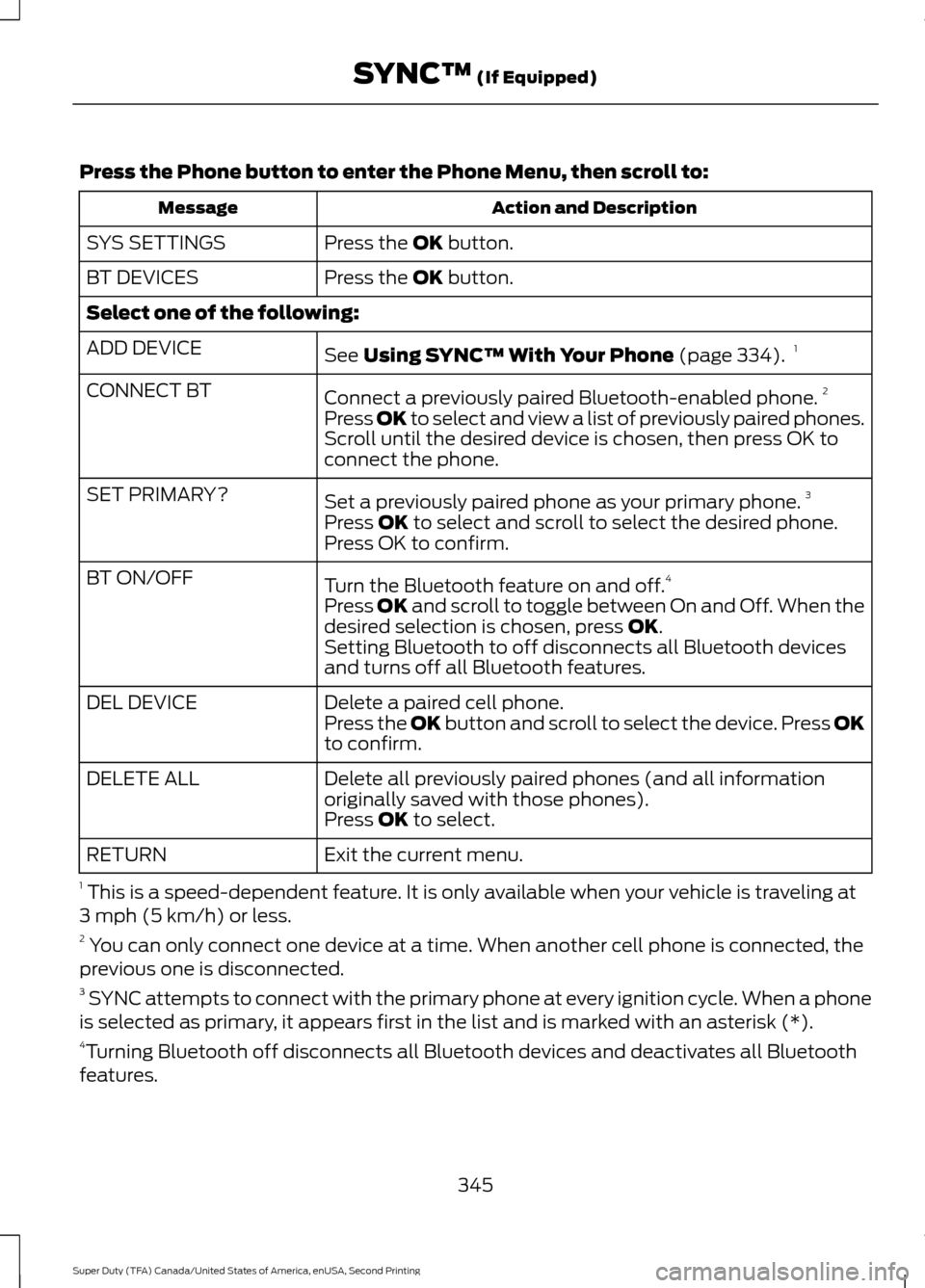
Press the Phone button to enter the Phone Menu, then scroll to:
Action and Description
Message
Press the OK button.
SYS SETTINGS
Press the
OK button.
BT DEVICES
Select one of the following:
See
Using SYNC™ With Your Phone (page 334).1
ADD DEVICE
Connect a previously paired Bluetooth-enabled phone. 2
CONNECT BT
Press OK to select and view a list of previously paired phones.
Scroll until the desired device is chosen, then press OK to
connect the phone.
Set a previously paired phone as your primary phone. 3
SET PRIMARY?
Press
OK to select and scroll to select the desired phone.
Press OK to confirm.
Turn the Bluetooth feature on and off. 4
BT ON/OFF
Press
OK and scroll to toggle between On and Off. When the
desired selection is chosen, press OK.
Setting Bluetooth to off disconnects all Bluetooth devices
and turns off all Bluetooth features.
Delete a paired cell phone.
DEL DEVICE
Press the OK button and scroll to select the device. Press OK
to confirm.
Delete all previously paired phones (and all information
originally saved with those phones).
DELETE ALL
Press
OK to select.
Exit the current menu.
RETURN
1 This is a speed-dependent feature. It is only available when your vehicle is traveling at
3 mph (5 km/h) or less.
2 You can only connect one device at a time. When another cell phone is connected, the
previous one is disconnected.
3 SYNC attempts to connect with the primary phone at every ignition cycle. When a phone
is selected as primary, it appears first in the list and is marked with an asterisk (*).
4 Turning Bluetooth off disconnects all Bluetooth devices and deactivates all Bluetooth
features.
345
Super Duty (TFA) Canada/United States of America, enUSA, Second Printing SYNC™
(If Equipped)
Page 376 of 510
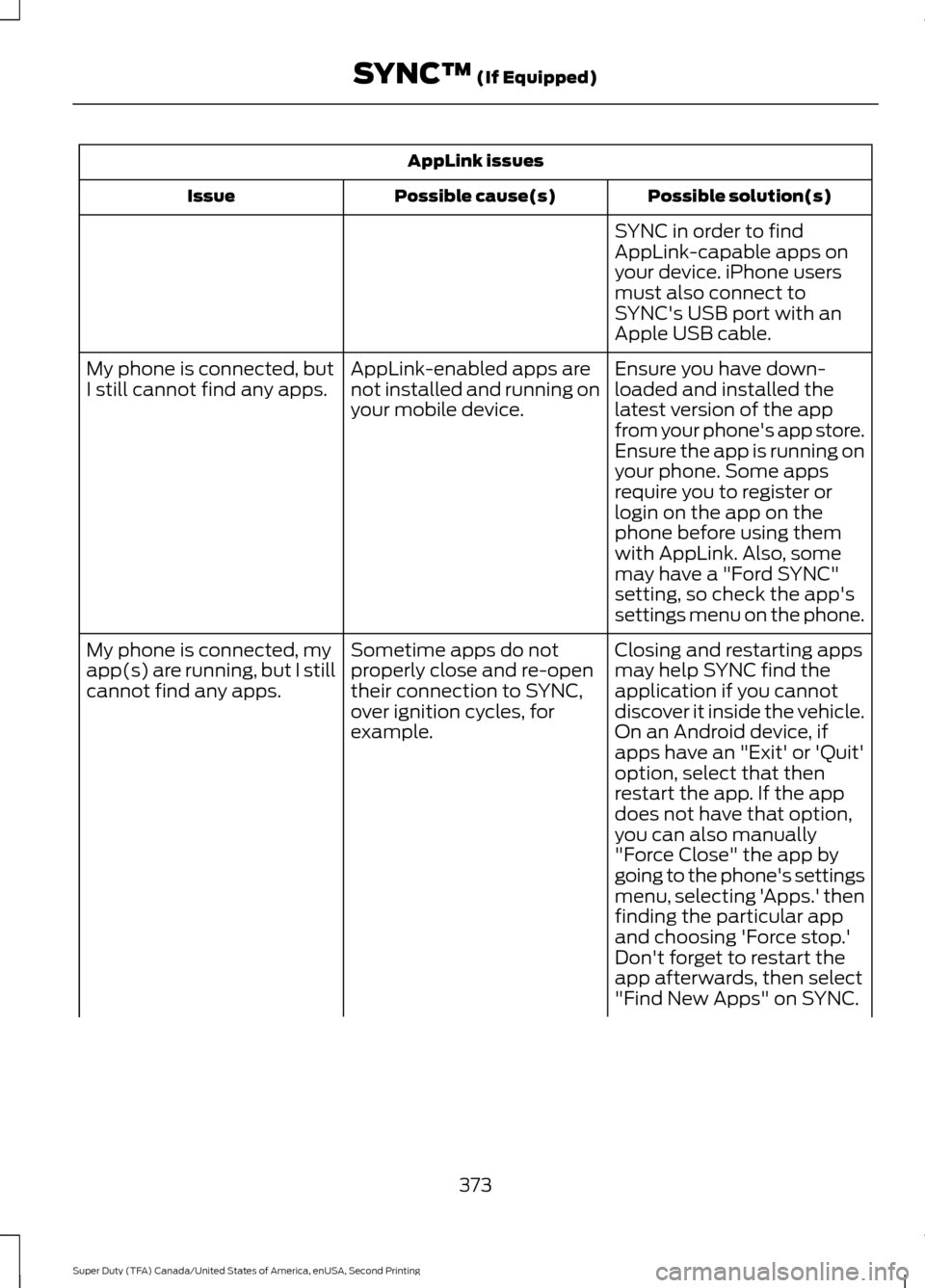
AppLink issues
Possible solution(s)
Possible cause(s)
Issue
SYNC in order to find
AppLink-capable apps on
your device. iPhone users
must also connect to
SYNC's USB port with an
Apple USB cable.
Ensure you have down-
loaded and installed the
latest version of the app
from your phone's app store.
Ensure the app is running on
your phone. Some apps
AppLink-enabled apps are
not installed and running on
your mobile device.
My phone is connected, but
I still cannot find any apps.
require you to register or
login on the app on the
phone before using them
with AppLink. Also, some
may have a "Ford SYNC"
setting, so check the app's
settings menu on the phone.
Closing and restarting apps
may help SYNC find the
application if you cannot
discover it inside the vehicle.
On an Android device, if
apps have an "Exit' or 'Quit'
Sometime apps do not
properly close and re-open
their connection to SYNC,
over ignition cycles, for
example.
My phone is connected, my
app(s) are running, but I still
cannot find any apps.
option, select that then
restart the app. If the app
does not have that option,
you can also manually
"Force Close" the app by
going to the phone's settings
menu, selecting 'Apps.' then
finding the particular app
and choosing 'Force stop.'
Don't forget to restart the
app afterwards, then select
"Find New Apps" on SYNC.
373
Super Duty (TFA) Canada/United States of America, enUSA, Second Printing SYNC™ (If Equipped)
Page 380 of 510
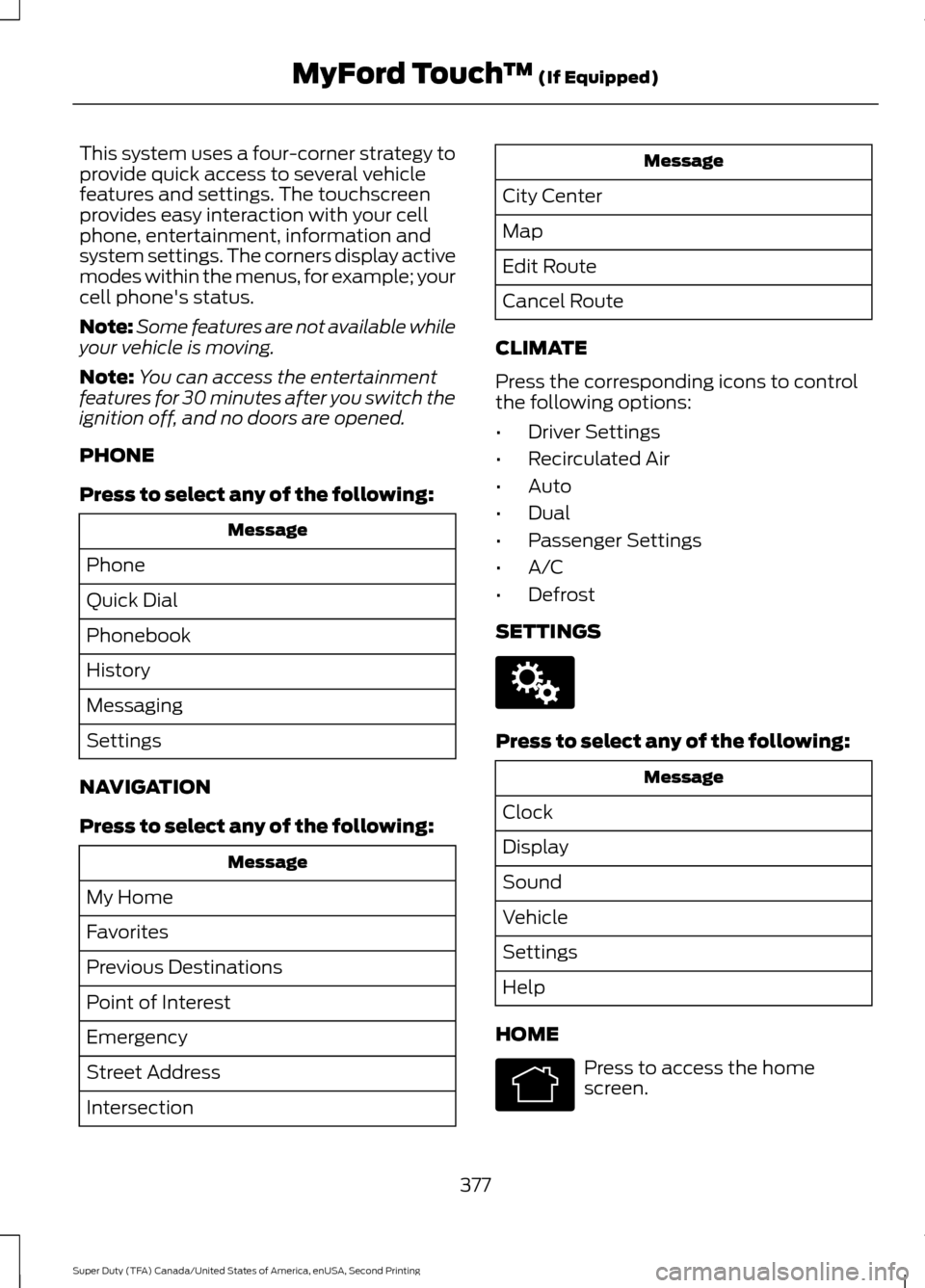
This system uses a four-corner strategy to
provide quick access to several vehicle
features and settings. The touchscreen
provides easy interaction with your cell
phone, entertainment, information and
system settings. The corners display active
modes within the menus, for example; your
cell phone's status.
Note:
Some features are not available while
your vehicle is moving.
Note: You can access the entertainment
features for 30 minutes after you switch the
ignition off, and no doors are opened.
PHONE
Press to select any of the following: Message
Phone
Quick Dial
Phonebook
History
Messaging
Settings
NAVIGATION
Press to select any of the following: Message
My Home
Favorites
Previous Destinations
Point of Interest
Emergency
Street Address
Intersection Message
City Center
Map
Edit Route
Cancel Route
CLIMATE
Press the corresponding icons to control
the following options:
• Driver Settings
• Recirculated Air
• Auto
• Dual
• Passenger Settings
• A/C
• Defrost
SETTINGS Press to select any of the following:
Message
Clock
Display
Sound
Vehicle
Settings
Help
HOME Press to access the home
screen.
377
Super Duty (TFA) Canada/United States of America, enUSA, Second Printing MyFord Touch
™ (If Equipped)E142607 E142613
Page 393 of 510
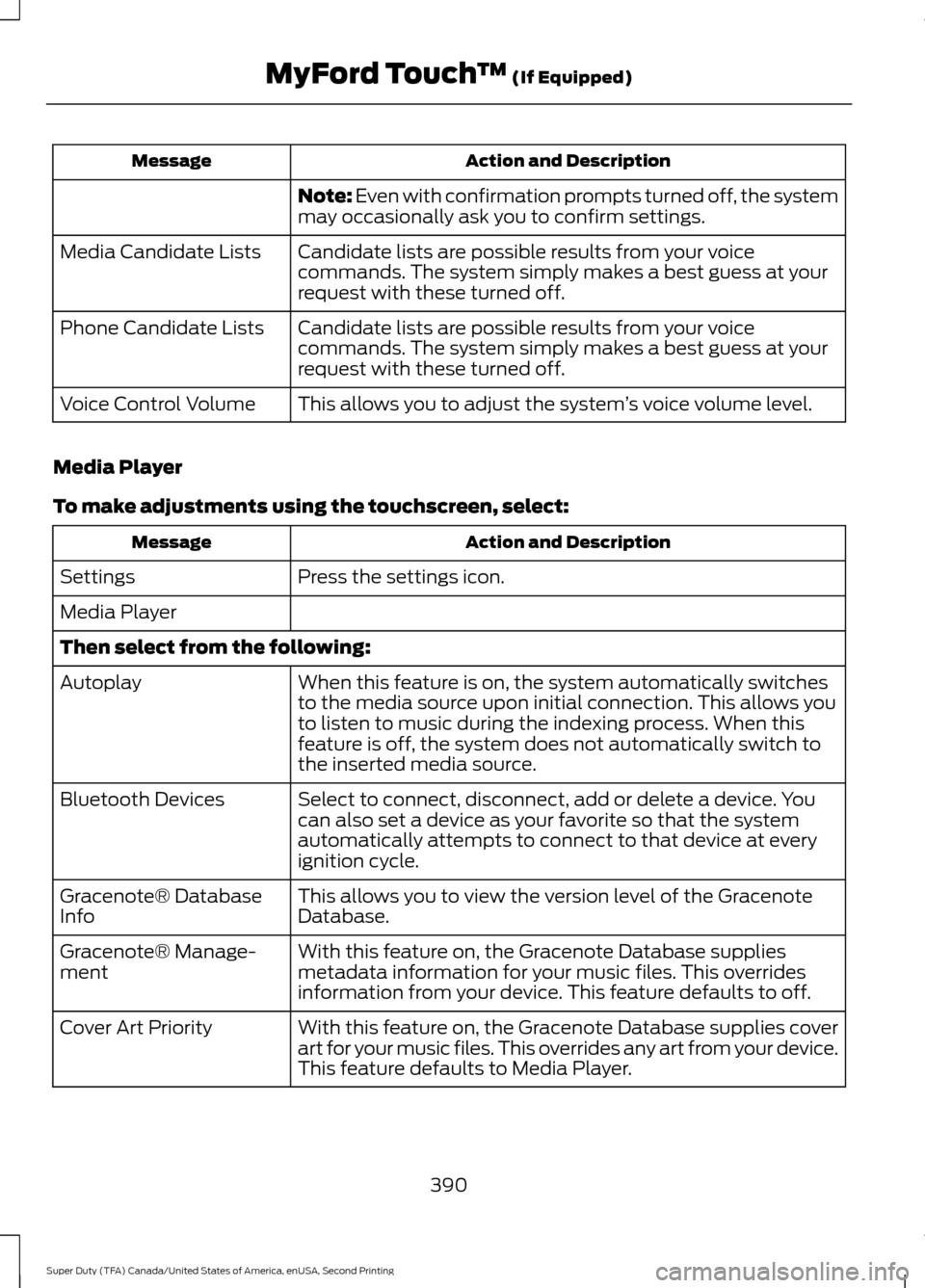
Action and Description
Message
Note: Even with confirmation prompts turned off, the system
may occasionally ask you to confirm settings.
Candidate lists are possible results from your voice
commands. The system simply makes a best guess at your
request with these turned off.
Media Candidate Lists
Candidate lists are possible results from your voice
commands. The system simply makes a best guess at your
request with these turned off.
Phone Candidate Lists
This allows you to adjust the system ’s voice volume level.
Voice Control Volume
Media Player
To make adjustments using the touchscreen, select: Action and Description
Message
Press the settings icon.
Settings
Media Player
Then select from the following:
When this feature is on, the system automatically switches
to the media source upon initial connection. This allows you
to listen to music during the indexing process. When this
feature is off, the system does not automatically switch to
the inserted media source.
Autoplay
Select to connect, disconnect, add or delete a device. You
can also set a device as your favorite so that the system
automatically attempts to connect to that device at every
ignition cycle.
Bluetooth Devices
This allows you to view the version level of the Gracenote
Database.
Gracenote® Database
Info
With this feature on, the Gracenote Database supplies
metadata information for your music files. This overrides
information from your device. This feature defaults to off.
Gracenote® Manage-
ment
With this feature on, the Gracenote Database supplies cover
art for your music files. This overrides any art from your device.
This feature defaults to Media Player.
Cover Art Priority
390
Super Duty (TFA) Canada/United States of America, enUSA, Second Printing MyFord Touch
™ (If Equipped)
Page 409 of 510
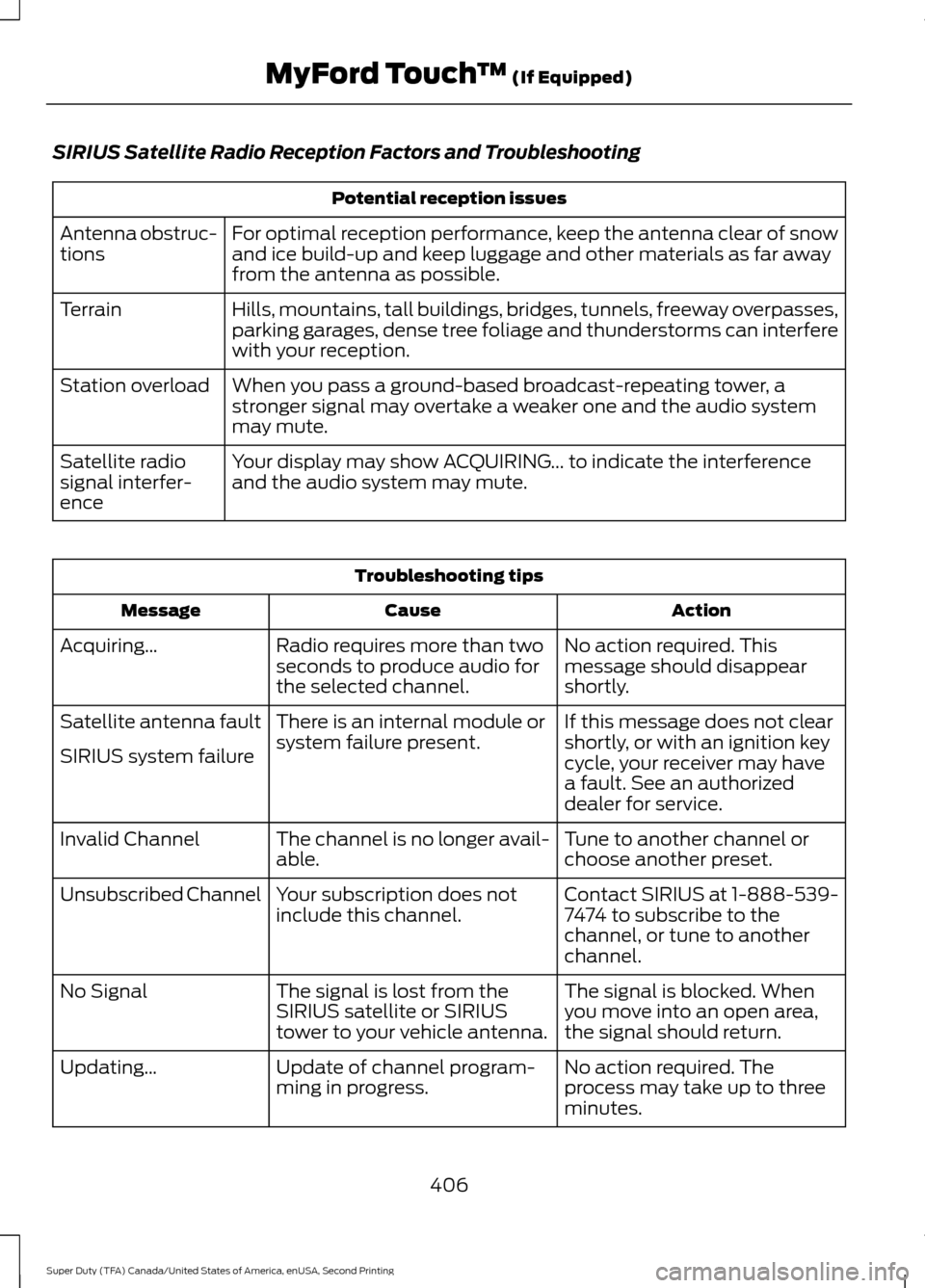
SIRIUS Satellite Radio Reception Factors and Troubleshooting
Potential reception issues
For optimal reception performance, keep the antenna clear of snow
and ice build-up and keep luggage and other materials as far away
from the antenna as possible.
Antenna obstruc-
tions
Hills, mountains, tall buildings, bridges, tunnels, freeway overpasses,
parking garages, dense tree foliage and thunderstorms can interfere
with your reception.
Terrain
When you pass a ground-based broadcast-repeating tower, a
stronger signal may overtake a weaker one and the audio system
may mute.
Station overload
Your display may show ACQUIRING... to indicate the interference
and the audio system may mute.
Satellite radio
signal interfer-
ence Troubleshooting tips
Action
Cause
Message
No action required. This
message should disappear
shortly.
Radio requires more than two
seconds to produce audio for
the selected channel.
Acquiring…
If this message does not clear
shortly, or with an ignition key
cycle, your receiver may have
a fault. See an authorized
dealer for service.
There is an internal module or
system failure present.
Satellite antenna fault
SIRIUS system failure
Tune to another channel or
choose another preset.
The channel is no longer avail-
able.
Invalid Channel
Contact SIRIUS at 1-888-539-
7474 to subscribe to the
channel, or tune to another
channel.
Your subscription does not
include this channel.
Unsubscribed Channel
The signal is blocked. When
you move into an open area,
the signal should return.
The signal is lost from the
SIRIUS satellite or SIRIUS
tower to your vehicle antenna.
No Signal
No action required. The
process may take up to three
minutes.
Update of channel program-
ming in progress.
Updating…
406
Super Duty (TFA) Canada/United States of America, enUSA, Second Printing MyFord Touch
™ (If Equipped)
Page 455 of 510
•
An authorized dealer needs to install
mobile communications systems.
Improper installation may harm the
operation of your vehicle, particularly
if the manufacturer did not design the
mobile communication system
specifically for automotive use.
• If you or an authorized Ford dealer add
any non-Ford electrical or electronic
accessories or components to your
vehicle, you may adversely affect
battery performance and durability. In
addition, you may also adversely affect
the performance of other electrical
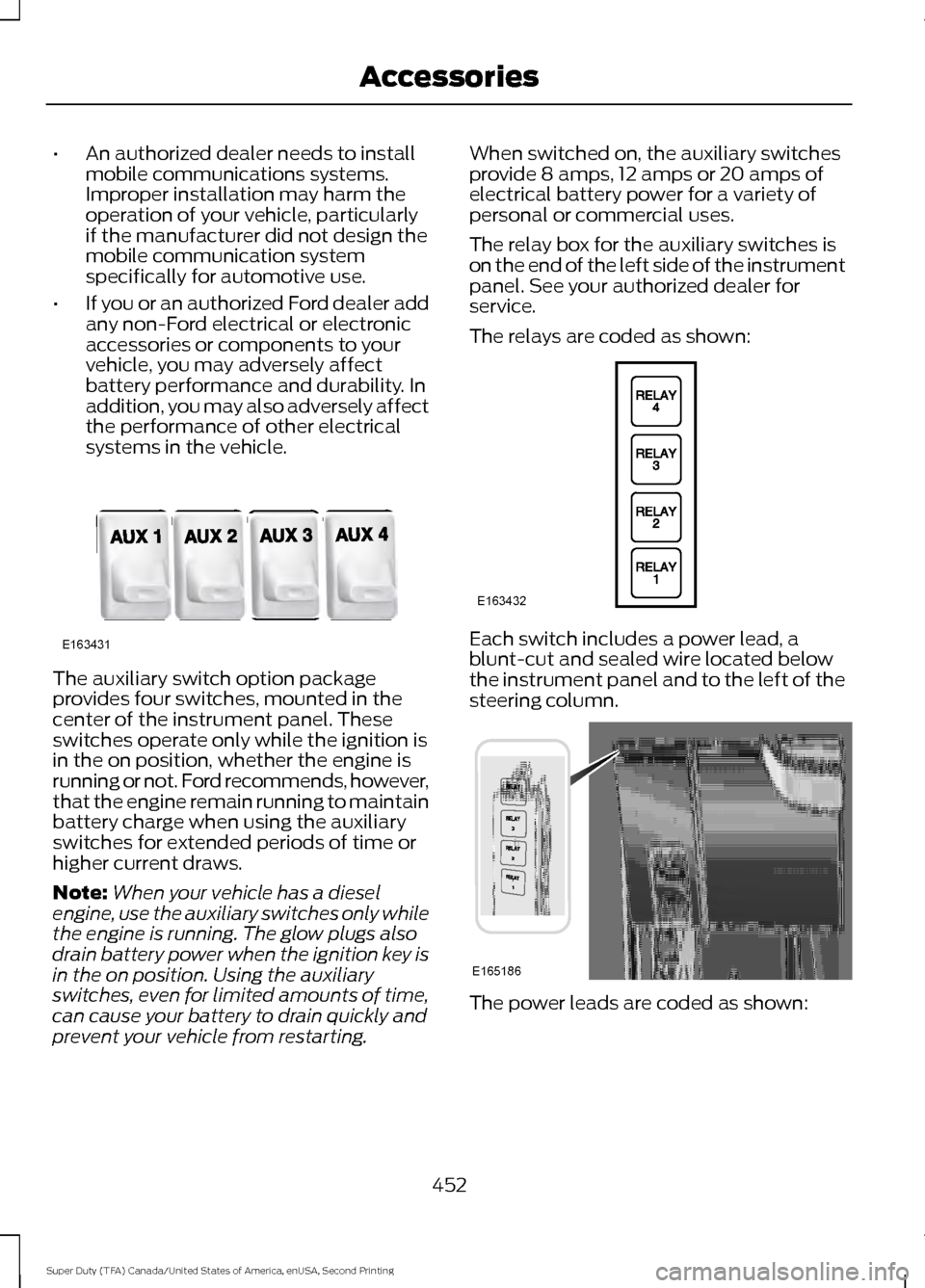
systems in the vehicle. The auxiliary switch option package
provides four switches, mounted in the
center of the instrument panel. These
switches operate only while the ignition is
in the on position, whether the engine is
running or not. Ford recommends, however,
that the engine remain running to maintain
battery charge when using the auxiliary
switches for extended periods of time or
higher current draws.
Note:
When your vehicle has a diesel
engine, use the auxiliary switches only while
the engine is running. The glow plugs also
drain battery power when the ignition key is
in the on position. Using the auxiliary
switches, even for limited amounts of time,
can cause your battery to drain quickly and
prevent your vehicle from restarting. When switched on, the auxiliary switches
provide 8 amps, 12 amps or 20 amps of
electrical battery power for a variety of
personal or commercial uses.
The relay box for the auxiliary switches is
on the end of the left side of the instrument
panel. See your authorized dealer for
service.
The relays are coded as shown:
Each switch includes a power lead, a
blunt-cut and sealed wire located below
the instrument panel and to the left of the
steering column.
The power leads are coded as shown:
452
Super Duty (TFA) Canada/United States of America, enUSA, Second Printing AccessoriesE163431 E163432 E165186
Page 500 of 510
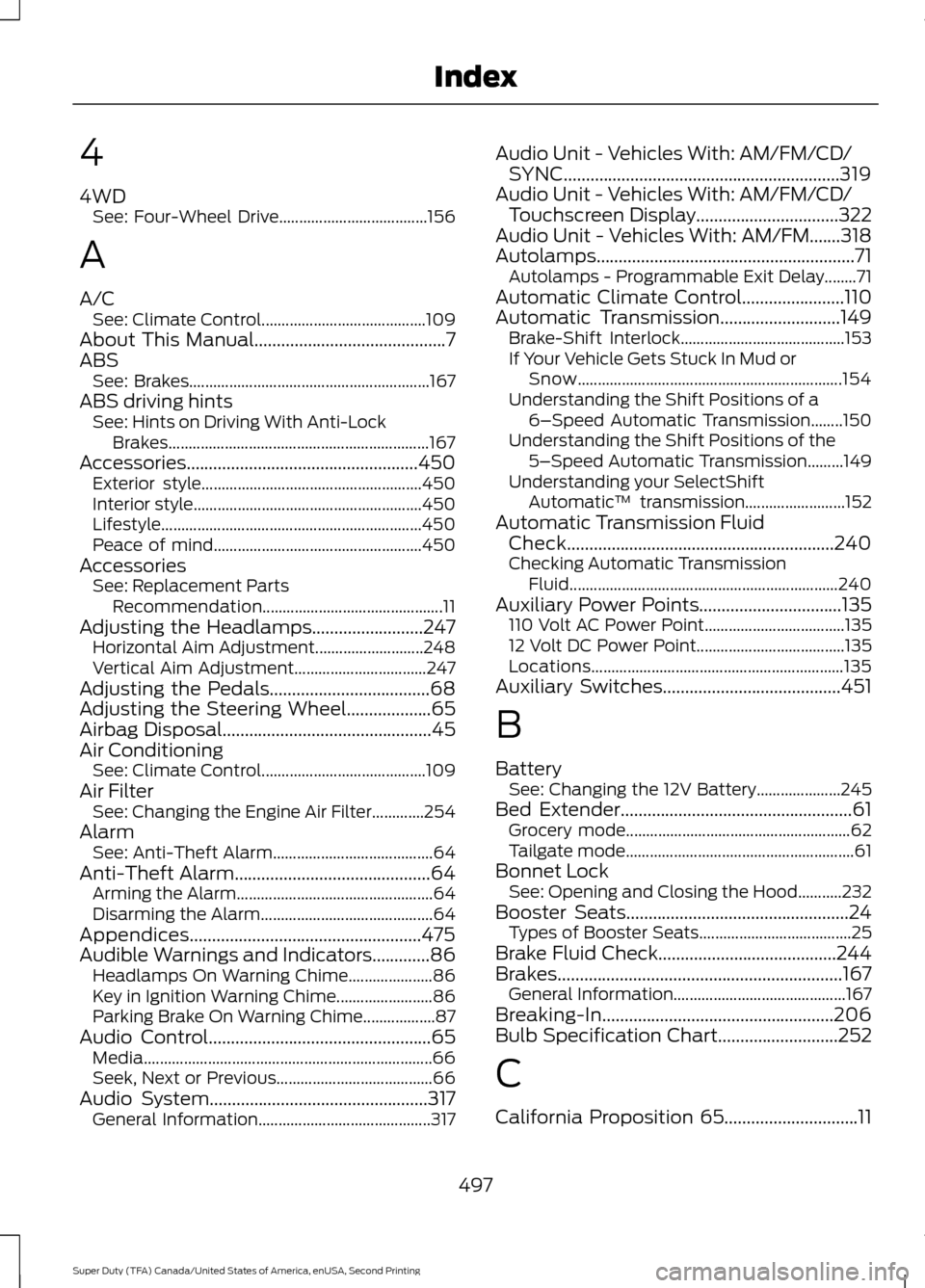
4
4WD
See: Four-Wheel Drive..................................... 156
A
A/C See: Climate Control......................................... 109
About This Manual...........................................7
ABS See: Brakes............................................................ 167
ABS driving hints See: Hints on Driving With Anti-Lock
Brakes................................................................. 167
Accessories....................................................450 Exterior style....................................................... 450
Interior style......................................................... 450
Lifestyle................................................................. 450
Peace of mind.................................................... 450
Accessories See: Replacement Parts
Recommendation............................................. 11
Adjusting the Headlamps.........................247 Horizontal Aim Adjustment........................... 248
Vertical Aim Adjustment................................. 247
Adjusting the Pedals
....................................68
Adjusting the Steering Wheel...................65
Airbag Disposal...............................................45
Air Conditioning See: Climate Control......................................... 109
Air Filter See: Changing the Engine Air Filter.............254
Alarm See: Anti-Theft Alarm........................................ 64
Anti-Theft Alarm
............................................64
Arming the Alarm................................................. 64
Disarming the Alarm........................................... 64
Appendices....................................................475
Audible Warnings and Indicators
.............86
Headlamps On Warning Chime..................... 86
Key in Ignition Warning Chime........................ 86
Parking Brake On Warning Chime.................. 87
Audio Control..................................................65 Media........................................................................\
66
Seek, Next or Previous....................................... 66
Audio System.................................................317 General Information........................................... 317Audio Unit - Vehicles With: AM/FM/CD/
SYNC..............................................................319
Audio Unit - Vehicles With: AM/FM/CD/ Touchscreen Display
................................322
Audio Unit - Vehicles With: AM/FM.......318
Autolamps..........................................................71 Autolamps - Programmable Exit Delay........71
Automatic Climate Control.......................110
Automatic Transmission
...........................149
Brake-Shift Interlock......................................... 153
If Your Vehicle Gets Stuck In Mud or Snow.................................................................. 154
Understanding the Shift Positions of a 6– Speed Automatic Transmission........150
Understanding the Shift Positions of the 5– Speed Automatic Transmission.........149
Understanding your SelectShift Automatic ™ transmission......................... 152
Automatic Transmission Fluid Check............................................................240
Checking Automatic Transmission Fluid................................................................... 240
Auxiliary Power Points
................................135
110 Volt AC Power Point................................... 135
12 Volt DC Power Point..................................... 135
Locations............................................................... 135
Auxiliary Switches
........................................451
B
Battery See: Changing the 12V Battery..................... 245
Bed Extender....................................................61 Grocery mode........................................................ 62
Tailgate mode......................................................... 61
Bonnet Lock See: Opening and Closing the Hood...........232
Booster Seats..................................................24 Types of Booster Seats...................................... 25
Brake Fluid Check........................................244
Brakes................................................................167 General Information........................................... 167
Breaking-In....................................................206
Bulb Specification Chart
...........................252
C
California Proposition 65..............................11
497
Super Duty (TFA) Canada/United States of America, enUSA, Second Printing Index
Page 504 of 510
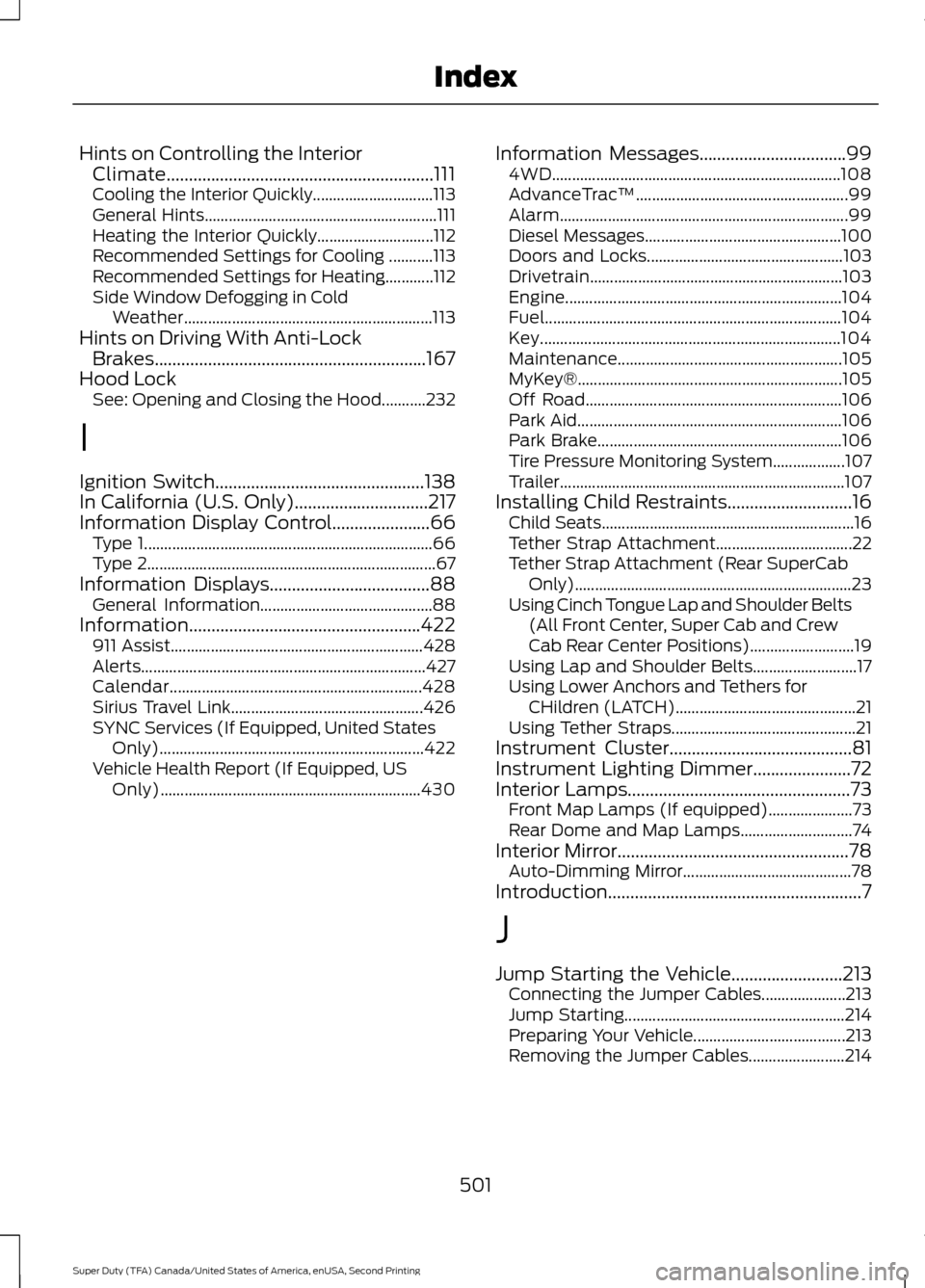
Hints on Controlling the Interior
Climate............................................................111
Cooling the Interior Quickly.............................. 113
General Hints.......................................................... 111
Heating the Interior Quickly............................. 112
Recommended Settings for Cooling ...........113
Recommended Settings for Heating............112
Side Window Defogging in Cold Weather.............................................................. 113
Hints on Driving With Anti-Lock Brakes.............................................................167
Hood Lock See: Opening and Closing the Hood...........232
I
Ignition Switch...............................................138
In California (U.S. Only)..............................217
Information Display Control
......................66
Type 1........................................................................\
66
Type 2........................................................................\
67
Information Displays
....................................88
General Information........................................... 88
Information....................................................422 911 Assist............................................................... 428
Alerts....................................................................... 427
Calendar............................................................... 428
Sirius Travel Link................................................ 426
SYNC Services (If Equipped, United States Only).................................................................. 422
Vehicle Health Report (If Equipped, US Only)................................................................. 430Information Messages
.................................99
4WD........................................................................\
108
AdvanceTrac ™..................................................... 99
Alarm........................................................................\
99
Diesel Messages................................................. 100
Doors and Locks................................................. 103
Drivetrain............................................................... 103
Engine..................................................................... 104
Fuel........................................................................\
.. 104
Key........................................................................\
... 104
Maintenance........................................................ 105
MyKey®.................................................................. 105
Off Road................................................................ 106
Park Aid.................................................................. 106
Park Brake............................................................. 106
Tire Pressure Monitoring System.................. 107
Trailer....................................................................... 107
Installing Child Restraints
............................16
Child Seats............................................................... 16
Tether Strap Attachment.................................. 22
Tether Strap Attachment (Rear SuperCab Only)..................................................................... 23
Using Cinch Tongue Lap and Shoulder Belts (All Front Center, Super Cab and Crew
Cab Rear Center Positions).......................... 19
Using Lap and Shoulder Belts.......................... 17
Using Lower Anchors and Tethers for CHildren (LATCH)............................................. 21
Using Tether Straps.............................................. 21
Instrument Cluster
.........................................81
Instrument Lighting Dimmer......................72
Interior Lamps
..................................................73
Front Map Lamps (If equipped)..................... 73
Rear Dome and Map Lamps............................ 74
Interior Mirror
....................................................78
Auto-Dimming Mirror.......................................... 78
Introduction.........................................................7
J
Jump Starting the Vehicle
.........................213
Connecting the Jumper Cables..................... 213
Jump Starting....................................................... 214
Preparing Your Vehicle...................................... 213
Removing the Jumper Cables........................ 214
501
Super Duty (TFA) Canada/United States of America, enUSA, Second Printing Index