pairing phone FORD SUPER DUTY 2016 3.G Owners Manual
[x] Cancel search | Manufacturer: FORD, Model Year: 2016, Model line: SUPER DUTY, Model: FORD SUPER DUTY 2016 3.GPages: 510, PDF Size: 5.42 MB
Page 337 of 510
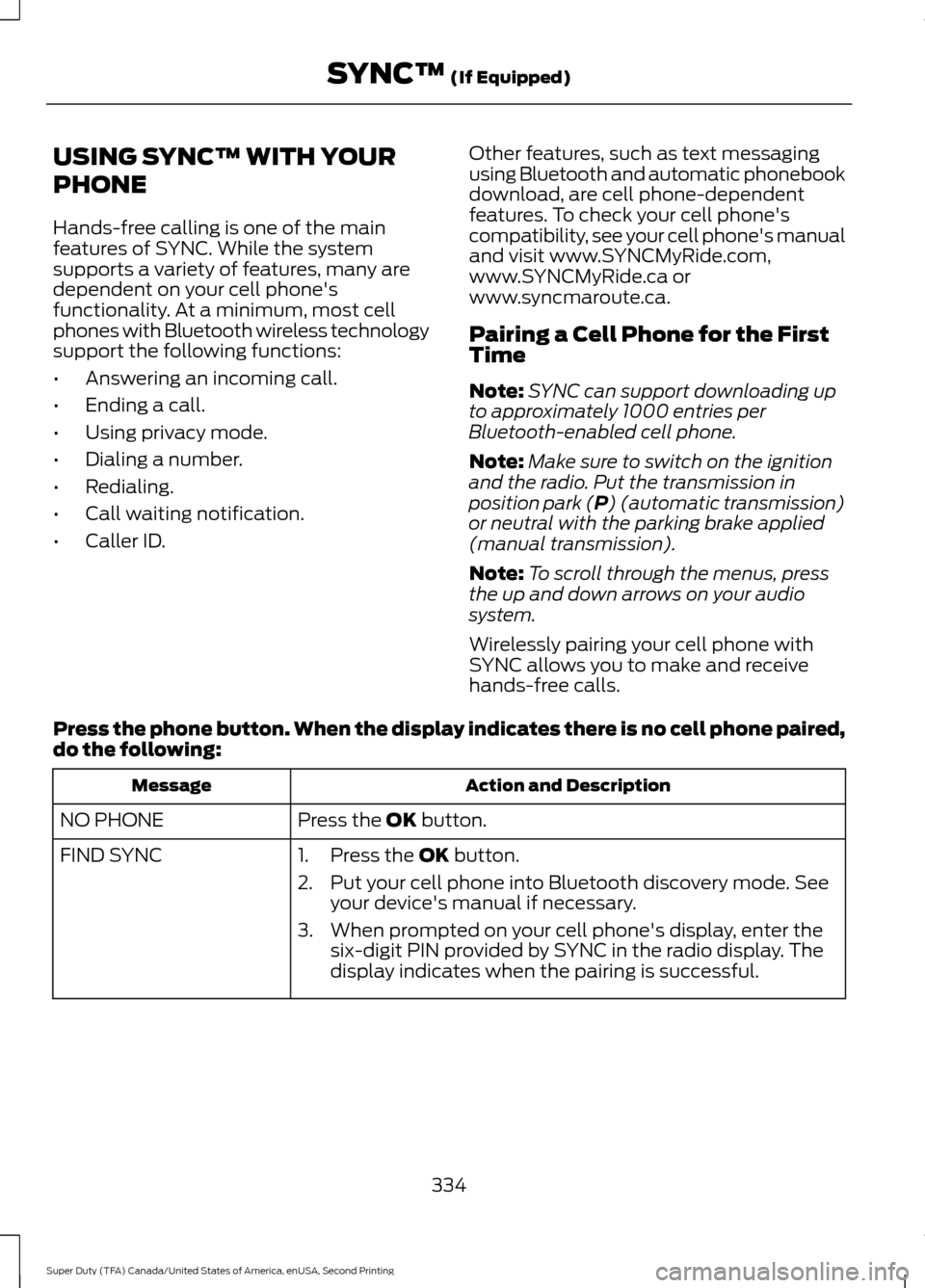
USING SYNC™ WITH YOUR
PHONE
Hands-free calling is one of the main
features of SYNC. While the system
supports a variety of features, many are
dependent on your cell phone's
functionality. At a minimum, most cell
phones with Bluetooth wireless technology
support the following functions:
•
Answering an incoming call.
• Ending a call.
• Using privacy mode.
• Dialing a number.
• Redialing.
• Call waiting notification.
• Caller ID. Other features, such as text messaging
using Bluetooth and automatic phonebook
download, are cell phone-dependent
features. To check your cell phone's
compatibility, see your cell phone's manual
and visit www.SYNCMyRide.com,
www.SYNCMyRide.ca or
www.syncmaroute.ca.
Pairing a Cell Phone for the First
Time
Note:
SYNC can support downloading up
to approximately 1000 entries per
Bluetooth-enabled cell phone.
Note: Make sure to switch on the ignition
and the radio. Put the transmission in
position park (P) (automatic transmission)
or neutral with the parking brake applied
(manual transmission).
Note: To scroll through the menus, press
the up and down arrows on your audio
system.
Wirelessly pairing your cell phone with
SYNC allows you to make and receive
hands-free calls.
Press the phone button. When the display indicates there is no cell phone paired,
do the following: Action and Description
Message
Press the
OK button.
NO PHONE
FIND SYNC 1. Press the
OK button.
2. Put your cell phone into Bluetooth discovery mode. See your device's manual if necessary.
3. When prompted on your cell phone's display, enter the six-digit PIN provided by SYNC in the radio display. The
display indicates when the pairing is successful.
334
Super Duty (TFA) Canada/United States of America, enUSA, Second Printing SYNC™
(If Equipped)
Page 338 of 510
Depending on your cell phone's capability
and your market, the system may prompt
you with questions, such as setting the
current cell phone as the primary cell
phone (the cell phone SYNC automatically
tries to connect with first upon vehicle
start-up) and downloading your
phonebook.
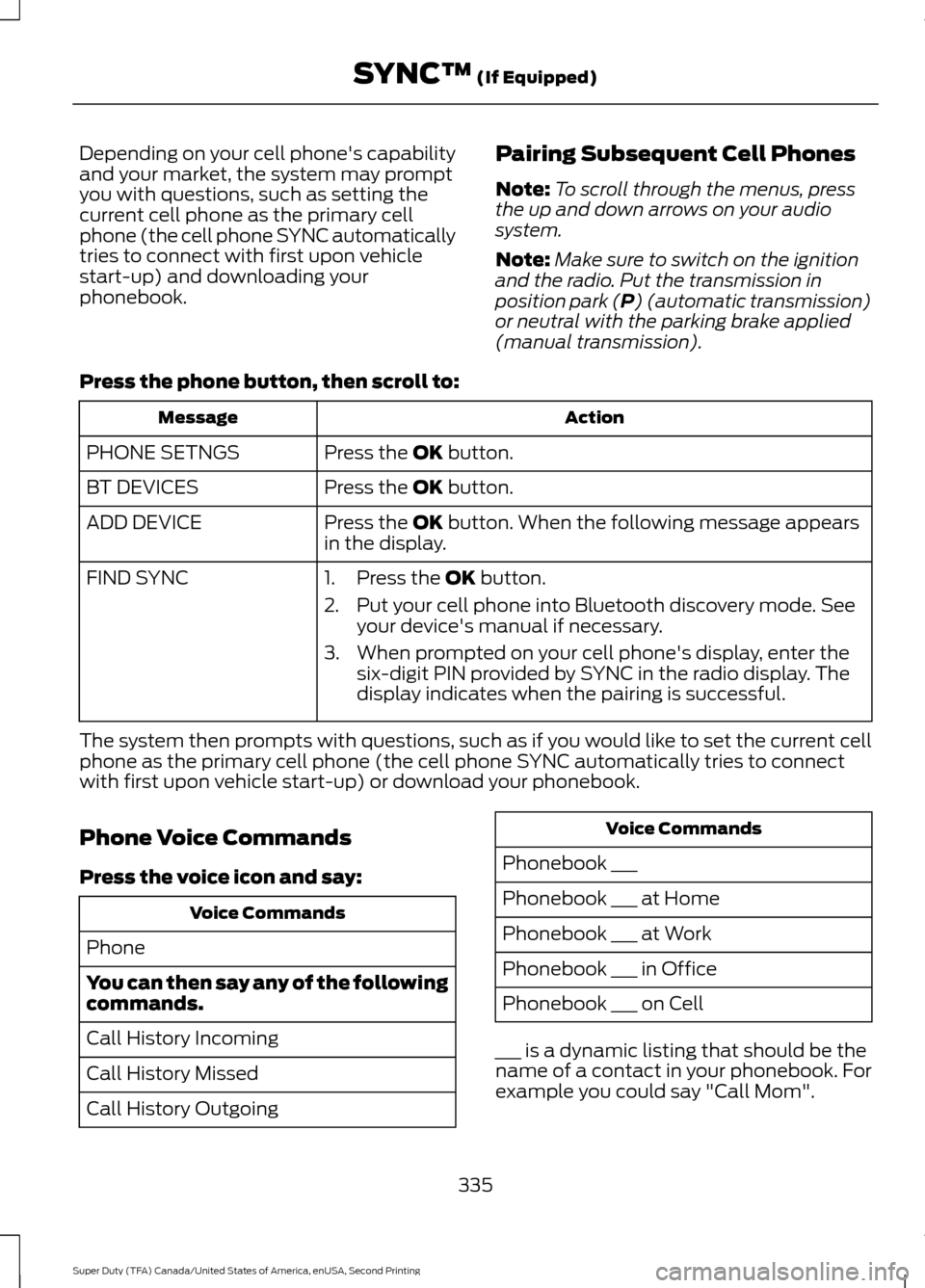
Pairing Subsequent Cell Phones
Note:
To scroll through the menus, press
the up and down arrows on your audio
system.
Note: Make sure to switch on the ignition
and the radio. Put the transmission in
position park (P) (automatic transmission)
or neutral with the parking brake applied
(manual transmission).
Press the phone button, then scroll to: Action
Message
Press the
OK button.
PHONE SETNGS
Press the
OK button.
BT DEVICES
Press the
OK button. When the following message appears
in the display.
ADD DEVICE
FIND SYNC
1. Press the
OK button.
2. Put your cell phone into Bluetooth discovery mode. See your device's manual if necessary.
3. When prompted on your cell phone's display, enter the six-digit PIN provided by SYNC in the radio display. The
display indicates when the pairing is successful.
The system then prompts with questions, such as if you would like to set the current cell
phone as the primary cell phone (the cell phone SYNC automatically tries to connect
with first upon vehicle start-up) or download your phonebook.
Phone Voice Commands
Press the voice icon and say: Voice Commands
Phone
You can then say any of the following
commands.
Call History Incoming
Call History Missed
Call History Outgoing Voice Commands
Phonebook ___
Phonebook ___ at Home
Phonebook ___ at Work
Phonebook ___ in Office
Phonebook ___ on Cell
___ is a dynamic listing that should be the
name of a contact in your phonebook. For
example you could say "Call Mom".
335
Super Duty (TFA) Canada/United States of America, enUSA, Second Printing SYNC™
(If Equipped)
Page 373 of 510
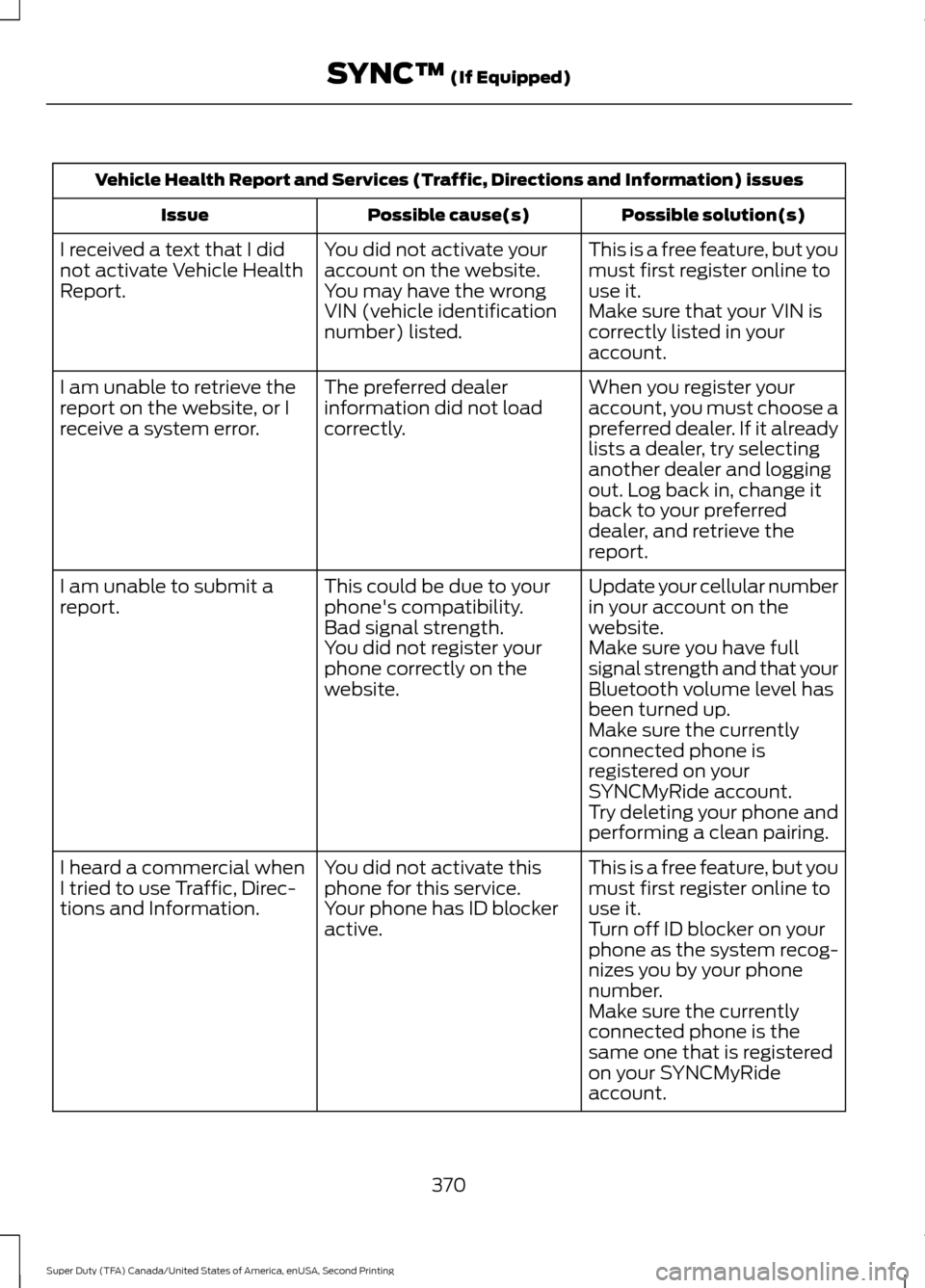
Vehicle Health Report and Services (Traffic, Directions and Information) issues
Possible solution(s)
Possible cause(s)
Issue
This is a free feature, but you
must first register online to
use it.
You did not activate your
account on the website.
You may have the wrong
VIN (vehicle identification
number) listed.
I received a text that I did
not activate Vehicle Health
Report.
Make sure that your VIN is
correctly listed in your
account.
When you register your
account, you must choose a
preferred dealer. If it already
lists a dealer, try selecting
another dealer and logging
out. Log back in, change it
back to your preferred
dealer, and retrieve the
report.
The preferred dealer
information did not load
correctly.
I am unable to retrieve the
report on the website, or I
receive a system error.
Update your cellular number
in your account on the
website.
This could be due to your
phone's compatibility.
Bad signal strength.
I am unable to submit a
report.
Make sure you have full
signal strength and that your
Bluetooth volume level has
been turned up.
You did not register your
phone correctly on the
website.
Make sure the currently
connected phone is
registered on your
SYNCMyRide account.
Try deleting your phone and
performing a clean pairing.
This is a free feature, but you
must first register online to
use it.
You did not activate this
phone for this service.
Your phone has ID blocker
active.
I heard a commercial when
I tried to use Traffic, Direc-
tions and Information.
Turn off ID blocker on your
phone as the system recog-
nizes you by your phone
number.
Make sure the currently
connected phone is the
same one that is registered
on your SYNCMyRide
account.
370
Super Duty (TFA) Canada/United States of America, enUSA, Second Printing SYNC™ (If Equipped)
Page 383 of 510
Safety Information
WARNING
Driving while distracted can result in
loss of vehicle control, crash and
injury. We strongly recommend that
you use extreme caution when using any
device that may take your focus off the
road. Your primary responsibility is the safe
operation of your vehicle. We recommend
against the use of any hand-held device
while driving and encourage the use of
voice-operated systems when possible.
Make sure you are aware of all applicable
local laws that may affect the use of
electronic devices while driving. •
Do not attempt to service or repair the
system. Have your vehicle checked by
an authorized dealer.
• Do not operate media devices if the
power cables are broken or damaged. •
Make sure the power cables do not
interfere with the safe operation of your
vehicle's controls or affect your safe
driving abilities.
• Some SYNC functions are
speed-dependent. Their use is limited
to when your vehicle is traveling at
speeds below 3 mph (5 km/h).
Make sure that you review your device's
manual before using it with SYNC.
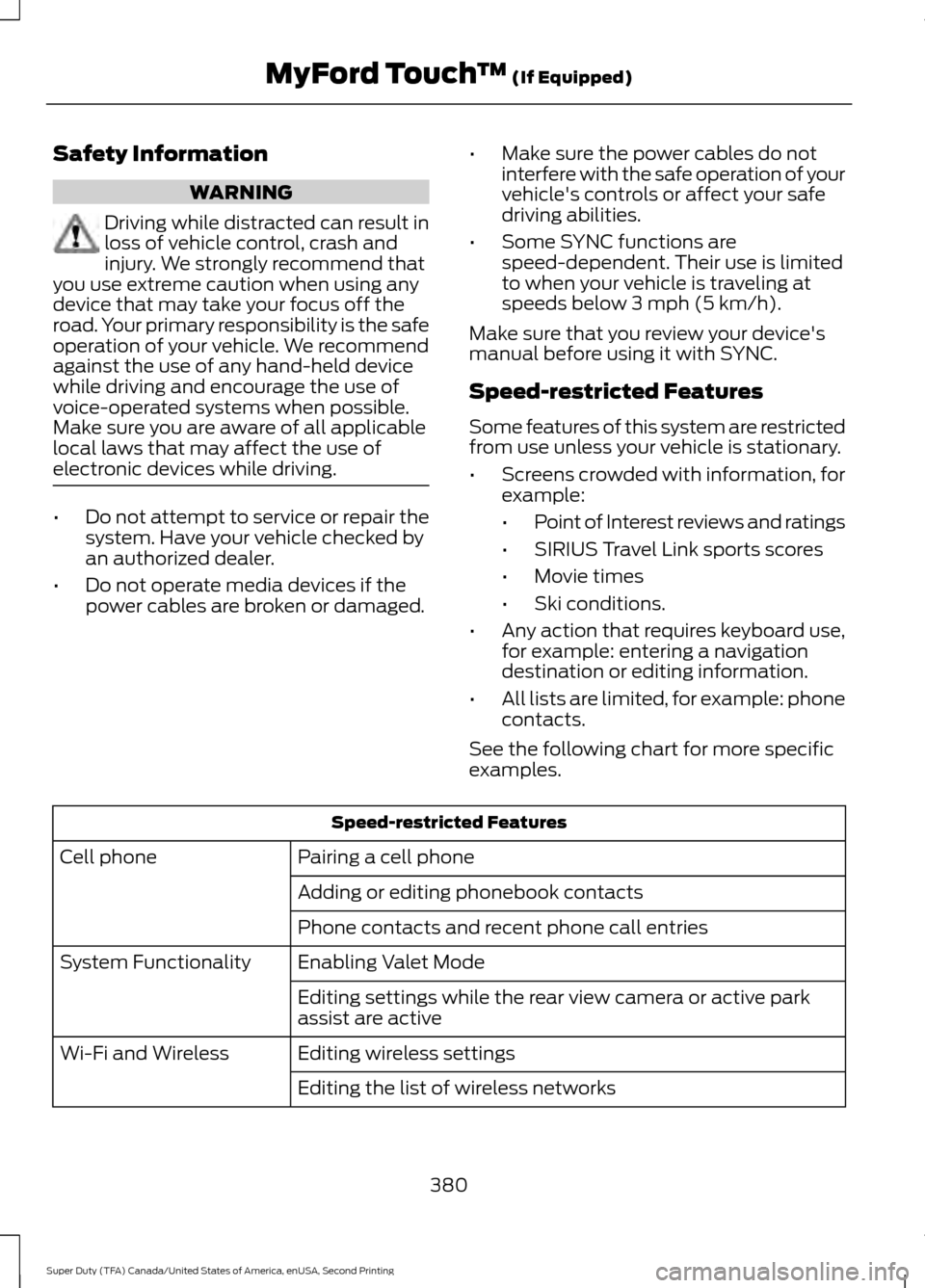
Speed-restricted Features
Some features of this system are restricted
from use unless your vehicle is stationary.
• Screens crowded with information, for
example:
•Point of Interest reviews and ratings
• SIRIUS Travel Link sports scores
• Movie times
• Ski conditions.
• Any action that requires keyboard use,
for example: entering a navigation
destination or editing information.
• All lists are limited, for example: phone
contacts.
See the following chart for more specific
examples. Speed-restricted Features
Pairing a cell phone
Cell phone
Adding or editing phonebook contacts
Phone contacts and recent phone call entries
Enabling Valet Mode
System Functionality
Editing settings while the rear view camera or active park
assist are active
Editing wireless settings
Wi-Fi and Wireless
Editing the list of wireless networks
380
Super Duty (TFA) Canada/United States of America, enUSA, Second Printing MyFord Touch
™ (If Equipped)
Page 418 of 510
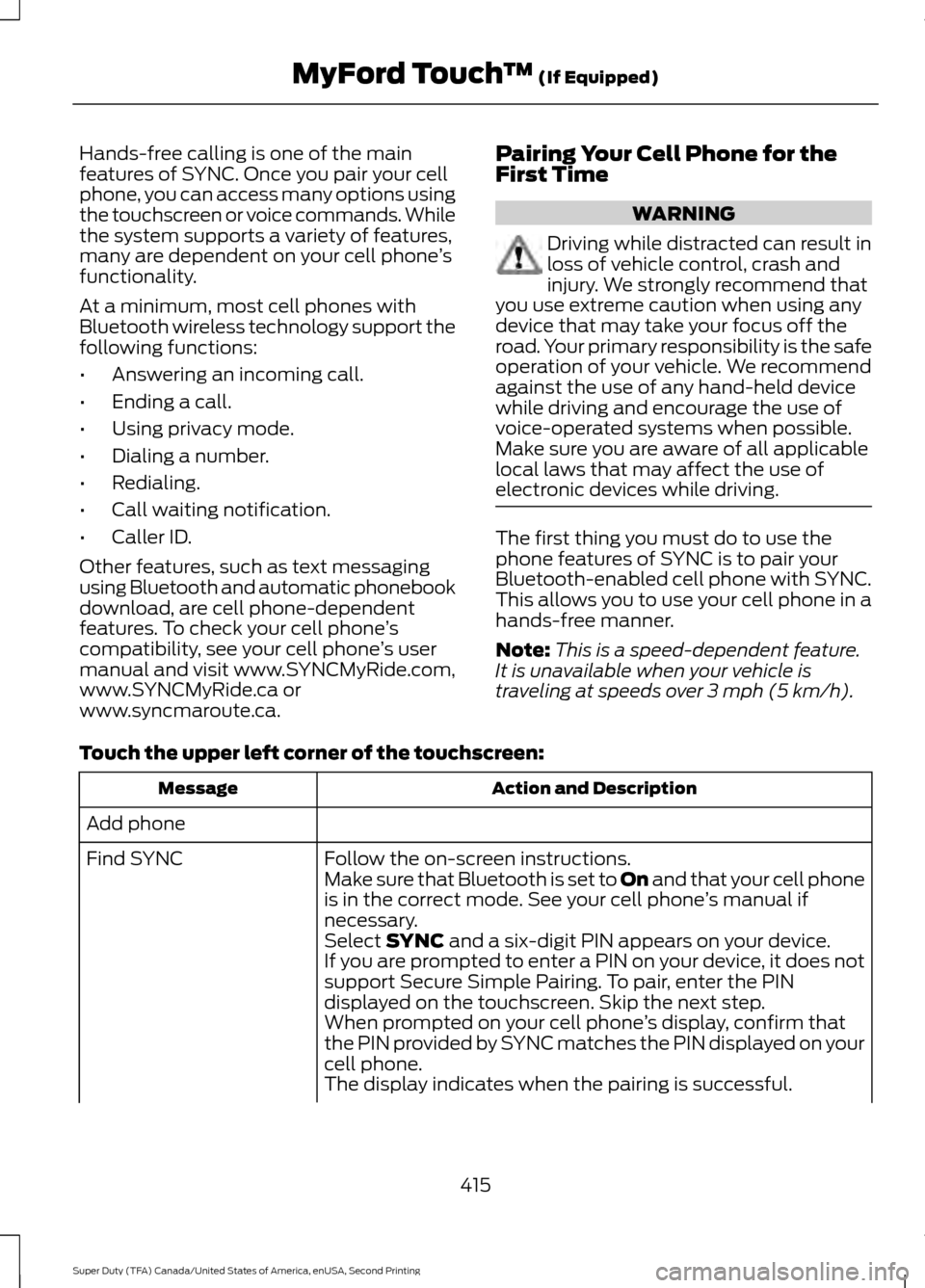
Hands-free calling is one of the main
features of SYNC. Once you pair your cell
phone, you can access many options using
the touchscreen or voice commands. While
the system supports a variety of features,
many are dependent on your cell phone
’s
functionality.
At a minimum, most cell phones with
Bluetooth wireless technology support the
following functions:
• Answering an incoming call.
• Ending a call.
• Using privacy mode.
• Dialing a number.
• Redialing.
• Call waiting notification.
• Caller ID.
Other features, such as text messaging
using Bluetooth and automatic phonebook
download, are cell phone-dependent
features. To check your cell phone ’s
compatibility, see your cell phone ’s user
manual and visit www.SYNCMyRide.com,
www.SYNCMyRide.ca or
www.syncmaroute.ca. Pairing Your Cell Phone for the
First Time WARNING
Driving while distracted can result in
loss of vehicle control, crash and
injury. We strongly recommend that
you use extreme caution when using any
device that may take your focus off the
road. Your primary responsibility is the safe
operation of your vehicle. We recommend
against the use of any hand-held device
while driving and encourage the use of
voice-operated systems when possible.
Make sure you are aware of all applicable
local laws that may affect the use of
electronic devices while driving. The first thing you must do to use the
phone features of SYNC is to pair your
Bluetooth-enabled cell phone with SYNC.
This allows you to use your cell phone in a
hands-free manner.
Note:
This is a speed-dependent feature.
It is unavailable when your vehicle is
traveling at speeds over 3 mph (5 km/h).
Touch the upper left corner of the touchscreen: Action and Description
Message
Add phone Follow the on-screen instructions.
Find SYNC
Make sure that Bluetooth is set to On
and that your cell phone
is in the correct mode. See your cell phone ’s manual if
necessary.
Select
SYNC and a six-digit PIN appears on your device.
If you are prompted to enter a PIN on your device, it does not
support Secure Simple Pairing. To pair, enter the PIN
displayed on the touchscreen. Skip the next step.
When prompted on your cell phone ’s display, confirm that
the PIN provided by SYNC matches the PIN displayed on your
cell phone.
The display indicates when the pairing is successful.
415
Super Duty (TFA) Canada/United States of America, enUSA, Second Printing MyFord Touch
™
(If Equipped)
Page 419 of 510
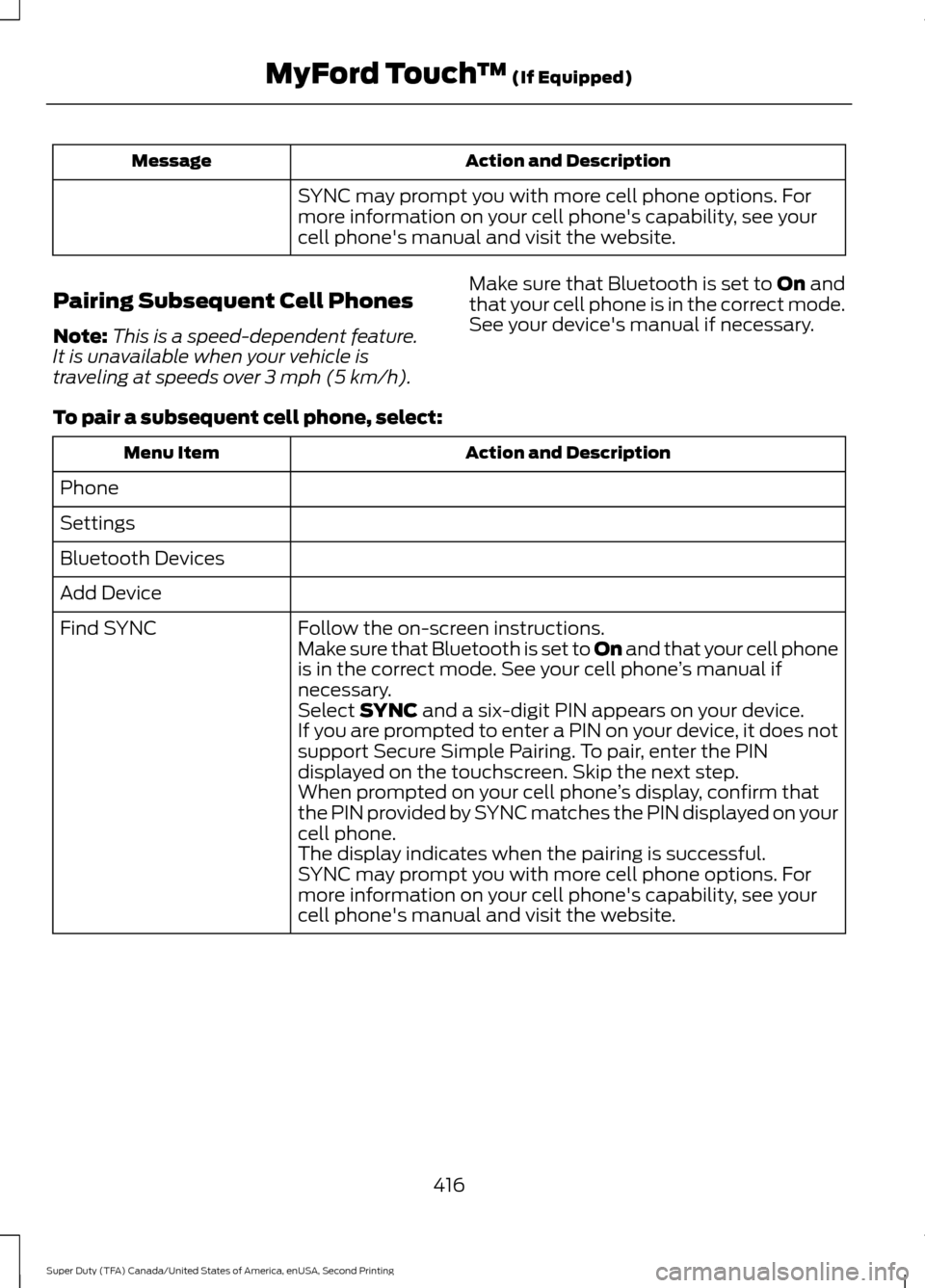
Action and Description
Message
SYNC may prompt you with more cell phone options. For
more information on your cell phone's capability, see your
cell phone's manual and visit the website.
Pairing Subsequent Cell Phones
Note: This is a speed-dependent feature.
It is unavailable when your vehicle is
traveling at speeds over 3 mph (5 km/h). Make sure that Bluetooth is set to
On and
that your cell phone is in the correct mode.
See your device's manual if necessary.
To pair a subsequent cell phone, select: Action and Description
Menu Item
Phone
Settings
Bluetooth Devices
Add Device Follow the on-screen instructions.
Find SYNC
Make sure that Bluetooth is set to On
and that your cell phone
is in the correct mode. See your cell phone ’s manual if
necessary.
Select
SYNC and a six-digit PIN appears on your device.
If you are prompted to enter a PIN on your device, it does not
support Secure Simple Pairing. To pair, enter the PIN
displayed on the touchscreen. Skip the next step.
When prompted on your cell phone ’s display, confirm that
the PIN provided by SYNC matches the PIN displayed on your
cell phone.
The display indicates when the pairing is successful.
SYNC may prompt you with more cell phone options. For
more information on your cell phone's capability, see your
cell phone's manual and visit the website.
416
Super Duty (TFA) Canada/United States of America, enUSA, Second Printing MyFord Touch
™
(If Equipped)
Page 450 of 510
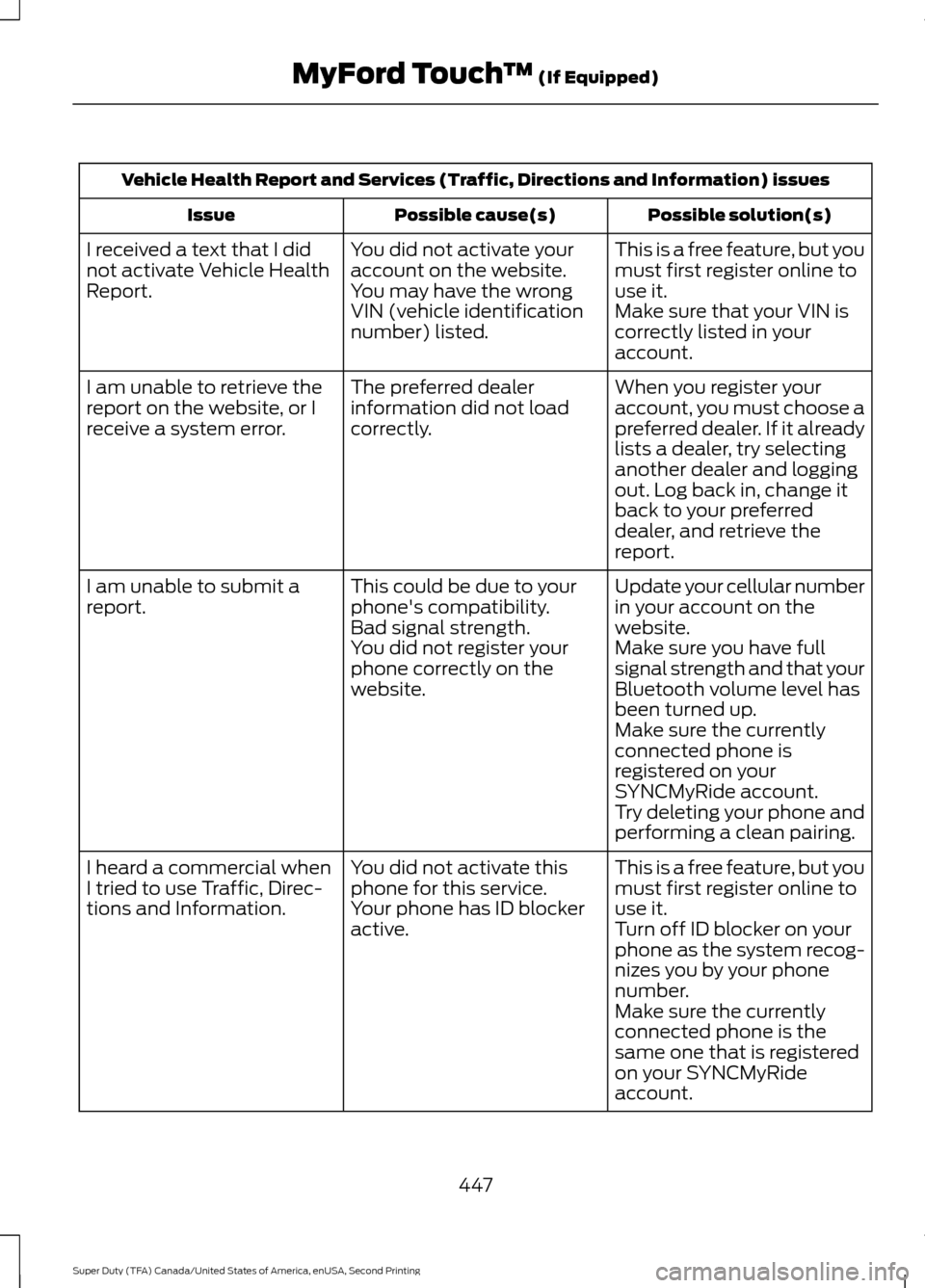
Vehicle Health Report and Services (Traffic, Directions and Information) issues
Possible solution(s)
Possible cause(s)
Issue
This is a free feature, but you
must first register online to
use it.
You did not activate your
account on the website.
You may have the wrong
VIN (vehicle identification
number) listed.
I received a text that I did
not activate Vehicle Health
Report.
Make sure that your VIN is
correctly listed in your
account.
When you register your
account, you must choose a
preferred dealer. If it already
lists a dealer, try selecting
another dealer and logging
out. Log back in, change it
back to your preferred
dealer, and retrieve the
report.
The preferred dealer
information did not load
correctly.
I am unable to retrieve the
report on the website, or I
receive a system error.
Update your cellular number
in your account on the
website.
This could be due to your
phone's compatibility.
Bad signal strength.
I am unable to submit a
report.
Make sure you have full
signal strength and that your
Bluetooth volume level has
been turned up.
You did not register your
phone correctly on the
website.
Make sure the currently
connected phone is
registered on your
SYNCMyRide account.
Try deleting your phone and
performing a clean pairing.
This is a free feature, but you
must first register online to
use it.
You did not activate this
phone for this service.
Your phone has ID blocker
active.
I heard a commercial when
I tried to use Traffic, Direc-
tions and Information.
Turn off ID blocker on your
phone as the system recog-
nizes you by your phone
number.
Make sure the currently
connected phone is the
same one that is registered
on your SYNCMyRide
account.
447
Super Duty (TFA) Canada/United States of America, enUSA, Second Printing MyFord Touch
™ (If Equipped)
Page 506 of 510
Ordering Additional Owner's
Literature.....................................................220
Obtaining a French Owner ’s Manual...........221
Overhead Console........................................137
P
Parking Aid.......................................................177 Rear Parking Aid................................................... 177
Parking Aids
.....................................................177
Parking Brake.................................................168
Passive Anti-Theft System
.........................63
SecuriLock ™.......................................................... 63
PATS See: Passive Anti-Theft System..................... 63
Pedals................................................................68
Perchlorate.........................................................11
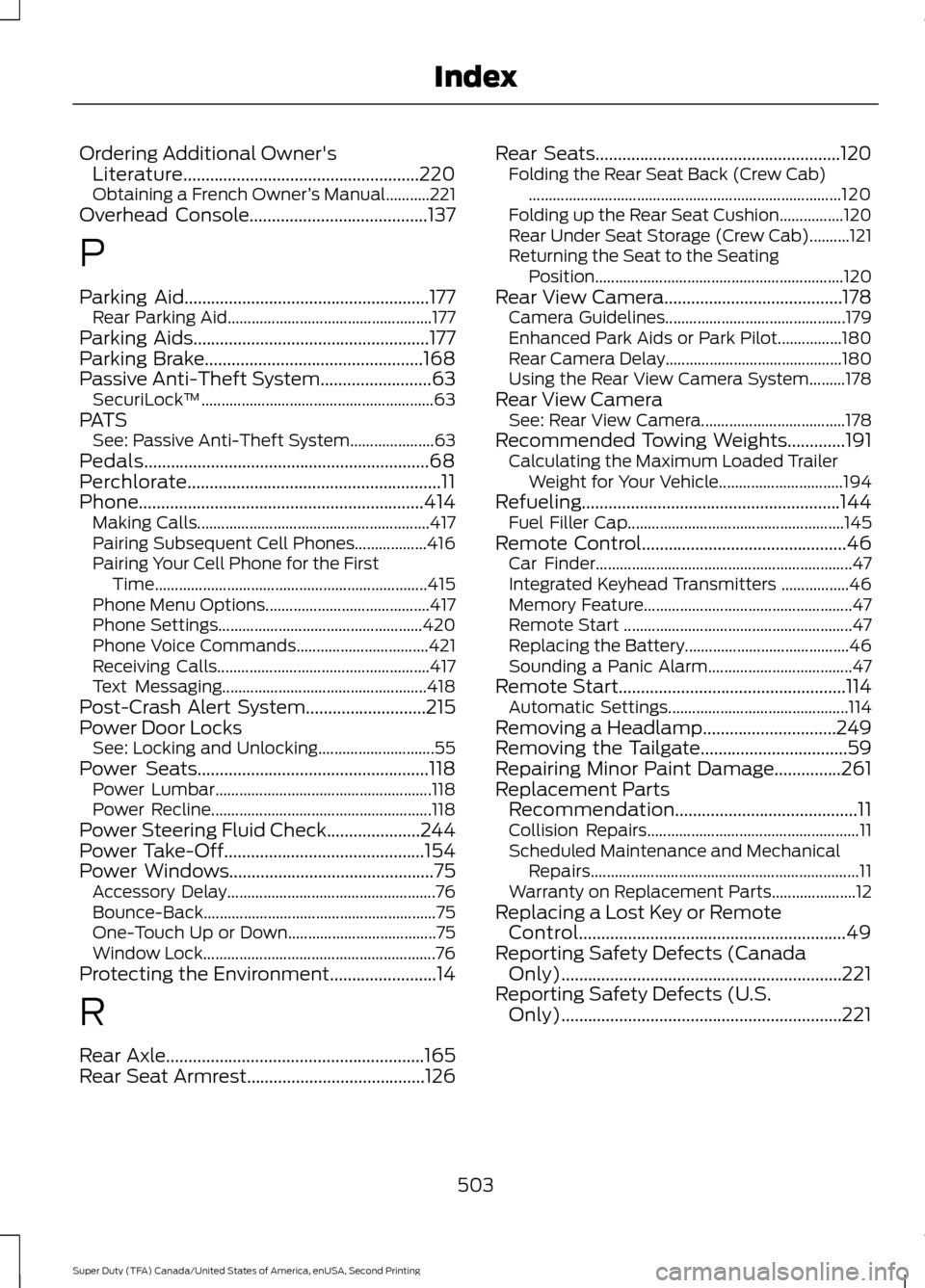
Phone................................................................414 Making Calls.......................................................... 417
Pairing Subsequent Cell Phones.................. 416
Pairing Your Cell Phone for the First Time.................................................................... 415
Phone Menu Options......................................... 417
Phone Settings................................................... 420
Phone Voice Commands................................. 421
Receiving Calls..................................................... 417
Text Messaging................................................... 418
Post-Crash Alert System...........................215
Power Door Locks See: Locking and Unlocking............................. 55
Power Seats
....................................................118
Power Lumbar...................................................... 118
Power Recline....................................................... 118
Power Steering Fluid Check
.....................244
Power Take-Off.............................................154
Power Windows..............................................75
Accessory Delay.................................................... 76
Bounce-Back.......................................................... 75
One-Touch Up or Down..................................... 75
Window Lock.......................................................... 76
Protecting the Environment........................14
R
Rear Axle..........................................................165
Rear Seat Armrest........................................126 Rear Seats.......................................................120
Folding the Rear Seat Back (Crew Cab)
........................................................................\
...... 120
Folding up the Rear Seat Cushion................120
Rear Under Seat Storage (Crew Cab)..........121
Returning the Seat to the Seating Position.............................................................. 120
Rear View Camera........................................178 Camera Guidelines............................................. 179
Enhanced Park Aids or Park Pilot................180
Rear Camera Delay............................................ 180
Using the Rear View Camera System.........178
Rear View Camera See: Rear View Camera.................................... 178
Recommended Towing Weights.............191 Calculating the Maximum Loaded Trailer
Weight for Your Vehicle............................... 194
Refueling..........................................................144 Fuel Filler Cap...................................................... 145
Remote Control
..............................................46
Car Finder................................................................ 47
Integrated Keyhead Transmitters .................46
Memory Feature.................................................... 47
Remote Start ......................................................... 47
Replacing the Battery......................................... 46
Sounding a Panic Alarm.................................... 47
Remote Start...................................................114 Automatic Settings............................................. 114
Removing a Headlamp..............................249
Removing the Tailgate.................................59
Repairing Minor Paint Damage...............261
Replacement Parts Recommendation.........................................11
Collision Repairs..................................................... 11
Scheduled Maintenance and Mechanical Repairs................................................................... 11
Warranty on Replacement Parts..................... 12
Replacing a Lost Key or Remote Control............................................................49
Reporting Safety Defects (Canada Only)...............................................................221
Reporting Safety Defects (U.S. Only)...............................................................221
503
Super Duty (TFA) Canada/United States of America, enUSA, Second Printing Index
Page 509 of 510
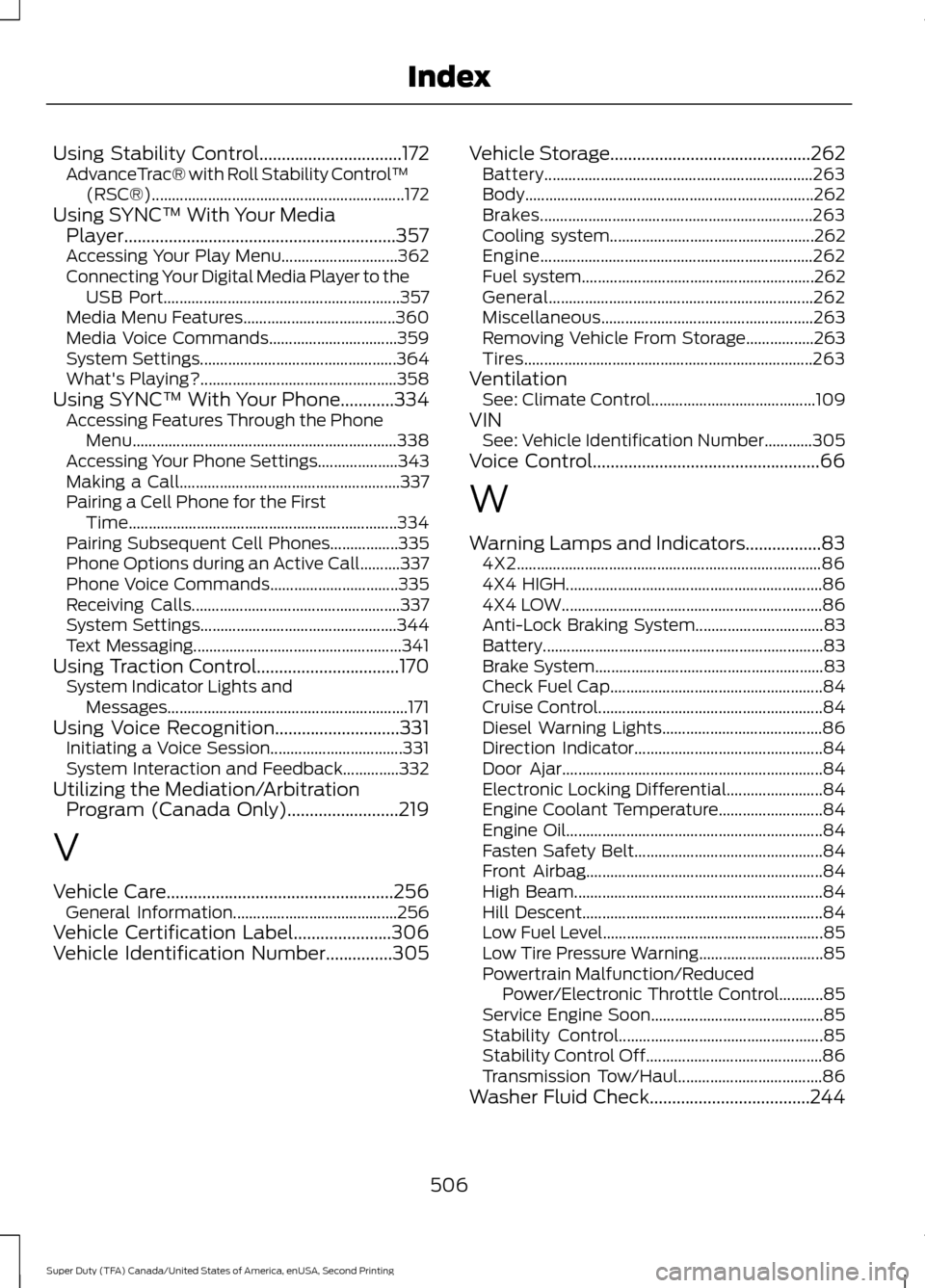
Using Stability Control................................172
AdvanceTrac® with Roll Stability Control ™
(RSC®)............................................................... 172
Using SYNC™ With Your Media Player.............................................................357
Accessing Your Play Menu............................. 362
Connecting Your Digital Media Player to the USB Port........................................................... 357
Media Menu Features...................................... 360
Media Voice Commands................................ 359
System Settings................................................. 364
What's Playing?................................................. 358
Using SYNC™ With Your Phone............334 Accessing Features Through the Phone
Menu.................................................................. 338
Accessing Your Phone Settings.................... 343
Making a Call....................................................... 337
Pairing a Cell Phone for the First Time................................................................... 334
Pairing Subsequent Cell Phones.................335
Phone Options during an Active Call..........337
Phone Voice Commands................................ 335
Receiving Calls.................................................... 337
System Settings................................................. 344
Text Messaging.................................................... 341
Using Traction Control................................170 System Indicator Lights and
Messages............................................................ 171
Using Voice Recognition............................331 Initiating a Voice Session................................. 331
System Interaction and Feedback..............332
Utilizing the Mediation/Arbitration Program (Canada Only).........................219
V
Vehicle Care...................................................256 General Information......................................... 256
Vehicle Certification Label
......................306
Vehicle Identification Number...............305 Vehicle Storage
.............................................262
Battery................................................................... 263
Body........................................................................\
262
Brakes.................................................................... 263
Cooling system................................................... 262
Engine.................................................................... 262
Fuel system.......................................................... 262
General.................................................................. 262
Miscellaneous..................................................... 263
Removing Vehicle From Storage.................263
Tires........................................................................\
263
Ventilation See: Climate Control......................................... 109
VIN See: Vehicle Identification Number............305
Voice Control...................................................66
W
Warning Lamps and Indicators.................83 4X2........................................................................\
.... 86
4X4 HIGH................................................................ 86
4X4 LOW................................................................. 86
Anti-Lock Braking System................................ 83
Battery...................................................................... 83
Brake System......................................................... 83
Check Fuel Cap..................................................... 84
Cruise Control........................................................ 84
Diesel Warning Lights........................................ 86
Direction Indicator............................................... 84
Door Ajar................................................................. 84
Electronic Locking Differential........................ 84
Engine Coolant Temperature.......................... 84
Engine Oil................................................................ 84
Fasten Safety Belt............................................... 84
Front Airbag........................................................... 84
High Beam.............................................................. 84
Hill Descent............................................................ 84
Low Fuel Level....................................................... 85
Low Tire Pressure Warning............................... 85
Powertrain Malfunction/Reduced Power/Electronic Throttle Control...........85
Service Engine Soon........................................... 85
Stability Control................................................... 85
Stability Control Off............................................ 86
Transmission Tow/Haul.................................... 86
Washer Fluid Check....................................244
506
Super Duty (TFA) Canada/United States of America, enUSA, Second Printing Index