light FORD SUPER DUTY 2017 4.G Owners Manual
[x] Cancel search | Manufacturer: FORD, Model Year: 2017, Model line: SUPER DUTY, Model: FORD SUPER DUTY 2017 4.GPages: 636, PDF Size: 10.56 MB
Page 520 of 636
Note: The heated steering wheel may remain on after remote starting the
vehicle, based on your remote start settings. The heated steering wheel may
also turn on when you start your vehicle, if it was on when you switched your
vehicle off.
Note:
For steering wheels with wood trim, the heating feature will not heat the
wheel between the 10 and 2 o'clock positions.
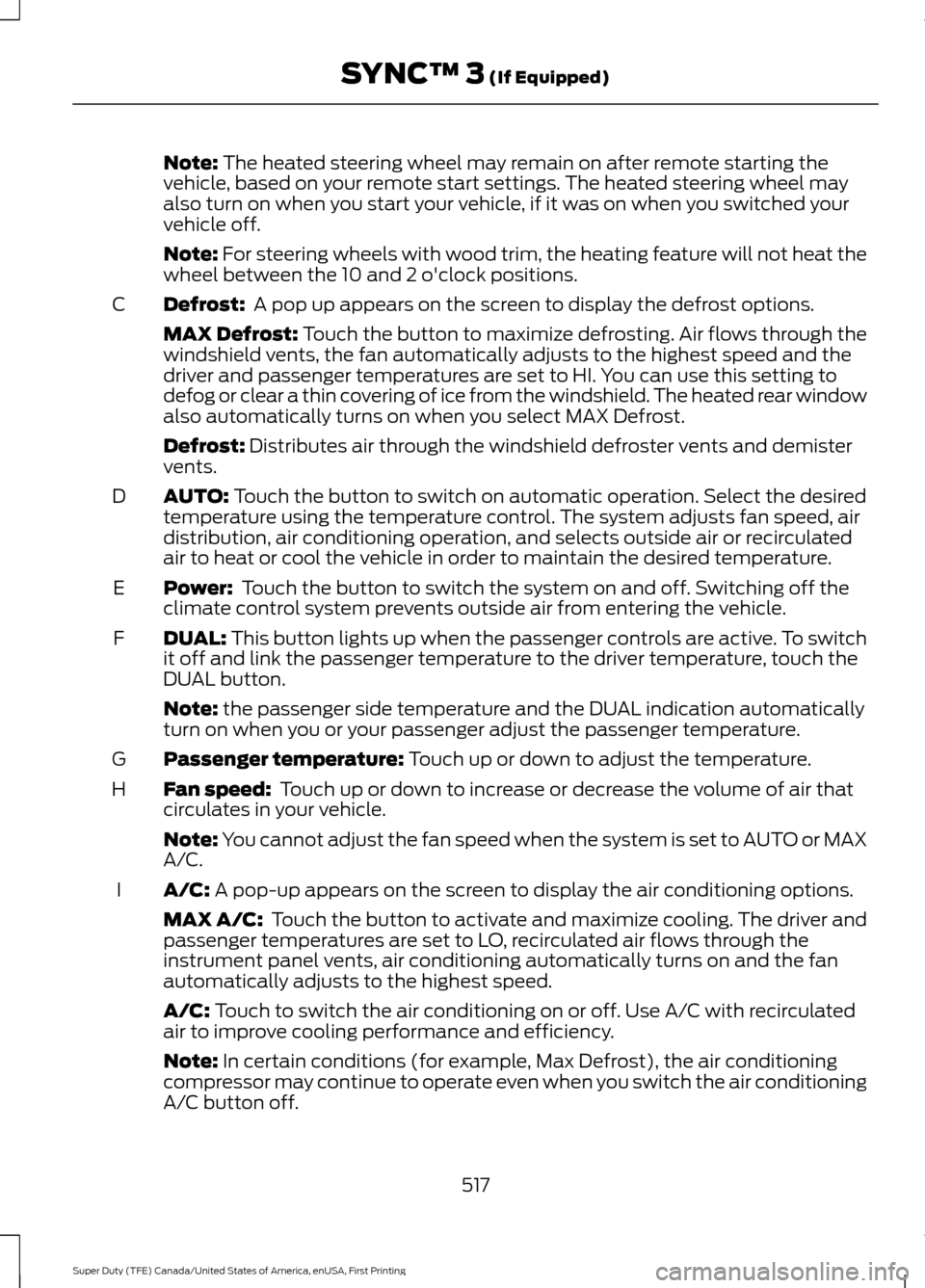
Defrost:
A pop up appears on the screen to display the defrost options.
C
MAX Defrost: Touch the button to maximize defrosting. Air flows through the
windshield vents, the fan automatically adjusts to the highest speed and the
driver and passenger temperatures are set to HI. You can use this setting to
defog or clear a thin covering of ice from the windshield. The heated rear window
also automatically turns on when you select MAX Defrost.
Defrost:
Distributes air through the windshield defroster vents and demister
vents.
AUTO:
Touch the button to switch on automatic operation. Select the desired
temperature using the temperature control. The system adjusts fan speed, air
distribution, air conditioning operation, and selects outside air or recirculated
air to heat or cool the vehicle in order to maintain the desired temperature.
D
Power:
Touch the button to switch the system on and off. Switching off the
climate control system prevents outside air from entering the vehicle.
E
DUAL:
This button lights up when the passenger controls are active. To switch
it off and link the passenger temperature to the driver temperature, touch the
DUAL button.
F
Note:
the passenger side temperature and the DUAL indication automatically
turn on when you or your passenger adjust the passenger temperature.
Passenger temperature:
Touch up or down to adjust the temperature.
G
Fan speed:
Touch up or down to increase or decrease the volume of air that
circulates in your vehicle.
H
Note:
You cannot adjust the fan speed when the system is set to AUTO or MAX
A/C.
A/C:
A pop-up appears on the screen to display the air conditioning options.
I
MAX A/C: Touch the button to activate and maximize cooling. The driver and
passenger temperatures are set to LO, recirculated air flows through the
instrument panel vents, air conditioning automatically turns on and the fan
automatically adjusts to the highest speed.
A/C:
Touch to switch the air conditioning on or off. Use A/C with recirculated
air to improve cooling performance and efficiency.
Note:
In certain conditions (for example, Max Defrost), the air conditioning
compressor may continue to operate even when you switch the air conditioning
A/C button off.
517
Super Duty (TFE) Canada/United States of America, enUSA, First Printing SYNC™ 3
(If Equipped)
Page 528 of 636
3D city models are complete 3D models
of entire city areas including navigable
roads, parks, rivers and rendered buildings.
3D landmarks and city models appear in
3D map mode only. Coverage of these
varies and improves with updated map
releases.
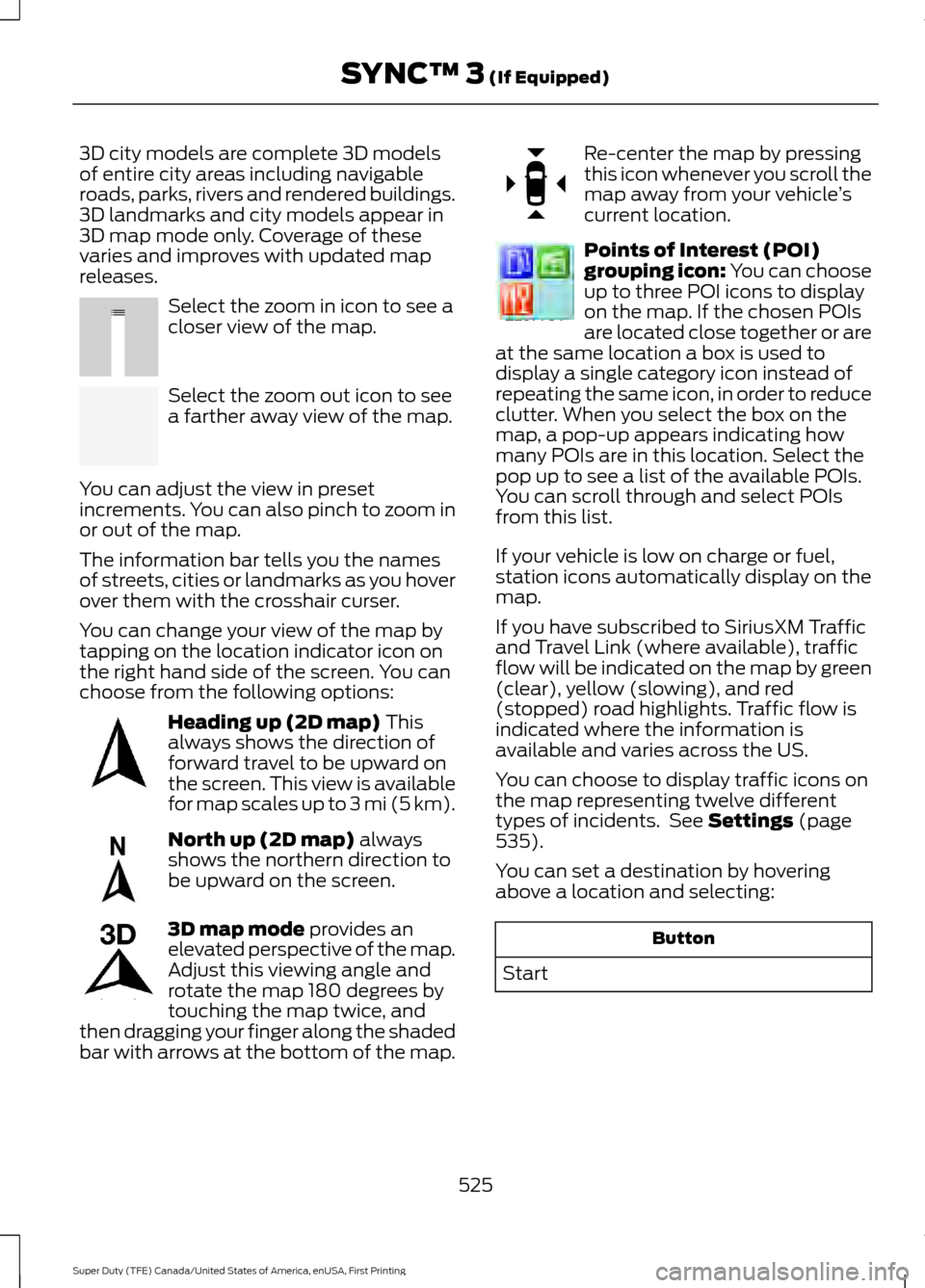
Select the zoom in icon to see a
closer view of the map.
Select the zoom out icon to see
a farther away view of the map.
You can adjust the view in preset
increments. You can also pinch to zoom in
or out of the map.
The information bar tells you the names
of streets, cities or landmarks as you hover
over them with the crosshair curser.
You can change your view of the map by
tapping on the location indicator icon on
the right hand side of the screen. You can
choose from the following options: Heading up (2D map) This
always shows the direction of
forward travel to be upward on
the screen. This view is available
for map scales up to
3 mi (5 km). North up (2D map)
always
shows the northern direction to
be upward on the screen. 3D map mode
provides an
elevated perspective of the map.
Adjust this viewing angle and
rotate the map 180 degrees by
touching the map twice, and
then dragging your finger along the shaded
bar with arrows at the bottom of the map. Re-center the map by pressing
this icon whenever you scroll the
map away from your vehicle
’s
current location. Points of Interest (POI)
grouping icon: You can choose
up to three POI icons to display
on the map. If the chosen POIs
are located close together or are
at the same location a box is used to
display a single category icon instead of
repeating the same icon, in order to reduce
clutter. When you select the box on the
map, a pop-up appears indicating how
many POIs are in this location. Select the
pop up to see a list of the available POIs.
You can scroll through and select POIs
from this list.
If your vehicle is low on charge or fuel,
station icons automatically display on the
map.
If you have subscribed to SiriusXM Traffic
and Travel Link (where available), traffic
flow will be indicated on the map by green
(clear), yellow (slowing), and red
(stopped) road highlights. Traffic flow is
indicated where the information is
available and varies across the US.
You can choose to display traffic icons on
the map representing twelve different
types of incidents. See
Settings (page
535).
You can set a destination by hovering
above a location and selecting: Button
Start
525
Super Duty (TFE) Canada/United States of America, enUSA, First Printing SYNC™ 3
(If Equipped)E207752 E207753 E207750 E207749 E207748 E207751 E207754
Page 535 of 636
SiriusXM Traffic and Travel Link
SiriusXM Traffic and Travel Link is available
on vehicles equipped with navigation and
only in select markets. You must activate
and subscribe to receive SiriusXM Traffic
and Travel Link information. It helps you
locate the best gas prices, find movie
listings, get current traffic alerts, view the
weather map, get accurate ski conditions
and see current sports scores. See Apps
(page 532).
The system calculates a reasonable
efficient route based on available speed
limits, traffic, and road conditions. You may
know a local short cut that is more efficient
at a given time than the route provided by
SYNC 3, but you should expect a slight
difference in minutes or miles with the
SYNC 3 route.
Navigation Map Updates
Annual navigation map updates are
available for purchase through your
dealership, by calling 1-866-462-8837 in
the United States and Canada or
01-800-557-5539 in Mexico. You can also
visit: Website
www.navigation.com/sync
You need to specify the make and model
of your vehicle to determine if there is an
update available.
HERE is the digital map provider for the
navigation application. If you find map data
errors, you may report them directly to
HERE by going to
www.here.com/mapcreator. HERE
evaluates all reported map errors and
responds with the result of their
investigation by e-mail. Map coverage includes the USA (including
Puerto Rico and the US Virgin Islands),
Canada and Mexico.
APPS
The system enables voice, steering wheel,
and touch screen control of SYNC 3
AppLink enabled smartphone apps. Once
an app is running through AppLink, you can
control main features of the app through
voice commands and steering wheel
controls.
Note:
Available AppLink enabled apps will
vary by market.
Note: You must pair and connect your
smartphone via Bluetooth to SYNC 3 to
access AppLink.
Note: iPhone users need to connect the
phone to the USB port.
Note: For information on available apps,
supported smartphone devices and
troubleshooting tips please visit: Websites
owner.ford.com
www.syncmyride.ca
www.syncmaroute.ca
Note: Make sure you have an active account
for the app that you have downloaded.
Some apps will work automatically with no
setup. Other apps will want you to configure
your personal settings and personalize your
experience by creating stations or favorites.
We recommend you do this at home or
outside of your vehicle.
Note: We encourage you to review the
smartphone app ’s terms of service and
privacy policies because Ford is not
responsible for your app or its use of data.
532
Super Duty (TFE) Canada/United States of America, enUSA, First Printing SYNC™ 3
(If Equipped)
Page 548 of 636
Menu Item
Information pertaining to the system and its software.
About
Documentation of the software license for the system.
Software Licenses
Select to restore factory defaults. This erases all
personal settings and personal data.
Master Reset
Wi-Fi
You can adjust the following: Action and Description
Menu Item
Enable this option to connect to Wi-Fi for SYNC 3 vehicle software
updates.
Wi-Fi
This provides you with a list of available Wi-Fi networks within range.
View Available
Networks
Clicking on a network from the list allows you to connect or disconnect
from that network. The system may require a security code to
connect.
When you click the information button next to a network, more
information about the network displays such as the signal strength,
connection status and security type.
The system alerts you when your vehicle is parked and a Wi-Fi
network is within range if SYNC is not already connected.
Wi-Fi Available
Notifications
Ambient Lighting (If Equipped)
Tap a color once to active ambient lighting.
This sets the color to the highest intensity.
You can drag the colors up and down to
increase or decrease the intensity.
To switch ambient lighting off, press the
active color once or drag the active color
all the way down to zero intensity.
Vehicle
Note: You vehicle may not have all of these
features. You can select the following features to
update their settings.
Door Keypad Code
Select this button to add or erase a
personal door keypad code. To add or
erase a personal code, you first need to
enter the five-digit factory set code. You
can find this code on the owner's wallet
card in the glove box or from your
authorized dealer.
545
Super Duty (TFE) Canada/United States of America, enUSA, First Printing SYNC™ 3
(If Equipped)
Page 549 of 636
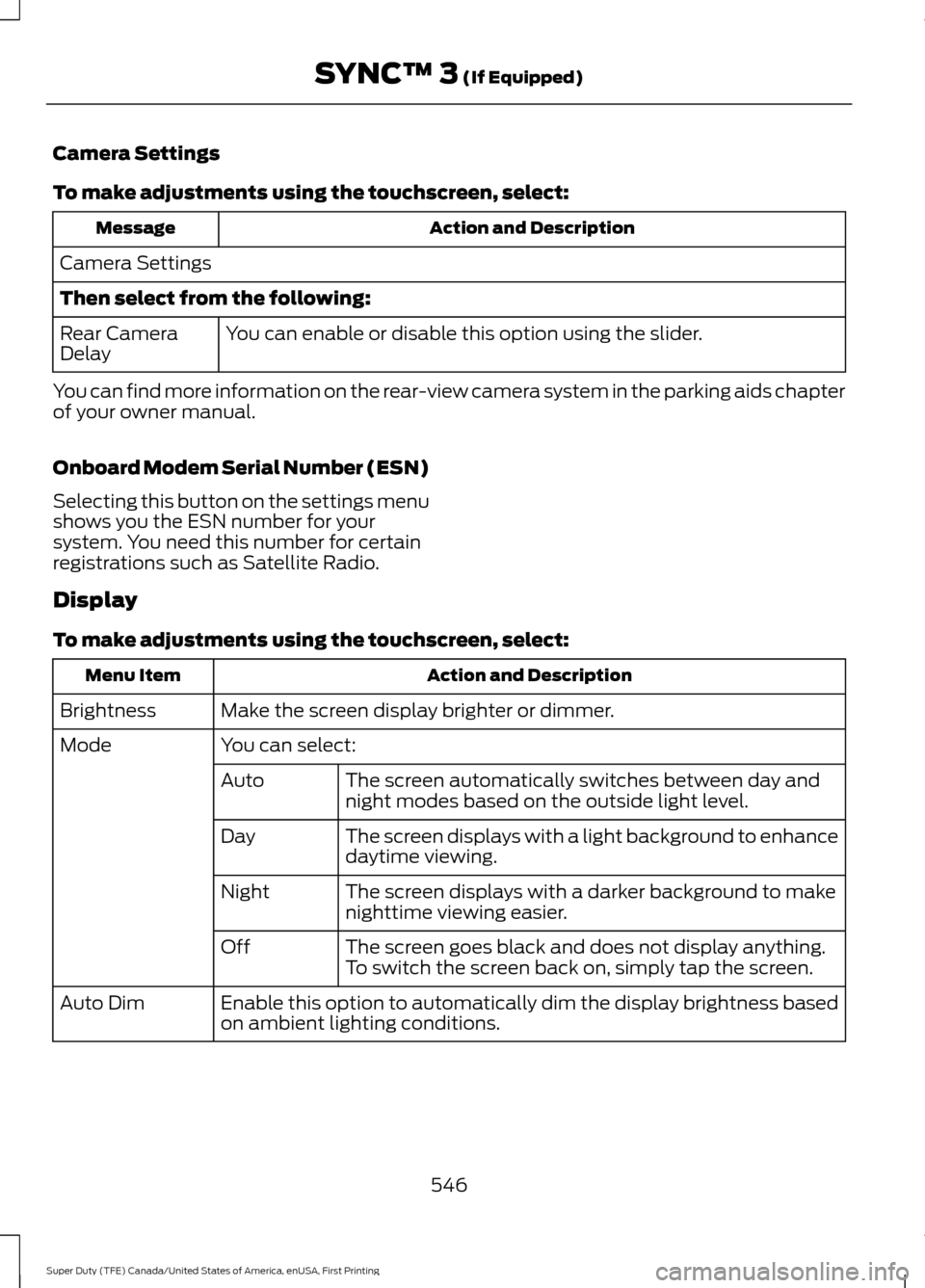
Camera Settings
To make adjustments using the touchscreen, select:
Action and Description
Message
Camera Settings
Then select from the following: You can enable or disable this option using the slider.
Rear Camera
Delay
You can find more information on the rear-view camera system in the parking aids chapter
of your owner manual.
Onboard Modem Serial Number (ESN)
Selecting this button on the settings menu
shows you the ESN number for your
system. You need this number for certain
registrations such as Satellite Radio.
Display
To make adjustments using the touchscreen, select: Action and Description
Menu Item
Make the screen display brighter or dimmer.
Brightness
You can select:
Mode
The screen automatically switches between day and
night modes based on the outside light level.
Auto
The screen displays with a light background to enhance
daytime viewing.
Day
The screen displays with a darker background to make
nighttime viewing easier.
Night
The screen goes black and does not display anything.
To switch the screen back on, simply tap the screen.
Off
Enable this option to automatically dim the display brightness based
on ambient lighting conditions.
Auto Dim
546
Super Duty (TFE) Canada/United States of America, enUSA, First Printing SYNC™ 3 (If Equipped)
Page 551 of 636
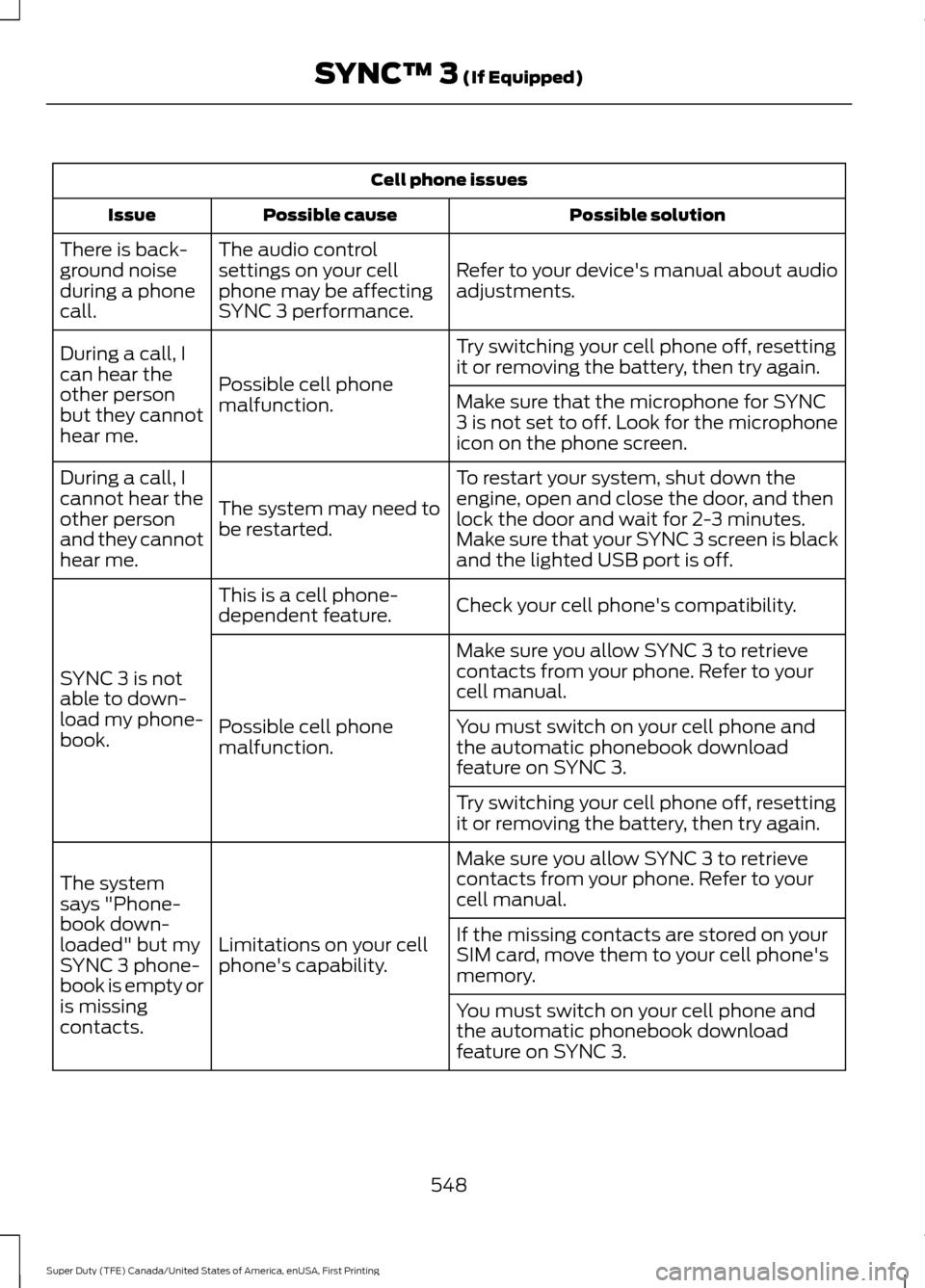
Cell phone issues
Possible solution
Possible cause
Issue
Refer to your device's manual about audio
adjustments.
The audio control
settings on your cell
phone may be affecting
SYNC 3 performance.
There is back-
ground noise
during a phone
call.
Try switching your cell phone off, resetting
it or removing the battery, then try again.
Possible cell phone
malfunction.
During a call, I
can hear the
other person
but they cannot
hear me.
Make sure that the microphone for SYNC
3 is not set to off. Look for the microphone
icon on the phone screen.
To restart your system, shut down the
engine, open and close the door, and then
lock the door and wait for 2-3 minutes.
Make sure that your SYNC 3 screen is black
and the lighted USB port is off.
The system may need to
be restarted.
During a call, I
cannot hear the
other person
and they cannot
hear me.
Check your cell phone's compatibility.
This is a cell phone-
dependent feature.
SYNC 3 is not
able to down-
load my phone-
book. Make sure you allow SYNC 3 to retrieve
contacts from your phone. Refer to your
cell manual.
Possible cell phone
malfunction. You must switch on your cell phone and
the automatic phonebook download
feature on SYNC 3.
Try switching your cell phone off, resetting
it or removing the battery, then try again.
Make sure you allow SYNC 3 to retrieve
contacts from your phone. Refer to your
cell manual.
Limitations on your cell
phone's capability.
The system
says "Phone-
book down-
loaded" but my
SYNC 3 phone-
book is empty or
is missing
contacts. If the missing contacts are stored on your
SIM card, move them to your cell phone's
memory.
You must switch on your cell phone and
the automatic phonebook download
feature on SYNC 3.
548
Super Duty (TFE) Canada/United States of America, enUSA, First Printing SYNC™ 3 (If Equipped)
Page 563 of 636
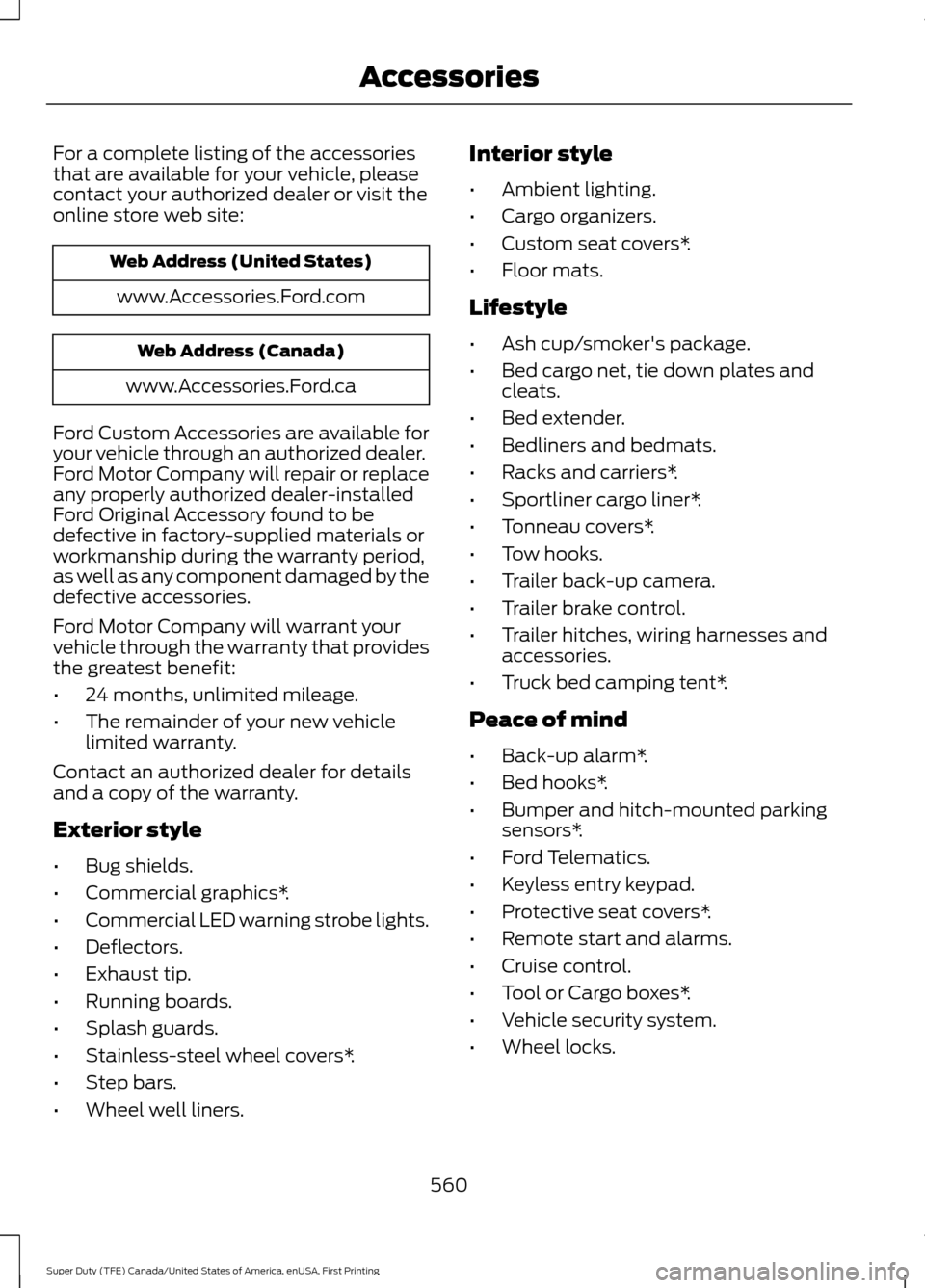
For a complete listing of the accessories
that are available for your vehicle, please
contact your authorized dealer or visit the
online store web site:
Web Address (United States)
www.Accessories.Ford.com Web Address (Canada)
www.Accessories.Ford.ca
Ford Custom Accessories are available for
your vehicle through an authorized dealer.
Ford Motor Company will repair or replace
any properly authorized dealer-installed
Ford Original Accessory found to be
defective in factory-supplied materials or
workmanship during the warranty period,
as well as any component damaged by the
defective accessories.
Ford Motor Company will warrant your
vehicle through the warranty that provides
the greatest benefit:
• 24 months, unlimited mileage.
• The remainder of your new vehicle
limited warranty.
Contact an authorized dealer for details
and a copy of the warranty.
Exterior style
• Bug shields.
• Commercial graphics*.
• Commercial LED warning strobe lights.
• Deflectors.
• Exhaust tip.
• Running boards.
• Splash guards.
• Stainless-steel wheel covers*.
• Step bars.
• Wheel well liners. Interior style
•
Ambient lighting.
• Cargo organizers.
• Custom seat covers*.
• Floor mats.
Lifestyle
• Ash cup/smoker's package.
• Bed cargo net, tie down plates and
cleats.
• Bed extender.
• Bedliners and bedmats.
• Racks and carriers*.
• Sportliner cargo liner*.
• Tonneau covers*.
• Tow hooks.
• Trailer back-up camera.
• Trailer brake control.
• Trailer hitches, wiring harnesses and
accessories.
• Truck bed camping tent*.
Peace of mind
• Back-up alarm*.
• Bed hooks*.
• Bumper and hitch-mounted parking
sensors*.
• Ford Telematics.
• Keyless entry keypad.
• Protective seat covers*.
• Remote start and alarms.
• Cruise control.
• Tool or Cargo boxes*.
• Vehicle security system.
• Wheel locks.
560
Super Duty (TFE) Canada/United States of America, enUSA, First Printing Accessories
Page 587 of 636
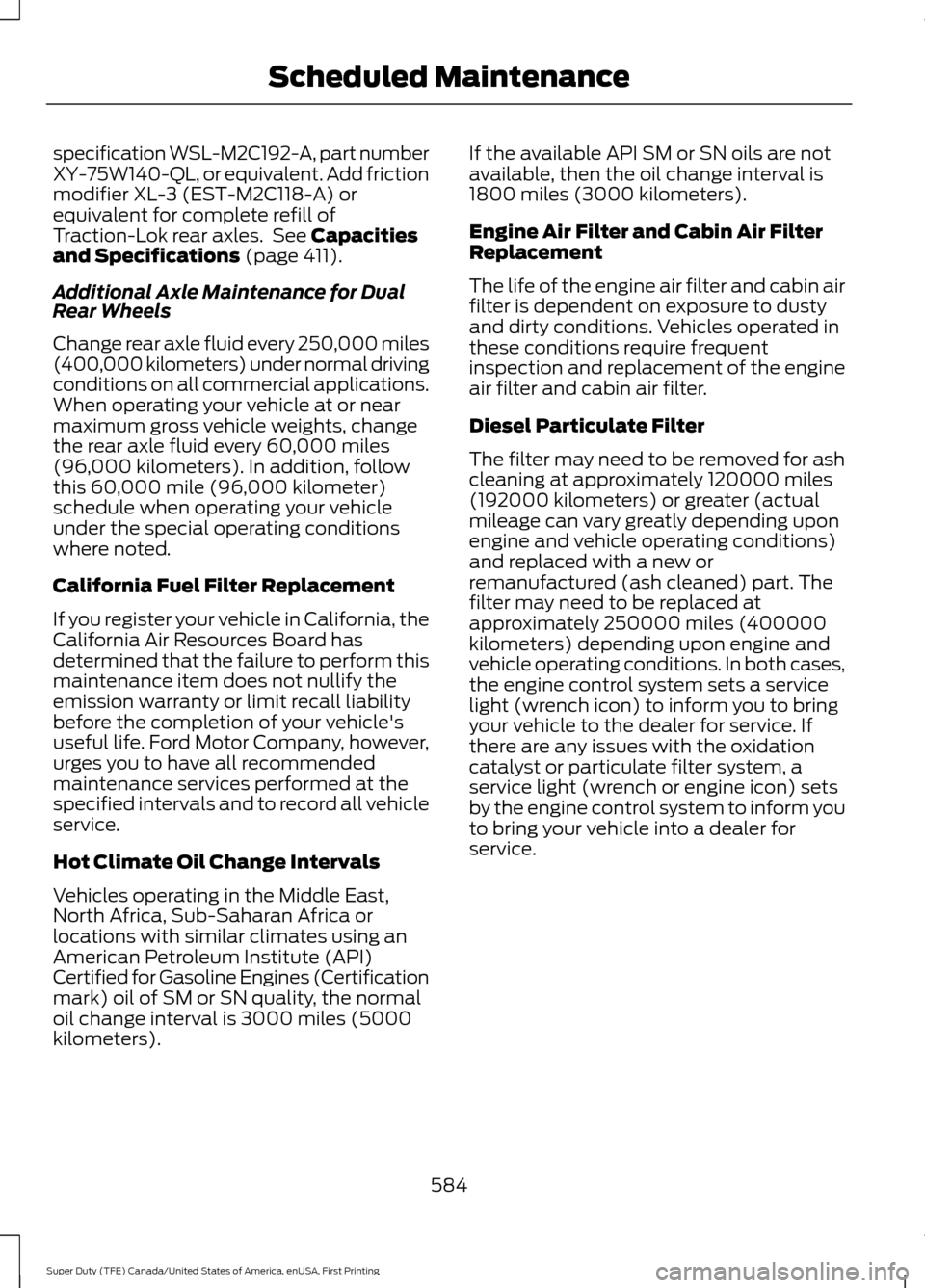
specification WSL-M2C192-A, part number
XY-75W140-QL, or equivalent. Add friction
modifier XL-3 (EST-M2C118-A) or
equivalent for complete refill of
Traction-Lok rear axles. See Capacities
and Specifications (page 411).
Additional Axle Maintenance for Dual
Rear Wheels
Change rear axle fluid every 250,000 miles
(400,000 kilometers) under normal driving
conditions on all commercial applications.
When operating your vehicle at or near
maximum gross vehicle weights, change
the rear axle fluid every 60,000 miles
(96,000 kilometers). In addition, follow
this 60,000 mile (96,000 kilometer)
schedule when operating your vehicle
under the special operating conditions
where noted.
California Fuel Filter Replacement
If you register your vehicle in California, the
California Air Resources Board has
determined that the failure to perform this
maintenance item does not nullify the
emission warranty or limit recall liability
before the completion of your vehicle's
useful life. Ford Motor Company, however,
urges you to have all recommended
maintenance services performed at the
specified intervals and to record all vehicle
service.
Hot Climate Oil Change Intervals
Vehicles operating in the Middle East,
North Africa, Sub-Saharan Africa or
locations with similar climates using an
American Petroleum Institute (API)
Certified for Gasoline Engines (Certification
mark) oil of SM or SN quality, the normal
oil change interval is 3000 miles (5000
kilometers). If the available API SM or SN oils are not
available, then the oil change interval is
1800 miles (3000 kilometers).
Engine Air Filter and Cabin Air Filter
Replacement
The life of the engine air filter and cabin air
filter is dependent on exposure to dusty
and dirty conditions. Vehicles operated in
these conditions require frequent
inspection and replacement of the engine
air filter and cabin air filter.
Diesel Particulate Filter
The filter may need to be removed for ash
cleaning at approximately 120000 miles
(192000 kilometers) or greater (actual
mileage can vary greatly depending upon
engine and vehicle operating conditions)
and replaced with a new or
remanufactured (ash cleaned) part. The
filter may need to be replaced at
approximately 250000 miles (400000
kilometers) depending upon engine and
vehicle operating conditions. In both cases,
the engine control system sets a service
light (wrench icon) to inform you to bring
your vehicle to the dealer for service. If
there are any issues with the oxidation
catalyst or particulate filter system, a
service light (wrench or engine icon) sets
by the engine control system to inform you
to bring your vehicle into a dealer for
service.
584
Super Duty (TFE) Canada/United States of America, enUSA, First Printing Scheduled Maintenance
Page 621 of 636
Website
www.sunatraffic.com.au/termsandcon- ditions/
2. Intellectual Property
SUNA Products and/or Services are for
your personal use. You may not record, or
retransmit the content, nor use the content
in association with any other traffic
information or route guidance service or
device not approved by Intelematics. You
obtain no right of ownership in any
Intellectual Property Rights (including
copyright) in the data that is used to
provide SUNA Products and/or Services.
3. Appropriate Use
SUNA Products and/or Services are
intended as an aid to personal motoring
and travel planning, and do not provide
comprehensive or accurate information on
all occasions. On occasions, you may
experience additional delay as a result of
using SUNA Products and/or Services. You
acknowledge that it is not intended, or
suitable, for use in applications where time
of arrival or driving directions may impact
the safety of the public or yourself.
4. Use of SUNA Products and Services
while driving
You, and other authorised drivers of the
vehicle in which SUNA Products and/or
Services are available or installed and
active, remain at all times responsible for
observing all relevant laws and codes of
safe driving. In particular, you agree to only
actively operate SUNA Products and/or
Services when the Vehicle is at a complete
stop and it is safe to do so.
5. Service Continuity and Reception of
the SUNA Traffic Channel We will use reasonable endeavours to
provide the SUNA Traffic Channel 24 hours
a day, 365 days a year. The SUNA Traffic
Channel may occasionally be unavailable
for technical reasons or for planned
maintenance. We will try to perform
maintenance at times when congestion is
light. We reserve the right to withdraw
SUNA Products and/or Services at any
time.
Also, we cannot assure the uninterrupted
reception of the SUNA Traffic Channel
RDS-TMC signal at any particular location.
6. Limitation of Liability
Neither Intelematics (nor its suppliers or
the manufacturer of your device (the
“Suppliers”)) shall be liable to you or to
any third party for any damages either
direct, indirect, incidental, consequential
or otherwise arising out of the use of or
inability to use SUNA Products and/or
Services even if Intelematics or a Supplier
has been advised of the possibility of such
damages. You also acknowledge that the
neither Intelematics nor any Supplier
guarantees nor make any warranties that
relate to the availability, accuracy or
completeness of SUNA Products and/or
Services, and to the extent which it is
lawful to do so, both Intelematics and each
Supplier excludes any warranties which
might otherwise be implied by any State
or Federal legislation in relation to SUNA
Products and/or Services.
7. Please Note
Great care has been taken in preparing this
manual. Constant product development
may mean that some information is not
entirely up-to-date. The information in this
document is subject to change without
notice.
618
Super Duty (TFE) Canada/United States of America, enUSA, First Printing Appendices
Page 624 of 636
3
360 Degree Camera...................................235
Advanced Camera Views................................ 235
Auxiliary Camera................................................ 238
Camera Views..................................................... 235
Center High-Mount Stop Lamp Camera.............................................................. 237
Front Camera...................................................... 236
Keep Out Zone.................................................... 236
Side Camera......................................................... 237
4
4WD See: Four-Wheel Drive...................................... 210
A
A/C See: Climate Control......................................... 145
About This Manual...........................................7
ABS See: Brakes............................................................ 221
ABS driving hints See: Hints on Driving With Anti-Lock
Brakes................................................................ 222
Accessories...................................................560 Exterior style....................................................... 560
Interior style........................................................ 560
Lifestyle................................................................ 560
Peace of mind.................................................... 560
Accessories See: Replacement Parts
Recommendation............................................ 12
ACC See: Using Adaptive Cruise Control...........240
Adjusting the Headlamps........................346 Horizontal Aim Adjustment........................... 347
Vertical Aim Adjustment................................ 346
Adjusting the Pedals
.....................................83
Adjusting the Steering Wheel...................80 Power Tilt and Telescope Steering
Column............................................................... 80
Airbag Disposal
...............................................53
Air Conditioning See: Climate Control......................................... 145Air Filter
See: Changing the Engine Air Filter - 6.2L/
6.8L.................................................................... 353
See: Changing the Engine Air Filter - 6.7L Diesel................................................................. 354
Alarm See: Anti-Theft Alarm........................................ 76
Ambient Lighting
...........................................94
Anti-Theft Alarm............................................76
Arming the Alarm.................................................. 77
Disarming the Alarm............................................ 77
Full Guard ............................................................... 76
Reduced Guard...................................................... 76
Appendices....................................................595
Apps..................................................................532 ........................................................................\
.......... 532
SiriusXM Traffic and Travel Link...................534
Audible Warnings and Indicators............110 Headlamps On Warning Chime.....................110
Key in Ignition Warning Chime........................110
Parking Brake On Warning Chime.................110
Audio Control
...................................................81
Media........................................................................\
. 81
Seek, Next or Previous......................................... 81
Audio System
................................................435
General Information......................................... 435
Audio Unit - Vehicles With: AM/FM/CD/ SYNC
..............................................................437
Menu Structure.................................................. 439
Audio Unit - Vehicles With: AM/FM/CD/ Touchscreen Display................................441
Audio Unit - Vehicles With: AM/FM/ CD...................................................................436
Autolamps........................................................87 Windshield Wiper Activated
Headlamps........................................................ 87
Automatic Climate Control......................146
Automatic High Beam Control.................89 Activating the System........................................ 90
Manually Overriding the System................... 90
Automatic Transmission
..........................205
Brake-Shift Interlock........................................ 208
If Your Vehicle Gets Stuck In Mud or Snow................................................................. 209
Understanding the Shift Positions of Your Automatic Transmission........................... 205
Understanding your SelectShift Automatic ™ transmission........................ 206
621
Super Duty (TFE) Canada/United States of America, enUSA, First Printing Index