USB FORD TAURUS 2016 6.G User Guide
[x] Cancel search | Manufacturer: FORD, Model Year: 2016, Model line: TAURUS, Model: FORD TAURUS 2016 6.GPages: 424, PDF Size: 4.04 MB
Page 358 of 424
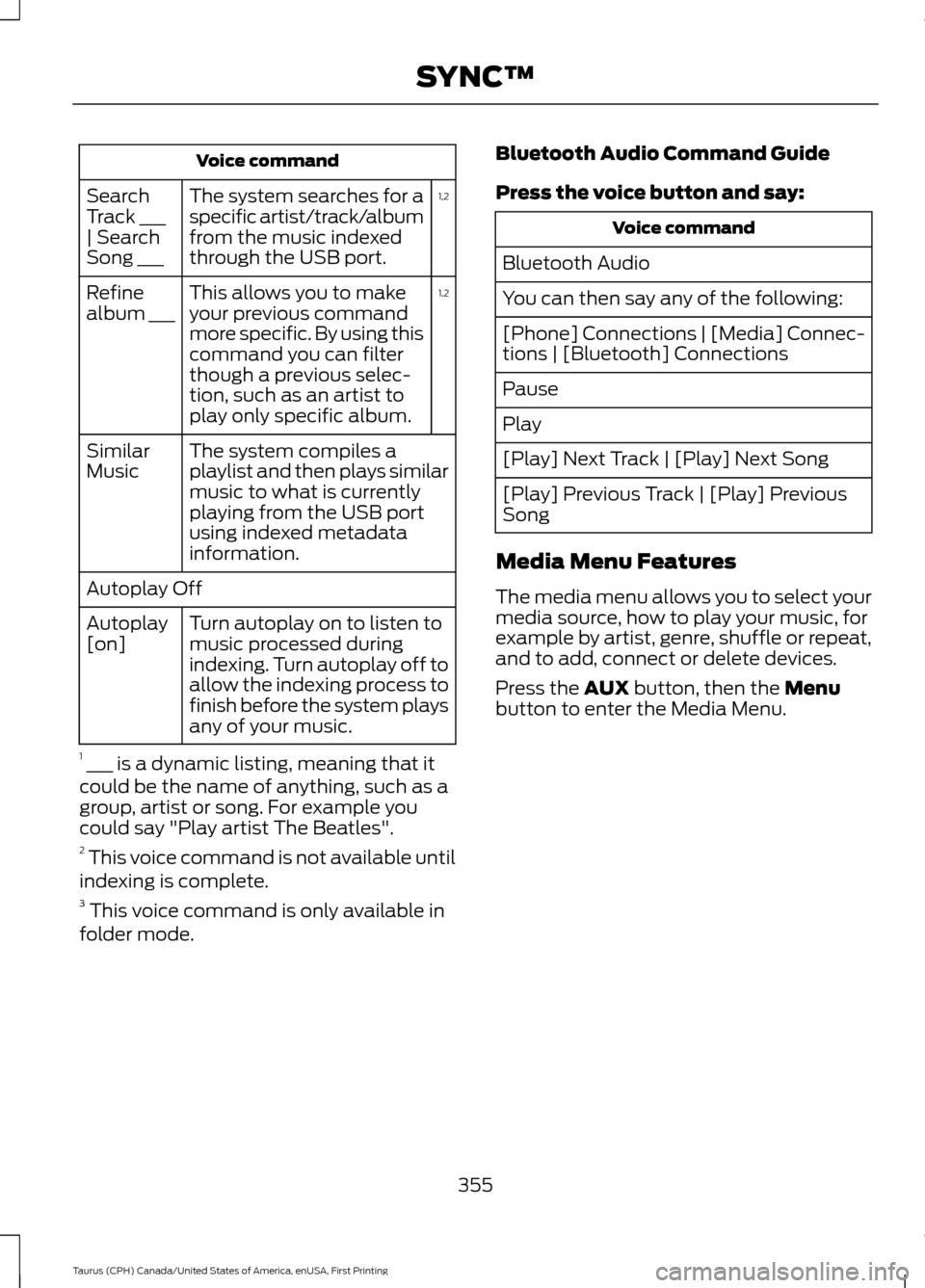
Voice command
1,2
The system searches for a
specific artist/track/album
from the music indexed
through the USB port.
Search
Track ___
| Search
Song ___
1,2
This allows you to make
your previous command
more specific. By using this
command you can filter
though a previous selec-
tion, such as an artist to
play only specific album.
Refine
album ___
The system compiles a
playlist and then plays similar
music to what is currently
playing from the USB port
using indexed metadata
information.
Similar
Music
Autoplay Off
Turn autoplay on to listen to
music processed during
indexing. Turn autoplay off to
allow the indexing process to
finish before the system plays
any of your music.
Autoplay
[on]
1 ___ is a dynamic listing, meaning that it
could be the name of anything, such as a
group, artist or song. For example you
could say "Play artist The Beatles".
2 This voice command is not available until
indexing is complete.
3 This voice command is only available in
folder mode. Bluetooth Audio Command Guide
Press the voice button and say: Voice command
Bluetooth Audio
You can then say any of the following:
[Phone] Connections | [Media] Connec-
tions | [Bluetooth] Connections
Pause
Play
[Play] Next Track | [Play] Next Song
[Play] Previous Track | [Play] Previous
Song
Media Menu Features
The media menu allows you to select your
media source, how to play your music, for
example by artist, genre, shuffle or repeat,
and to add, connect or delete devices.
Press the AUX button, then the Menu
button to enter the Media Menu.
355
Taurus (CPH) Canada/United States of America, enUSA, First Printing SYNC™
Page 359 of 424
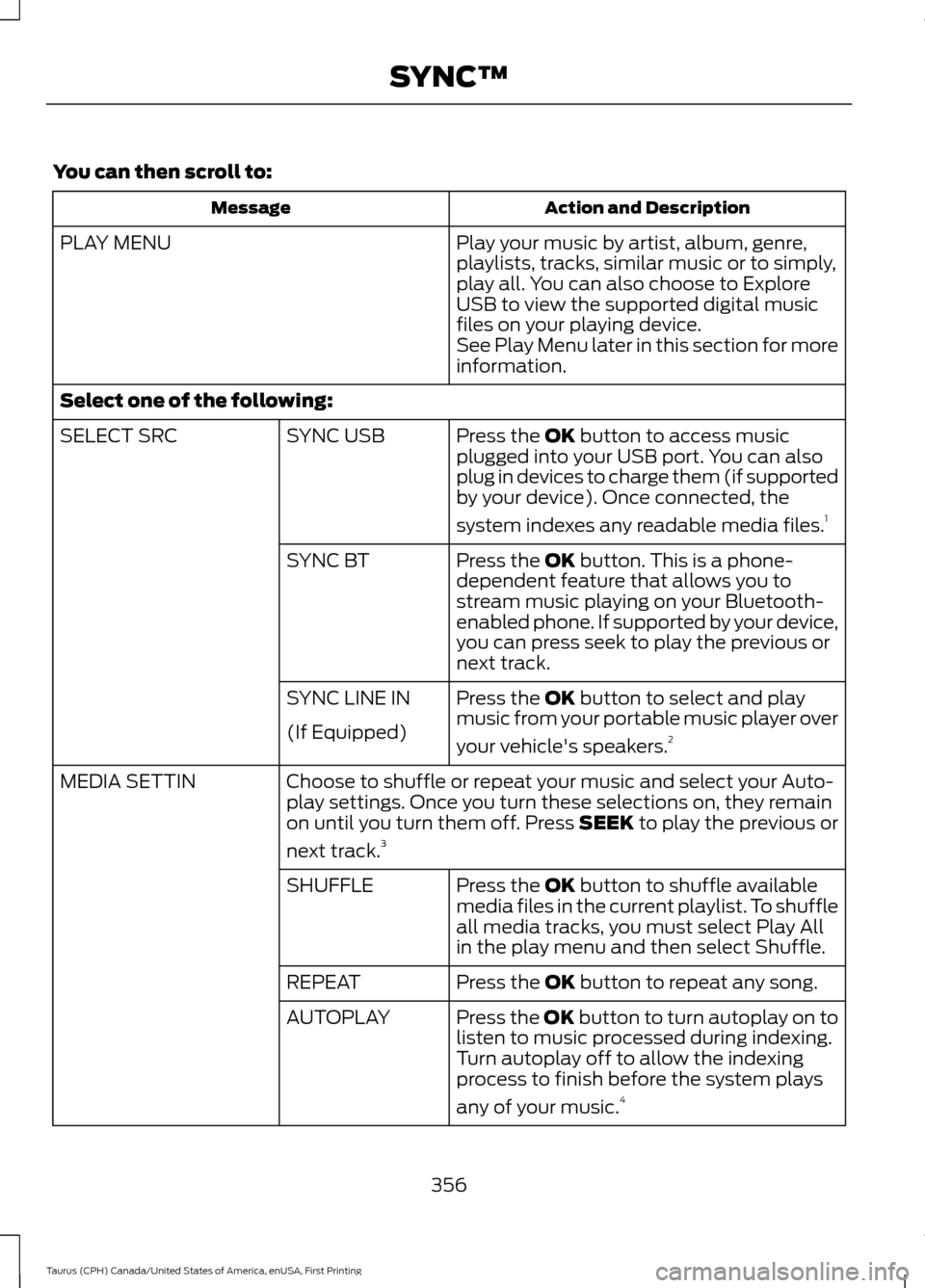
You can then scroll to:
Action and Description
Message
Play your music by artist, album, genre,
playlists, tracks, similar music or to simply,
play all. You can also choose to Explore
USB to view the supported digital music
files on your playing device.
PLAY MENU
See Play Menu later in this section for more
information.
Select one of the following: Press the OK button to access music
plugged into your USB port. You can also
plug in devices to charge them (if supported
by your device). Once connected, the
system indexes any readable media files. 1
SYNC USB
SELECT SRC
Press the
OK button. This is a phone-
dependent feature that allows you to
stream music playing on your Bluetooth-
enabled phone. If supported by your device,
you can press seek to play the previous or
next track.
SYNC BT
Press the
OK button to select and play
music from your portable music player over
your vehicle's speakers. 2
SYNC LINE IN
(If Equipped)
Choose to shuffle or repeat your music and select your Auto-
play settings. Once you turn these selections on, they remain
on until you turn them off. Press SEEK to play the previous or
next track.
3
MEDIA SETTIN
Press the
OK button to shuffle available
media files in the current playlist. To shuffle
all media tracks, you must select Play All
in the play menu and then select Shuffle.
SHUFFLE
Press the
OK button to repeat any song.
REPEAT
Press the OK button to turn autoplay on to
listen to music processed during indexing.
Turn autoplay off to allow the indexing
process to finish before the system plays
any of your music.4
AUTOPLAY
356
Taurus (CPH) Canada/United States of America, enUSA, First Printing SYNC™
Page 360 of 424
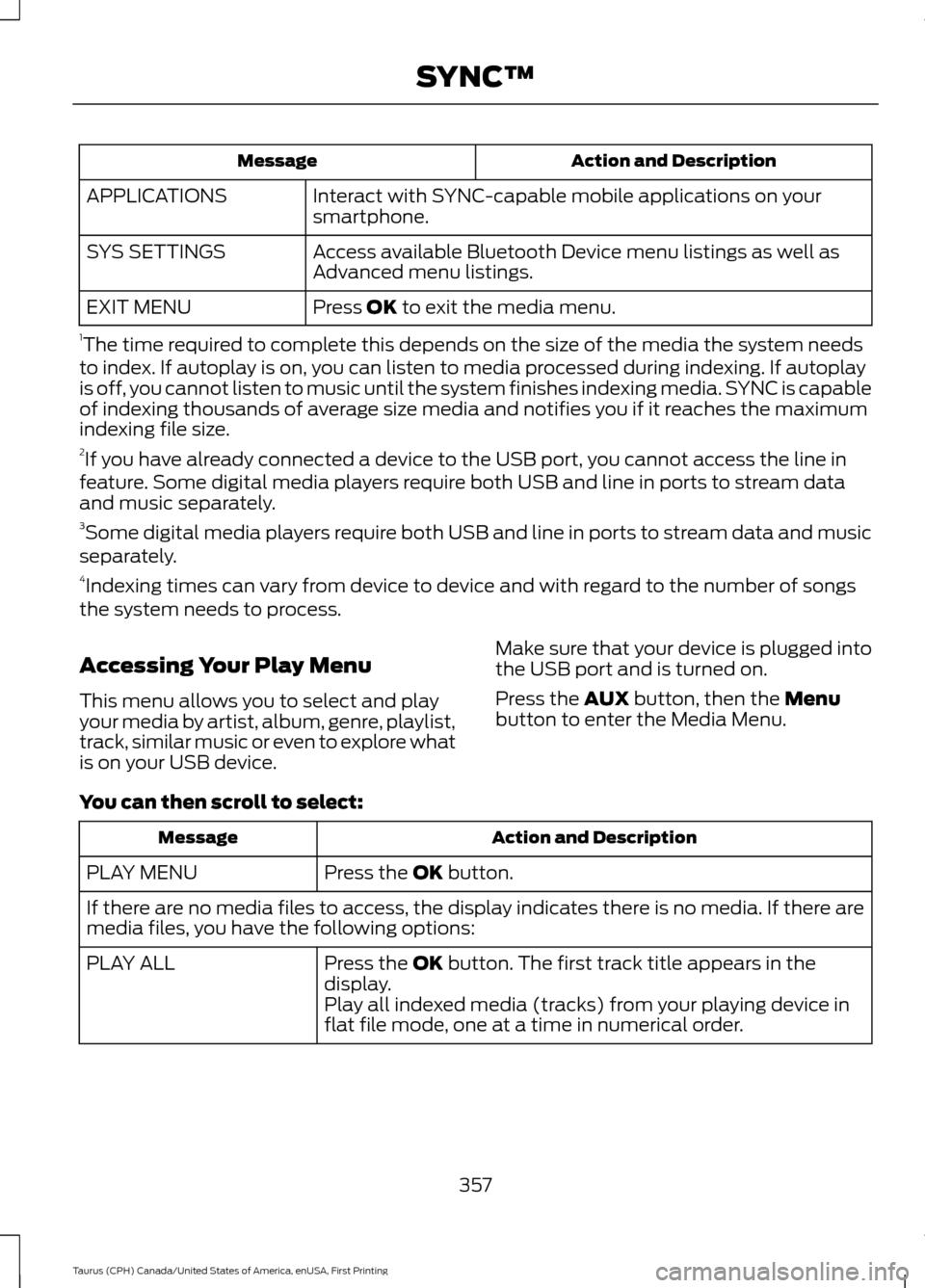
Action and Description
Message
Interact with SYNC-capable mobile applications on your
smartphone.
APPLICATIONS
Access available Bluetooth Device menu listings as well as
Advanced menu listings.
SYS SETTINGS
Press OK to exit the media menu.
EXIT MENU
1 The time required to complete this depends on the size of the media the system needs
to index. If autoplay is on, you can listen to media processed during indexing. If autoplay
is off, you cannot listen to music until the system finishes indexing media. SYNC is capable
of indexing thousands of average size media and notifies you if it reaches the maximum
indexing file size.
2 If you have already connected a device to the USB port, you cannot access the line in
feature. Some digital media players require both USB and line in ports to stream data
and music separately.
3 Some digital media players require both USB and line in ports to stream data and music
separately.
4 Indexing times can vary from device to device and with regard to the number of songs
the system needs to process.
Accessing Your Play Menu
This menu allows you to select and play
your media by artist, album, genre, playlist,
track, similar music or even to explore what
is on your USB device. Make sure that your device is plugged into
the USB port and is turned on.
Press the
AUX button, then the Menu
button to enter the Media Menu.
You can then scroll to select: Action and Description
Message
Press the
OK button.
PLAY MENU
If there are no media files to access, the display indicates there is no media. If there are
media files, you have the following options:
Press the
OK button. The first track title appears in the
display.
PLAY ALL
Play all indexed media (tracks) from your playing device in
flat file mode, one at a time in numerical order.
357
Taurus (CPH) Canada/United States of America, enUSA, First Printing SYNC™
Page 362 of 424
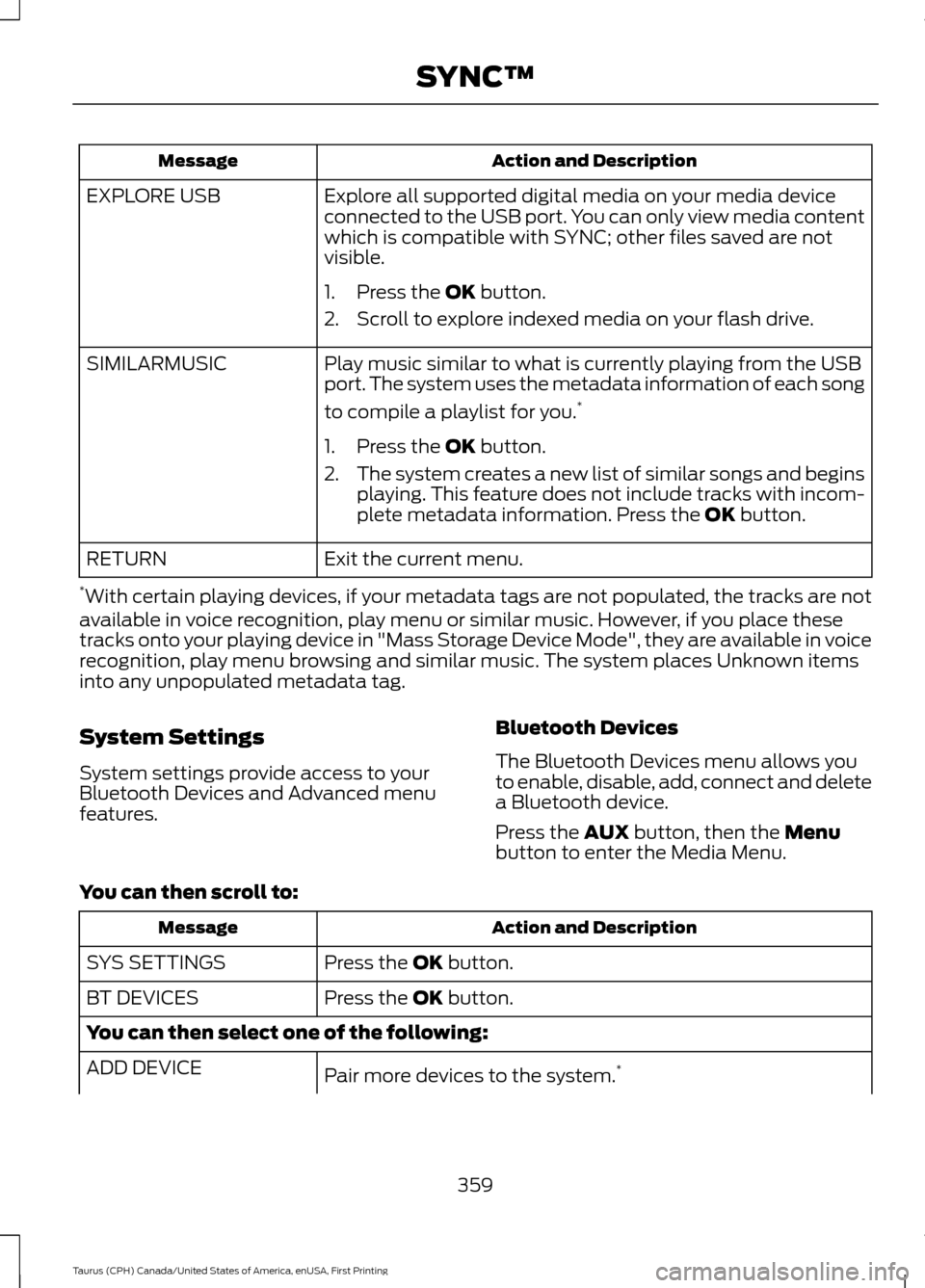
Action and Description
Message
Explore all supported digital media on your media device
connected to the USB port. You can only view media content
which is compatible with SYNC; other files saved are not
visible.
EXPLORE USB
1. Press the OK button.
2. Scroll to explore indexed media on your flash drive.
Play music similar to what is currently playing from the USB
port. The system uses the metadata information of each song
to compile a playlist for you. *
SIMILARMUSIC
1. Press the
OK button.
2. The system creates a new list of similar songs and begins
playing. This feature does not include tracks with incom-
plete metadata information. Press the
OK button.
Exit the current menu.
RETURN
* With certain playing devices, if your metadata tags are not populated, the tracks are not
available in voice recognition, play menu or similar music. However, if you place these
tracks onto your playing device in "Mass Storage Device Mode", they are available in voice
recognition, play menu browsing and similar music. The system places Unknown items
into any unpopulated metadata tag.
System Settings
System settings provide access to your
Bluetooth Devices and Advanced menu
features. Bluetooth Devices
The Bluetooth Devices menu allows you
to enable, disable, add, connect and delete
a Bluetooth device.
Press the
AUX button, then the Menu
button to enter the Media Menu.
You can then scroll to: Action and Description
Message
Press the
OK button.
SYS SETTINGS
Press the
OK button.
BT DEVICES
You can then select one of the following:
Pair more devices to the system. *
ADD DEVICE
359
Taurus (CPH) Canada/United States of America, enUSA, First Printing SYNC™
Page 364 of 424
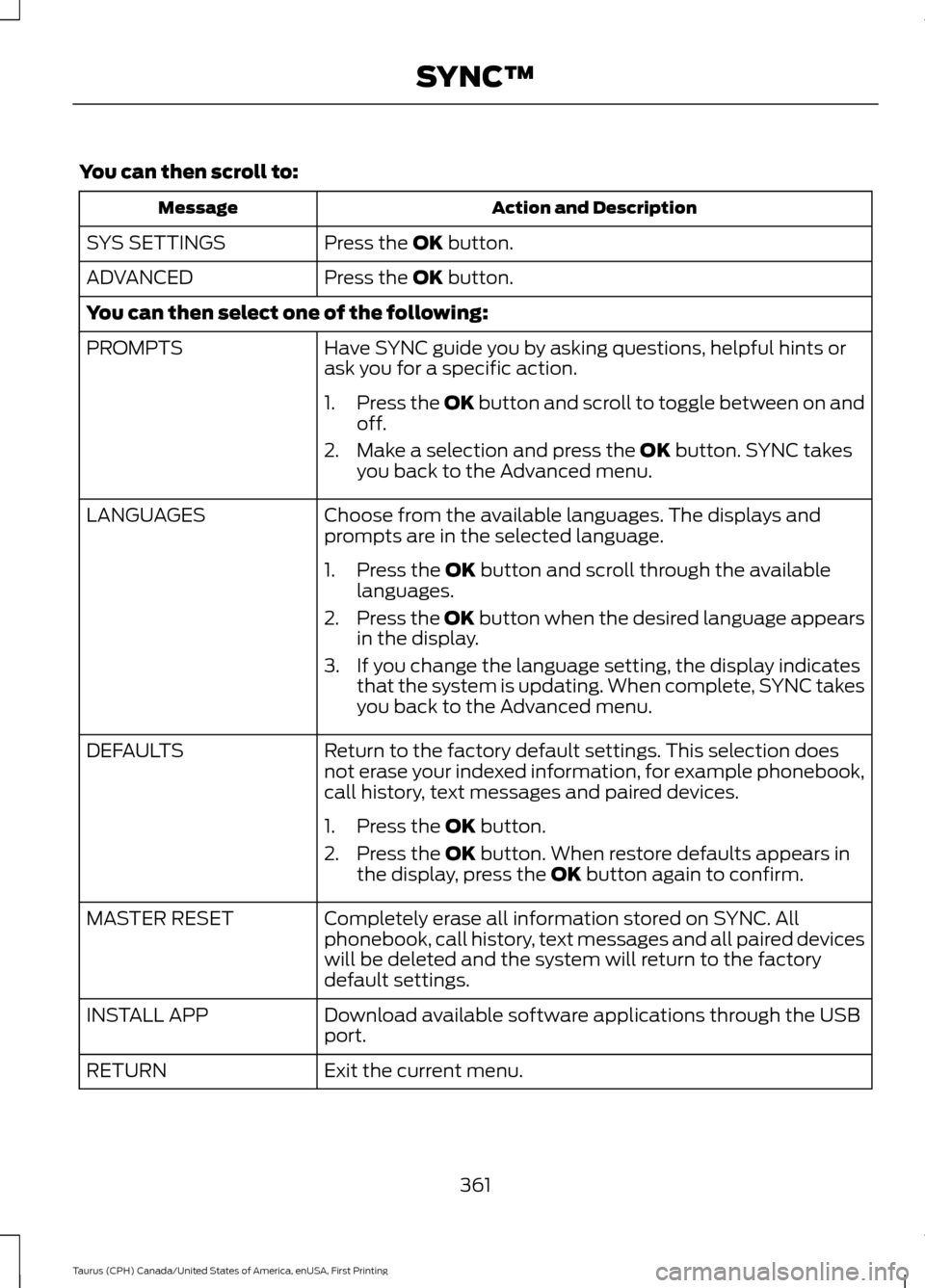
You can then scroll to:
Action and Description
Message
Press the OK button.
SYS SETTINGS
Press the
OK button.
ADVANCED
You can then select one of the following:
Have SYNC guide you by asking questions, helpful hints or
ask you for a specific action.
PROMPTS
1.Press the OK button and scroll to toggle between on and
off.
2. Make a selection and press the
OK button. SYNC takes
you back to the Advanced menu.
Choose from the available languages. The displays and
prompts are in the selected language.
LANGUAGES
1. Press the
OK button and scroll through the available
languages.
2. Press the OK button when the desired language appears
in the display.
3. If you change the language setting, the display indicates that the system is updating. When complete, SYNC takes
you back to the Advanced menu.
Return to the factory default settings. This selection does
not erase your indexed information, for example phonebook,
call history, text messages and paired devices.
DEFAULTS
1. Press the
OK button.
2. Press the
OK button. When restore defaults appears in
the display, press the OK button again to confirm.
Completely erase all information stored on SYNC. All
phonebook, call history, text messages and all paired devices
will be deleted and the system will return to the factory
default settings.
MASTER RESET
Download available software applications through the USB
port.
INSTALL APP
Exit the current menu.
RETURN
361
Taurus (CPH) Canada/United States of America, enUSA, First Printing SYNC™
Page 367 of 424
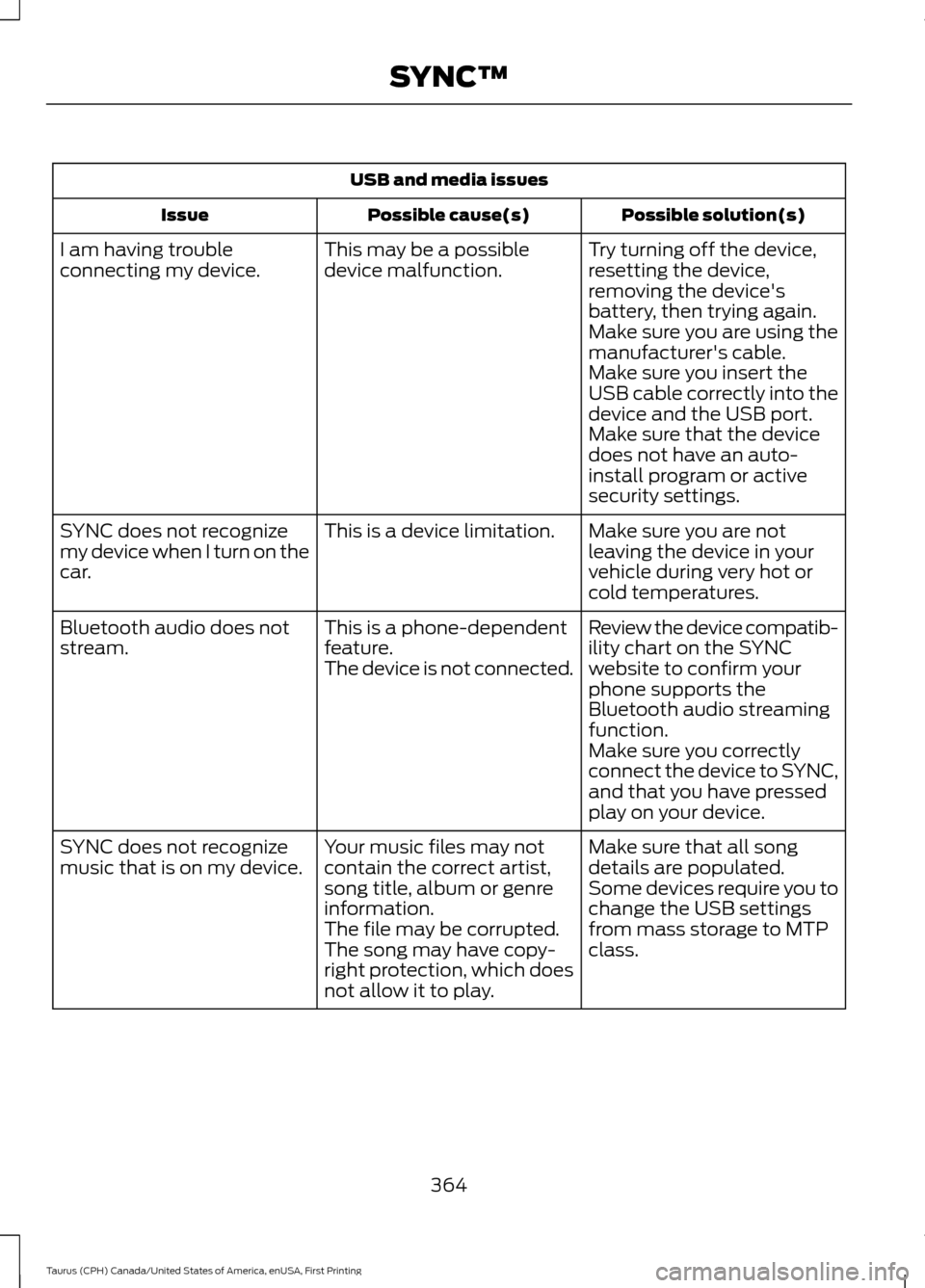
USB and media issues
Possible solution(s)
Possible cause(s)
Issue
Try turning off the device,
resetting the device,
removing the device's
battery, then trying again.
This may be a possible
device malfunction.
I am having trouble
connecting my device.
Make sure you are using the
manufacturer's cable.
Make sure you insert the
USB cable correctly into the
device and the USB port.
Make sure that the device
does not have an auto-
install program or active
security settings.
Make sure you are not
leaving the device in your
vehicle during very hot or
cold temperatures.
This is a device limitation.
SYNC does not recognize
my device when I turn on the
car.
Review the device compatib-
ility chart on the SYNC
website to confirm your
phone supports the
Bluetooth audio streaming
function.
This is a phone-dependent
feature.
The device is not connected.
Bluetooth audio does not
stream.
Make sure you correctly
connect the device to SYNC,
and that you have pressed
play on your device.
Make sure that all song
details are populated.
Your music files may not
contain the correct artist,
song title, album or genre
information.
SYNC does not recognize
music that is on my device.
Some devices require you to
change the USB settings
from mass storage to MTP
class.
The file may be corrupted.
The song may have copy-
right protection, which does
not allow it to play.
364
Taurus (CPH) Canada/United States of America, enUSA, First Printing SYNC™
Page 371 of 424
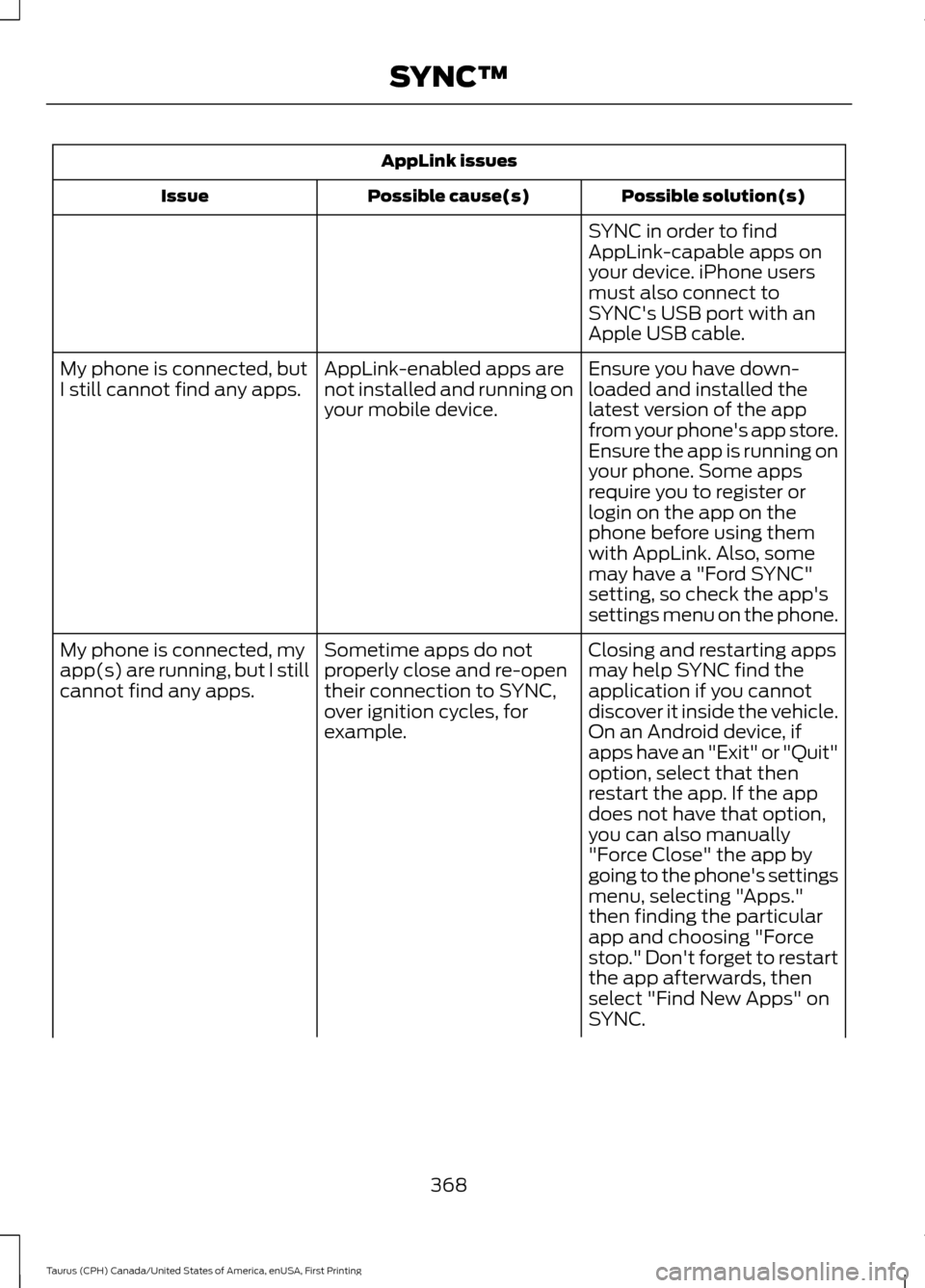
AppLink issues
Possible solution(s)
Possible cause(s)
Issue
SYNC in order to find
AppLink-capable apps on
your device. iPhone users
must also connect to
SYNC's USB port with an
Apple USB cable.
Ensure you have down-
loaded and installed the
latest version of the app
from your phone's app store.
Ensure the app is running on
your phone. Some apps
AppLink-enabled apps are
not installed and running on
your mobile device.
My phone is connected, but
I still cannot find any apps.
require you to register or
login on the app on the
phone before using them
with AppLink. Also, some
may have a "Ford SYNC"
setting, so check the app's
settings menu on the phone.
Closing and restarting apps
may help SYNC find the
application if you cannot
discover it inside the vehicle.
On an Android device, if
apps have an "Exit" or "Quit"
Sometime apps do not
properly close and re-open
their connection to SYNC,
over ignition cycles, for
example.
My phone is connected, my
app(s) are running, but I still
cannot find any apps.
option, select that then
restart the app. If the app
does not have that option,
you can also manually
"Force Close" the app by
going to the phone's settings
menu, selecting "Apps."
then finding the particular
app and choosing "Force
stop." Don't forget to restart
the app afterwards, then
select "Find New Apps" on
SYNC.
368
Taurus (CPH) Canada/United States of America, enUSA, First Printing SYNC™
Page 373 of 424
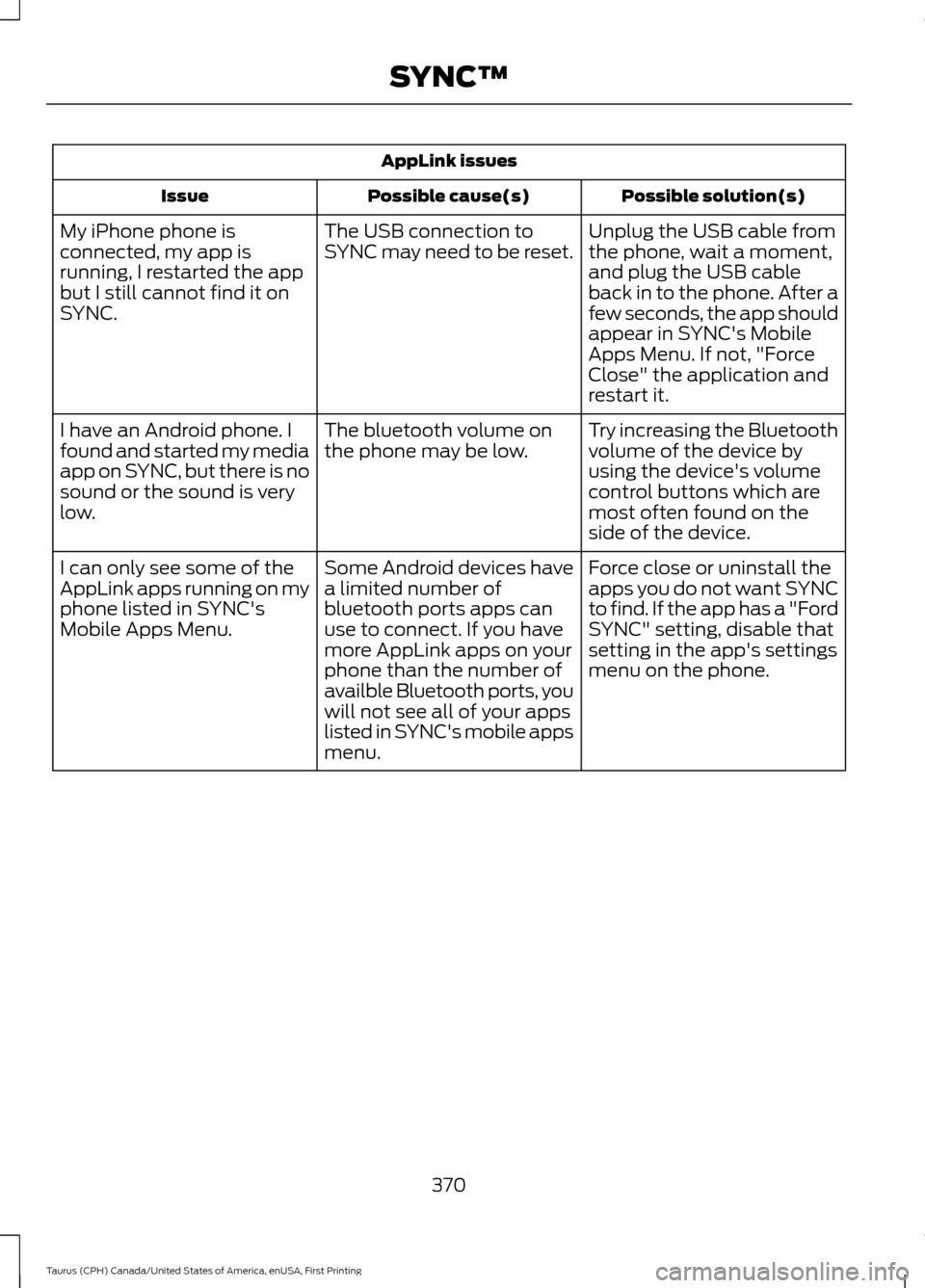
AppLink issues
Possible solution(s)
Possible cause(s)
Issue
Unplug the USB cable from
the phone, wait a moment,
and plug the USB cable
back in to the phone. After a
few seconds, the app should
appear in SYNC's Mobile
Apps Menu. If not, "Force
Close" the application and
restart it.
The USB connection to
SYNC may need to be reset.
My iPhone phone is
connected, my app is
running, I restarted the app
but I still cannot find it on
SYNC.
Try increasing the Bluetooth
volume of the device by
using the device's volume
control buttons which are
most often found on the
side of the device.
The bluetooth volume on
the phone may be low.
I have an Android phone. I
found and started my media
app on SYNC, but there is no
sound or the sound is very
low.
Force close or uninstall the
apps you do not want SYNC
to find. If the app has a "Ford
SYNC" setting, disable that
setting in the app's settings
menu on the phone.
Some Android devices have
a limited number of
bluetooth ports apps can
use to connect. If you have
more AppLink apps on your
phone than the number of
availble Bluetooth ports, you
will not see all of your apps
listed in SYNC's mobile apps
menu.
I can only see some of the
AppLink apps running on my
phone listed in SYNC's
Mobile Apps Menu.
370
Taurus (CPH) Canada/United States of America, enUSA, First Printing SYNC™
Page 422 of 424
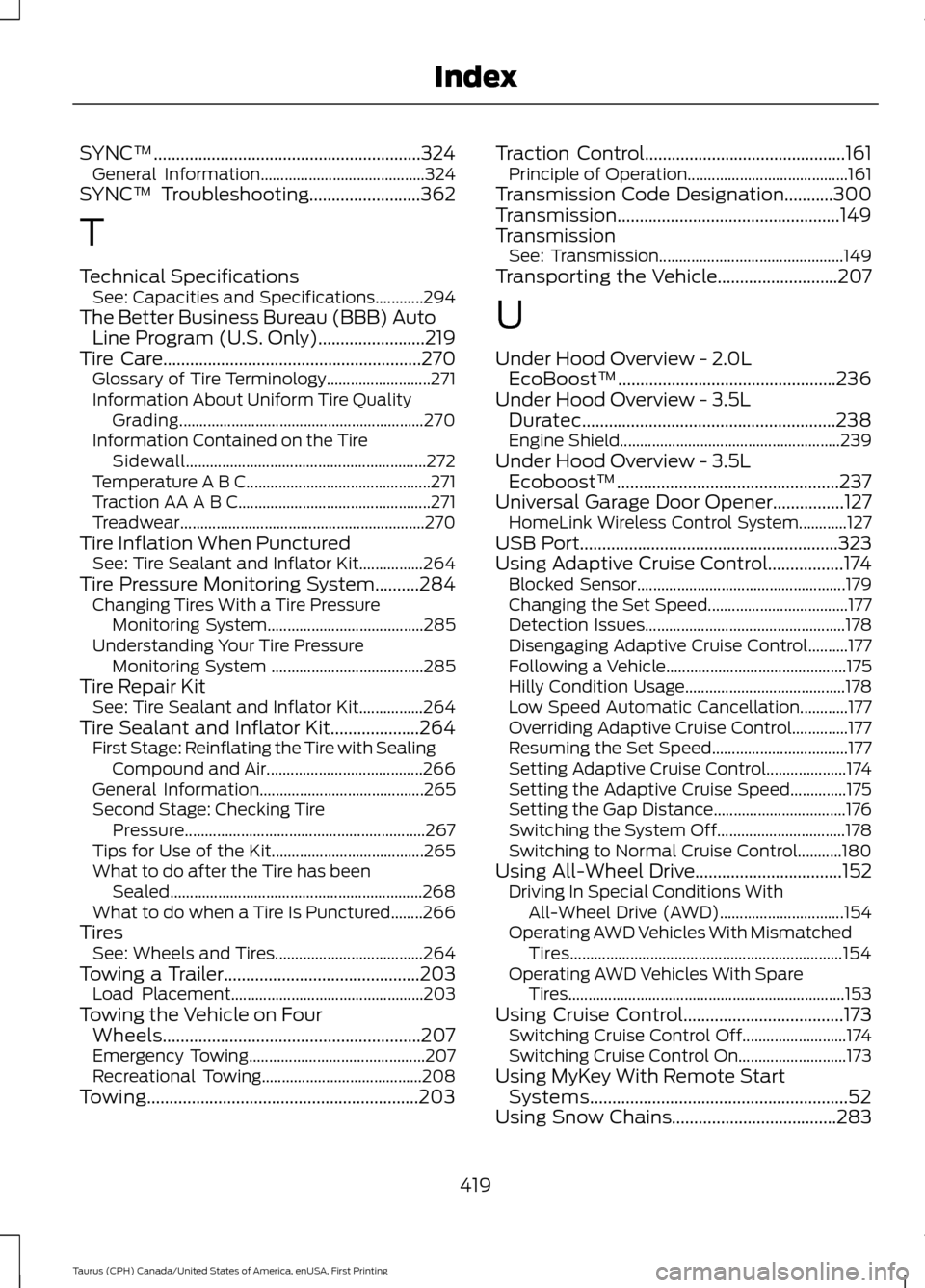
SYNC™............................................................324
General Information......................................... 324
SYNC™ Troubleshooting.........................362
T
Technical Specifications See: Capacities and Specifications............294
The Better Business Bureau (BBB) Auto Line Program (U.S. Only)........................219
Tire Care
..........................................................270
Glossary of Tire Terminology.......................... 271
Information About Uniform Tire Quality Grading............................................................. 270
Information Contained on the Tire Sidewall............................................................ 272
Temperature A B C.............................................. 271
Traction AA A B C................................................ 271
Treadwear............................................................. 270
Tire Inflation When Punctured See: Tire Sealant and Inflator Kit................264
Tire Pressure Monitoring System..........284 Changing Tires With a Tire Pressure
Monitoring System....................................... 285
Understanding Your Tire Pressure Monitoring System ...................................... 285
Tire Repair Kit See: Tire Sealant and Inflator Kit................264
Tire Sealant and Inflator Kit....................264 First Stage: Reinflating the Tire with Sealing
Compound and Air....................................... 266
General Information......................................... 265
Second Stage: Checking Tire Pressure............................................................ 267
Tips for Use of the Kit...................................... 265
What to do after the Tire has been Sealed............................................................... 268
What to do when a Tire Is Punctured........266
Tires See: Wheels and Tires..................................... 264
Towing a Trailer
............................................203
Load Placement................................................ 203
Towing the Vehicle on Four Wheels..........................................................207
Emergency Towing............................................ 207
Recreational Towing........................................ 208
Towing.............................................................203 Traction Control
.............................................161
Principle of Operation........................................ 161
Transmission Code Designation...........300
Transmission..................................................149
Transmission See: Transmission.............................................. 149
Transporting the Vehicle...........................207
U
Under Hood Overview - 2.0L EcoBoost™.................................................236
Under Hood Overview - 3.5L Duratec
.........................................................238
Engine Shield....................................................... 239
Under Hood Overview - 3.5L Ecoboost™..................................................237
Universal Garage Door Opener................127 HomeLink Wireless Control System............127
USB Port..........................................................323
Using Adaptive Cruise Control.................174 Blocked Sensor.................................................... 179
Changing the Set Speed................................... 177
Detection Issues.................................................. 178
Disengaging Adaptive Cruise Control..........177
Following a Vehicle............................................. 175
Hilly Condition Usage........................................ 178
Low Speed Automatic Cancellation............177
Overriding Adaptive Cruise Control..............177
Resuming the Set Speed.................................. 177
Setting Adaptive Cruise Control.................... 174
Setting the Adaptive Cruise Speed..............175
Setting the Gap Distance................................. 176
Switching the System Off................................ 178
Switching to Normal Cruise Control...........180
Using All-Wheel Drive
.................................152
Driving In Special Conditions With
All-Wheel Drive (AWD)............................... 154
Operating AWD Vehicles With Mismatched Tires.................................................................... 154
Operating AWD Vehicles With Spare Tires..................................................................... 153
Using Cruise Control....................................173 Switching Cruise Control Off.......................... 174
Switching Cruise Control On........................... 173
Using MyKey With Remote Start Systems..........................................................52
Using Snow Chains
.....................................283
419
Taurus (CPH) Canada/United States of America, enUSA, First Printing Index
Page 423 of 424
Using Stability Control...............................163
Using Summer Tires...................................283
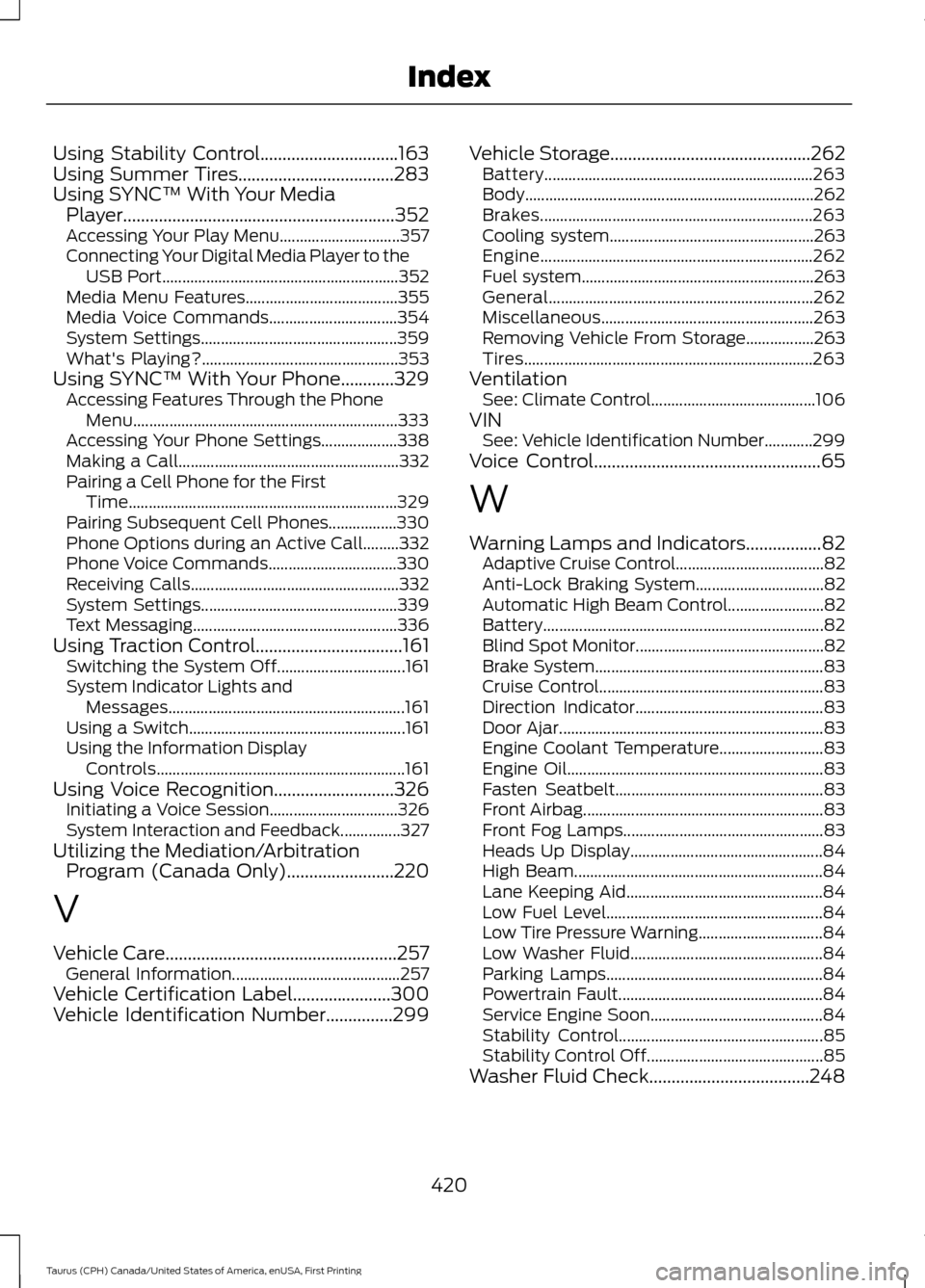
Using SYNC™ With Your Media Player.............................................................352
Accessing Your Play Menu.............................. 357
Connecting Your Digital Media Player to the USB Port........................................................... 352
Media Menu Features...................................... 355
Media Voice Commands................................ 354
System Settings................................................. 359
What's Playing?................................................. 353
Using SYNC™ With Your Phone
............329
Accessing Features Through the Phone
Menu.................................................................. 333
Accessing Your Phone Settings................... 338
Making a Call....................................................... 332
Pairing a Cell Phone for the First Time................................................................... 329
Pairing Subsequent Cell Phones.................330
Phone Options during an Active Call.........332
Phone Voice Commands................................ 330
Receiving Calls.................................................... 332
System Settings................................................. 339
Text Messaging................................................... 336
Using Traction Control.................................161 Switching the System Off................................ 161
System Indicator Lights and Messages........................................................... 161
Using a Switch...................................................... 161
Using the Information Display Controls.............................................................. 161
Using Voice Recognition...........................326 Initiating a Voice Session................................ 326
System Interaction and Feedback...............327
Utilizing the Mediation/Arbitration Program (Canada Only)
........................220
V
Vehicle Care
....................................................257
General Information.......................................... 257
Vehicle Certification Label
......................300
Vehicle Identification Number...............299 Vehicle Storage
.............................................262
Battery................................................................... 263
Body........................................................................\
262
Brakes.................................................................... 263
Cooling system................................................... 263
Engine.................................................................... 262
Fuel system.......................................................... 263
General.................................................................. 262
Miscellaneous..................................................... 263
Removing Vehicle From Storage.................263
Tires........................................................................\
263
Ventilation See: Climate Control......................................... 106
VIN See: Vehicle Identification Number............299
Voice Control
...................................................65
W
Warning Lamps and Indicators
.................82
Adaptive Cruise Control..................................... 82
Anti-Lock Braking System................................ 82
Automatic High Beam Control........................ 82
Battery...................................................................... 82
Blind Spot Monitor............................................... 82
Brake System......................................................... 83
Cruise Control........................................................ 83
Direction Indicator............................................... 83
Door Ajar.................................................................. 83
Engine Coolant Temperature.......................... 83
Engine Oil................................................................ 83
Fasten Seatbelt.................................................... 83
Front Airbag............................................................ 83
Front Fog Lamps.................................................. 83
Heads Up Display................................................ 84
High Beam.............................................................. 84
Lane Keeping Aid................................................. 84
Low Fuel Level...................................................... 84
Low Tire Pressure Warning............................... 84
Low Washer Fluid................................................ 84
Parking Lamps...................................................... 84
Powertrain Fault................................................... 84
Service Engine Soon........................................... 84
Stability Control................................................... 85
Stability Control Off............................................ 85
Washer Fluid Check....................................248
420
Taurus (CPH) Canada/United States of America, enUSA, First Printing Index