ESP FORD TAURUS 2017 Repair Manual
[x] Cancel search | Manufacturer: FORD, Model Year: 2017, Model line: TAURUS, Model: FORD TAURUS 2017Pages: 504, PDF Size: 5.84 MB
Page 328 of 504
AUDIO INPUT JACK
WARNINGS
Driving while distracted can result inloss of vehicle control, crash andinjury. We strongly recommend thatyou use extreme caution when using anydevice that may take your focus off theroad. Your primary responsibility is the safeoperation of your vehicle. We recommendagainst the use of any hand-held devicewhile driving and encourage the use ofvoice-operated systems when possible.Make sure you are aware of all applicablelocal laws that may affect the use ofelectronic devices while driving.
For safety reasons, do not connector adjust the settings on yourportable music player while yourvehicle is moving.
Store the portable music player in asecure location, such as the centerconsole or the glove box, when yourvehicle is moving. Hard objects maybecome projectiles in a collision or suddenstop, which may increase the risk of seriousinjury. The audio extension cable must belong enough to allow the portable musicplayer to be safely stored while yourvehicle is moving.
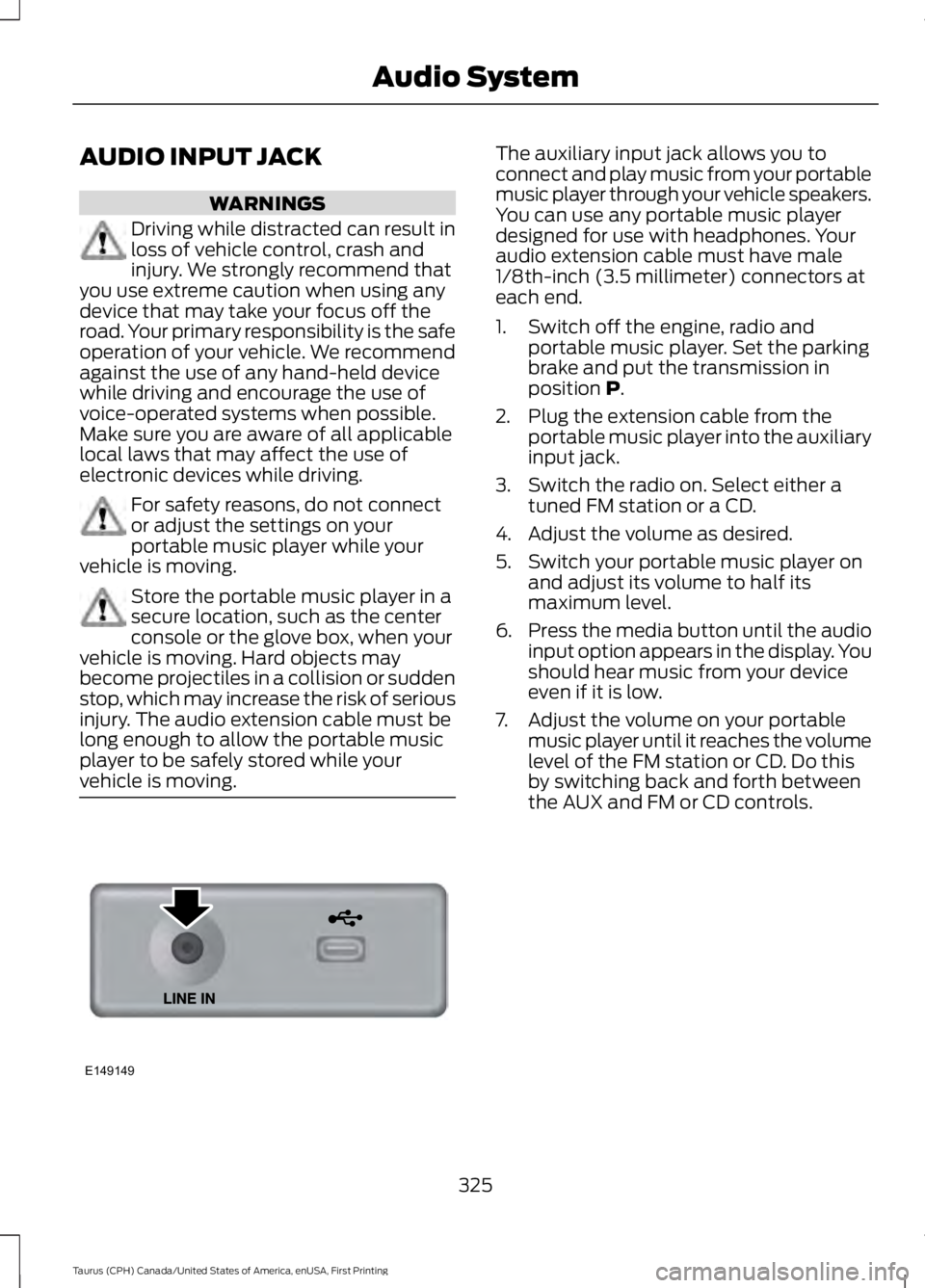
The auxiliary input jack allows you toconnect and play music from your portablemusic player through your vehicle speakers.You can use any portable music playerdesigned for use with headphones. Youraudio extension cable must have male1/8th-inch (3.5 millimeter) connectors ateach end.
1. Switch off the engine, radio andportable music player. Set the parkingbrake and put the transmission inposition P.
2. Plug the extension cable from theportable music player into the auxiliaryinput jack.
3. Switch the radio on. Select either atuned FM station or a CD.
4. Adjust the volume as desired.
5. Switch your portable music player onand adjust its volume to half itsmaximum level.
6.Press the media button until the audioinput option appears in the display. Youshould hear music from your deviceeven if it is low.
7. Adjust the volume on your portablemusic player until it reaches the volumelevel of the FM station or CD. Do thisby switching back and forth betweenthe AUX and FM or CD controls.
325
Taurus (CPH) Canada/United States of America, enUSA, First Printing
Audio SystemE149149
Page 331 of 504
Monday-Saturday, 8:30am-9:00pm EST.
Sunday, 10:30am-7:30pm EST.
In the United States, call 1-800-392-3673.
In Canada, call 1-800-565-3673.
Times are subject to change due toholidays.
SYNC Owner Account
Why do I need a SYNC owner account?
•Required to activate Vehicle HealthReport and to view the reports online.
•Required to activate thesubscription-based SYNC Services andto personalize your Saved Points andFavorites.
•Essential for keeping up with the latestsoftware downloads available forSYNC.
•Access to customer support for anyquestions you may have.
Driving Restrictions
For your safety, certain features arespeed-dependent and restricted when yourvehicle is traveling over 3 mph (5 km/h).
Safety Information
WARNING
Driving while distracted can result inloss of vehicle control, crash andinjury. We strongly recommend thatyou use extreme caution when using anydevice that may take your focus off theroad. Your primary responsibility is the safeoperation of your vehicle. We recommendagainst the use of any hand-held devicewhile driving and encourage the use ofvoice-operated systems when possible.Make sure you are aware of all applicablelocal laws that may affect the use ofelectronic devices while driving.
When using SYNC:
•Do not operate playing devices if thepower cords or cables are broken, splitor damaged. Place cords and cablesout of the way, so they do not interferewith the operation of pedals, seats,compartments or safe driving abilities.
•Do not leave playing devices in yourvehicle during extreme conditions as itcould cause them damage. See yourdevice's manual for further information.
•Do not attempt to service or repair thesystem. See an authorized dealer.
Privacy Information
When a cellular phone is connected toSYNC, the system creates a profile withinyour vehicle that is linked to that cellularphone. This profile is created in order tooffer you more cellular features and tooperate more efficiently. Among otherthings, this profile may contain data aboutyour cellular phone book, text messages(read and unread), and call history,including history of calls when your cellularphone was not connected to the system.In addition, if you connect a media device,the system creates and retains an index ofsupported media content. The system alsorecords a short development log ofapproximately 10 minutes of all recentsystem activity. The log profile and othersystem data may be used to improve thesystem and help diagnose any problemsthat may occur.
The cellular profile, media device index,and development log will remain in thevehicle unless you delete them and aregenerally accessible only in the vehiclewhen the cellular phone or media playeris connected. If you no longer plan to usethe system or the vehicle, we recommendyou perform a Master Reset to erase allstored information.
328
Taurus (CPH) Canada/United States of America, enUSA, First Printing
SYNC™
Page 334 of 504
Confirmation prompts are short questionsthe system asks when it is not sure of yourrequest or when there are multiple possibleresponses to your request. For example,the system may ask "Phone, is that
correct?". If turned off, the system simplymakes a best guess as to what yourequested and may ask you to confirmsettings.
If you want the system to carry out the followingVoice command
Make a best guess from the command; you may still occa-sionally be asked to confirm settings.Confirmation PromptsOff
Clarify your voice command with a short question.Confirmation PromptsOn
The system creates candidate lists whenit has the same confidence level of severaloptions based on your voice command.When turned on, it may prompt you withas many as four possibilities forclarification.
For example, say "Say 1 after the tone tocall John Doe at home. Say 2 after the toneto call Johnny Doe on mobile. Say 3 afterthe tone to call Jane Doe at home." Youcould also say "Say 1 after the tone to playJohn Doe, Say 2 after the tone to playJohnny Doe."
If you want the system to carry out the followingVoice command
Make a best guess from the media candidate list. You maystill occasionally be asked questions.Media Candidate ListsOff
Clarify your voice command for media candidates.Media Candidate Lists On
Make a best guess from the phone candidate list. You maystill occasionally be asked questions.Phone Candidate ListsOff
Clarify your voice command for phone candidates.Phone Candidate ListsOn
331
Taurus (CPH) Canada/United States of America, enUSA, First Printing
SYNC™
Page 347 of 504
Advanced
The Advanced menu allows you to access
and set prompts, languages, defaults,perform a master reset, install anapplication and view system information.
To access the advanced menu, press the phone button to enter the Phone Menu,the scroll to:
Action and DescriptionMessage
Press OK.SYS SETTINGS
Press OK.ADVANCED
Select one of the following:
Get help from SYNC by using questions, helpful hints or asking you fora specific action. To turn these prompts on or off:PROMPTS
1.Press the OK button to select and scroll to select between On andOff.
2. Press the OK button when the desired selection appears in thedisplay. SYNC returns you to the Advanced menu.
1. Press OK to select and then scroll through the languages. Choosebetween English, Français and Español. Once selected, all of theradio displays and prompts are in the selected language.
2. Press OK when the desired selection appears in the display. If youchange the language setting, the display indicates that the systemis updating. When complete, SYNC returns you to the Advancedmenu.
LANGUAGES
Return to the factory default settings. This selection does not eraseyour indexed information, for example phonebook, call history, textmessages or paired devices.
DEFAULTS
Press the OK button to select and then press OK again when thefollowing message appears in the display.
RESTORE?
Completely erase all information stored on SYNC, for examplephonebook, call history, text messages and paired devices, and returnthe system to the factory default settings.
MASTERRESET
Press OK to select. The display indicates when complete. SYNC returnsyou to the Advanced menu.
Press OK to select.SYNC REBOOT
344
Taurus (CPH) Canada/United States of America, enUSA, First Printing
SYNC™
Page 348 of 504
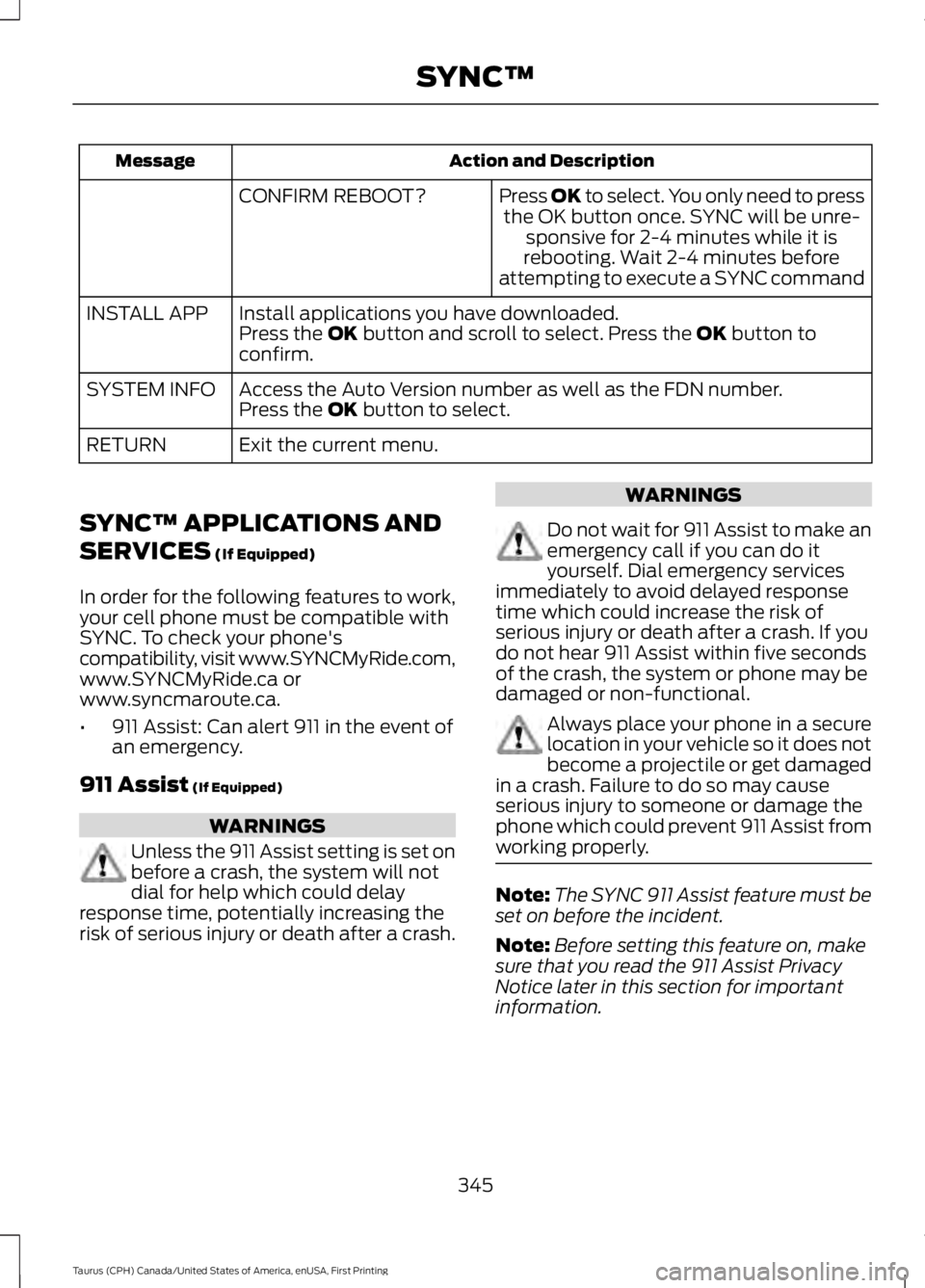
Action and DescriptionMessage
Press OK to select. You only need to pressthe OK button once. SYNC will be unre-sponsive for 2-4 minutes while it isrebooting. Wait 2-4 minutes beforeattempting to execute a SYNC command
CONFIRM REBOOT?
Install applications you have downloaded.INSTALL APPPress the OK button and scroll to select. Press the OK button toconfirm.
Access the Auto Version number as well as the FDN number.SYSTEM INFOPress the OK button to select.
Exit the current menu.RETURN
SYNC™ APPLICATIONS AND
SERVICES (If Equipped)
In order for the following features to work,your cell phone must be compatible withSYNC. To check your phone'scompatibility, visit www.SYNCMyRide.com,www.SYNCMyRide.ca orwww.syncmaroute.ca.
•911 Assist: Can alert 911 in the event ofan emergency.
911 Assist (If Equipped)
WARNINGS
Unless the 911 Assist setting is set onbefore a crash, the system will notdial for help which could delayresponse time, potentially increasing therisk of serious injury or death after a crash.
WARNINGS
Do not wait for 911 Assist to make anemergency call if you can do ityourself. Dial emergency servicesimmediately to avoid delayed responsetime which could increase the risk ofserious injury or death after a crash. If youdo not hear 911 Assist within five secondsof the crash, the system or phone may bedamaged or non-functional.
Always place your phone in a securelocation in your vehicle so it does notbecome a projectile or get damagedin a crash. Failure to do so may causeserious injury to someone or damage thephone which could prevent 911 Assist fromworking properly.
Note:The SYNC 911 Assist feature must beset on before the incident.
Note:Before setting this feature on, makesure that you read the 911 Assist PrivacyNotice later in this section for importantinformation.
345
Taurus (CPH) Canada/United States of America, enUSA, First Printing
SYNC™
Page 366 of 504
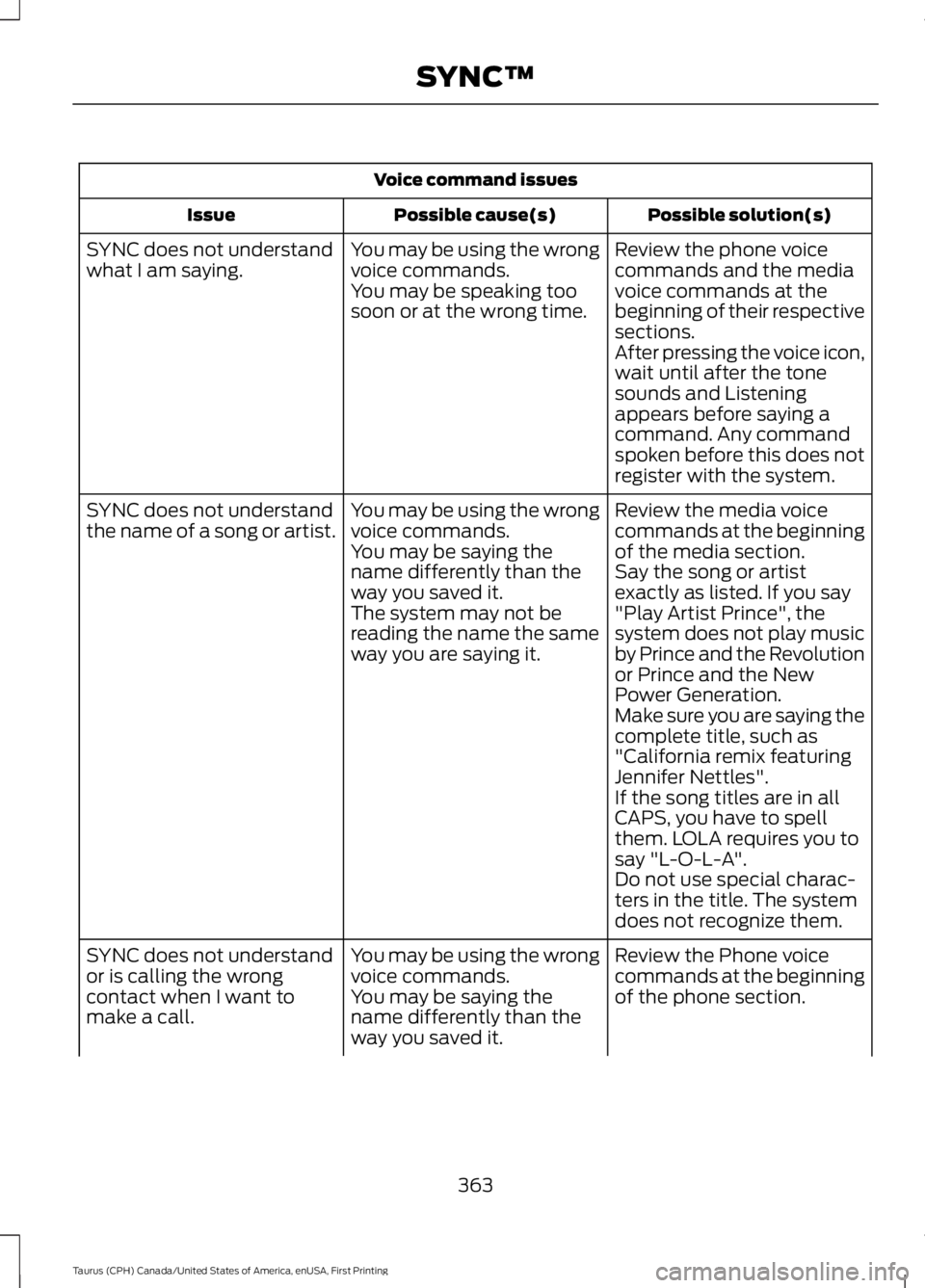
Voice command issues
Possible solution(s)Possible cause(s)Issue
Review the phone voicecommands and the mediavoice commands at thebeginning of their respectivesections.
You may be using the wrongvoice commands.You may be speaking toosoon or at the wrong time.
SYNC does not understandwhat I am saying.
After pressing the voice icon,wait until after the tonesounds and Listeningappears before saying acommand. Any commandspoken before this does notregister with the system.
Review the media voicecommands at the beginningof the media section.
You may be using the wrongvoice commands.You may be saying thename differently than theway you saved it.
SYNC does not understandthe name of a song or artist.
Say the song or artistexactly as listed. If you say"Play Artist Prince", thesystem does not play musicby Prince and the Revolutionor Prince and the NewPower Generation.
The system may not bereading the name the sameway you are saying it.
Make sure you are saying thecomplete title, such as"California remix featuringJennifer Nettles".If the song titles are in allCAPS, you have to spellthem. LOLA requires you tosay "L-O-L-A".Do not use special charac-ters in the title. The systemdoes not recognize them.
Review the Phone voicecommands at the beginningof the phone section.
You may be using the wrongvoice commands.You may be saying thename differently than theway you saved it.
SYNC does not understandor is calling the wrongcontact when I want tomake a call.
363
Taurus (CPH) Canada/United States of America, enUSA, First Printing
SYNC™
Page 371 of 504
GENERAL INFORMATION
WARNING
Driving while distracted can result inloss of vehicle control, crash andinjury. We strongly recommend thatyou use extreme caution when using anydevice that may take your focus off theroad. Your primary responsibility is the safeoperation of your vehicle. We recommendagainst the use of any hand-held devicewhile driving and encourage the use ofvoice-operated systems when possible.Make sure you are aware of all applicablelocal laws that may affect the use ofelectronic devices while driving.
Getting to Know Your System
The SYNC 3 system allows you to interactwith a variety of features using thetouchscreen and voice commands. Byintegrating with your Bluetooth-enabledphone, the touchscreen provides easyinteraction with audio, multimedia, climatecontrol, navigation, and your phone's SYNC3 compatible apps.
Using the Touchscreen
To operate the touchscreen, you cansimply touch the item or option that youwant to select. The button changes colorwhen you select it.
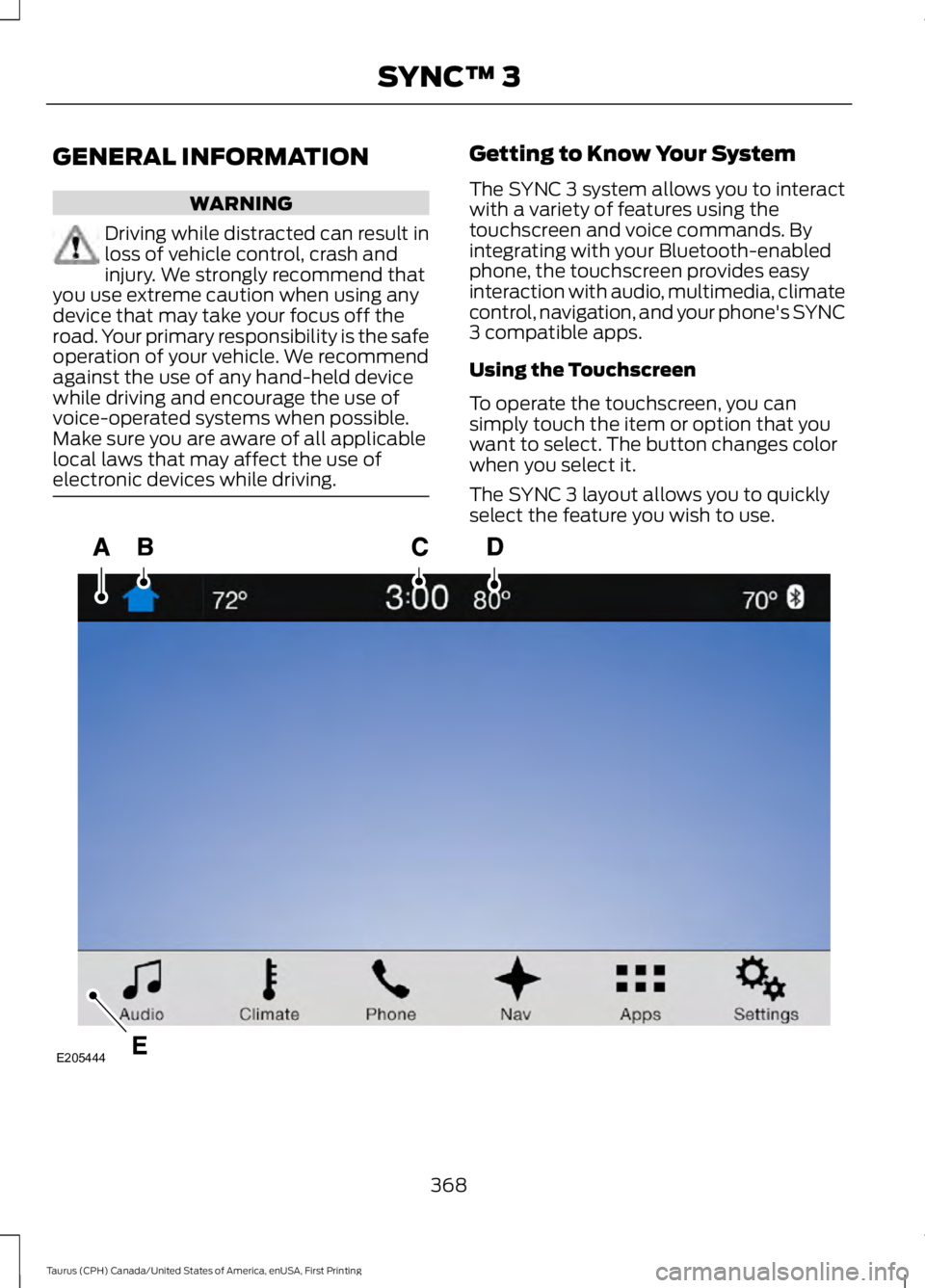
The SYNC 3 layout allows you to quicklyselect the feature you wish to use.
368
Taurus (CPH) Canada/United States of America, enUSA, First Printing
SYNC™ 3E205444
Page 375 of 504
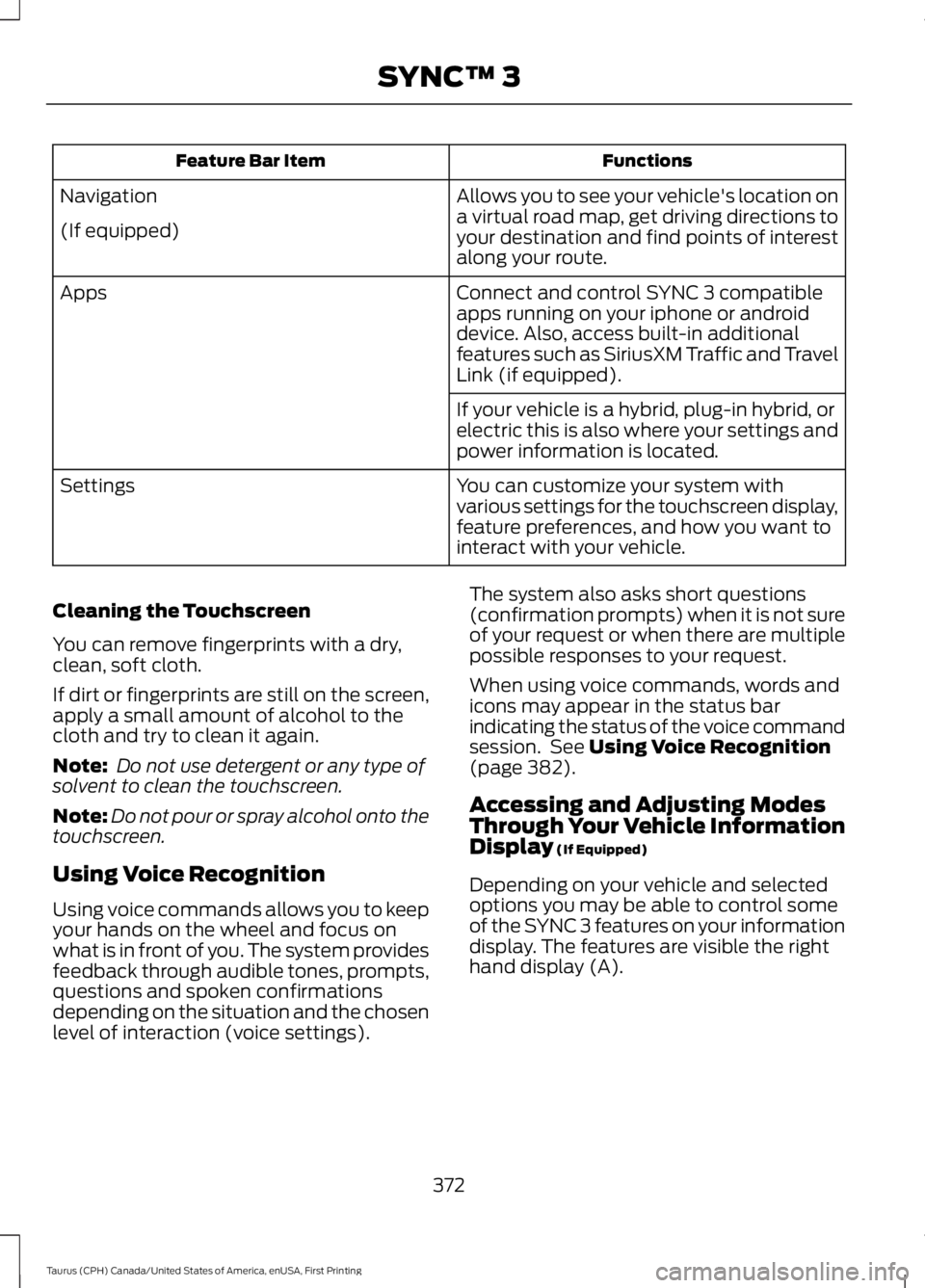
FunctionsFeature Bar Item
Allows you to see your vehicle's location ona virtual road map, get driving directions toyour destination and find points of interestalong your route.
Navigation
(If equipped)
Connect and control SYNC 3 compatibleapps running on your iphone or androiddevice. Also, access built-in additionalfeatures such as SiriusXM Traffic and TravelLink (if equipped).
Apps
If your vehicle is a hybrid, plug-in hybrid, orelectric this is also where your settings andpower information is located.
You can customize your system withvarious settings for the touchscreen display,feature preferences, and how you want tointeract with your vehicle.
Settings
Cleaning the Touchscreen
You can remove fingerprints with a dry,clean, soft cloth.
If dirt or fingerprints are still on the screen,apply a small amount of alcohol to thecloth and try to clean it again.
Note: Do not use detergent or any type ofsolvent to clean the touchscreen.
Note:Do not pour or spray alcohol onto thetouchscreen.
Using Voice Recognition
Using voice commands allows you to keepyour hands on the wheel and focus onwhat is in front of you. The system providesfeedback through audible tones, prompts,questions and spoken confirmationsdepending on the situation and the chosenlevel of interaction (voice settings).
The system also asks short questions(confirmation prompts) when it is not sureof your request or when there are multiplepossible responses to your request.
When using voice commands, words andicons may appear in the status barindicating the status of the voice commandsession. See Using Voice Recognition(page 382).
Accessing and Adjusting ModesThrough Your Vehicle InformationDisplay (If Equipped)
Depending on your vehicle and selectedoptions you may be able to control someof the SYNC 3 features on your informationdisplay. The features are visible the righthand display (A).
372
Taurus (CPH) Canada/United States of America, enUSA, First Printing
SYNC™ 3
Page 378 of 504
•Power: Switch the audio system onand off.
•VOL: Control the volume of playingaudio.
•Seek and Tune: Use as you normallywould in audio modes.
•Eject: Eject a CD from the audiosystem.
•SOURCE or MEDIA: Press repeatedlyto advance through available mediamodes.
•SOUND: Press to access the Soundmenu where you can adjust sound andother audio settings.
•1-6: Press and hold to store or press toselect an AM, FM or SIRIUS memorypreset. See Audio System (page 315).
•DISP: Switch the display on or off. Youcan also touch the screen to switch thedisplay back on.
•Temperature, fan and climatecontrol buttons: Control thetemperature, fan speed or settings ofthe climate control system. SeeClimate Control (page 109).
911 Assist
WARNINGS
Unless the 911 Assist setting is set onbefore a crash, the system will notdial for help which could delayresponse time, potentially increasing therisk of serious injury or death after a crash.setting is set on before a crash, the systemwill not dial for help which could delayresponse time, potentially increasing therisk of serious injury or death after a crash.
WARNINGS
Do not wait for 911 Assist to make anemergency call if you can do ityourself. Dial emergency servicesimmediately to avoid delayed responsetime which could increase the risk ofserious injury or death after a crash. If youdo not hear 911 Assist within five secondsof the crash, the system or phone may bedamaged or non-functional.
Always place your phone in a securelocation in your vehicle so it does notbecome a projectile or get damagedin a crash. Failure to do so may causeserious injury to someone or damage thephone which could prevent 911 Assist fromworking properly.
Note:The SYNC 911 Assist feature must beset on before the incident.
Note:The SYNC 911 Assist feature onlyoperates in the U.S., Canada or in a territoryin which 911 is the emergency number.
Note:Before setting this feature on, makesure that you read the 911 Assist PrivacyNotice later in this section for importantinformation.
Note:If any user sets 911 Assist to on or off,that setting applies for all paired phones. If911 Assist is switched off and the phone isconnected to SYNC, an icon displays on thestatus bar.
Note:Every phone operates differently.While SYNC 911 Assist works with mostcellular phones, some may have troubleusing this feature.
375
Taurus (CPH) Canada/United States of America, enUSA, First Printing
SYNC™ 3
Page 380 of 504
911 Assist Privacy Notice
When you switch on 911 Assist, it maydisclose to emergency services that yourvehicle has been in a crash involving thedeployment of an airbag or activation ofthe fuel pump shut-off. Certain versions orupdates to 911 Assist may also be capableof electronically or verbally disclosing to911 operators your vehicle location or otherdetails about your vehicle or crash to assist911 operators to provide the mostappropriate emergency services. If you donot want to disclose this information, donot switch the feature on.
Safety Information
WARNING
Driving while distracted can result inloss of vehicle control, crash andinjury. We strongly recommend thatyou use extreme caution when using anydevice that may take your focus off theroad. Your primary responsibility is the safeoperation of your vehicle. We recommendagainst the use of any hand-held devicewhile driving and encourage the use ofvoice-operated systems when possible.Make sure you are aware of all applicablelocal laws that may affect the use ofelectronic devices while driving.
•Do not attempt to service or repair thesystem. Have an authorized dealercheck your vehicle.
•Do not operate playing devices if thepower cords or cables are broken, splitor damaged. Place cords and cablesout of the way, so they do not interferewith the operation of pedals, seats,compartments or safe driving abilities.
•Do not leave playing devices in yourvehicle during extreme conditions as itcould cause them damage. See yourdevice's user guide for furtherinformation.
•For your safety, some SYNC 3 functionsare speed-dependent. Their use islimited to when your vehicle is travelingat speeds under 3 mph (5 km/h). Makesure that you review your device'smanual before using it with SYNC 3.
Speed-restricted Features
Some features of this system may be toodifficult to use while your vehicle is movingso they are restricted from use unless yourvehicle is stationary.
•Screens crowded with information,such as Point of Interest reviews andratings, SiriusXM Traffic and Travel Linksports scores, movie times or skiconditions.
•Any action that requires you to use akeyboard is restricted, such as enteringa navigation destination or editinginformation.
•All lists are limited so the user can viewfewer entries (such as phone contactsor recent phone call entries).
See the following chart for more specificexamples.
377
Taurus (CPH) Canada/United States of America, enUSA, First Printing
SYNC™ 3