buttons FORD TAURUS 2019 User Guide
[x] Cancel search | Manufacturer: FORD, Model Year: 2019, Model line: TAURUS, Model: FORD TAURUS 2019Pages: 515, PDF Size: 17.29 MB
Page 129 of 515
Gate Operator / Canadian
Programming
Canadian radio-frequency laws require
transmitter signals to
“time-out” (or quit)
after several seconds of transmission –
which may not be long enough for
HomeLink to pick up the signal during
programming. Similar to this Canadian law,
some U.S. gate operators are designed to
“time-out” in the same manner.
Note: If programming a garage door opener
or gate operator, it is advised to unplug the
device during the “cycling” process to
prevent possible overheating.
1. Press and hold the HomeLink button while you press and release, every two
seconds, your hand-held transmitter
until the HomeLink indicator light
changes from a slow to a rapidly
blinking light.
2. Release both the HomeLink and hand-held transmitter buttons.
3. Continue programing HomeLink. See In-Vehicle Programming
.
Erasing the Function Button Codes
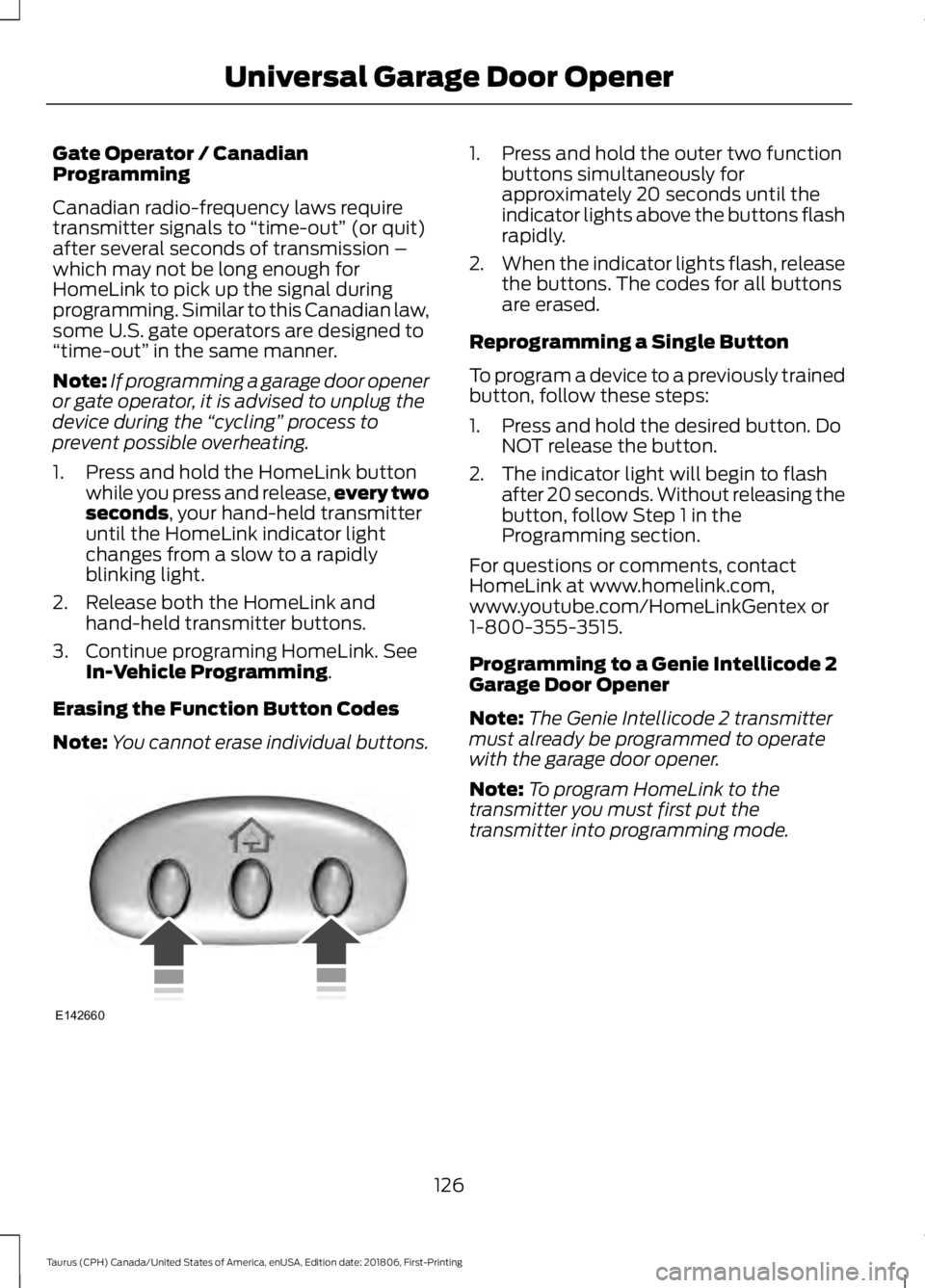
Note: You cannot erase individual buttons. 1. Press and hold the outer two function
buttons simultaneously for
approximately 20 seconds until the
indicator lights above the buttons flash
rapidly.
2. When the indicator lights flash, release
the buttons. The codes for all buttons
are erased.
Reprogramming a Single Button
To program a device to a previously trained
button, follow these steps:
1. Press and hold the desired button. Do NOT release the button.
2. The indicator light will begin to flash after 20 seconds. Without releasing the
button, follow Step 1 in the
Programming section.
For questions or comments, contact
HomeLink at www.homelink.com,
www.youtube.com/HomeLinkGentex or
1-800-355-3515.
Programming to a Genie Intellicode 2
Garage Door Opener
Note: The Genie Intellicode 2 transmitter
must already be programmed to operate
with the garage door opener.
Note: To program HomeLink to the
transmitter you must first put the
transmitter into programming mode.
126
Taurus (CPH) Canada/United States of America, enUSA, Edition date: 201806, First-Printing Universal Garage Door OpenerE142660
Page 130 of 515
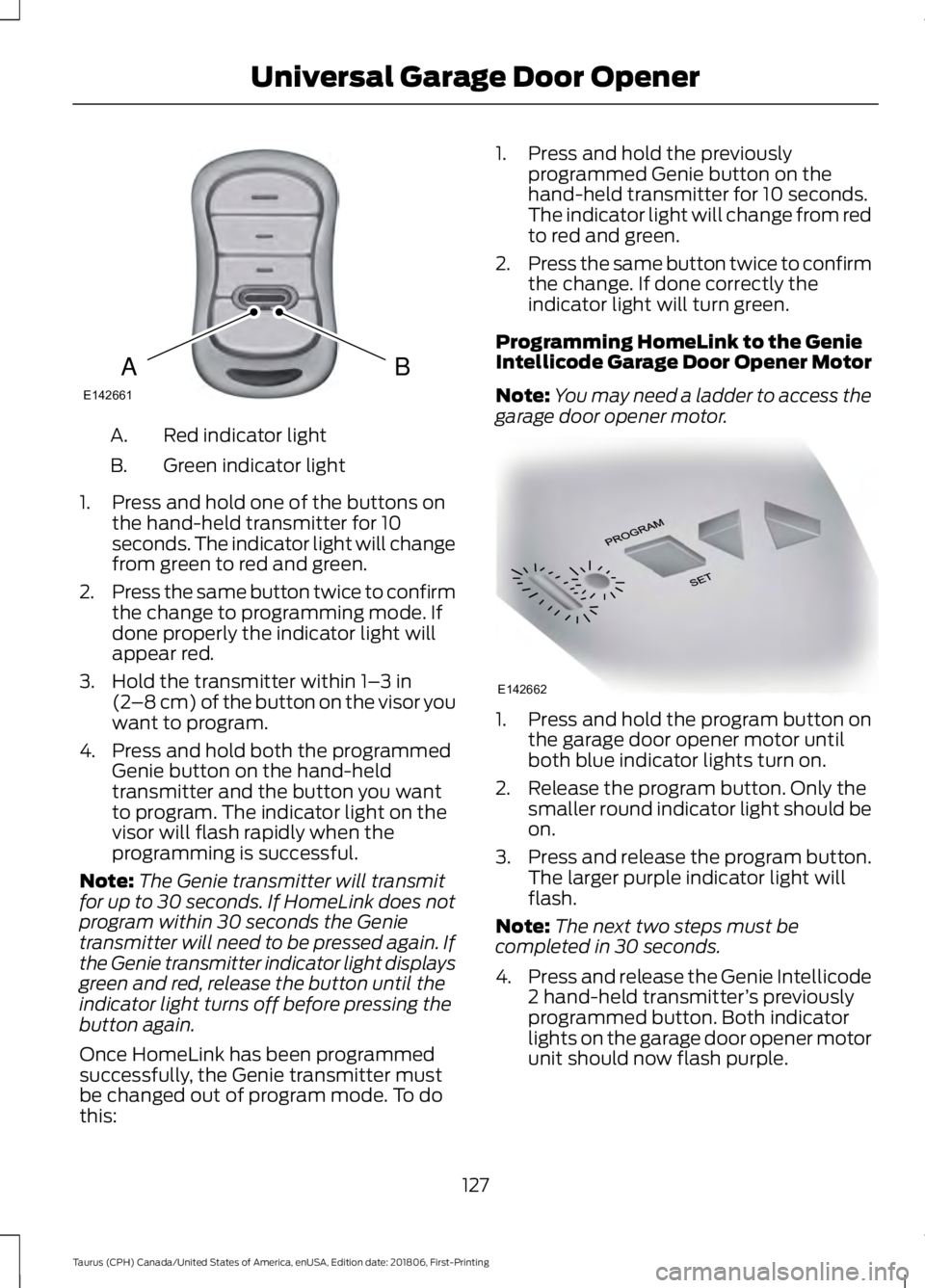
Red indicator light
A.
Green indicator light
B.
1. Press and hold one of the buttons on the hand-held transmitter for 10
seconds. The indicator light will change
from green to red and green.
2. Press the same button twice to confirm
the change to programming mode. If
done properly the indicator light will
appear red.
3. Hold the transmitter within 1– 3 in
(2 –8 cm) of the button on the visor you
want to program.
4. Press and hold both the programmed Genie button on the hand-held
transmitter and the button you want
to program. The indicator light on the
visor will flash rapidly when the
programming is successful.
Note: The Genie transmitter will transmit
for up to 30 seconds. If HomeLink does not
program within 30 seconds the Genie
transmitter will need to be pressed again. If
the Genie transmitter indicator light displays
green and red, release the button until the
indicator light turns off before pressing the
button again.
Once HomeLink has been programmed
successfully, the Genie transmitter must
be changed out of program mode. To do
this: 1. Press and hold the previously
programmed Genie button on the
hand-held transmitter for 10 seconds.
The indicator light will change from red
to red and green.
2. Press the same button twice to confirm
the change. If done correctly the
indicator light will turn green.
Programming HomeLink to the Genie
Intellicode Garage Door Opener Motor
Note: You may need a ladder to access the
garage door opener motor. 1. Press and hold the program button on
the garage door opener motor until
both blue indicator lights turn on.
2. Release the program button. Only the smaller round indicator light should be
on.
3. Press and release the program button.
The larger purple indicator light will
flash.
Note: The next two steps must be
completed in 30 seconds.
4. Press and release the Genie Intellicode
2 hand-held transmitter ’s previously
programmed button. Both indicator
lights on the garage door opener motor
unit should now flash purple.
127
Taurus (CPH) Canada/United States of America, enUSA, Edition date: 201806, First-Printing Universal Garage Door OpenerBAE142661 E142662
Page 131 of 515

5. Press and hold the previously
programmed button on the visor for 2
seconds. Repeat this step up to 3 times
until the garage door moves.
Programming is now complete.
Clearing a HomeLink Device
To erase programming from the three
HomeLink buttons press and hold the two
outer HomeLink buttons until the indicator
light begins to flash. The indicator light will
begin flashing in 10 to 20 seconds, at which
time both buttons should be released.
Programming has now been erased, and
the indicator light should blink slowly to
indicate the device is in train mode when
any of the three HomeLink buttons are
pressed.
FCC and RSS-210 Industry Canada
Compliance
This device complies with Part 15 of the
FCC Rules and with RSS-210 of Industry
Canada. Operation is subject to the
following two conditions: (1) this device
may not cause harmful interference, and
(2) this device must accept any
interference received, including
interference that may cause undesired
operation.
Changes or modifications to your device
not expressly approved by the party
responsible for compliance can void the
user ’s authority to operate the equipment.
128
Taurus (CPH) Canada/United States of America, enUSA, Edition date: 201806, First-Printing Universal Garage Door Opener
Page 254 of 515
CHANGING THE WIPER
BLADES
Replace the wiper blades at least annually
for optimum performance.
You can improve poor wiper quality by
cleaning the wiper blades and the
windshield. See Cleaning the Windows
and Wiper Blades (page 257).
Changing the Windshield Wiper
Blades
Note: Do not hold the wiper blade when
lifting the wiper arm.
Note: Make sure that the wiper arm does
not spring back against the glass when the
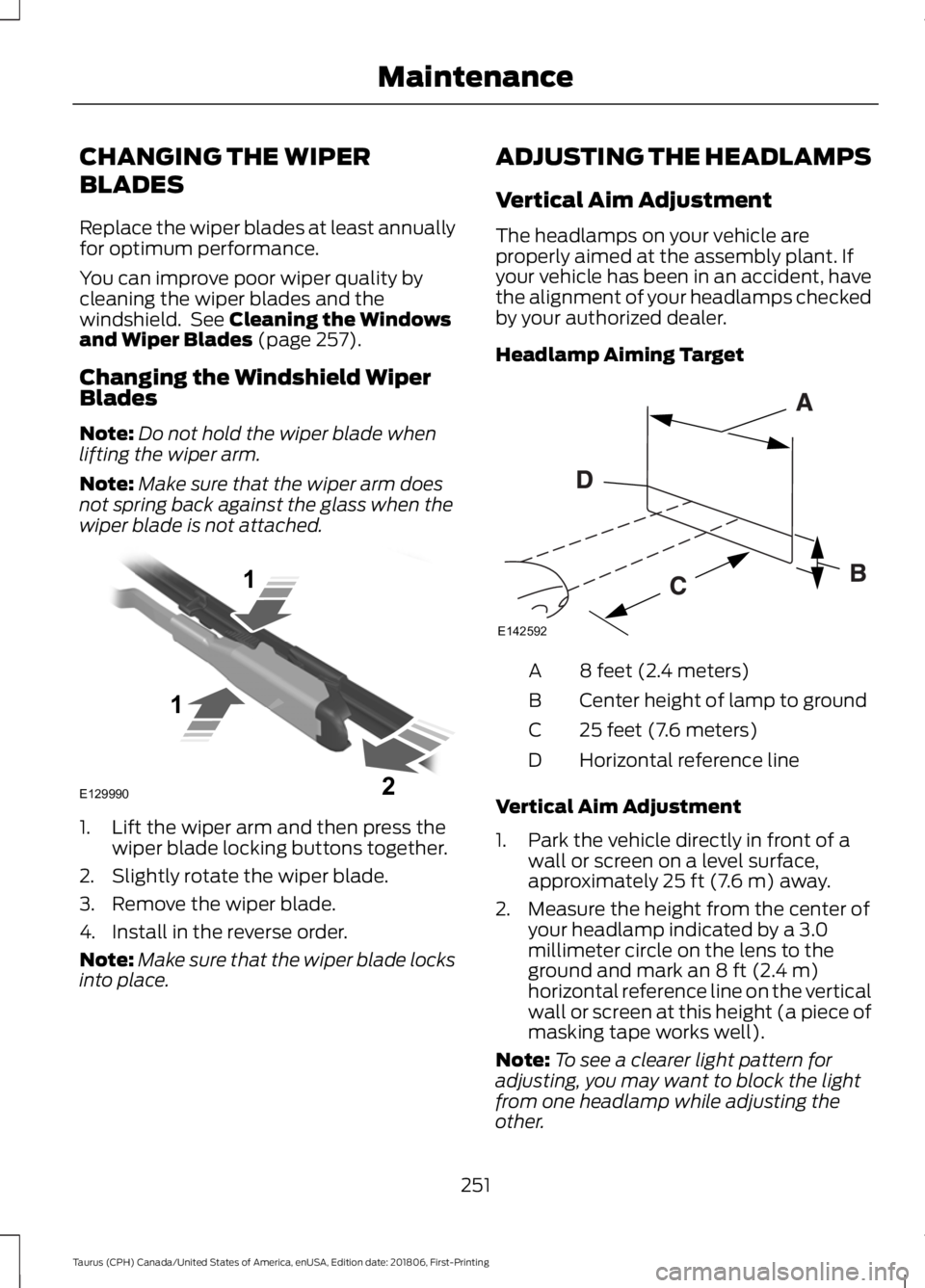
wiper blade is not attached. 1. Lift the wiper arm and then press the
wiper blade locking buttons together.
2. Slightly rotate the wiper blade.
3. Remove the wiper blade.
4. Install in the reverse order.
Note: Make sure that the wiper blade locks
into place. ADJUSTING THE HEADLAMPS
Vertical Aim Adjustment
The headlamps on your vehicle are
properly aimed at the assembly plant. If
your vehicle has been in an accident, have
the alignment of your headlamps checked
by your authorized dealer.
Headlamp Aiming Target
8 feet (2.4 meters)
A
Center height of lamp to ground
B
25 feet (7.6 meters)
C
Horizontal reference line
D
Vertical Aim Adjustment
1. Park the vehicle directly in front of a wall or screen on a level surface,
approximately
25 ft (7.6 m) away.
2. Measure the height from the center of your headlamp indicated by a 3.0
millimeter circle on the lens to the
ground and mark an
8 ft (2.4 m)
horizontal reference line on the vertical
wall or screen at this height (a piece of
masking tape works well).
Note: To see a clearer light pattern for
adjusting, you may want to block the light
from one headlamp while adjusting the
other.
251
Taurus (CPH) Canada/United States of America, enUSA, Edition date: 201806, First-Printing MaintenanceE129990
1
1 2 E142592
Page 313 of 515
Accessing the Clock Settings
Press and release to access the
clock setting.
Use the center arrow controls to
change the hours and minutes.
Accessing the Menu Press and release to access
different audio system features.
Accessing the Phone Features Press and release to access the
phone features of the SYNC
system.
Accessing the Sound Settings Press and release to access
settings for Treble, Midrange,
Bass, Fade and Balance.
Use the up and down arrow buttons to
select the various settings. Press OK to
confirm a selection, press the left and right
arrow buttons to change the settings.
Press
OK to set or press MENU to exit.
Sound settings can be set for each audio
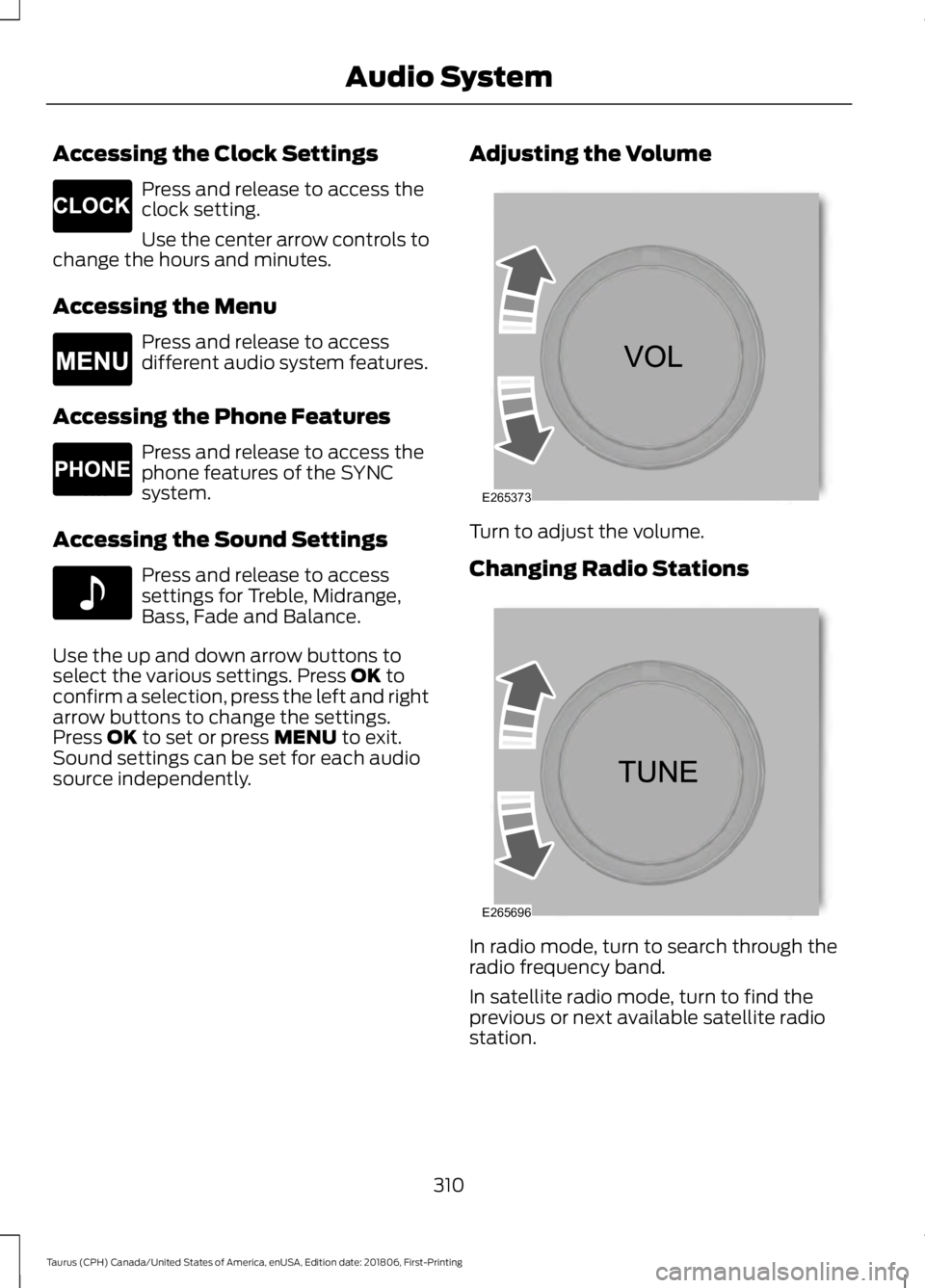
source independently. Adjusting the Volume Turn to adjust the volume.
Changing Radio Stations
In radio mode, turn to search through the
radio frequency band.
In satellite radio mode, turn to find the
previous or next available satellite radio
station.
310
Taurus (CPH) Canada/United States of America, enUSA, Edition date: 201806, First-Printing Audio SystemE265278 E265038 E265037 E142611 E265373 E265696
Page 314 of 515
Ejecting the CD
Press and release to eject a CD.
Listening to a CD Press and release to listen to a
CD.
Listening to the Radio Press and release to listen to the
radio or change radio stations.
Listening to Satellite Radio Press and release to listen to
satellite radio.
Muting the Audio Press and release to mute the
playing audio.
Playing or Pausing Media Press and release to either play
or pause the audio.
Switching the Audio Unit On and
Off Press and release the button.
Using the Display Control
Use the up and down arrow buttons to
select the various settings. When you make
your selection, press the left and right
arrow buttons to change the settings. Press and release to confirm a
selection.
Press and release the function buttons
below the display to select different
functions of the audio system depending
on which mode you are in.
Using the Number Block
In radio mode, store and recall your favorite
radio stations. To store a radio station, tune
to the station, then press and hold a preset
button until sound returns. In phone mode,
enter a phone number.
Using Seek, Fast Forward and
Reverse In radio mode, select a frequency band and
press and release either button. The
system stops at the first station it finds in
that direction.
In satellite radio mode, press and release
to select the next or previous satellite radio
station. If you select a specific category,
such as jazz, rock or news, press to find the
next or previous station in the category you
select.
Menu Structure
Press MENU.
Press the up and down arrow buttons to
scroll through the options.
Press the right arrow to enter a menu.
Press the left arrow to exit a menu.
Press
OK to confirm a selection.
Note: Depending on your system, some
options may appear slightly different.
311
Taurus (CPH) Canada/United States of America, enUSA, Edition date: 201806, First-Printing Audio SystemE265032 E265039 E265033 E265034 E265043 E265041
Page 322 of 515
The auxiliary input jack allows you to
connect and play music from your portable
music player through your vehicle speakers.
You can use any portable music player
designed for use with headphones. Your
audio extension cable must have male
connectors at each end.
1. Make sure your vehicle is stationary
with the audio unit and the portable
music player switched off.
2. Plug the extension cable from the device into the audio input jack.
3. Switch on the radio and select either a
tuned FM station or a CD.
4. Adjust the volume as desired.
5. Switch on your device and adjust the volume to half the maximum level.
6. Press AUX until LINE or LINE IN
appears in the display. You should hear
music from your device even if it is low.
7. Adjust the volume on your device until
it reaches the volume level of the FM
station or CD. Do this by switching back
and forth between the AUX and FM or
CD controls.
Use the vehicle audio unit buttons to
restore playback from the vehicle audio
unit, while your device remains connected.
Note: The audio extension cable must be
long enough for you to safely store the
device when your vehicle is moving.
Note: For optimum performance when
using any auxiliary device set the volume on
the device high. This reduces audio
interference when charging the device using
the vehicle power supply.
Note: For safety reasons, do not connect
or adjust the settings on your device while
your vehicle is moving. USB PORT WARNING:
Driving while
distracted can result in loss of vehicle
control, crash and injury. We strongly
recommend that you use extreme
caution when using any device that may
take your focus off the road. Your
primary responsibility is the safe
operation of your vehicle. We
recommend against the use of any
hand-held device while driving and
encourage the use of voice-operated
systems when possible. Make sure you
are aware of all applicable local laws
that may affect the use of electronic
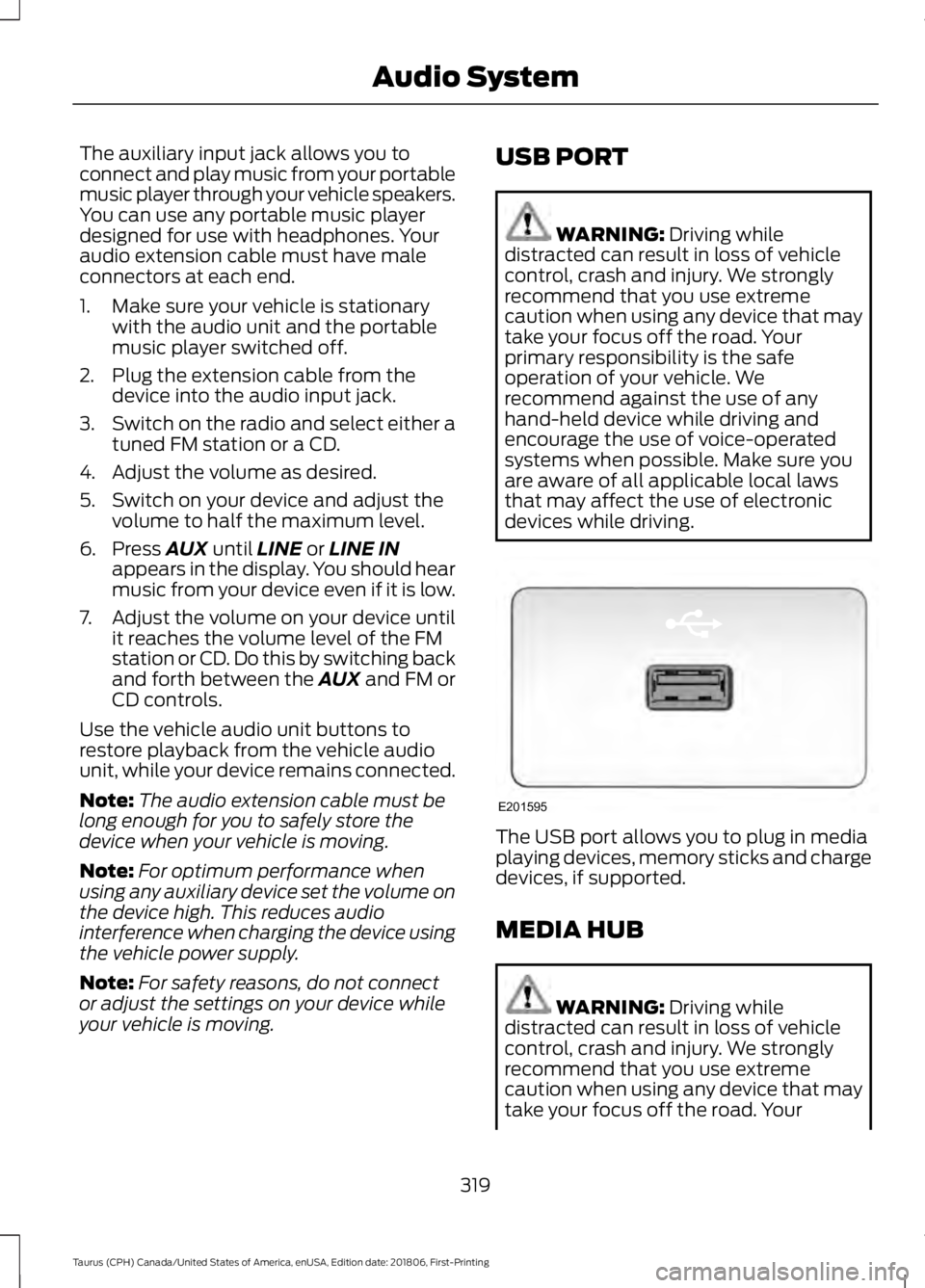
devices while driving. The USB port allows you to plug in media
playing devices, memory sticks and charge
devices, if supported.
MEDIA HUB
WARNING:
Driving while
distracted can result in loss of vehicle
control, crash and injury. We strongly
recommend that you use extreme
caution when using any device that may
take your focus off the road. Your
319
Taurus (CPH) Canada/United States of America, enUSA, Edition date: 201806, First-Printing Audio SystemE201595
Page 332 of 515
Making a Call
Press the voice button and when prompted say:
Action and Description
Voice Command
This command is not available until your cell phone informa-
tion is completely downloaded using Bluetooth.
Call ___
Use to enter a phone number digit by digit.
Dial
When the system confirms the number say one of the following commands:
To confirm the number and initiate the call.
Dial
To erase the last spoken digit. You can also press the left
arrow button.
delete
To erase all spoken digits. You can also press and hold the
left arrow button.
clear
To end a call, press and hold the red phone button.
Receiving Calls
When receiving a call, you can:
• Answer the call by pressing the phone
button.
• Reject the call by pressing and holding
the red phone button.
• Ignore the call by doing nothing. Phone Options during an Active
Call
During an active call, you have more menu
features that become available, for
example putting a call on hold or joining
calls. Use the arrow buttons to scroll
through the menu options.
Press the MENU button during an active call, then scroll to: Action and Description
Message
Press the
OK button.
CALL MENU
Select one of the following:
Press the
OK button to switch a call from an active hands-free envir-
onment to your cell phone for a more private conversation.
PRIVACY
Press the
OK button to put an active call on hold.
CALL HOLD
Join two separate calls. SYNC supports a maximum of three callers
on a multiparty call or conference call.
JOIN CALLS
329
Taurus (CPH) Canada/United States of America, enUSA, Edition date: 201806, First-Printing SYNC™
Page 339 of 515
Action and Description
Message
Press OK to select and press OK again when ConfirmDownload? appears.
DOWNLOAD
PHONEBOOK
Automatically download your phone book each time your phone
connects to SYNC. Press OK to select.
AUTODOWN-
LOAD
When this message appears, press
OK to have your
phonebook automatically downloaded each time.
AUTO ON?
Select Off to NOT download your phonebook every
time your phone connects to SYNC. Your phonebook,
call history and text messages can only be accessed when your specific phone is connected to SYNC. *
When enabled, SYNC speaks the contact name that is displayed on
the screen during phonebook browsing.
SPEAK NAMES
Exit the current menu.
RETURN
* Downloading times are cell phone-dependent and quantity-dependent. When Auto
Download is on, it automatically deletes any changes, additions or deletions saved since
your last download.
System Settings
This menu provides access to your
Bluetooth Devices and Advanced menu
features. Use the arrow buttons to scroll
through the menu options. Bluetooth Devices
The Bluetooth Devices menu allows you
to add, connect and delete devices, set a
cell phone as primary as well as turn your
Bluetooth feature on and off.
Press the Phone button to enter the Phone Menu, then scroll to: Action and Description
Message
Press the
OK button.
SYS SETTINGS
Press the
OK button.
BT DEVICES
Select one of the following:
See
Using SYNC™ With Your Phone (page 326).1
ADD DEVICE
Connect a previously paired Bluetooth-enabled phone. 2
CONNECT BT
Press OK to select and view a list of previously paired phones.
Scroll until the desired device is chosen, then press OK to
connect the phone.
Set a previously paired phone as your primary phone. 3
SET PRIMARY?
336
Taurus (CPH) Canada/United States of America, enUSA, Edition date: 201806, First-Printing SYNC™
Page 363 of 515
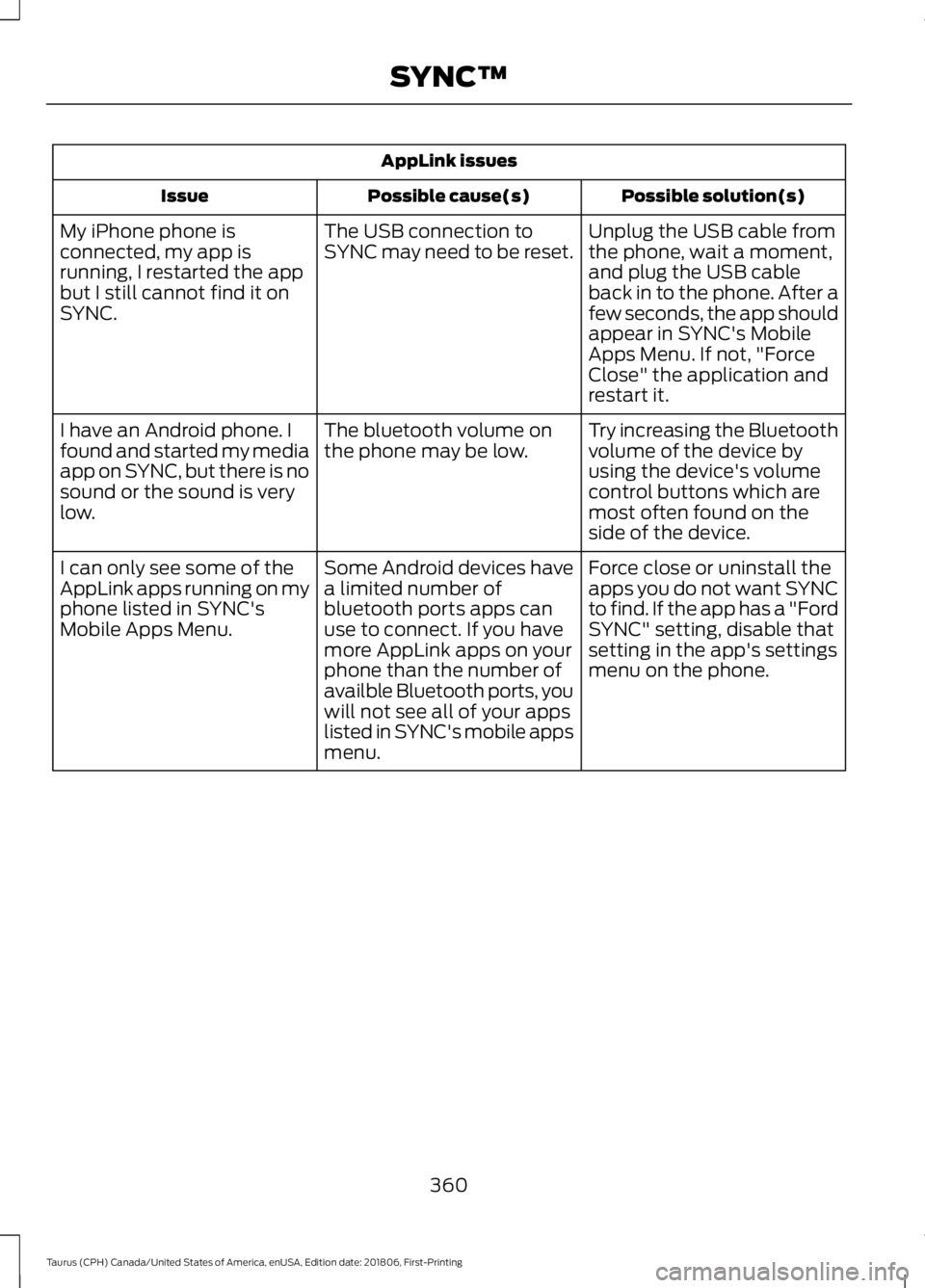
AppLink issues
Possible solution(s)
Possible cause(s)
Issue
Unplug the USB cable from
the phone, wait a moment,
and plug the USB cable
back in to the phone. After a
few seconds, the app should
appear in SYNC's Mobile
Apps Menu. If not, "Force
Close" the application and
restart it.
The USB connection to
SYNC may need to be reset.
My iPhone phone is
connected, my app is
running, I restarted the app
but I still cannot find it on
SYNC.
Try increasing the Bluetooth
volume of the device by
using the device's volume
control buttons which are
most often found on the
side of the device.
The bluetooth volume on
the phone may be low.
I have an Android phone. I
found and started my media
app on SYNC, but there is no
sound or the sound is very
low.
Force close or uninstall the
apps you do not want SYNC
to find. If the app has a "Ford
SYNC" setting, disable that
setting in the app's settings
menu on the phone.
Some Android devices have
a limited number of
bluetooth ports apps can
use to connect. If you have
more AppLink apps on your
phone than the number of
availble Bluetooth ports, you
will not see all of your apps
listed in SYNC's mobile apps
menu.
I can only see some of the
AppLink apps running on my
phone listed in SYNC's
Mobile Apps Menu.
360
Taurus (CPH) Canada/United States of America, enUSA, Edition date: 201806, First-Printing SYNC™