phone FORD TAURUS 2019 User Guide
[x] Cancel search | Manufacturer: FORD, Model Year: 2019, Model line: TAURUS, Model: FORD TAURUS 2019Pages: 515, PDF Size: 17.29 MB
Page 220 of 515
2. If your inquiry or concern remains
unresolved, contact the Sales Manager,
Service Manager or Customer Relations
Manager.
3. If you require assistance or clarification
on Ford Motor Company policies,
please contact the Ford Customer
Relationship Center.
In order to help us serve you better, please
have the following information available
when contacting a Customer Relationship
Center:
• Vehicle Identification Number.
• Your telephone number (home and
business).
• The name of the authorized dealer and
city where located.
• The vehicle ’s current odometer reading.
In some states within the United States,
you must directly notify Ford in writing
before pursuing remedies under your
state's warranty laws, and Ford is also
allowed a final repair attempt.
Additionally, in some states within the
United States, a consumer has the option
of submitting a warranty dispute to the
BBB Auto Line before taking action under
the Magnuson-Moss Warranty Act, or to
the extent allowed by state law, before
pursuing replacement or repurchase
remedies provided by certain state laws.
This dispute handling procedure is not
required prior to enforcing state created
rights or other rights which are independent
of the Magnuson-Moss Warranty Act or
state replacement or repurchase laws. IN CALIFORNIA (U.S. ONLY)
California Civil Code Section 1793.2(d)
requires that, if a manufacturer or its
representative is unable to repair a motor
vehicle to conform to the vehicle
’s
applicable express warranty after a
reasonable number of attempts, the
manufacturer shall be required to either
replace the vehicle with one substantially
identical or repurchase the vehicle and
reimburse the buyer in an amount equal to
the actual price paid or payable by the
consumer (less a reasonable allowance
for consumer use). The consumer has the
right to choose whether to receive a refund
or replacement vehicle.
California Civil Code Section 1793.22(b)
presumes that the manufacturer has had
a reasonable number of attempts to
conform the vehicle to its applicable
express warranties if, within the first 18
months of ownership of a new vehicle or
the first 18,000 mi (29,000 km), whichever
occurs first:
1. Two or more repair attempts are made
on the same non-conformity likely to
cause death or serious bodily injury OR
2. Four or more repair attempts are made
on the same nonconformity (a defect
or condition that substantially impairs
the use, value or safety of the vehicle)
OR
3. The vehicle is out of service for repair of nonconformities for a total of more
than 30 calendar days (not necessarily
all at one time).
In the case of 1 or 2 above, the consumer
must also notify the manufacturer of the
need for the repair of the nonconformity
at the following address:
Ford Motor Company
16800 Executive Plaza Drive
Mail Drop 3NE-B
Dearborn, MI 48126
217
Taurus (CPH) Canada/United States of America, enUSA, Edition date: 201806, First-Printing Customer Assistance
Page 223 of 515
E-mail
Fax
Phone
Customer Relation-
ship Center
[email protected]
N/A
N/A
Asia Pacific
[email protected]
-
+1 313 594 4857
Caribbean and
Central America
[email protected]
971 4 3327 266
Ford
Middle East 80004443673
Lincoln
80004441066
UAE
80004441066
Saudi Arabia
8008443673
Mobily and Zain cell
phone users in Saudi 800850078
[email protected]
N/A
N/A
North Africa
[email protected]
N/A
+1-800-841-3673
Puerto Rico and U.S.
Virgin Islands
[email protected]
N/A
+1-313-594-4857
Sub-Saharan Africa
[email protected] [email protected]
N/A
+82-02-1600-6003
South Korea
If you buy your vehicle in North America
and then relocate to any of the above
locations, register your vehicle
identification number (VIN) and new
address with Ford Global Trade Services
by emailing, [email protected]. If you are in another foreign country,
contact the nearest authorized dealer. In
the event your inquiry is unresolved,
communicate your concern with the
dealership
’s Sales Manager, Service
Manager or Customer Relations Manager.
If you require additional assistance or
clarification, please contact the respective
Customer Relationship Center as
previously listed.
Customers in the U.S. should call
1-800-392-3673.
220
Taurus (CPH) Canada/United States of America, enUSA, Edition date: 201806, First-Printing Customer Assistance
Page 225 of 515
Transport Canada Contact Information
http://www.tc.gc.ca/eng/motorvehiclesafety/reporting-defects-motor-
vehicles.html (English)
Website
http://www.tc.gc.ca/fra/securiteautomobile/signaler-defauts-vehicules-
automobiles.html (French)
Website
1–800–333–0510
Phone Ford of Canada Contact Information
www.ford.ca
Website
1–800–565-3673
Phone
222
Taurus (CPH) Canada/United States of America, enUSA, Edition date: 201806, First-Printing Customer Assistance
Page 313 of 515
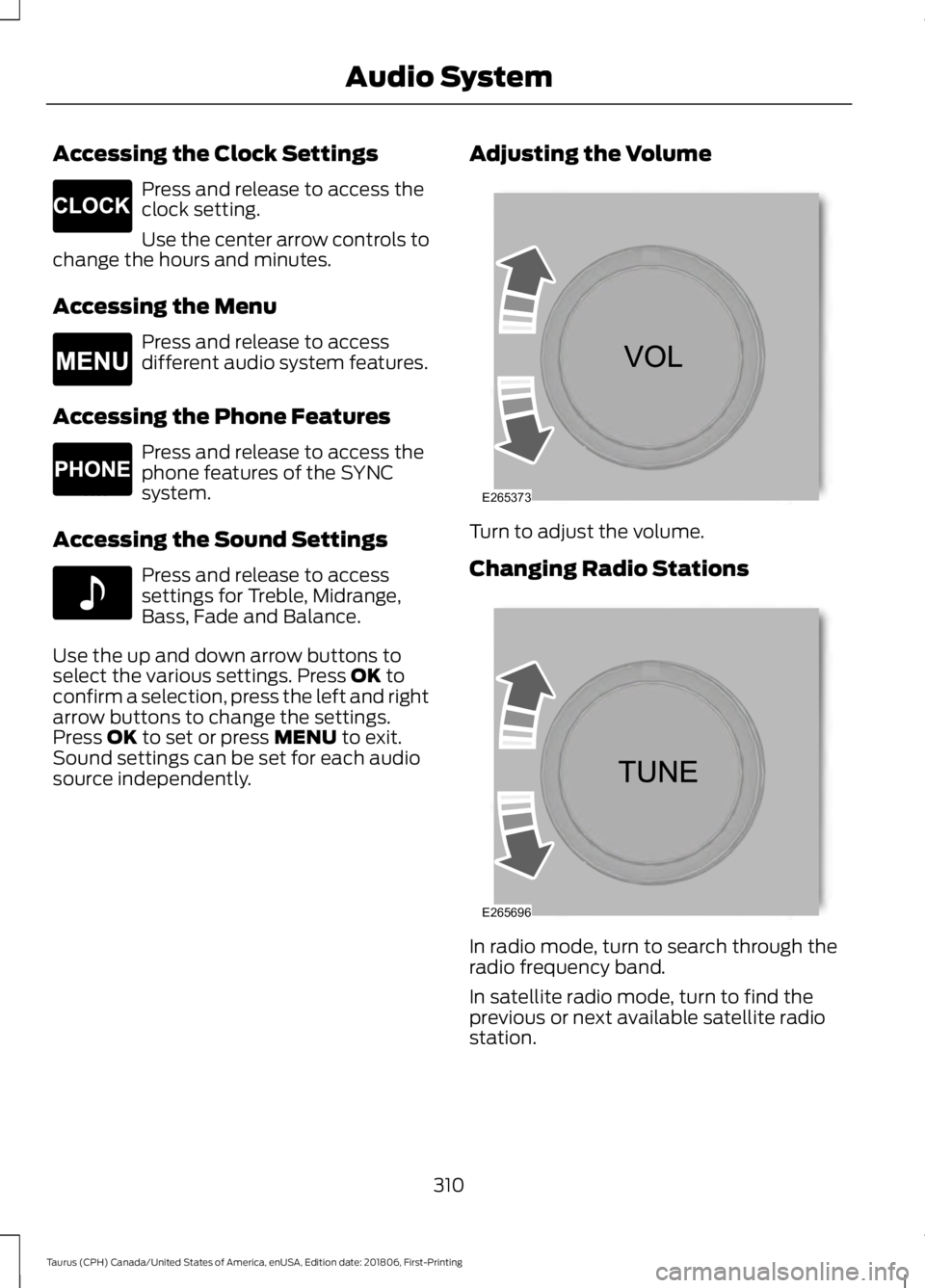
Accessing the Clock Settings
Press and release to access the
clock setting.
Use the center arrow controls to
change the hours and minutes.
Accessing the Menu Press and release to access
different audio system features.
Accessing the Phone Features Press and release to access the
phone features of the SYNC
system.
Accessing the Sound Settings Press and release to access
settings for Treble, Midrange,
Bass, Fade and Balance.
Use the up and down arrow buttons to
select the various settings. Press OK to
confirm a selection, press the left and right
arrow buttons to change the settings.
Press
OK to set or press MENU to exit.
Sound settings can be set for each audio
source independently. Adjusting the Volume Turn to adjust the volume.
Changing Radio Stations
In radio mode, turn to search through the
radio frequency band.
In satellite radio mode, turn to find the
previous or next available satellite radio
station.
310
Taurus (CPH) Canada/United States of America, enUSA, Edition date: 201806, First-Printing Audio SystemE265278 E265038 E265037 E142611 E265373 E265696
Page 314 of 515
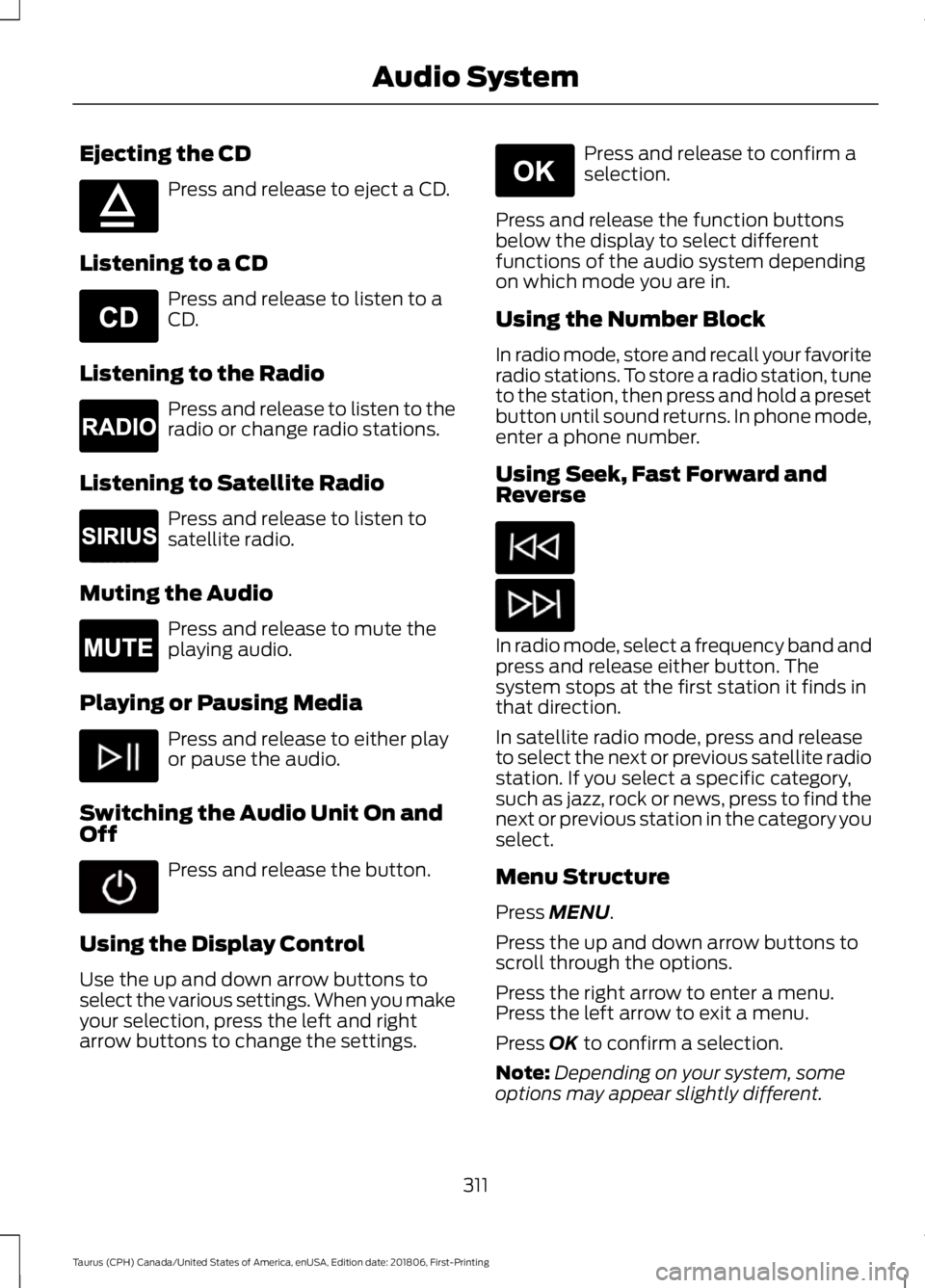
Ejecting the CD
Press and release to eject a CD.
Listening to a CD Press and release to listen to a
CD.
Listening to the Radio Press and release to listen to the
radio or change radio stations.
Listening to Satellite Radio Press and release to listen to
satellite radio.
Muting the Audio Press and release to mute the
playing audio.
Playing or Pausing Media Press and release to either play
or pause the audio.
Switching the Audio Unit On and
Off Press and release the button.
Using the Display Control
Use the up and down arrow buttons to
select the various settings. When you make
your selection, press the left and right
arrow buttons to change the settings. Press and release to confirm a
selection.
Press and release the function buttons
below the display to select different
functions of the audio system depending
on which mode you are in.
Using the Number Block
In radio mode, store and recall your favorite
radio stations. To store a radio station, tune
to the station, then press and hold a preset
button until sound returns. In phone mode,
enter a phone number.
Using Seek, Fast Forward and
Reverse In radio mode, select a frequency band and
press and release either button. The
system stops at the first station it finds in
that direction.
In satellite radio mode, press and release
to select the next or previous satellite radio
station. If you select a specific category,
such as jazz, rock or news, press to find the
next or previous station in the category you
select.
Menu Structure
Press MENU.
Press the up and down arrow buttons to
scroll through the options.
Press the right arrow to enter a menu.
Press the left arrow to exit a menu.
Press
OK to confirm a selection.
Note: Depending on your system, some
options may appear slightly different.
311
Taurus (CPH) Canada/United States of America, enUSA, Edition date: 201806, First-Printing Audio SystemE265032 E265039 E265033 E265034 E265043 E265041
Page 322 of 515
The auxiliary input jack allows you to
connect and play music from your portable
music player through your vehicle speakers.
You can use any portable music player
designed for use with headphones. Your
audio extension cable must have male
connectors at each end.
1. Make sure your vehicle is stationary
with the audio unit and the portable
music player switched off.
2. Plug the extension cable from the device into the audio input jack.
3. Switch on the radio and select either a
tuned FM station or a CD.
4. Adjust the volume as desired.
5. Switch on your device and adjust the volume to half the maximum level.
6. Press AUX until LINE or LINE IN
appears in the display. You should hear
music from your device even if it is low.
7. Adjust the volume on your device until
it reaches the volume level of the FM
station or CD. Do this by switching back
and forth between the AUX and FM or
CD controls.
Use the vehicle audio unit buttons to
restore playback from the vehicle audio
unit, while your device remains connected.
Note: The audio extension cable must be
long enough for you to safely store the
device when your vehicle is moving.
Note: For optimum performance when
using any auxiliary device set the volume on
the device high. This reduces audio
interference when charging the device using
the vehicle power supply.
Note: For safety reasons, do not connect
or adjust the settings on your device while
your vehicle is moving. USB PORT WARNING:
Driving while
distracted can result in loss of vehicle
control, crash and injury. We strongly
recommend that you use extreme
caution when using any device that may
take your focus off the road. Your
primary responsibility is the safe
operation of your vehicle. We
recommend against the use of any
hand-held device while driving and
encourage the use of voice-operated
systems when possible. Make sure you
are aware of all applicable local laws
that may affect the use of electronic
devices while driving. The USB port allows you to plug in media
playing devices, memory sticks and charge
devices, if supported.
MEDIA HUB
WARNING:
Driving while
distracted can result in loss of vehicle
control, crash and injury. We strongly
recommend that you use extreme
caution when using any device that may
take your focus off the road. Your
319
Taurus (CPH) Canada/United States of America, enUSA, Edition date: 201806, First-Printing Audio SystemE201595
Page 324 of 515
GENERAL INFORMATION
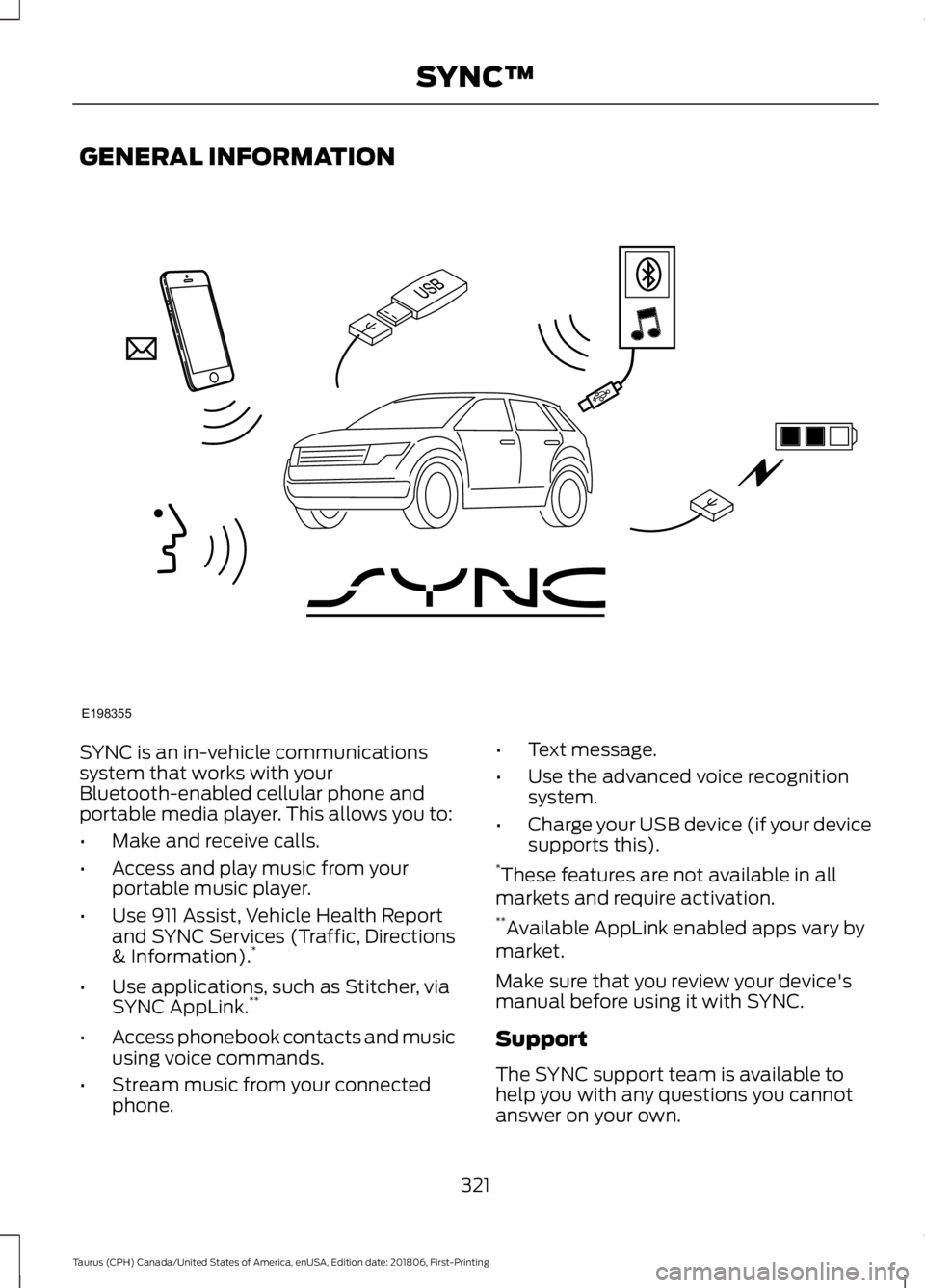
SYNC is an in-vehicle communications
system that works with your
Bluetooth-enabled cellular phone and
portable media player. This allows you to:
•
Make and receive calls.
• Access and play music from your
portable music player.
• Use 911 Assist, Vehicle Health Report
and SYNC Services (Traffic, Directions
& Information). *
• Use applications, such as Stitcher, via
SYNC AppLink. **
• Access phonebook contacts and music
using voice commands.
• Stream music from your connected
phone. •
Text message.
• Use the advanced voice recognition
system.
• Charge your USB device (if your device
supports this).
* These features are not available in all
markets and require activation.
** Available AppLink enabled apps vary by
market.
Make sure that you review your device's
manual before using it with SYNC.
Support
The SYNC support team is available to
help you with any questions you cannot
answer on your own.
321
Taurus (CPH) Canada/United States of America, enUSA, Edition date: 201806, First-Printing SYNC™E198355
Page 325 of 515
Monday-Saturday, 8:30am-9:00pm EST.
Sunday, 10:30am-7:30pm EST.
In the United States, call 1-800-392-3673.
In Canada, call 1-800-565-3673.
Times are subject to change due to
holidays.
SYNC Owner Account
Why do I need a SYNC owner account?
•
Required to activate Vehicle Health
Report and to view the reports online.
• Required to activate the
subscription-based SYNC Services and
to personalize your Saved Points and
Favorites.
• Essential for keeping up with the latest
software downloads available for
SYNC.
• Access to customer support for any
questions you may have.
Driving Restrictions
For your safety, certain features are
speed-dependent and restricted when your
vehicle is traveling over 3 mph (5 km/h).
Safety Information WARNING:
Driving while
distracted can result in loss of vehicle
control, crash and injury. We strongly
recommend that you use extreme
caution when using any device that may
take your focus off the road. Your
primary responsibility is the safe
operation of your vehicle. We
recommend against the use of any hand-held device while driving and
encourage the use of voice-operated
systems when possible. Make sure you
are aware of all applicable local laws
that may affect the use of electronic
devices while driving.
When using SYNC:
• Do not operate playing devices if the
power cords or cables are broken, split
or damaged. Place cords and cables
out of the way, so they do not interfere
with the operation of pedals, seats,
compartments or safe driving abilities.
• Do not leave playing devices in your
vehicle during extreme conditions as it
could cause them damage. See your
device's manual for further information.
• Do not attempt to service or repair the
system. See an authorized dealer.
Privacy Information
When a cellular phone is connected to
SYNC, the system creates a profile within
your vehicle that is linked to that cellular
phone. This profile is created in order to
offer you more cellular features and to
operate more efficiently. Among other
things, this profile may contain data about
your cellular phone book, text messages
(read and unread), and call history,
including history of calls when your cellular
phone was not connected to the system.
In addition, if you connect a media device,
the system creates and retains an index of
supported media content. The system also
records a short development log of
approximately 10 minutes of all recent
system activity. The log profile and other
system data may be used to improve the
system and help diagnose any problems
that may occur.
322
Taurus (CPH) Canada/United States of America, enUSA, Edition date: 201806, First-Printing SYNC™
Page 326 of 515
The cellular profile, media device index,
and development log will remain in the
vehicle unless you delete them and are
generally accessible only in the vehicle
when the cellular phone or media player
is connected. If you no longer plan to use
the system or the vehicle, we recommend
you perform a Master Reset to erase all
stored information.
System data cannot be accessed without
special equipment and access to the
vehicle's SYNC module. Ford Motor
Company and Ford of Canada will not
access the system data for any purpose
other than as described absent consent, a
court order, or where required by law
enforcement, other government
authorities, or other third parties acting
with lawful authority. Other parties may
seek to access the information
independently of Ford Motor Company and
Ford of Canada. For further privacy
information, see the sections on 911 Assist,
Vehicle Health Report, and Traffic,
Directions and Information.
USING VOICE RECOGNITION
This system helps you control many
features using voice commands. This
allows you to keep your hands on the
wheel and focus on what is in front of you.
Helpful Hints
•
Make sure the interior of your vehicle is
as quiet as possible. Wind noise from
open windows and road vibrations may
prevent the system from correctly
recognizing spoken commands.
• After pressing the voice button, wait
until after the tone sounds and
Listening appears before saying a
command. Any command spoken
before this does not register with the
system.
• Speak naturally, without long pauses
between words.
• At any time, you can interrupt the
system while it is speaking by pressing
the voice button.
Initiating a Voice Session Initiate a voice session by
pressing the voice button on the
steering wheel controls. See
Voice Control (page 64).
When prompted you can say any of the following: If you want the system to carry out the following
Voice command
Stream audio from your phone.
Bluetooth Audio
Cancel the requested action.
Cancel
Access mobile applications.
mobile (apps | applica-
tions)
Make calls.
Phone
Access the device connected to your USB port.
USB [1]
Run a vehicle health report.
Vehicle Health (Report)
323
Taurus (CPH) Canada/United States of America, enUSA, Edition date: 201806, First-Printing SYNC™E142599
Page 328 of 515

Confirmation prompts are short questions
the system asks when it is not sure of your
request or when there are multiple possible
responses to your request. For example,
the system may ask "Phone, is that
correct?". If turned off, the system simply
makes a best guess as to what you
requested and may ask you to confirm
settings.If you want the system to carry out the following
Voice command
Make a best guess from the command; you may still occa-
sionally be asked to confirm settings.
Confirmation Prompts
Off
Clarify your voice command with a short question.
Confirmation Prompts
On
The system creates candidate lists when
it has the same confidence level of several
options based on your voice command.
When turned on, it may prompt you with
as many as four possibilities for
clarification. For example, say "Say 1 after the tone to
call John Doe at home. Say 2 after the tone
to call Johnny Doe on mobile. Say 3 after
the tone to call Jane Doe at home." You
could also say "Say 1 after the tone to play
John Doe, Say 2 after the tone to play
Johnny Doe."If you want the system to carry out the following
Voice command
Make a best guess from the media candidate list. You may
still occasionally be asked questions.
Media Candidate Lists
Off
Clarify your voice command for media candidates.
Media Candidate Lists On
Make a best guess from the phone candidate list. You may
still occasionally be asked questions.
Phone Candidate Lists
Off
Clarify your voice command for phone candidates.
Phone Candidate Lists
On
325
Taurus (CPH) Canada/United States of America, enUSA, Edition date: 201806, First-Printing SYNC™