reset FORD TAURUS 2019 Owner's Manual
[x] Cancel search | Manufacturer: FORD, Model Year: 2019, Model line: TAURUS, Model: FORD TAURUS 2019Pages: 515, PDF Size: 17.29 MB
Page 264 of 515
•
Cover interior trim to prevent fading.
• Keep all rubber parts free from oil and
solvents.
Engine
• Change the engine oil and filter prior to
storage because used engine oil
contains contaminates which may
cause engine damage.
• Start the engine every 15 days for a
minimum of 15 minutes. Run at fast idle
with the climate controls set to defrost
until the engine reaches normal
operating temperature.
• With your foot on the brake, shift
through all the gears while the engine
is running.
• We recommend that you change the
engine oil before you use your vehicle
again.
Fuel system
• Fill the fuel tank with high-quality fuel
until the first automatic shutoff of the
fuel pump nozzle.
Cooling system
• Protect against freezing temperatures.
• When removing your vehicle from
storage, check coolant fluid level.
Confirm that there are no cooling
system leaks and that fluid is at the
recommended level.
Battery
• Check and recharge as necessary. Keep
connections clean.
• If storing your vehicle for more than 30
days without recharging the battery,
we recommend that you disconnect
the battery cables to maintain battery
charge for quick starting. Note:
It is necessary to reset memory
features if battery cables are disconnected.
Brakes
• Make sure the brakes and parking brake
release fully.
Tires
• Maintain recommended air pressure.
Miscellaneous
• Make sure all linkages, cables, levers
and pins under your vehicle are covered
with grease to prevent rust.
• Move vehicles at least 25 ft (7.5 m)
every 15 days to lubricate working parts
and prevent corrosion.
Removing Vehicle From Storage
When your vehicle is ready to come out of
storage, do the following:
• Wash your vehicle to remove any dirt
or grease film build-up on window
surfaces.
• Check windshield wipers for any
deterioration.
• Check under the hood for any foreign
material that may have collected
during storage such as mice or squirrel
nests.
• Check the exhaust for any foreign
material that may have collected
during storage.
• Check tire pressures and set tire
inflation per the Tire Label.
• Check brake pedal operation. Drive
your vehicle
15 ft (4.5 m) back and
forth to remove rust build-up.
261
Taurus (CPH) Canada/United States of America, enUSA, Edition date: 201806, First-Printing Vehicle Care
Page 314 of 515
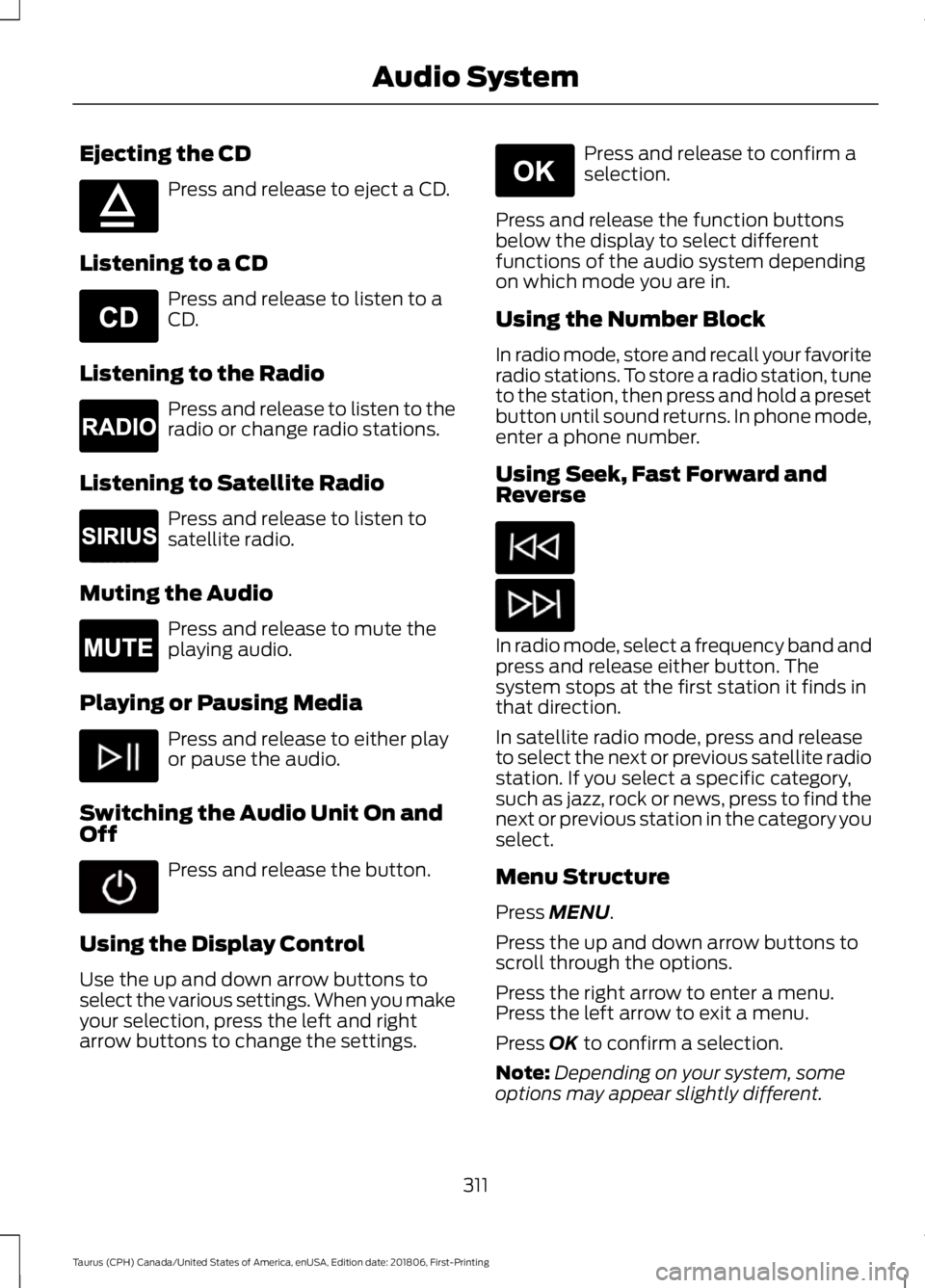
Ejecting the CD
Press and release to eject a CD.
Listening to a CD Press and release to listen to a
CD.
Listening to the Radio Press and release to listen to the
radio or change radio stations.
Listening to Satellite Radio Press and release to listen to
satellite radio.
Muting the Audio Press and release to mute the
playing audio.
Playing or Pausing Media Press and release to either play
or pause the audio.
Switching the Audio Unit On and
Off Press and release the button.
Using the Display Control
Use the up and down arrow buttons to
select the various settings. When you make
your selection, press the left and right
arrow buttons to change the settings. Press and release to confirm a
selection.
Press and release the function buttons
below the display to select different
functions of the audio system depending
on which mode you are in.
Using the Number Block
In radio mode, store and recall your favorite
radio stations. To store a radio station, tune
to the station, then press and hold a preset
button until sound returns. In phone mode,
enter a phone number.
Using Seek, Fast Forward and
Reverse In radio mode, select a frequency band and
press and release either button. The
system stops at the first station it finds in
that direction.
In satellite radio mode, press and release
to select the next or previous satellite radio
station. If you select a specific category,
such as jazz, rock or news, press to find the
next or previous station in the category you
select.
Menu Structure
Press MENU.
Press the up and down arrow buttons to
scroll through the options.
Press the right arrow to enter a menu.
Press the left arrow to exit a menu.
Press
OK to confirm a selection.
Note: Depending on your system, some
options may appear slightly different.
311
Taurus (CPH) Canada/United States of America, enUSA, Edition date: 201806, First-Printing Audio SystemE265032 E265039 E265033 E265034 E265043 E265041
Page 320 of 515
SiriusXM Satellite Radio Service
Note:
SiriusXM reserves the unrestricted
right to change, rearrange, add or delete
programming including canceling, moving
or adding particular channels, and its prices,
at any time, with or without notice to you.
Ford Motor Company shall not be
responsible for any such programming
changes. SiriusXM satellite radio is a
subscription-based satellite radio service
that broadcasts a variety of music, sports,
news, weather, traffic and entertainment
programming. Your factory-installed
SiriusXM satellite radio system includes
hardware and a limited subscription term,
which begins on the date of sale or lease
of your vehicle. See an authorized dealer
for availability.
For more information on extended
subscription terms (a service fee is
required), the online media player and a
complete list of SiriusXM satellite radio
channels, and other features, please visit
www.siriusxm.com in the United States,
www.siriusxm.ca in Canada, or call
SiriusXM at 1-888-539-7474.
Satellite Radio Electronic Serial
Number (ESN)
You need your ESN to activate, modify or
track your satellite radio account. When in
satellite radio mode, tune to channel 0.
Troubleshooting Action
Condition
Message
No action required. This
message should disappear
shortly.
Radio requires more than
two seconds to produce
audio for the selected
channel.
Acquiring\b
If this message does not
clear shortly, or with an igni-
tion key cycle, your receiver
may have a fault. See an
authorized dealer for service.
There is an internal module
or system failure present.
Satellite antenna fault
SIRIUS system failure
Tune to another channel or
choose another preset.
The channel is no longer
available.
Invalid Channel
Contact SiriusXM at 1-888-
539-7474 to subscribe to
the channel, or tune to
another channel.
Your subscription does not
include this channel.
Unsubscribed Channel
317
Taurus (CPH) Canada/United States of America, enUSA, Edition date: 201806, First-Printing Audio SystemE208625
Page 326 of 515
The cellular profile, media device index,
and development log will remain in the
vehicle unless you delete them and are
generally accessible only in the vehicle
when the cellular phone or media player
is connected. If you no longer plan to use
the system or the vehicle, we recommend
you perform a Master Reset to erase all
stored information.
System data cannot be accessed without
special equipment and access to the
vehicle's SYNC module. Ford Motor
Company and Ford of Canada will not
access the system data for any purpose
other than as described absent consent, a
court order, or where required by law
enforcement, other government
authorities, or other third parties acting
with lawful authority. Other parties may
seek to access the information
independently of Ford Motor Company and
Ford of Canada. For further privacy
information, see the sections on 911 Assist,
Vehicle Health Report, and Traffic,
Directions and Information.
USING VOICE RECOGNITION
This system helps you control many
features using voice commands. This
allows you to keep your hands on the
wheel and focus on what is in front of you.
Helpful Hints
•
Make sure the interior of your vehicle is
as quiet as possible. Wind noise from
open windows and road vibrations may
prevent the system from correctly
recognizing spoken commands.
• After pressing the voice button, wait
until after the tone sounds and
Listening appears before saying a
command. Any command spoken
before this does not register with the
system.
• Speak naturally, without long pauses
between words.
• At any time, you can interrupt the
system while it is speaking by pressing
the voice button.
Initiating a Voice Session Initiate a voice session by
pressing the voice button on the
steering wheel controls. See
Voice Control (page 64).
When prompted you can say any of the following: If you want the system to carry out the following
Voice command
Stream audio from your phone.
Bluetooth Audio
Cancel the requested action.
Cancel
Access mobile applications.
mobile (apps | applica-
tions)
Make calls.
Phone
Access the device connected to your USB port.
USB [1]
Run a vehicle health report.
Vehicle Health (Report)
323
Taurus (CPH) Canada/United States of America, enUSA, Edition date: 201806, First-Printing SYNC™E142599
Page 340 of 515
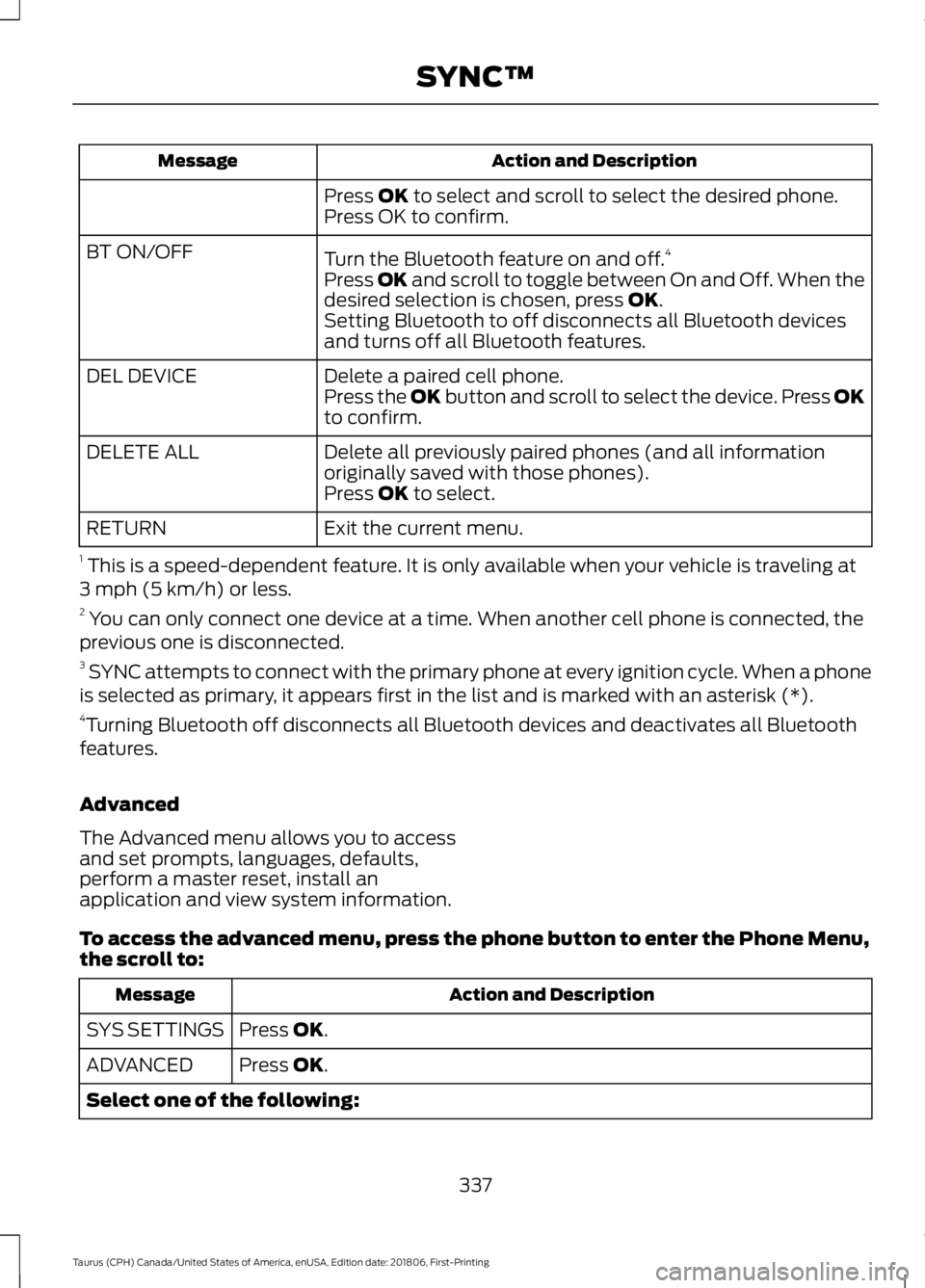
Action and Description
Message
Press OK to select and scroll to select the desired phone.
Press OK to confirm.
Turn the Bluetooth feature on and off. 4
BT ON/OFF
Press
OK and scroll to toggle between On and Off. When the
desired selection is chosen, press OK.
Setting Bluetooth to off disconnects all Bluetooth devices
and turns off all Bluetooth features.
Delete a paired cell phone.
DEL DEVICE
Press the OK button and scroll to select the device. Press OK
to confirm.
Delete all previously paired phones (and all information
originally saved with those phones).
DELETE ALL
Press
OK to select.
Exit the current menu.
RETURN
1 This is a speed-dependent feature. It is only available when your vehicle is traveling at
3 mph (5 km/h) or less.
2 You can only connect one device at a time. When another cell phone is connected, the
previous one is disconnected.
3 SYNC attempts to connect with the primary phone at every ignition cycle. When a phone
is selected as primary, it appears first in the list and is marked with an asterisk (*).
4 Turning Bluetooth off disconnects all Bluetooth devices and deactivates all Bluetooth
features.
Advanced
The Advanced menu allows you to access
and set prompts, languages, defaults,
perform a master reset, install an
application and view system information.
To access the advanced menu, press the phone button to enter the Phone Menu,
the scroll to: Action and Description
Message
Press
OK.
SYS SETTINGS
Press
OK.
ADVANCED
Select one of the following:
337
Taurus (CPH) Canada/United States of America, enUSA, Edition date: 201806, First-Printing SYNC™
Page 341 of 515
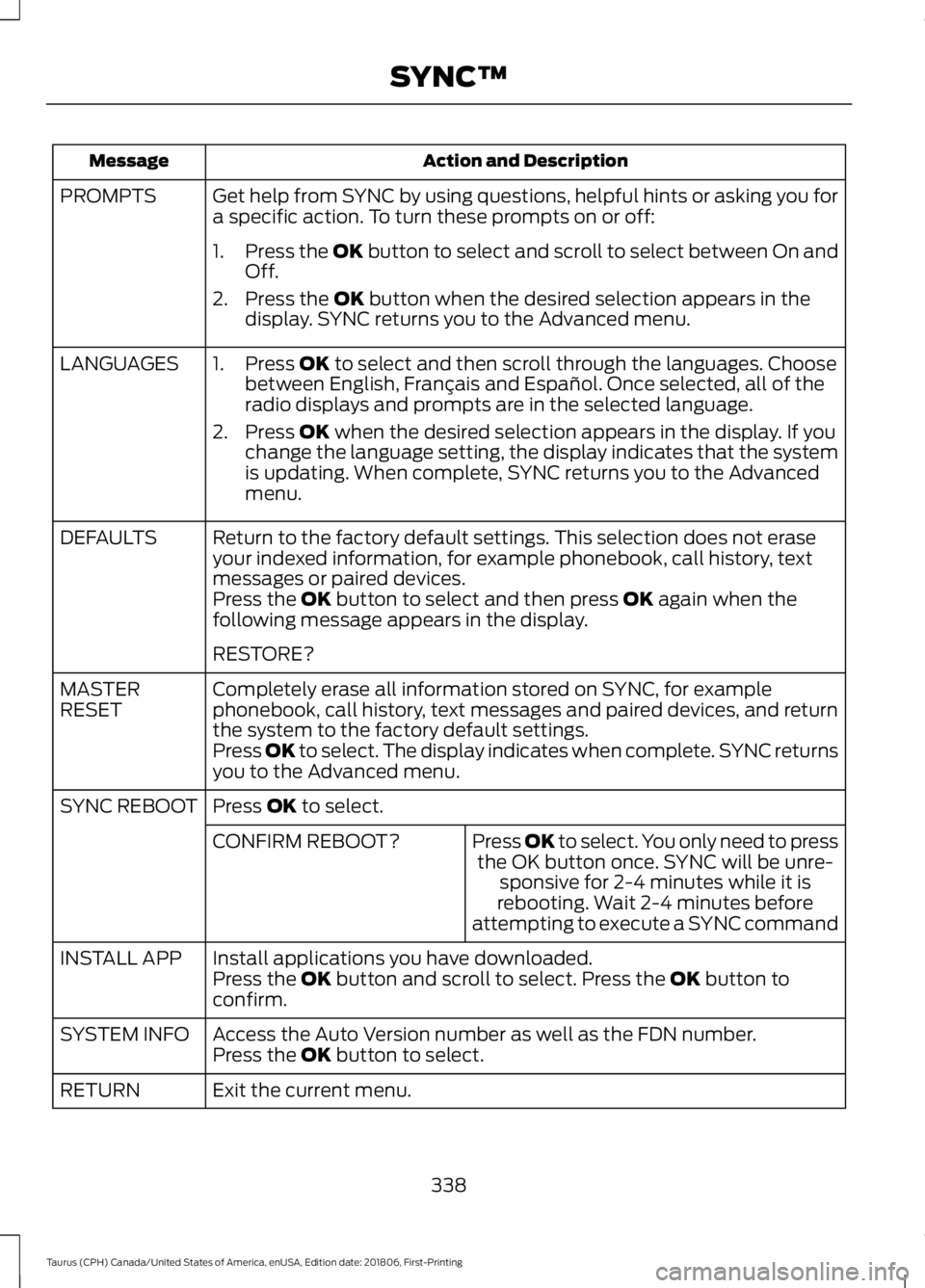
Action and Description
Message
Get help from SYNC by using questions, helpful hints or asking you for
a specific action. To turn these prompts on or off:
PROMPTS
1.Press the OK button to select and scroll to select between On and
Off.
2. Press the
OK button when the desired selection appears in the
display. SYNC returns you to the Advanced menu.
1. Press
OK to select and then scroll through the languages. Choose
between English, Français and Español. Once selected, all of the
radio displays and prompts are in the selected language.
2. Press
OK when the desired selection appears in the display. If you
change the language setting, the display indicates that the system
is updating. When complete, SYNC returns you to the Advanced
menu.
LANGUAGES
Return to the factory default settings. This selection does not erase
your indexed information, for example phonebook, call history, text
messages or paired devices.
DEFAULTS
Press the
OK button to select and then press OK again when the
following message appears in the display.
RESTORE?
Completely erase all information stored on SYNC, for example
phonebook, call history, text messages and paired devices, and return
the system to the factory default settings.
MASTER
RESET
Press OK to select. The display indicates when complete. SYNC returns
you to the Advanced menu.
Press
OK to select.
SYNC REBOOT
Press OK to select. You only need to pressthe OK button once. SYNC will be unre- sponsive for 2-4 minutes while it is
rebooting. Wait 2-4 minutes before
attempting to execute a SYNC command
CONFIRM REBOOT?
Install applications you have downloaded.
INSTALL APP
Press the
OK button and scroll to select. Press the OK button to
confirm.
Access the Auto Version number as well as the FDN number.
SYSTEM INFO
Press the
OK button to select.
Exit the current menu.
RETURN
338
Taurus (CPH) Canada/United States of America, enUSA, Edition date: 201806, First-Printing SYNC™
Page 353 of 515
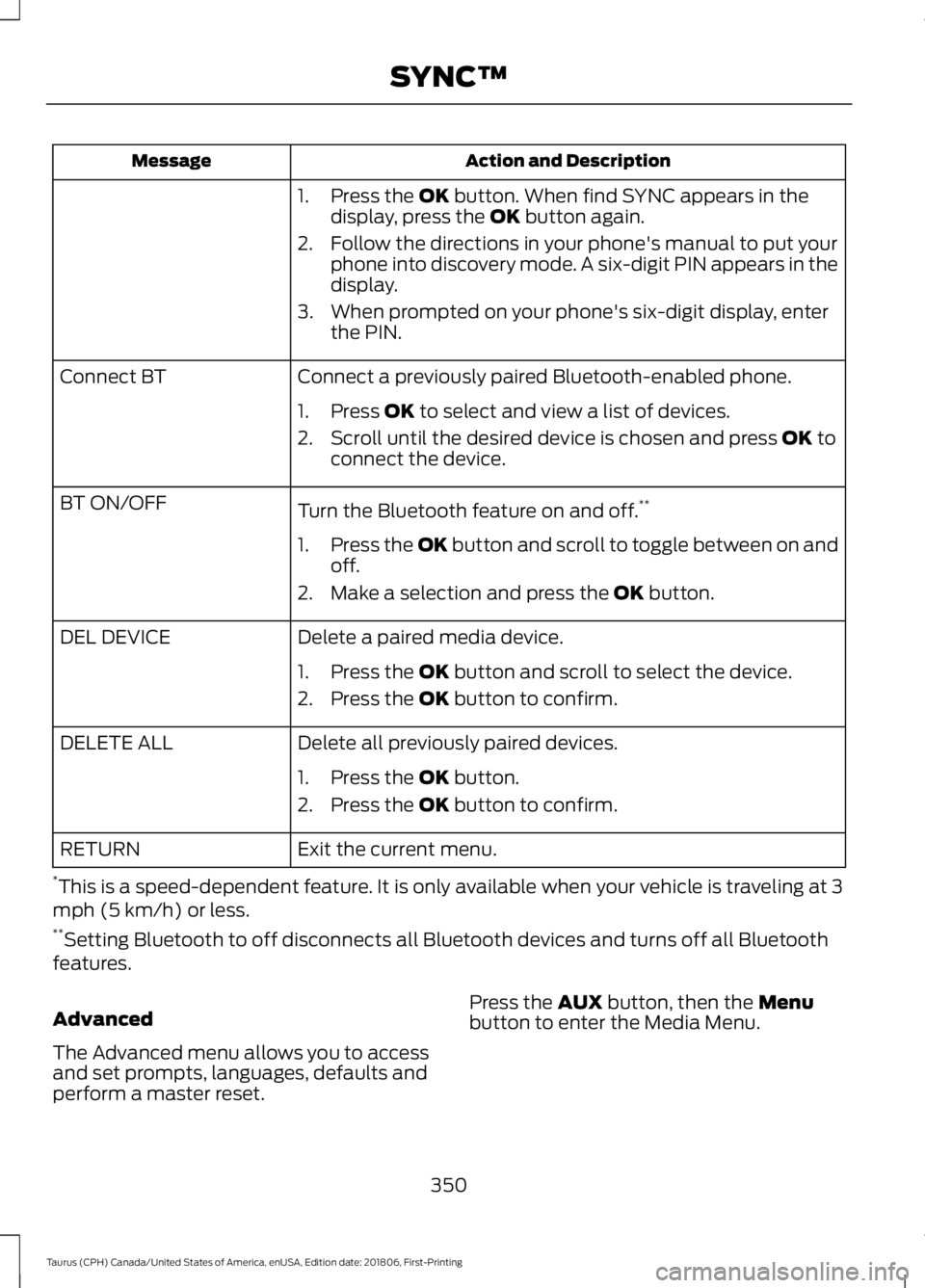
Action and Description
Message
1. Press the OK button. When find SYNC appears in the
display, press the OK button again.
2. Follow the directions in your phone's manual to put your phone into discovery mode. A six-digit PIN appears in the
display.
3. When prompted on your phone's six-digit display, enter the PIN.
Connect a previously paired Bluetooth-enabled phone.
Connect BT
1. Press
OK to select and view a list of devices.
2. Scroll until the desired device is chosen and press
OK to
connect the device.
Turn the Bluetooth feature on and off. **
BT ON/OFF
1.Press the OK button and scroll to toggle between on and
off.
2. Make a selection and press the
OK button.
Delete a paired media device.
DEL DEVICE
1. Press the
OK button and scroll to select the device.
2. Press the
OK button to confirm.
Delete all previously paired devices.
DELETE ALL
1. Press the
OK button.
2. Press the
OK button to confirm.
Exit the current menu.
RETURN
* This is a speed-dependent feature. It is only available when your vehicle is traveling at 3
mph (5 km/h) or less.
** Setting Bluetooth to off disconnects all Bluetooth devices and turns off all Bluetooth
features.
Advanced
The Advanced menu allows you to access
and set prompts, languages, defaults and
perform a master reset. Press the
AUX button, then the Menu
button to enter the Media Menu.
350
Taurus (CPH) Canada/United States of America, enUSA, Edition date: 201806, First-Printing SYNC™
Page 354 of 515
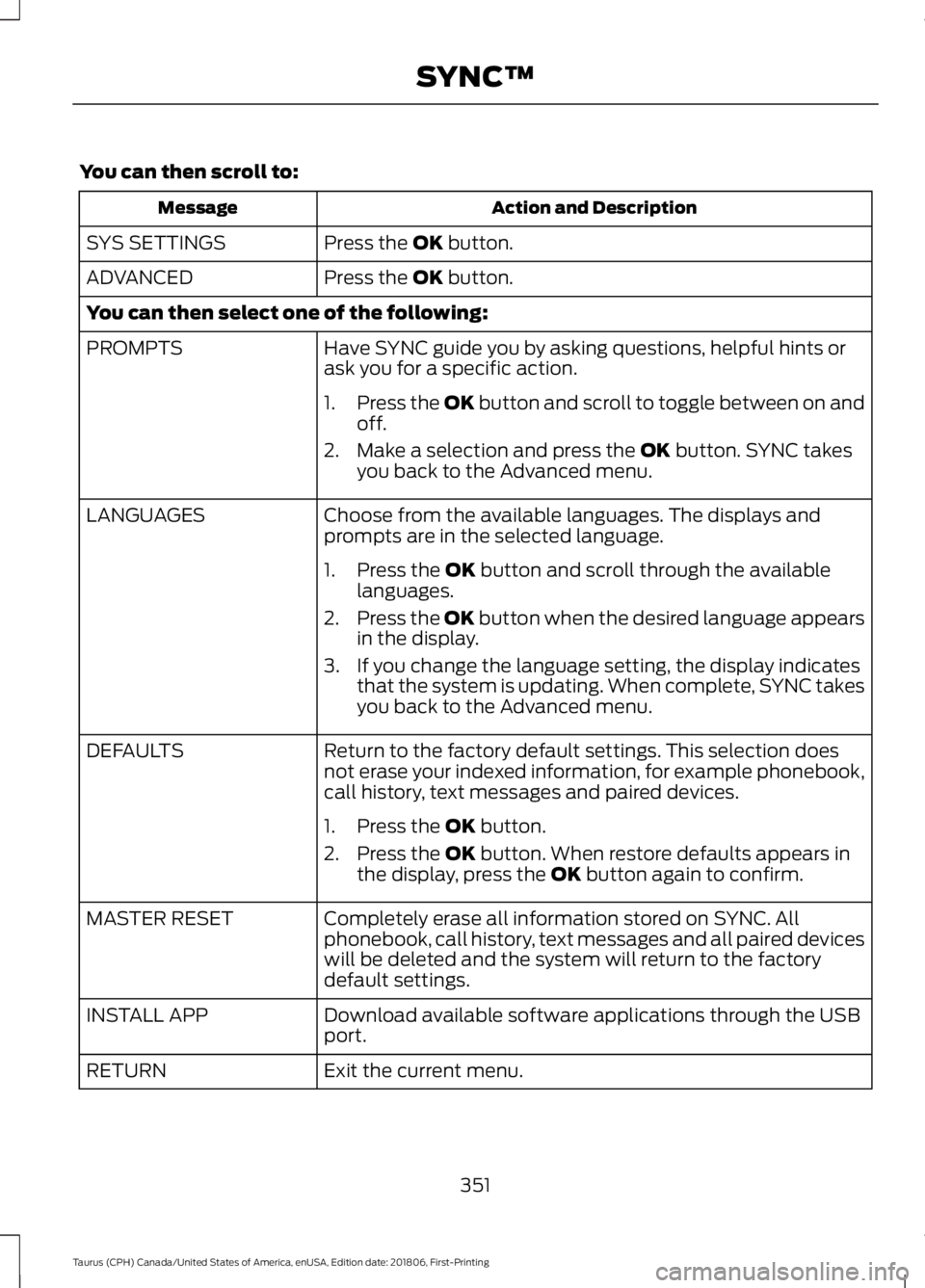
You can then scroll to:
Action and Description
Message
Press the OK button.
SYS SETTINGS
Press the
OK button.
ADVANCED
You can then select one of the following:
Have SYNC guide you by asking questions, helpful hints or
ask you for a specific action.
PROMPTS
1.Press the OK button and scroll to toggle between on and
off.
2. Make a selection and press the
OK button. SYNC takes
you back to the Advanced menu.
Choose from the available languages. The displays and
prompts are in the selected language.
LANGUAGES
1. Press the
OK button and scroll through the available
languages.
2. Press the OK button when the desired language appears
in the display.
3. If you change the language setting, the display indicates that the system is updating. When complete, SYNC takes
you back to the Advanced menu.
Return to the factory default settings. This selection does
not erase your indexed information, for example phonebook,
call history, text messages and paired devices.
DEFAULTS
1. Press the
OK button.
2. Press the
OK button. When restore defaults appears in
the display, press the OK button again to confirm.
Completely erase all information stored on SYNC. All
phonebook, call history, text messages and all paired devices
will be deleted and the system will return to the factory
default settings.
MASTER RESET
Download available software applications through the USB
port.
INSTALL APP
Exit the current menu.
RETURN
351
Taurus (CPH) Canada/United States of America, enUSA, Edition date: 201806, First-Printing SYNC™
Page 355 of 515
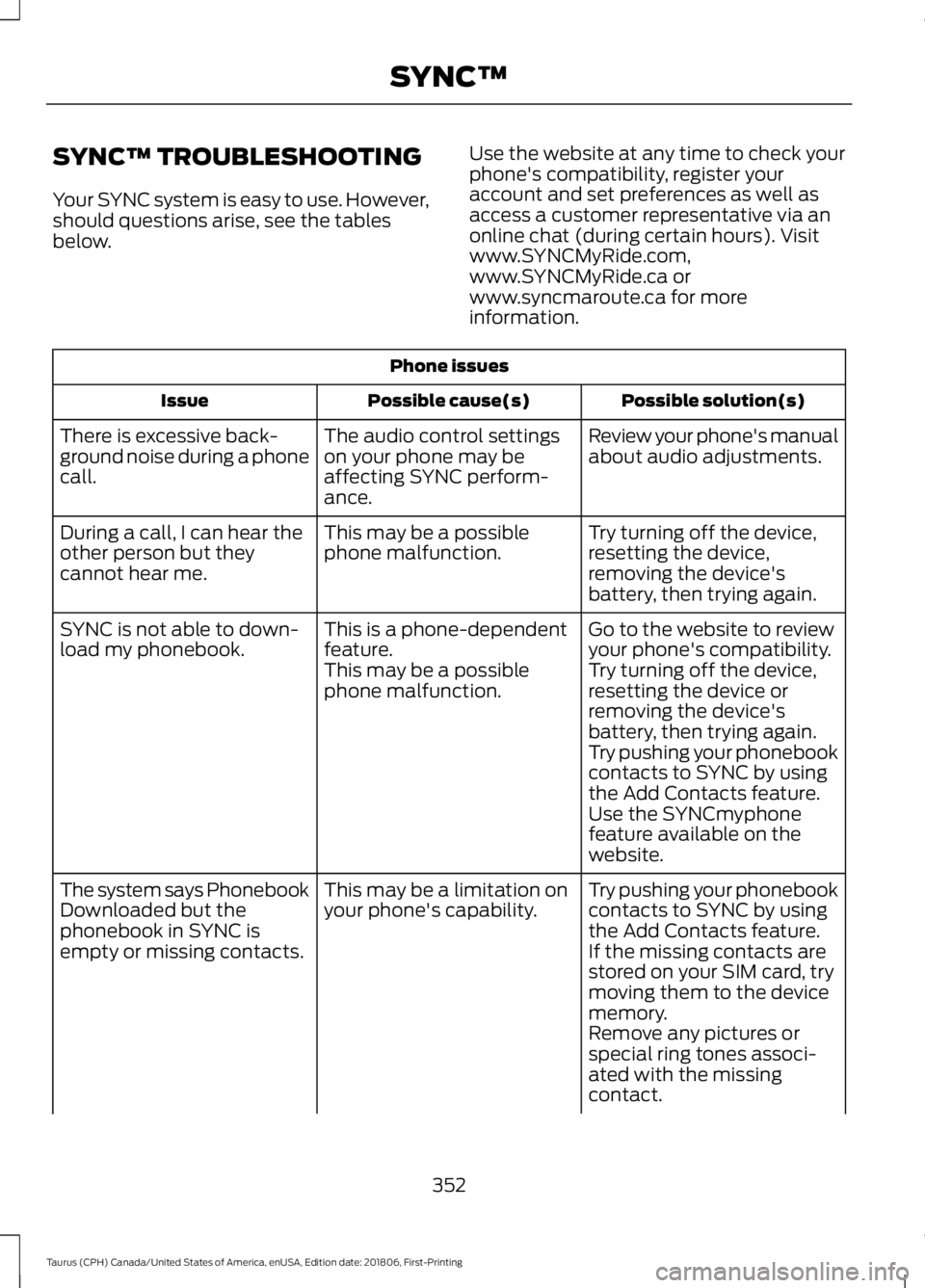
SYNC™ TROUBLESHOOTING
Your SYNC system is easy to use. However,
should questions arise, see the tables
below.
Use the website at any time to check your
phone's compatibility, register your
account and set preferences as well as
access a customer representative via an
online chat (during certain hours). Visit
www.SYNCMyRide.com,
www.SYNCMyRide.ca or
www.syncmaroute.ca for more
information.Phone issues
Possible solution(s)
Possible cause(s)
Issue
Review your phone's manual
about audio adjustments.
The audio control settings
on your phone may be
affecting SYNC perform-
ance.
There is excessive back-
ground noise during a phone
call.
Try turning off the device,
resetting the device,
removing the device's
battery, then trying again.
This may be a possible
phone malfunction.
During a call, I can hear the
other person but they
cannot hear me.
Go to the website to review
your phone's compatibility.
This is a phone-dependent
feature.
SYNC is not able to down-
load my phonebook.
Try turning off the device,
resetting the device or
removing the device's
battery, then trying again.
This may be a possible
phone malfunction.
Try pushing your phonebook
contacts to SYNC by using
the Add Contacts feature.
Use the SYNCmyphone
feature available on the
website.
Try pushing your phonebook
contacts to SYNC by using
the Add Contacts feature.
This may be a limitation on
your phone's capability.
The system says Phonebook
Downloaded but the
phonebook in SYNC is
empty or missing contacts.
If the missing contacts are
stored on your SIM card, try
moving them to the device
memory.
Remove any pictures or
special ring tones associ-
ated with the missing
contact.
352
Taurus (CPH) Canada/United States of America, enUSA, Edition date: 201806, First-Printing SYNC™
Page 356 of 515
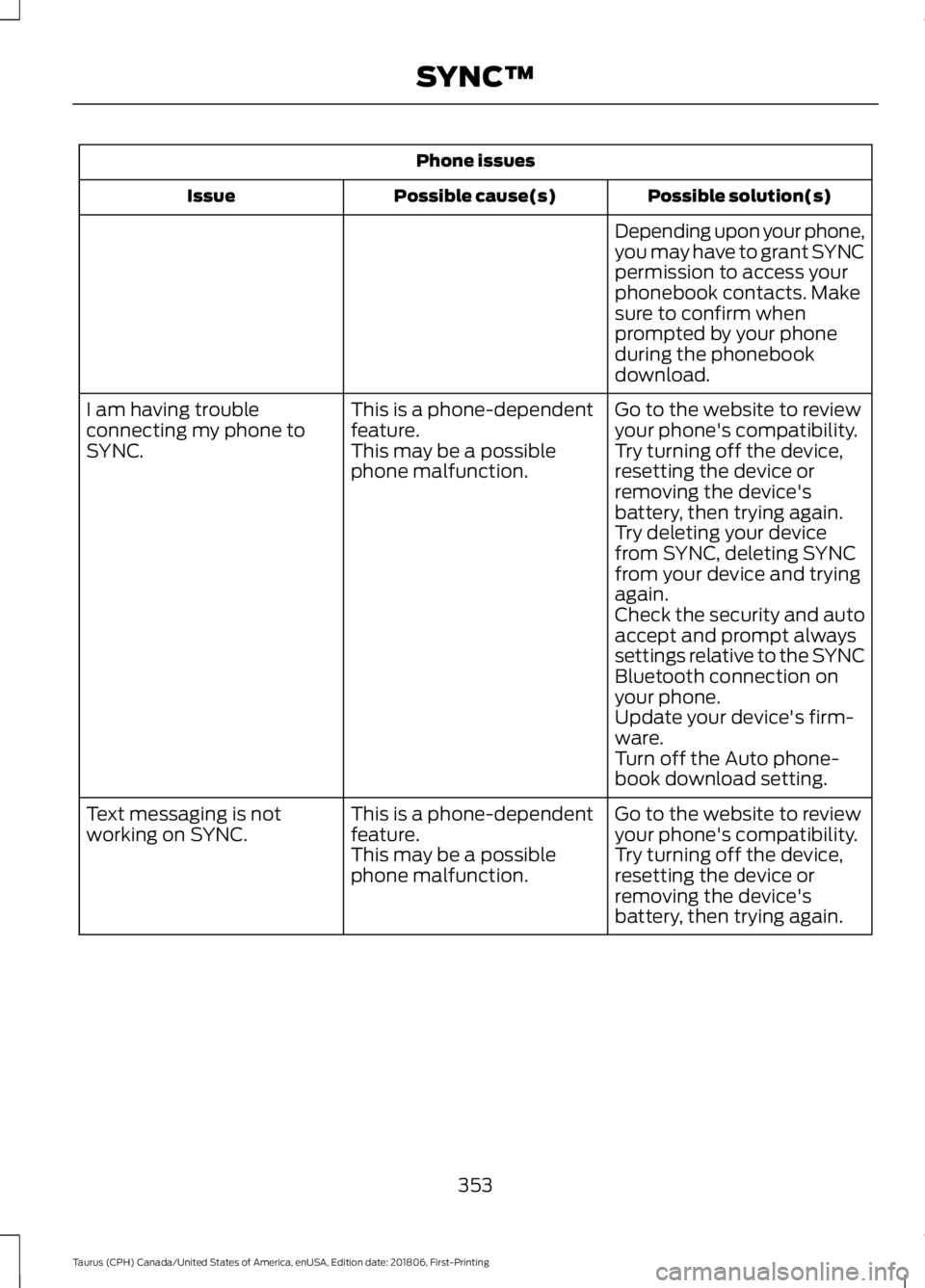
Phone issues
Possible solution(s)
Possible cause(s)
Issue
Depending upon your phone,
you may have to grant SYNC
permission to access your
phonebook contacts. Make
sure to confirm when
prompted by your phone
during the phonebook
download.
Go to the website to review
your phone's compatibility.
This is a phone-dependent
feature.
I am having trouble
connecting my phone to
SYNC.
Try turning off the device,
resetting the device or
removing the device's
battery, then trying again.
This may be a possible
phone malfunction.
Try deleting your device
from SYNC, deleting SYNC
from your device and trying
again.
Check the security and auto
accept and prompt always
settings relative to the SYNC
Bluetooth connection on
your phone.
Update your device's firm-
ware.
Turn off the Auto phone-
book download setting.
Go to the website to review
your phone's compatibility.
This is a phone-dependent
feature.
Text messaging is not
working on SYNC.
Try turning off the device,
resetting the device or
removing the device's
battery, then trying again.
This may be a possible
phone malfunction.
353
Taurus (CPH) Canada/United States of America, enUSA, Edition date: 201806, First-Printing SYNC™