wheel FORD TRANSIT 2020 Owners Manual
[x] Cancel search | Manufacturer: FORD, Model Year: 2020, Model line: TRANSIT, Model: FORD TRANSIT 2020Pages: 529, PDF Size: 8.3 MB
Page 359 of 529
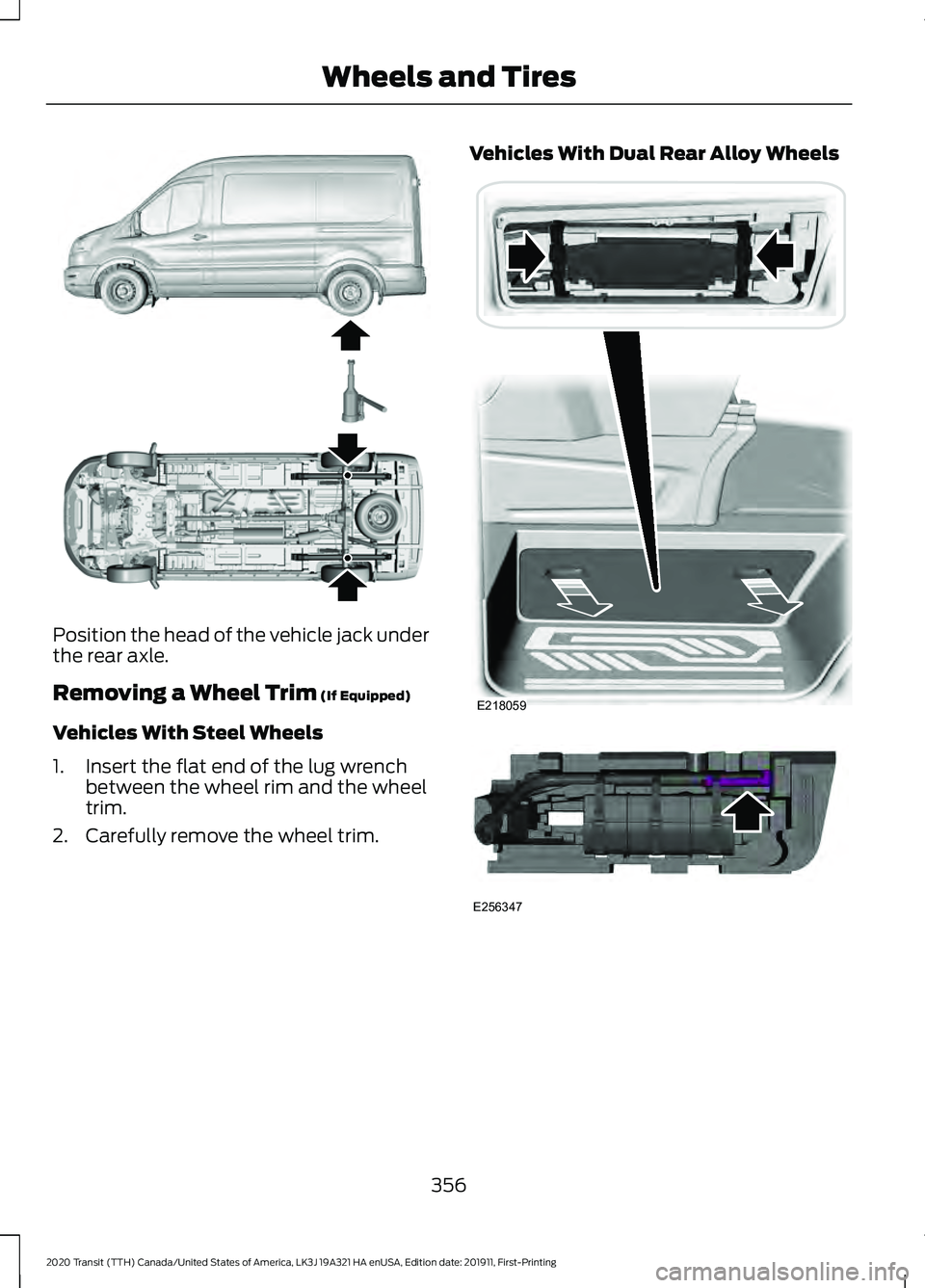
Position the head of the vehicle jack under
the rear axle.
Removing a Wheel Trim (If Equipped)
Vehicles With Steel Wheels
1. Insert the flat end of the lug wrench between the wheel rim and the wheel
trim.
2. Carefully remove the wheel trim. Vehicles With Dual Rear Alloy Wheels
356
2020 Transit (TTH) Canada/United States of America, LK3J 19A321 HA enUSA, Edition date: 201911, First-Printing Wheels and TiresE171406 E218059 E256347
Page 360 of 529
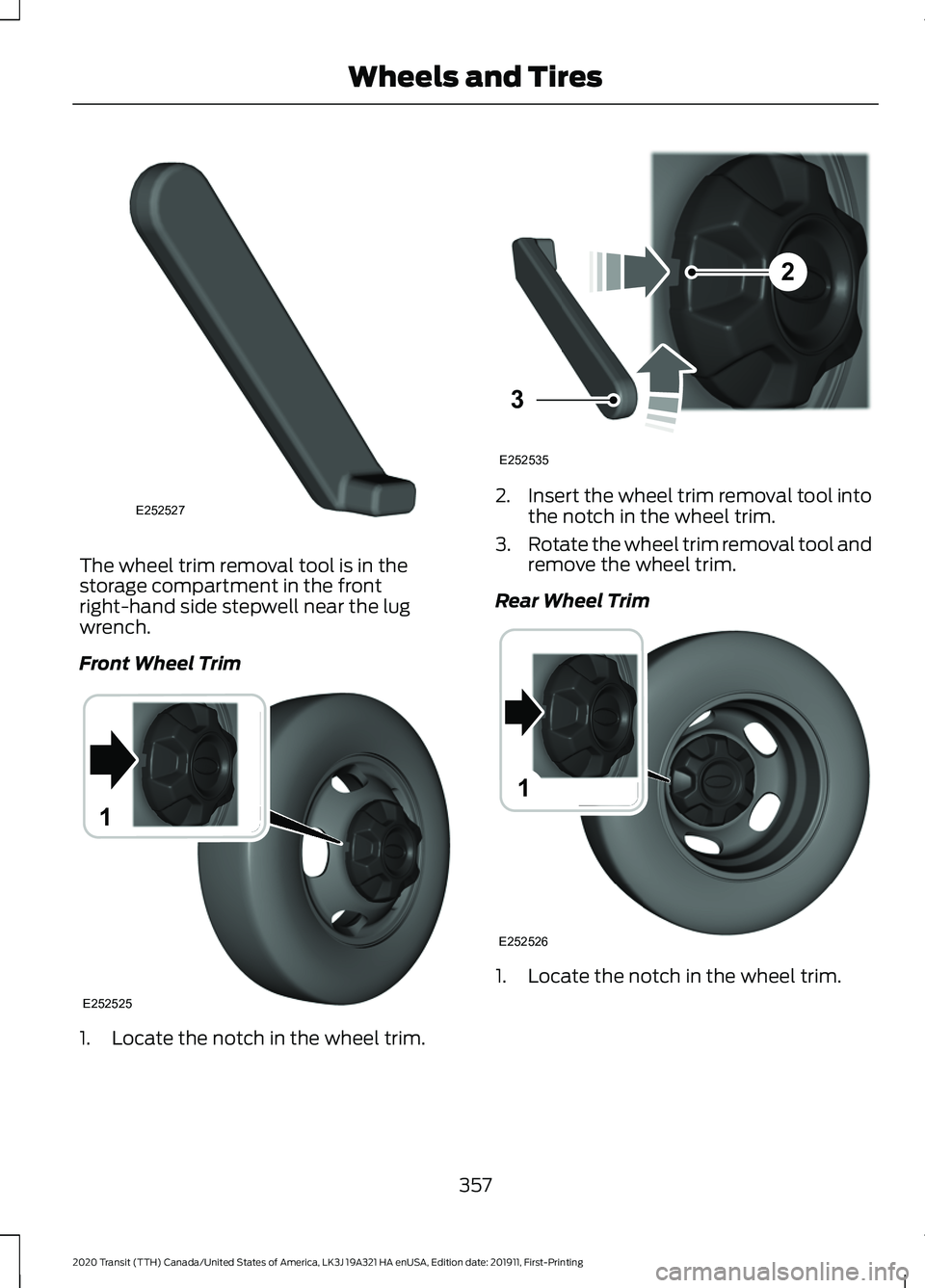
The wheel trim removal tool is in the
storage compartment in the front
right-hand side stepwell near the lug
wrench.
Front Wheel Trim
1. Locate the notch in the wheel trim. 2.
Insert the wheel trim removal tool into
the notch in the wheel trim.
3. Rotate the wheel trim removal tool and
remove the wheel trim.
Rear Wheel Trim 1. Locate the notch in the wheel trim.
357
2020 Transit (TTH) Canada/United States of America, LK3J 19A321 HA enUSA, Edition date: 201911, First-Printing Wheels and TiresE252527 E252525
1 2
3
E252535 1
E252526
Page 361 of 529
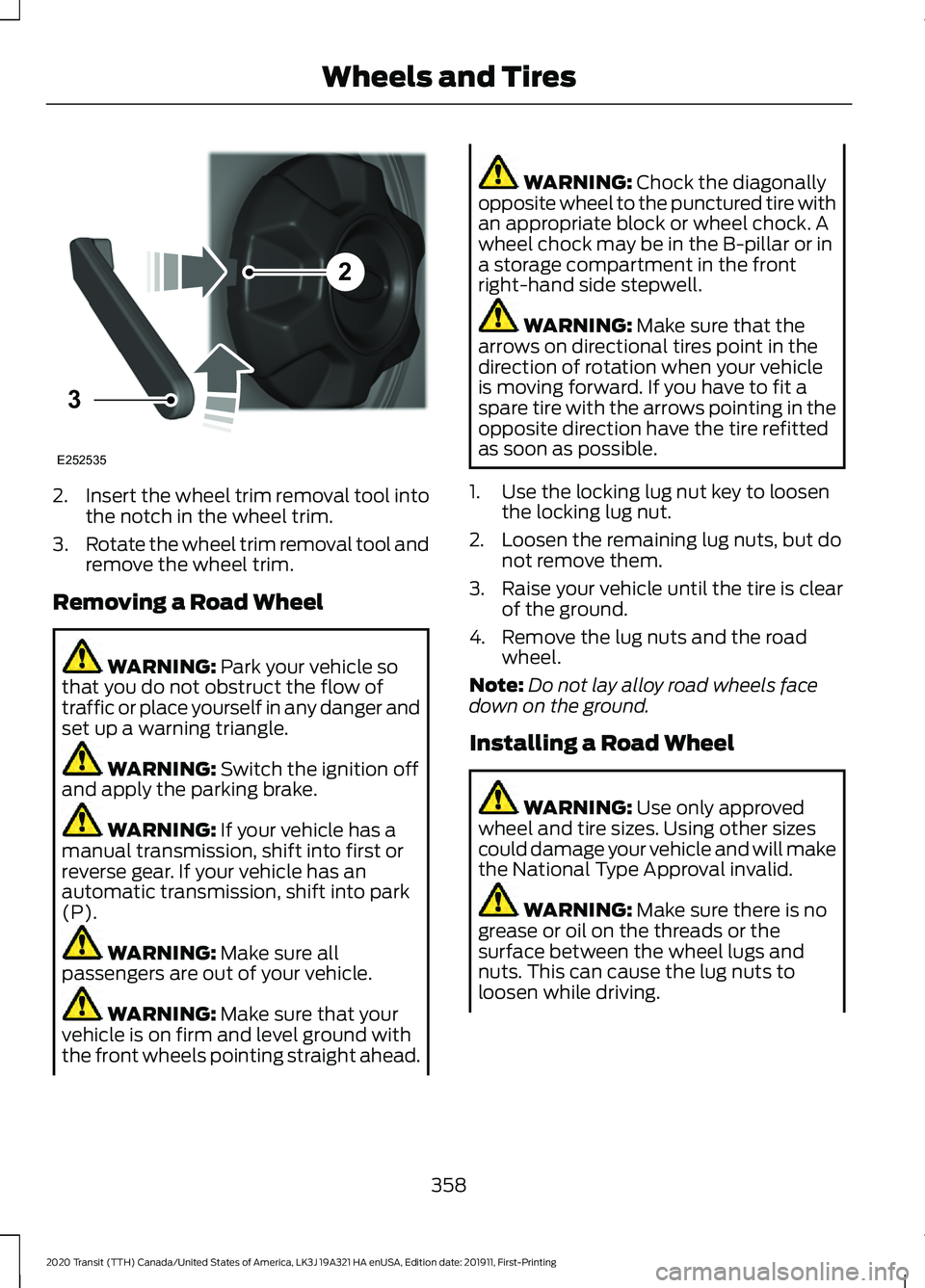
2.
Insert the wheel trim removal tool into
the notch in the wheel trim.
3. Rotate the wheel trim removal tool and
remove the wheel trim.
Removing a Road Wheel WARNING: Park your vehicle so
that you do not obstruct the flow of
traffic or place yourself in any danger and
set up a warning triangle. WARNING:
Switch the ignition off
and apply the parking brake. WARNING:
If your vehicle has a
manual transmission, shift into first or
reverse gear. If your vehicle has an
automatic transmission, shift into park
(P). WARNING:
Make sure all
passengers are out of your vehicle. WARNING:
Make sure that your
vehicle is on firm and level ground with
the front wheels pointing straight ahead. WARNING:
Chock the diagonally
opposite wheel to the punctured tire with
an appropriate block or wheel chock. A
wheel chock may be in the B-pillar or in
a storage compartment in the front
right-hand side stepwell. WARNING:
Make sure that the
arrows on directional tires point in the
direction of rotation when your vehicle
is moving forward. If you have to fit a
spare tire with the arrows pointing in the
opposite direction have the tire refitted
as soon as possible.
1. Use the locking lug nut key to loosen the locking lug nut.
2. Loosen the remaining lug nuts, but do not remove them.
3. Raise your vehicle until the tire is clear of the ground.
4. Remove the lug nuts and the road wheel.
Note: Do not lay alloy road wheels face
down on the ground.
Installing a Road Wheel WARNING:
Use only approved
wheel and tire sizes. Using other sizes
could damage your vehicle and will make
the National Type Approval invalid. WARNING:
Make sure there is no
grease or oil on the threads or the
surface between the wheel lugs and
nuts. This can cause the lug nuts to
loosen while driving.
358
2020 Transit (TTH) Canada/United States of America, LK3J 19A321 HA enUSA, Edition date: 201911, First-Printing Wheels and Tires2
3
E252535
Page 362 of 529
WARNING: When you install a
wheel, always remove any corrosion, dirt
or foreign materials present on the
mounting surfaces of the wheel or the
surface of the wheel hub, brake drum or
brake disc that contacts the wheel. Make
sure to secure any fasteners that attach
the rotor to the hub so they do not
interfere with the mounting surfaces of
the wheel. Installing wheels without
correct metal-to-metal contact at the
wheel mounting surfaces can cause the
wheel nuts to loosen and the wheel to
come off while your vehicle is in motion,
resulting in loss of vehicle control,
personal injury or death. WARNING:
Only use the specific
lug nuts and wheels supplied with your
vehicle. If in doubt, contact an authorized
dealer. WARNING:
Do not install alloy
wheels using lug nuts designed for use
with steel wheels. WARNING:
The lug nuts of alloy
wheels and spoked steel wheels can also
be used for the steel spare wheel for a
short time (maximum two weeks).
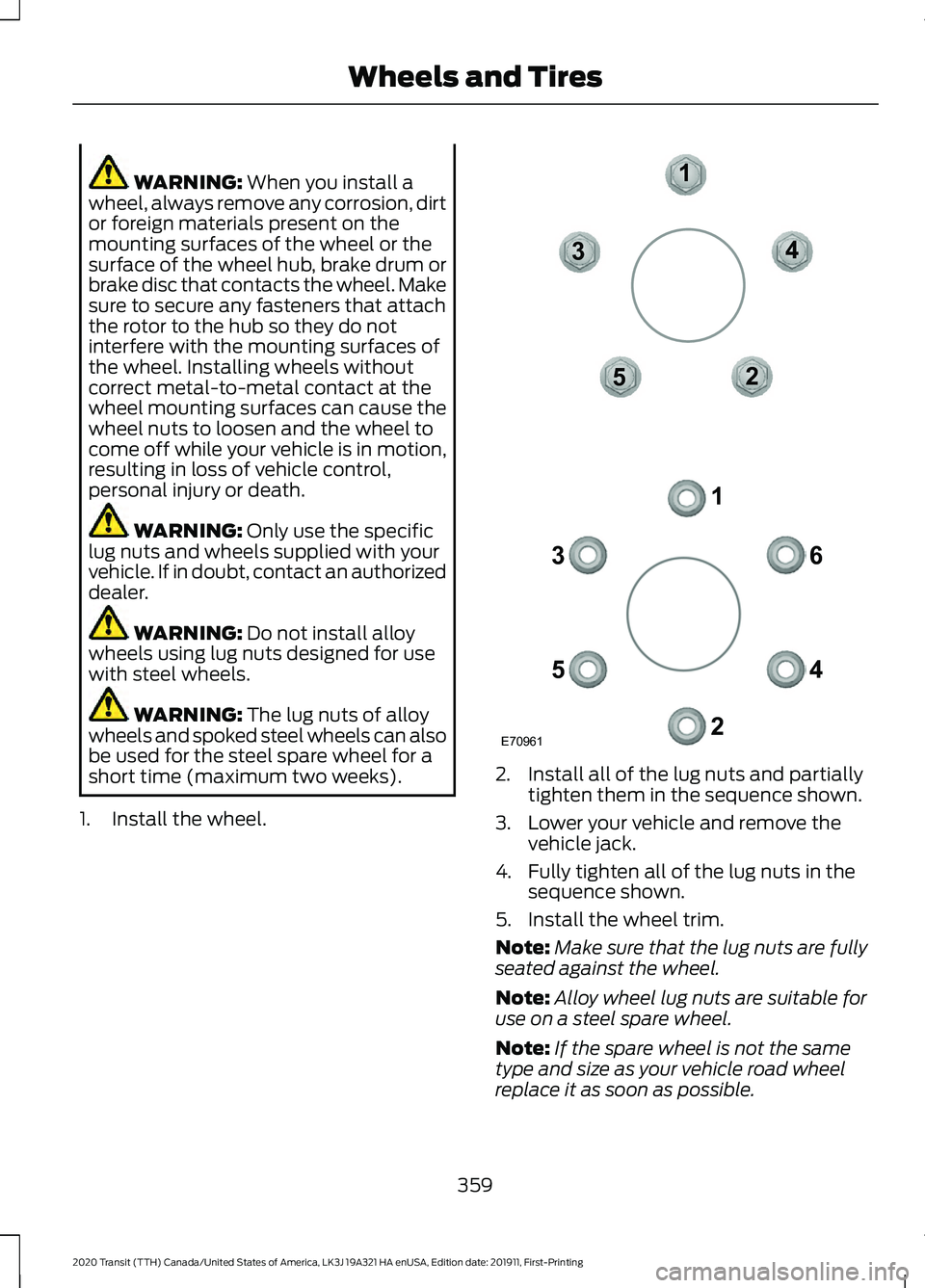
1. Install the wheel. 2. Install all of the lug nuts and partially
tighten them in the sequence shown.
3. Lower your vehicle and remove the vehicle jack.
4. Fully tighten all of the lug nuts in the sequence shown.
5. Install the wheel trim.
Note: Make sure that the lug nuts are fully
seated against the wheel.
Note: Alloy wheel lug nuts are suitable for
use on a steel spare wheel.
Note: If the spare wheel is not the same
type and size as your vehicle road wheel
replace it as soon as possible.
359
2020 Transit (TTH) Canada/United States of America, LK3J 19A321 HA enUSA, Edition date: 201911, First-Printing Wheels and TiresE70961
1
2
3
4
5 6
1
2
3
4
5
Page 363 of 529
Note:
Check the lug nuts for correct
tightness and check the tire pressure as
soon as possible. Note:
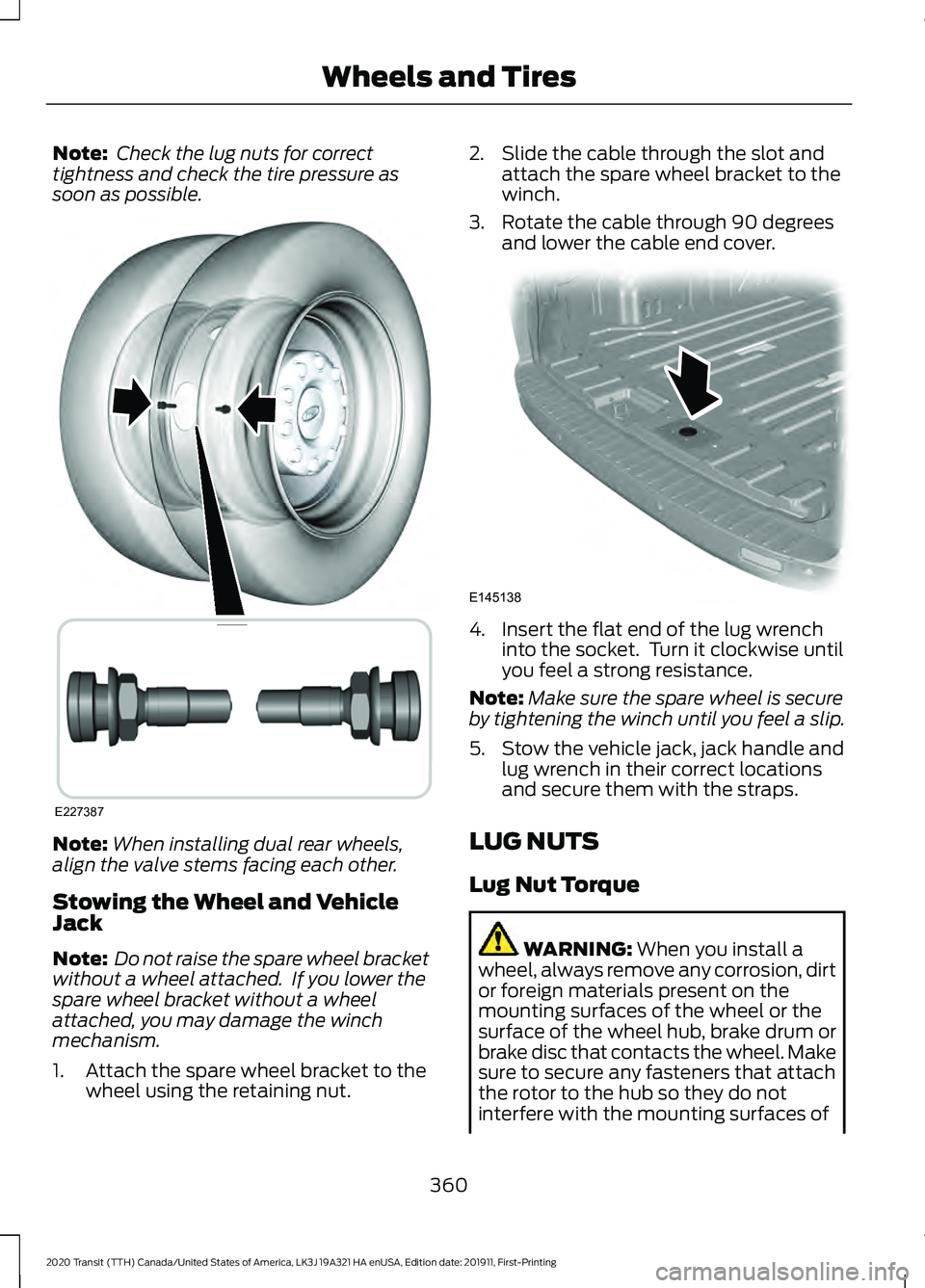
When installing dual rear wheels,
align the valve stems facing each other.
Stowing the Wheel and Vehicle
Jack
Note: Do not raise the spare wheel bracket
without a wheel attached. If you lower the
spare wheel bracket without a wheel
attached, you may damage the winch
mechanism.
1. Attach the spare wheel bracket to the wheel using the retaining nut. 2. Slide the cable through the slot and
attach the spare wheel bracket to the
winch.
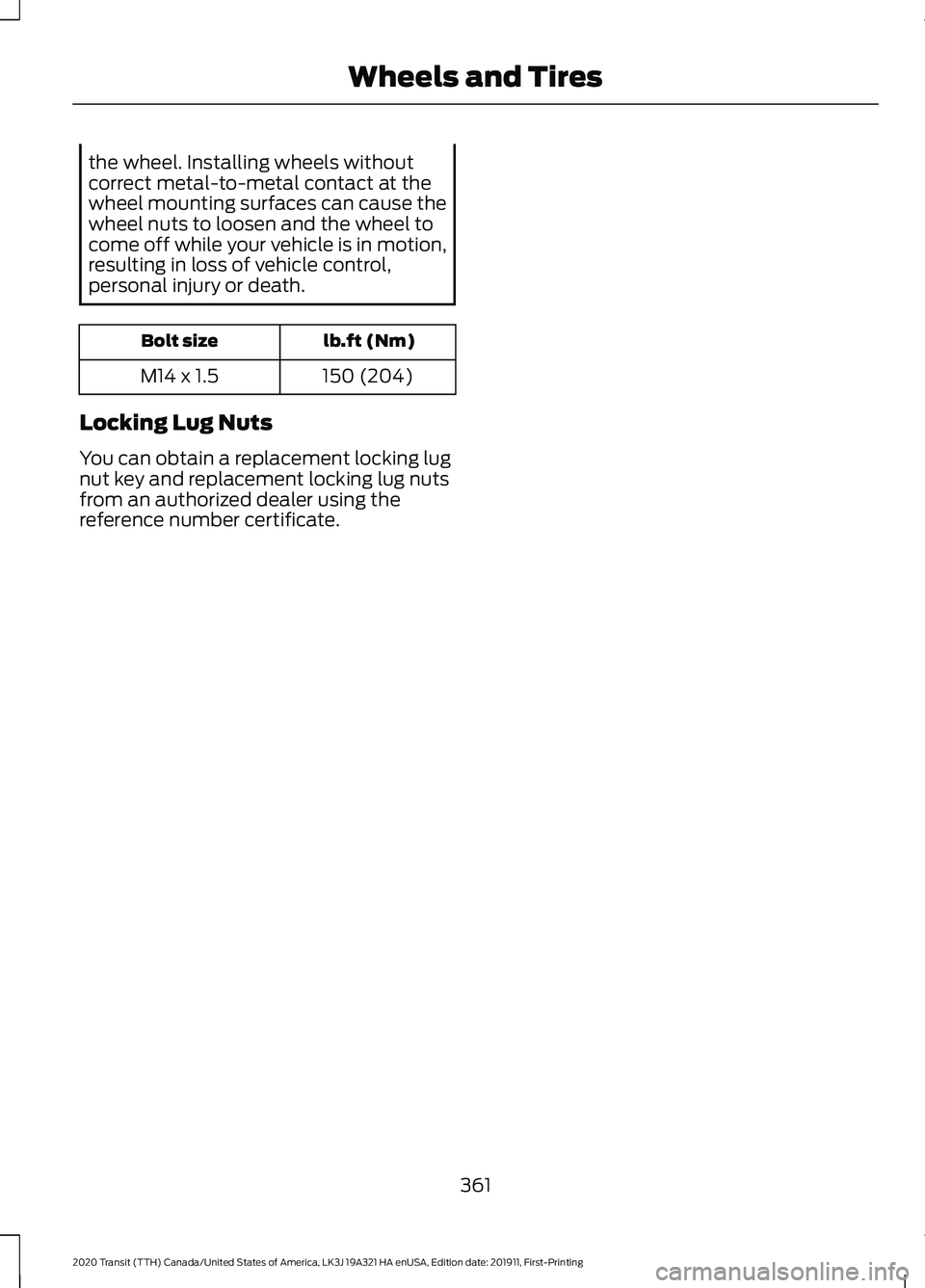
3. Rotate the cable through 90 degrees and lower the cable end cover. 4. Insert the flat end of the lug wrench
into the socket. Turn it clockwise until
you feel a strong resistance.
Note: Make sure the spare wheel is secure
by tightening the winch until you feel a slip.
5. Stow the vehicle jack, jack handle and lug wrench in their correct locations
and secure them with the straps.
LUG NUTS
Lug Nut Torque WARNING: When you install a
wheel, always remove any corrosion, dirt
or foreign materials present on the
mounting surfaces of the wheel or the
surface of the wheel hub, brake drum or
brake disc that contacts the wheel. Make
sure to secure any fasteners that attach
the rotor to the hub so they do not
interfere with the mounting surfaces of
360
2020 Transit (TTH) Canada/United States of America, LK3J 19A321 HA enUSA, Edition date: 201911, First-Printing Wheels and TiresE227387 E145138
Page 364 of 529
the wheel. Installing wheels without
correct metal-to-metal contact at the
wheel mounting surfaces can cause the
wheel nuts to loosen and the wheel to
come off while your vehicle is in motion,
resulting in loss of vehicle control,
personal injury or death.
lb.ft (Nm)
Bolt size
150 (204)
M14 x 1.5
Locking Lug Nuts
You can obtain a replacement locking lug
nut key and replacement locking lug nuts
from an authorized dealer using the
reference number certificate.
361
2020 Transit (TTH) Canada/United States of America, LK3J 19A321 HA enUSA, Edition date: 201911, First-Printing Wheels and Tires
Page 391 of 529
CONNECTED VEHICLE
REQUIREMENTS
Connected service and related feature
functionality requires a compatible vehicle
network.
Some remote features require a
subscription. For additional information,
see the FordPass app. Some restrictions,
third party terms and message or data
rates may apply.
CONNECTED VEHICLE
LIMITATIONS
Evolving technology or evolving cellular
networks could affect functionality and
availability, or continued provision of some
features. These changes could even stop
some features from functioning.
CONNECTING THE VEHICLE TO
A MOBILE NETWORK
What Is the Modem
The modem allows access to a
range of features built into your
vehicle.
Enabling and Disabling the Modem
- Vehicles With: 4.2 Inch
Instrument Cluster Display Screen
1. Using the information display controls on the steering wheel, select Settings.
2. Select FordPass Connect.
3. Select
Connectivity.
4. Switch connectivity features on or off. Enabling and Disabling the Modem
- Vehicles With: 4.2 Inch
Information and Entertainment
Display Screen
1. Select
Settings.
2. Select
Connectivity Features .
3. Select
Data sharing .
4. Switch connectivity features on or off.
Enabling and Disabling the Modem
- Vehicles With: 8 Inch Information
and Entertainment Display Screen
1. Select
Settings.
2. Select
FordPass Connect.
3. Select
Connectivity Settings.
4. Switch connectivity features on or off.
Connecting FordPass to the
Modem
1. Make sure that the modem is enabled using the vehicle settings menu.
2. Open the FordPass app on your device
and log in.
3. Add your vehicle or select your vehicle if already added.
4. Select the option for vehicle details.
5. Select the option to activate your vehicle.
6. Make sure that the name on the screen
matches the name shown in your
FordPass account.
7. Confirm that FordPass account is connected to the modem .
CONNECTING THE VEHICLE TO
A WI-FI NETWORK
1. Select
Settings.
2. Select
Wi-Fi.
388
2020 Transit (TTH) Canada/United States of America, LK3J 19A321 HA enUSA, Edition date: 201911, First-Printing Connected Vehicle
Page 401 of 529
Selecting the USB Device
Press the button to display the
menu.
Repeatedly press the button to scroll to
your USB device.
Press the OK button.
Playing from the USB Device Press the button to play a track.
Press the button again to pause
the track.
Press the button to skip to the
next track.
Press and hold the button to fast
forward through the track. Press the button once to return
to the beginning of a track.
Repeatedly press the button to
return to previous tracks.
Press and hold the button to fast rewind.
Sorting by Categories
You can also sort and play music by
specific categories, for example artist or
album.
Press the
OK button to view the available
categories.
USB PORT WARNING: Driving while distracted
can result in loss of vehicle control, crash
and injury. We strongly recommend that
you use extreme caution when using any
device that may take your focus off the
road. Your primary responsibility is the
safe operation of your vehicle. We
recommend against the use of any hand-held device while driving and
encourage the use of voice-operated
systems when possible. Make sure you
are aware of all applicable local laws
that may affect the use of electronic
devices while driving.
USB Ports could be in the following
locations:
• In the instrument panel storage bin.
• On the instrument panel below the
climate controls.
The USB port allows you to plug in media
playing devices, memory sticks and charge
devices.
See General Information (page
399).
The audio extension cable must be long
enough to allow the device to be safely
stored when your vehicle is moving.
USING VOICE RECOGNITION
Phone Voice Service
This system allows you to use the voice
recognition features of your phone and
focus on your driving. Press the voice control button
on the steering wheel.
Note: This only works when connected via
Bluetooth. See
Connecting a Bluetooth®
Device (page 397).
Note: When using voice recognition use the
language set on the device.
Note: We recommend that you check your
data plan before using your phone voice
service through the system. Using them
could result in additional charges.
398
2020 Transit (TTH) Canada/United States of America, LK3J 19A321 HA enUSA, Edition date: 201911, First-Printing Audio SystemE100027 E142599
Page 403 of 529
(read and unread), and call history,
including history of calls when your cellular
phone was not connected to the system.
In addition, if you connect a media device,
the system creates and retains an index of
supported media content. The system also
records a short development log of
approximately 10 minutes of all recent
system activity. The log profile and other
system data may be used to improve the
system and help diagnose any problems
that may occur.
The cellular profile, media device index,
and development log will remain in the
vehicle unless you delete them and are
generally accessible only in the vehicle
when you connect the cellular phone or
media player. If you no longer plan to use
the system or the vehicle, we recommend
you perform a Master Reset to erase all
stored information.
No one can access system data without
special equipment and access to the
vehicle's SYNC module. Ford Motor
Company and Ford of Canada will not
access the system data for any purpose
other than as described absent consent, a
court order, or where required by law
enforcement, other government
authorities, or other third parties acting
with lawful authority. Other parties may
seek to access the information
independently of Ford Motor Company and
Ford of Canada. For further privacy
information, see the section on 911 Assist.
See SYNC™ Applications and Services
(page 403).
USING VOICE RECOGNITION
This system helps you control many
features using voice commands. This
allows you to keep your hands on the
wheel and focus on what is around you.
Initiating a Voice Session Press the voice button. A list of
available voice commands
appears in the display.
Global Voice Commands
These voice commands are always
available. You can say them at any time. Global voice commands
Gives you available commands you can use
on the current screen.
Help
Gives you a list of possible voice
commands.
List of Commands
This command ends the voice session. You
can also cancel a session by pressing seek
up, seek down, or holding the voice button
for two or more seconds.
Cancel
400
2020 Transit (TTH) Canada/United States of America, LK3J 19A321 HA enUSA, Edition date: 201911, First-Printing SYNC™E142599
Page 406 of 529
__ is a dynamic listing, meaning that it
could be the name of anything, such as a
contact or phone number.
Phone Controls
Use the phone buttons on your steering
wheel to answer, reject, or hang up a call.
Accessing Features through the
Phone Menu
You can access your call history,
phonebook, sent text messages, as well
as access phone and system settings.
1. Press the PHONE button to enter the
phone menu.
2. Scroll through the menu to view contacts, text messages, and the
phone dialer.
SYNC™ APPLICATIONS AND
SERVICES
• 911 Assist: Can alert 911 in the event of
an emergency.
• SYNC AppLink: Allows you to connect
to and use certain applications (if your
phone is compatible).
These features may require activation.
Available AppLink enabled apps vary by
market.
911 Assist WARNING:
Unless the 911 Assist
setting is set on before a crash, the
system will not dial for help which could
delay response time, potentially
increasing the risk of serious injury or
death after a crash. WARNING:
Do not wait for 911
Assist to make an emergency call if you
can do it yourself. Dial emergency
services immediately to avoid delayed
response time which could increase the
risk of serious injury or death after a
crash. If you do not hear 911 Assist within
five seconds of the crash, the system or
phone may be damaged or
non-functional. WARNING:
Always place your
phone in a secure location in your vehicle
so it does not become a projectile or get
damaged in a crash. Failure to do so may
cause serious injury to someone or
damage the phone which could prevent
911 Assist from working properly.
Note: The SYNC 911 Assist feature must be
set on before the incident.
Note: The SYNC 911 Assist feature only
operates in the U.S., Canada or in a territory
in which 911 is the emergency number.
Note: Before setting this feature on, make
sure that you read the 911 Assist Privacy
Notice later in this section for important
information.
Note: If any user switches 911 Assist to on
or off, that setting applies for all paired
phones. If 911 Assist is switched off, either
a voice message plays or a display message
or an icon comes on when your vehicle is
started and after a previously paired phone
connects.
Note: Every phone operates differently.
While SYNC 911 Assist works with most
cellular phones, some may have trouble
using this feature.
403
2020 Transit (TTH) Canada/United States of America, LK3J 19A321 HA enUSA, Edition date: 201911, First-Printing SYNC™