change time FORD TRANSIT CONNECT 2013 1.G User Guide
[x] Cancel search | Manufacturer: FORD, Model Year: 2013, Model line: TRANSIT CONNECT, Model: FORD TRANSIT CONNECT 2013 1.GPages: 321, PDF Size: 4.5 MB
Page 286 of 321
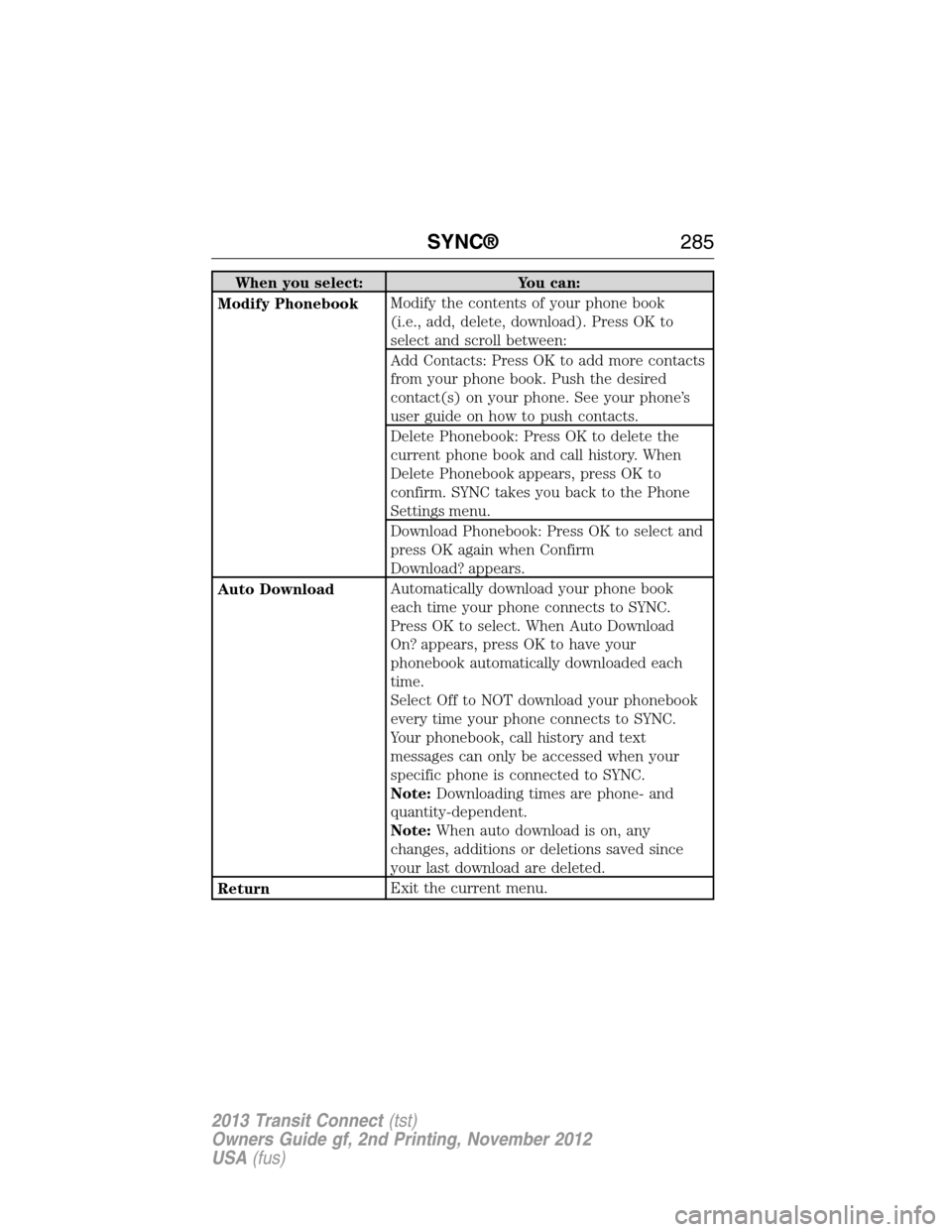
When you select: You can:
Modify PhonebookModify the contents of your phone book
(i.e., add, delete, download). Press OK to
select and scroll between:
Add Contacts: Press OK to add more contacts
from your phone book. Push the desired
contact(s) on your phone. See your phone’s
user guide on how to push contacts.
Delete Phonebook: Press OK to delete the
current phone book and call history. When
Delete Phonebook appears, press OK to
confirm. SYNC takes you back to the Phone
Settings menu.
Download Phonebook: Press OK to select and
press OK again when Confirm
Download? appears.
Auto DownloadAutomatically download your phone book
each time your phone connects to SYNC.
Press OK to select. When Auto Download
On? appears, press OK to have your
phonebook automatically downloaded each
time.
Select Off to NOT download your phonebook
every time your phone connects to SYNC.
Your phonebook, call history and text
messages can only be accessed when your
specific phone is connected to SYNC.
Note:Downloading times are phone- and
quantity-dependent.
Note:When auto download is on, any
changes, additions or deletions saved since
your last download are deleted.
ReturnExit the current menu.
SYNC®285
2013 Transit Connect(tst)
Owners Guide gf, 2nd Printing, November 2012
USA(fus)
Page 314 of 321
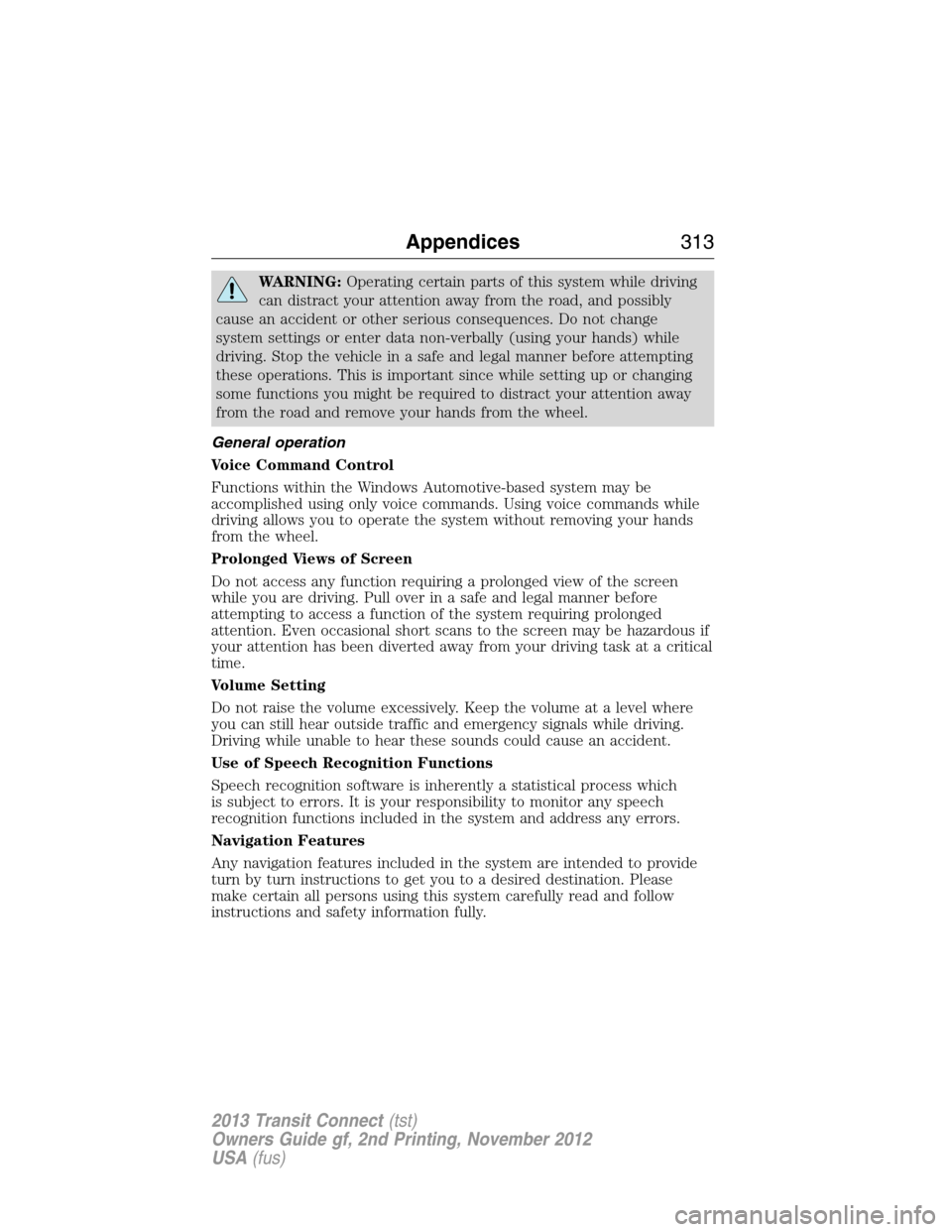
WARNING:Operating certain parts of this system while driving
can distract your attention away from the road, and possibly
cause an accident or other serious consequences. Do not change
system settings or enter data non-verbally (using your hands) while
driving. Stop the vehicle in a safe and legal manner before attempting
these operations. This is important since while setting up or changing
some functions you might be required to distract your attention away
from the road and remove your hands from the wheel.
General operation
Voice Command Control
Functions within the Windows Automotive-based system may be
accomplished using only voice commands. Using voice commands while
driving allows you to operate the system without removing your hands
from the wheel.
Prolonged Views of Screen
Do not access any function requiring a prolonged view of the screen
while you are driving. Pull over in a safe and legal manner before
attempting to access a function of the system requiring prolonged
attention. Even occasional short scans to the screen may be hazardous if
your attention has been diverted away from your driving task at a critical
time.
Volume Setting
Do not raise the volume excessively. Keep the volume at a level where
you can still hear outside traffic and emergency signals while driving.
Driving while unable to hear these sounds could cause an accident.
Use of Speech Recognition Functions
Speech recognition software is inherently a statistical process which
is subject to errors. It is your responsibility to monitor any speech
recognition functions included in the system and address any errors.
Navigation Features
Any navigation features included in the system are intended to provide
turn by turn instructions to get you to a desired destination. Please
make certain all persons using this system carefully read and follow
instructions and safety information fully.
Appendices313
2013 Transit Connect(tst)
Owners Guide gf, 2nd Printing, November 2012
USA(fus)