warning FORD TRANSIT CONNECT 2014 2.G Owners Manual
[x] Cancel search | Manufacturer: FORD, Model Year: 2014, Model line: TRANSIT CONNECT, Model: FORD TRANSIT CONNECT 2014 2.GPages: 411, PDF Size: 6.62 MB
Page 262 of 411
Times are subject to change due to
holidays.
SYNC Owner Account
Why do I need a SYNC owner account?
•
Required to activate Vehicle Health
Report and to view the reports online.
• Required to activate the
subscription-based SYNC Services and
to personalize your Saved Points and
Favorites.
• Essential for keeping up with the latest
software downloads available for
SYNC.
• Access to customer support for any
questions you may have.
Driving Restrictions
For your safety, certain features are
speed-dependent and restricted when your
vehicle is traveling over 3 mph (5 km/h).
Safety Information WARNING
Driving while distracted can result in
loss of vehicle control, crash and
injury. We strongly recommend that
you use extreme caution when using any
device that may take your focus off the
road. Your primary responsibility is the safe
operation of your vehicle. We recommend
against the use of any hand-held device
while driving and encourage the use of
voice-operated systems when possible.
Make sure you are aware of all applicable
local laws that may affect the use of
electronic devices while driving. When using SYNC:
•
Do not operate playing devices if the
power cords or cables are broken, split
or damaged. Place cords and cables
out of the way, so they do not interfere
with the operation of pedals, seats,
compartments or safe driving abilities.
• Do not leave playing devices in your
vehicle during extreme conditions as it
could cause them damage. See your
device's manual for further information.
• Do not attempt to service or repair the
system. See an authorized dealer.
Privacy Information
When a cellular phone is connected to
SYNC, the system creates a profile within
your vehicle that is linked to that cellular
phone. This profile is created in order to
offer you more cellular features and to
operate more efficiently. Among other
things, this profile may contain data about
your cellular phone book, text messages
(read and unread), and call history,
including history of calls when your cellular
phone was not connected to the system.
In addition, if you connect a media device,
the system creates and retains an index of
supported media content. The system also
records a short development log of
approximately 10 minutes of all recent
system activity. The log profile and other
system data may be used to improve the
system and help diagnose any problems
that may occur.
The cellular profile, media device index,
and development log will remain in the
vehicle unless you delete them and are
generally accessible only in the vehicle
when the cellular phone or media player
is connected. If you no longer plan to use
the system or the vehicle, we recommend
you perform a Master Reset to erase all
stored information.
259
Tourneo Connect/Transit Connect (CHC) Canada/United States of America, enUSA, Edition date: 07/2013 SYNC™ (If Equipped)
Page 281 of 411
Action and Description
Message
Press the OK button to select and then press OK again when
the following message appears in the display.
Restore Defaults?
Completely erase all information stored on SYNC, for example
phonebook, call history, text messages and paired devices,
and return the system to the factory default settings.
Master reset
Press OK to select. The display indicates when complete.
SYNC returns you to the Advanced menu.
Install applications you have downloaded.
Install Application?
Press the
OK button and scroll to select. Press the OK button
to confirm.
Access the Auto Version number as well as the FDN number.
System info
Press the
OK button to select.
This is a Bluetooth component, which can further help your
cell phone with the exchange of text messages.
MAP Profile
Exit the current menu.
Return
SYNC™ APPLICATIONS AND
SERVICES
(If Equipped)
In order for the following features to work,
your cellular phone must be compatible
with SYNC. To check your phone's
compatibility, visit www.SYNCMyRide.com,
www.SYNCMyRide.ca or
www.syncmaroute.ca.
• SYNC Services *
: Provides access to
traffic, directions and information such
as travel, horoscopes, stock prices and
more.
• 911 Assist: Can alert 911 in the event of
an emergency. •
Vehicle Health Report *
: Provides a
diagnostic and maintenance report
card of your vehicle.
• SYNC AppLink: Allows you to connect
to and use certain applications such as
Pandora and Stitcher (if your phone is
compatible).
* This is an optional feature and available
in the United States only.
911 Assist
(If Equipped) WARNINGS
Unless the 911 Assist setting is set on
before a crash, the system will not
dial for help which could delay
response time, potentially increasing the
risk of serious injury or death after a crash.
278
Tourneo Connect/Transit Connect (CHC) Canada/United States of America, enUSA, Edition date: 07/2013 SYNC™
(If Equipped)
Page 282 of 411
WARNINGS
Do not wait for 911 Assist to make an
emergency call if you can do it
yourself. Dial emergency services
immediately to avoid delayed response
time which could increase the risk of
serious injury or death after a crash. If you
do not hear 911 Assist within five seconds
of the crash, the system or phone may be
damaged or non-functional. Always place your phone in a secure
location in your vehicle so it does not
become a projectile or get damaged
in a crash. Failure to do so may cause
serious injury to someone or damage the
phone which could prevent 911 Assist from
working properly. Note:
The SYNC 911 Assist feature must be
set on before the incident.
Note: Before setting this feature on, make
sure that you read the 911 Assist Privacy
Notice later in this section for important
information.
Note: If any user turns 911 Assist on or off,
that setting applies for all paired phones. If
911 Assist is turned off, either a voice
message plays or a display message (or
icon) comes on (or both) when your vehicle
is started after a previously paired phone
connects.
Note: Every phone operates differently.
While SYNC 911 Assist works with most
cellular phones, some may have trouble
using this feature. If a crash deploys an airbag (excluding
knee airbags and rear inflatable safety
belts [if equipped]) or activates the fuel
pump shut-off, your SYNC-equipped
vehicle may be able to contact emergency
services by dialing 911 through a paired and
connected Bluetooth-enabled phone. You
can learn more about the 911 Assist
feature, visit www.SYNCMyRide.com,
www.SYNCMyRide.ca or
www.syncmaroute.ca.
See Supplementary Restraints System
(page 33). Important information about
airbag deployment is in this chapter.
See
Roadside Emergencies (page 155).
Important information about the fuel pump
shut-off is in this chapter.
Setting 911 Assist On or Off
1. Press the phone button to enter the phone menu.
2. Scroll to select 911 Assist.
3. Press
OK to confirm and enter the 911
Assist menu.
4. Scroll to select between On or Off.
5. Press
OK when the desired option
appears in the radio display. Set On or
Set Off
appears in the display as
confirmation.
Off selections include:
• Off with reminder: Provides a display
and voice reminder at phone
connection at vehicle start.
• Off without reminder: Provides a
display reminder only without a voice
reminder at phone connection.
To make sure that 911 Assist works
properly:
• SYNC must be powered and working
properly at the time of the incident and
throughout feature activation and use.
• The 911 Assist feature must be set on
before the incident.
279
Tourneo Connect/Transit Connect (CHC) Canada/United States of America, enUSA, Edition date: 07/2013 SYNC™
(If Equipped)
Page 283 of 411
•
You must pair and connect a
Bluetooth-enabled and compatible
cell phone to SYNC.
• A connected Bluetooth-enabled phone
must have the ability to make and
maintain an outgoing call at the time
of the incident.
• A connected Bluetooth-enabled phone
must have adequate network coverage,
battery power and signal strength.
• The vehicle must have battery power
and be located in the U.S., Canada or
in a territory in which 911 is the
emergency number.
In the Event of a Crash
Not all crashes will deploy an airbag or
activate the fuel pump shut-off (the
triggers for 911 Assist). If a connected cell
phone sustains damage or loses its
connection to SYNC during a crash, SYNC
will search for and try to connect to a
previously paired cell phone; SYNC will
then attempt to call the emergency
services.
Before making the call:
• SYNC provides a short window of time
(about 10 seconds) to cancel the call.
If you fail to cancel the call, SYNC
attempts to dial 911.
• SYNC says the following, or a similar
message: "SYNC will attempt to call
911, to cancel the call, press Cancel on
your screen or press and hold the
phone button on your steering wheel."
If you do not cancel the call, and SYNC
makes a successful call, a pre-recorded
message plays for the 911 operator, and
then the occupant(s) in your vehicle is able
to talk with the operator. Be prepared to
provide your name, phone number and
location immediately, because not all 911
systems are capable of receiving this
information electronically. 911 Assist May Not Work If
•
Your cellular phone or 911 Assist
hardware sustains damage in a crash.
• The vehicle's battery or the SYNC
system has no power.
• The phone(s) previously paired or
connected to the system are thrown
from your vehicle.
911 Assist Privacy Notice
When you turn on 911 Assist, it may
disclose to emergency services that your
vehicle has been in a crash involving the
deployment of an airbag or activation of
the fuel pump shut-off. Certain versions or
updates to 911 Assist may also be capable
of electronically or verbally disclosing to
911 operators your vehicle location or other
details about your vehicle or crash to assist
911 operators to provide the most
appropriate emergency services. If you do
not want to disclose this information, do
not turn the feature on.
Vehicle Health Report WARNING
Always follow scheduled
maintenance instructions, regularly
inspect your vehicle, and seek repair
for any damage or problem you suspect.
Vehicle Health Report supplements, but
cannot replace, normal maintenance and
vehicle inspection. Vehicle Health Report
only monitors certain systems
electronically monitored by your vehicle
and will not monitor or report the status
of any other system, (such as brake lining
wear). Failure to perform scheduled
maintenance and regularly inspect your
vehicle may result in vehicle damage and
serious injury. Note:
This feature is only available in the
United States.
280
Tourneo Connect/Transit Connect (CHC) Canada/United States of America, enUSA, Edition date: 07/2013 SYNC™ (If Equipped)
Page 306 of 411
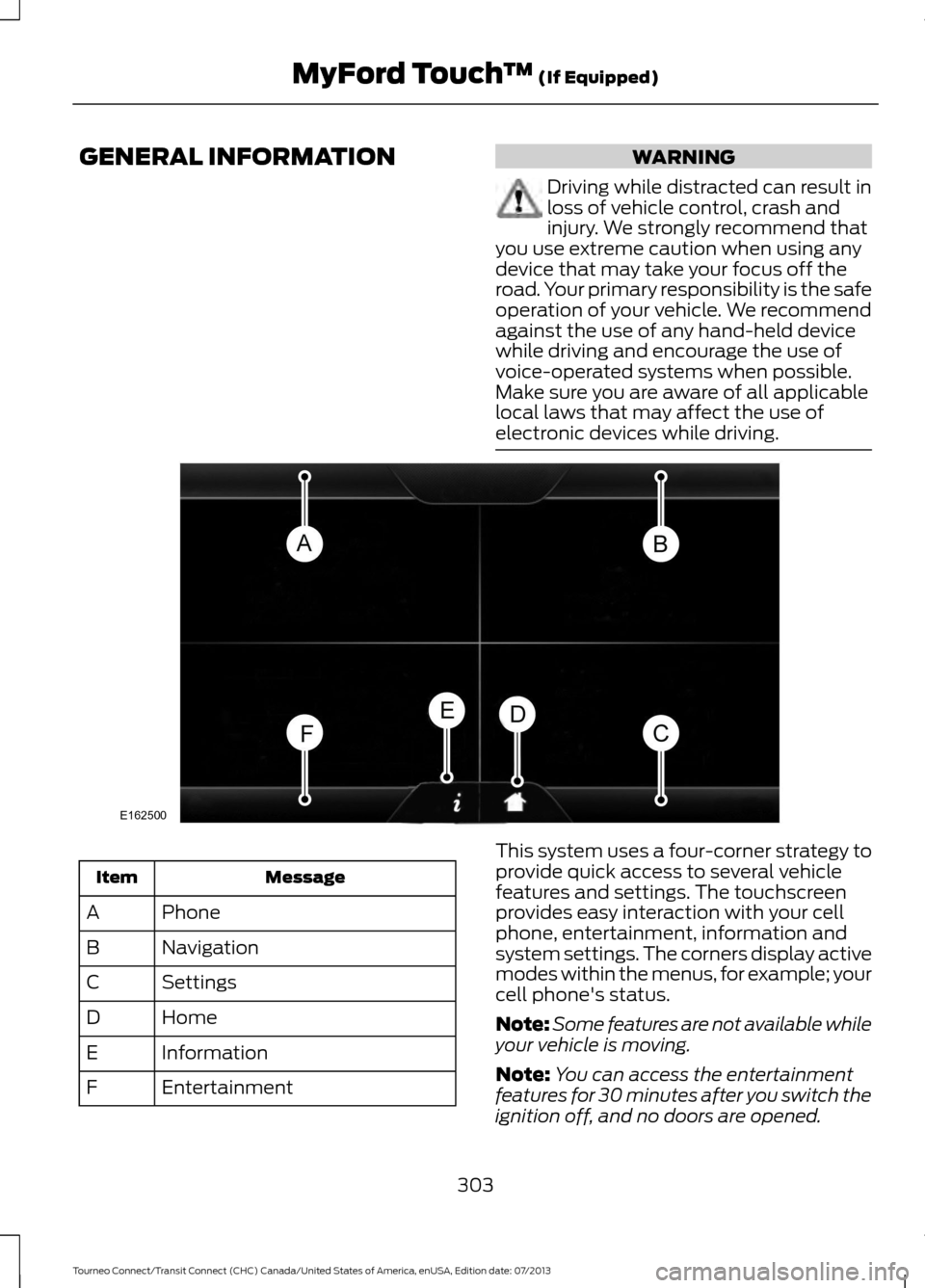
GENERAL INFORMATION WARNING
Driving while distracted can result in
loss of vehicle control, crash and
injury. We strongly recommend that
you use extreme caution when using any
device that may take your focus off the
road. Your primary responsibility is the safe
operation of your vehicle. We recommend
against the use of any hand-held device
while driving and encourage the use of
voice-operated systems when possible.
Make sure you are aware of all applicable
local laws that may affect the use of
electronic devices while driving. Message
Item
Phone
A
Navigation
B
Settings
C
Home
D
Information
E
Entertainment
F This system uses a four-corner strategy to
provide quick access to several vehicle
features and settings. The touchscreen
provides easy interaction with your cell
phone, entertainment, information and
system settings. The corners display active
modes within the menus, for example; your
cell phone's status.
Note:
Some features are not available while
your vehicle is moving.
Note: You can access the entertainment
features for 30 minutes after you switch the
ignition off, and no doors are opened.
303
Tourneo Connect/Transit Connect (CHC) Canada/United States of America, enUSA, Edition date: 07/2013 MyFord Touch
™ (If Equipped)E162500
Page 309 of 411
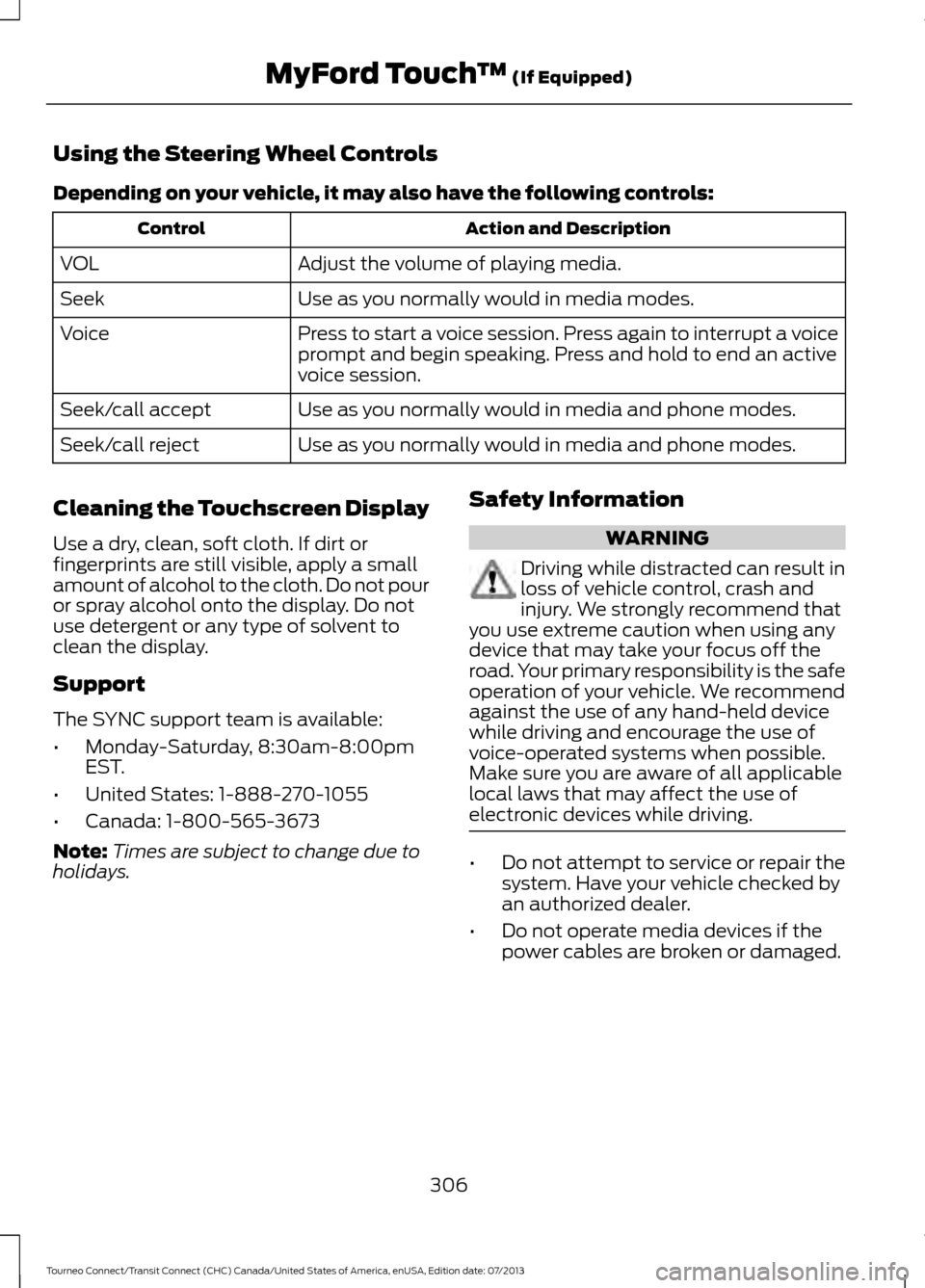
Using the Steering Wheel Controls
Depending on your vehicle, it may also have the following controls:
Action and Description
Control
Adjust the volume of playing media.
VOL
Use as you normally would in media modes.
Seek
Press to start a voice session. Press again to interrupt a voice
prompt and begin speaking. Press and hold to end an active
voice session.
Voice
Use as you normally would in media and phone modes.
Seek/call accept
Use as you normally would in media and phone modes.
Seek/call reject
Cleaning the Touchscreen Display
Use a dry, clean, soft cloth. If dirt or
fingerprints are still visible, apply a small
amount of alcohol to the cloth. Do not pour
or spray alcohol onto the display. Do not
use detergent or any type of solvent to
clean the display.
Support
The SYNC support team is available:
• Monday-Saturday, 8:30am-8:00pm
EST.
• United States: 1-888-270-1055
• Canada: 1-800-565-3673
Note: Times are subject to change due to
holidays. Safety Information WARNING
Driving while distracted can result in
loss of vehicle control, crash and
injury. We strongly recommend that
you use extreme caution when using any
device that may take your focus off the
road. Your primary responsibility is the safe
operation of your vehicle. We recommend
against the use of any hand-held device
while driving and encourage the use of
voice-operated systems when possible.
Make sure you are aware of all applicable
local laws that may affect the use of
electronic devices while driving. •
Do not attempt to service or repair the
system. Have your vehicle checked by
an authorized dealer.
• Do not operate media devices if the
power cables are broken or damaged.
306
Tourneo Connect/Transit Connect (CHC) Canada/United States of America, enUSA, Edition date: 07/2013 MyFord Touch
™ (If Equipped)
Page 320 of 411
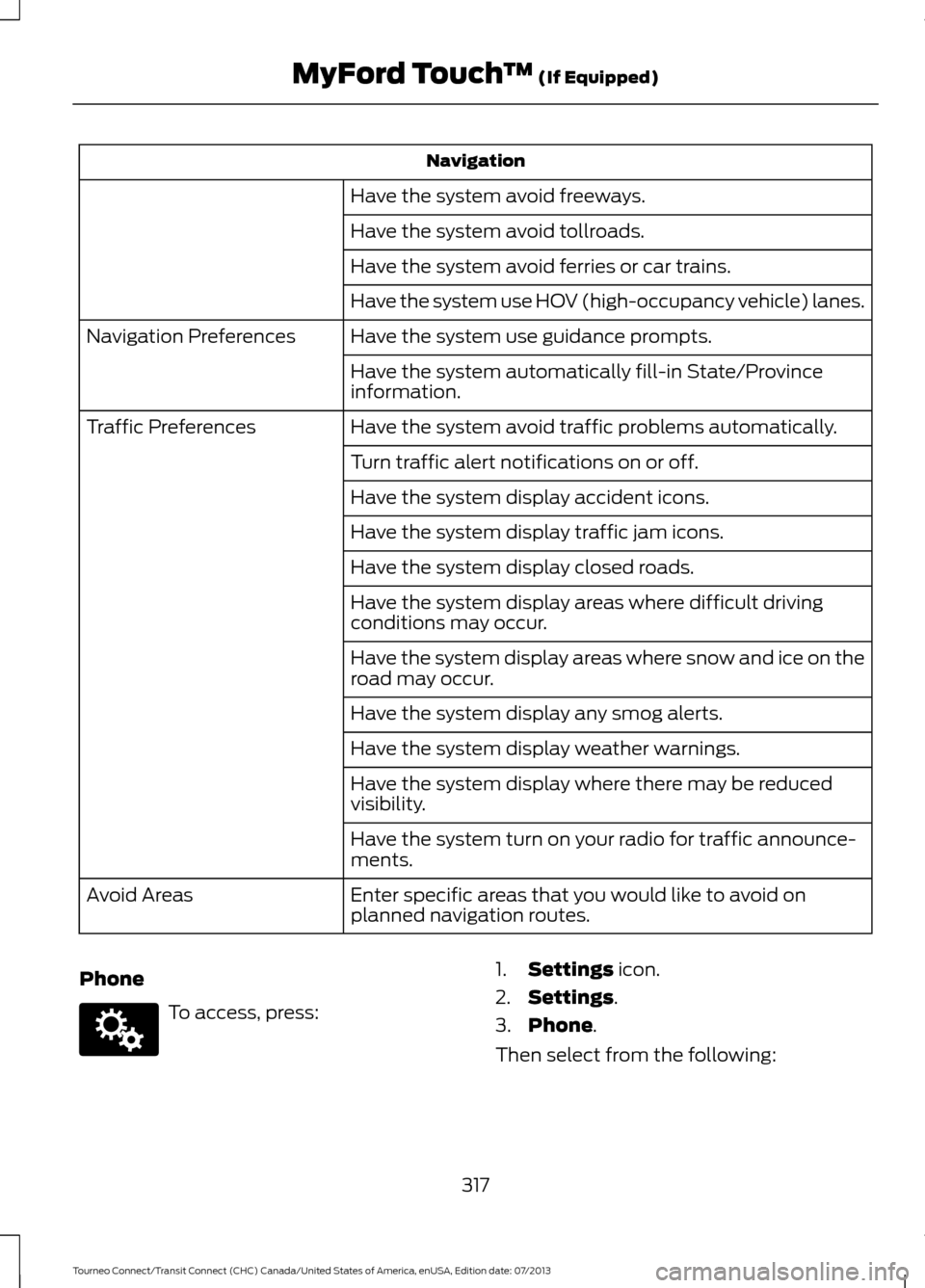
Navigation
Have the system avoid freeways.
Have the system avoid tollroads.
Have the system avoid ferries or car trains.
Have the system use HOV (high-occupancy vehicle) lanes.
Have the system use guidance prompts.
Navigation Preferences
Have the system automatically fill-in State/Province
information.
Have the system avoid traffic problems automatically.
Traffic Preferences
Turn traffic alert notifications on or off.
Have the system display accident icons.
Have the system display traffic jam icons.
Have the system display closed roads.
Have the system display areas where difficult driving
conditions may occur.
Have the system display areas where snow and ice on the
road may occur.
Have the system display any smog alerts.
Have the system display weather warnings.
Have the system display where there may be reduced
visibility.
Have the system turn on your radio for traffic announce-
ments.
Enter specific areas that you would like to avoid on
planned navigation routes.
Avoid Areas
Phone To access, press:
1.
Settings icon.
2. Settings
.
3. Phone
.
Then select from the following:
317
Tourneo Connect/Transit Connect (CHC) Canada/United States of America, enUSA, Edition date: 07/2013 MyFord Touch
™
(If Equipped)E142607
Page 321 of 411
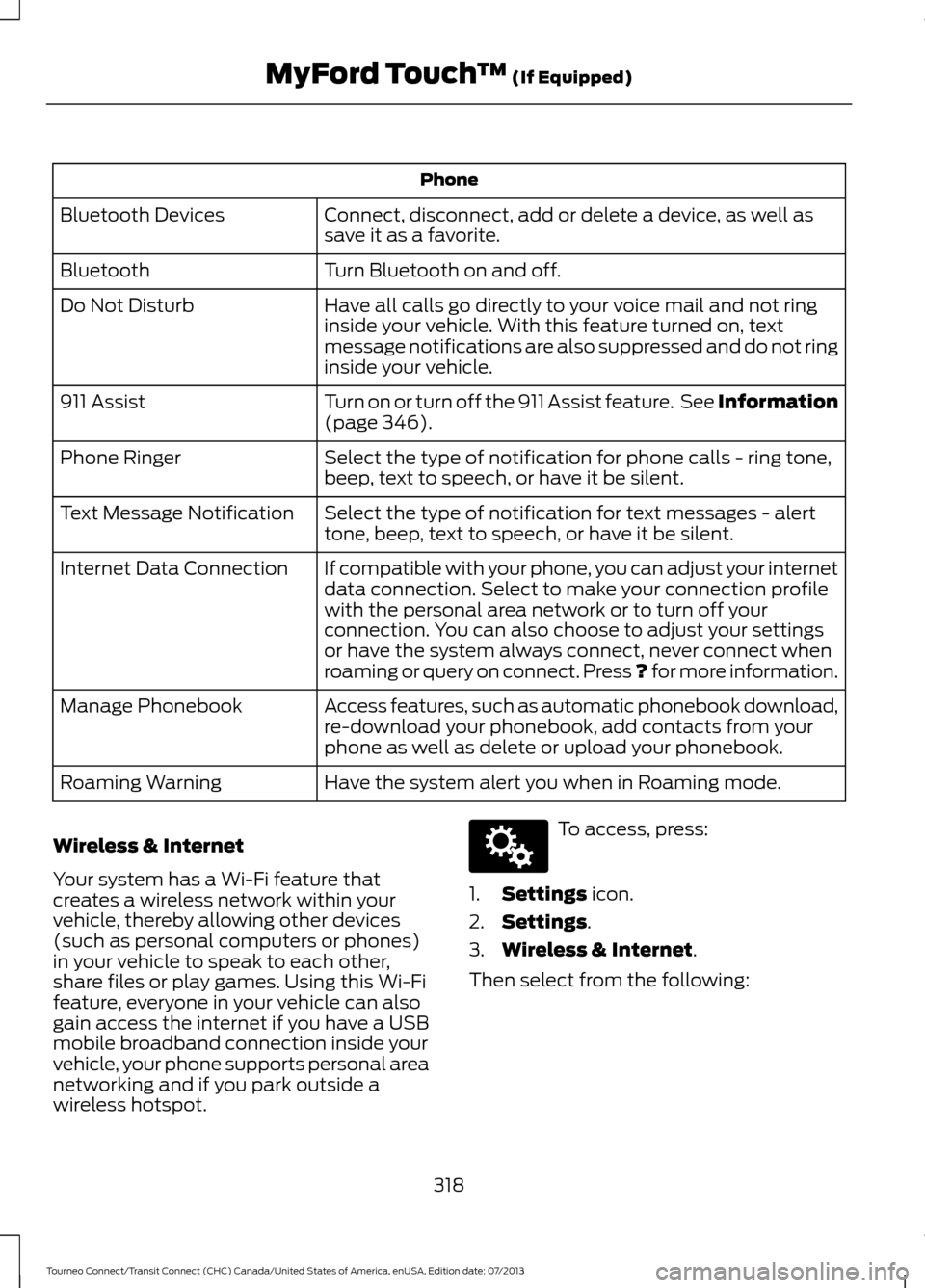
Phone
Connect, disconnect, add or delete a device, as well as
save it as a favorite.
Bluetooth Devices
Turn Bluetooth on and off.
Bluetooth
Have all calls go directly to your voice mail and not ring
inside your vehicle. With this feature turned on, text
message notifications are also suppressed and do not ring
inside your vehicle.
Do Not Disturb
Turn on or turn off the 911 Assist feature. See Information
(page 346).
911 Assist
Select the type of notification for phone calls - ring tone,
beep, text to speech, or have it be silent.
Phone Ringer
Select the type of notification for text messages - alert
tone, beep, text to speech, or have it be silent.
Text Message Notification
If compatible with your phone, you can adjust your internet
data connection. Select to make your connection profile
with the personal area network or to turn off your
connection. You can also choose to adjust your settings
or have the system always connect, never connect when
roaming or query on connect. Press ? for more information.
Internet Data Connection
Access features, such as automatic phonebook download,
re-download your phonebook, add contacts from your
phone as well as delete or upload your phonebook.
Manage Phonebook
Have the system alert you when in Roaming mode.
Roaming Warning
Wireless & Internet
Your system has a Wi-Fi feature that
creates a wireless network within your
vehicle, thereby allowing other devices
(such as personal computers or phones)
in your vehicle to speak to each other,
share files or play games. Using this Wi-Fi
feature, everyone in your vehicle can also
gain access the internet if you have a USB
mobile broadband connection inside your
vehicle, your phone supports personal area
networking and if you park outside a
wireless hotspot. To access, press:
1. Settings
icon.
2. Settings
.
3. Wireless & Internet
.
Then select from the following:
318
Tourneo Connect/Transit Connect (CHC) Canada/United States of America, enUSA, Edition date: 07/2013 MyFord Touch
™
(If Equipped)E142607
Page 343 of 411
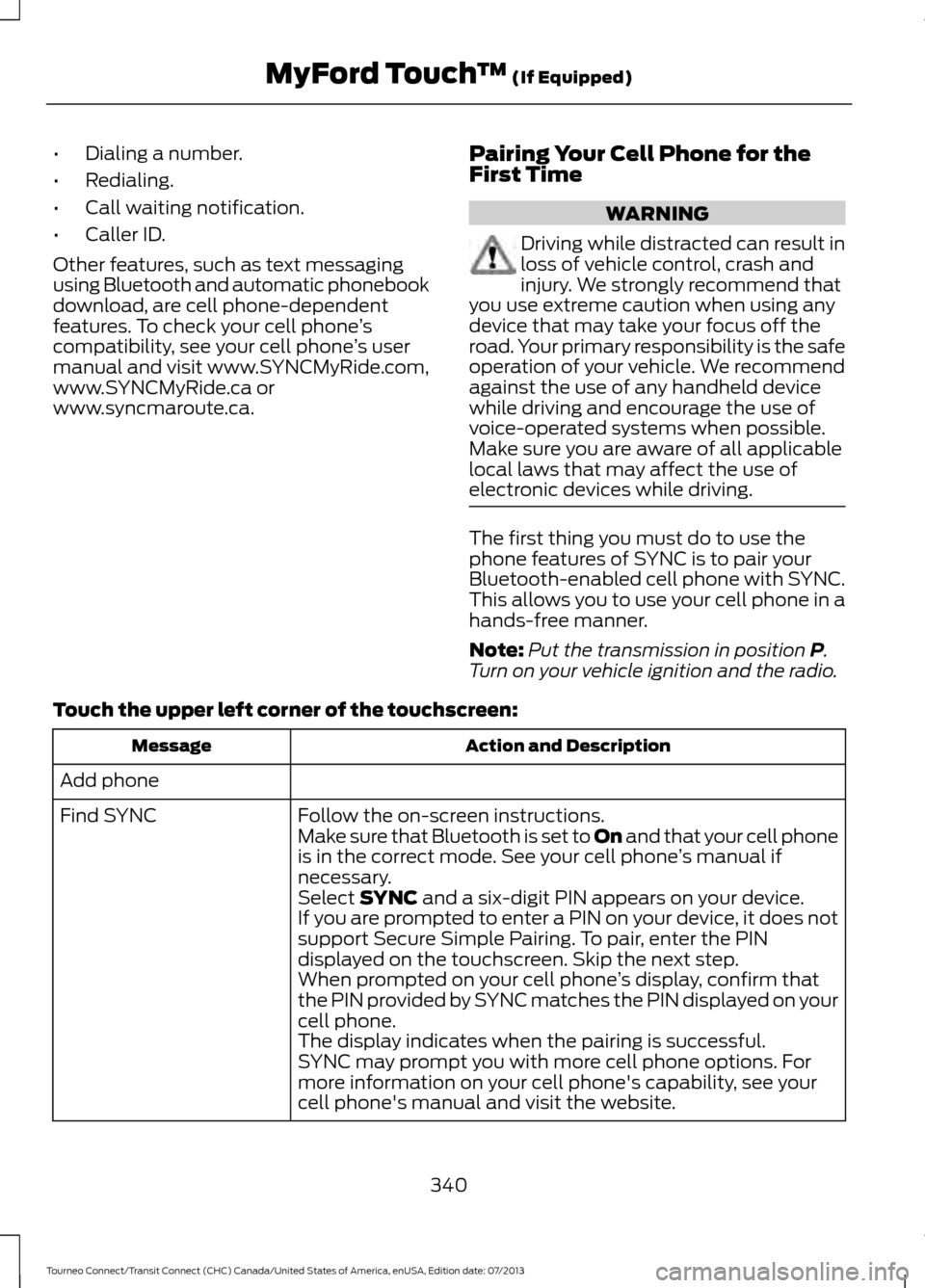
•
Dialing a number.
• Redialing.
• Call waiting notification.
• Caller ID.
Other features, such as text messaging
using Bluetooth and automatic phonebook
download, are cell phone-dependent
features. To check your cell phone ’s
compatibility, see your cell phone ’s user
manual and visit www.SYNCMyRide.com,
www.SYNCMyRide.ca or
www.syncmaroute.ca. Pairing Your Cell Phone for the
First Time WARNING
Driving while distracted can result in
loss of vehicle control, crash and
injury. We strongly recommend that
you use extreme caution when using any
device that may take your focus off the
road. Your primary responsibility is the safe
operation of your vehicle. We recommend
against the use of any handheld device
while driving and encourage the use of
voice-operated systems when possible.
Make sure you are aware of all applicable
local laws that may affect the use of
electronic devices while driving. The first thing you must do to use the
phone features of SYNC is to pair your
Bluetooth-enabled cell phone with SYNC.
This allows you to use your cell phone in a
hands-free manner.
Note:
Put the transmission in position P.
Turn on your vehicle ignition and the radio.
Touch the upper left corner of the touchscreen: Action and Description
Message
Add phone Follow the on-screen instructions.
Find SYNC
Make sure that Bluetooth is set to On
and that your cell phone
is in the correct mode. See your cell phone ’s manual if
necessary.
Select
SYNC and a six-digit PIN appears on your device.
If you are prompted to enter a PIN on your device, it does not
support Secure Simple Pairing. To pair, enter the PIN
displayed on the touchscreen. Skip the next step.
When prompted on your cell phone ’s display, confirm that
the PIN provided by SYNC matches the PIN displayed on your
cell phone.
The display indicates when the pairing is successful.
SYNC may prompt you with more cell phone options. For
more information on your cell phone's capability, see your
cell phone's manual and visit the website.
340
Tourneo Connect/Transit Connect (CHC) Canada/United States of America, enUSA, Edition date: 07/2013 MyFord Touch
™
(If Equipped)
Page 348 of 411
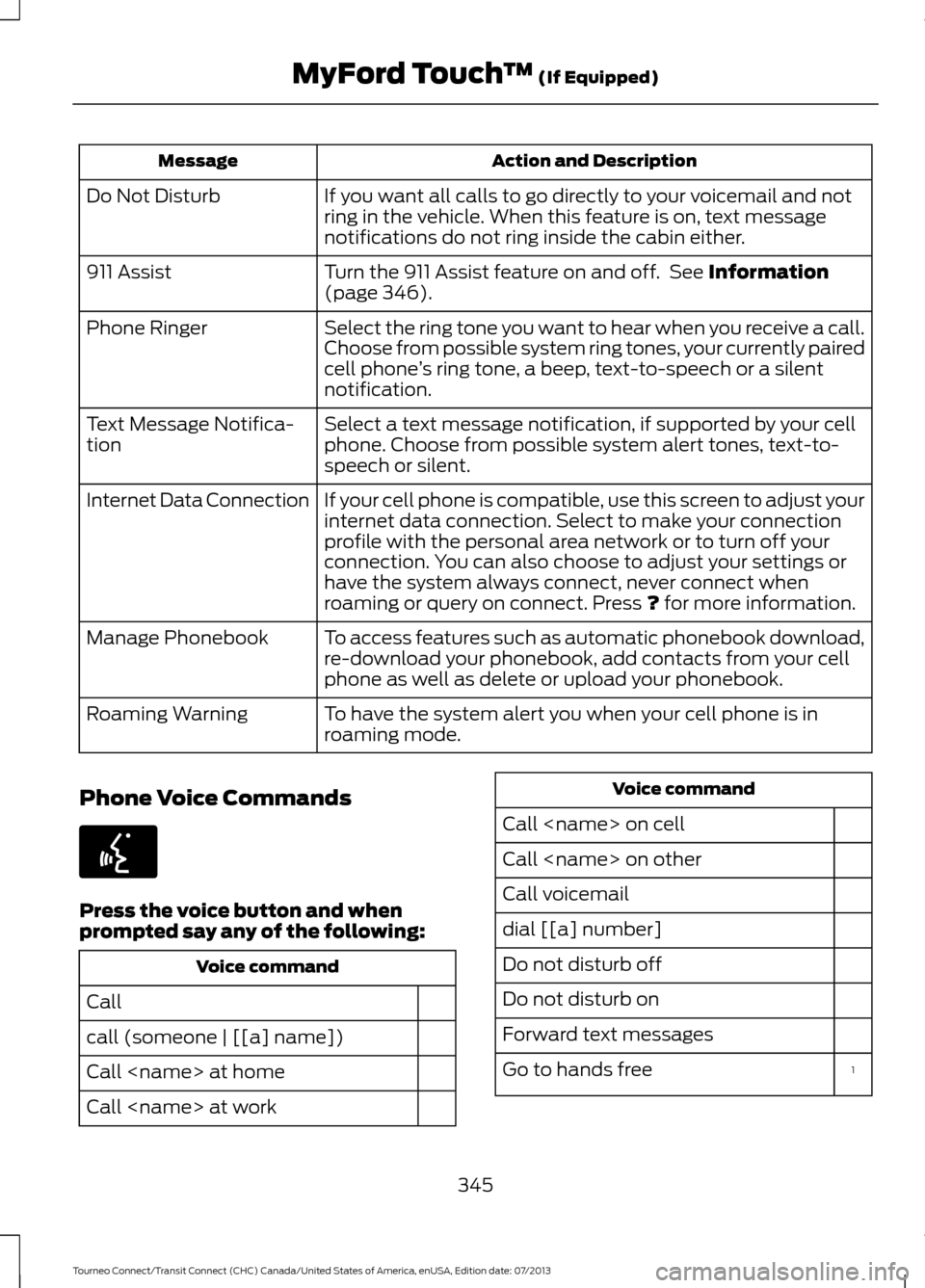
Action and Description
Message
If you want all calls to go directly to your voicemail and not
ring in the vehicle. When this feature is on, text message
notifications do not ring inside the cabin either.
Do Not Disturb
Turn the 911 Assist feature on and off. See Information
(page 346).
911 Assist
Select the ring tone you want to hear when you receive a call.
Choose from possible system ring tones, your currently paired
cell phone’s ring tone, a beep, text-to-speech or a silent
notification.
Phone Ringer
Select a text message notification, if supported by your cell
phone. Choose from possible system alert tones, text-to-
speech or silent.
Text Message Notifica-
tion
If your cell phone is compatible, use this screen to adjust your
internet data connection. Select to make your connection
profile with the personal area network or to turn off your
connection. You can also choose to adjust your settings or
have the system always connect, never connect when
roaming or query on connect. Press
? for more information.
Internet Data Connection
To access features such as automatic phonebook download,
re-download your phonebook, add contacts from your cell
phone as well as delete or upload your phonebook.
Manage Phonebook
To have the system alert you when your cell phone is in
roaming mode.
Roaming Warning
Phone Voice Commands Press the voice button and when
prompted say any of the following:
Voice command
Call
call (someone | [[a] name])
Call
Call
Call
Call
Call voicemail
dial [[a] number]
Do not disturb off
Do not disturb on
Forward text messages 1
Go to hands free
345
Tourneo Connect/Transit Connect (CHC) Canada/United States of America, enUSA, Edition date: 07/2013 MyFord Touch
™
(If Equipped)E142599