Vin FORD TRANSIT CONNECT 2016 2.G Owners Manual
[x] Cancel search | Manufacturer: FORD, Model Year: 2016, Model line: TRANSIT CONNECT, Model: FORD TRANSIT CONNECT 2016 2.GPages: 439, PDF Size: 6.96 MB
Page 246 of 439
If you get a flat tire while driving, do not
apply the brake heavily. Instead, gradually
decrease your speed. Hold the steering
wheel firmly and slowly move to a safe
place on the side of the road.
Have a flat serviced by an authorized
dealer in order to prevent damage to the
tire pressure monitoring system sensors.
See Tire Pressure Monitoring System
(page 238). Replace the spare tire with a
road tire as soon as possible. During
repairing or replacing of the flat tire, have
an authorized dealer inspect the tire
pressure monitoring system sensor for
damage.
Dissimilar Spare Wheel and Tire
Assembly Information WARNING
Failure to follow these guidelines
could result in an increased risk of
loss of vehicle control, injury or death.
If you have a dissimilar spare wheel and
tire, then it is intended for temporary use
only. This means that if you need to use it,
you should replace it as soon as possible
with a road wheel and tire assembly that
is the same size and type as the road tires
and wheels that were originally provided
by Ford. If the dissimilar spare tire or wheel
is damaged, it should be replaced rather
than repaired.
A dissimilar spare wheel and tire assembly
is defined as a spare wheel and tire
assembly that is different in brand, size or
appearance from the road tires and wheels
and can be one of three types:
1.
T-type mini-spare:
This spare tire
begins with the letter T for tire size and
may have Temporary Use Only molded in
the sidewall. 2.
Full-size dissimilar spare with label
on wheel:
This spare tire has a label on
the wheel that states: THIS WHEEL AND
TIRE ASSEMBLY FOR TEMPORARY USE
ONLY.
When driving with one of the dissimilar
spare tires listed above, do not:
• Exceed 50 mph (80 km/h).
• Load the vehicle beyond maximum
vehicle load rating listed on the Safety
Compliance Label.
• Tow a trailer.
• Use snow chains on the end of the
vehicle with the dissimilar spare tire.
• Use more than one dissimilar spare tire
at a time.
• Use commercial car washing
equipment.
• Try to repair the dissimilar spare tire.
Use of one of the dissimilar spare tires
listed above at any one wheel location can
lead to impairment of the following:
• Handling, stability and braking
performance.
• Comfort and noise.
• Ground clearance and parking at curbs.
• Winter weather driving capability.
• Wet weather driving capability.
• All-wheel driving capability (if
applicable).
3. Full-size dissimilar spare without
label on wheel
When driving with the full-size dissimilar
spare wheel and tire assembly, do not:
• Exceed 70 mph (113 km/h).
• Use more than one dissimilar spare
wheel and tire assembly at a time.
243
Tourneo Connect/Transit Connect (CHC) Canada/United States of America, enUSA, First Printing Wheels and Tires
Page 247 of 439
•
Use commercial car washing
equipment.
• Use snow chains on the end of the
vehicle with the dissimilar spare wheel
and tire assembly.
The usage of a full-size dissimilar spare
wheel and tire assembly can lead to
impairment of the following:
• Handling, stability and braking
performance.
• Comfort and noise.
• Ground clearance and parking at curbs.
• Winter weather driving capability.
• Wet weather driving capability.
• All-wheel driving capability.
When driving with the full-size dissimilar
spare wheel and tire assembly additional
caution should be given to:
• Towing a trailer.
• Driving vehicles equipped with a
camper body.
• Driving vehicles with a load on the
cargo rack.
Drive cautiously when using a full-size
dissimilar spare wheel and tire assembly
and seek service as soon as possible.
Changing a Road Wheel WARNINGS
When one of the front wheels is off
the ground, the transmission alone
will not prevent the vehicle from
moving or slipping off the jack, even if the
transmission selector lever is in park (P). To help prevent your vehicle from
moving when you change a tire, be
sure to place the transmission
selector lever in park (P), set the parking
brake and block (in both directions) the
wheel that is diagonally opposite (other
side and end of the vehicle) to the tire
being changed. WARNINGS
Never get underneath a vehicle that
is supported only by a jack. If your
vehicle slips off the jack, you or
someone else could be seriously injured. Do not attempt to change a tire on
the side of the vehicle close to
moving traffic. Pull far enough off the
road to avoid the danger of being hit when
operating the jack or changing the wheel. Always use the jack provided as
original equipment with your vehicle.
If using a jack other than the one
provided as original equipment with your
vehicle, make sure the jack capacity is
adequate for the vehicle weight, including
any vehicle cargo or modifications. Note:
The jack and tools are located behind
a cover in the sidewall at the left rear of the
cargo area. Remove the retention straps and
wing nut before removing the jack.
The jack and tools are located behind a
cover in the left rear of the cargo area.
Remove the wing nut to remove the jack.
Remove the lug nut wrench from the clips
by pulling straight out.
1. Park on a level surface, set the parking
brake and activate the hazard flashers.
2. Move the transmission selector lever to the park (P) position and switch the
ignition off.
244
Tourneo Connect/Transit Connect (CHC) Canada/United States of America, enUSA, First Printing Wheels and Tires
Page 262 of 439
•
MP3 and WMA folder mode represents
a folder structure consisting of one
level of folders. The CD player numbers
all MP3 and WMA tracks on the disc
(noted by the MP3 or WMA file
extension) and all folders containing
MP3 and WMA files, from F001 (folder)
T001 (track) to F253 T255.
• Creating discs with only one level of
folders helps with navigation through
the disc files.
If you are burning your own MP3 and WMA
discs, it is important to understand how
the system reads the structures you create.
While various files may be present (files
with extensions other than MP3 and
WMA), only files with the MP3 and WMA
extension are played; other files are
ignored by the system. This enables you to
use the same MP3 and WMA disc for a
variety of tasks on your work computer,
home computer and your in-vehicle
system. In track mode, the system displays and
plays the structure as if it were only one
level deep (all MP3 and WMA files play,
regardless of being in a specific folder). In
folder mode, the system only plays the
MP3 and WMA files in the current folder.
AUDIO UNIT - VEHICLES WITH:
AM/FM WARNING
Driving while distracted can result in
loss of vehicle control, crash and
injury. We strongly recommend that
you use extreme caution when using any
device that may take your focus off the
road. Your primary responsibility is the safe
operation of your vehicle. We recommend
against the use of any handheld device
while driving. Make sure you are aware of
all applicable local laws that may affect
the use of electronic devices while driving. 259
Tourneo Connect/Transit Connect (CHC) Canada/United States of America, enUSA, First Printing Audio System
Page 265 of 439
Menu Button
This will allow you to adjust all of the audio
system settings. Press the button
repeatedly until the required setting is
displayed. Use the cursor up or down arrow
buttons to adjust the following settings:
•
Clock hour
• Clock minutes
• 24 hour, 12 hour
• Bass
• Treble
• Balance
• Fade
• RDS
AUX Button
Connect your media device to the audio
unit. See Media Hub (page 272).
Select your media device as the audio
source by pressing the
AUX button. After
connecting your media device, the first
track will start to play automatically. AUDIO UNIT - VEHICLES WITH:
PREMIUM AM/FM/CD WARNING
Driving while distracted can result in
loss of vehicle control, crash and
injury. We strongly recommend that
you use extreme caution when using any
device that may take your focus off the
road. Your primary responsibility is the safe
operation of your vehicle. We recommend
against the use of any hand-held device
while driving and encourage the use of
voice-operated systems when possible.
Make sure you are aware of all applicable
local laws that may affect the use of
electronic devices while driving. Note:
The MyFord Touch system controls
most of the audio features. See
MyFord
Touch ™ (page 319). 262
Tourneo Connect/Transit Connect (CHC) Canada/United States of America, enUSA, First Printing Audio SystemE156662
CD
GEF
B
A
Page 266 of 439
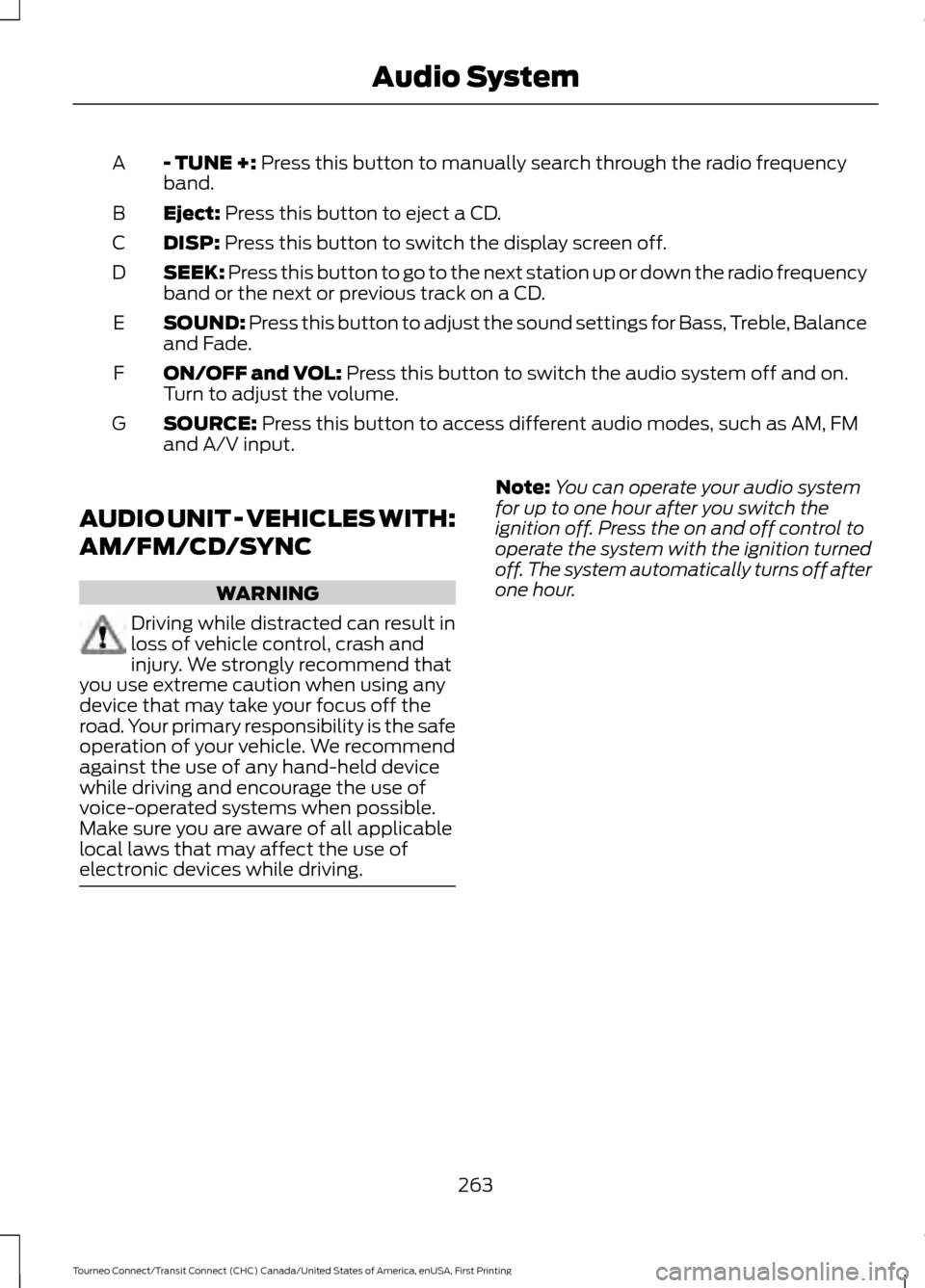
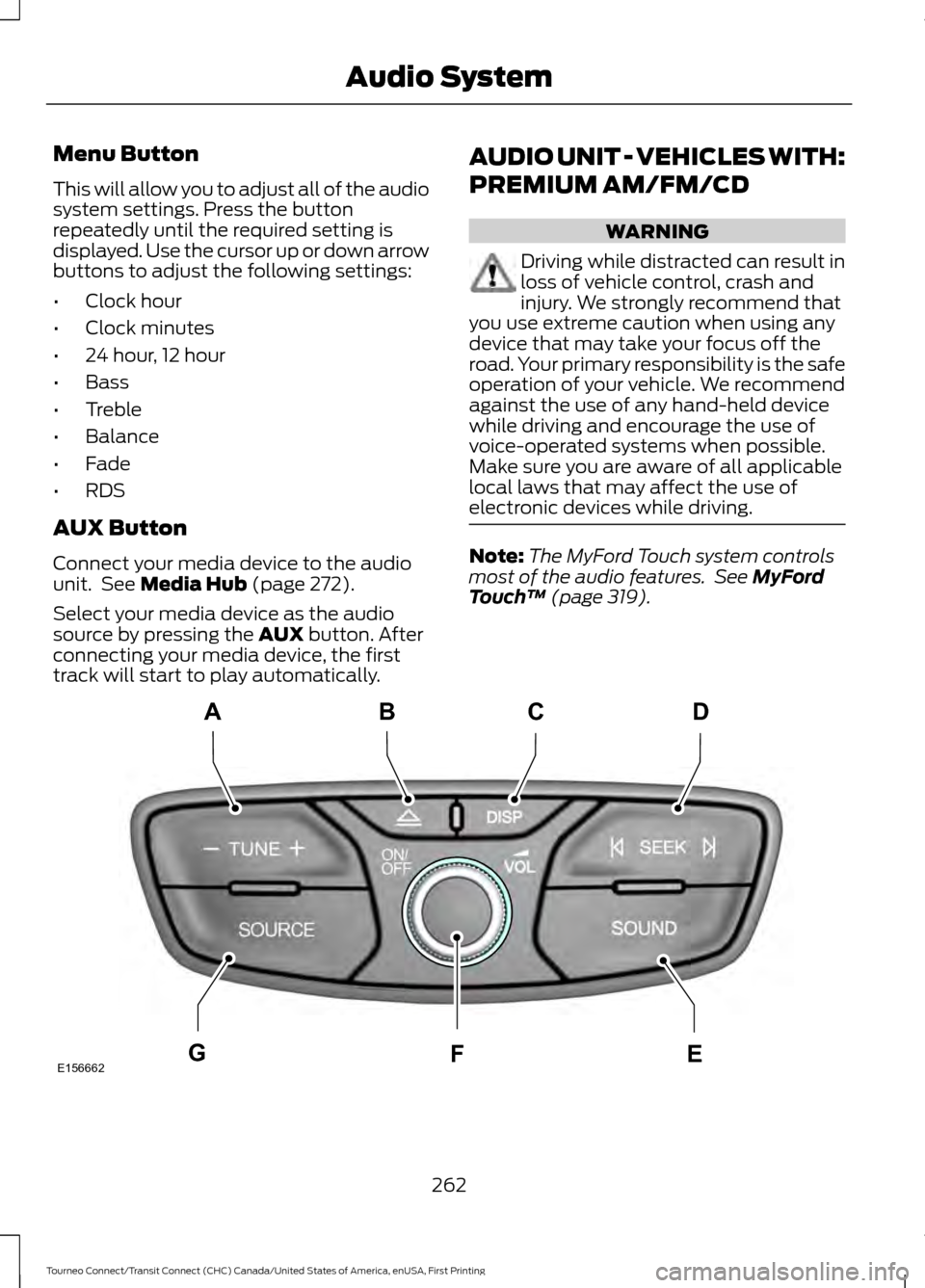
- TUNE +: Press this button to manually search through the radio frequency
band.
A
Eject:
Press this button to eject a CD.
B
DISP:
Press this button to switch the display screen off.
C
SEEK:
Press this button to go to the next station up or down the radio frequency
band or the next or previous track on a CD.
D
SOUND:
Press this button to adjust the sound settings for Bass, Treble, Balance
and Fade.
E
ON/OFF and VOL:
Press this button to switch the audio system off and on.
Turn to adjust the volume.
F
SOURCE:
Press this button to access different audio modes, such as AM, FM
and A/V input.
G
AUDIO UNIT - VEHICLES WITH:
AM/FM/CD/SYNC WARNING
Driving while distracted can result in
loss of vehicle control, crash and
injury. We strongly recommend that
you use extreme caution when using any
device that may take your focus off the
road. Your primary responsibility is the safe
operation of your vehicle. We recommend
against the use of any hand-held device
while driving and encourage the use of
voice-operated systems when possible.
Make sure you are aware of all applicable
local laws that may affect the use of
electronic devices while driving. Note:
You can operate your audio system
for up to one hour after you switch the
ignition off. Press the on and off control to
operate the system with the ignition turned
off. The system automatically turns off after
one hour.
263
Tourneo Connect/Transit Connect (CHC) Canada/United States of America, enUSA, First Printing Audio System
Page 268 of 439
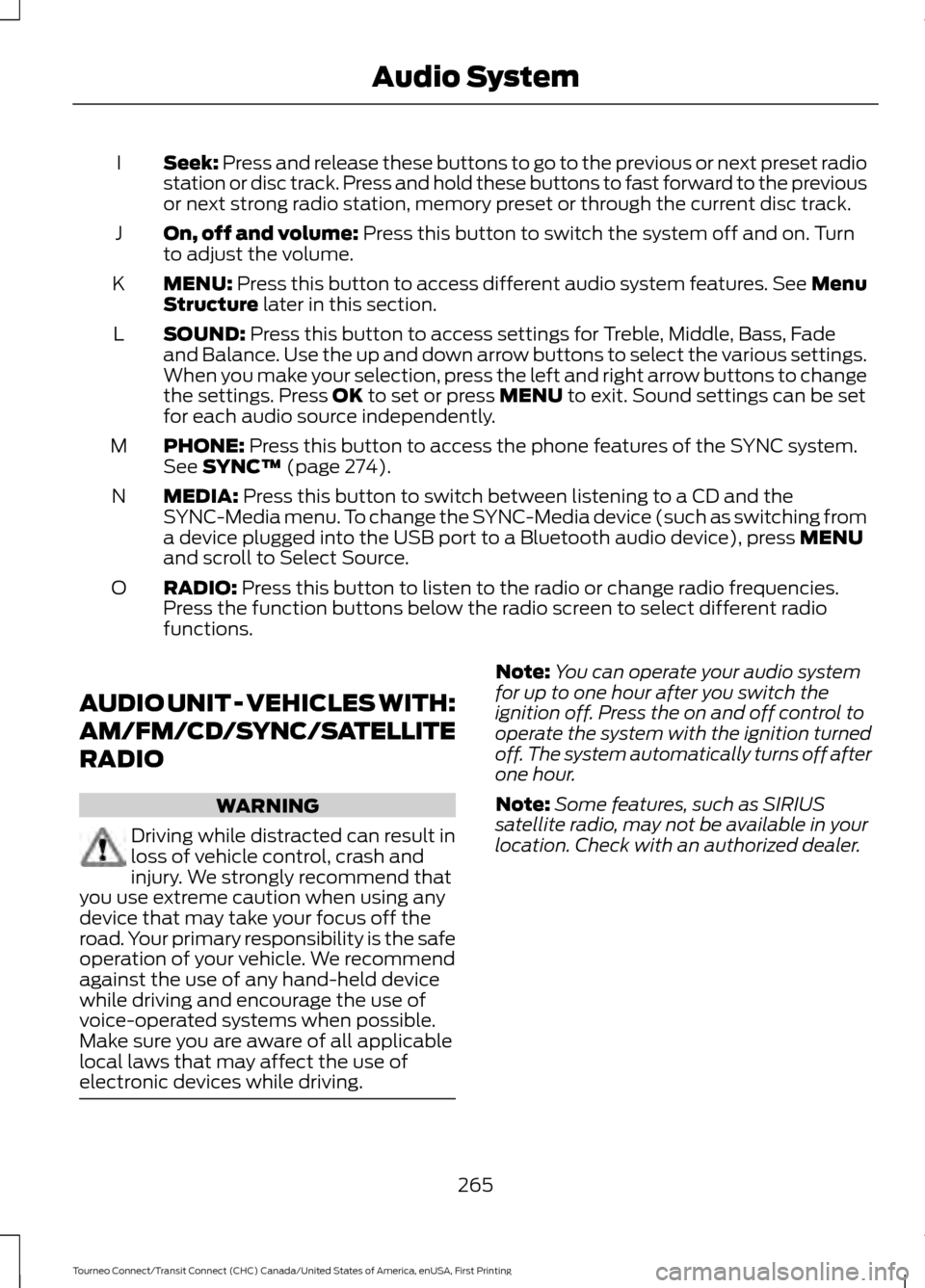
Seek: Press and release these buttons to go to the previous or next preset radio
station or disc track. Press and hold these buttons to fast forward to the previous
or next strong radio station, memory preset or through the current disc track.
I
On, off and volume:
Press this button to switch the system off and on. Turn
to adjust the volume.
J
MENU:
Press this button to access different audio system features. See Menu
Structure later in this section.
K
SOUND:
Press this button to access settings for Treble, Middle, Bass, Fade
and Balance. Use the up and down arrow buttons to select the various settings.
When you make your selection, press the left and right arrow buttons to change
the settings. Press
OK to set or press MENU to exit. Sound settings can be set
for each audio source independently.
L
PHONE:
Press this button to access the phone features of the SYNC system.
See SYNC™ (page 274).
M
MEDIA:
Press this button to switch between listening to a CD and the
SYNC-Media menu. To change the SYNC-Media device (such as switching from
a device plugged into the USB port to a Bluetooth audio device), press
MENU
and scroll to Select Source.
N
RADIO:
Press this button to listen to the radio or change radio frequencies.
Press the function buttons below the radio screen to select different radio
functions.
O
AUDIO UNIT - VEHICLES WITH:
AM/FM/CD/SYNC/SATELLITE
RADIO WARNING
Driving while distracted can result in
loss of vehicle control, crash and
injury. We strongly recommend that
you use extreme caution when using any
device that may take your focus off the
road. Your primary responsibility is the safe
operation of your vehicle. We recommend
against the use of any hand-held device
while driving and encourage the use of
voice-operated systems when possible.
Make sure you are aware of all applicable
local laws that may affect the use of
electronic devices while driving. Note:
You can operate your audio system
for up to one hour after you switch the
ignition off. Press the on and off control to
operate the system with the ignition turned
off. The system automatically turns off after
one hour.
Note: Some features, such as SIRIUS
satellite radio, may not be available in your
location. Check with an authorized dealer.
265
Tourneo Connect/Transit Connect (CHC) Canada/United States of America, enUSA, First Printing Audio System
Page 273 of 439
Note:
This receiver includes the eCos
real-time operating system. eCos is
published under the eCos License.
Satellite Radio Reception Factors Potential satellite radio reception issues
For optimal reception performance, keep the antenna
clear of snow and ice build-up and keep luggage and other
material as far away from the antenna as possible.
Antenna obstructions
Hills, mountains, tall buildings, bridges, tunnels, freeway
overpasses, parking garages, dense tree foliage and
thunderstorms can interfere with your reception.
Terrain
When you pass a ground-based broadcast-repeating
tower, a stronger signal may overtake a weaker one and
the audio system may mute.
Station overload
Your display may show ACQUIRING . . . to indicate the
interference and the audio system may mute.
Satellite radio signal interfer-
ence
SIRIUS® Satellite Radio Service
Note: SIRIUS reserves the unrestricted right
to change, rearrange, add or delete
programming including canceling, moving
or adding particular channels, and its prices,
at any time, with or without notice to you.
Ford Motor Company shall not be
responsible for any such programming
changes. SIRIUS satellite radio is a
subscription-based satellite radio service
that broadcasts a variety of music, sports,
news, weather, traffic and entertainment
programming. Your factory-installed
SIRIUS satellite radio system includes
hardware and a limited subscription term,
which begins on the date of sale or lease
of your vehicle. See an authorized dealer
for availability.
For more information on extended
subscription terms (a service fee is
required), the online media player and a
complete list of SIRIUS satellite radio
channels, and other features, please visit
www.siriusxm.com in the United States,
www.siriusxm.ca in Canada, or call SIRIUS
at 1-888-539-7474.
Satellite Radio Electronic Serial
Number (ESN)
You need your ESN to activate, modify or
track your satellite radio account. When in
satellite radio mode, tune to channel 0.
270
Tourneo Connect/Transit Connect (CHC) Canada/United States of America, enUSA, First Printing Audio SystemE142593
Page 275 of 439
AUDIO INPUT JACK
WARNINGS
Driving while distracted can result in
loss of vehicle control, accident and
injury. We strongly recommend that
you use extreme caution when using any
device or feature that may take your focus
off the road. Your primary responsibility is
the safe operation of your vehicle. We
recommend against the use of any
handheld device while driving and
encourage the use of voice-operated
systems when possible. Make sure you are
aware of all applicable local laws that may
affect the use of electronic devices while
driving. For safety reasons, do not connect
or adjust the settings on your
portable music player while your
vehicle is moving. Store the portable music player in a
secure location, such as the center
console or the glove box, when your
vehicle is in moving. Hard objects may
become projectiles in a collision or sudden
stop, which may increase the risk of serious
injury. The audio extension cable must be
long enough to allow the portable music
player to be safely stored while your
vehicle is moving. The auxiliary input jack allows you to
connect and play music from your portable
music player through your vehicle speakers.
You can use any portable music player
designed for use with headphones. Your
audio extension cable must have male
one-eighth inch (three and one-half
millimeter) connectors at each end.
1. Make sure your vehicle is stationary
with the radio and portable music
players turned off. 2. Plug the extension cable from the
portable music player into the auxiliary
input jack.
3. Switch the radio on. Select either a tuned FM station or a CD.
4. Adjust the volume as desired.
5. Switch the portable music player on and adjust its volume to half its
maximum level.
6. Press AUX until LINE or LINE IN
appears in the display. You should hear
music from your device even if it is low.
7. Adjust the volume on your portable music player until it reaches the volume
level of the FM station or CD. Do this
by switching back and forth between
the AUX and FM or CD controls.
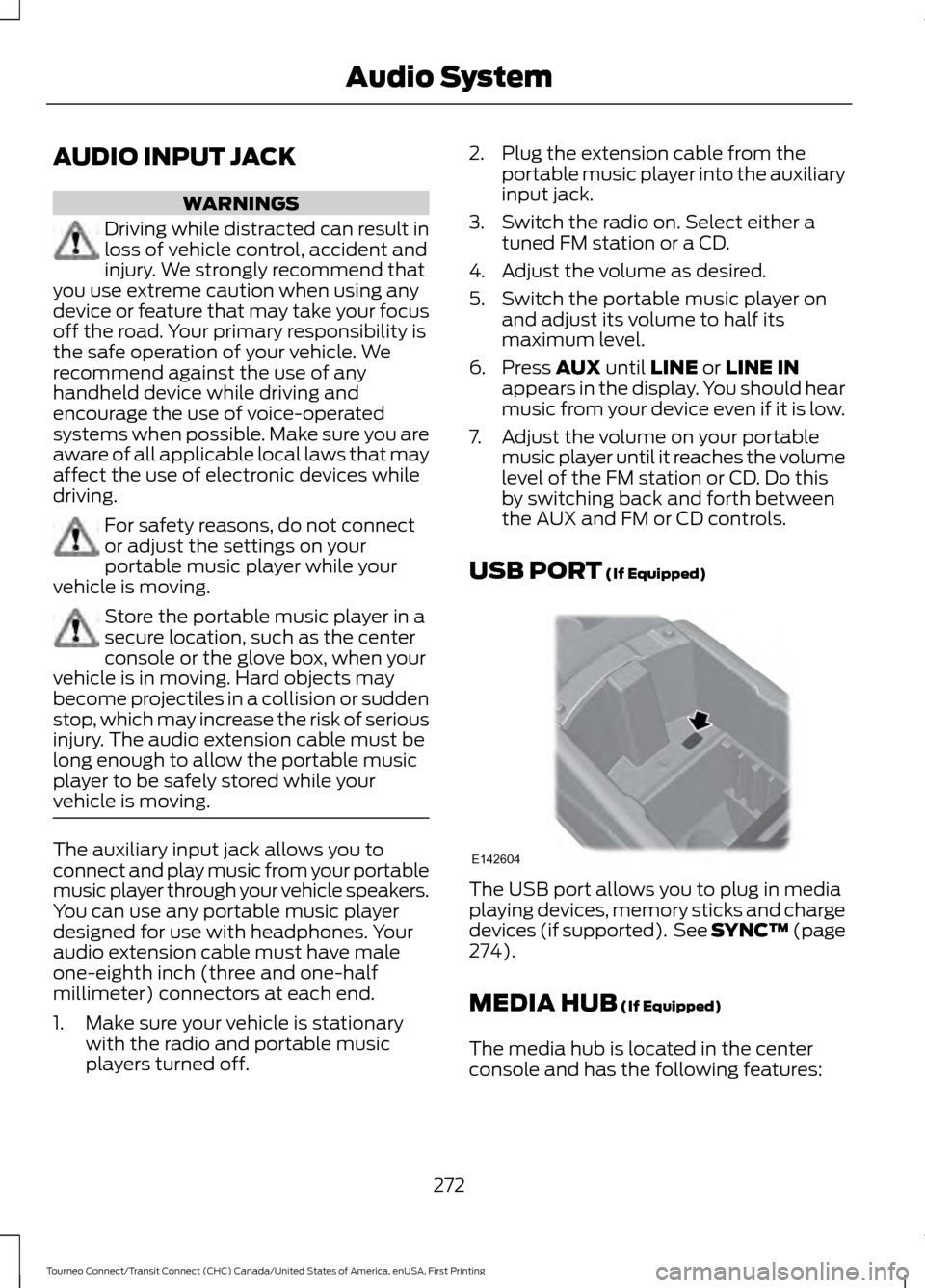
USB PORT
(If Equipped) The USB port allows you to plug in media
playing devices, memory sticks and charge
devices (if supported). See SYNC™
(page
274).
MEDIA HUB
(If Equipped)
The media hub is located in the center
console and has the following features:
272
Tourneo Connect/Transit Connect (CHC) Canada/United States of America, enUSA, First Printing Audio SystemE142604
Page 278 of 439
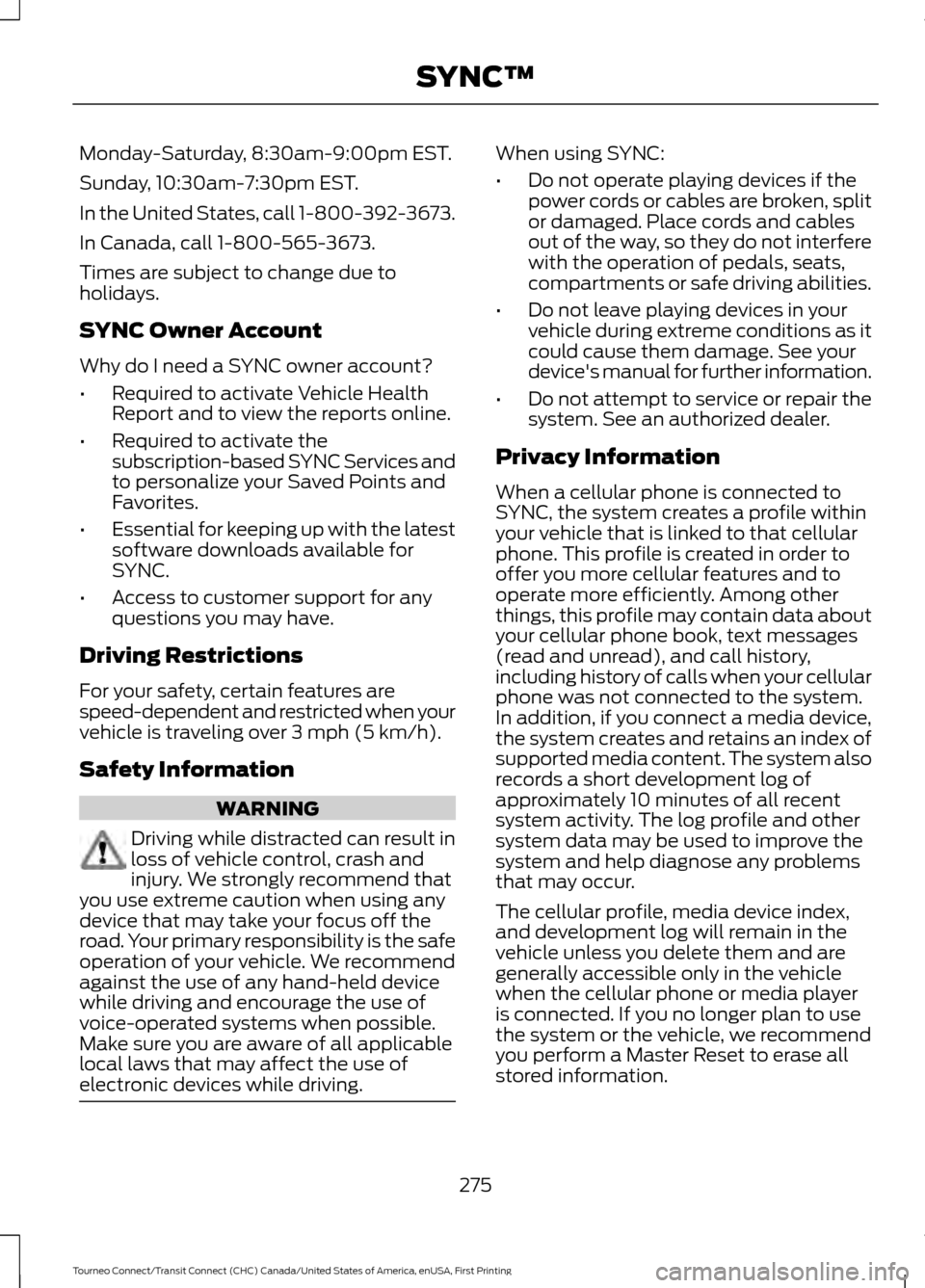
Monday-Saturday, 8:30am-9:00pm EST.
Sunday, 10:30am-7:30pm EST.
In the United States, call 1-800-392-3673.
In Canada, call 1-800-565-3673.
Times are subject to change due to
holidays.
SYNC Owner Account
Why do I need a SYNC owner account?
•
Required to activate Vehicle Health
Report and to view the reports online.
• Required to activate the
subscription-based SYNC Services and
to personalize your Saved Points and
Favorites.
• Essential for keeping up with the latest
software downloads available for
SYNC.
• Access to customer support for any
questions you may have.
Driving Restrictions
For your safety, certain features are
speed-dependent and restricted when your
vehicle is traveling over 3 mph (5 km/h).
Safety Information WARNING
Driving while distracted can result in
loss of vehicle control, crash and
injury. We strongly recommend that
you use extreme caution when using any
device that may take your focus off the
road. Your primary responsibility is the safe
operation of your vehicle. We recommend
against the use of any hand-held device
while driving and encourage the use of
voice-operated systems when possible.
Make sure you are aware of all applicable
local laws that may affect the use of
electronic devices while driving. When using SYNC:
•
Do not operate playing devices if the
power cords or cables are broken, split
or damaged. Place cords and cables
out of the way, so they do not interfere
with the operation of pedals, seats,
compartments or safe driving abilities.
• Do not leave playing devices in your
vehicle during extreme conditions as it
could cause them damage. See your
device's manual for further information.
• Do not attempt to service or repair the
system. See an authorized dealer.
Privacy Information
When a cellular phone is connected to
SYNC, the system creates a profile within
your vehicle that is linked to that cellular
phone. This profile is created in order to
offer you more cellular features and to
operate more efficiently. Among other
things, this profile may contain data about
your cellular phone book, text messages
(read and unread), and call history,
including history of calls when your cellular
phone was not connected to the system.
In addition, if you connect a media device,
the system creates and retains an index of
supported media content. The system also
records a short development log of
approximately 10 minutes of all recent
system activity. The log profile and other
system data may be used to improve the
system and help diagnose any problems
that may occur.
The cellular profile, media device index,
and development log will remain in the
vehicle unless you delete them and are
generally accessible only in the vehicle
when the cellular phone or media player
is connected. If you no longer plan to use
the system or the vehicle, we recommend
you perform a Master Reset to erase all
stored information.
275
Tourneo Connect/Transit Connect (CHC) Canada/United States of America, enUSA, First Printing SYNC™
Page 285 of 439
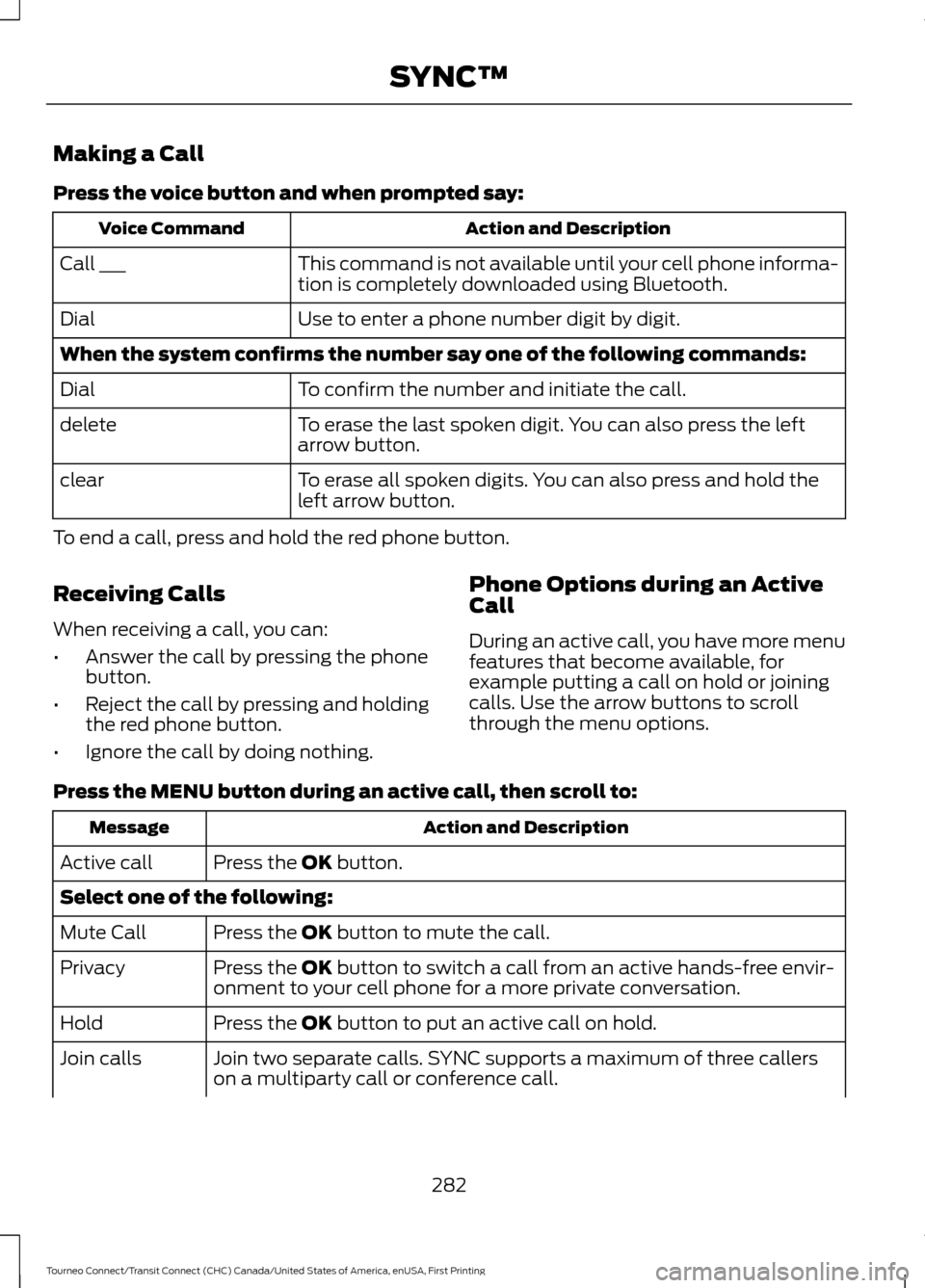
Making a Call
Press the voice button and when prompted say:
Action and Description
Voice Command
This command is not available until your cell phone informa-
tion is completely downloaded using Bluetooth.
Call ___
Use to enter a phone number digit by digit.
Dial
When the system confirms the number say one of the following commands:
To confirm the number and initiate the call.
Dial
To erase the last spoken digit. You can also press the left
arrow button.
delete
To erase all spoken digits. You can also press and hold the
left arrow button.
clear
To end a call, press and hold the red phone button.
Receiving Calls
When receiving a call, you can:
• Answer the call by pressing the phone
button.
• Reject the call by pressing and holding
the red phone button.
• Ignore the call by doing nothing. Phone Options during an Active
Call
During an active call, you have more menu
features that become available, for
example putting a call on hold or joining
calls. Use the arrow buttons to scroll
through the menu options.
Press the MENU button during an active call, then scroll to: Action and Description
Message
Press the
OK button.
Active call
Select one of the following:
Press the
OK button to mute the call.
Mute Call
Press the
OK button to switch a call from an active hands-free envir-
onment to your cell phone for a more private conversation.
Privacy
Press the
OK button to put an active call on hold.
Hold
Join two separate calls. SYNC supports a maximum of three callers
on a multiparty call or conference call.
Join calls
282
Tourneo Connect/Transit Connect (CHC) Canada/United States of America, enUSA, First Printing SYNC™