warning FORD TRANSIT CONNECT 2016 2.G Owners Manual
[x] Cancel search | Manufacturer: FORD, Model Year: 2016, Model line: TRANSIT CONNECT, Model: FORD TRANSIT CONNECT 2016 2.GPages: 439, PDF Size: 6.96 MB
Page 296 of 439
In the Event of a Crash
Not all crashes will deploy an airbag or
activate the fuel pump shut-off (the
triggers for 911 Assist). If a connected cell
phone sustains damage or loses its
connection to SYNC during a crash, SYNC
will search for and try to connect to a
previously paired cell phone; SYNC will
then attempt to call the emergency
services.
Before making the call:
•
SYNC provides a short window of time
(about 10 seconds) to cancel the call.
If you fail to cancel the call, SYNC
attempts to dial 911.
• SYNC says the following, or a similar
message: "SYNC will attempt to call
911, to cancel the call, press Cancel on
your screen or press and hold the
phone button on your steering wheel."
If you do not cancel the call, and SYNC
makes a successful call, a pre-recorded
message plays for the 911 operator, and
then the occupant(s) in your vehicle is able
to talk with the operator. Be prepared to
provide your name, phone number and
location immediately, because not all 911
systems are capable of receiving this
information electronically.
911 Assist May Not Work If
• Your cellular phone or 911 Assist
hardware sustains damage in a crash.
• The vehicle's battery or the SYNC
system has no power.
• The phone(s) thrown from your vehicle
are the ones paired and connected to
the system. 911 Assist Privacy Notice
When you turn on 911 Assist, it may
disclose to emergency services that your
vehicle has been in a crash involving the
deployment of an airbag or activation of
the fuel pump shut-off. Certain versions or
updates to 911 Assist may also be capable
of electronically or verbally disclosing to
911 operators your vehicle location or other
details about your vehicle or crash to assist
911 operators to provide the most
appropriate emergency services. If you do
not want to disclose this information, do
not turn the feature on.
Vehicle Health Report (If
Equipped, United States Only)
WARNING
Always follow scheduled
maintenance instructions, regularly
inspect your vehicle, and seek repair
for any damage or problem you suspect.
Vehicle Health Report supplements, but
cannot replace, normal maintenance and
vehicle inspection. Vehicle Health Report
only monitors certain systems
electronically monitored by your vehicle
and will not monitor or report the status
of any other system, (such as brake lining
wear). Failure to perform scheduled
maintenance and regularly inspect your
vehicle may result in vehicle damage and
serious injury. Note:
This feature is only available in the
United States.
Note: Your Vehicle Health Report feature
requires activation before use. Visit
www.SYNCMyRide.com to register. There
is no fee or subscription associated with
Vehicle Health Report, but you must register
to use this feature.
293
Tourneo Connect/Transit Connect (CHC) Canada/United States of America, enUSA, First Printing SYNC™
Page 322 of 439
GENERAL INFORMATION WARNING
Driving while distracted can result in
loss of vehicle control, crash and
injury. We strongly recommend that
you use extreme caution when using any
device that may take your focus off the
road. Your primary responsibility is the safe
operation of your vehicle. We recommend
against the use of any hand-held device
while driving and encourage the use of
voice-operated systems when possible.
Make sure you are aware of all applicable
local laws that may affect the use of
electronic devices while driving. Message
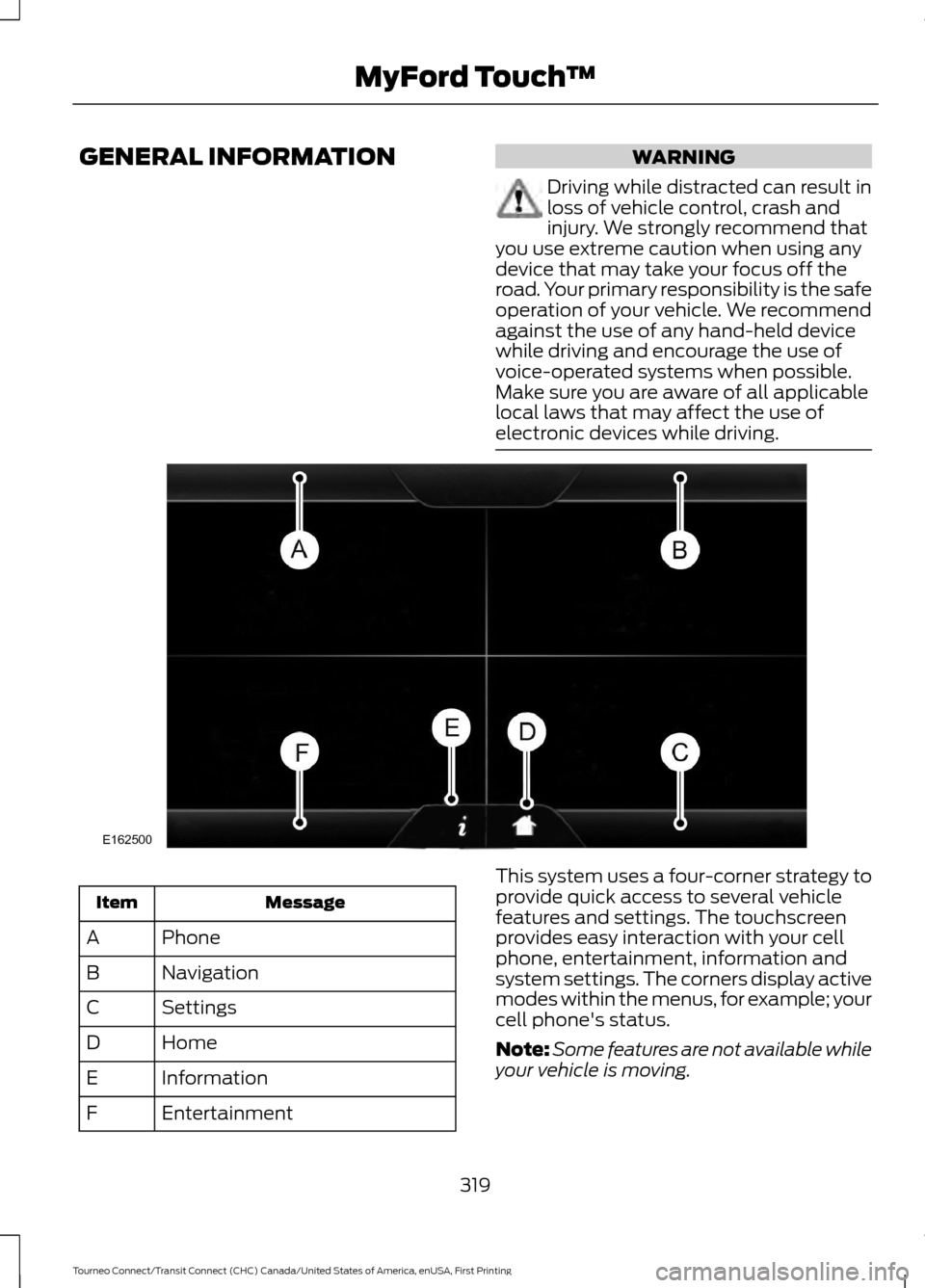
Item
Phone
A
Navigation
B
Settings
C
Home
D
Information
E
Entertainment
F This system uses a four-corner strategy to
provide quick access to several vehicle
features and settings. The touchscreen
provides easy interaction with your cell
phone, entertainment, information and
system settings. The corners display active
modes within the menus, for example; your
cell phone's status.
Note:
Some features are not available while
your vehicle is moving.
319
Tourneo Connect/Transit Connect (CHC) Canada/United States of America, enUSA, First Printing MyFord Touch
™E162500
Page 326 of 439
Safety Information
WARNING
Driving while distracted can result in
loss of vehicle control, crash and
injury. We strongly recommend that
you use extreme caution when using any
device that may take your focus off the
road. Your primary responsibility is the safe
operation of your vehicle. We recommend
against the use of any hand-held device
while driving and encourage the use of
voice-operated systems when possible.
Make sure you are aware of all applicable
local laws that may affect the use of
electronic devices while driving. •
Do not attempt to service or repair the
system. Have your vehicle checked by
an authorized dealer.
• Do not operate media devices if the
power cables are broken or damaged. •
Make sure the power cables do not
interfere with the safe operation of your
vehicle's controls or affect your safe
driving abilities.
• Some SYNC functions are
speed-dependent. Their use is limited
to when your vehicle is traveling at
speeds below 3 mph (5 km/h).
Make sure that you review your device's
manual before using it with SYNC.
Speed-restricted Features
Some features of this system are restricted
from use unless your vehicle is stationary.
• Screens crowded with information, for
example:
•Point of Interest reviews and ratings
• SIRIUS Travel Link sports scores
• Movie times
• Ski conditions.
• Any action that requires keyboard use,
for example: entering a navigation
destination or editing information.
• All lists are limited, for example: phone
contacts.
See the following chart for more specific
examples. Speed-restricted Features
Pairing a cell phone
Cell phone
Adding or editing phonebook contacts
Phone contacts and recent phone call entries
Enabling Valet Mode
System Functionality
Editing settings while the rear view camera or active park
assist are active
Editing wireless settings
Wi-Fi and Wireless
Editing the list of wireless networks
323
Tourneo Connect/Transit Connect (CHC) Canada/United States of America, enUSA, First Printing MyFord Touch
™
Page 337 of 439
Action and Description
Message
Turn the Parking POI notification on and off.
Select shortest route, fastest route or ecological route as
your preferred route. This route will be displayed first.
Route Preferences
Always use preferred route. If set to yes, the system will only
calculate a single route. This speeds up your destination entry
process.
Select a low, medium or high cost for the calculated ecolo-
gical route. This may incur a time penalty.
Have the system avoid freeways.
Have the system avoid toll roads.
Have the system avoid ferries or car trains.
Have the system use HOV (high-occupancy vehicle) lanes.
Have the system use guidance prompts.
Navigation Preferences
Have the system automatically fill-in State/Province
information.
Have the system automatically avoid traffic concerns or allow
you to accept or decline an alternative route.
Traffic Preferences
Have the system automatically alert you to traffic concerns
that occur on your route.
Have the system display accident icons.
Have the system display traffic jam icons.
Have the system display closed roads.
Have the system display areas where road work occurs.
Have the system display incident icons.
Have the system display areas where difficult driving condi-
tions may occur.
Have the system display areas where snow and ice on the
road may occur.
Have the system display any smog alerts.
Have the system display weather warnings.
334
Tourneo Connect/Transit Connect (CHC) Canada/United States of America, enUSA, First Printing MyFord Touch
™
Page 339 of 439
Action and Description
Message
If compatible with your phone, you can adjust your internet
data connection. Select to make your connection profile with
the personal area network or to turn off your connection. You
can also choose to adjust your settings or have the system
always connect, never connect when roaming, or query on
connect. Press ? for more information.
Internet Data Connection
Access features, such as automatic phonebook download,
re-download your phonebook, add contacts from your phone
as well as delete or upload your phonebook.
Manage Phonebook
Have the system alert you when in Roaming mode.
Roaming Warning
Wireless & Internet
Your system has a Wi-Fi feature that
creates a wireless network within your
vehicle, thereby allowing other devices
(such as personal computers or phones)
in your vehicle to speak to each other,
share files or play games. Using this Wi-Fi feature, everyone in your vehicle can also
gain access the internet if you have a USB
mobile broadband connection inside your
vehicle, your phone supports personal area
networking and if you park outside a
wireless hotspot.
To make adjustments using the touchscreen, select: Action and Description
Menu Item
Press the settings icon.
Settings
Wireless & Internet
Then select from the following:
Wi-Fi Network (Client) Mode
Wi-Fi Settings
Turns the Wi-Fi feature on and off in your vehicle. Make sure
you switch it on for connectivity purposes.
Choose a Wireless Network
Allows you to use a previously stored wireless network. You
can categorize by alphabetical listing, priority and signal
strength. You can also choose to search for a network,
connect to a network, disconnect from a network, receive
more information, prioritize a network or delete a network.
Gateway (Access Point) Mode
336
Tourneo Connect/Transit Connect (CHC) Canada/United States of America, enUSA, First Printing MyFord Touch
™
Page 359 of 439
Message
Item
Phone
A
Quick Dial
B
Phonebook
C
History
D
Messaging
E
Settings
F
Hands-free calling is one of the main
features of SYNC. Once you pair your cell
phone, you can access many options using
the touchscreen or voice commands. While
the system supports a variety of features,
many are dependent on your cell phone ’s
functionality.
At a minimum, most cell phones with
Bluetooth wireless technology support the
following functions:
• Answering an incoming call.
• Ending a call.
• Using privacy mode.
• Dialing a number.
• Redialing.
• Call waiting notification.
• Caller ID. Other features, such as text messaging
using Bluetooth and automatic phonebook
download, are cell phone-dependent
features. To check your cell phone
’s
compatibility, see your cell phone ’s user
manual and visit www.SYNCMyRide.com,
www.SYNCMyRide.ca or
www.syncmaroute.ca.
Pairing Your Cell Phone for the
First Time WARNING
Driving while distracted can result in
loss of vehicle control, crash and
injury. We strongly recommend that
you use extreme caution when using any
device that may take your focus off the
road. Your primary responsibility is the safe
operation of your vehicle. We recommend
against the use of any hand-held device
while driving and encourage the use of
voice-operated systems when possible.
Make sure you are aware of all applicable
local laws that may affect the use of
electronic devices while driving. The first thing you must do to use the
phone features of SYNC is to pair your
Bluetooth-enabled cell phone with SYNC.
This allows you to use your cell phone in a
hands-free manner.
Note:
This is a speed-dependent feature.
It is unavailable when your vehicle is
traveling at speeds over 3 mph (5 km/h).
Touch the upper left corner of the touchscreen: Action and Description
Message
Add phone Follow the on-screen instructions.
Find SYNC
Make sure that Bluetooth is set to On
and that your cell phone
is in the correct mode. See your cell phone ’s manual if
necessary.
Select
SYNC and a six-digit PIN appears on your device.
356
Tourneo Connect/Transit Connect (CHC) Canada/United States of America, enUSA, First Printing MyFord Touch
™
Page 365 of 439
Action and Description
Message
If your cell phone is compatible, use this screen to adjust your
internet data connection. Select to make your connection
profile with the personal area network or to turn off your
connection. You can also choose to adjust your settings or
have the system always connect, never connect when
roaming or query on connect. Press ? for more information.
Internet Data Connection
To access features such as automatic phonebook download,
re-download your phonebook, add contacts from your cell
phone as well as delete or upload your phonebook.
Manage Phonebook
To have the system alert you when your cell phone is in
roaming mode.
Roaming Warning
Phone Voice Commands Press the voice button and when
prompted say any of the following or a
similar command:
Voice command
Call Voicemail
Listen to Message
Reply to Message
Pair Phone
Help
362
Tourneo Connect/Transit Connect (CHC) Canada/United States of America, enUSA, First Printing MyFord Touch
™E142599
Page 370 of 439
SYNC Services Voice Commands
If your vehicle is equipped with
Navigation, SYNC Services
downloads your requested
destination to the navigation system. The
navigation system then calculates the
route and provides driving instructions.
See Navigation (page 372).
If your vehicle is not equipped with
Navigation, when a route has been
downloaded (non-navigation systems),
you can press the voice button on the
steering wheel controls and say any of the
following commands to receive directions:
Services Voice command
Cancel Route
Route Status
Route Summary
Update Route
Help Sirius Travel Link
(If Equipped) WARNING
Driving while distracted can result in
loss of vehicle control, crash and
injury. We strongly recommend that
you use extreme caution when using any
device that may take your focus off the
road. Your primary responsibility is the safe
operation of your vehicle. We recommend
against the use of any handheld device
while driving and encourage the use of
voice-operated systems when possible.
Make sure you are aware of all applicable
local laws that may affect the use of
electronic devices while driving. Note:
In order to use Sirius Travel Link, your
vehicle must be equipped with navigation
and your navigation SD card must be in the
SD card slot.
Note: A paid subscription is required to
access and use these features. Go to
www.siriusxm.com/travellink for more
information.
Note: Visit www.siriusxm.com/traffic and
click on Coverage map and details for a
complete listing of all traffic areas covered
by Sirius Travel Link.
Note: Neither Sirius nor Ford is responsible
for any errors or inaccuracies in the Sirius
Travel Link services or its use in vehicles.
When you subscribe to Sirius Travel Link,
it can help you locate the best gas prices,
find movie listings, get current traffic alerts,
view the current weather map, get
accurate ski conditions and see scores to
current sports games.
367
Tourneo Connect/Transit Connect (CHC) Canada/United States of America, enUSA, First Printing MyFord Touch
™E142599
Page 372 of 439
This screen displays any system messages
(such as an SD card fault).
Note:
The system alerts you to any
messages by turning the information icon
yellow. After you read or delete the
messages, the icon returns to white.
Calendar If your vehicle is equipped with
Navigation, touch the I
(Information) button to access
these features. If your vehicle is not
equipped with Navigation, touch the corner
of the touchscreen with the green tab.
Press Calendar. You can view the current
calendar by day, week or month.
911 Assist WARNINGS
Unless the 911 Assist setting is set on
before a crash, the system will not
dial for help, which could delay
response time, potentially increasing the
risk of serious injury or death after a crash. Do not wait for 911 Assist to make an
emergency call if you can do it
yourself. Dial emergency services
immediately to avoid delayed response
time, which could increase the risk of
serious injury or death after a crash. If you
do not hear 911 Assist within five seconds
of the crash, the system or phone may be
damaged or non-functional. Always place your phone in a secure
location in your vehicle so it does not
become a projectile or damaged in
a crash. Failure to do so may cause serious
injury to someone or damage the phone,
which could prevent 911 Assist from
working properly. Note:
The SYNC 911 Assist feature must be
set on prior to the incident. Note:
Before setting this feature on, make
sure that you read the 911 Assist Privacy
Notice later in this section for important
information.
Note: If any user turns 911 Assist on or off,
that setting applies for all paired phones. If
911 Assist is turned off, either a voice
message plays or a display message (or
icon) comes on (or both) when your vehicle
is started after a previously paired phone
connects.
Note: Every phone operates differently.
While SYNC 911 Assist works with most
cellular phones, some may have trouble
using this feature.
If a crash deploys an airbag, excluding knee
airbags and rear inflatable safety belts
where fitted or activates the fuel pump
shut-off, your SYNC-equipped vehicle may
be able to contact emergency services by
dialing 911 through a paired and connected
Bluetooth-enabled phone. For more
information about the 911 Assist feature
visit: Website
visit www.SYNCMyRide.com www.SYNCMyRide.cawww.syncmaroute.ca
See
Supplementary Restraints System
(page 36). Important information
regarding airbag deployment is in this
chapter.
See
Roadside Emergencies (page 170).
Important information regarding the fuel
pump shut-off is in this chapter.
369
Tourneo Connect/Transit Connect (CHC) Canada/United States of America, enUSA, First Printing MyFord Touch
™E142608
Page 374 of 439
911 Assist May Not Work If:
•
Your cellular phone or 911 Assist
hardware sustains damage in a crash.
• The vehicle's battery or the SYNC
system has no power.
• The phones(s) previously paired or
connected to the system are thrown
from the vehicle.
911 Assist Privacy Notice
When you turn on 911 Assist, it may
disclose to emergency services that your
vehicle has been in a crash involving the
deployment of an airbag or activation of
the fuel pump shut-off. Certain versions or
updates to 911 Assist may also be capable
of electronically or verbally disclosing to
911 operators your vehicle location or other
details about your vehicle or crash to assist
911 operators to provide the most
appropriate emergency services. If you do
not want to disclose this information, do
not turn the feature on.
Vehicle Health Report (If
Equipped, US Only) WARNING
Always follow scheduled
maintenance instructions, regularly
inspect your vehicle, and seek repair
for any damage or problem you suspect.
Vehicle Health Report supplements, but
cannot replace, normal maintenance and
vehicle inspection. Vehicle Health Report
only monitors certain systems
electronically monitored by your vehicle
and will not monitor or report the status
of any other system, (such as brake lining
wear). Failure to perform scheduled
maintenance and regularly inspect your
vehicle may result in vehicle damage and
serious injury. Note:
Your Vehicle Health Report feature
requires activation prior to use. Visit
www.SYNCMyRide.com to register. There
is no fee or subscription associated with
Vehicle Health Report, but you must register
to use this feature.
Note: This feature may not function
properly if you have enabled caller ID
blocking on your cellular phone. Before
running a report, review the Vehicle Health
Report Privacy Notice.
Note: In order to allow a break-in period for
your vehicle, you may not be able to create
a Vehicle Health Report until your vehicle
odometer has reached 200 miles.
Note: Cellular phone and SMS charges may
apply when making a report.
Register for Vehicle Health Report and set
your report preferences at
www.SYNCMyRide.com. After registering,
you can request a Vehicle Health Report
(inside your vehicle). Return to your
account at www.SYNCMyRide.com to view
your report. You can also choose for SYNC
to remind you automatically to run reports
at specific mileage intervals. Cellular phone
airtime usage may apply when reporting.
The system allows you to check your
vehicle ’s overall health in the form of a
diagnostic report card. The Vehicle Health
Report contains valuable information, for
example:
• Vehicle diagnostic information.
• Scheduled maintenance.
• Open recalls and Field Service Actions.
• Items noted during vehicle inspections
by your authorized dealer that still need
servicing.
371
Tourneo Connect/Transit Connect (CHC) Canada/United States of America, enUSA, First Printing MyFord Touch
™