warning FORD TRANSIT CONNECT 2019 Owners Manual
[x] Cancel search | Manufacturer: FORD, Model Year: 2019, Model line: TRANSIT CONNECT, Model: FORD TRANSIT CONNECT 2019Pages: 493, PDF Size: 7.43 MB
Page 372 of 493
•
SOUND: Press to access the Sound
menu where you can adjust sound and
other audio settings.
• 1-6:
Press and hold to store or press to
select an AM, FM or SIRIUS memory
preset. See Audio System (page 352).
• DISP:
Switch the display on or off. You
can also touch the screen to switch the
display back on.
• Temperature, fan and climate
control buttons:
Control the
temperature, fan speed or settings of
the climate control system. See
Climate Control
(page 108).
Safety Information WARNING:
Driving while distracted
can result in loss of vehicle control, crash
and injury. We strongly recommend that
you use extreme caution when using any
device that may take your focus off the
road. Your primary responsibility is the safe
operation of your vehicle. We recommend
against the use of any hand-held device
while driving and encourage the use of
voice-operated systems when possible.
Make sure you are aware of all applicable
local laws that may affect the use of
electronic devices while driving.
• Do not attempt to service or repair the
system. Have an authorized dealer
check your vehicle.
• Do not operate playing devices if the
power cords or cables are broken, split
or damaged. Place cords and cables
out of the way, so they do not interfere
with the operation of pedals, seats,
compartments or safe driving abilities. •
Do not leave playing devices in your
vehicle during extreme conditions as it
could cause them damage. See your
device's user guide for further
information.
• For your safety, some SYNC 3 functions
are speed-dependent. Their use is
limited to when your vehicle is traveling
at speeds under 3 mph (5 km/h). Make
sure that you review your device's
manual before using it with SYNC 3.
Speed-restricted Features
Some features of this system may be too
difficult to use while your vehicle is moving
so they are restricted from use unless your
vehicle is stationary.
• Screens crowded with information,
such as Point of Interest reviews and
ratings, SiriusXM Traffic and Travel Link
sports scores, movie times or ski
conditions.
• Any action that requires you to use a
keyboard is restricted, such as entering
a navigation destination or editing
information.
• All lists are limited so the user can view
fewer entries (such as phone contacts
or recent phone call entries).
See the following chart for more specific
examples.
368
2019 Transit Connect (CHC) Canada/United States of America, CG3739en enUSA, Edition date: 201804, First-Printing SYNC™ 3
Page 383 of 493
Note:
You can also browse by album, artist,
audiobook, genre, playlist, podcast or track
name.
Repeating Tracks on a USB or Media
Player Select the repeat icon to repeat
tracks.
Note: You can repeat one track or all tracks
on an audio format USB or media player.
You can repeat one track, all tracks or all
tracks in one folder on a USB or media
player.
Note: A small number one appears next to
the repeat icon to indicate that a track is set
to repeat. A small folder icon appears next
to it to indicate that a folder is set to repeat
Supported Devices
The system supports most USB and media
players, including iOS and Android devices.
Supported File Formats
The system supports the following file
formats:
• MP3, MP4, WMA, WAV, AAC, AIFF, APE,
DSD, and FLAC audio file formats.
• MP3, WMA, WAV, M4A, M4B, AAC, and
FLAC file extensions.
• FAT, exFAT, and NTFS file systems.
Audio File Metadata
The system organizes files on your USB or
media player by metadata tags. Metadata
tags contain information about the file. If
the metadata tags for the files on your USB
or media player contain no information,
the system classifies them as unknown.
The system can index up to 50000 tracks
on a USB device or media player, and up
to 10 devices. PHONE WARNING: Driving while distracted
can result in loss of vehicle control, crash
and injury. We strongly recommend that
you use extreme caution when using any
device that may take your focus off the
road. Your primary responsibility is the safe
operation of your vehicle. We recommend
against the use of any hand-held device
while driving and encourage the use of
voice-operated systems when possible.
Make sure you are aware of all applicable
local laws that may affect the use of
electronic devices while driving.
Check the compatibility of your device on
the regional Ford website.
Pairing Your Cell Phone for the
First Time
Go to the settings menu on your cell phone
and switch Bluetooth on. Select the phone option on the
feature bar.
Select
Add Phone.
Note: A prompt alerts you to search for your
vehicle on your cell phone.
Select your vehicle on your cell phone.
Note: A number appears on your cell phone
and on the touchscreen.
Confirm that the number on your cell
phone matches the number on the
touchscreen.
Note: The touchscreen indicates that you
have successfully paired your cell phone.
Download the phonebook from your cell
phone when you are prompted.
379
2019 Transit Connect (CHC) Canada/United States of America, CG3739en enUSA, Edition date: 201804, First-Printing SYNC™ 3
Page 389 of 493
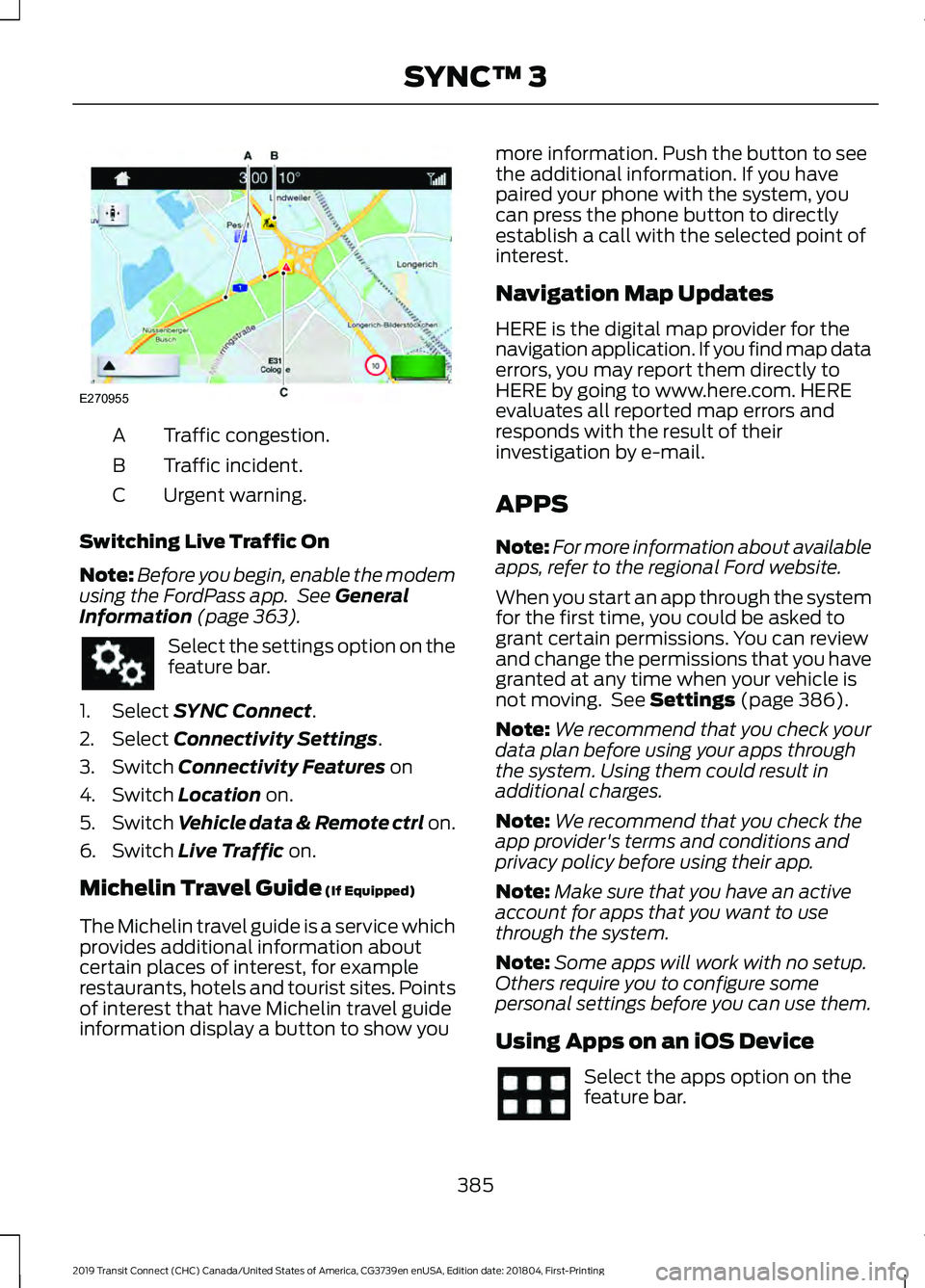
Traffic congestion.
A
Traffic incident.
B
Urgent warning.
C
Switching Live Traffic On
Note: Before you begin, enable the modem
using the FordPass app. See General
Information (page 363). Select the settings option on the
feature bar.
1. Select
SYNC Connect.
2. Select
Connectivity Settings.
3. Switch
Connectivity Features on
4. Switch
Location on.
5. Switch
Vehicle data & Remote ctrl on.
6. Switch
Live Traffic on.
Michelin Travel Guide
(If Equipped)
The Michelin travel guide is a service which
provides additional information about
certain places of interest, for example
restaurants, hotels and tourist sites. Points
of interest that have Michelin travel guide
information display a button to show you more information. Push the button to see
the additional information. If you have
paired your phone with the system, you
can press the phone button to directly
establish a call with the selected point of
interest.
Navigation Map Updates
HERE is the digital map provider for the
navigation application. If you find map data
errors, you may report them directly to
HERE by going to www.here.com. HERE
evaluates all reported map errors and
responds with the result of their
investigation by e-mail.
APPS
Note:
For more information about available
apps, refer to the regional Ford website.
When you start an app through the system
for the first time, you could be asked to
grant certain permissions. You can review
and change the permissions that you have
granted at any time when your vehicle is
not moving. See
Settings (page 386).
Note: We recommend that you check your
data plan before using your apps through
the system. Using them could result in
additional charges.
Note: We recommend that you check the
app provider's terms and conditions and
privacy policy before using their app.
Note: Make sure that you have an active
account for apps that you want to use
through the system.
Note: Some apps will work with no setup.
Others require you to configure some
personal settings before you can use them.
Using Apps on an iOS Device Select the apps option on the
feature bar.
385
2019 Transit Connect (CHC) Canada/United States of America, CG3739en enUSA, Edition date: 201804, First-Printing SYNC™ 3E270955
Page 395 of 493
You can enable and disable the following options as well:
Action and Description
Menu Item
When enabled, vehicle audio (such as radio or apps) is muted for the
duration of the phone call even when the phone call is in privacy.
Mute Audio in
Privacy
When enabled, an alert displays that your phone is roaming when
you attempt to place a call.
Roaming
Warning
When enabled, a message displays when the battery on your phone
is running low.
Low Battery
Notification
911 Assist
Note: This service is only available in the
United States and Canada. Select this button to modify the on or off
setting for this feature. If the mobile
phone
’s contacts have been downloaded,
you can adjust the following option: Action and Description
Menu Item
You can select up to two numbers from your mobile device's phone-
book as emergency contacts for quick access at the end of the 911
Assist call process.
Set Emergency
Contacts
Radio
This button is available if a Radio source
such as AM or FM is the active media
source. Pressing the button allows you to
access the following features:
391
2019 Transit Connect (CHC) Canada/United States of America, CG3739en enUSA, Edition date: 201804, First-Printing SYNC™ 3
Page 422 of 493
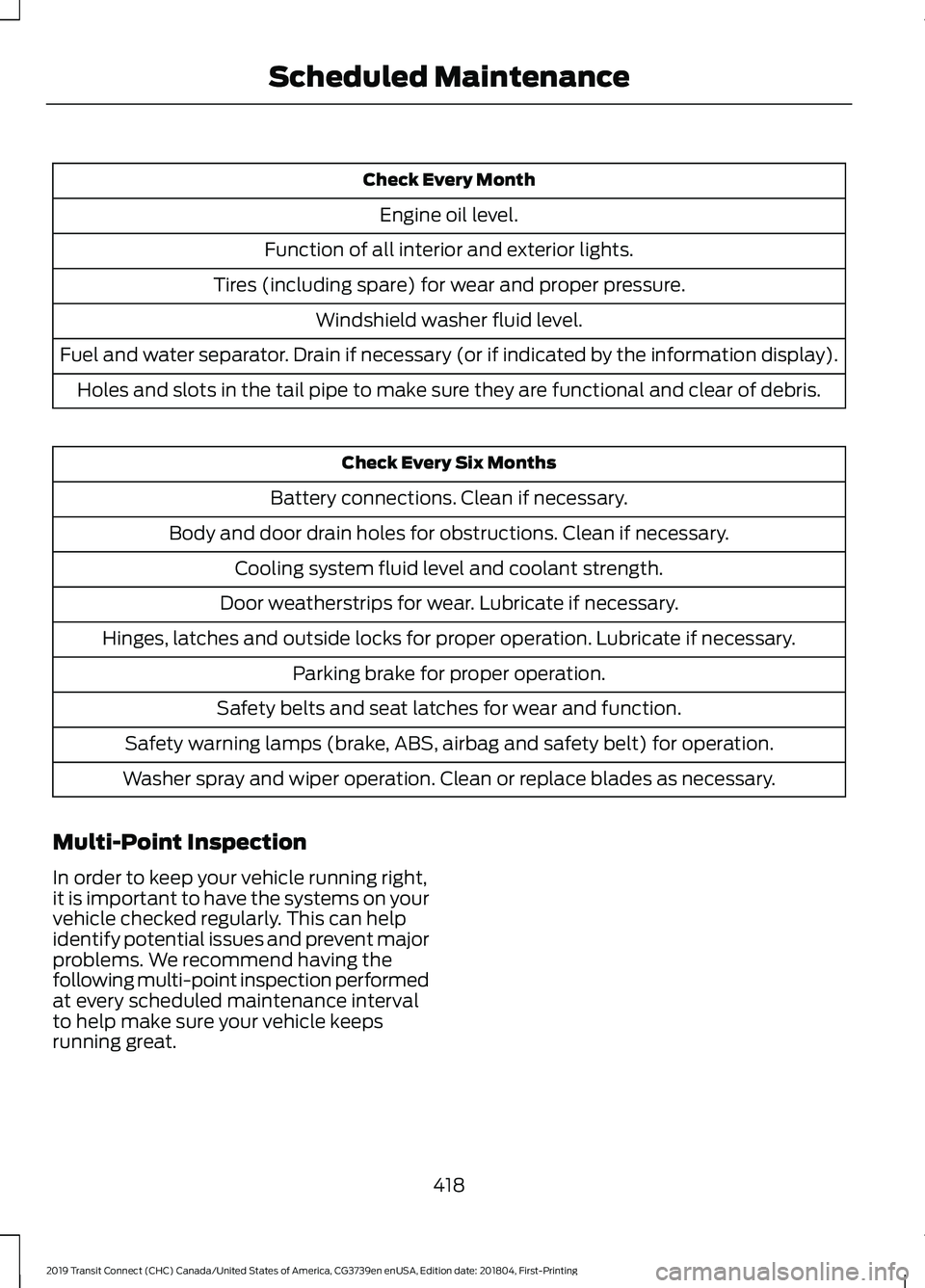
Check Every Month
Engine oil level.
Function of all interior and exterior lights.
Tires (including spare) for wear and proper pressure. Windshield washer fluid level.
Fuel and water separator. Drain if necessary (or if indicated by the information display). Holes and slots in the tail pipe to make sure they are functional and clear of debris. Check Every Six Months
Battery connections. Clean if necessary.
Body and door drain holes for obstructions. Clean if necessary. Cooling system fluid level and coolant strength.
Door weatherstrips for wear. Lubricate if necessary.
Hinges, latches and outside locks for proper operation. Lubricate if necessary. Parking brake for proper operation.
Safety belts and seat latches for wear and function.
Safety warning lamps (brake, ABS, airbag and safety belt) for operation.
Washer spray and wiper operation. Clean or replace blades as necessary.
Multi-Point Inspection
In order to keep your vehicle running right,
it is important to have the systems on your
vehicle checked regularly. This can help
identify potential issues and prevent major
problems. We recommend having the
following multi-point inspection performed
at every scheduled maintenance interval
to help make sure your vehicle keeps
running great.
418
2019 Transit Connect (CHC) Canada/United States of America, CG3739en enUSA, Edition date: 201804, First-Printing Scheduled Maintenance
Page 423 of 493
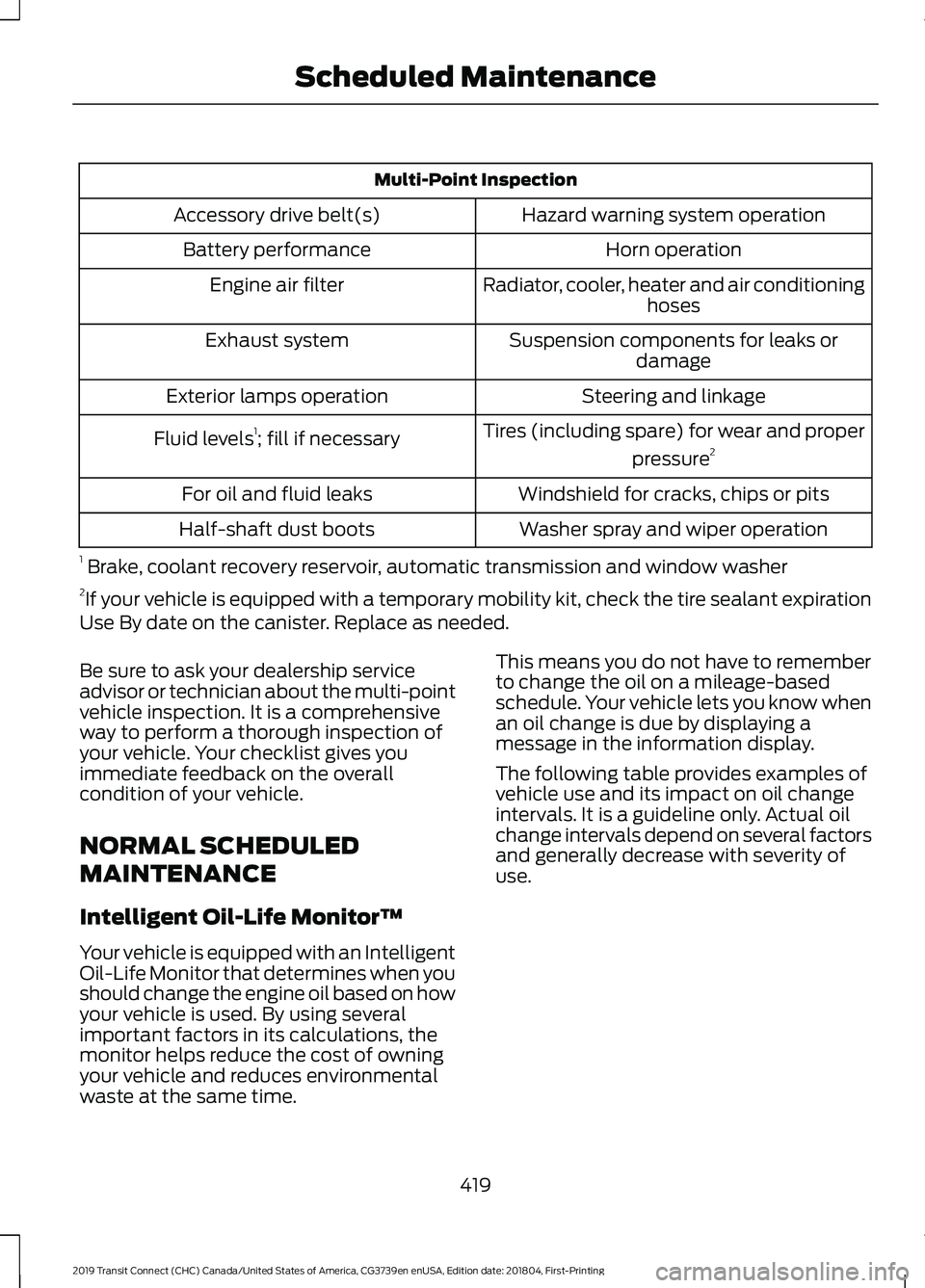
Multi-Point Inspection
Hazard warning system operation
Accessory drive belt(s)
Horn operation
Battery performance
Radiator, cooler, heater and air conditioninghoses
Engine air filter
Suspension components for leaks ordamage
Exhaust system
Steering and linkage
Exterior lamps operation
Tires (including spare) for wear and properpressure2
Fluid levels 1
; fill if necessary
Windshield for cracks, chips or pits
For oil and fluid leaks
Washer spray and wiper operation
Half-shaft dust boots
1 Brake, coolant recovery reservoir, automatic transmission and window washer
2 If your vehicle is equipped with a temporary mobility kit, check the tire sealant expiration
Use By date on the canister. Replace as needed.
Be sure to ask your dealership service
advisor or technician about the multi-point
vehicle inspection. It is a comprehensive
way to perform a thorough inspection of
your vehicle. Your checklist gives you
immediate feedback on the overall
condition of your vehicle.
NORMAL SCHEDULED
MAINTENANCE
Intelligent Oil-Life Monitor™
Your vehicle is equipped with an Intelligent
Oil-Life Monitor that determines when you
should change the engine oil based on how
your vehicle is used. By using several
important factors in its calculations, the
monitor helps reduce the cost of owning
your vehicle and reduces environmental
waste at the same time. This means you do not have to remember
to change the oil on a mileage-based
schedule. Your vehicle lets you know when
an oil change is due by displaying a
message in the information display.
The following table provides examples of
vehicle use and its impact on oil change
intervals. It is a guideline only. Actual oil
change intervals depend on several factors
and generally decrease with severity of
use.
419
2019 Transit Connect (CHC) Canada/United States of America, CG3739en enUSA, Edition date: 201804, First-Printing Scheduled Maintenance
Page 438 of 493
ELECTROMAGNETIC
COMPATIBILITY
WARNING: Do not place objects or
mount equipment on or near the airbag
cover, on the side of the seatbacks (of the
front seats), or in front seat areas that may
come into contact with a deploying airbag.
Failure to follow these instructions may
increase the risk of personal injury in the
event of a crash. WARNING:
Do not fasten antenna
cables to original vehicle wiring, fuel pipes
and brake pipes. WARNING:
Keep antenna and power
cables at least 4 in (10 cm) from any
electronic modules and airbags.
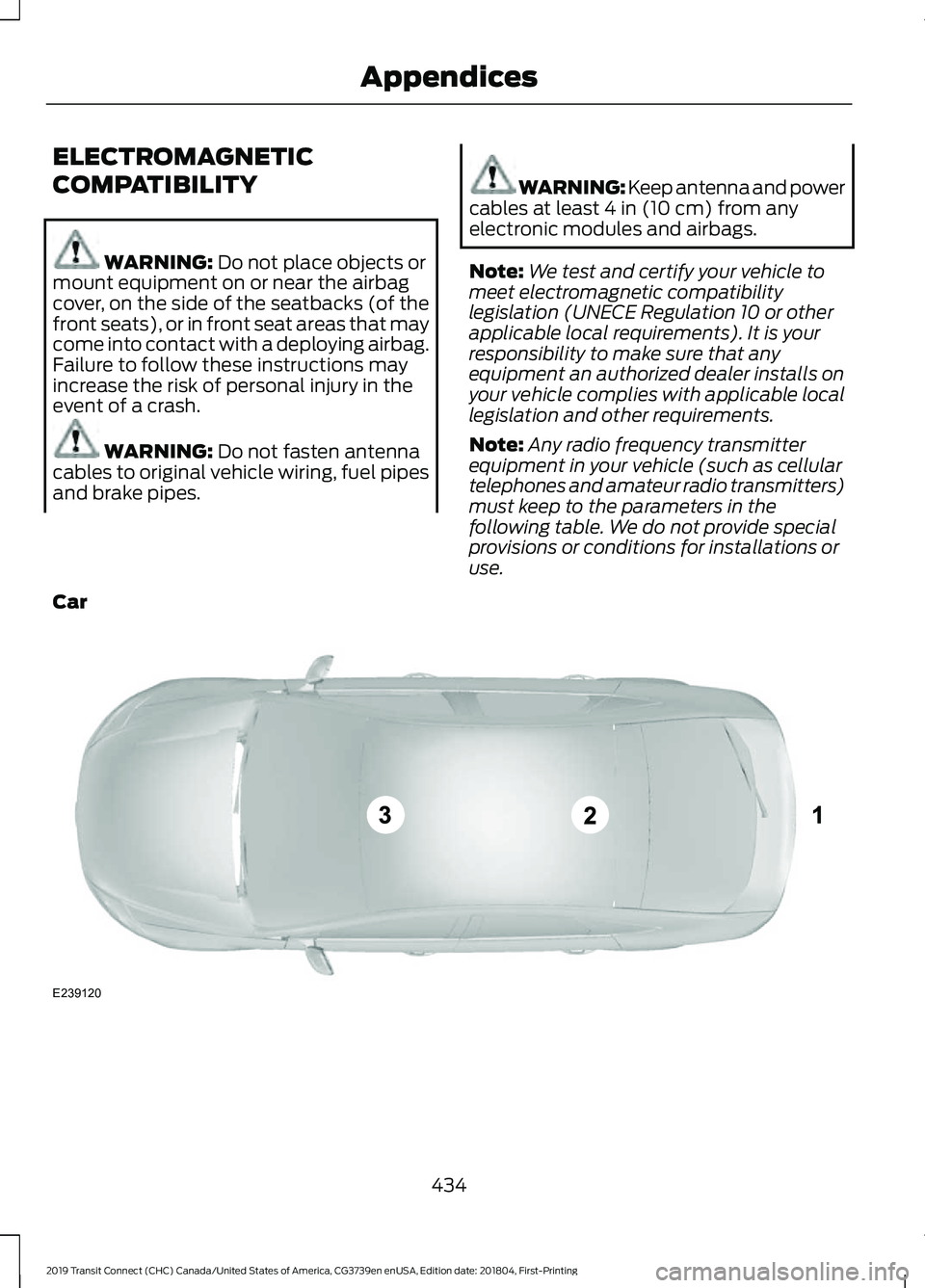
Note: We test and certify your vehicle to
meet electromagnetic compatibility
legislation (UNECE Regulation 10 or other
applicable local requirements). It is your
responsibility to make sure that any
equipment an authorized dealer installs on
your vehicle complies with applicable local
legislation and other requirements.
Note: Any radio frequency transmitter
equipment in your vehicle (such as cellular
telephones and amateur radio transmitters)
must keep to the parameters in the
following table. We do not provide special
provisions or conditions for installations or
use.
Car 434
2019 Transit Connect (CHC) Canada/United States of America, CG3739en enUSA, Edition date: 201804, First-Printing AppendicesE239120
Page 453 of 493
Restrictions. Except where you have been
specifically licensed to do so by Telenav,
and without limiting the preceding
paragraph, you may not use this Data (a)
with any products, systems, or applications
installed or otherwise connected to or in
communication with vehicles, capable of
vehicle navigation, positioning, dispatch,
real time route guidance, fleet
management or similar applications; or (b)
with or in communication with any
positioning devices or any mobile or
wireless-connected electronic or computer
devices, including without limitation
cellular phones, palmtop and handheld
computers, pagers, and personal digital
assistants or PDAs.
Warning. The Data may contain
inaccurate or incomplete information due
to the passage of time, changing
circumstances, sources used and the
nature of collecting comprehensive
geographic data, any of which may lead to
incorrect results.
No Warranty.
This Data is provided to you
“ as is, ” and you agree to use it at your own
risk. Telenav and its licensors (and their
licensors and suppliers) make no
guarantees, representations or warranties
of any kind, express or implied, arising by
law or otherwise, including but not limited
to, content, quality, accuracy,
completeness, effectiveness, reliability,
fitness for a particular purpose, usefulness,
use or results to be obtained from this
Data, or that the Data or server will be
uninterrupted or error-free.
Disclaimer of Warranty:
TELENAV AND
ITS LICENSORS (INCLUDING THEIR
LICENSORS AND SUPPLIERS) DISCLAIM
ANY WARRANTIES, EXPRESS OR IMPLIED,
OF QUALITY, PERFORMANCE,
MERCHANTABILITY, FITNESS FOR A PARTICULAR PURPOSE OR
NON-INFRINGEMENT. Some States,
Territories and Countries do not allow
certain warranty exclusions, so to that
extent the above exclusion may not apply
to you.
Disclaimer of Liability:
TELENAV AND
ITS LICENSORS (INCLUDING THEIR
LICENSORS AND SUPPLIERS) SHALL NOT
BE LIABLE TO YOU: IN RESPECT OF ANY
CLAIM, DEMAND OR ACTION,
IRRESPECTIVE OF THE NATURE OF THE
CAUSE OF THE CLAIM, DEMAND OR
ACTION ALLEGING ANY LOSS, INJURY OR
DAMAGES, DIRECT OR INDIRECT, WHICH
MAY RESULT FROM THE USE OR
POSSESSION OF THE INFORMATION; OR
FOR ANY LOSS OF PROFIT, REVENUE,
CONTRACTS OR SAVINGS, OR ANY
OTHER DIRECT, INDIRECT, INCIDENTAL,
SPECIAL OR CONSEQUENTIAL DAMAGES
ARISING OUT OF YOUR USE OF OR
INABILITY TO USE THIS INFORMATION,
ANY DEFECT IN THE INFORMATION, OR
THE BREACH OF THESE TERMS OR
CONDITIONS, WHETHER IN AN ACTION
IN CONTRACT OR TORT OR BASED ON A
WARRANTY, EVEN IF TELENAV OR ITS
LICENSORS HAVE BEEN ADVISED OF THE
POSSIBILITY OF SUCH DAMAGES. Some
States, Territories and Countries do not
allow certain liability exclusions or
damages limitations, so to that extent the
above may not apply to you.
Export Control.
You shall not export from
anywhere any part of the Data or any direct
product thereof except in compliance with,
and with all licenses and approvals
required under, applicable export laws,
rules and regulations, including but not
limited to the laws, rules and regulations
administered by the Office of Foreign
Assets Control of the U.S. Department of
Commerce and the Bureau of Industry and
Security of the U.S. Department of
Commerce. To the extent that any such
449
2019 Transit Connect (CHC) Canada/United States of America, CG3739en enUSA, Edition date: 201804, First-Printing Appendices
Page 466 of 493
WARNING: Changes or
modifications not expressively approved
by the party responsible for compliance
could void the user's authority to operate
the equipment. The term "IC:" before the
radio certification number only signifies
that Industry Canada technical
specifications were met. This device complies with Part 15 of the
FCC Rules and with RSS-210 of Industry
Canada. Operation is subject to the
following two conditions:
1. The device does not cause harmful
interference.
2. The device accepts any interference received, including interference that
could cause undesired operation.
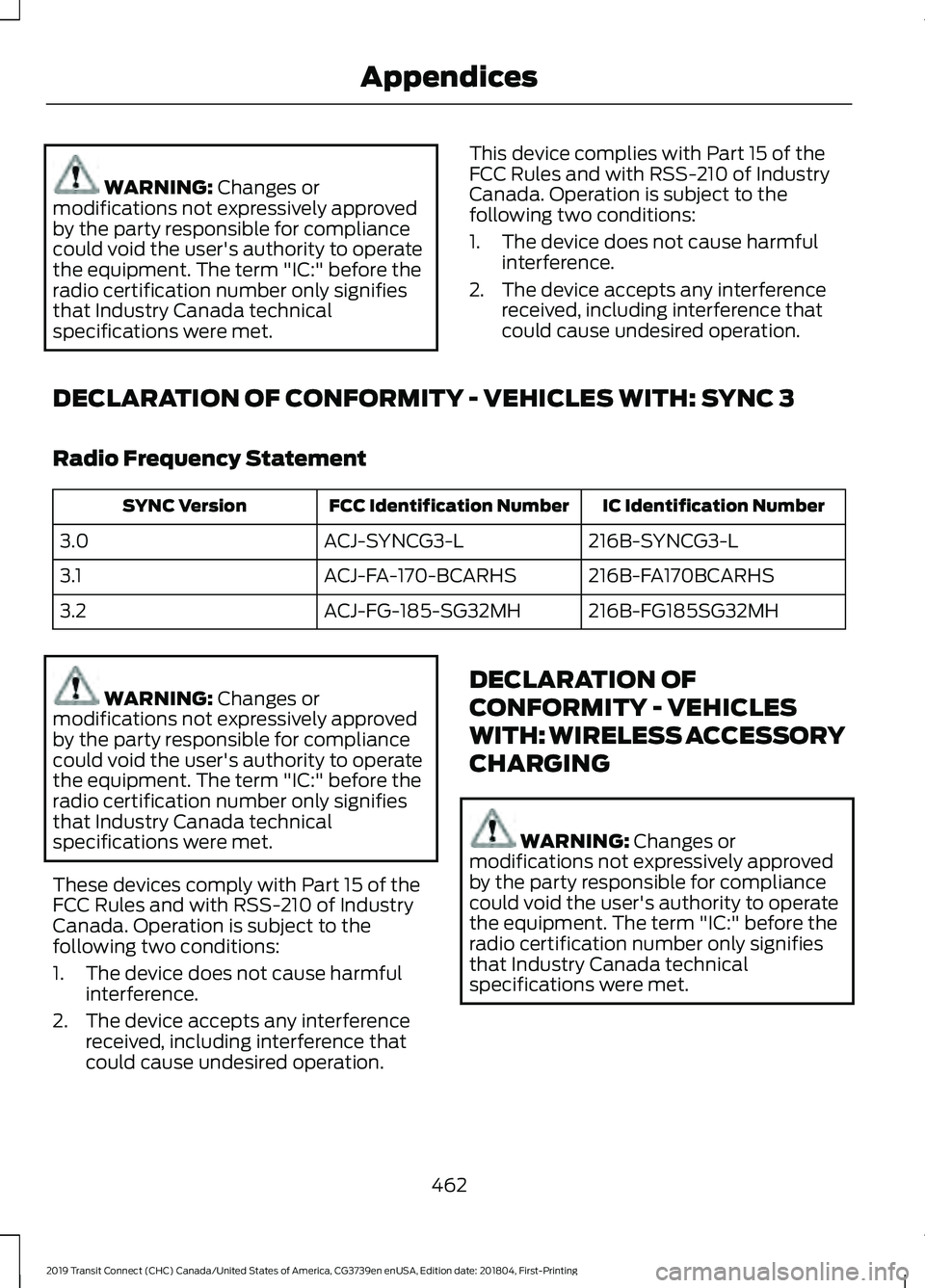
DECLARATION OF CONFORMITY - VEHICLES WITH: SYNC 3
Radio Frequency Statement IC Identification Number
FCC Identification Number
SYNC Version
216B-SYNCG3-L
ACJ-SYNCG3-L
3.0
216B-FA170BCARHS
ACJ-FA-170-BCARHS
3.1
216B-FG185SG32MH
ACJ-FG-185-SG32MH
3.2 WARNING:
Changes or
modifications not expressively approved
by the party responsible for compliance
could void the user's authority to operate
the equipment. The term "IC:" before the
radio certification number only signifies
that Industry Canada technical
specifications were met.
These devices comply with Part 15 of the
FCC Rules and with RSS-210 of Industry
Canada. Operation is subject to the
following two conditions:
1. The device does not cause harmful interference.
2. The device accepts any interference received, including interference that
could cause undesired operation. DECLARATION OF
CONFORMITY - VEHICLES
WITH: WIRELESS ACCESSORY
CHARGING WARNING:
Changes or
modifications not expressively approved
by the party responsible for compliance
could void the user's authority to operate
the equipment. The term "IC:" before the
radio certification number only signifies
that Industry Canada technical
specifications were met.
462
2019 Transit Connect (CHC) Canada/United States of America, CG3739en enUSA, Edition date: 201804, First-Printing Appendices
Page 479 of 493
9
911 Assist...........................................................49
911 Assist May Not Work If................................ 50
911 Assist Privacy Notice................................... 50
In the Event of a Crash....................................... 50
A
A/C See: Climate Control......................................... 108
About This Manual
...........................................7
ABS See: Brakes............................................................ 173
ABS driving hints See: Hints on Driving With Anti-Lock
Brakes................................................................. 174
Accessories.....................................................412 Exterior Style........................................................ 412
Interior Style.......................................................... 412
Lifestyle.................................................................. 412
Peace of Mind...................................................... 412
Accessories See: Replacement Parts
Recommendation............................................ 13
ACC See: Using Adaptive Cruise Control............196
Active Park Assist.........................................184 Using Active Park Assist.................................. 185
Adjusting the Headlamps.........................276 Horizontal Aim Adjustment........................... 278
Vertical Aim Adjustment................................. 276
Adjusting the Steering Wheel....................74
Airbag Disposal..............................................48
Air Conditioning See: Climate Control......................................... 108
Air Filter See: Changing the Engine Air Filter - 2.0L
Duratec-HE (MI4)/2.0L Flex Fuel, 1.5L
Duratorq-TDCi Diesel.................................. 283
See: Changing the Engine Air Filter - 2.5L..................................................................... 283
Alarm See: Anti-Theft Alarm......................................... 72
AM/FM Radio - Vehicles Without: SYNC 3
......................................................................358
Selecting a Radio Source............................... 358Anti-Theft Alarm
.............................................72
Alarm System......................................................... 72
Arming the Alarm................................................. 72
Disarming the Alarm........................................... 73
Full Guard and Reduced Guard....................... 72
Triggering the Alarm............................................ 72
Appendices
....................................................434
Apps.................................................................385 Using Apps on an Android Device...............386
Using Apps on an iOS Device........................ 385
At a Glance
.........................................................17
Audible Warnings and Indicators............90 Airbag Secondary Warning Audible
Warning.............................................................. 90
Automatic Transmission Audible Warning.............................................................. 90
Door Ajar Audible Warning................................ 91
Fasten Seatbelt Audible Warning................... 91
Headlamps On Audible Warning.................... 91
Key in Ignition Audible Warning....................... 91
Parking Brake On Audible Warning................91
Audio System
................................................352
General Information......................................... 352
Audio Unit Clock and Date Displays - Vehicles Without: SYNC 3
.....................358
Adjusting the Clock........................................... 358
Audio Unit - Vehicles With: SYNC 3
......................................................................356
Adjusting the Volume...................................... 356
Changing Radio Stations................................ 357
Pausing or Playing Media................................ 357
Scrolling Through the Menu Options.........357
Seek Down and Previous Track Button................................................................ 357
Seek Up and Next Track Button................... 357
Sound Settings................................................... 357
Switching the Audio Unit On and Off........356
Switching the Screen On and Off................357
Audio Unit - Vehicles Without: SYNC 3.......................................................................353
Adjusting the Volume....................................... 353
Changing Radio Stations................................ 354
Pausing or Playing Media............................... 356
Returning to the Previous Screen................356
Scrolling Through the Menu Options.........355
Seek Down and Previous Track Button............................................................... 356
Seek Up and Next Track Button.................. 356
475
2019 Transit Connect (CHC) Canada/United States of America, CG3739en enUSA, Edition date: 201804, First-Printing Index