USB FORD TRANSIT CONNECT 2019 User Guide
[x] Cancel search | Manufacturer: FORD, Model Year: 2019, Model line: TRANSIT CONNECT, Model: FORD TRANSIT CONNECT 2019Pages: 493, PDF Size: 7.43 MB
Page 377 of 493
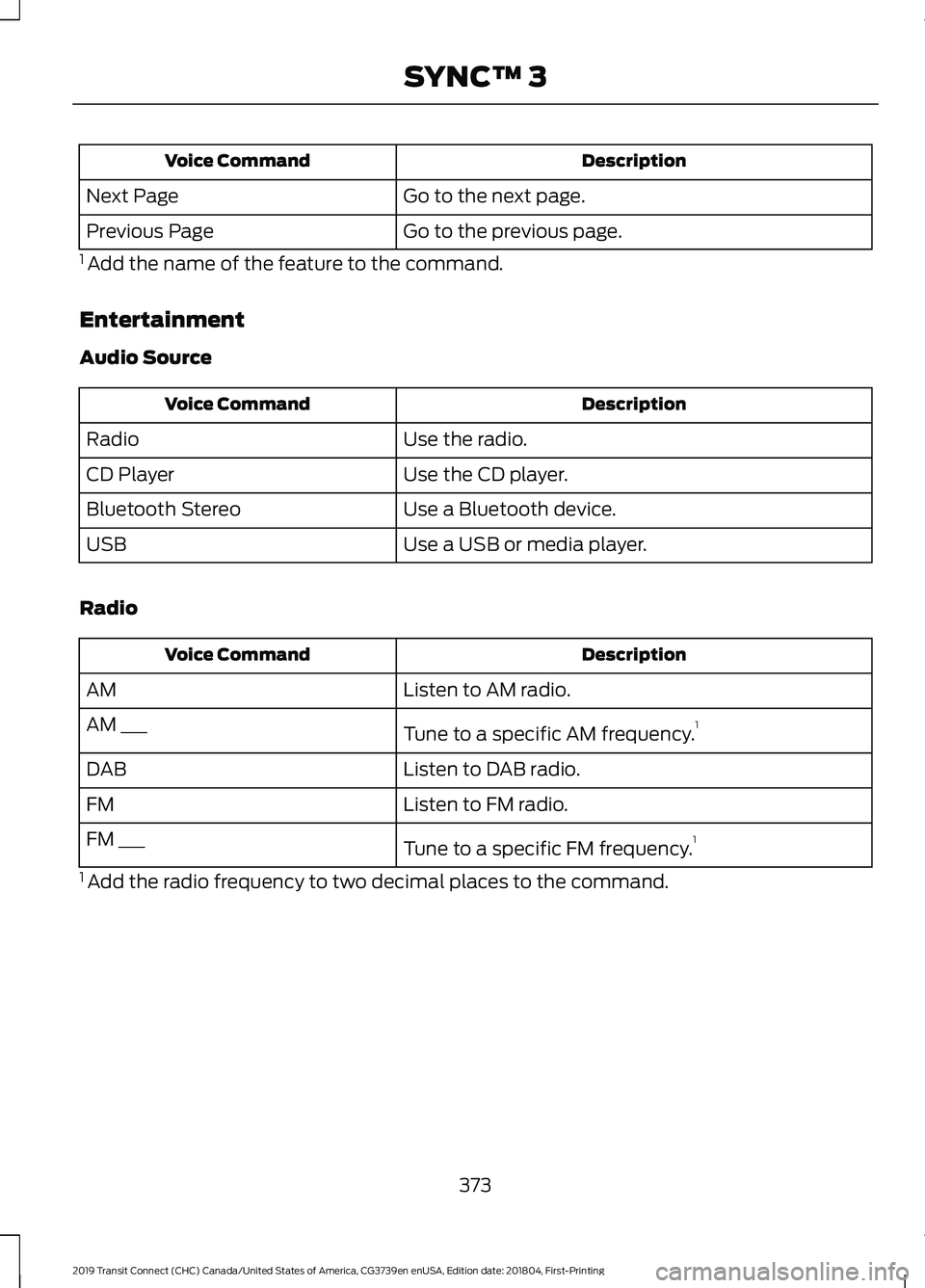
Description
Voice Command
Go to the next page.
Next Page
Go to the previous page.
Previous Page
1 Add the name of the feature to the command.
Entertainment
Audio Source Description
Voice Command
Use the radio.
Radio
Use the CD player.
CD Player
Use a Bluetooth device.
Bluetooth Stereo
Use a USB or media player.
USB
Radio Description
Voice Command
Listen to AM radio.
AM
Tune to a specific AM frequency.1
AM ___
Listen to DAB radio.
DAB
Listen to FM radio.
FM
Tune to a specific FM frequency.1
FM ___
1 Add the radio frequency to two decimal places to the command.
373
2019 Transit Connect (CHC) Canada/United States of America, CG3739en enUSA, Edition date: 201804, First-Printing SYNC™ 3
Page 378 of 493
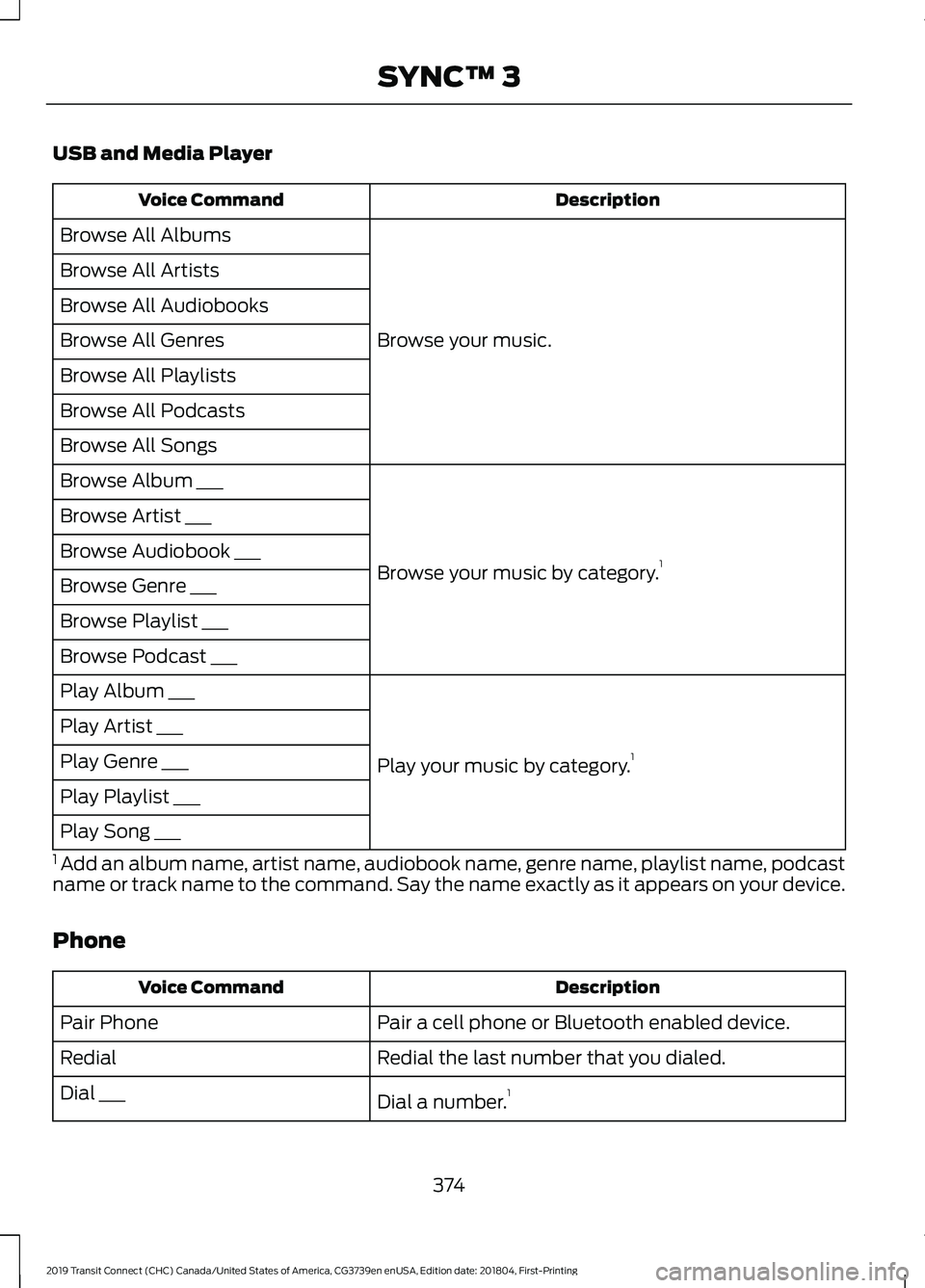
USB and Media Player
Description
Voice Command
Browse your music.
Browse All Albums
Browse All Artists
Browse All Audiobooks
Browse All Genres
Browse All Playlists
Browse All Podcasts
Browse All Songs
Browse your music by category.1
Browse Album ___
Browse Artist ___
Browse Audiobook ___
Browse Genre ___
Browse Playlist ___
Browse Podcast ___
Play your music by category.1
Play Album ___
Play Artist ___
Play Genre ___
Play Playlist ___
Play Song ___
1 Add an album name, artist name, audiobook name, genre name, playlist name, podcast
name or track name to the command. Say the name exactly as it appears on your device.
Phone Description
Voice Command
Pair a cell phone or Bluetooth enabled device.
Pair Phone
Redial the last number that you dialed.
Redial
Dial a number.1
Dial ___
374
2019 Transit Connect (CHC) Canada/United States of America, CG3739en enUSA, Edition date: 201804, First-Printing SYNC™ 3
Page 382 of 493
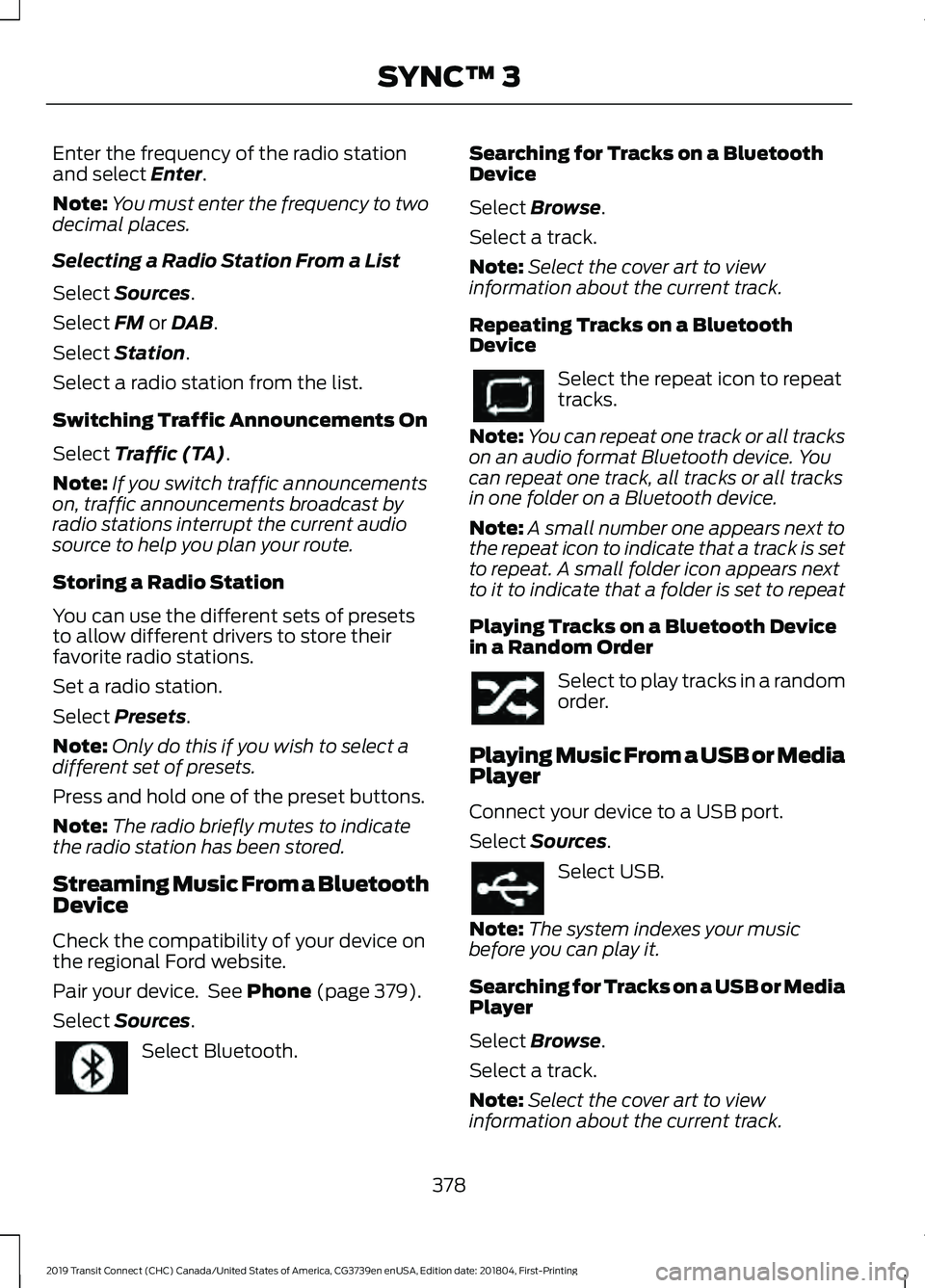
Enter the frequency of the radio station
and select Enter.
Note: You must enter the frequency to two
decimal places.
Selecting a Radio Station From a List
Select
Sources.
Select
FM or DAB.
Select
Station.
Select a radio station from the list.
Switching Traffic Announcements On
Select
Traffic (TA).
Note: If you switch traffic announcements
on, traffic announcements broadcast by
radio stations interrupt the current audio
source to help you plan your route.
Storing a Radio Station
You can use the different sets of presets
to allow different drivers to store their
favorite radio stations.
Set a radio station.
Select
Presets.
Note: Only do this if you wish to select a
different set of presets.
Press and hold one of the preset buttons.
Note: The radio briefly mutes to indicate
the radio station has been stored.
Streaming Music From a Bluetooth
Device
Check the compatibility of your device on
the regional Ford website.
Pair your device. See
Phone (page 379).
Select
Sources. Select Bluetooth. Searching for Tracks on a Bluetooth
Device
Select
Browse.
Select a track.
Note: Select the cover art to view
information about the current track.
Repeating Tracks on a Bluetooth
Device Select the repeat icon to repeat
tracks.
Note: You can repeat one track or all tracks
on an audio format Bluetooth device. You
can repeat one track, all tracks or all tracks
in one folder on a Bluetooth device.
Note: A small number one appears next to
the repeat icon to indicate that a track is set
to repeat. A small folder icon appears next
to it to indicate that a folder is set to repeat
Playing Tracks on a Bluetooth Device
in a Random Order Select to play tracks in a random
order.
Playing Music From a USB or Media
Player
Connect your device to a USB port.
Select
Sources. Select USB.
Note: The system indexes your music
before you can play it.
Searching for Tracks on a USB or Media
Player
Select
Browse.
Select a track.
Note: Select the cover art to view
information about the current track.
378
2019 Transit Connect (CHC) Canada/United States of America, CG3739en enUSA, Edition date: 201804, First-Printing SYNC™ 3
Page 383 of 493
Note:
You can also browse by album, artist,
audiobook, genre, playlist, podcast or track
name.
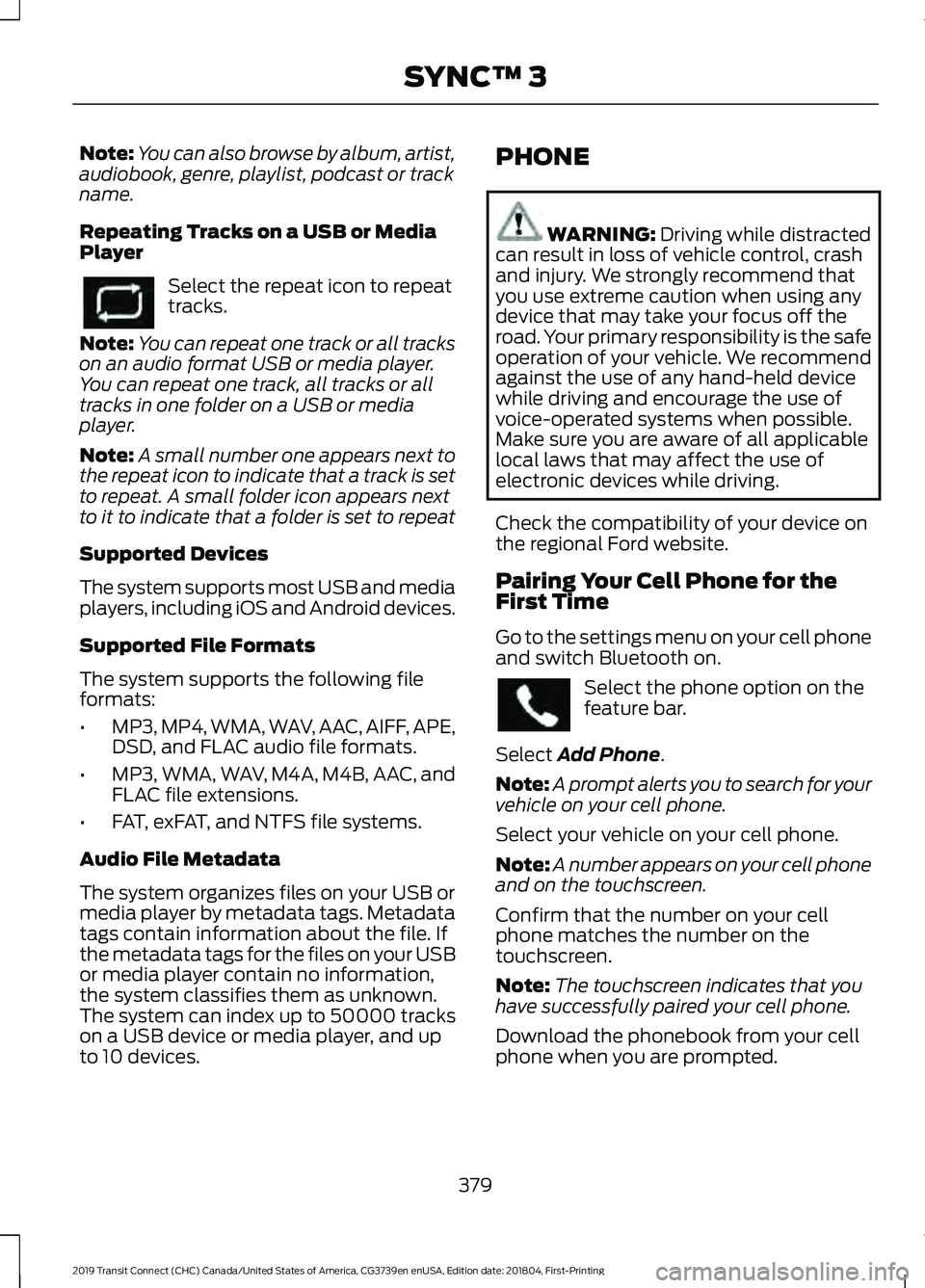
Repeating Tracks on a USB or Media
Player Select the repeat icon to repeat
tracks.
Note: You can repeat one track or all tracks
on an audio format USB or media player.
You can repeat one track, all tracks or all
tracks in one folder on a USB or media
player.
Note: A small number one appears next to
the repeat icon to indicate that a track is set
to repeat. A small folder icon appears next
to it to indicate that a folder is set to repeat
Supported Devices
The system supports most USB and media
players, including iOS and Android devices.
Supported File Formats
The system supports the following file
formats:
• MP3, MP4, WMA, WAV, AAC, AIFF, APE,
DSD, and FLAC audio file formats.
• MP3, WMA, WAV, M4A, M4B, AAC, and
FLAC file extensions.
• FAT, exFAT, and NTFS file systems.
Audio File Metadata
The system organizes files on your USB or
media player by metadata tags. Metadata
tags contain information about the file. If
the metadata tags for the files on your USB
or media player contain no information,
the system classifies them as unknown.
The system can index up to 50000 tracks
on a USB device or media player, and up
to 10 devices. PHONE WARNING: Driving while distracted
can result in loss of vehicle control, crash
and injury. We strongly recommend that
you use extreme caution when using any
device that may take your focus off the
road. Your primary responsibility is the safe
operation of your vehicle. We recommend
against the use of any hand-held device
while driving and encourage the use of
voice-operated systems when possible.
Make sure you are aware of all applicable
local laws that may affect the use of
electronic devices while driving.
Check the compatibility of your device on
the regional Ford website.
Pairing Your Cell Phone for the
First Time
Go to the settings menu on your cell phone
and switch Bluetooth on. Select the phone option on the
feature bar.
Select
Add Phone.
Note: A prompt alerts you to search for your
vehicle on your cell phone.
Select your vehicle on your cell phone.
Note: A number appears on your cell phone
and on the touchscreen.
Confirm that the number on your cell
phone matches the number on the
touchscreen.
Note: The touchscreen indicates that you
have successfully paired your cell phone.
Download the phonebook from your cell
phone when you are prompted.
379
2019 Transit Connect (CHC) Canada/United States of America, CG3739en enUSA, Edition date: 201804, First-Printing SYNC™ 3
Page 384 of 493
Note:
If you pair more than one cell phone,
use the phone settings to specify the
primary phone. You can change this setting
at any time.
Using Your Cell Phone
Recent Call List
Display and select an entry from a list of
previous calls.
Contacts
Alphabetically sort your contacts. See
Settings (page 386).
Phone Settings
Change ring tones, alerts or pair another
phone.
Do Not Disturb
Reject incoming calls and switch ring tones
and alerts off.
Phone Keypad
Directly dial a number. Mute
Mute your cell phone microphone.
Text Messaging
Setting Text Message Notification
iOS
1. Go to the settings menu on your cell
phone.
2. Select Bluetooth.
3. Select the information icon to the right
of your vehicle.
4. Switch text message notification on.
Android
1. Go to the settings menu on your cell phone.
2. Select Bluetooth.
3. Select the profiles option.
4. Select the phone profile .
5. Switch text message notification on.
Using Text Messaging Description
Menu Item
Hear the text message.
Hear It
View the text message.
View
Call the sender.
Call
Reply to the text message with a standard text message.
Reply
Apple CarPlay
Connect your device to a USB port.
Follow the instructions on the touchscreen.
Note: Certain features of the system are
not available when you are using Apple
CarPlay. Switching Apple CarPlay Off Select the settings option on the
feature bar.
Select
Apple CarPlay Preferences.
Select
Disable from the dropdown menu.
380
2019 Transit Connect (CHC) Canada/United States of America, CG3739en enUSA, Edition date: 201804, First-Printing SYNC™ 3
Page 385 of 493
Android Auto
Connect your device to a USB port.
Follow the instructions on the touchscreen.
Note:
You might need to enable Android
Auto from the settings menu.
Note: Certain features of the system are
not available when you are using Android
Auto.
Switching Android Auto Off Select the settings option on the
feature bar.
Select Android Auto.
Select
Disable from the dropdown menu.
NAVIGATION
Note: For more information, refer to the
regional Ford website. Select the navigation option on
the feature bar.
Map view menu.
A
Zoom in.
B
Zoom out.
C
Route guidance menu.
D
Destination entry menu.
E
Setting a Destination
Destination Entry Menu Description
Item
Enter a destination address.
Search
Display and select from a list of previous destinations.
Previous Destinations
Set your saved home address as your destination
Home
Set your saved place of work as your destination.
Work
Display and select from a list of favorite destinations.
Favorites
381
2019 Transit Connect (CHC) Canada/United States of America, CG3739en enUSA, Edition date: 201804, First-Printing SYNC™ 3 E270674
Page 390 of 493
1. Switch Apple CarPlay off. See Phone
(page 379).
2. Connect your device to a USB port.
3. Start the apps on your device that you want to use through SYNC.
Note: If you close the apps on your device,
you will not be able to use them through the
system.
4. Select
Find Mobile Apps.
Note: The system searches and connects
to compatible apps that are running on your
device.
5. Select the app that you want to use on
the touchscreen.
Using Apps on an Android Device Select the apps option on the
feature bar.
1. Switch Android Auto off. See
Phone
(page 379).
2. Pair your device. See Phone (page 379). 3. Start the apps on your device that you
want to use through SYNC.
Note: If you close the apps on your device,
you will not be able to use them through the
system.
4. Select
Find Mobile Apps.
Note: The system searches and connects
to compatible apps that are running on your
device.
5. Select the app that you want to use on
the touchscreen.
SETTINGS
Under this menu, you can access and
adjust the settings for many of the system
features. To access additional settings,
swipe the screen left or right.
Sound
Pressing this button allows you to adjust
the following: Sound Settings
Returns Treble, Midrange, and Bass sound settings to factory levels.
Reset All
Adjusts the high frequency level.
Treble
Adjusts the middle frequency level.
Midrange
Adjusts the low frequency level.
Bass
Adjusts the sound ratio from side to side or front to back.
Balance / Fade
Adjusts the amount the audio system volume increases with speed,
or turns the feature off.
Speed
Compensated
Vol.
Optimizes the sound based on the location of the listeners.
Occupancy Mode
Stereo
Sound Settings
Surround
Your vehicle might not have all of these features.
386
2019 Transit Connect (CHC) Canada/United States of America, CG3739en enUSA, Edition date: 201804, First-Printing SYNC™ 3
Page 391 of 493
Media Player
This button is available when a media
device such as a Bluetooth Stereo or USB
device is the active audio source. Pressing
the button allows you to access the
following options for active devices only. Action and Description
Menu Item
For some USB devices, SYNC 3 can adjust the playback speed of
podcasts. When a podcast is playing, you can choose:
Podcast Speed
Faster
Normal
Slower
For some USB devices, SYNC 3 can adjust the playback speed of
audiobooks. When an audiobook is playing, you can choose:
Audiobook Speed
Faster
Normal
Slower
Cover art displays from your device ’s music
files. If no cover art for the files exists on the
device, then the Gracenote Database provides
cover art.
Media Player
Cover Art Priority
The Gracenote Database supplied cover art is
used for your music files. This overrides any
cover art from your device.
Gracenote®
Switches on and off Gracenote® to provide metadata information
such as genre, artist, album.
Gracenote®
Management
This allows you to view the version level of the Gracenote Database.
Gracenote® Data-
base Info
This allows you to view the manufacturer and model number of your
media device.
Device Informa-
tion
Erase the stored in media information in order to re-index.
Update Media
Index
Clock
To adjust the time, select the up and down
arrows on either side of the screen. The
arrows on the left adjust the hour and
arrows on the right adjust the minute. You
can then select AM or PM. You can adjust the following features:
387
2019 Transit Connect (CHC) Canada/United States of America, CG3739en enUSA, Edition date: 201804, First-Printing SYNC™ 3
Page 398 of 493
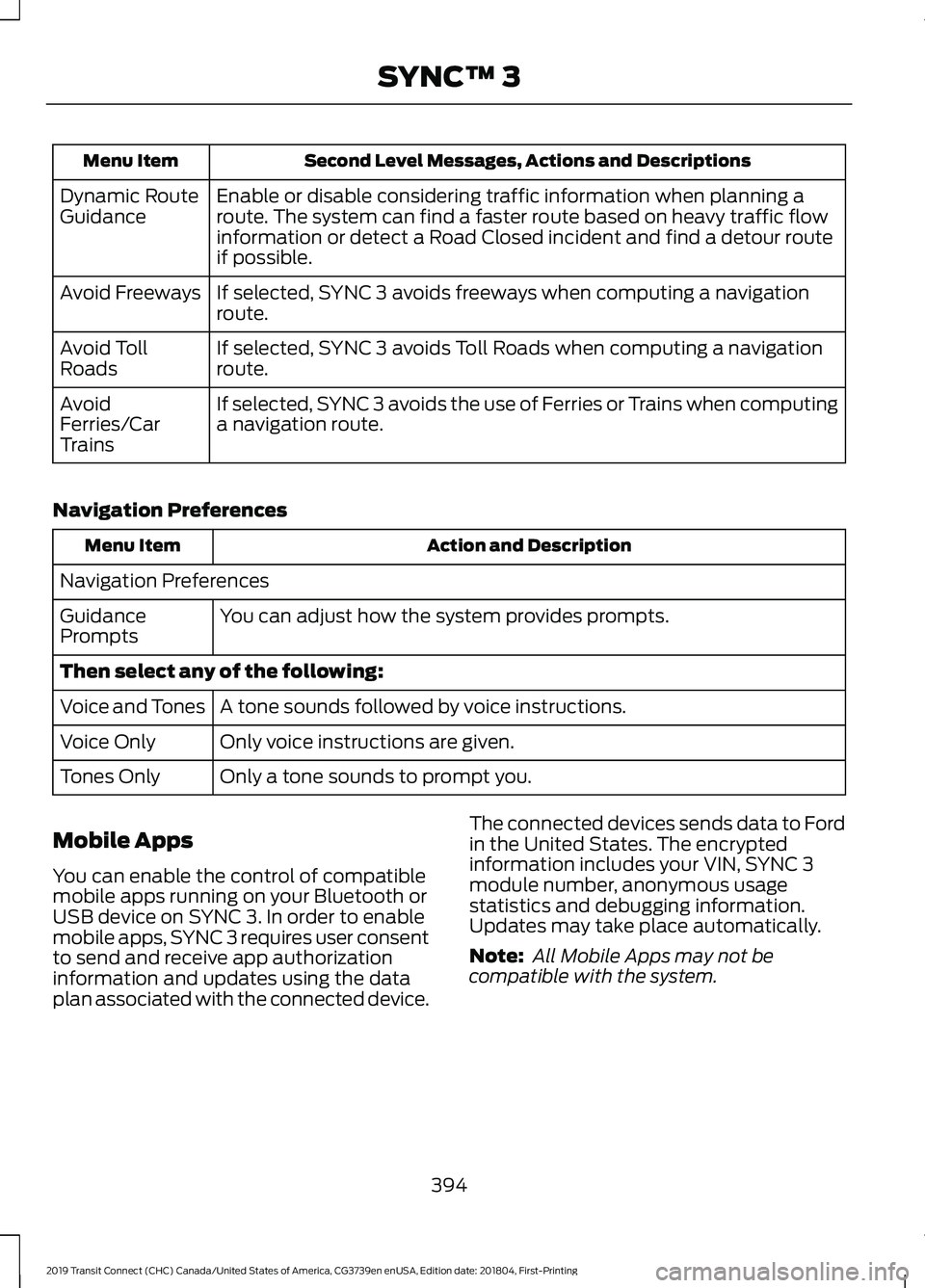
Second Level Messages, Actions and Descriptions
Menu Item
Enable or disable considering traffic information when planning a
route. The system can find a faster route based on heavy traffic flow
information or detect a Road Closed incident and find a detour route
if possible.
Dynamic Route
Guidance
If selected, SYNC 3 avoids freeways when computing a navigation
route.
Avoid Freeways
If selected, SYNC 3 avoids Toll Roads when computing a navigation
route.
Avoid Toll
Roads
If selected, SYNC 3 avoids the use of Ferries or Trains when computing
a navigation route.
Avoid
Ferries/Car
Trains
Navigation Preferences Action and Description
Menu Item
Navigation Preferences You can adjust how the system provides prompts.
Guidance
Prompts
Then select any of the following:
A tone sounds followed by voice instructions.
Voice and Tones
Only voice instructions are given.
Voice Only
Only a tone sounds to prompt you.
Tones Only
Mobile Apps
You can enable the control of compatible
mobile apps running on your Bluetooth or
USB device on SYNC 3. In order to enable
mobile apps, SYNC 3 requires user consent
to send and receive app authorization
information and updates using the data
plan associated with the connected device. The connected devices sends data to Ford
in the United States. The encrypted
information includes your VIN, SYNC 3
module number, anonymous usage
statistics and debugging information.
Updates may take place automatically.
Note:
All Mobile Apps may not be
compatible with the system.
394
2019 Transit Connect (CHC) Canada/United States of America, CG3739en enUSA, Edition date: 201804, First-Printing SYNC™ 3
Page 404 of 493
Valet Mode
Valet mode allows you to lock the system.
No information is accessible until the
system is unlocked with the correct PIN.
When you select valet mode a pop up
appears informing you that a four digit
code must be entered to enable and
disable valet mode. You can use any PIN
you chose but you must use the same PIN
to disable valet mode. The system asks
you to input the code.
Note:
If the system is locked and you
cannot remember the PIN, please contact
the Customer Relationship Center.
United States: 1-800-392-3673
Canada: 1-800-565-3673
To enable valet mode, enter your chosen
PIN. The system then asks to confirm your
PIN by reentering it. The system then locks. To unlock the system, enter the same pin
number. The system reconnects to your
phone and all of your options are available
again.
SYNC™ 3 TROUBLESHOOTING
Your SYNC 3 system is easy to use.
However, should questions arise, please
refer to the tables below.
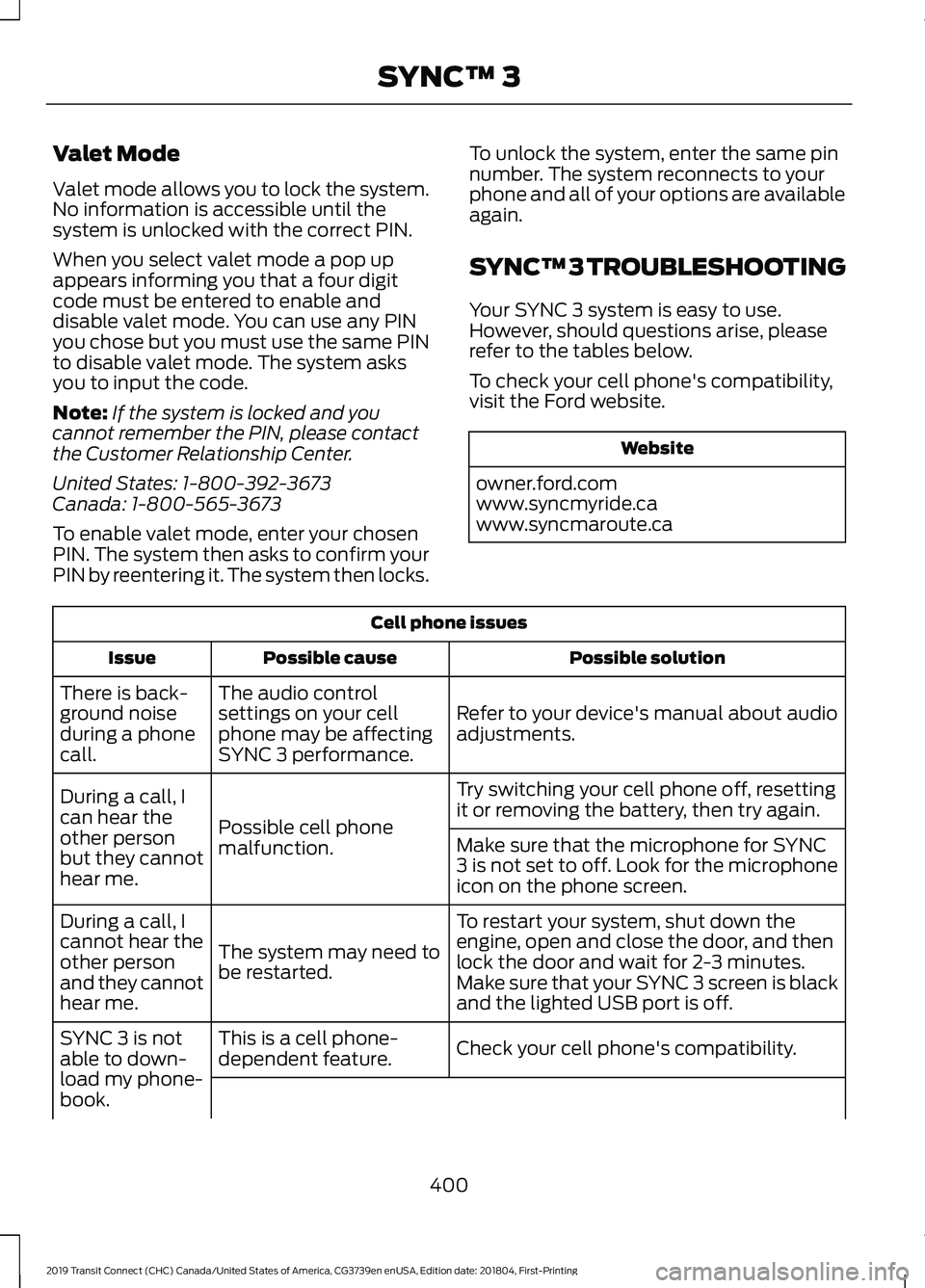
To check your cell phone's compatibility,
visit the Ford website. Website
owner.ford.com
www.syncmyride.ca
www.syncmaroute.ca Cell phone issues
Possible solution
Possible cause
Issue
Refer to your device's manual about audio
adjustments.
The audio control
settings on your cell
phone may be affecting
SYNC 3 performance.
There is back-
ground noise
during a phone
call.
Try switching your cell phone off, resetting
it or removing the battery, then try again.
Possible cell phone
malfunction.
During a call, I
can hear the
other person
but they cannot
hear me.
Make sure that the microphone for SYNC
3 is not set to off. Look for the microphone
icon on the phone screen.
To restart your system, shut down the
engine, open and close the door, and then
lock the door and wait for 2-3 minutes.
Make sure that your SYNC 3 screen is black
and the lighted USB port is off.
The system may need to
be restarted.
During a call, I
cannot hear the
other person
and they cannot
hear me.
Check your cell phone's compatibility.
This is a cell phone-
dependent feature.
SYNC 3 is not
able to down-
load my phone-
book.
400
2019 Transit Connect (CHC) Canada/United States of America, CG3739en enUSA, Edition date: 201804, First-Printing SYNC™ 3