mai GENESIS G80 SPORT 2020 User's Manual
[x] Cancel search | Manufacturer: GENESIS, Model Year: 2020, Model line: G80 SPORT, Model: GENESIS G80 SPORT 2020Pages: 18, PDF Size: 1.53 MB
Page 16 of 18
Genesis Connected Services User’s Manual I 28
27 I Genesis Connected Services User’s Manual
Vehicle Immobilization
In the event your vehicle is reported stolen to law enforcement
authorities, they may elect to utilize this feature to completely turn off
the engine once the vehicle has been stopped using vehicle slowdown.
This will prevent the vehicle from being restarted until law enforcement
has arrived on the scene.
• To inform Genesis of the theft of your Genesis vehicle, call
Genesis Customer Care: 844-340-9741.
•
A live operator will work with law enforcement in initiating vehicle
immobilization and assist in the vehicle’s recovery.
Panic Notification
This feature will notify any pre-selected persons if your vehicle’s remote
panic button is engaged, via your choice of text messaging or email.
•
In order to activate this feature, you must first log on to
MyGenesisUSA.com and set your preferences as outlined on
page 4 of this manual.
•
All individuals designated by you will be notified of your
vehicle’s precise location should the panic button be activated.
Please note: Notifications are subject to adequate cellular coverage
and signal strength, and only available in the 50 United States.
Alarm Notification
In the event your vehicle’s alarm is activated, this feature will
automatically notify any pre-selected persons via your choice of text
messaging or email.
•
In order to activate this feature, you must first log on to
MyGenesisUSA.com and set your preferences as outlined on
page 4 of this guide.
•
Your pre-selected contacts will be notified if your vehicle’s
alarm is activated.
Please note: Notifications are subject to adequate cellular coverage
and signal strength, and only available in the 50 United States.
First, download the Vehicle Safeguard Alerts App to your vehicle.
Then log on to
MyGenesisUSA.com to activate the features and
start receiving notifications.
Valet Alert
Whenever you leave your Genesis vehicle with a valet and it travels
farther than your pre-selected distance boundary after activation, you
will be notified in-vehicle and via your choice of text message or email.
•
In order to activate this feature, you must first log on to
MyGenesisUSA.com.
Select the Blue Link logo for your applicable vehicle
Select Geo-Fence & Valet Alert
Select the Valet tab
Turn on Valet Alert and set a distance boundary
Once activated, you will automatically receive an alert should your
vehicle travel farther than your pre-selected distance boundary from the
point of activation.
Please note: Genesis Connected Services are subject to adequate
cellular coverage and signal strength, and only available in the
50 United States.
Geo-Fence
This feature allows you to designate the boundaries of areas in which
your vehicle may and may not be driven. Should the vehicle cross these
boundaries, you will be notified in-vehicle and via your choice of text
messaging or email.
•
In order to activate this feature, you must first log on to
MyGenesisUSA.com.
Select the Blue Link logo for your applicable vehicle
Select Geo-Fence & Valet Alert
Turn on Geo-Fence and set driving boundaries
•
Once activated, you will automatically receive an alert should
your vehicle cross the boundaries of your designated areas.
Please note: Notifications are subject to adequate cellular coverage
and signal strength, and only available in the 50 United States.
VEHICLE SAFEGUARD ALERTS
GENESIS
Page 17 of 18
Genesis Connected Services User’s Manual I 30
29 I Genesis Connected Services User’s Manual
Speed Alert
Ideal for parents of younger drivers, this feature allows you to pre-set a
speed limit for your Genesis vehicle. Should the speed limit be exceeded,
you will be notified in-vehicle and via your choice of text messaging or
email.
•
In order to activate this feature, you must first log on to
MyGenesisUSA.com.
Select the Blue Link logo for your applicable vehicle
Select Speed Alert
Turn on Speed Alert and set a speed limit
•
Once activated, you will automatically receive an alert should
your vehicle exceed the pre-designated speed limits.
Please note: Notifications are subject to adequate cellular coverage
and signal strength, and only available in the 50 United States.
Curfew Alert
This feature allows you to pre-set acceptable time intervals for when
your Genesis vehicle can and cannot be driven. Should these be
exceeded, you will be notified in-vehicle and via your choice of text
messaging or email.
•
In order to activate this feature, you must first log on to
MyGenesisUSA.com.
Select the Blue Link logo for your applicable vehicle
Select Curfew Alert
Turn on Curfew Alert and set Curfew days and times
•
Once activated, you will automatically receive an alert should
the curfew limits be exceeded.
Please note: Notifications are subject to adequate cellular coverage
and signal strength, and only available in the 50 United States.
GENESIS CONNECTED SERVICES GUIDANCE PACKAGE
Destination Search & Download*
*Only available on models equipped with factory-install navigation system
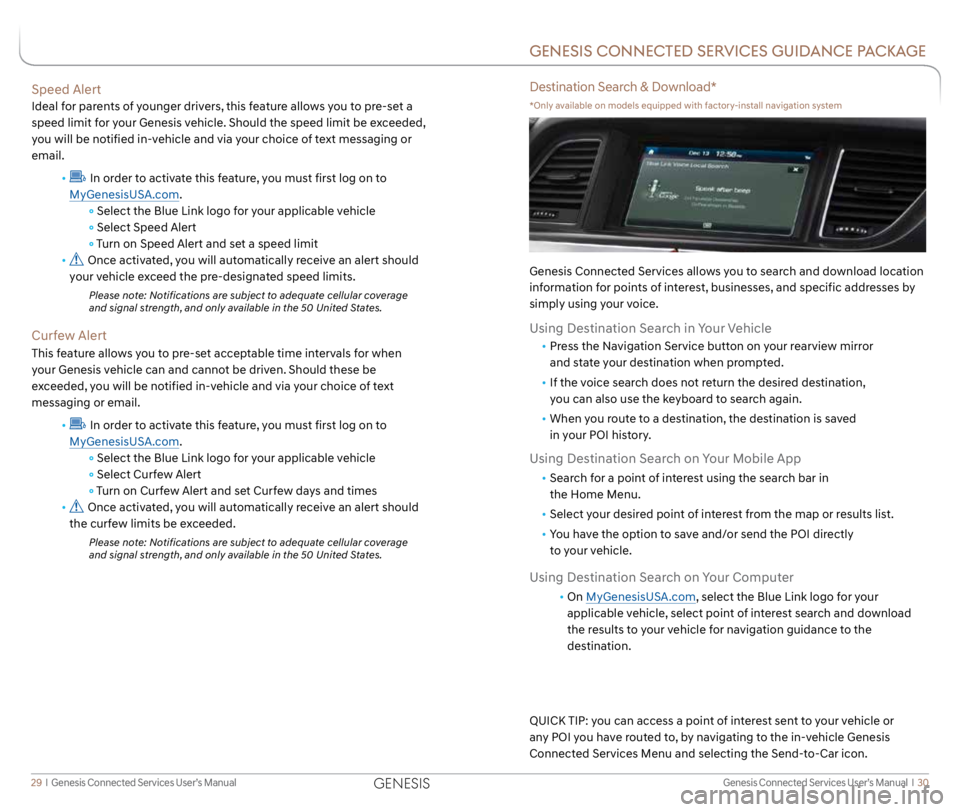
Genesis Connected Services allows you to search and download location
information for points of interest, businesses, and specific addresses by
simply using your voice.
Using Destination Search in Your Vehicle
• Press the Navigation Service button on your rearview mirror
and state your destination when prompted.
• If the voice search does not return the desired destination,
you can also use the keyboard to search again.
• When you route to a destination, the destination is saved
in your POI history.
Using Destination Search on Your Mobile App
• Search for a point of interest using the search bar in
the Home Menu.
• Select your desired point of interest from the map or results list.
• You have the option to save and/or send the POI directly
to your vehicle.
Using Destination Search on Your Computer
• On MyGenesisUSA.com, select the Blue Link logo for your
applicable vehicle, select point of interest search and download
the results to your vehicle for navigation guidance to the
destination.
QUICK TIP: you can access a point of interest sent to your vehicle or
any POI you have routed to, by navigating to the in-vehicle Genesis
Connected Services Menu and selecting the Send-to-Car icon.
GENESIS
Page 18 of 18

Genesis Connected Services User’s Manual I 32
31 I Genesis Connected Services User’s Manual
Alarm Notification ........................................................................\
... 27
Amazon Alexa ........................................................................\
......... 13
Automatic Collision Notification and Assistance ............................ 14
Automatic Diagnostic Trouble Code Notification ........................... 18
Genesis Connected Services Features (Operation Chart) ..............7
Car Finder ........................................................................\
.......... 25
Curfew Alert ........................................................................\
............ 29
Destination Search and Download ................................................. 30
Driving Information ........................................................................\
. 19
Enhanced Roadside Assistance ..................................................... 16
Geo-Fence ........................................................................\
............. 28
In-Vehicle Wi-Fi ........................................................................\
.... 13
Maintenance Alert ........................................................................\
.. 20
Monthly Vehicle Health Report ....................................................... 17
On-Demand Diagnostics ................................................................ 19
Panic Notification ........................................................................\
... 27
Remote Door Unlock/Lock ............................................................. 21
Remote Horn/Lights ....................................................................... 22
Remote Start with Climate Control .................................................23
Service Link ........................................................................\
.......... 18
SOS Emergency Assistance ........................................................... 15
Smart Phone Mobile Application .................................................... 9
Speed Alert ........................................................................\
........... 29
Stolen Vehicle Recovery ................................................................. 26
Stolen Vehicle Slowdown ............................................................... 26
Using Genesis Connected Services in Your Car ............................ 11
Using Genesis Connected Services Online .................................... 12
Valet Alert ........................................................................\
.............. 28
Vehicle Immobilization .................................................................... 27
INDEXNOTES
The information contained in this Genesis Connected Services manual was
correct at the time of printing, however, specifications and equipment can change
without notice. No warranty or guarantee is being extended in this Genesis
Connected Services Manual, and Genesis reserves the right to change product
specifications and equipment at any time without incurring obligations. Some
vehicles are equipped with optional equipment. Specifications apply to U.S.
vehicles only. Please contact your Genesis retailer for current specifications.
GENESIS