buttons GMC ACADIA 2010 Owner's Guide
[x] Cancel search | Manufacturer: GMC, Model Year: 2010, Model line: ACADIA, Model: GMC ACADIA 2010Pages: 444, PDF Size: 2.58 MB
Page 149 of 444
Instruments and Controls 5-31
Head-Up Display (HUD)
{WARNING
If the HUD image is too bright or
too high in your field of view, it
may take you more time to see
things you need to see when it is
dark outside. Be sure to keep the
HUD image dim and placed low in
your field of view.
For vehicles with the Head-Up
Display (HUD), some information
concerning the operation of the
vehicle is projected onto the
windshield. This includes the
speedometer reading, RPM reading,
transmission position, outside air
temperature, the tap shift gear, and
a brief display of the current radio
station, including XM information or
CD track. It will also display turn-by-turn navigation information if
the vehicle has a navigation radio.
The images are projected by the
HUD lens located on the driver's
side of the instrument panel.
The tap shift gear will also appear
on the HUD if the vehicle has tap
shift and it is active.
The HUD information can be
displayed in one of three languages,
English, French, or Spanish. The
speedometer reading and other
numerical values can be displayed
in either English or metric units.
The language selection and the
units of measurement are changed
through the trip computer in the
Driver Information Center (DIC).
See
Vehicle Personalization (With
DIC Buttons) on page 5‑44.
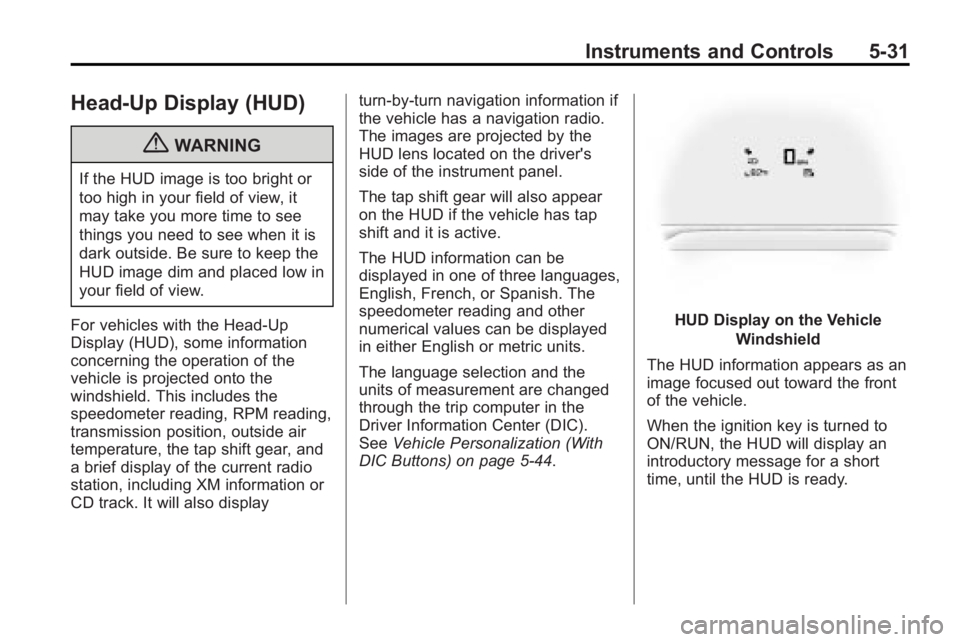
HUD Display on the Vehicle
Windshield
The HUD information appears as an
image focused out toward the front
of the vehicle.
When the ignition key is turned to
ON/RUN, the HUD will display an
introductory message for a short
time, until the HUD is ready.
Page 152 of 444
5-34 Instruments and Controls
The HUD image displayed on the
windshield will automatically dim
and brighten to compensate for
outside lighting.
The HUD image can temporarily
light up depending on the angle and
position of the sunlight on the HUD
display. This is normal and will
change when the angle of the
sunlight on the HUD display
changes.
Polarized sunglasses could make
the HUD image harder to see.
Care of the HUD
Clean the inside of the windshield
as needed to remove any dirt or film
that could reduce the sharpness or
clarity of the HUD image.
To clean the HUD lens, use a soft,
clean cloth that has household glass
cleaner sprayed on it. Wipe the
HUD lens gently, then dry it. Do not
spray cleaner directly on the lens
because the cleaner could leak into
the unit.
If You Cannot See the HUD
Image When the Ignition Is On
.Is anything covering the
HUD lens?
.Is the HUD dimmer setting bright
enough?
.Is the HUD image adjusted to
the proper height?
.Are you wearing polarized
sunglasses?
.Still no HUD image? Check the
fuse in the instrument panel fuse
block. SeeInstrument Panel
Fuse Block on page 10‑34.
If the HUD Image Is Not Clear
.Is the HUD image too bright?
.Are the windshield and HUD
lens clean?
If the HUD image is not correct,
contact your dealer/retailer.
Keep in mind that the windshield is
part of the HUD system.
Vehicle Messages
Messages are displayed on the DIC
to notify the driver that the status of
the vehicle has changed and that
some action may be needed by the
driver to correct the condition.
Multiple messages may appear one
after another.
Some messages may not require
immediate action, but you can press
any of the DIC buttons on the
instrument panel or the trip
odometer reset stem on the
instrument panel cluster to
acknowledge that you received the
messages and to clear them from
the display.
Some messages cannot be cleared
from the DIC display because they
are more urgent. These messages
require action before they can be
cleared. You should take any
messages that appear on the
display seriously and remember that
clearing the messages will only
make the messages disappear, not
correct the problem.
Page 157 of 444

Instruments and Controls 5-39
Key and Lock Messages
REMOTE KEY LEARNING
ACTIVE
This message displays while you
are matching a Remote Keyless
Entry (RKE) transmitter to your
vehicle. See“Matching
Transmitter(s) to Your Vehicle”
under Remote Keyless Entry (RKE)
System Operation
on page 2‑3and Driver Information Center (DIC)
(With DIC Buttons)on page 5‑23or
Driver Information Center (DIC)
(Without DIC Buttons)
on
page 5‑28for more information.
REPLACE BATTERY IN
REMOTE KEY
This message displays if a Remote
Keyless Entry (RKE) transmitter
battery is low. The battery needs to
be replaced in the transmitter. See
“Battery Replacement” under
Remote Keyless Entry (RKE)
System Operation on page 2‑3.
Lamp Messages
AUTOMATIC LIGHT
CONTROL OFF
This message displays when the
automatic headlamps are turned off.
This message clears itself after
10 seconds.
AUTOMATIC LIGHT
CONTROL ON
This message displays when the
automatic headlamps are turned on.
This message clears itself after
10 seconds.
TURN SIGNAL ON
This message displays and a chime
sounds if a turn signal is left on for
3/4 of a mile (1.2 km). Move the turn
signal/multifunction lever to the off
position.
Object Detection System
Messages
PARK ASSIST OFF
If your vehicle has the Ultrasonic
Rear Parking Assist (URPA) system,
after the vehicle has been started
and shifted out of P (Park), this
message displays to remind the
driver that the URPA system has
been turned off or to notify the driver
that the system has turned itself off.
Press the set/reset button or the trip
odometer reset stem to
acknowledge this message and
clear it from the DIC display. For
more information see Ultrasonic
Parking Assist on page 9‑32.
SERVICE PARK ASSIST
If your vehicle has the Ultrasonic
Rear Parking Assist (URPA) system,
this message displays if there is a
problem with the URPA system. Do
not use this system to help you
park. See Ultrasonic Parking Assist
on page 9‑32for more information.
See your dealer/retailer for service.
Page 159 of 444
Instruments and Controls 5-41
Service Vehicle Messages
SERVICE A/C (Air
Conditioning) SYSTEM
This message displays when the
electronic sensors that control the
air conditioning and heating
systems are no longer working.
Have the climate control system
serviced by your dealer/retailer if
you notice a drop in heating and air
conditioning efficiency.
SERVICE POWER STEERING
This message displays when a
problem is detected with the power
steering system. When this
message is displayed, you may
notice that the effort required to
steer the vehicle increases or feels
heavier, but you will still be able to
steer the vehicle. Have your vehicle
serviced by your dealer/retailer
immediately.
SERVICE VEHICLE SOON
This message displays when a
non-emissions related malfunction
occurs. Have the vehicle serviced
by your dealer/retailer as soon as
possible.
STARTING DISABLED
SERVICE THROTTLE
This message displays when your
vehicle's throttle system is not
functioning properly. Have your
vehicle serviced by your dealer/
retailer.
Tire Messages
TIRE LOW ADD AIR TO TIRE
On vehicles with the Tire Pressure
Monitor System (TPMS), this
message displays when the
pressure in one or more of the
vehicle's tires is low.This message also displays
LEFT FRT (left front), RIGHT FRT
(right front), LEFT RR (left rear),
or RIGHT RR (right rear) to indicate
the location of the low tire.
The low tire pressure warning light
will also come on. See
Tire
Pressure Light on page 5‑21.
If a tire pressure message appears
on the DIC, stop as soon as you
can. Inflate the tires by adding air
until the tire pressure is equal to the
values shown on the Tire Loading
Information label. See Tires
on
page 10‑37, Vehicle Load Limitson
page 9‑10, and Tire Pressureon
page 10‑43.
You can receive more than one tire
pressure message at a time. To
read the other messages that may
have been sent at the same time,
press the set/reset button or the trip
odometer reset stem. The DIC also
shows the tire pressure values. See
Driver Information Center (DIC)
(With DIC Buttons)
on page 5‑23or
Page 160 of 444
5-42 Instruments and Controls
Driver Information Center (DIC)
(Without DIC Buttons)on
page 5‑28.
SERVICE TIRE MONITOR
SYSTEM
On vehicles with the Tire Pressure
Monitor System (TPMS), this
message displays if a part on the
TPMS is not working properly. The
tire pressure light also flashes and
then remains on during the same
ignition cycle. See Tire Pressure
Light
on page 5‑21. Several
conditions may cause this message
to appear. See Tire Pressure
Monitor Operation
on page 10‑45for
more information. If the warning
comes on and stays on, there may
be a problem with the TPMS. See
your dealer/retailer.
TIRE LEARNING ACTIVE
This message displays when the
Tire Pressure Monitor System
(TPMS) is re-learning the tire
positions on your vehicle. The tire positions must be re-learned after
rotating the tires or after replacing a
tire or sensor. See
Tire Rotation
on
page 10‑49, Tire Pressure Monitor
Systemon page 10‑44, and Tire
Pressureon page 10‑43for more
information.
Transmission Messages
ALL WHEEL DRIVE OFF
If your vehicle has the All-Wheel
Drive (AWD) system, this message
displays when there is a compact
spare tire on the vehicle, when the
Antilock Brake System (ABS)
warning light comes on, or when the
rear differential fluid is overheating.
This message turns off when the
differential fluid cools.
The AWD system is disabled until
the compact spare tire is replaced
by a full-size tire. If the warning
message is still on after putting on
the full-size tire, you need to reset
the warning message. To reset the warning message, turn the ignition
off and then back on again after
30 seconds. If the message stays
on, see your dealer/retailer right
away. See
All-Wheel Drive
on
page 9‑25for more information.
SERVICE ALL WHEEL DRIVE
If your vehicle has the All-Wheel
Drive (AWD) system, this message
displays if there is a problem with
this system. If this message
appears, stop as soon as possible
and turn off the vehicle. Restart the
vehicle after 30 seconds and check
for the message on the DIC display.
If the message is still displayed or
appears again when you begin
driving, the AWD system needs
service. See your dealer/retailer.
SERVICE TRANSMISSION
This message displays when there
is a problem with the transmission.
See your dealer/retailer for service.
Page 162 of 444
5-44 Instruments and Controls
Vehicle
Personalization
Vehicle Personalization
(With DIC Buttons)
Your vehicle may have
customization capabilities that allow
you to program certain features to
one preferred setting. Customization
features can only be programmed to
one setting on the vehicle and
cannot be programmed to a
preferred setting for two different
drivers.
All of the customization options may
not be available on your vehicle.
Only the options available will be
displayed on the DIC.
The default settings for the
customization features were set
when your vehicle left the factory,
but may have been changed from
their default state since then.
The customization preferences are
automatically recalled.To change customization
preferences, use the following
procedure.
Entering the Feature
Settings Menu
1. Turn the ignition on and place
the vehicle in P (Park).
To avoid excessive drain on the
battery, it is recommended that
the headlamps are turned off.
2. Press the customization button to enter the feature
settings menu.
If the menu is not available,
FEATURE SETTINGS
AVAILABLE IN PARK will
display. Before entering the
menu, make sure the vehicle is
in P (Park).
Feature Settings Menu Items
The following are customization
features that allow you to program
settings to the vehicle:
DISPLAY IN ENGLISH
This feature will only display if a
language other than English has
been set. This feature allows you to
change the language in which the
DIC messages appear to English.
Press the customization button until
the PRESS
VTO DISPLAY IN
ENGLISH screen appears on the
DIC display. Press the set/reset
button once to display all DIC
messages in English.
DISPLAY LANGUAGE
This feature allows you to select the
language in which the DIC
messages will appear.
Page 163 of 444
Instruments and Controls 5-45
Press the customization button until
the DISPLAY LANGUAGE screen
appears on the DIC display. Press
the set/reset button once to access
the settings for this feature. Then
press the customization button to
scroll through the following settings:
ENGLISH (default):All messages
will appear in English.
FRANCAIS: All messages will
appear in French.
ESPANOL: All messages will
appear in Spanish.
NO CHANGE: No change will be
made to this feature. The current
setting will remain.
To select a setting, press the set/
reset button while the desired
setting is displayed on the DIC.
You can also change the language
by pressing the trip odometer reset
stem. See “Language” under Driver
Information Center (Without DIC
Buttons) earlier in this section for
more information. AUTO DOOR LOCK
This feature allows you to select
when the vehicle's doors will
automatically lock. See
Automatic
Door Locks
on page 2‑8for more
information.
Press the customization button until
AUTO DOOR LOCK appears on the
DIC display. Press the set/reset
button once to access the settings
for this feature. Then press the
customization button to scroll
through the following settings:
SHIFT OUT OF PARK (default):
The doors will automatically lock
when the vehicle is shifted out of
P (Park).
AT VEHICLE SPEED: The doors
will automatically lock when the
vehicle speed is above 8 mph
(13 km/h) for three seconds.
NO CHANGE: No change will be
made to this feature. The current
setting will remain. To select a setting, press the set/
reset button while the desired
setting is displayed on the DIC.
AUTO DOOR UNLOCK
This feature allows you to select
whether or not to turn off the
automatic door unlocking feature.
It also allows you to select which
doors and when the doors will
automatically unlock. See
Automatic
Door Locks
on page 2‑8for more
information.
Press the customization button until
AUTO DOOR UNLOCK appears on
the DIC display. Press the set/reset
button once to access the settings
for this feature. Then press the
customization button to scroll
through the following settings:
OFF: None of the doors will
automatically unlock.
DRIVER AT KEY OUT: Only the
driver's door will unlock when the
key is taken out of the ignition.
Page 168 of 444
5-50 Instruments and Controls
Press the customization button until
MEMORY SEAT RECALL appears
on the DIC display. Press the set/
reset button once to access the
settings for this feature. Then press
the customization button to scroll
through the following settings:
OFF (default):No remote memory
seat recall will occur.
ON: The driver's seat and outside
mirrors will automatically move to
the stored driving position when the
unlock button on the Remote
Keyless Entry (RKE) transmitter is
pressed. See “Relearn Remote Key”
under Driver Information Center
(DIC) (With DIC Buttons)
on
page 5‑23or Driver Information
Center (DIC) (Without DIC Buttons)
on page 5‑28for more information
on matching transmitters to driver ID
numbers.
NO CHANGE: No change will be
made to this feature. The current
setting will remain. To select a setting, press the set/
reset button while the desired
setting is displayed on the DIC.
REMOTE START
If your vehicle has this feature, it
allows you to turn the remote start
off or on. The remote start feature
allows you to start the engine from
outside of the vehicle using the
Remote Keyless Entry (RKE)
transmitter. See
Remote Vehicle
Start
on page 2‑5for more
information.
Press the customization button until
REMOTE START appears on the
DIC display. Press the set/reset
button once to access the settings
for this feature. Then press the
customization button to scroll
through the following settings:
OFF: The remote start feature will
be disabled.
ON (default): The remote start
feature will be enabled. NO CHANGE:
No change will be
made to this feature. The current
setting will remain.
To select a setting, press the set/
reset button while the desired
setting is displayed on the DIC.
FACTORY SETTINGS
This feature allows you to set all of
the customization features back to
their factory default settings.
Press the customization button until
FACTORY SETTINGS appears on
the DIC display. Press the set/reset
button once to access the settings
for this feature. Then press the
customization button to scroll
through the following settings:
RESTORE ALL (default): The
customization features will be set to
their factory default settings.
DO NOT RESTORE: The
customization features will not be
set to their factory default settings.
Page 169 of 444
Instruments and Controls 5-51
To select a setting, press the set/
reset button while the desired
setting is displayed on the DIC.
EXIT FEATURE SETTINGS
This feature allows you to exit the
feature settings menu.
Press the customization button until
FEATURE SETTINGS PRESS
V
TO EXIT appears in the DIC display.
Press the set/reset button once to
exit the menu.
If you do not exit, pressing the
customization button again will
return you to the beginning of the
feature settings menu.
Exiting the Feature
Settings Menu
The feature settings menu will be
exited when any of the following
occurs:
.The vehicle is shifted out of
P (Park).
.The vehicle is no longer in
ON/RUN.
.The trip/fuel or vehicle
information DIC buttons are
pressed.
.The end of the feature settings
menu is reached and exited.
.A 40 second time period has
elapsed with no selection made.
Universal Remote
System
SeeRadio Frequency Statementon
page 13‑16for information regarding
Part 15 of the Federal
Communications Commission (FCC)
Rules and RSS-210/211 of Industry
and Science Canada.
Universal Remote System
Programming
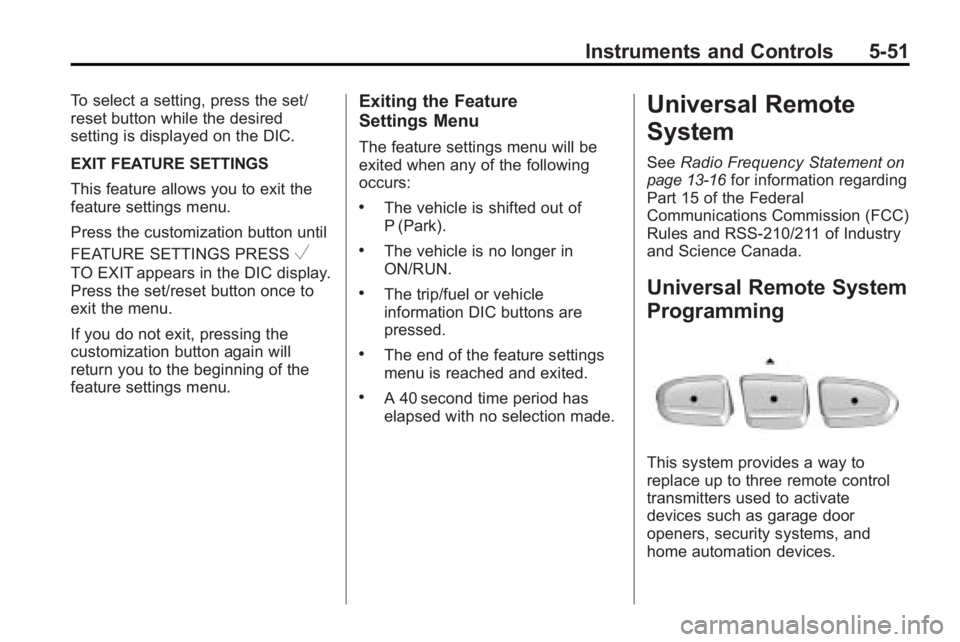
This system provides a way to
replace up to three remote control
transmitters used to activate
devices such as garage door
openers, security systems, and
home automation devices.
Page 170 of 444
5-52 Instruments and Controls
Do not use the Universal Home
Remote with any garage door
opener that does not have the stop
and reverse feature. This includes
any garage door opener model
manufactured before April 1, 1982.
Read the instructions completely
before attempting to program the
Universal Home Remote. Because
of the steps involved, it may be
helpful to have another person
available to assist you with
programming the Universal Home
Remote.
Keep the original hand-held
transmitter for use in other vehicles
as well as for future Universal Home
Remote programming. It is also
recommended that upon the sale of
the vehicle, the programmed
Universal Home Remote buttons
should be erased for security
purposes. See“Erasing Universal
Home Remote Buttons” later in this
section. When programming a garage door,
park outside of the garage. Park
directly in line with and facing the
garage door opener motor-head or
gate motor-head. Be sure that
people and objects are clear of the
garage door or gate that is being
programmed.
It is recommended that a new
battery be installed in your
hand-held transmitter for quicker
and more accurate transmission of
the radio-frequency signal.
Programming the Universal
Home Remote System
For questions or help programming
the Universal Home Remote
System, call 1-800-355-3515 or go
to www.homelink.com.
Programming a garage door opener
involves time-sensitive actions, so
read the entire procedure before
starting. Otherwise, the device will
time out and the procedure will have
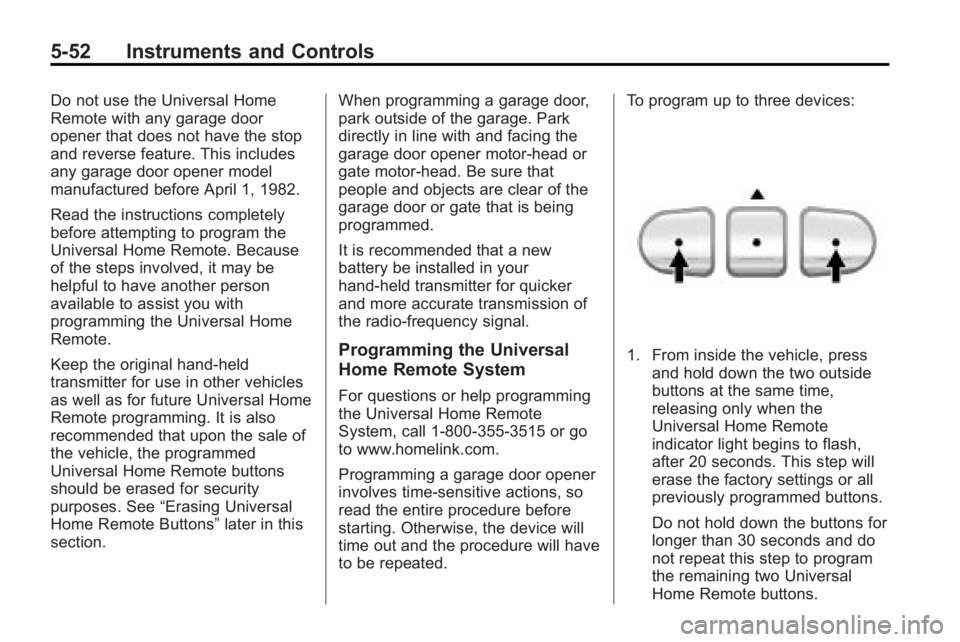
to be repeated.To program up to three devices:
1. From inside the vehicle, press
and hold down the two outside
buttons at the same time,
releasing only when the
Universal Home Remote
indicator light begins to flash,
after 20 seconds. This step will
erase the factory settings or all
previously programmed buttons.
Do not hold down the buttons for
longer than 30 seconds and do
not repeat this step to program
the remaining two Universal
Home Remote buttons.