pairing phone GMC ACADIA 2010 Owner's Manual
[x] Cancel search | Manufacturer: GMC, Model Year: 2010, Model line: ACADIA, Model: GMC ACADIA 2010Pages: 444, PDF Size: 2.58 MB
Page 229 of 444
Infotainment System 7-47
When to Speak:A short tone
sounds after the system responds
indicating when it is waiting for a
voice command. Wait until the tone
and then speak.
How to Speak: Speak clearly in a
calm and natural voice.
Audio System
When using the in-vehicle Bluetooth
system, sound comes through the
vehicle's front audio system
speakers and overrides the audio
system. Use the audio system
volume knob, during a call, to
change the volume level. The
adjusted volume level remains in
memory for later calls. To prevent
missed calls, a minimum volume
level is used if the volume is turned
down too low.
Bluetooth Controls
Use the buttons located on the
steering wheel to operate the
in-vehicle Bluetooth system. See
Steering Wheel Controls
on
page 5‑3for more information.
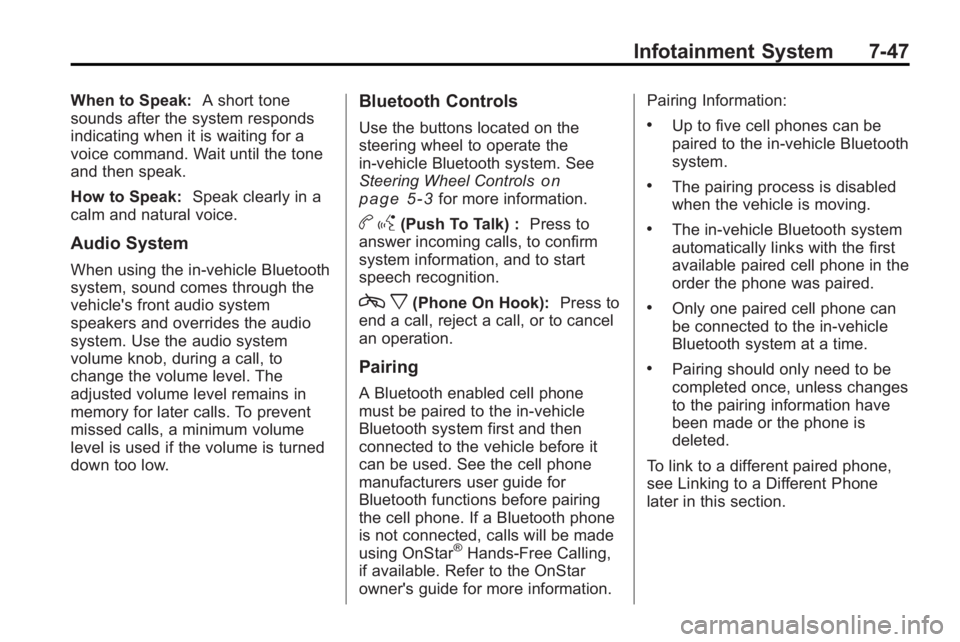
b g(Push To Talk) : Press to
answer incoming calls, to confirm
system information, and to start
speech recognition.
c x(Phone On Hook): Press to
end a call, reject a call, or to cancel
an operation.
Pairing
A Bluetooth enabled cell phone
must be paired to the in-vehicle
Bluetooth system first and then
connected to the vehicle before it
can be used. See the cell phone
manufacturers user guide for
Bluetooth functions before pairing
the cell phone. If a Bluetooth phone
is not connected, calls will be made
using OnStar
®Hands-Free Calling,
if available. Refer to the OnStar
owner's guide for more information. Pairing Information:
.Up to five cell phones can be
paired to the in-vehicle Bluetooth
system.
.The pairing process is disabled
when the vehicle is moving.
.The in-vehicle Bluetooth system
automatically links with the first
available paired cell phone in the
order the phone was paired.
.Only one paired cell phone can
be connected to the in-vehicle
Bluetooth system at a time.
.Pairing should only need to be
completed once, unless changes
to the pairing information have
been made or the phone is
deleted.
To link to a different paired phone,
see Linking to a Different Phone
later in this section.
Page 230 of 444
7-48 Infotainment System
Pairing a Phone
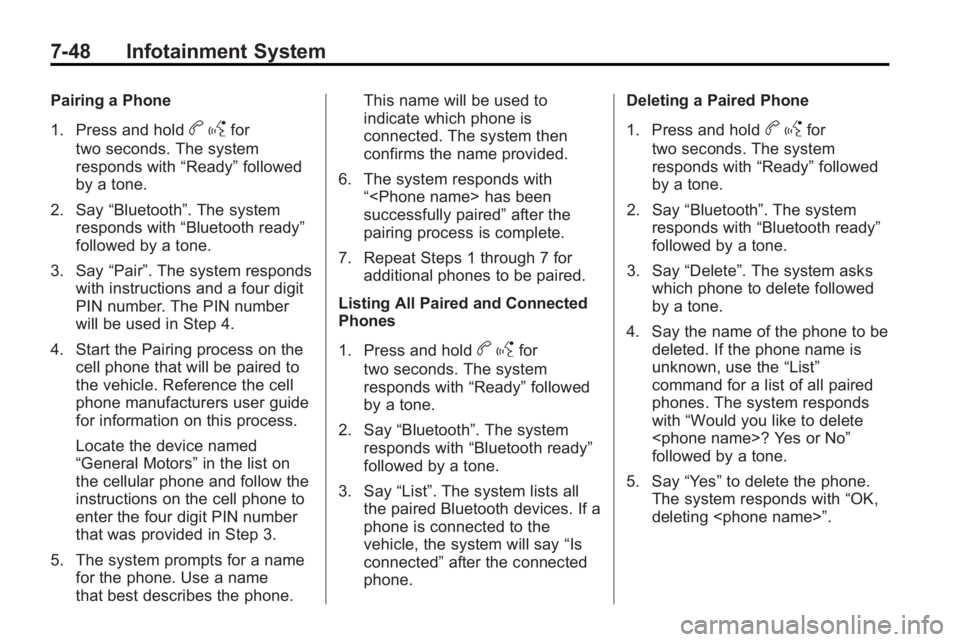
1. Press and hold
bgfor
two seconds. The system
responds with “Ready”followed
by a tone.
2. Say “Bluetooth”. The system
responds with “Bluetooth ready”
followed by a tone.
3. Say “Pair”. The system responds
with instructions and a four digit
PIN number. The PIN number
will be used in Step 4.
4. Start the Pairing process on the cell phone that will be paired to
the vehicle. Reference the cell
phone manufacturers user guide
for information on this process.
Locate the device named
“General Motors” in the list on
the cellular phone and follow the
instructions on the cell phone to
enter the four digit PIN number
that was provided in Step 3.
5. The system prompts for a name for the phone. Use a name
that best describes the phone. This name will be used to
indicate which phone is
connected. The system then
confirms the name provided.
6. The system responds with “
successfully paired” after the
pairing process is complete.
7. Repeat Steps 1 through 7 for additional phones to be paired.
Listing All Paired and Connected
Phones
1. Press and hold
b gfor
two seconds. The system
responds with “Ready”followed
by a tone.
2. Say “Bluetooth”. The system
responds with “Bluetooth ready”
followed by a tone.
3. Say “List”. The system lists all
the paired Bluetooth devices. If a
phone is connected to the
vehicle, the system will say “Is
connected” after the connected
phone. Deleting a Paired Phone
1. Press and hold
b
gfor
two seconds. The system
responds with “Ready”followed
by a tone.
2. Say “Bluetooth”. The system
responds with “Bluetooth ready”
followed by a tone.
3. Say “Delete”. The system asks
which phone to delete followed
by a tone.
4. Say the name of the phone to be deleted. If the phone name is
unknown, use the “List”
command for a list of all paired
phones. The system responds
with “Would you like to delete
followed by a tone.
5. Say “Yes”to delete the phone.
The system responds with “OK,
deleting
Page 238 of 444
7-56 Infotainment System
3. Say the name tag to send.
.If the system clearly
recognizes the name tag it
responds with“OK, Sending
tones are sent and the call
continues.
.If the system is not sure it
recognized the name tag
properly, it responds “Dial
yes or no?” followed by a
tone. If the name tag is
correct, say “Yes”. The
system responds with “OK,
Sending
the dial tones are sent and
the call continues.
Clearing the System
Unless information is deleted out of
the in-vehicle Bluetooth system, it
will be retained indefinitely. This
includes all saved name tags in the
phonebook and phone pairing
information. For information on how
to delete this information, see the
above sections on Deleting a Paired
Phone and Deleting Name Tags.
Other Information
The Bluetooth®word mark and
logos are owned by the Bluetooth®
SIG, Inc. and any use of such marks
by General Motors is under license.
Other trademarks and trade names
are those of their respective owners.
See Radio Frequency Statement
on
page 13‑16for FCC information.