remote control GMC ACADIA 2011 Owner's Guide
[x] Cancel search | Manufacturer: GMC, Model Year: 2011, Model line: ACADIA, Model: GMC ACADIA 2011Pages: 478, PDF Size: 5.52 MB
Page 233 of 478
Black plate (33,1)GMC Acadia/Acadia Denali Owner Manual - 2011
Infotainment System 7-33
Playing an MP3/WMA File
From a Disc (In Either the DVD
or CD Slot)
If a disc is inserted into the top DVD
slot, the rear seat operator can turn
on the video screen and use the
remote control to navigate the
CD (tracks only).
f(Tune):Turn to select MP3/WMA
files.
©SEEK: Press to go to the
start of the track, if more than
five seconds have played. Press
to go to the previous track if less
than five seconds have played.
Press and hold or press multiple
times to continue moving backward
through tracks.
¨SEEK: Press to go to the next
track. Press and hold or press
multiple times to continue moving
forward through tracks.
sREV (Reverse): Press and hold
to reverse playback quickly. Sound
is heard at a reduced volume and
the elapsed time of the file displays.
Release
sREV to resume playing.
\FWD (Fast Forward): Press
and hold to advance playback
quickly. Sound is heard at a reduced
volume and the elapsed time of the
file displays. Release
\FWD to
resume playing. The elapsed time
of the file displays.
S c(Previous Folder): Press
the softkey below
S cto go to the
first track in the previous folder.
cT (Next Folder): Press the
softkey below
cT to go to the
first track in the next folder.
RDM (Random): Files on the
disc can be listened to in random,
rather than sequential order. To use
random, press the softkey under the
RDM tab until Random Current Disc displays to play songs in random
order. Press the same softkey again
to turn off random play.
h(Music Navigator):
Press the
softkey below
hto play files in
order by artist or album.
The player scans the disc to sort
the files by artist and album ID3 tag
information. It can take several
minutes to scan the disc depending
on the number of files on the disc.
The radio may begin playing while
it is scanning in the background.
When the scan is finished, the disc
begins playing files in order by
artist. The current artist playing is
shown on the second line of the
display. Once all songs by that artist
are played, the player moves to the
next artist in alphabetical order and
begins playing files by that artist.
To listen to files by another artist,
press the softkey located below
either arrow tab. The disc goes to
the next or previous artist in
Page 238 of 478
Black plate (38,1)GMC Acadia/Acadia Denali Owner Manual - 2011
7-38 Infotainment System
Drivers are encouraged to
set up any auxiliary device
while the vehicle is in P (Park).
SeeDefensive Driving on page 9‑2
for more information on driver
distraction.
To use an auxiliary input device,
connect a 3.5 mm (1/8 in) cable to
the radio's front auxiliary input jack.
O(Power/Volume): Turn clockwise
or counterclockwise to increase
or decrease the volume of the
portable player. Additional volume
adjustments might have to be made
from the portable device if the
volume is not loud or soft enough.
BAND: Press to listen to the radio
when a portable audio device is
playing. The portable audio device
continues playing, so you might
want to stop it or turn it off. CD/AUX (CD/Auxiliary):
Press to
select between CD, or Auxiliary.
.When a CD is in the player
the CD icon and a message
showing the disc and/or track
number displays.
.If an auxiliary input device is not
connected, “No Input Device
Found” displays.
DVD/CD AUX (Auxiliary): Press
to select between DVD, CD,
or Auxiliary.
.If an auxiliary input device is
not connected, “No Aux Input
Device” displays.
.When a disc is in either slot, the
DVD/CD text tab and a message
showing the track or chapter
number displays.
.If an auxiliary input device is not
connected, and a disc is in both
the DVD slot and the CD slot the
DVD/CD AUX button only cycles
between the two sources and
does not indicate “No Aux Input
Device.”
.If a front auxiliary input device is
connected, the DVD/CD AUX
button cycles through all
available options.
If a disc is inserted into top DVD
slot, the rear seat operator can turn
on the video screen and use the
remote control to only navigate
the CD tracks through the remote
control.
See “Using the Auxiliary Input
Jack(s)” later in this section,
or “Audio/Video (A/V) Jacks” under,
Rear Seat Entertainment (RSE)
System on page 7‑39 for more
information.
Page 239 of 478
Black plate (39,1)GMC Acadia/Acadia Denali Owner Manual - 2011
Infotainment System 7-39
Using the USB Port
For vehicles with a USB port,
the connector is located in the
instrument panel storage area.
SeeInstrument Panel Storage on
page 4‑1 for more information.
Radios with a USB port can control
a USB storage device or an iPod
®
using the radio buttons and knobs.
See MP3 (Radios with CD/USB) on
page 7‑24 orMP3 (Radios with
CD/DVD) on page 7‑30 for
information about how to connect
and control a USB storage device
or an iPod. USB Supported Devices
.USB Flash Drives
.Portable USB Hard Drives
.Fifth generation or later iPod
.iPod nanos
.iPod touch
.iPod classic
Not all iPods and USB Drives are
compatible with the USB port.
Make sure the iPod has the latest
firmware from Apple
®for proper
operation. iPod firmware can be
updated using the latest iTunes
®
application. See www.apple.com/
itunes.
For help with identifying your iPod,
go to www.apple.com/support.
Rear Seat
Infotainment
Rear Seat Entertainment
(RSE) System
The vehicle may have a DVD Rear
Seat Entertainment (RSE) system.
The RSE system works with the
vehicle's audio system. The DVD
player is part of the front radio.
The RSE system includes a radio
with a DVD player, a video display
screen, audio/video jacks, two
wireless headphones, and a remote
control. See Operation on page 7‑2
for more information on the vehicle's
infotainment system.
Page 242 of 478
Black plate (42,1)GMC Acadia/Acadia Denali Owner Manual - 2011
7-42 Infotainment System
Battery Replacement
To change the batteries on the
headphones:
1. Turn the screw to loosen thebattery door located on the
left side of the headphones.
Slide the battery door open.
2. Replace the two batteries in the compartment. Make sure that
they are installed correctly, using
the diagram on the inside of the
battery compartment.
3. Replace the battery door and tighten the door screw.
If the headphones are to be stored
for a long period of time, remove the
batteries and keep them in a cool,
dry place.Audio/Video (A/V) Jacks
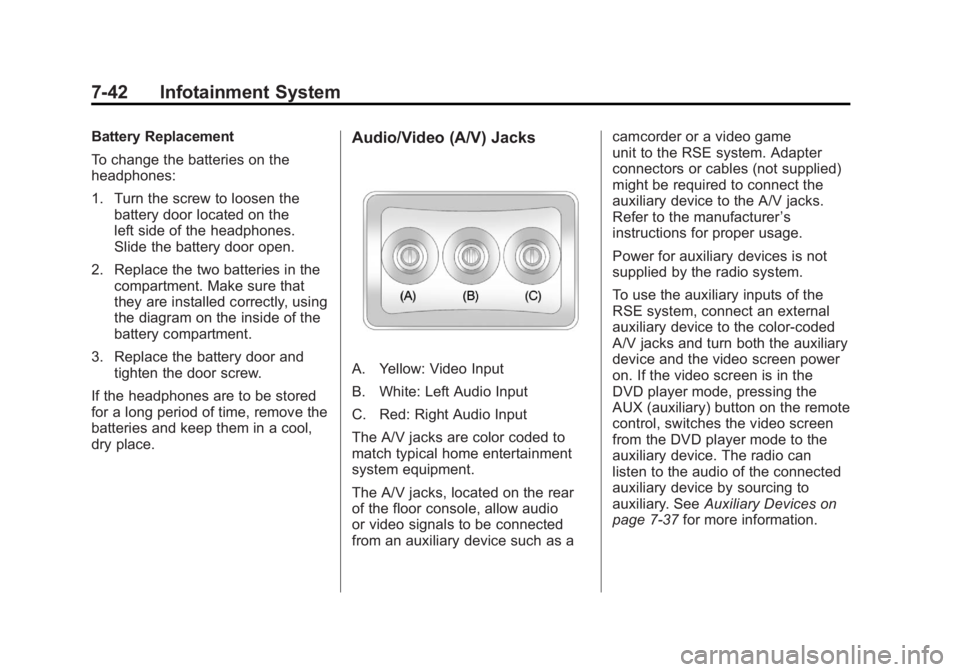
A. Yellow: Video Input
B. White: Left Audio Input
C. Red: Right Audio Input
The A/V jacks are color coded to
match typical home entertainment
system equipment.
The A/V jacks, located on the rear
of the floor console, allow audio
or video signals to be connected
from an auxiliary device such as a camcorder or a video game
unit to the RSE system. Adapter
connectors or cables (not supplied)
might be required to connect the
auxiliary device to the A/V jacks.
Refer to the manufacturer
’s
instructions for proper usage.
Power for auxiliary devices is not
supplied by the radio system.
To use the auxiliary inputs of the
RSE system, connect an external
auxiliary device to the color-coded
A/V jacks and turn both the auxiliary
device and the video screen power
on. If the video screen is in the
DVD player mode, pressing the
AUX (auxiliary) button on the remote
control, switches the video screen
from the DVD player mode to the
auxiliary device. The radio can
listen to the audio of the connected
auxiliary device by sourcing to
auxiliary. See Auxiliary Devices on
page 7‑37 for more information.
Page 243 of 478
Black plate (43,1)GMC Acadia/Acadia Denali Owner Manual - 2011
Infotainment System 7-43
How to Change the RSE Video
Screen Settings
The screen display mode (normal,
full, and zoom), screen brightness,
and setup menu language can be
changed from the on screen setup
menu by using the remote control.
To change a setting:
1. Press
z.
2. Use
n,q,p,oandrto
navigate and use the
setup menu.
3. Press
zagain to remove the
setup menu from the screen.
Audio Output
Audio from the DVD player or
auxiliary inputs can be heard
through the following sources:
.Wireless headphones
.Vehicle speakers
.Vehicle‐wired headphone jacks
on the RSA system, if the
vehicle has this feature. The RSE system always
transmits the audio signal to the
wireless headphones, if there is
audio available. See
“Headphones”
earlier in this section for more
information.
The DVD player is capable of
outputting audio to the wired
headphone jacks on the RSA
system, if the vehicle has this
feature. The DVD player can be
selected as an audio source on
the RSA system. See Rear Seat
Audio (RSA) System on page 7‑48
for more information.
When a device is connected to the
A/V jacks, or the radio's auxiliary
input jack, if the vehicle has this
feature, the rear seat passengers
are able to hear audio from the
auxiliary device through the wireless
or wired headphones. The front seat
passengers are able to listen to
playback from this device through
the vehicle speakers by selecting
AUX as the source on the radio.
Video Screen
The video screen is located in the
overhead console. When the video
screen is not in use, push it up into
its locked position.
To use the video screen:
1. Push the release button located on the overhead console.
2. Move the screen to the desired position.
If a DVD is playing and the screen
is raised to its locked position, the
screen remains on; this is normal,
and the DVD continues to play
through the previous audio source.
Press
Pon the remote control or
eject the disc to turn off the screen.
Page 244 of 478
Black plate (44,1)GMC Acadia/Acadia Denali Owner Manual - 2011
7-44 Infotainment System
The infrared receivers for the
wireless headphones and the
remote control are located at the
rear of the overhead console.
Notice:Avoid directly touching
the video screen, as damage may
occur. See “Cleaning the Video
Screen” later in this section for
more information.
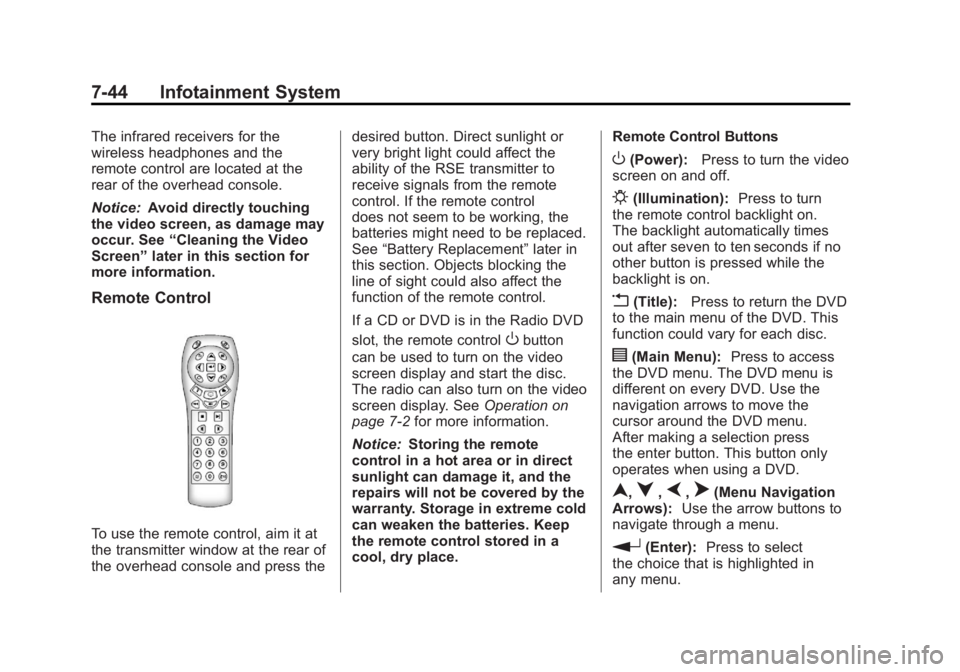
Remote Control
To use the remote control, aim it at
the transmitter window at the rear of
the overhead console and press the desired button. Direct sunlight or
very bright light could affect the
ability of the RSE transmitter to
receive signals from the remote
control. If the remote control
does not seem to be working, the
batteries might need to be replaced.
See
“Battery Replacement” later in
this section. Objects blocking the
line of sight could also affect the
function of the remote control.
If a CD or DVD is in the Radio DVD
slot, the remote control
Obutton
can be used to turn on the video
screen display and start the disc.
The radio can also turn on the video
screen display. See Operation on
page 7‑2 for more information.
Notice: Storing the remote
control in a hot area or in direct
sunlight can damage it, and the
repairs will not be covered by the
warranty. Storage in extreme cold
can weaken the batteries. Keep
the remote control stored in a
cool, dry place. Remote Control Buttons
O(Power):
Press to turn the video
screen on and off.
P(Illumination): Press to turn
the remote control backlight on.
The backlight automatically times
out after seven to ten seconds if no
other button is pressed while the
backlight is on.
v(Title): Press to return the DVD
to the main menu of the DVD. This
function could vary for each disc.
y(Main Menu): Press to access
the DVD menu. The DVD menu is
different on every DVD. Use the
navigation arrows to move the
cursor around the DVD menu.
After making a selection press
the enter button. This button only
operates when using a DVD.
n,q,p,o(Menu Navigation
Arrows): Use the arrow buttons to
navigate through a menu.
r(Enter): Press to select
the choice that is highlighted in
any menu.
Page 246 of 478
Black plate (46,1)GMC Acadia/Acadia Denali Owner Manual - 2011
7-46 Infotainment System
\(Clear):Press within
three seconds after entering a
numeric selection, to clear all
numerical inputs.
}10 (Double Digit Entries): Press
to select chapter or track numbers
greater than nine. Press this button
before entering the number.
If the remote control becomes
lost or damaged, a new universal
remote control can be purchased.
If this happens, make sure the
universal remote control uses a
Toshiba
®code set.
Battery Replacement
To change the remote control
batteries:
1. Slide the rear cover back, on the remote control.
2. Replace the two batteries in the compartment. Make sure that
they are installed correctly, using
the diagram on the inside of the
battery compartment.
3. Replace the battery cover. If the remote control is to be stored for a long period of time, remove the
batteries and keep them in a cool, dry place.
Tips and Troubleshooting Chart
Problem
Recommended Action
There is no power. The ignition might not be turned to
ON/RUN or ACC/ACCESSORY.
The picture does not fill the screen.
There are black borders on the top
and bottom or on both sides, or the
picture looks stretched out. Check the display mode settings
in the setup menu by pressing the
display menu button on the remote
control.
In auxiliary mode, the picture moves
or scrolls. Check the auxiliary input
connections at both devices.
The remote control does not work. Check to make sure there is no obstruction between the remote
control and the transmitter window.
Check the batteries to make sure
they are not dead or installed
incorrectly.
Page 328 of 478
Black plate (56,1)GMC Acadia/Acadia Denali Owner Manual - 2011
9-56 Driving and Operating
*The fuse for this circuit is installed
in the underhood electrical center,
but the wires are not connected.
They should be connected by your
dealer or a qualified service center.
If the back-up lamp circuit is not
functional, contact your dealer.
If a remote (non-vehicle) battery is
being charged, press the Tow/Haul
mode switch located on the center
console near the climate controls.
This will boost the vehicle system
voltage and properly charge the
battery. If the trailer is too light
for Tow/Haul mode, turn on the
headlamps (Non‐HID only) as a
second way to boost the vehicle
system and charge the battery.Electric Trailer Brake Control
Wiring Provisions
These wiring provisions for an
electric trailer brake controller
are included with the vehicle as
part of the trailer wiring package.
The instrument panel contains
blunt cut wires behind the steering
column for the electric trailer brake
controller. The harness contains
the following wires:
.Red/Black: Power Supply
.White: Brake Switch Signal
.Gray: Illumination
.Dark Blue: Trailer Brake Signal
.Black: Ground
The electric trailer brake controller
should be installed by your dealer
or a qualified service center.
Conversions and
Add-Ons
Add-On Electrical
Equipment
Notice: Do not add anything
electrical to the vehicle unless
you check with your dealer first.
Some electrical equipment can
damage the vehicle and the
damage would not be covered
by the vehicle's warranty. Some
add-on electrical equipment can
keep other components from
working as they should.
Add-on equipment can drain the
vehicle's 12‐volt battery, even if the
vehicle is not operating.
The vehicle has an airbag system.
Before attempting to add anything
electrical to the vehicle, see
Servicing the Airbag-Equipped
Vehicle on page 3‑45 andAdding
Equipment to the Airbag-Equipped
Vehicle on page 3‑46.
Page 331 of 478
Black plate (3,1)GMC Acadia/Acadia Denali Owner Manual - 2011
Vehicle Care 10-3
California Proposition
65 Warning
Most motor vehicles, including this
one, contain and/or emit chemicals
known to the State of California to
cause cancer and birth defects or
other reproductive harm. Engine
exhaust, many parts and systems,
many fluids, and some component
wear by-products contain and/or
emit these chemicals.
California Perchlorate
Materials Requirements
Certain types of automotive
applications, such as airbag
initiators, seat belt pretensioners,
and lithium batteries contained in
Remote Keyless Entry transmitters,
may contain perchlorate materials.
Special handling may be necessary.
For additional information, see
www.dtsc.ca.gov/hazardouswaste/
perchlorate.
Accessories and
Modifications
Adding non‐dealer accessories
to the vehicle can affect vehicle
performance and safety, including
such things as airbags, braking,
stability, ride and handling,
emissions systems, aerodynamics,
durability, and electronic systems
like antilock brakes, traction control,
and stability control. Some of these
accessories could even cause
malfunction or damage not covered
by the vehicle warranty.
Page 474 of 478
Black plate (10,1)GMC Acadia/Acadia Denali Owner Manual - 2011
i-10 INDEX
R
Radio FrequencyIdentification (RFID) . . . . . . . . 13-19
Statement . . . . . . . . . . . . . . . . . . 13-20
Radios AM-FM Radio . . . . . . . . . . . . . . . . . . 7-7
CD/DVD Player . . . . . . . . . . . . . . . 7-16
Reception . . . . . . . . . . . . . . . . . . . . 7-12
Satellite . . . . . . . . . . . . . . . . . . . . . . . . 7-8
Reading Lamps . . . . . . . . . . . . . . . . . 6-5
Rear Audio Controller (RAC) . . . . . . . . . . . . . 7-50
Rear Climate Control System . . . . . . . . . . . . . . . . . 8-10, 8-11
Rear Seat Audio (RSA) System . . . . . . . . . . . . . . . . . . . . . . . 7-48
Rear Seat Entertainment System . . . . . . . . . . . . . . . . . . . . . . . 7-39
Rear Seat Audio (RSA) . . . . . . . 7-48
Rear Seats . . . . . . . . . . . . . . . . . . . . 3-10 Rear Vision Camera (RVC) . . . . 9-37
Rear Window Washer/Wiper . . . . 5-6
Rearview Mirrors . . . . . . . . . . . . . . 2-19
Automatic Dimming . . . . . . . . . . . 2-19
Reclining Seatbacks . . . . . . . . . . . . 3-7
Recommended Fluids and Lubricants . . . . . . . . . . . . . . . . . . . . 11-7
Recommended Fuel . . . . . . . . . . . 9-42
Records Maintenance . . . . . . . . . . . . . . . . .11-10
Recreational Vehicle
Towing . . . . . . . . . . . . . . . . . . . . . . 10-87
Reimbursement Program, GM Mobility . . . . . . . . . . . . . . . . . . 13-8
Remote Keyless Entry (RKE) System . . . . . . . . . . . . . 2-2, 2-3
Remote Vehicle Start . . . . . . . . . . . 2-5
Replacement Bulbs . . . . . . . . . . . 10-31
Replacement Parts Airbags . . . . . . . . . . . . . . . . . . . . . . . 3-48
Maintenance . . . . . . . . . . . . . . . . . . 11-9 Replacing Airbag System . . . . . . 3-48
Replacing LATCH System
Parts After a Crash . . . . . . . . . . . 3-64
Replacing Safety Belt System Parts After a
Crash . . . . . . . . . . . . . . . . . . . . . . . . 3-32
Reporting Safety Defects
Canadian Government . . . . . . 13-17
General Motors . . . . . . . . . . . . . 13-17
U.S. Government . . . . . . . . . . . 13-16
Restraints
Where to Put . . . . . . . . . . . . . . . . . 3-55
Retained Accessory Power (RAP) . . . . . . . . . . . . . . . . . 9-21
Ride Control Systems Messages . . . . . . . . . . . . . . . . . . . . 5-42
Roads Driving, Wet . . . . . . . . . . . . . . . . . . . 9-7
Roadside Assistance Program . . . . . . . . . . . . . . . 13-8, 13-10
Roof
Sunroof . . . . . . . . . . . . . . . . . . . . . . . 2-22