change time GMC ACADIA 2012 User Guide
[x] Cancel search | Manufacturer: GMC, Model Year: 2012, Model line: ACADIA, Model: GMC ACADIA 2012Pages: 468, PDF Size: 5.57 MB
Page 154 of 468
Black plate (34,1)GMC Acadia/Acadia Denali Owner Manual - 2012
5-34 Instruments and Controls
The following indicator lights come
on the instrument panel when
activated and also appear on
the HUD:
.Turn Signal Indicators
.High-Beam Indicator Symbol
The HUD temporarily displays
CHECK GAGES and ICE
POSSIBLE when these messages
are on the DIC trip computer.
The HUD also displays the following
messages on vehicles with these
systems, when they are active:
.TRACTION CONTROL ACTIVE
.STABILITRAK ACTIVE
Notice: If you try to use the HUD
image as a parking aid, you may
misjudge the distance and
damage your vehicle. Do not use
the HUD image as a parking aid. When the HUD is on, the
speedometer reading is continually
displayed. The current radio station
or CD track number will display
for a short period of time after the
radio or CD track status changes.
This happens whenever radio
information is changed. The
speedometer size is reduced when
radio, CD information, warnings,
or turn-by-turn navigation
information are displayed on
the HUD.
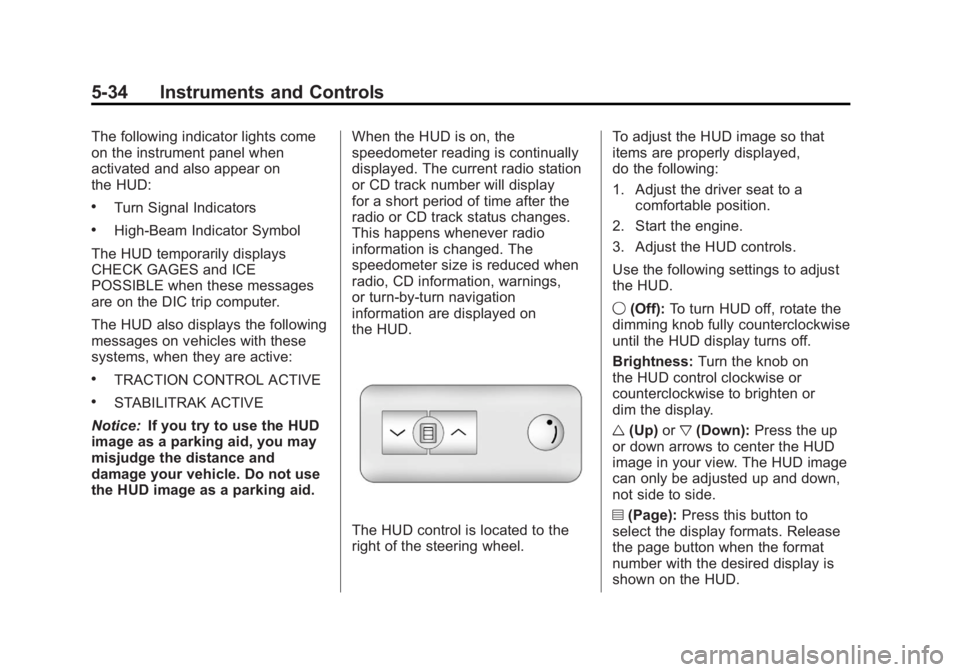
The HUD control is located to the
right of the steering wheel.To adjust the HUD image so that
items are properly displayed,
do the following:
1. Adjust the driver seat to a
comfortable position.
2. Start the engine.
3. Adjust the HUD controls.
Use the following settings to adjust
the HUD.
9 (Off): To turn HUD off, rotate the
dimming knob fully counterclockwise
until the HUD display turns off.
Brightness: Turn the knob on
the HUD control clockwise or
counterclockwise to brighten or
dim the display.
w (Up) orx(Down): Press the up
or down arrows to center the HUD
image in your view. The HUD image
can only be adjusted up and down,
not side to side.
? (Page): Press this button to
select the display formats. Release
the page button when the format
number with the desired display is
shown on the HUD.
Page 160 of 468
Black plate (40,1)GMC Acadia/Acadia Denali Owner Manual - 2012
5-40 Instruments and Controls
Engine Oil Messages
CHANGE ENGINE OIL SOON
This message displays when the
engine oil needs to be changed.
When you change the engine oil, be
sure to reset the CHANGE ENGINE
OIL SOON message. SeeEngine
Oil Life System on page 10‑10 for
information on how to reset the
message. See Engine Oil on
page 10‑8 andMaintenance
Schedule on page 11‑3 for more
information.
OIL PRESSURE LOW STOP
ENGINE
Notice: If you drive the vehicle
while the engine oil pressure is
low, severe engine damage may
occur. If a low oil pressure
warning appears on the
instrument panel cluster and/or
DIC, stop the vehicle as soon as
possible. Do not drive the vehicle until the cause of the low oil
pressure is corrected. See
Engine
Oil on page 10‑8 for more
information.
This message displays if low oil
pressure levels occur. Stop the
vehicle as soon as safely possible
and do not operate it until the cause
of the low oil pressure has been
corrected. Check the oil as soon as
possible and have your vehicle
serviced by your dealer. See Engine
Oil on page 10‑8.
Engine Power Messages
ENGINE POWER IS REDUCED
This message displays and a
chime sounds when the cooling
system temperature gets too hot
and the engine further enters the
engine coolant protection mode.
See Engine Overheating on
page 10‑18 for further information. This message also displays when
the vehicle's engine power is
reduced. Reduced engine power
can affect the vehicle's ability to
accelerate. If this message is on,
but there is no reduction in
performance, proceed to your
destination. The performance may
be reduced the next time the vehicle
is driven. The vehicle may be driven
at a reduced speed while this
message is on, but acceleration and
speed may be reduced. Anytime
this message stays on, the vehicle
should be taken to your dealer for
service as soon as possible.Fuel System Messages
FUEL LEVEL LOW
This message displays and a chime
sounds if the fuel level is low. Refuel
as soon as possible. See
Fuel
Gauge on page 5‑13 andFuel on
page 9‑40 for more information.
Page 169 of 468
Black plate (49,1)GMC Acadia/Acadia Denali Owner Manual - 2012
Instruments and Controls 5-49
Keyless Entry (RKE) System
Operation on page 2‑3for more
information.
Press the customization button
until REMOTE DOOR UNLOCK
appears on the DIC display.
Press the set/reset button once to
access the settings for this feature.
Then press the customization button
to scroll through the following
settings:
LIGHTS OFF: The exterior lamps
will not flash when you press
the unlock button on the RKE
transmitter.
LIGHTS ON (default): The exterior
lamps will flash when you press
the unlock button on the RKE
transmitter.
NO CHANGE: No change will be
made to this feature. The current
setting will remain.
To select a setting, press the
set/reset button while the desired
setting is displayed on the DIC. DELAY DOOR LOCK
This feature allows you to select
whether or not the locking of the
vehicle's doors and liftgate will be
delayed. When locking the doors
and liftgate with the power door lock
switch and a door or the liftgate is
open, this feature will delay locking
the doors and liftgate until
five seconds after the last door is
closed. You will hear three chimes
to signal that the delayed locking
feature is in use. The key must be
out of the ignition for this feature to
work. You can temporarily override
delayed locking by pressing the
power door lock switch twice or the
lock button on the RKE transmitter
twice. See
Delayed Locking on
page 2‑8 for more information.
Press the customization button
until DELAY DOOR LOCK appears
on the DIC display. Press the
set/reset button once to access
the settings for this feature. Then press the customization button
to scroll through the following
settings:
OFF:
There will be no delayed
locking of the vehicle's doors.
ON (default): The doors will not
lock until five seconds after the last
door or the liftgate is closed.
NO CHANGE: No change will be
made to this feature. The current
setting will remain.
To select a setting, press the
set/reset button while the desired
setting is displayed on the DIC.
EXIT LIGHTING
This feature allows you to select
the amount of time you want the
exterior lamps to remain on
when it is dark enough outside.
This happens after the key is turned
from ON/RUN to LOCK/OFF.
Page 171 of 468
Black plate (51,1)GMC Acadia/Acadia Denali Owner Manual - 2012
Instruments and Controls 5-51
NO CHANGE:No change will be
made to this feature. The current
setting will remain.
There is no default for chime
volume. The volume will stay at the
last known setting.
To select a setting, press the
set/reset button while the desired
setting is displayed on the DIC.
PARK TILT MIRRORS
If your vehicle has this feature,
it allows you to select whether
or not the outside mirror(s) will
automatically tilt down when the
vehicle is shifted into R (Reverse).
See Park Tilt Mirrors on page 2‑19
for more information.
Press the customization button
until PARK TILT MIRRORS appears
on the DIC display. Press the
set/reset button once to access
the settings for this feature. Then press the customization button
to scroll through the following
settings:
OFF (default):
Neither outside
mirror will be tilted down when the
vehicle is shifted into R (Reverse).
DRIVER MIRROR: The driver's
outside mirror will be tilted down
when the vehicle is shifted into
R (Reverse).
PASSENGER MIRROR: The
passenger's outside mirror will be
tilted down when the vehicle is
shifted into R (Reverse).
BOTH MIRRORS: The driver's and
passenger's outside mirrors will be
tilted down when the vehicle is
shifted into R (Reverse).
NO CHANGE: No change will be
made to this feature. The current
setting will remain.
To select a setting, press the
set/reset button while the desired
setting is displayed on the DIC. EASY EXIT SEAT
If your vehicle has this feature, it
allows you to select your preference
for the automatic easy exit seat
feature. See
Memory Seats on
page 3‑7 for more information.
Press the customization button
until EASY EXIT SEAT appears on
the DIC display. Press the set/reset
button once to access the settings
for this feature. Then press the
customization button to scroll
through the following settings:
OFF (default): No automatic seat
exit recall will occur.
ON: The driver seat will move back
when the key is removed from the
ignition.
The automatic easy exit seat
movement will only occur one time
after the key is removed from the
ignition. If the automatic movement
has already occurred, and you put
the key back in the ignition and
Page 179 of 468
Black plate (1,1)GMC Acadia/Acadia Denali Owner Manual - 2012
Lighting 6-1
Lighting
Exterior Lighting
Exterior Lamp Controls . . . . . . . . 6-1
Headlamp High/Low-BeamChanger . . . . . . . . . . . . . . . . . . . . . 6-2
Flash-to-Pass . . . . . . . . . . . . . . . . . 6-2
Daytime Running Lamps (DRL)/Automatic Headlamp
System . . . . . . . . . . . . . . . . . . . . . . 6-3
Delayed Headlamps . . . . . . . . . . 6-3
Hazard Warning Flashers . . . . . 6-4
Turn and Lane-Change Signals . . . . . . . . . . . . . . . . . . . . . . 6-4
Fog Lamps . . . . . . . . . . . . . . . . . . . . 6-5
Interior Lighting
Instrument Panel Illumination Control . . . . . . . . . . . . . . . . . . . . . . 6-5
Courtesy Lamps . . . . . . . . . . . . . . 6-5
Dome Lamps . . . . . . . . . . . . . . . . . 6-5
Reading Lamps . . . . . . . . . . . . . . . 6-6
Lighting Features
Entry Lighting . . . . . . . . . . . . . . . . . 6-6
Delayed Entry Lighting . . . . . . . . 6-6
Delayed Exit Lighting . . . . . . . . . 6-7
Parade Dimming . . . . . . . . . . . . . . 6-7
Battery Load Management . . . . 6-7
Battery Power Protection . . . . . . 6-8
Exterior Lighting
Exterior Lamp Controls
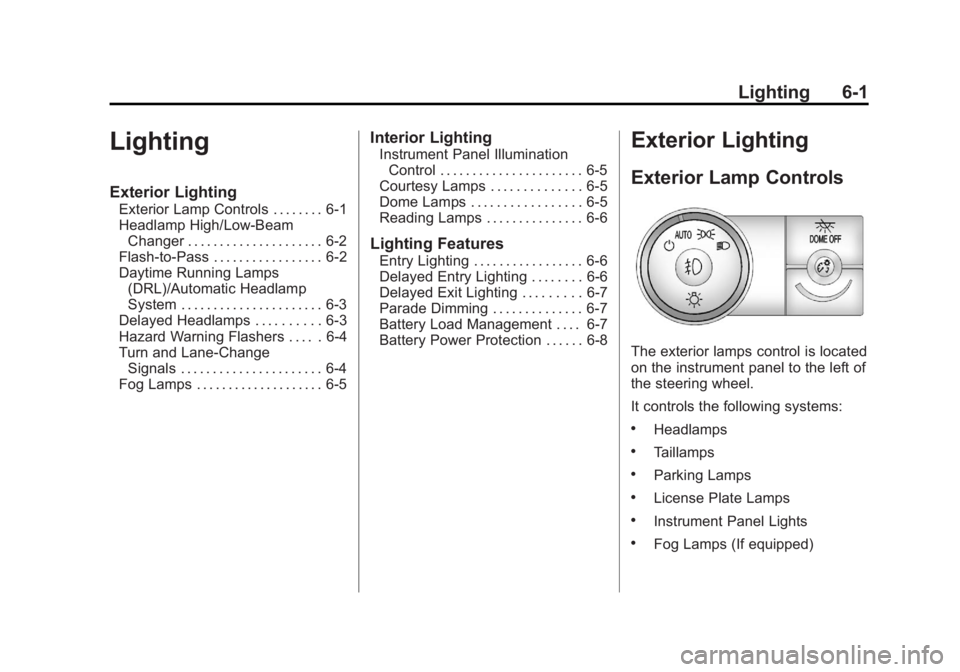
The exterior lamps control is located
on the instrument panel to the left of
the steering wheel.
It controls the following systems:
.Headlamps
.Taillamps
.Parking Lamps
.License Plate Lamps
.Instrument Panel Lights
.Fog Lamps (If equipped)
Page 181 of 468
Black plate (3,1)GMC Acadia/Acadia Denali Owner Manual - 2012
Lighting 6-3
Daytime Running
Lamps (DRL)/Automatic
Headlamp System
Daytime Running Lamps (DRL) can
make it easier for others to see the
front of your vehicle during the day.
Fully functional daytime running
lamps are required on all vehicles
first sold in Canada.
The DRL system makes the
low-beam headlamps come on at a
reduced brightness when the
following conditions are met:
.The ignition is in the ON/RUN
position.
.The exterior lamps control is
in AUTO.
.The engine is running.When the DRL are on, the regular
headlamps, taillamps, sidemarker,
and other lamps will not be on.
The instrument panel and cluster
will also not be lit.
The headlamps automatically
change from DRL to the regular
headlamps depending on the
darkness of the surroundings.
The other lamps that come on with
the headlamps will also come on.
When it is bright enough outside,
the headlamps will go off and the
DRL will come on.
The regular headlamp system
should be turned on when needed.
Do not cover the light sensor on top
of the instrument panel because it
works with the DRL.
Delayed Headlamps
Delayed headlamps provide a
period of exterior lighting as you
leave the area around the vehicle.
This feature is activated when
the headlamps are on due to the
automatic headlamps control
feature, and when the ignition is
turned off. The headlamps remain
on until the exterior lamps control is
moved to the parking lamps position
or until the pre-selected delayed
headlamp lighting period has ended.
If the ignition is turned off with the
exterior lamp control in the parking
lamps or headlamps position, the
delayed headlamps cycle will not
occur.
To disable the delayed headlamps
feature or change the time of
delay, see
Vehicle Personalization
(With DIC Buttons) on page 5‑46.
Page 182 of 468
Black plate (4,1)GMC Acadia/Acadia Denali Owner Manual - 2012
6-4 Lighting
Hazard Warning Flashers
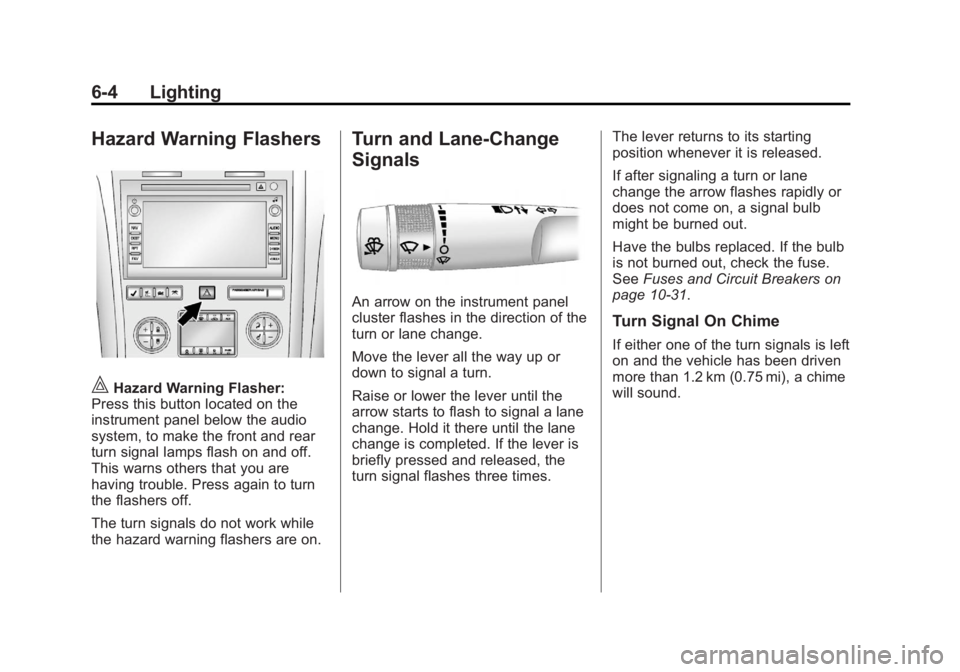
|Hazard Warning Flasher:
Press this button located on the
instrument panel below the audio
system, to make the front and rear
turn signal lamps flash on and off.
This warns others that you are
having trouble. Press again to turn
the flashers off.
The turn signals do not work while
the hazard warning flashers are on.
Turn and Lane-Change
Signals
An arrow on the instrument panel
cluster flashes in the direction of the
turn or lane change.
Move the lever all the way up or
down to signal a turn.
Raise or lower the lever until the
arrow starts to flash to signal a lane
change. Hold it there until the lane
change is completed. If the lever is
briefly pressed and released, the
turn signal flashes three times. The lever returns to its starting
position whenever it is released.
If after signaling a turn or lane
change the arrow flashes rapidly or
does not come on, a signal bulb
might be burned out.
Have the bulbs replaced. If the bulb
is not burned out, check the fuse.
See
Fuses and Circuit Breakers on
page 10‑31.
Turn Signal On Chime
If either one of the turn signals is left
on and the vehicle has been driven
more than 1.2 km (0.75 mi), a chime
will sound.
Page 226 of 468
Black plate (40,1)GMC Acadia/Acadia Denali Owner Manual - 2012
7-40 Infotainment System
Battery Replacement
To change the batteries on the
headphones:
1. Turn the screw to loosen thebattery door located on the
left side of the headphones.
Slide the battery door open.
2. Replace the two batteries in the compartment. Make sure that
they are installed correctly, using
the diagram on the inside of the
battery compartment.
3. Replace the battery door and tighten the door screw.
If the headphones are to be stored
for a long period of time, remove the
batteries and keep them in a cool,
dry place.Audio/Video (A/V) Jacks
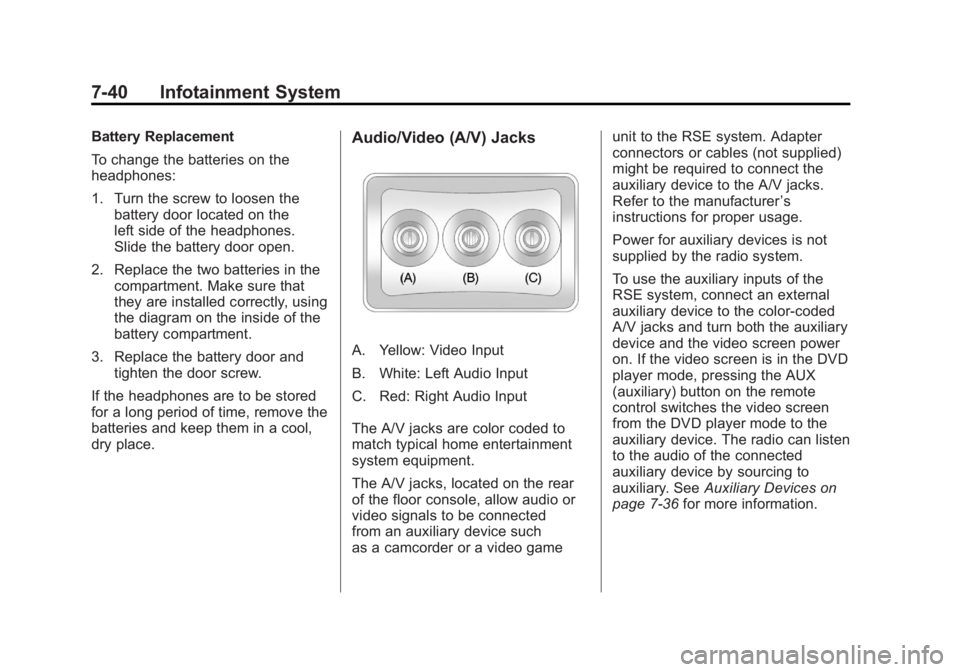
A. Yellow: Video Input
B. White: Left Audio Input
C. Red: Right Audio Input
The A/V jacks are color coded to
match typical home entertainment
system equipment.
The A/V jacks, located on the rear
of the floor console, allow audio or
video signals to be connected
from an auxiliary device such
as a camcorder or a video game unit to the RSE system. Adapter
connectors or cables (not supplied)
might be required to connect the
auxiliary device to the A/V jacks.
Refer to the manufacturer
’s
instructions for proper usage.
Power for auxiliary devices is not
supplied by the radio system.
To use the auxiliary inputs of the
RSE system, connect an external
auxiliary device to the color-coded
A/V jacks and turn both the auxiliary
device and the video screen power
on. If the video screen is in the DVD
player mode, pressing the AUX
(auxiliary) button on the remote
control switches the video screen
from the DVD player mode to the
auxiliary device. The radio can listen
to the audio of the connected
auxiliary device by sourcing to
auxiliary. See Auxiliary Devices on
page 7‑36 for more information.
Page 230 of 468
Black plate (44,1)GMC Acadia/Acadia Denali Owner Manual - 2012
7-44 Infotainment System
e(Audio):Press to change audio
tracks on DVDs that have this
feature when the DVD is playing.
The format and content of this
function vary for each disc.
{(Subtitles): Press to turn
ON/OFF subtitles and to move
through subtitle options when a
DVD is playing. The format and
content of this function vary for
each disc.
AUX (Auxiliary): Press to switch
the system between the DVD player
and an auxiliary source.
2(Camera): Press to change
camera angles on DVDs that have
this feature when a DVD is playing.
The format and content of this
function vary for each disc. 1 through 0 (Numeric Keypad):
The numeric keypad provides the
capability of direct chapter or track
number selection.
\(Clear):
Press within
three seconds after entering a
numeric selection, to clear all
numerical inputs.
}10 (Double Digit Entries): Press
to select chapter or track numbers
greater than nine. Press this button
before entering the number.
If the remote control becomes lost
or damaged, a new universal
remote control can be purchased.
If this happens, make sure the
universal remote control uses a
Toshiba
®code set. Battery Replacement
To change the remote control
batteries:
1. Slide the rear cover back on the
remote control.
2. Replace the two batteries in the compartment. Make sure that
they are installed correctly, using
the diagram on the inside of the
battery compartment.
3. Replace the battery cover.
If the remote control is to be stored
for a long period of time, remove the
batteries and keep them in a cool,
dry place.
Page 237 of 468
Black plate (51,1)GMC Acadia/Acadia Denali Owner Manual - 2012
Infotainment System 7-51
Pairing
A Bluetooth enabled cell phone
must be paired to the Bluetooth
system and then connected to the
vehicle before it can be used.
See the cell phone manufacturer's
user guide for Bluetooth functions
before pairing the cell phone. If a
Bluetooth phone is not connected,
calls will be made using OnStar
Hands‐Free Calling, if equipped.
SeeOnStar Overview on page 14‑1
for more information.
Pairing Information
.A Bluetooth phone with MP3
capability cannot be paired to
the vehicle as a phone and an
MP3 player at the same time.
.Up to five cell phones can be
paired to the Bluetooth system.
.The pairing process is disabled
when the vehicle is moving.
.Pairing only needs to be
completed once, unless the
pairing information on the cell
phone changes or the cell phone
is deleted from the system.
.Only one paired cell phone can
be connected to the Bluetooth
system at a time.
.If multiple paired cell phones are
within range of the system, the
system connects to the first
available paired cell phone in the
order that they were first paired
to the system. To connect to a
different paired phone, see
“Connecting to a Different
Phone” later in this section.
Pairing a Phone
1. Press and hold
b/gfor
two seconds.
2. Say “Bluetooth.” This command
can be skipped. 3. Say
“Pair.”The system responds
with instructions and a four‐digit
Personal Identification Number
(PIN). The PIN is used in Step 5.
4. Start the pairing process on the cell phone that you want to pair.
For help with this process, see
the cell phone manufacturer's
user guide.
5. Locate the device named “Your
Vehicle” in the list on the cell
phone. Follow the instructions
on the cell phone to enter the
PIN provided in Step 3. After the
PIN is successfully entered, the
system prompts you to provide a
name for the paired cell phone.
This name will be used to
indicate which phones are
paired and connected to the
vehicle. The system responds
with “
successfully paired” after the
pairing process is complete.
6. Repeat Steps 1 through 5 to pair additional phones.