reset GMC ACADIA 2012 Owner's Guide
[x] Cancel search | Manufacturer: GMC, Model Year: 2012, Model line: ACADIA, Model: GMC ACADIA 2012Pages: 468, PDF Size: 5.57 MB
Page 172 of 468
Black plate (52,1)GMC Acadia/Acadia Denali Owner Manual - 2012
5-52 Instruments and Controls
remove it again, the seat and
steering column will stay in the
original exit position, unless a
memory recall took place prior to
removing the key again.
NO CHANGE:No change will be
made to this feature. The current
setting will remain.
To select a setting, press the
set/reset button while the desired
setting is displayed on the DIC.
MEMORY SEAT RECALL
If your vehicle has this feature, it
allows you to select your preference
for the remote memory seat recall
feature. See Memory Seats on
page 3‑7 for more information.
Press the customization button until
MEMORY SEAT RECALL appears
on the DIC display. Press the
set/reset button once to access
the settings for this feature. Then press the customization button
to scroll through the following
settings:
OFF (default):
No remote memory
seat recall will occur.
ON: The driver seat and outside
mirrors will automatically move to
the stored driving position when
the unlock button on the Remote
Keyless Entry (RKE) transmitter is
pressed.
NO CHANGE: No change will be
made to this feature. The current
setting will remain.
To select a setting, press the
set/reset button while the desired
setting is displayed on the DIC.
REMOTE START
If your vehicle has this feature, it
allows you to turn the remote start
off or on. The remote start feature
allows you to start the engine from
outside of the vehicle using the Remote Keyless Entry (RKE)
transmitter. See
Remote Vehicle
Start on page 2‑5 for more
information.
Press the customization button until
REMOTE START appears on the
DIC display. Press the set/reset
button once to access the settings
for this feature. Then press the
customization button to scroll
through the following settings:
OFF: The remote start feature will
be disabled.
ON (default): The remote start
feature will be enabled.
NO CHANGE: No change will be
made to this feature. The current
setting will remain.
To select a setting, press the
set/reset button while the desired
setting is displayed on the DIC.
Page 173 of 468
Black plate (53,1)GMC Acadia/Acadia Denali Owner Manual - 2012
Instruments and Controls 5-53
FACTORY SETTINGS
This feature allows you to set all of
the customization features back to
their factory default settings.
Press the customization button until
FACTORY SETTINGS appears on
the DIC display. Press the set/reset
button once to access the settings
for this feature. Then press the
customization button to scroll
through the following settings:
RESTORE ALL (default):
The customization features will be
set to their factory default settings.
DO NOT RESTORE:The
customization features will not be
set to their factory default settings.
To select a setting, press the
set/reset button while the desired
setting is displayed on the DIC. EXIT FEATURE SETTINGS
This feature allows you to exit the
feature settings menu.
Press the customization button until
FEATURE SETTINGS PRESS
V
TO EXIT appears in the DIC display.
Press the set/reset button once to
exit the menu.
If you do not exit, pressing the
customization button again will
return you to the beginning of the
feature settings menu.
Exiting the Feature
Settings Menu
The feature settings menu will be
exited when any of the following
occurs:
.The vehicle is shifted out of
P (Park).
.The vehicle is no longer in
ON/RUN.
.The trip/fuel or vehicle
information DIC buttons are
pressed.
.The end of the feature settings
menu is reached and exited.
.A 40-second time period has
elapsed with no selection made.
Page 187 of 468
Black plate (1,1)GMC Acadia/Acadia Denali Owner Manual - 2012
Infotainment System 7-1
Infotainment
System
Introduction
Infotainment . . . . . . . . . . . . . . . . . . . 7-1
Theft-Deterrent Feature . . . . . . . 7-2
Operation . . . . . . . . . . . . . . . . . . . . . 7-2
Radio
AM-FM Radio . . . . . . . . . . . . . . . . . 7-7
Satellite Radio . . . . . . . . . . . . . . . . 7-8
Radio Reception . . . . . . . . . . . . . 7-12
Multi-Band Antenna . . . . . . . . . . 7-13
Audio Players
CD Player . . . . . . . . . . . . . . . . . . . 7-13
CD/DVD Player . . . . . . . . . . . . . . 7-15
MP3 (Radios withCD/USB) . . . . . . . . . . . . . . . . . . . 7-23
MP3 (Radios with CD/DVD) . . . . . . . . . . . . . . . . . . . 7-29
Auxiliary Devices . . . . . . . . . . . . 7-36
Rear Seat Infotainment
Rear Seat Entertainment
(RSE) System . . . . . . . . . . . . . . 7-38
Rear Seat Audio (RSA) System . . . . . . . . . . . . . . . . . . . . . 7-47
Rear Audio
Controller (RAC) . . . . . . . . . . . 7-48
Phone
Bluetooth . . . . . . . . . . . . . . . . . . . . 7-49
Trademarks and License
Agreements
Trademarks and LicenseAgreements . . . . . . . . . . . . . . . . 7-57
Introduction
Infotainment
Read the following pages to
become familiar with the audio
system's features.
{WARNING
Taking your eyes off the road for
extended periods could cause a
crash resulting in injury or death
to you or others. Do not give
extended attention to infotainment
tasks while driving.
This system provides access to
many audio and non‐audio listings.
To minimize taking your eyes off the
road while driving, do the following
while the vehicle is parked:
.Become familiar with the
operation and controls of the
audio system.
.Set up the tone, speaker
adjustments, and preset radio
stations.
Page 190 of 468
Black plate (4,1)GMC Acadia/Acadia Denali Owner Manual - 2012
7-4 Infotainment System
Playing the Radio
O(Power/Volume):Press to turn
the system on and off. Turn to
increase or decrease the volume.
For vehicles with a Rear Seat
Entertainment (RSE) System,
press and hold for more than
two seconds to turn off the entire
radio and RSE system and to
start the parental control feature.
Parental control prevents the rear
seat occupant from operating the
Rear Seat Audio (RSA) system or
remote control.
A lock symbol displays next to the
clock display while the parental
control feature is being used.
The feature remains on until
Ois
pressed and held for more than
two seconds, or the driver turns the
ignition off and exits the vehicle.
4(Information): Press to switch
the display between the radio
station frequency and the time.
When the ignition is in the OFF
position, press
4to display the time.
For vehicles with XM, MP3, WMA,
or RDS features, press
4to display
additional text information related to
the current FM-RDS or XM station;
or CD, MP3, or WMA song.
If information is available during XM,
CD, MP3, or WMA playback, the
song title information displays on
the top line of the display and artist
information displays on the bottom
line. When information is not
available, “NO INFO” displays.
Auto Text (Satellite Radio Service,
CD, MP3, and WMA features):
If additional information is available
for the current song being played,
Auto Text will automatically
page/scroll the information every
five seconds above the FAV presets
on the radio display. To activate Auto Text:
1. Press MENU to display the radio
setup menu.
2. Press the softkey under the AUTO TXT tab on the radio
display.
3. Press the softkey under the ON tab on the radio display.
If
4is pressed and the song title or
artist information is longer than
what can be displayed, the extra
information will page every
five seconds when Auto Text is
activated.
Speed Compensated Volume
(SCV): The Speed Compensated
Volume (SCV) feature automatically
adjusts the radio volume to
compensate for road and wind noise
as the vehicle speeds up or slows
down, so that the volume level is
consistent.
Page 193 of 468
Black plate (7,1)GMC Acadia/Acadia Denali Owner Manual - 2012
Infotainment System 7-7
Radio
AM-FM Radio
Radio Data System (RDS)
The Radio Data System (RDS)
feature is available for use only on
FM stations that broadcast RDS
information. This system relies upon
receiving specific information from
these stations and only works when
the information is available. While
the radio is tuned to an FM-RDS
station, the station name or call
letters display. In rare cases, a radio
station could broadcast incorrect
information that causes the radio
features to work improperly. If this
happens, contact the radio station.
Finding a Station
BAND:Press to switch between
AM, FM, or XM. The selection
displays.
f(Tune): Turn to select radio
stations.
©SEEK and¨SEEK: Press to go
to the previous or next station and
stay there.
To scan stations, press and
hold
©or¨until a beep sounds.
The radio goes to a station, plays
for a few seconds, then goes to the
next station. Press either arrow
again to stop scanning.
The radio only seeks and scans
stations with a strong signal that are
in the selected band.
Storing a Radio Station as a
Favorite
Drivers are encouraged to set up
their radio station favorites while
the vehicle is in P (Park). Tune to
favorite stations using the presets,
favorites button, and steering wheel
controls. See Steering Wheel
Controls on page 5‑2.
FAV (Favorites): A maximum of
36 stations can be programmed as
favorites using the six softkeys below the radio station frequency
tabs and by using the radio
favorites page button (FAV button).
Press to go through up to six pages
of favorites, each having six favorite
stations available per page.
Each page of favorites can contain
any combination of AM, FM, or XM
stations.
The balance/fade and tone settings
that were previously adjusted are
stored with the favorite stations.
To store a station as a favorite:
1. Tune to the desired radio station.
2. Press FAV to display the page to
store the station.
3. Press and hold one of the six softkeys until a beep sounds.
When that softkey is pressed
and released, the station that
was set returns.
4. Repeat the steps for each radio station to be stored as a favorite.
Page 196 of 468
Black plate (10,1)GMC Acadia/Acadia Denali Owner Manual - 2012
7-10 Infotainment System
Storing a Radio Station as a
Favorite
Drivers are encouraged to set up
their radio station favorites while
the vehicle is in P (Park). Tune to
favorite stations using the presets,
favorites button, and steering
wheel controls. SeeSteering Wheel
Controls on page 5‑2.
FAV (Favorites): A maximum of
36 stations can be programmed as
favorites using the six softkeys
below the radio station frequency
tabs and by using the radio favorites
page button (FAV button). Press to
go through up to six pages of
favorites, each having six favorite
stations available per page.
Each page of favorites can contain
any combination of AM, FM, or XM
stations. The balance/fade and tone settings
that were previously adjusted are
stored with the favorite stations.
To store a station as a favorite:
1. Tune to the desired radio station.
2. Press FAV to display the page to
store the station.
3. Press and hold one of the six softkeys until a beep sounds.
When that softkey is pressed
and released, the station that
was set returns.
4. Repeat the steps for each radio station to be stored as a favorite.
To set up the number of favorites
pages:
1. Press MENU to display the radio setup menu.
2. Press the softkey below the FAV 1-6 tab. 3. Select the desired number of
favorites pages by pressing the
softkey below the displayed
page numbers.
4. Press FAV, or let the menu time out, to return to the original
main radio screen showing the
radio station frequency tabs
and to begin the process of
programming favorites for the
chosen number of favorites
pages.
XM™ Radio Messages
XL (Explicit Language
Channels): These channels,
or any others, can be blocked at a
customer's request, by calling
1-800-929-2100 in the U.S. and
1-877-438-9677 in Canada.
XM Updating: The encryption
code in the receiver is being
updated, and no action is required.
This process should take no longer
than 30 seconds.
Page 197 of 468
Black plate (11,1)GMC Acadia/Acadia Denali Owner Manual - 2012
Infotainment System 7-11
No XM Signal:The system is
functioning correctly, but the vehicle
is in a location that is blocking the
XM signal. When the vehicle is
moved into an open area, the signal
should return.
Loading XM: The audio system is
acquiring and processing audio and
text data. No action is needed. This
message should disappear shortly.
Channel Off Air: This channel is
not currently in service. Tune in to
another channel.
Channel Unauth: This channel is
blocked or cannot be received with
your XM Subscription package.
Channel Unavail: This previously
assigned channel is no longer
assigned. Tune to another station.
If this station was one of the
presets, choose another station
for that preset button.
No Artist Info: No artist
information is available at this time
on this channel. The system is
working properly. No Title Info:
No song title
information is available at this time
on this channel. The system is
working properly.
No CAT Info: No category
information is available at this time
on this channel. The system is
working properly.
No Information: No text or
informational messages are
available at this time on this
channel. The system is working
properly.
No Subscription Please Renew:
XM subscription needs to be
reactivated. Contact XM at
www.xmradio.com or
1-800-929-2100 in the U.S.,
and www.xmradio.ca or
1-877-438-9677 in Canada.
CAT Not Found: There are no
channels available for the selected
category. The system is working
properly. XM Theftlocked:
The XM receiver
in the vehicle could have previously
been in another vehicle. For security
purposes, XM receivers cannot be
swapped between vehicles. If this
message is received after having
the vehicle serviced, check with
your dealer.
XM Radio ID: If tuned to channel 0,
this message alternates with the
XM Radio eight‐digit radio ID label.
This label is needed to activate the
service.
Unknown: If this message is
received when tuned to channel 0,
there could be a receiver fault.
Consult with your dealer.
Check XM Receivr: If this
message does not clear within a
short period of time, the receiver
could have a fault. Consult with your
dealer.
XM Not Available: If this message
does not clear within a short period
of time, the receiver could have a
fault. Consult with your dealer.
Page 234 of 468
Black plate (48,1)GMC Acadia/Acadia Denali Owner Manual - 2012
7-48 Infotainment System
© ¨(Seek):Press to go to the
previous or next station and stay
there. This function is inactive,
with some radios, if the front seat
passengers are listening to the
radio.
Press and hold
©or¨until the
display flashes to tune to an
individual station. The display
stops flashing after the buttons
have not been pushed for more
than two seconds. This function is
inactive, with some radios, if the
front seat passengers are listening
to the radio.
While listening to a disc, press
¨to
go to the next track or chapter on
the disc. Press
©to go back to the
start of the current track or chapter
(if more than 10 seconds have
played). This function is inactive,
with some radios, if the front seat
passengers are listening to the disc. When a DVD video menu is being
displayed, press
©or¨to perform a
cursor up or down on the menu.
Hold
©or¨to perform a cursor left
or right on the menu.
PROG (Program): Press to go to
the next preset radio station or
channel set on the main radio.
This function is inactive, with some
radios, if the front seat passengers
are listening to the radio.
When a CD or DVD audio disc is
playing, press PROG to go to the
beginning of the CD or DVD audio.
This function is inactive, with some
radios, if the front seat passengers
are listening to the disc.
When a disc is playing in the CD or
DVD changer, press PROG to
select the next disc, if multiple discs
are loaded. This function is inactive,
with some radios, if the front seat
passengers are listening to the disc.
When a DVD video menu is being
displayed, press PROG to perform
the ENTER menu function.
Rear Audio
Controller (RAC)
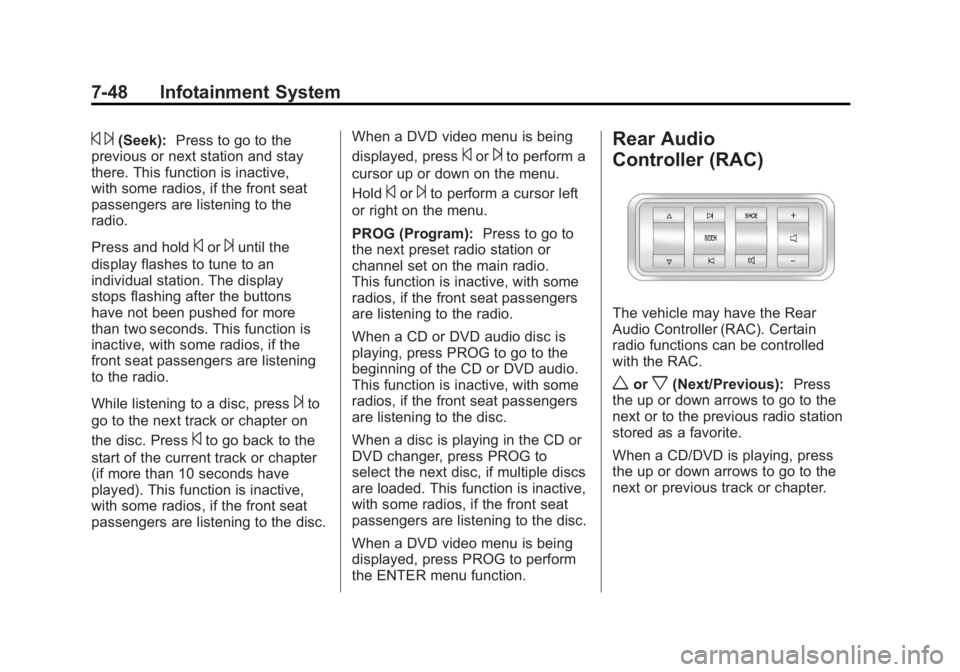
The vehicle may have the Rear
Audio Controller (RAC). Certain
radio functions can be controlled
with the RAC.
worx(Next/Previous): Press
the up or down arrows to go to the
next or to the previous radio station
stored as a favorite.
When a CD/DVD is playing, press
the up or down arrows to go to the
next or previous track or chapter.
Page 288 of 468
Black plate (30,1)GMC Acadia/Acadia Denali Owner Manual - 2012
9-30 Driving and Operating
Ride Control Systems
StabiliTrak®System
The vehicle has the StabiliTrak
system which combines antilock
brake, traction, and stability control
systems and helps the driver
maintain directional control of the
vehicle in most driving conditions.
When you first start the vehicle and
begin to drive away, the system
performs several diagnostic checks
to ensure there are no problems.
The system may be heard or felt
while it is working. This is normal
and does not mean there is a
problem with the vehicle. The
system should initialize before the
vehicle reaches 32 km/h (20 mph).
In some cases, it may take
approximately 3.2 km (2 mi) of
driving before the system initializes.
If the system fails to turn on or
activate, one of the following
messages will be displayed on theDriver Information Center (DIC):
SERVICE TRACTION CONTROL,
SERVICE STABILITRAK, the
StabiliTrak light will come on and
stay and four chimes are heard.
If these conditions are observed,
turn the vehicle off, wait
15 seconds, and then turn it back
on again to reset the system. If any
of these messages still appear on
the Driver Information Center (DIC),
the vehicle should be taken in for
service. For more information on the
DIC messages, see
Ride Control
System Messages on page 5‑42.
The StabiliTrak light will flash on the
instrument panel cluster when the
system is both on and activated.
The system may be heard or felt
while it is working; this is normal.
The traction control button is
located on the instrument panel.
The traction control part of
StabiliTrak can be turned off by
pressing and releasing the traction
control button.
Traction control can be turned on by
pressing and releasing the traction
control button and the appropriate
TRACTION CONTROL ON
message will be displayed, if not
automatically shut off for any other
reason.
When the traction control system
is turned off, the appropriate
TRACTION CONTROL OFF
message will be displayed on the
DIC. The vehicle will still have
brake-traction control when traction
control is off, but will not be able to
use the engine speed management
Page 297 of 468
Black plate (39,1)GMC Acadia/Acadia Denali Owner Manual - 2012
Driving and Operating 9-39
When the System Does Not
Seem To Work Properly
The rear vision camera system
might not work properly or display
a clear image if:
.The RVC is turned off.
See“Turning the Rear Camera
System On or Off” earlier in this
section.
.It is dark.
.The sun or the beam of
headlights is shining directly
into the camera lens.
.Ice, snow, mud, or anything else
builds up on the camera lens.
Clean the lens, rinse it with
water, and wipe it with a soft
cloth.
.The back of the vehicle is in an
accident. The position and
mounting angle of the camera
can change or the camera can
be affected. Be sure to have the
camera and its position and
mounting angle checked at
your dealer.
.There are extreme temperature
changes.
The rear vision camera system
display in the rearview mirror
may turn off or not appear as
expected due to one of the following
conditions. If this occurs the left
indicator light on the mirror will
flash.
.A slow flash may indicate a
loss of video signal, or no
video signal present during the
reverse cycle.
.A fast flash may indicate that
the display has been on for
the maximum allowable time
during a reverse cycle, or the
display has reached an Over
Temperature limit.
The fast flash conditions are
used to protect the video
device from high temperature
conditions. Once conditions
return to normal the device will
reset and the green indicator
will stop flashing.
During any of these fault conditions,
the display will be blank and the
indicator will continue to flash as
long as the vehicle is in R (Reverse)
or until the conditions return to
normal.
Pressing and holding
zwhen the
left indicator light is flashing will turn
off the video display along with the
left indicator light.