radio controls GMC ACADIA 2013 User Guide
[x] Cancel search | Manufacturer: GMC, Model Year: 2013, Model line: ACADIA, Model: GMC ACADIA 2013Pages: 410, PDF Size: 5.46 MB
Page 145 of 410
Black plate (31,1)Acadia/Acadia Denali Owner Manual - 2013 - crc2 - 12/11/12
Instruments and Controls 5-31
information is provided to the HUD
by the navigation radio, if the
vehicle has one.
The HUD image displayed on the
windshield will automatically dim
and brighten to compensate for
outside lighting.
The HUD image can temporarily
light up depending on the angle and
position of the sunlight on the HUD
display. This is normal and will
change when the angle of the
sunlight on the HUD display
changes.
Polarized sunglasses could make
the HUD image harder to see.
Care of the HUD
Clean the inside of the windshield
as needed to remove any dirt or film
that could reduce the sharpness or
clarity of the HUD image.
To clean the HUD lens, use a soft,
clean cloth that has household glass
cleaner sprayed on it. Wipe the
HUD lens gently, then dry it. Do notspray cleaner directly on the lens
because the cleaner could leak into
the unit.
If You Cannot See the HUD
Image When the Ignition Is On
.Is anything covering the
HUD lens?
.Is the HUD dimmer setting bright
enough?
.Is the HUD image adjusted to
the proper height?
.Are you wearing polarized
sunglasses?
If the HUD Image Is Not Clear
.Is the HUD image too bright?
.Are the windshield and HUD
lens clean?
If the HUD image is not correct,
contact your dealer.
Keep in mind that the windshield is
part of the HUD system.
Vehicle Messages
Messages are displayed on the DIC
to notify the driver that the status of
the vehicle has changed and that
some action may be needed by the
driver to correct the condition.
Multiple messages may appear one
after another.
Some messages may not require
immediate action, but you can press
any of the DIC buttons on the
instrument panel to acknowledge
that you received the messages and
to clear them from the display.
Some messages cannot be cleared
from the DIC display because they
are more urgent. These messages
require action before they can be
cleared. You should take any
messages that appear on the
display seriously and remember that
clearing the messages will only
make the messages disappear, not
correct the problem.
Page 163 of 410
Black plate (49,1)Acadia/Acadia Denali Owner Manual - 2013 - crc2 - 12/11/12
Instruments and Controls 5-49
Exiting the Feature
Settings Menu
The feature settings menu will be
exited when any of the following
occurs:
.The vehicle is shifted out of
P (Park).
.The vehicle is no longer in
ON/RUN.
.The trip/fuel or vehicle
information DIC buttons are
pressed.
.The end of the feature settings
menu is reached and exited.
.A 40-second time period has
elapsed with no selection made.
Universal Remote
System
SeeRadio Frequency Statement on
page 13‑20 for information
regarding Part 15 of the Federal
Communications Commission (FCC)
rules and Industry Canada
Standards RSS-GEN/210/220/310.
Universal Remote System
Programming
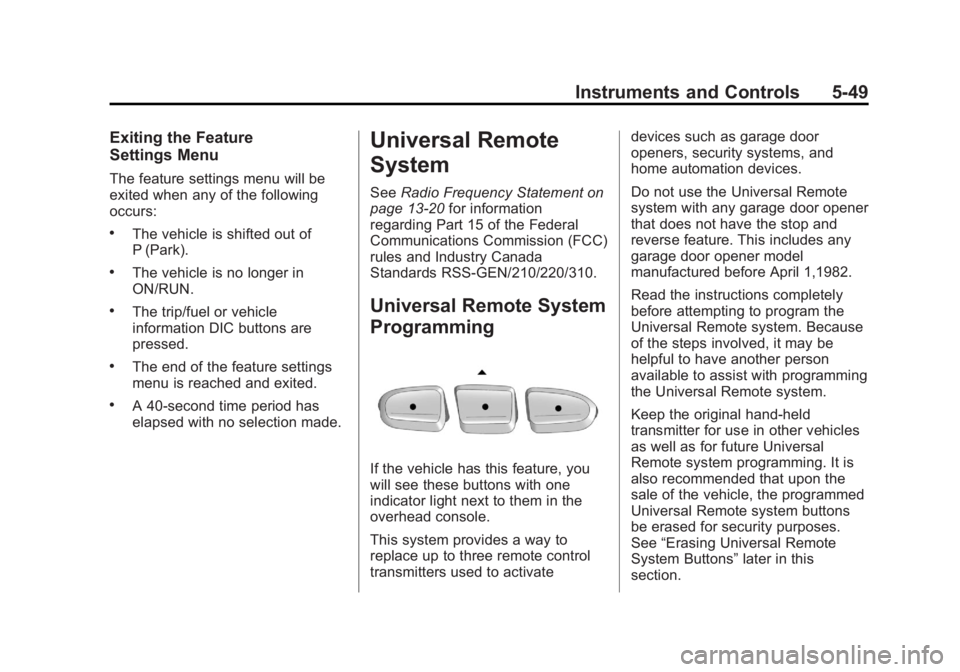
If the vehicle has this feature, you
will see these buttons with one
indicator light next to them in the
overhead console.
This system provides a way to
replace up to three remote control
transmitters used to activate devices such as garage door
openers, security systems, and
home automation devices.
Do not use the Universal Remote
system with any garage door opener
that does not have the stop and
reverse feature. This includes any
garage door opener model
manufactured before April 1,1982.
Read the instructions completely
before attempting to program the
Universal Remote system. Because
of the steps involved, it may be
helpful to have another person
available to assist with programming
the Universal Remote system.
Keep the original hand-held
transmitter for use in other vehicles
as well as for future Universal
Remote system programming. It is
also recommended that upon the
sale of the vehicle, the programmed
Universal Remote system buttons
be erased for security purposes.
See
“Erasing Universal Remote
System Buttons” later in this
section.
Page 164 of 410
Black plate (50,1)Acadia/Acadia Denali Owner Manual - 2013 - crc2 - 12/11/12
5-50 Instruments and Controls
When programming a garage door,
park outside of the garage. Park
directly in line with and facing the
garage door opener motor-head or
gate motor-head. Be sure that
people and objects are clear of the
garage door or gate being
programmed.
It is recommended that a new
battery be installed in the hand-held
transmitter for quicker and more
accurate transmission of the
radio-frequency signal.
Programming the Universal
Remote System
For questions or help programming
the Universal Remote system, call
1-800-355-3515 or go to
www.homelink.com.
Programming a garage door opener
involves time-sensitive actions, so
read the entire procedure before
starting. Otherwise, the device will
time out and the procedure will have
to be repeated.To program up to three devices:
1. Hold the end of the hand-held
transmitter about 3 to 8 cm (1 to
3 in) away from the Universal
Remote system buttons while
keeping the indicator light in
view. The hand-held transmitter
was supplied by the
manufacturer of the garage door
opener receiver
(motor-head unit).
2. At the same time, press and hold both the hand-held
transmitter button and one of the
three Universal Remote system
buttons to be used to operate
the garage door. Do not release
the Universal Remote system
button or the hand-held
transmitter button until the
indicator light changes from a
slowly to a rapidly flashing light.
You now may release both
buttons.
Some entry gates and garage
door openers may require
substitution of Step 2 with the procedure noted in
“Gate
Operator and Canadian
Programming” later in this
section.
3. Press and hold for five seconds the newly trained Universal
Remote system button (the
button selected in Step 2) while
observing the indicator light and
garage door activation.
.If the indicator light stays on
continuously or the garage
door starts to move when
the Universal Remote
system button is pressed
and released, then the
programming is complete.
There is no need to
continue programming
Steps 4–6.
Page 165 of 410
Black plate (51,1)Acadia/Acadia Denali Owner Manual - 2013 - crc2 - 12/11/12
Instruments and Controls 5-51
.If the Universal Remote
system indicator light blinks
rapidly for two seconds,
then turns to a constant
light and the garage door
does not move, continue
with programming
Steps 4–6.
It may be helpful to have
another person assist with
the remaining Steps 4–6.
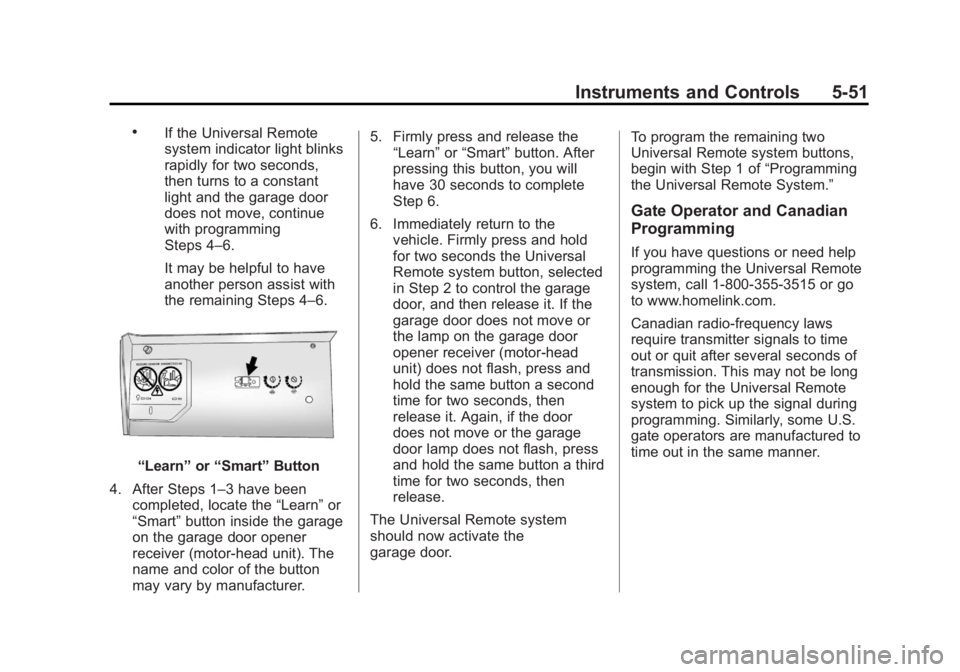
“Learn”or“Smart” Button
4. After Steps 1–3 have been completed, locate the “Learn”or
“Smart” button inside the garage
on the garage door opener
receiver (motor-head unit). The
name and color of the button
may vary by manufacturer. 5. Firmly press and release the
“Learn” or“Smart” button. After
pressing this button, you will
have 30 seconds to complete
Step 6.
6. Immediately return to the vehicle. Firmly press and hold
for two seconds the Universal
Remote system button, selected
in Step 2 to control the garage
door, and then release it. If the
garage door does not move or
the lamp on the garage door
opener receiver (motor-head
unit) does not flash, press and
hold the same button a second
time for two seconds, then
release it. Again, if the door
does not move or the garage
door lamp does not flash, press
and hold the same button a third
time for two seconds, then
release.
The Universal Remote system
should now activate the
garage door. To program the remaining two
Universal Remote system buttons,
begin with Step 1 of
“Programming
the Universal Remote System.”
Gate Operator and Canadian
Programming
If you have questions or need help
programming the Universal Remote
system, call 1-800-355-3515 or go
to www.homelink.com.
Canadian radio-frequency laws
require transmitter signals to time
out or quit after several seconds of
transmission. This may not be long
enough for the Universal Remote
system to pick up the signal during
programming. Similarly, some U.S.
gate operators are manufactured to
time out in the same manner.
Page 180 of 410
Black plate (6,1)Acadia/Acadia Denali Owner Manual - 2013 - crc2 - 12/11/12
7-6 Infotainment System
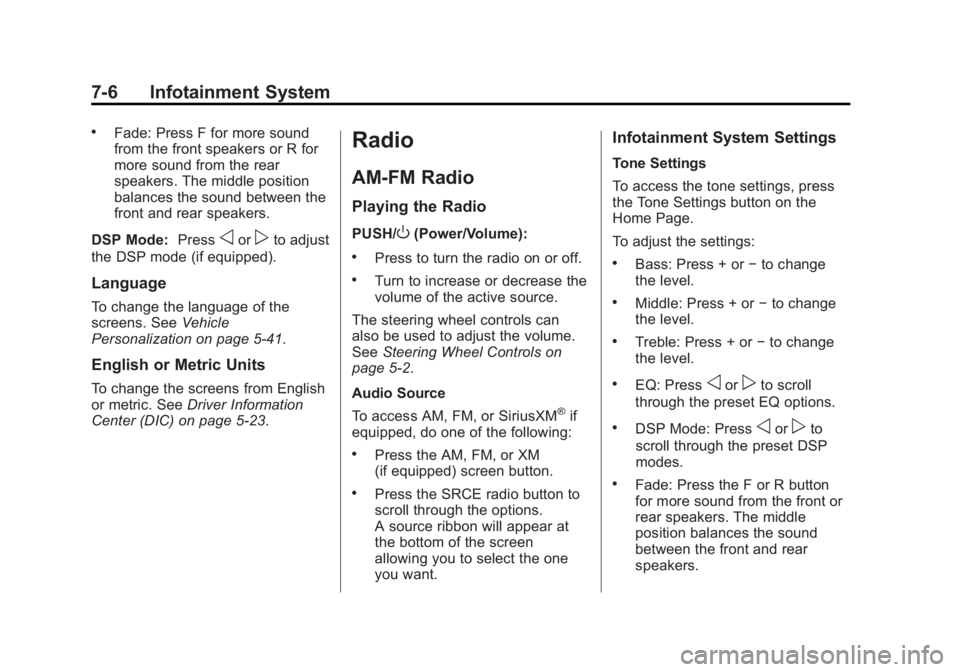
.Fade: Press F for more sound
from the front speakers or R for
more sound from the rear
speakers. The middle position
balances the sound between the
front and rear speakers.
DSP Mode: Press
oorpto adjust
the DSP mode (if equipped).
Language
To change the language of the
screens. See Vehicle
Personalization on page 5‑41.
English or Metric Units
To change the screens from English
or metric. See Driver Information
Center (DIC) on page 5‑23.
Radio
AM-FM Radio
Playing the Radio
PUSH/O(Power/Volume):
.Press to turn the radio on or off.
.Turn to increase or decrease the
volume of the active source.
The steering wheel controls can
also be used to adjust the volume.
See Steering Wheel Controls on
page 5‑2.
Audio Source
To access AM, FM, or SiriusXM
®if
equipped, do one of the following:
.Press the AM, FM, or XM
(if equipped) screen button.
.Press the SRCE radio button to
scroll through the options.
A source ribbon will appear at
the bottom of the screen
allowing you to select the one
you want.
Infotainment System Settings
Tone Settings
To access the tone settings, press
the Tone Settings button on the
Home Page.
To adjust the settings:
.Bass: Press + or −to change
the level.
.Middle: Press + or −to change
the level.
.Treble: Press + or −to change
the level.
.EQ: Pressoorpto scroll
through the preset EQ options.
.DSP Mode: Pressoorpto
scroll through the preset DSP
modes.
.Fade: Press the F or R button
for more sound from the front or
rear speakers. The middle
position balances the sound
between the front and rear
speakers.
Page 193 of 410

Black plate (19,1)Acadia/Acadia Denali Owner Manual - 2013 - crc2 - 12/11/12
Infotainment System 7-19
P(Power):Press to turn the RSA
on or off.
Volume: Turn to increase or to
decrease the volume of the wired
headphones. The left knob controls
the left headphones and the right
knob controls the right headphones.
SRCE (Source): Press to select
between the radio, CD, and if the
vehicle has these features, DVD,
front auxiliary, and rear auxiliary.
© ¨(Seek): Press to go to the
previous or to the next station and
stay there. This function is inactive,
with some radios, if the front seat
passengers are listening to the
radio. Press and hold
©or¨until the
display flashes to tune to an
individual station. The display stops
flashing after the buttons have not
been pushed for more than
two seconds. This function is
inactive, with some radios, if the
front seat passengers are listening
to the radio.
While listening to a disc, press
¨to
go to the next track or chapter on
the disc. Press
©to go back to the
start of the current track or chapter
(if more than ten seconds have
played). This function is inactive,
with some radios, if the front seat
passengers are listening to the disc.
When a DVD video menu is being
displayed, press
©or¨to perform a
cursor up or down on the menu.
Hold
©or¨to perform a cursor left
or right on the menu.
PROG (Program): Press to go to
the next preset radio station or
channel set on the main radio. This function is inactive, with some
radios, if the front seat passengers
are listening to the radio.
When a CD or DVD audio disc is
playing, press PROG to go to the
beginning of the CD or DVD audio.
This function is inactive, with some
radios, if the front seat passengers
are listening to the disc.
When a disc is playing in the CD or
DVD changer, press PROG to
select the next disc, if multiple discs
are loaded. This function is inactive,
with some radios, if the front seat
passengers are listening to the disc.
When a DVD video menu is being
displayed, press PROG to perform
the ENTER menu function.
Page 194 of 410
Black plate (20,1)Acadia/Acadia Denali Owner Manual - 2013 - crc2 - 12/11/12
7-20 Infotainment System
Rear Audio
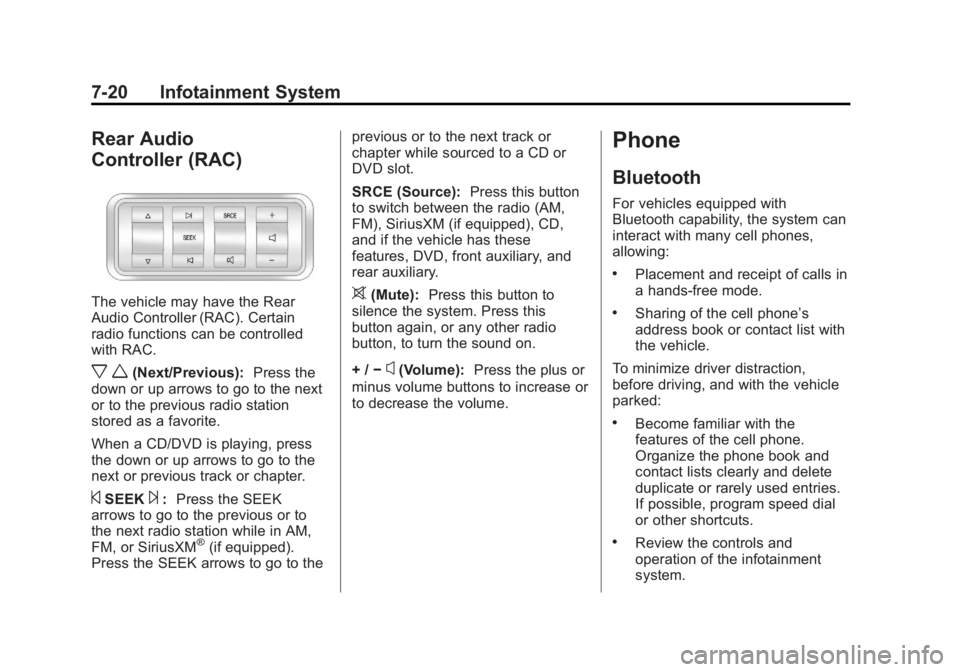
Controller (RAC)
The vehicle may have the Rear
Audio Controller (RAC). Certain
radio functions can be controlled
with RAC.
x w(Next/Previous):Press the
down or up arrows to go to the next
or to the previous radio station
stored as a favorite.
When a CD/DVD is playing, press
the down or up arrows to go to the
next or previous track or chapter.
©SEEK¨: Press the SEEK
arrows to go to the previous or to
the next radio station while in AM,
FM, or SiriusXM
®(if equipped).
Press the SEEK arrows to go to the previous or to the next track or
chapter while sourced to a CD or
DVD slot.
SRCE (Source):
Press this button
to switch between the radio (AM,
FM), SiriusXM (if equipped), CD,
and if the vehicle has these
features, DVD, front auxiliary, and
rear auxiliary.
>(Mute): Press this button to
silence the system. Press this
button again, or any other radio
button, to turn the sound on.
+ / −
x(Volume): Press the plus or
minus volume buttons to increase or
to decrease the volume.
Phone
Bluetooth
For vehicles equipped with
Bluetooth capability, the system can
interact with many cell phones,
allowing:
.Placement and receipt of calls in
a hands-free mode.
.Sharing of the cell phone’s
address book or contact list with
the vehicle.
To minimize driver distraction,
before driving, and with the vehicle
parked:
.Become familiar with the
features of the cell phone.
Organize the phone book and
contact lists clearly and delete
duplicate or rarely used entries.
If possible, program speed dial
or other shortcuts.
.Review the controls and
operation of the infotainment
system.
Page 203 of 410
Black plate (29,1)Acadia/Acadia Denali Owner Manual - 2013 - crc2 - 12/11/12
Infotainment System 7-29
Startup Volume:Press to set the
maximum volume level for startup
that will be used even if a higher
volume had been set when the radio
was turned off.
Radio Favorites: Press to select
the number of FAV pages to be
used in the system.
Add/Remove XM Categories:
Press to customize which available
XM Categories are displayed and
used in the system.
RDS Settings: Press to customize
station name and radio text display
options.
Set Time:
.Press the up or down arrows to
increase or decrease the Hours,
Minutes, AM, PM, or 24 hr on
the clock.
.Press and hold to quickly
increase or decrease the time
settings.
.Press OK or the Back screen
button to save the adjustments. Set Date:
.Press the up or down arrows to
increase or decrease the Month,
Day, and Year settings.
.Press and hold to quickly
increase or decrease the date
settings.
.Press OK or the Back screen
button to save the adjustments.
Radio Settings
Press the Config button on the
Home Page or the CONFIG button
on the faceplate to enter the menu
options. Turn the PUSH/SEL knob
or touch-tap the scroll bar to scroll
through the available options. Press
the PUSH/SEL knob or press Radio
Settings to display the radio settings
menu. Press this feature to make
changes for radio information
displayed, preset pages, Auto
Volume Control, and XM Categories
Restore. See
Satellite Radio on
page 7‑9 (if equipped), for more
information about XM Categories. The Radio Settings are:
Phone Settings
See
Bluetooth on page 7‑20 in the
“Phone” section for more
information on phone settings.
Vehicle Settings
See Vehicle Personalization on
page 5‑41.
Display
Mode: Press Mode to change the
screen background. This setting
controls map colors.
Calibrate Touchscreen: Press to
display the Touchscreen Calibration
Screen.
Turn Display Off: Press to turn the
Display option off.
Rear Vision Camera
(If Equipped)
The rear vision camera can assist
the driver when backing up by
displaying a view of the area behind
the vehicle.
Page 408 of 410
Black plate (10,1)Acadia/Acadia Denali Owner Manual - 2013 - crc2 - 12/11/12
i-10 INDEX
Safety Defects ReportingCanadian Government . . . . . . 13-18
General Motors . . . . . . . . . . . . . 13-18
U.S. Government . . . . . . . . . . . 13-17
Safety Locks . . . . . . . . . . . . . . . . . . . . 2-8
Safety System Check . . . . . . . . . . 3-22
Satellite Radio . . . . . . . . . . . . . . . . . . 7-9
Scheduling Appointments . . . . . 13-12
Seats Adjustment, Front . . . . . . . . . . . . . . 3-3
Head Restraints . . . . . . . . . . . . . . . 3-2
Heated and Ventilated Front . . . 3-8
Lumbar Adjustment, Front . . . . . 3-4
Memory . . . . . . . . . . . . . . . . . . . . . . . . 3-6
Power Adjustment, Front . . . . . . 3-4
Rear . . . . . . . . . . . . . . . . . . . . . . . . . . . 3-9
Reclining Seatbacks . . . . . . . . . . . 3-5
Third Row Seat . . . . . . . . . . . . . . . 3-11
Securing Child Restraints . . . . . . . . . . . . . . 3-51, 3-53
Security
Light . . . . . . . . . . . . . . . . . . . . . . . . . . 5-21
Messages . . . . . . . . . . . . . . . . . . . . 5-38
OnStar
®. . . . . . . . . . . . . . . . . . . . . . 14-2
Vehicle . . . . . . . . . . . . . . . . . . . . . . . 2-11
Vehicle Alarm . . . . . . . . . . . . . . . . . 2-11 Service
Accessories and
Modifications . . . . . . . . . . . . . . . . 10-2
Doing Your Own Work . . . . . . . . 10-3
Engine Soon Light . . . . . . . . . . . . 5-16
Maintenance Records . . . . . . .11-14
Maintenance, General Information . . . . . . . . . . . . . . . . . . 11-1
Parts Identification Label . . . . . 12-1
Publications Ordering Information . . . . . . . . . . . . . . . . 13-16
Scheduling Appointments . . . 13-12
Vehicle Messages . . . . . . . . . . . . 5-38
Servicing the Airbag . . . . . . . . . . . 3-34
Settings . . . . . . . . . . . . . . . . . . . . . . . 7-28
Shift Lock Control Function Check, Automatic
Transmission . . . . . . . . . . . . . . . . 10-23
Shifting Into Park . . . . . . . . . . . . . . . . . . . . . . 9-18
Out of Park . . . . . . . . . . . . . . . . . . . 9-19
Side Blind Zone Alert . . . . . . . . . . 9-33
Signals, Turn and Lane-Change . . . . . . . . . . . . . . . . . 6-4
Spare Tire
Compact . . . . . . . . . . . . . . . . . . . . 10-67 Specifications and
Capacities . . . . . . . . . . . . . . . . . . . . 12-2
Speedometer . . . . . . . . . . . . . . . . . . 5-11
StabiliTrak Indicator Light . . . . . . . . . . . . . . . . 5-20
System . . . . . . . . . . . . . . . . . . . . . . . 9-27
Start Assist, Hills . . . . . . . . . . . . . . 9-27
Start Vehicle, Remote . . . . . . . . . . 2-4
Starter Switch Check . . . . . . . . . 10-22
Starting the Engine . . . . . . . . . . . . 9-16
Steering . . . . . . . . . . . . . . . . . . . . . . . . 9-3
Fluid, Power . . . . . . . . . . . . . . . . 10-18
Wheel Adjustment . . . . . . . . . . . . . 5-2
Wheel Controls . . . . . . . . . . . . . . . . 5-2
Storage Areas Armrest . . . . . . . . . . . . . . . . . . . . . . . . 4-2
Cargo Cover . . . . . . . . . . . . . . . . . . . 4-3
Cargo Management System . . . 4-3
Center Console . . . . . . . . . . . . . . . . 4-2
Convenience Net . . . . . . . . . . . . . . 4-4
Glove Box . . . . . . . . . . . . . . . . . . . . . 4-1
Instrument Panel . . . . . . . . . . . . . . 4-1
Roof Rack System . . . . . . . . . . . . . 4-4
Stuck Vehicle . . . . . . . . . . . . . . . . . . . 9-9
Sun Visors . . . . . . . . . . . . . . . . . . . . . 2-20
Sunroof . . . . . . . . . . . . . . . . . . . . . . . . 2-20