Turn GMC ACADIA 2015 Owners Manual
[x] Cancel search | Manufacturer: GMC, Model Year: 2015, Model line: ACADIA, Model: GMC ACADIA 2015Pages: 407, PDF Size: 4.46 MB
Page 169 of 407
Black plate (4,1)GMC Acadia/Acadia Denali Owner Manual (GMNA-Localizing-U.S./Canada/
Mexico-7576030) - 2015 - CRC - 8/18/14
6-4 Lighting
Turn and Lane-Change
Signals
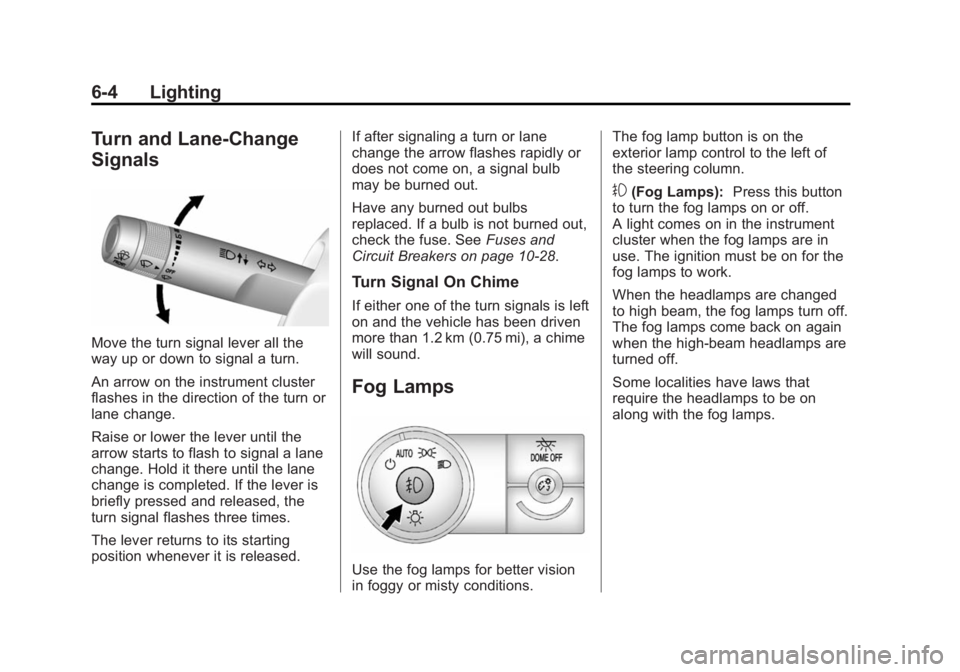
Move the turn signal lever all the
way up or down to signal a turn.
An arrow on the instrument cluster
flashes in the direction of the turn or
lane change.
Raise or lower the lever until the
arrow starts to flash to signal a lane
change. Hold it there until the lane
change is completed. If the lever is
briefly pressed and released, the
turn signal flashes three times.
The lever returns to its starting
position whenever it is released.If after signaling a turn or lane
change the arrow flashes rapidly or
does not come on, a signal bulb
may be burned out.
Have any burned out bulbs
replaced. If a bulb is not burned out,
check the fuse. See
Fuses and
Circuit Breakers on page 10-28.
Turn Signal On Chime
If either one of the turn signals is left
on and the vehicle has been driven
more than 1.2 km (0.75 mi), a chime
will sound.
Fog Lamps
Use the fog lamps for better vision
in foggy or misty conditions. The fog lamp button is on the
exterior lamp control to the left of
the steering column.
#(Fog Lamps):
Press this button
to turn the fog lamps on or off.
A light comes on in the instrument
cluster when the fog lamps are in
use. The ignition must be on for the
fog lamps to work.
When the headlamps are changed
to high beam, the fog lamps turn off.
The fog lamps come back on again
when the high-beam headlamps are
turned off.
Some localities have laws that
require the headlamps to be on
along with the fog lamps.
Page 170 of 407
Black plate (5,1)GMC Acadia/Acadia Denali Owner Manual (GMNA-Localizing-U.S./Canada/
Mexico-7576030) - 2015 - CRC - 8/18/14
Lighting 6-5
Interior Lighting
Instrument Panel
Illumination Control
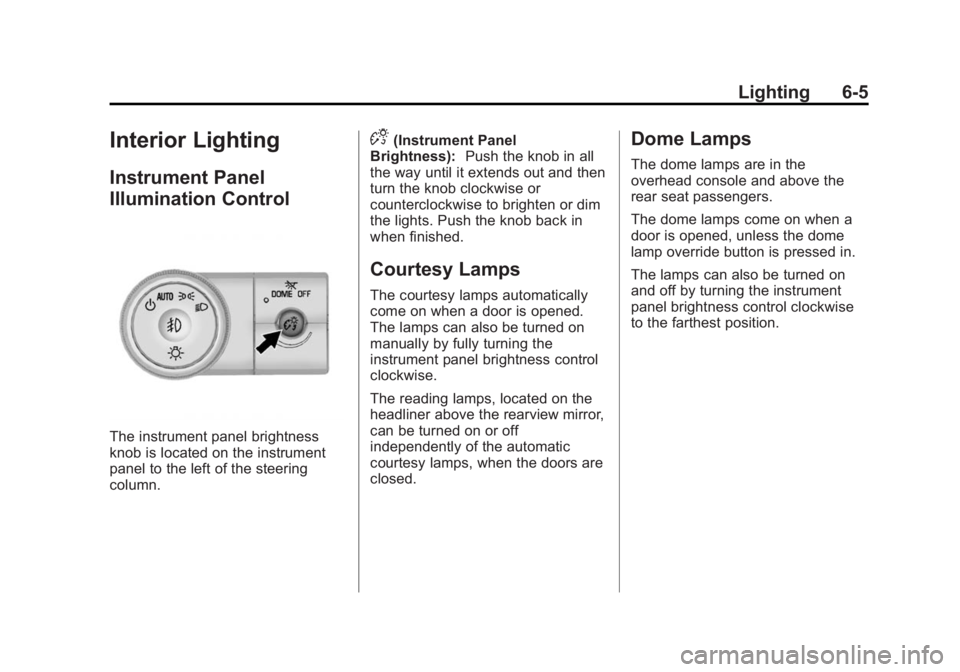
The instrument panel brightness
knob is located on the instrument
panel to the left of the steering
column.
D(Instrument Panel
Brightness): Push the knob in all
the way until it extends out and then
turn the knob clockwise or
counterclockwise to brighten or dim
the lights. Push the knob back in
when finished.
Courtesy Lamps
The courtesy lamps automatically
come on when a door is opened.
The lamps can also be turned on
manually by fully turning the
instrument panel brightness control
clockwise.
The reading lamps, located on the
headliner above the rearview mirror,
can be turned on or off
independently of the automatic
courtesy lamps, when the doors are
closed.
Dome Lamps
The dome lamps are in the
overhead console and above the
rear seat passengers.
The dome lamps come on when a
door is opened, unless the dome
lamp override button is pressed in.
The lamps can also be turned on
and off by turning the instrument
panel brightness control clockwise
to the farthest position.
Page 171 of 407
Black plate (6,1)GMC Acadia/Acadia Denali Owner Manual (GMNA-Localizing-U.S./Canada/
Mexico-7576030) - 2015 - CRC - 8/18/14
6-6 Lighting
Dome Lamp Override
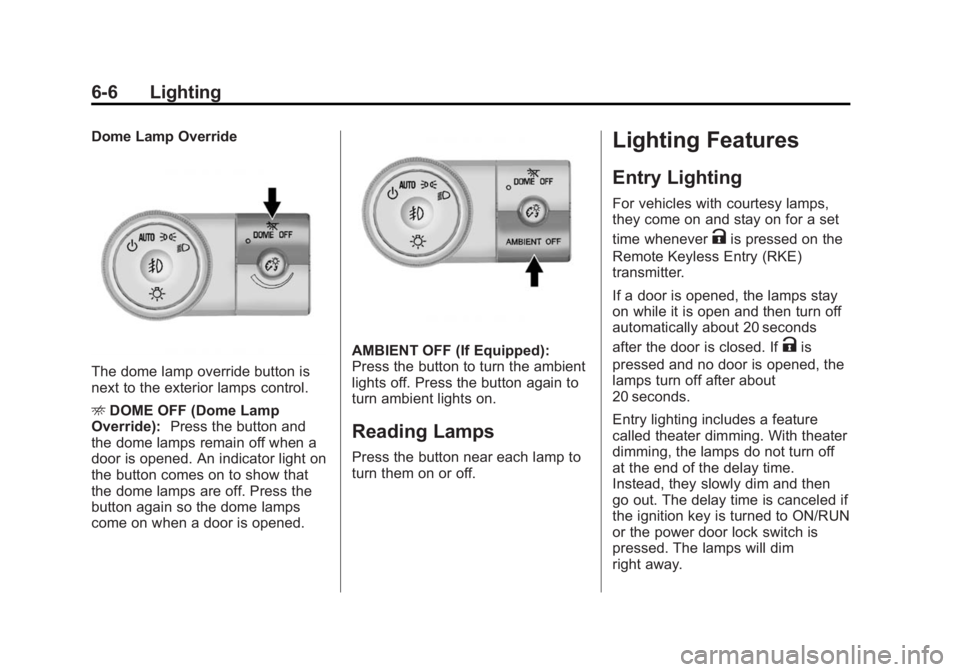
The dome lamp override button is
next to the exterior lamps control.
EDOME OFF (Dome Lamp
Override): Press the button and
the dome lamps remain off when a
door is opened. An indicator light on
the button comes on to show that
the dome lamps are off. Press the
button again so the dome lamps
come on when a door is opened.
AMBIENT OFF (If Equipped):
Press the button to turn the ambient
lights off. Press the button again to
turn ambient lights on.
Reading Lamps
Press the button near each lamp to
turn them on or off.
Lighting Features
Entry Lighting
For vehicles with courtesy lamps,
they come on and stay on for a set
time whenever
Kis pressed on the
Remote Keyless Entry (RKE)
transmitter.
If a door is opened, the lamps stay
on while it is open and then turn off
automatically about 20 seconds
after the door is closed. If
Kis
pressed and no door is opened, the
lamps turn off after about
20 seconds.
Entry lighting includes a feature
called theater dimming. With theater
dimming, the lamps do not turn off
at the end of the delay time.
Instead, they slowly dim and then
go out. The delay time is canceled if
the ignition key is turned to ON/RUN
or the power door lock switch is
pressed. The lamps will dim
right away.
Page 173 of 407
Black plate (8,1)GMC Acadia/Acadia Denali Owner Manual (GMNA-Localizing-U.S./Canada/
Mexico-7576030) - 2015 - CRC - 8/18/14
6-8 Lighting
voltage move up or down. This is
normal. If there is a problem, an
alert will be displayed.
The battery can be discharged at
idle if the electrical loads are very
high. This is true for all vehicles.
This is because the generator
(alternator) may not be spinning fast
enough at idle to produce all of the
power needed for very high
electrical loads.
A high electrical load occurs when
several of the following are on, such
as: headlamps, high beams, rear
window defogger, climate control fan
at high speed, heated seats, engine
cooling fans, trailer loads, and loads
plugged into accessory power
outlets.
EPM works to prevent excessive
discharge of the battery. It does this
by balancing the generator's output
and the vehicle's electrical needs.It can increase engine idle speed to
generate more power whenever
needed. It can temporarily reduce
the power demands of some
accessories.
Normally, these actions occur in
steps or levels, without being
noticeable. In rare cases at the
highest levels of corrective action,
this action may be noticeable to the
driver. If so, a DIC message might
be displayed, such as BATTERY
SAVER ACTIVE, BATTERY
VOLTAGE LOW, or LOW BATTERY.
If one of these messages displays, it
is recommended that the driver
reduce the electrical loads as much
as possible. See
Driver Information
Center (DIC) on page 5-23.Battery Power Protection
This feature helps prevent the
battery from being drained, if the
interior courtesy lamps or reading
lamps are accidentally left on. If any
of these lamps are left on, they
automatically turn off after
10 minutes, if the ignition is off. The
lamps will not come back on again
until one of the following occurs:
.The ignition is turned on.
.The exterior lamps control is
turned off, then on again.
The headlamps will time out after
10 minutes, if they are manually
turned on while the ignition is on
or off.
Page 176 of 407
Black plate (3,1)GMC Acadia/Acadia Denali Owner Manual (GMNA-Localizing-U.S./Canada/
Mexico-7576030) - 2015 - CRC - 8/18/14
Infotainment System 7-3
Overview
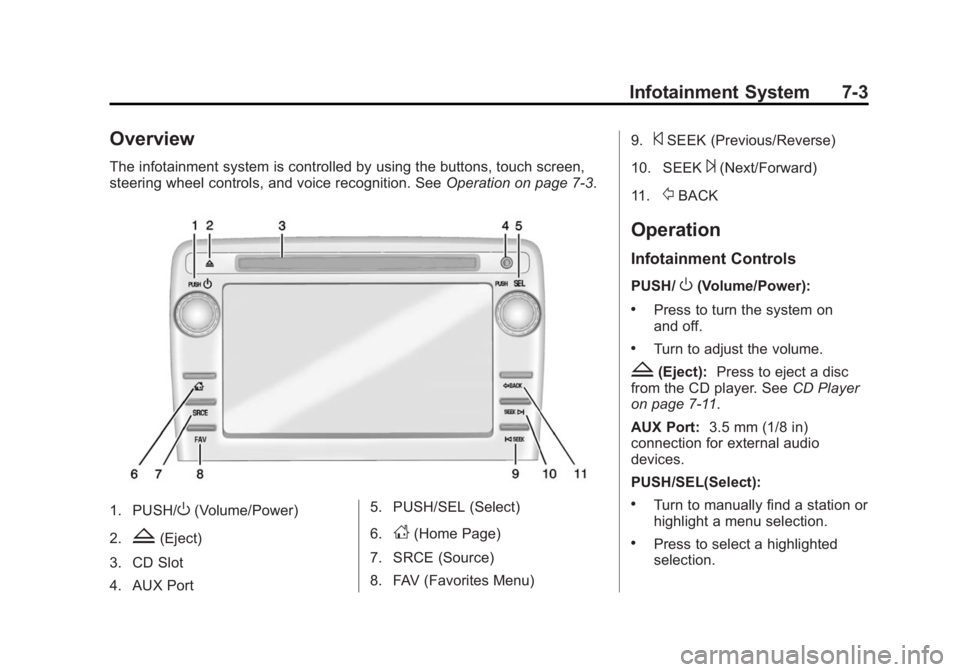
The infotainment system is controlled by using the buttons, touch screen,
steering wheel controls, and voice recognition. SeeOperation on page 7-3.
1. PUSH/O(Volume/Power)
2.
Z(Eject)
3. CD Slot
4. AUX Port 5. PUSH/SEL (Select)
6.D(Home Page)
7. SRCE (Source)
8. FAV (Favorites Menu) 9.
©SEEK (Previous/Reverse)
10. SEEK
¨(Next/Forward)
11.
/BACK
Operation
Infotainment Controls
PUSH/O(Volume/Power):
.Press to turn the system on
and off.
.Turn to adjust the volume.
Z(Eject): Press to eject a disc
from the CD player. See CD Player
on page 7-11.
AUX Port: 3.5 mm (1/8 in)
connection for external audio
devices.
PUSH/SEL(Select):
.Turn to manually find a station or
highlight a menu selection.
.Press to select a highlighted
selection.
Page 177 of 407
Black plate (4,1)GMC Acadia/Acadia Denali Owner Manual (GMNA-Localizing-U.S./Canada/
Mexico-7576030) - 2015 - CRC - 8/18/14
7-4 Infotainment System
D(Home Page):Press to go to
the Home Page. See “Home Page”
in this section.
SRCE (Source): Press to switch
between AM, FM, CD, and if
equipped, SiriusXM
®, front auxiliary,
rear auxiliary, and iPod/USB.
Press and hold to mute/pause the
system. Press and hold again to
unmute/resume the system.
FAV (Favorites Menu): In AM, FM,
or SiriusXM, press to change the
current favorite page number above
the preset buttons. Keep pressing to
scroll through the favorites pages.
The stored stations for each list
display on the bottom of the screen.
The number of preset Favorite
Pages can be changed by pressing
the Settings button on a Home
Page, then pressing Favorites
Pages, and then selecting the
number of Favorite Pages.
©SEEK (Previous/Reverse):
.AM, FM, SiriusXM (if equipped):
Press to seek to the previous
strong station. Press and hold
for Scan. Press
©again to stop
the scan.
.CD, USB: Press to seek to the
beginning of the current or
previous track.
.CD, USB: Press and hold to
quickly reverse through a track.
Release the button to return to
playing speed. See CD Player
on page 7-11 andAuxiliary
Devices on page 7-15.
SEEK
¨(Next/Forward):
.AM, FM, SiriusXM (if equipped):
Press to seek to the next strong
station. Press and hold for Scan.
Press
¨again to stop the scan.
.CD, USB: Press to seek or skip
the next track or program.
.CD, USB: Press and hold to fast
forward through a track. Release
the button to return to playing
speed. See CD Player on
page 7-11 andAuxiliary Devices
on page 7-15.
/BACK: Press to return to the
previous screen in a menu.
Touchscreen Buttons
Touchscreen buttons show visibly
on the screen when available. When
a function is unavailable, the button
may gray-out. When a function is
selected, the button may highlight,
or animate.
Page 179 of 407
Black plate (6,1)GMC Acadia/Acadia Denali Owner Manual (GMNA-Localizing-U.S./Canada/
Mexico-7576030) - 2015 - CRC - 8/18/14
7-6 Infotainment System
.Balance: Press L to hear more
sound from the left speakers or
R for more sound from the right
speakers. The middle position
balances the sound between the
left and right speakers.
.Fade: Press F for more sound
from the front speakers or R for
more sound from the rear
speakers. The middle position
balances the sound between the
front and rear speakers.
DSP Mode: Press
oorpto adjust
the DSP mode (if equipped).
Language
To change the language of the
screens. See Vehicle
Personalization on page 5-42.
English or Metric Units
To change the screens from English
or metric. See Driver Information
Center (DIC) on page 5-23.
Radio
AM-FM Radio
Playing the Radio
PUSH/O(Power/Volume):
.Press to turn the radio on or off.
.Turn to increase or decrease the
volume of the active source.
The steering wheel controls can
also be used to adjust the volume.
See Steering Wheel Controls on
page 5-2.
Audio Source
To access AM, FM, or SiriusXM
®if
equipped, do one of the following:
.Press the AM, FM, or XM (if
equipped) screen button on the
Home Page.
.Press the SRCE radio button to
scroll through the options.
A source ribbon will appear at the bottom of the screen
allowing you to select the one
you want.
Infotainment System Settings
Tone Settings
To access the tone settings, press
the Tone Settings button on the
Home Page.
To adjust the settings:
.Bass: Press + or
−to change
the level.
.Middle: Press + or −to change
the level.
.Treble: Press + or −to change
the level.
.EQ: Pressoorpto scroll
through the preset EQ options.
.DSP Mode: Pressoorpto
scroll through the preset DSP
modes.
Page 180 of 407
Black plate (7,1)GMC Acadia/Acadia Denali Owner Manual (GMNA-Localizing-U.S./Canada/
Mexico-7576030) - 2015 - CRC - 8/18/14
Infotainment System 7-7
.Fade: Press the F or R button
for more sound from the front or
rear speakers. The middle
position balances the sound
between the front and rear
speakers.
.Balance: Press the L or R button
for more sound from the left or
right speakers. The middle
position balances the sound
between the left and right
speakers.
Finding a Station
Press SRCE to select AM, FM,
or SiriusXM (if equipped).
Turn the PUSH/SEL knob to find a
radio station. To select a preset
station, press FAV to scroll through
the favorite pages and then press a
preset button on the radio or the
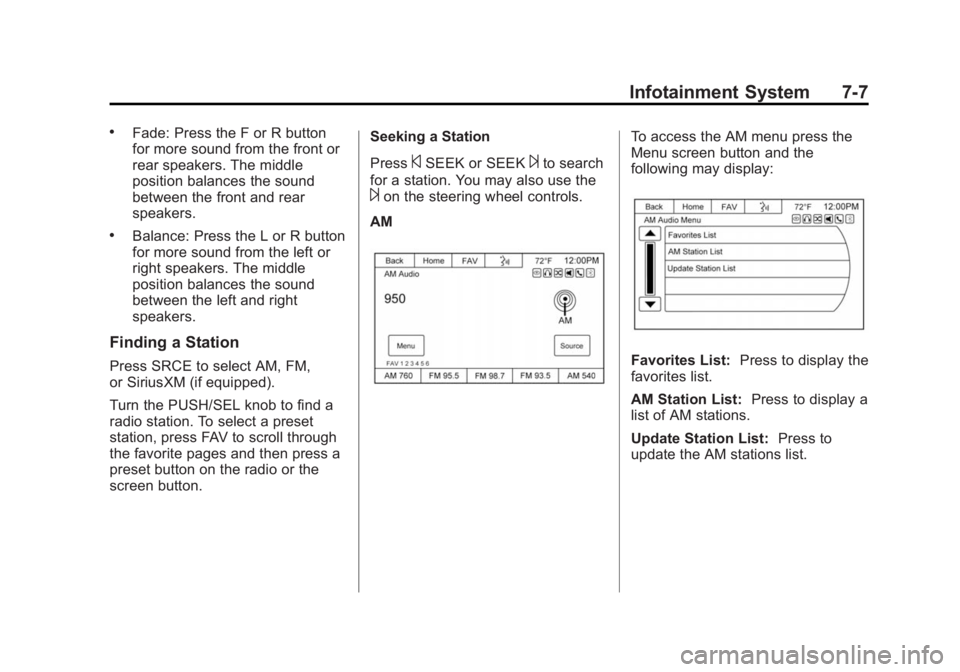
screen button.Seeking a Station
Press
©SEEK or SEEK¨to search
for a station. You may also use the
¨on the steering wheel controls.
AM
To access the AM menu press the
Menu screen button and the
following may display:
Favorites List: Press to display the
favorites list.
AM Station List: Press to display a
list of AM stations.
Update Station List: Press to
update the AM stations list.
Page 182 of 407
Black plate (9,1)GMC Acadia/Acadia Denali Owner Manual (GMNA-Localizing-U.S./Canada/
Mexico-7576030) - 2015 - CRC - 8/18/14
Infotainment System 7-9
.Song: Press to set an audio alert
when the current song is playing
on a SiriusXM channel.
.Tune Select Manager: Press
Disable/Enable All Alerts to
enable or disable all alerts.
A checkmark next to the alert
means it is turned on. Press an
alert to turn it off. Press Delete
to delete an alert.
.Audible Alert: This feature will
give an audio alert when certain
artists or songs are available on
a specific station. Press to turn
on or off.
Storing Radio Station Presets
Up to 30 preset stations can be
stored. AM, FM, and SiriusXM (if
equipped) can be mixed.
1. From the AM, FM, or SiriusXMmain page, press and hold
any 1−5 buttons or one of the
preset screen buttons on the
banner until a beep is heard.
The new preset information
displays on that screen button. 2. Repeat for each preset.
Mixed-Band Presets
Each favorite page can store
five preset stations. The presets
within a page can be from different
radio bands.
To scroll through the pages, press
FAV or the FAV screen button on the
top bar. The current page number
displays above the preset buttons.
The stored stations for each favorite
page display on the preset buttons.
To change the number of favorite
pages displayed:
1. Press Settings on the
Home Page.
2. Press Favorite Pages.
3. Select the number of pages to display. Recalling a Preset Station
To recall a preset station from a
favorites page, do one the following:.Press the FAV screen button at
the top bar to display the preset
pop-up. Press one of the preset
screen buttons to go to the
selected preset station.
.In the AM, FM, or SiriusXM (if
equipped) main page, press one
of the preset screen buttons to
go to the selected preset station.
Satellite Radio
If equipped, vehicles with a valid
SiriusXM®satellite radio
subscription can receive SiriusXM
programming.
SiriusXM satellite radio has a wide
variety of programming and
commercial-free music, coast to
coast, and in digital-quality sound.
For more information, see
www.siriusxm.com or call
Page 183 of 407
Black plate (10,1)GMC Acadia/Acadia Denali Owner Manual (GMNA-Localizing-U.S./Canada/
Mexico-7576030) - 2015 - CRC - 8/18/14
7-10 Infotainment System
1-866-635-2349 (U.S.) and
www.xmradio.ca or call
1-877-209-0079 (Canada).
When SiriusXM is active, the station
name, number, category name,
song title, and artist display on the
screen. SiriusXM may update the
background picture at any time.
SiriusXM Categories
SiriusXM stations are organized in
categories.
Adding or Removing SiriusXM
Categories
Using the home page:
1. Press the Settings screen buttonon the Home Page.
2. Select XM Categories.
3. Select or deselect a category. A checkmark will indicate that
the category is selected.
Press “Show All XM Categories” to
restore all SiriusXM categories.
Radio Reception
Frequency interference and static
can occur during normal radio
reception if items such as phone
chargers, vehicle convenience
accessories, and external electronic
devices are plugged into the
accessory power outlet. If there is
interference or static, unplug the
item from the accessory power
outlet.
FM
FM signals only reach about 16 to
65 km (10 to 40 mi). Although the
radio has a built-in electronic circuit
that automatically works to reduce
interference, some static can occur,
especially around tall buildings or
hills, causing the sound to fade in
and out.
AM
The range for most AM stations is
greater than for FM, especially at
night. The longer range can cause
station frequencies to interfere with
each other. Static can also occur when things like storms and power
lines interfere with radio reception.
When this happens, try reducing the
treble on the radio.
SiriusXM Satellite Radio
Service
If equipped, SiriusXM Satellite
Radio Service provides digital radio
reception. Tall buildings or hills can
interfere with satellite radio signals,
causing the sound to fade in and
out. In addition, traveling or standing
under heavy foliage, bridges,
garages, or tunnels may cause loss
of the SiriusXM signal for a period
of time.
Cell Phone Usage
Cell phone usage, such as making
or receiving phone calls, charging,
or just having the phone on may
cause static interference in the
radio. Unplug the phone or turn it off
if this happens.