page 22 GMC ACADIA 2015 Owner's Manual
[x] Cancel search | Manufacturer: GMC, Model Year: 2015, Model line: ACADIA, Model: GMC ACADIA 2015Pages: 407, PDF Size: 4.46 MB
Page 182 of 407
Black plate (9,1)GMC Acadia/Acadia Denali Owner Manual (GMNA-Localizing-U.S./Canada/
Mexico-7576030) - 2015 - CRC - 8/18/14
Infotainment System 7-9
.Song: Press to set an audio alert
when the current song is playing
on a SiriusXM channel.
.Tune Select Manager: Press
Disable/Enable All Alerts to
enable or disable all alerts.
A checkmark next to the alert
means it is turned on. Press an
alert to turn it off. Press Delete
to delete an alert.
.Audible Alert: This feature will
give an audio alert when certain
artists or songs are available on
a specific station. Press to turn
on or off.
Storing Radio Station Presets
Up to 30 preset stations can be
stored. AM, FM, and SiriusXM (if
equipped) can be mixed.
1. From the AM, FM, or SiriusXMmain page, press and hold
any 1−5 buttons or one of the
preset screen buttons on the
banner until a beep is heard.
The new preset information
displays on that screen button. 2. Repeat for each preset.
Mixed-Band Presets
Each favorite page can store
five preset stations. The presets
within a page can be from different
radio bands.
To scroll through the pages, press
FAV or the FAV screen button on the
top bar. The current page number
displays above the preset buttons.
The stored stations for each favorite
page display on the preset buttons.
To change the number of favorite
pages displayed:
1. Press Settings on the
Home Page.
2. Press Favorite Pages.
3. Select the number of pages to display. Recalling a Preset Station
To recall a preset station from a
favorites page, do one the following:.Press the FAV screen button at
the top bar to display the preset
pop-up. Press one of the preset
screen buttons to go to the
selected preset station.
.In the AM, FM, or SiriusXM (if
equipped) main page, press one
of the preset screen buttons to
go to the selected preset station.
Satellite Radio
If equipped, vehicles with a valid
SiriusXM®satellite radio
subscription can receive SiriusXM
programming.
SiriusXM satellite radio has a wide
variety of programming and
commercial-free music, coast to
coast, and in digital-quality sound.
For more information, see
www.siriusxm.com or call
Page 183 of 407
Black plate (10,1)GMC Acadia/Acadia Denali Owner Manual (GMNA-Localizing-U.S./Canada/
Mexico-7576030) - 2015 - CRC - 8/18/14
7-10 Infotainment System
1-866-635-2349 (U.S.) and
www.xmradio.ca or call
1-877-209-0079 (Canada).
When SiriusXM is active, the station
name, number, category name,
song title, and artist display on the
screen. SiriusXM may update the
background picture at any time.
SiriusXM Categories
SiriusXM stations are organized in
categories.
Adding or Removing SiriusXM
Categories
Using the home page:
1. Press the Settings screen buttonon the Home Page.
2. Select XM Categories.
3. Select or deselect a category. A checkmark will indicate that
the category is selected.
Press “Show All XM Categories” to
restore all SiriusXM categories.
Radio Reception
Frequency interference and static
can occur during normal radio
reception if items such as phone
chargers, vehicle convenience
accessories, and external electronic
devices are plugged into the
accessory power outlet. If there is
interference or static, unplug the
item from the accessory power
outlet.
FM
FM signals only reach about 16 to
65 km (10 to 40 mi). Although the
radio has a built-in electronic circuit
that automatically works to reduce
interference, some static can occur,
especially around tall buildings or
hills, causing the sound to fade in
and out.
AM
The range for most AM stations is
greater than for FM, especially at
night. The longer range can cause
station frequencies to interfere with
each other. Static can also occur when things like storms and power
lines interfere with radio reception.
When this happens, try reducing the
treble on the radio.
SiriusXM Satellite Radio
Service
If equipped, SiriusXM Satellite
Radio Service provides digital radio
reception. Tall buildings or hills can
interfere with satellite radio signals,
causing the sound to fade in and
out. In addition, traveling or standing
under heavy foliage, bridges,
garages, or tunnels may cause loss
of the SiriusXM signal for a period
of time.
Cell Phone Usage
Cell phone usage, such as making
or receiving phone calls, charging,
or just having the phone on may
cause static interference in the
radio. Unplug the phone or turn it off
if this happens.
Page 185 of 407
Black plate (12,1)GMC Acadia/Acadia Denali Owner Manual (GMNA-Localizing-U.S./Canada/
Mexico-7576030) - 2015 - CRC - 8/18/14
7-12 Infotainment System
Loading and Ejecting Discs
To load a disc:
1. Turn the radio on.
2. Insert a disc into the slot, labelside up. The player pulls it in the
rest of the way. If the disc is
damaged or improperly loaded,
there is an error and the disc
ejects.
The disc automatically plays once
loaded.
Press
Zto eject a disc from the
CD player. If the disc is not removed
within a short period of time, it is
automatically pulled back into the
player.
Playing an Audio CD
Make sure a disc is inserted in the
player.
1. Press the Disc screen button on the Home Page or from the
SRCE/Source banner. 2. Press the Menu screen button
on the CD Audio screen to
display a list of Tracks/Songs.
3. Press the desired track/song.
On the Disc main page a track
number displays at the beginning of
each track. Song, Artist, Elapsed
Time, and Album information
displays when available.
Use the following controls to play
the disc:
©SEEK:
.Press to seek to the beginning of
the current or previous track.
If the track has been playing for
less than eight seconds, it seeks
to the previous track. If longer
than eight seconds, the current
track starts from the beginning.
.Press and hold to fast reverse
through a track. Release the
button to return to playing
speed. Elapsed time displays. SEEK
¨:
.Press to seek to the next track.
.Press and hold to fast forward
through a track. Release the
button to return to playing
speed. Elapsed time displays.
PUSH/SEL (Select): Turn to the
right or left to select the next or
previous track.
Error Messages
If Disc Error displays and/or the disc
comes out, it could be for one of the
following reasons:
.The disc has an invalid or
unknown format.
.The disc is very hot. Try the disc
again when the temperature
returns to normal.
.The road is very rough. Try the
disc again when the road is
smoother.
.The disc is dirty, scratched, wet,
or upside down.
Page 188 of 407
Black plate (15,1)GMC Acadia/Acadia Denali Owner Manual (GMNA-Localizing-U.S./Canada/
Mexico-7576030) - 2015 - CRC - 8/18/14
Infotainment System 7-15
Preprogrammed Playlists
The radio recognizes
preprogrammed playlists; however,
there is no editing capability. These
playlists are treated as special
folders containing compressed
audio song files.
Auxiliary Devices
The vehicle has a 3.5 mm (1/8 in)
auxiliary input jack on the faceplate
and a USB port in the center stack.
If equipped, there are two USB
ports on the rear of the center
console that can be used for
charging only. They can charge
devices that draw 2.1 amps or less.
See the device’s owner manual for
the specification.
Using the 3.5 mm (1/8 in)
Auxiliary Input Jack
This is not an audio output; do not
plug a headphone set into the front
auxiliary input jack. Connect an
auxiliary input device such as an
iPod, laptop computer, MP3 player, CD player, or cassette tape player
to the auxiliary input jack for use as
another source for audio listening.
Drivers are encouraged to set up
any auxiliary device while the
vehicle is in P (Park). See
Defensive Driving on page 9-3
for
more information on driver
distraction.
To use an auxiliary input device,
connect a 3.5 mm (1/8 in) cable to
the radio's front auxiliary input jack.
Press SRCE to select the device.
Using the USB Port
The USB port can control a USB
storage device or an iPod using the
radio buttons and knobs.
USB Supported Devices
.USB Flash Drives
.Portable USB Hard Drives
.Fifth generation or later iPod
.iPod classic®(6th generation)
.iPod nano®(3G, 4G, 5G,
and 6G)
.iPod touch®(1G, 2G, 3G,
and 4G)
.iPhone®(2G, 3G, 3GS, 4, and 5)
.iPad®(1G, 2G)
Not all iPods and USB drives are
compatible with the USB port.
Make sure the iPod has the latest
firmware from Apple
®for proper
operation. iPod firmware can be
updated using the latest iTunes
®
application. See www.apple.com/
itunes.
For help identifying your iPod, go to
www.apple.com/support.
Page 192 of 407
Black plate (19,1)GMC Acadia/Acadia Denali Owner Manual (GMNA-Localizing-U.S./Canada/
Mexico-7576030) - 2015 - CRC - 8/18/14
Infotainment System 7-19
receive phone calls. The system
can be used while the key is in the
ON/RUN or ACC/ACCESSORY
position. The range of the Bluetooth
system can be up to 9.1 m (30 ft).
Not all phones support all functions,
and not all phones work with the
in-vehicle Bluetooth system. See
www.gm.com/bluetooth for more
information on compatible phones.
Voice Recognition
The Bluetooth system uses voice
recognition to interpret voice
commands to dial phone numbers
and name tags.
For additional information, say
“Help”while you are in a voice
recognition menu.
Noise: Keep interior noise levels to
a minimum. The system may not
recognize voice commands if there
is too much background noise. When to Speak:
A short tone
sounds after the system responds
indicating when it is waiting for a
voice command. Wait until the tone
and then speak.
How to Speak: Speak clearly in a
calm and natural voice.
Audio System
When using the in-vehicle Bluetooth
system, sound comes through the
vehicle's front audio system
speakers and overrides the audio
system. Use the audio system
volume knob, during a call, to
change the volume level. The
adjusted volume level remains in
memory for later calls. To prevent
missed calls, a minimum volume
level is used if the volume is turned
down too low.
Bluetooth Controls
Use the buttons located on the
steering wheel to operate the
in-vehicle Bluetooth system. See
Steering Wheel Controls on
page 5-2.
b/g(Press To Talk): Press to
answer incoming calls, confirm
system information, and start
speech recognition.
c/x(End): Press to end a call,
reject a call, or cancel an operation.
Pairing
A Bluetooth enabled cell phone
must be paired to the Bluetooth
system and then connected to the
vehicle before it can be used. See
the cell phone manufacturer's user
guide for Bluetooth functions before
pairing the cell phone. If a Bluetooth
phone is not connected, calls will be
made using OnStar Hands-Free
Calling, if equipped. See “OnStar”if
equipped.
Pairing Information
.A Bluetooth phone with MP3
capability cannot be paired to
the vehicle as a phone and an
MP3 player at the same time.
.Up to five cell phones can be
paired to the Bluetooth system.
Page 198 of 407
Black plate (25,1)GMC Acadia/Acadia Denali Owner Manual (GMNA-Localizing-U.S./Canada/
Mexico-7576030) - 2015 - CRC - 8/18/14
Infotainment System 7-25
Dual Tone Multi-Frequency
(DTMF) Tones
The Bluetooth system can send
numbers and the numbers stored as
name tags during a call. You can
use this feature when calling a
menu-driven phone system.
Account numbers can also be
stored for use.
Sending a Number or Name Tag
During a Call
1. Press
b/g. The system
responds “Ready,”followed by
a tone.
2. Say “Dial.”
3. Say the number or name tag to send.
Clearing the System
Unless information is deleted out of
the in-vehicle Bluetooth system, it
will be retained indefinitely. This
includes all saved name tags in the
phone book and phone pairing
information. For information on how
to delete this information, see the
previous section “Deleting a Paired
Phone” and the previous sections
on deleting name tags.
Other Information
The Bluetooth®word mark and
logos are owned by the Bluetooth®
SIG, Inc. and any use of such marks
by General Motors is under license.
Other trademarks and trade names
are those of their respective owners.
See Radio Frequency Statement on
page 13-12.
Settings
Press Settings on the Home Page
to adjust features and preferences,
such as Favorite Pages, Display,
Time, and Date, etc.
1. Press the Settings screen button on the Home Page.
2. Touch-tap the scroll bar until the desired option displays. Select
the desired settings to change.
A few of the setting options change
the way the navigation system
displays or reacts while in use.
Favorite Pages: Press to select
the number of favorite pages
displayed on the screen. The choice
is 1–6 pages.
Display: Press to adjust the screen
settings.
.Display Off: Select to turn the
screen off. Touch the screen to
turn the screen back on.
Page 200 of 407

Black plate (27,1)GMC Acadia/Acadia Denali Owner Manual (GMNA-Localizing-U.S./Canada/
Mexico-7576030) - 2015 - CRC - 8/18/14
Infotainment System 7-27
Guidelines:Press to enable or
disable the RPA dynamic guidelines
presented over the rear camera
video.
See Rear Vision Camera (RVC) on
page 9-38.
Screen Brightness
To adjust the screen brightness,
touch the screen, then press + or −
on the brightness control.Trademarks and
License Agreements
Manufactured under license under
U.S. Patent #'s: 5,451,942;
5,956,674; 5,974,380; 5,978,762;
6,487,535 & other U.S. and
worldwide patents issued &
pending. DTS and the Symbol are
registered trademarks and DTS
Digital Surround and the DTS logos
are trademarks of DTS Inc. All
Rights Reserved.
Manufactured under license from
Dolby Laboratories. Dolby and the
double-D symbol are trademarks of
Dolby Laboratories.
Page 204 of 407
Black plate (3,1)GMC Acadia/Acadia Denali Owner Manual (GMNA-Localizing-U.S./Canada/
Mexico-7576030) - 2015 - CRC - 8/18/14
Climate Controls 8-3
Using recirculation for long periods
of time could cause the air inside
the vehicle to become too dry. To
prevent this from happening, after
the inside of the vehicle has cooled,
turn the recirculation mode off.
The air conditioning system
removes moisture from the air, so
water might drip under the vehicle
while idling or after turning off the
engine. This is normal.
@(Recirculation):Press to turn
the recirculation mode on or off. An
indicator light comes on when
recirculation is on. When the engine
is turned off, the recirculation mode
automatically turns off and must be
re-selected when the engine is
turned on again.
This mode recirculates and helps to
quickly cool the air inside the
vehicle. It can be used to reduce the
outside air and odors that may enter
the vehicle.
The recirculation mode cannot be
used with floor, defrost, or defogging
modes. If recirculation is selected in these modes, the indicator flashes
three times and turns off. The air
conditioning also comes on when
this mode is activated unless the
outside air temperature is less than
4°C (40°F). While in recirculation
mode the windows can fog when
the weather is cold and damp. To
clear the fog, select either the defog
or defrost mode and increase the
fan speed.
REAR (Rear Climate Control):
Press to turn the rear heating and
air conditioning on or off. See
Rear
Climate Control System on page 8-9
or Rear Climate Control System
(with Rear Seat Audio) on
page 8-10.
Rear Window Defogger
The rear window defogger uses a
warming grid to remove fog from the
rear window.
1(Rear Window Defogger):
Press to turn the rear window
defogger on or off. The rear window
defogger stays on for about
10 minutes, before automatically turning off. The defogger will also
turn off when the engine is
turned off.
Do not drive the vehicle until all
windows are clear.
For vehicles with heated outside
rearview mirrors, fog or frost is
cleared from the surface of the
mirror when
1is pressed.
{Caution
Using a razor blade or sharp
object on the inside rear window
can damage the antenna or
defogger. Repairs would not be
covered by the vehicle warranty.
Do not stick anything to the rear
window.
Page 208 of 407
Black plate (7,1)GMC Acadia/Acadia Denali Owner Manual (GMNA-Localizing-U.S./Canada/
Mexico-7576030) - 2015 - CRC - 8/18/14
Climate Controls 8-7
turns off to show that the A/C mode
is not available. If the A/C is on and
the outside temperature drops
below a temperature which is too
cool for air conditioning to be
effective, the A/C indicator turns off
to show that the A/C mode has
been canceled.
On hot days, open the windows
briefly to let hot inside air escape.
This helps reduce the time it takes
for the interior of the vehicle to
cool down.
The air conditioning system
removes moisture from the air, so
water might drip under the vehicle
while idling or after turning off the
engine. This is normal.
@(Recirculation):Press to
alternate between recirculating air
inside the vehicle or pulling in
outside air. An indicator light comes
on when recirculation mode is
active. With each ignition cycle, the
recirculation mode is reset to
automatic. When the engine is turned on, outside air or
recirculation is automatically
selected for better performance.
When recirculation is activated, the
air conditioning compressor comes
on and helps to quickly cool the air
inside the vehicle. This mode also
helps to reduce the outside air and
odors that may enter the vehicle.
The recirculation mode cannot be
used with floor, defog, or defrosting
modes. If recirculation is selected in
these modes, the indicator flashes
three times and turns off. While in
recirculation mode the windows can
fog when the weather is cold and
damp. To clear the fog, select either
the defog or defrost mode and
increase the fan speed.
REAR:
Press to turn the rear
heating and air conditioning on or
off. See Rear Climate Control
System on page 8-9 orRear
Climate Control System (with Rear
Seat Audio) on page 8-10.
Rear Window Defogger
The rear window defogger uses a
warming grid to remove fog from the
rear window.
R
1(Rear Window Defogger):
Press to turn the rear window
defogger on or off. The rear window
defogger stays on for about
10 minutes, before turning off. The
defogger also turns off when the
engine is turned off. Do not drive the
vehicle until all the windows are
clear.
If equipped with heated outside
rearview mirrors, fog or frost is
cleared from the surface of the
mirror when the rear window defog
button is pressed.
Page 213 of 407
Black plate (12,1)GMC Acadia/Acadia Denali Owner Manual (GMNA-Localizing-U.S./Canada/
Mexico-7576030) - 2015 - CRC - 8/18/14
8-12 Climate Controls
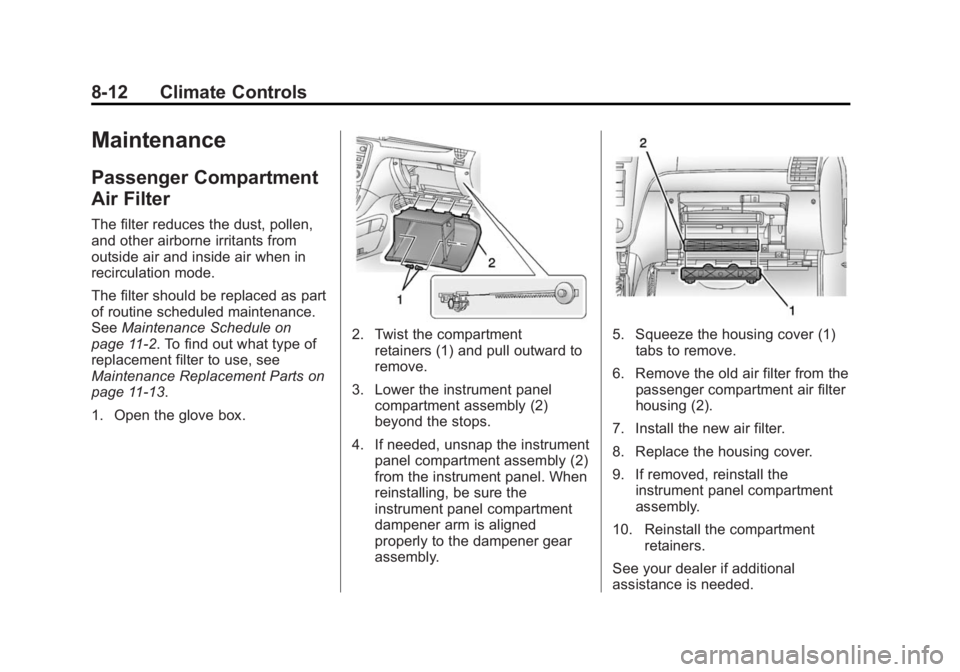
Maintenance
Passenger Compartment
Air Filter
The filter reduces the dust, pollen,
and other airborne irritants from
outside air and inside air when in
recirculation mode.
The filter should be replaced as part
of routine scheduled maintenance.
SeeMaintenance Schedule on
page 11-2. To find out what type of
replacement filter to use, see
Maintenance Replacement Parts on
page 11-13.
1. Open the glove box.
2. Twist the compartment retainers (1) and pull outward to
remove.
3. Lower the instrument panel compartment assembly (2)
beyond the stops.
4. If needed, unsnap the instrument panel compartment assembly (2)
from the instrument panel. When
reinstalling, be sure the
instrument panel compartment
dampener arm is aligned
properly to the dampener gear
assembly.5. Squeeze the housing cover (1)tabs to remove.
6. Remove the old air filter from the passenger compartment air filter
housing (2).
7. Install the new air filter.
8. Replace the housing cover.
9. If removed, reinstall the instrument panel compartment
assembly.
10. Reinstall the compartment retainers.
See your dealer if additional
assistance is needed.