start GMC ACADIA 2015 Workshop Manual
[x] Cancel search | Manufacturer: GMC, Model Year: 2015, Model line: ACADIA, Model: GMC ACADIA 2015Pages: 407, PDF Size: 4.46 MB
Page 154 of 407
Black plate (41,1)GMC Acadia/Acadia Denali Owner Manual (GMNA-Localizing-U.S./Canada/
Mexico-7576030) - 2015 - CRC - 8/18/14
Instruments and Controls 5-41
.AWD system overheat
.Loss of wheel or vehicle speed
.Certain other vehicle electrical
conditions
This message turns off when the
compact spare tire is replaced by a
full-size tire, the differential fluid
cools or the above conditions are no
longer present and the warning
message is reset. To reset the
warning message manually, turn the
ignition off and then back on again
after 30 seconds. If the message
stays on, see your dealer. See
All-Wheel Drive on page 9-26.
SERVICE ALL WHEEL DRIVE
This message displays if a problem
occurs with the All-Wheel Drive
(AWD) system. The vehicle will run
in 2WD. This could be caused by:
.An electronics problem
.Worn out or overheated clutch
plates
.Various electrical issues If this message appears, stop as
soon as possible and turn off the
ignition for 30 seconds. Restart the
vehicle and check for the message
on the DIC display. If the message
still displays or appears again when
you begin driving, the system needs
service. See your dealer right away.
SERVICE TRANSMISSION
This message displays when there
is a problem with the transmission.
See your dealer for service.
TRANSMISSION HOT IDLE
ENGINE
{Caution
Do not drive the vehicle while the
transmission fluid is overheating,
or the transmission can be
damaged. This could lead to
costly repairs that would not be
covered by the warranty.
This message displays and a chime
sounds if the transmission fluid in
the vehicle gets hot. Driving with the
transmission fluid temperature high
can cause damage to the vehicle.
Stop the vehicle and let it idle to
allow the transmission to cool. This
message clears when the fluid
temperature reaches a safe level.
Vehicle Reminder
Messages
ICE POSSIBLE DRIVE
WITH CARE
This message displays when the
outside air temperature is cold
enough to create icy road
conditions. Adjust your driving
accordingly.
Page 161 of 407
Black plate (48,1)GMC Acadia/Acadia Denali Owner Manual (GMNA-Localizing-U.S./Canada/
Mexico-7576030) - 2015 - CRC - 8/18/14
5-48 Instruments and Controls
ON:The driver seat and outside
mirrors will automatically move to
the stored driving position when the
unlock button on the Remote
Keyless Entry (RKE) transmitter is
pressed. The steering column will
also move on vehicles with the
power tilt and telescopic steering
feature. See Steering Wheel
Adjustment on page 5-2. See
“Memory Remote Recall” under
Memory Seats on page 3-6 for
information on matching transmitters
to driver positions.
NO CHANGE: No change will be
made to this feature. The current
setting will remain.
To select a setting, press the set/
reset button while the desired
setting is displayed on the DIC.
REMOTE START
If your vehicle has this feature, it
allows you to turn the remote start
off or on. The remote start feature
allows you to start the engine from
outside of the vehicle using the Remote Keyless Entry (RKE)
transmitter. See
Remote Vehicle
Start on page 2-4.
Press the customization button until
REMOTE START appears on the
DIC display. Press the set/reset
button once to access the settings
for this feature. Then press the
customization button to scroll
through the following settings:
OFF: The remote start feature will
be disabled.
ON (default): The remote start
feature will be enabled.
NO CHANGE: No change will be
made to this feature. The current
setting will remain.
To select a setting, press the set/
reset button while the desired
setting is displayed on the DIC.
FACTORY SETTINGS
This feature allows you to set all of
the customization features back to
their factory default settings. Press the customization button until
FACTORY SETTINGS appears on
the DIC display. Press the set/reset
button once to access the settings
for this feature. Then press the
customization button to scroll
through the following settings:
RESTORE ALL (default):
The
customization features will be set to
their factory default settings.
DO NOT RESTORE: The
customization features will not be
set to their factory default settings.
To select a setting, press the set/
reset button while the desired
setting is displayed on the DIC.
EXIT FEATURE SETTINGS
This feature allows you to exit the
feature settings menu.
Press the customization button until
FEATURE SETTINGS PRESS
V
TO EXIT appears in the DIC display.
Press the set/reset button once to
exit the menu.
Page 169 of 407
Black plate (4,1)GMC Acadia/Acadia Denali Owner Manual (GMNA-Localizing-U.S./Canada/
Mexico-7576030) - 2015 - CRC - 8/18/14
6-4 Lighting
Turn and Lane-Change
Signals
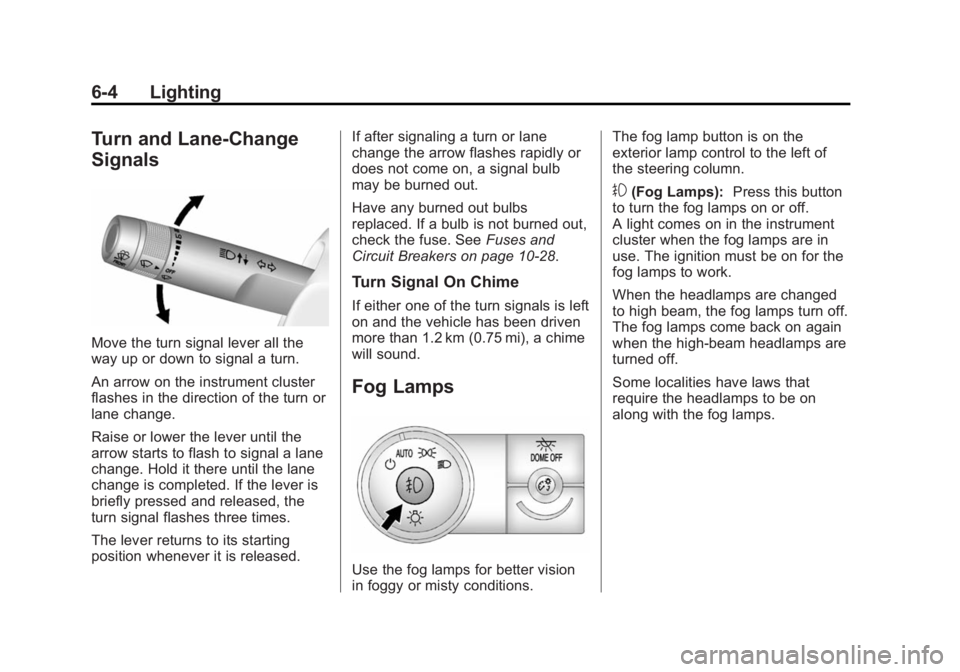
Move the turn signal lever all the
way up or down to signal a turn.
An arrow on the instrument cluster
flashes in the direction of the turn or
lane change.
Raise or lower the lever until the
arrow starts to flash to signal a lane
change. Hold it there until the lane
change is completed. If the lever is
briefly pressed and released, the
turn signal flashes three times.
The lever returns to its starting
position whenever it is released.If after signaling a turn or lane
change the arrow flashes rapidly or
does not come on, a signal bulb
may be burned out.
Have any burned out bulbs
replaced. If a bulb is not burned out,
check the fuse. See
Fuses and
Circuit Breakers on page 10-28.
Turn Signal On Chime
If either one of the turn signals is left
on and the vehicle has been driven
more than 1.2 km (0.75 mi), a chime
will sound.
Fog Lamps
Use the fog lamps for better vision
in foggy or misty conditions. The fog lamp button is on the
exterior lamp control to the left of
the steering column.
#(Fog Lamps):
Press this button
to turn the fog lamps on or off.
A light comes on in the instrument
cluster when the fog lamps are in
use. The ignition must be on for the
fog lamps to work.
When the headlamps are changed
to high beam, the fog lamps turn off.
The fog lamps come back on again
when the high-beam headlamps are
turned off.
Some localities have laws that
require the headlamps to be on
along with the fog lamps.
Page 178 of 407
Black plate (5,1)GMC Acadia/Acadia Denali Owner Manual (GMNA-Localizing-U.S./Canada/
Mexico-7576030) - 2015 - CRC - 8/18/14
Infotainment System 7-5
Home Page
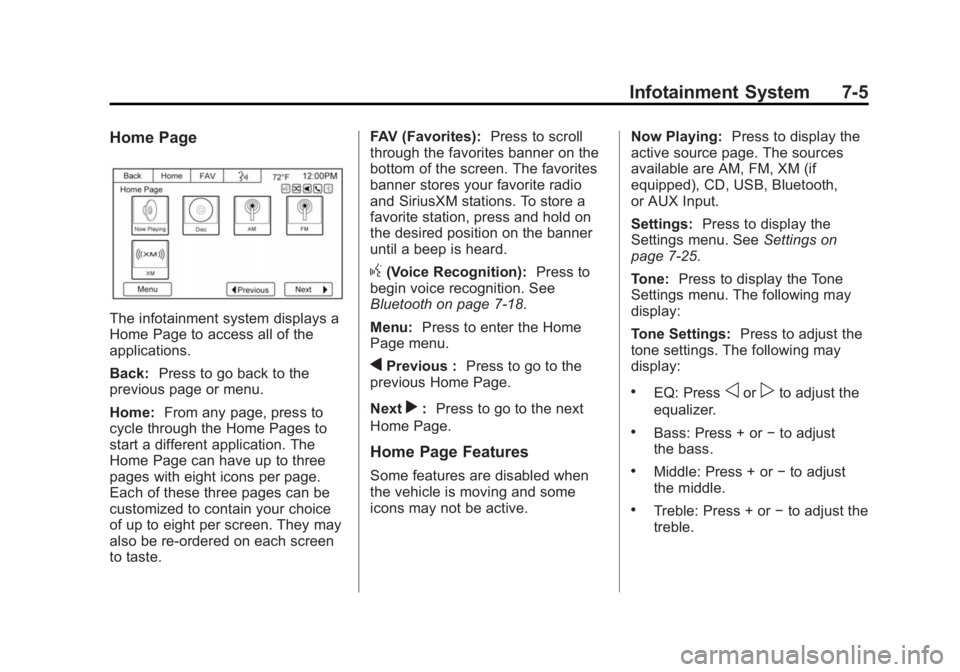
The infotainment system displays a
Home Page to access all of the
applications.
Back:Press to go back to the
previous page or menu.
Home: From any page, press to
cycle through the Home Pages to
start a different application. The
Home Page can have up to three
pages with eight icons per page.
Each of these three pages can be
customized to contain your choice
of up to eight per screen. They may
also be re-ordered on each screen
to taste. FAV (Favorites):
Press to scroll
through the favorites banner on the
bottom of the screen. The favorites
banner stores your favorite radio
and SiriusXM stations. To store a
favorite station, press and hold on
the desired position on the banner
until a beep is heard.
g(Voice Recognition): Press to
begin voice recognition. See
Bluetooth on page 7-18.
Menu: Press to enter the Home
Page menu.
qPrevious : Press to go to the
previous Home Page.
Next
r: Press to go to the next
Home Page.
Home Page Features
Some features are disabled when
the vehicle is moving and some
icons may not be active. Now Playing:
Press to display the
active source page. The sources
available are AM, FM, XM (if
equipped), CD, USB, Bluetooth,
or AUX Input.
Settings: Press to display the
Settings menu. See Settings on
page 7-25.
Tone: Press to display the Tone
Settings menu. The following may
display:
Tone Settings: Press to adjust the
tone settings. The following may
display:
.EQ: Pressoorpto adjust the
equalizer.
.Bass: Press + or −to adjust
the bass.
.Middle: Press + or −to adjust
the middle.
.Treble: Press + or −to adjust the
treble.
Page 185 of 407
Black plate (12,1)GMC Acadia/Acadia Denali Owner Manual (GMNA-Localizing-U.S./Canada/
Mexico-7576030) - 2015 - CRC - 8/18/14
7-12 Infotainment System
Loading and Ejecting Discs
To load a disc:
1. Turn the radio on.
2. Insert a disc into the slot, labelside up. The player pulls it in the
rest of the way. If the disc is
damaged or improperly loaded,
there is an error and the disc
ejects.
The disc automatically plays once
loaded.
Press
Zto eject a disc from the
CD player. If the disc is not removed
within a short period of time, it is
automatically pulled back into the
player.
Playing an Audio CD
Make sure a disc is inserted in the
player.
1. Press the Disc screen button on the Home Page or from the
SRCE/Source banner. 2. Press the Menu screen button
on the CD Audio screen to
display a list of Tracks/Songs.
3. Press the desired track/song.
On the Disc main page a track
number displays at the beginning of
each track. Song, Artist, Elapsed
Time, and Album information
displays when available.
Use the following controls to play
the disc:
©SEEK:
.Press to seek to the beginning of
the current or previous track.
If the track has been playing for
less than eight seconds, it seeks
to the previous track. If longer
than eight seconds, the current
track starts from the beginning.
.Press and hold to fast reverse
through a track. Release the
button to return to playing
speed. Elapsed time displays. SEEK
¨:
.Press to seek to the next track.
.Press and hold to fast forward
through a track. Release the
button to return to playing
speed. Elapsed time displays.
PUSH/SEL (Select): Turn to the
right or left to select the next or
previous track.
Error Messages
If Disc Error displays and/or the disc
comes out, it could be for one of the
following reasons:
.The disc has an invalid or
unknown format.
.The disc is very hot. Try the disc
again when the temperature
returns to normal.
.The road is very rough. Try the
disc again when the road is
smoother.
.The disc is dirty, scratched, wet,
or upside down.
Page 190 of 407
Black plate (17,1)GMC Acadia/Acadia Denali Owner Manual (GMNA-Localizing-U.S./Canada/
Mexico-7576030) - 2015 - CRC - 8/18/14
Infotainment System 7-17
Press and hold©or¨until the
display flashes to tune to an
individual station. The display stops
flashing after the buttons have not
been pressed for more than
two seconds. This function is
inactive, with some radios, if the
front seat passengers are listening
to the radio.
While listening to a disc, press
¨to
go to the next track or chapter on
the disc. Press
©to go back to the
start of the current track or chapter
(if more than 10 seconds have
played). This function is inactive,
with some radios, if the front seat
passengers are listening to the disc.
When a DVD video menu is being
displayed, press
©or¨to perform a
cursor up or down on the menu.
Hold
©or¨to perform a cursor left
or right on the menu. PROG (Program):
Press to go to
the next preset radio station or
channel set on the main radio. This
function is inactive, with some
radios, if the front seat passengers
are listening to the radio.
When a CD or DVD audio disc is
playing, press PROG to go to the
beginning of the CD or DVD audio.
This function is inactive, with some
radios, if the front seat passengers
are listening to the disc.
When a disc is playing in the CD or
DVD changer, press PROG to
select the next disc if multiple discs
are loaded. This function is inactive,
with some radios, if the front seat
passengers are listening to the disc.
When a DVD video menu is being
displayed, press PROG to perform
the ENTER menu function.
Rear Audio
Controller (RAC)
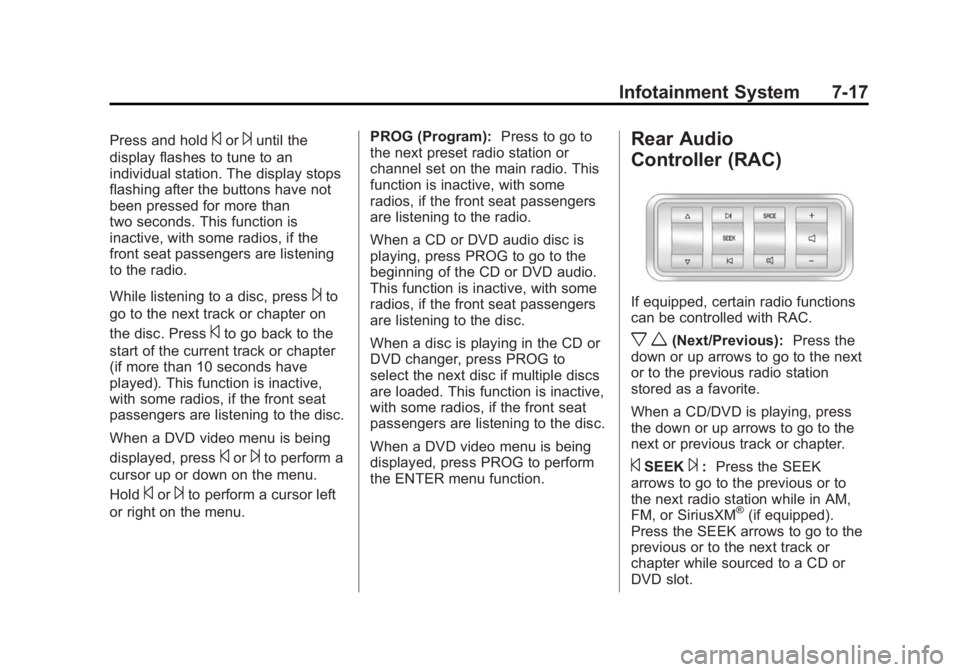
If equipped, certain radio functions
can be controlled with RAC.
x w(Next/Previous): Press the
down or up arrows to go to the next
or to the previous radio station
stored as a favorite.
When a CD/DVD is playing, press
the down or up arrows to go to the
next or previous track or chapter.
©SEEK¨: Press the SEEK
arrows to go to the previous or to
the next radio station while in AM,
FM, or SiriusXM
®(if equipped).
Press the SEEK arrows to go to the
previous or to the next track or
chapter while sourced to a CD or
DVD slot.
Page 192 of 407
Black plate (19,1)GMC Acadia/Acadia Denali Owner Manual (GMNA-Localizing-U.S./Canada/
Mexico-7576030) - 2015 - CRC - 8/18/14
Infotainment System 7-19
receive phone calls. The system
can be used while the key is in the
ON/RUN or ACC/ACCESSORY
position. The range of the Bluetooth
system can be up to 9.1 m (30 ft).
Not all phones support all functions,
and not all phones work with the
in-vehicle Bluetooth system. See
www.gm.com/bluetooth for more
information on compatible phones.
Voice Recognition
The Bluetooth system uses voice
recognition to interpret voice
commands to dial phone numbers
and name tags.
For additional information, say
“Help”while you are in a voice
recognition menu.
Noise: Keep interior noise levels to
a minimum. The system may not
recognize voice commands if there
is too much background noise. When to Speak:
A short tone
sounds after the system responds
indicating when it is waiting for a
voice command. Wait until the tone
and then speak.
How to Speak: Speak clearly in a
calm and natural voice.
Audio System
When using the in-vehicle Bluetooth
system, sound comes through the
vehicle's front audio system
speakers and overrides the audio
system. Use the audio system
volume knob, during a call, to
change the volume level. The
adjusted volume level remains in
memory for later calls. To prevent
missed calls, a minimum volume
level is used if the volume is turned
down too low.
Bluetooth Controls
Use the buttons located on the
steering wheel to operate the
in-vehicle Bluetooth system. See
Steering Wheel Controls on
page 5-2.
b/g(Press To Talk): Press to
answer incoming calls, confirm
system information, and start
speech recognition.
c/x(End): Press to end a call,
reject a call, or cancel an operation.
Pairing
A Bluetooth enabled cell phone
must be paired to the Bluetooth
system and then connected to the
vehicle before it can be used. See
the cell phone manufacturer's user
guide for Bluetooth functions before
pairing the cell phone. If a Bluetooth
phone is not connected, calls will be
made using OnStar Hands-Free
Calling, if equipped. See “OnStar”if
equipped.
Pairing Information
.A Bluetooth phone with MP3
capability cannot be paired to
the vehicle as a phone and an
MP3 player at the same time.
.Up to five cell phones can be
paired to the Bluetooth system.
Page 193 of 407
Black plate (20,1)GMC Acadia/Acadia Denali Owner Manual (GMNA-Localizing-U.S./Canada/
Mexico-7576030) - 2015 - CRC - 8/18/14
7-20 Infotainment System
.The pairing process is disabled
when the vehicle is moving.
.Pairing only needs to be
completed once, unless the
pairing information on the cell
phone changes or the cell phone
is deleted from the system.
.Only one paired cell phone can
be connected to the Bluetooth
system at a time.
.If multiple paired cell phones are
within range of the system, the
system connects to the first
available paired cell phone in the
order that they were first paired
to the system. To connect to a
different paired phone, see
“Connecting to a Different
Phone”later in this section.
Pairing a Phone
1. Press
b/g.
2. Say “Bluetooth.” This command
can be skipped. 3. Say
“Pair.”The system responds
with instructions and a four-digit
Personal Identification Number
(PIN). The PIN is used in Step 5.
4. Start the pairing process on the cell phone that you want to pair.
For help with this process, see
the cell phone manufacturer's
user guide.
5. Locate the device named “Your
Vehicle” in the list on the cell
phone. Follow the instructions
on the cell phone to enter the
PIN provided in Step 3. After the
PIN is successfully entered, the
system prompts you to provide a
name for the paired cell phone.
This name will be used to
indicate which phones are
paired and connected to the
vehicle. The system responds
with “
successfully paired” after the
pairing process is complete.
6. Repeat Steps 1–5 to pair additional phones. Listing All Paired and Connected
Phones
The system can list all cell phones
paired to it. If a paired cell phone is
also connected to the vehicle, the
system responds with
“is connected”
after that phone name.
1. Press
b/g.
2. Say “Bluetooth.”
3. Say “List.”
Deleting a Paired Phone
If the phone name you want to
delete is unknown, see “Listing All
Paired and Connected Phones.”
1. Press
b/g.
2. Say “Bluetooth.”
3. Say “Delete.” The system asks
which phone to delete.
4. Say the name of the phone you want to delete.
Page 206 of 407
Black plate (5,1)GMC Acadia/Acadia Denali Owner Manual (GMNA-Localizing-U.S./Canada/
Mexico-7576030) - 2015 - CRC - 8/18/14
Climate Controls 8-5
To use automatic mode:
1. Press the AUTO button.When AUTO is selected, the
current temperature(s) is
displayed and the AUTO
indicator light is on.
When AUTO is selected, the air
conditioning and air inlet are
automatically controlled. The air
conditioning runs when the
outside temperature is over 4°C
(40°F). The system is
automatically set to outside air,
unless it is hot outside and then
the air inlet changes to
recirculation mode to help
quickly cool the vehicle. The
recirculation indicator light will
come on.
2. Set the temperature for the driver and passenger. To find a comfortable setting,
start with a 22°C (73°F)
temperature setting and allow
about 20 minutes for the system
to regulate. Use the driver side
or passenger side temperature
control to adjust the temperature
setting as necessary. The
system will remain at the
selected setting. Choosing the
warmest or coolest temperatures
does not cause the vehicle to
heat or cool more quickly.
To avoid blowing cold air in cold
weather, the system delays
turning on the fan until warm air
is available. Turn the fan knob to
override this delay and select
the fan speed.
Temperature Control
The driver and passenger side
temperature controls are used to
adjust the temperature of the air
coming through the system. The
temperature can be adjusted even if
the system is turned off since
outside air still enters the vehicle,
unless the recirculation mode is
selected. See
“Recirculation” later in
this section.
Driver Side Temperature
Control: Turn clockwise or
counterclockwise to increase or
decrease the driver side
temperature. The driver side
temperature display will show the
temperature setting.
Passenger Side Temperature
Control: Turn clockwise or
counterclockwise to increase or
decrease the passenger side
temperature. The passenger side
display will show the temperature
setting.
Page 214 of 407
Black plate (1,1)GMC Acadia/Acadia Denali Owner Manual (GMNA-Localizing-U.S./Canada/
Mexico-7576030) - 2015 - CRC - 8/18/14
Driving and Operating 9-1
Driving and
Operating
Driving Information
Distracted Driving . . . . . . . . . . . . . 9-2
Defensive Driving . . . . . . . . . . . . . 9-3
Drunk Driving . . . . . . . . . . . . . . . . . 9-3
Control of a Vehicle . . . . . . . . . . . 9-3
Braking . . . . . . . . . . . . . . . . . . . . . . . 9-3
Steering . . . . . . . . . . . . . . . . . . . . . . . 9-4
Off-Road Recovery . . . . . . . . . . . . 9-5
Loss of Control . . . . . . . . . . . . . . . . 9-5
Driving on Wet Roads . . . . . . . . . 9-6
Hill and Mountain Roads . . . . . . 9-6
Winter Driving . . . . . . . . . . . . . . . . . 9-7
If the Vehicle Is Stuck . . . . . . . . . 9-9
Vehicle Load Limits . . . . . . . . . . . 9-9
Starting and Operating
New Vehicle Break-In . . . . . . . . 9-14
Ignition Positions . . . . . . . . . . . . 9-14
Starting the Engine . . . . . . . . . . 9-16
Engine Heater . . . . . . . . . . . . . . . 9-17
Retained AccessoryPower (RAP) . . . . . . . . . . . . . . . 9-19 Shifting Into Park . . . . . . . . . . . . 9-19
Shifting out of Park . . . . . . . . . . 9-20
Parking over Things
That Burn . . . . . . . . . . . . . . . . . . 9-21
Engine Exhaust
Engine Exhaust . . . . . . . . . . . . . . 9-21
Running the Vehicle WhileParked . . . . . . . . . . . . . . . . . . . . . 9-22
Automatic Transmission
Automatic Transmission . . . . . 9-22
Manual Mode . . . . . . . . . . . . . . . . 9-24
Tow/Haul Mode . . . . . . . . . . . . . . 9-25
Drive Systems
All-Wheel Drive . . . . . . . . . . . . . . 9-26
Brakes
Antilock BrakeSystem (ABS) . . . . . . . . . . . . . . 9-26
Parking Brake . . . . . . . . . . . . . . . 9-27
Brake Assist . . . . . . . . . . . . . . . . . 9-28
Hill Start Assist (HSA) . . . . . . . 9-28
Ride Control Systems
Traction Control/Electronic Stability Control . . . . . . . . . . . . 9-28
Cruise Control
Cruise Control . . . . . . . . . . . . . . . 9-30
Driver Assistance Systems
Forward Collision Alert (FCA)System . . . . . . . . . . . . . . . . . . . . . 9-33
Parking Assist . . . . . . . . . . . . . . . 9-35
Side Blind Zone Alert (SBZA) . . . . . . . . . . . . . . . 9-36
Rear Vision Camera (RVC) . . . . . . . . . . . . . 9-38
Lane Departure Warning (LDW) . . . . . . . . . . . . . 9-40
Fuel
Fuel . . . . . . . . . . . . . . . . . . . . . . . . . 9-42
California FuelRequirements . . . . . . . . . . . . . . 9-43
Fuels in Foreign Countries . . . 9-43
Fuel Additives . . . . . . . . . . . . . . . 9-43
Filling the Tank . . . . . . . . . . . . . . 9-43
Filling a Portable Fuel Container . . . . . . . . . . . . . . . . . . . 9-45