display GMC ACADIA 2015 Repair Manual
[x] Cancel search | Manufacturer: GMC, Model Year: 2015, Model line: ACADIA, Model: GMC ACADIA 2015Pages: 407, PDF Size: 4.46 MB
Page 190 of 407
Black plate (17,1)GMC Acadia/Acadia Denali Owner Manual (GMNA-Localizing-U.S./Canada/
Mexico-7576030) - 2015 - CRC - 8/18/14
Infotainment System 7-17
Press and hold©or¨until the
display flashes to tune to an
individual station. The display stops
flashing after the buttons have not
been pressed for more than
two seconds. This function is
inactive, with some radios, if the
front seat passengers are listening
to the radio.
While listening to a disc, press
¨to
go to the next track or chapter on
the disc. Press
©to go back to the
start of the current track or chapter
(if more than 10 seconds have
played). This function is inactive,
with some radios, if the front seat
passengers are listening to the disc.
When a DVD video menu is being
displayed, press
©or¨to perform a
cursor up or down on the menu.
Hold
©or¨to perform a cursor left
or right on the menu. PROG (Program):
Press to go to
the next preset radio station or
channel set on the main radio. This
function is inactive, with some
radios, if the front seat passengers
are listening to the radio.
When a CD or DVD audio disc is
playing, press PROG to go to the
beginning of the CD or DVD audio.
This function is inactive, with some
radios, if the front seat passengers
are listening to the disc.
When a disc is playing in the CD or
DVD changer, press PROG to
select the next disc if multiple discs
are loaded. This function is inactive,
with some radios, if the front seat
passengers are listening to the disc.
When a DVD video menu is being
displayed, press PROG to perform
the ENTER menu function.
Rear Audio
Controller (RAC)
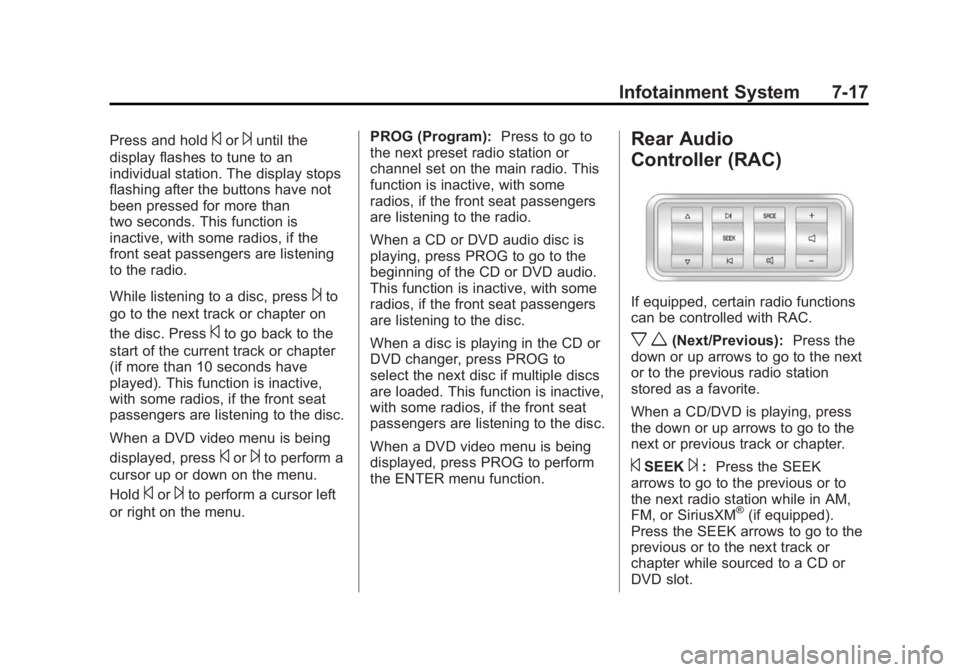
If equipped, certain radio functions
can be controlled with RAC.
x w(Next/Previous): Press the
down or up arrows to go to the next
or to the previous radio station
stored as a favorite.
When a CD/DVD is playing, press
the down or up arrows to go to the
next or previous track or chapter.
©SEEK¨: Press the SEEK
arrows to go to the previous or to
the next radio station while in AM,
FM, or SiriusXM
®(if equipped).
Press the SEEK arrows to go to the
previous or to the next track or
chapter while sourced to a CD or
DVD slot.
Page 198 of 407
Black plate (25,1)GMC Acadia/Acadia Denali Owner Manual (GMNA-Localizing-U.S./Canada/
Mexico-7576030) - 2015 - CRC - 8/18/14
Infotainment System 7-25
Dual Tone Multi-Frequency
(DTMF) Tones
The Bluetooth system can send
numbers and the numbers stored as
name tags during a call. You can
use this feature when calling a
menu-driven phone system.
Account numbers can also be
stored for use.
Sending a Number or Name Tag
During a Call
1. Press
b/g. The system
responds “Ready,”followed by
a tone.
2. Say “Dial.”
3. Say the number or name tag to send.
Clearing the System
Unless information is deleted out of
the in-vehicle Bluetooth system, it
will be retained indefinitely. This
includes all saved name tags in the
phone book and phone pairing
information. For information on how
to delete this information, see the
previous section “Deleting a Paired
Phone” and the previous sections
on deleting name tags.
Other Information
The Bluetooth®word mark and
logos are owned by the Bluetooth®
SIG, Inc. and any use of such marks
by General Motors is under license.
Other trademarks and trade names
are those of their respective owners.
See Radio Frequency Statement on
page 13-12.
Settings
Press Settings on the Home Page
to adjust features and preferences,
such as Favorite Pages, Display,
Time, and Date, etc.
1. Press the Settings screen button on the Home Page.
2. Touch-tap the scroll bar until the desired option displays. Select
the desired settings to change.
A few of the setting options change
the way the navigation system
displays or reacts while in use.
Favorite Pages: Press to select
the number of favorite pages
displayed on the screen. The choice
is 1–6 pages.
Display: Press to adjust the screen
settings.
.Display Off: Select to turn the
screen off. Touch the screen to
turn the screen back on.
Page 199 of 407
Black plate (26,1)GMC Acadia/Acadia Denali Owner Manual (GMNA-Localizing-U.S./Canada/
Mexico-7576030) - 2015 - CRC - 8/18/14
7-26 Infotainment System
.Rear Camera: Select Symbols
and/or Guidelines to have them
display on the rear camera
screen.
.Brightness: Select to adjust the
screen brightness.
Speed Compensated Volume:
Select OFF, Low, Medium, or High
sensitivity to automatically adjust
the volume to minimize the effects
of unwanted background noise that
can result from changing road
surfaces, driving speeds, or open
windows. This feature works best at
lower volume settings where
background noise is typically louder
than the sound system volume.
Audible Touch Feedback: Select
to adjust the volume of the beep
that is played after touching a
screen button.
Notification Prompt Volume:
Select to adjust the volume of the
notification prompts. Set Time:
.Press the up or down arrows to
change the Hours, Minutes, AM,
PM, or 24 hour setting on the
clock.
.Press and hold to quickly
increase or decrease the time
settings.
.Press OK to save the
adjustments.
.Press the Back or Cancel screen
button to cancel the
adjustments.
Set Date:
.Press the up or down arrows to
increase or decrease the Month,
Day, and Year settings.
.Press and hold to quickly
increase or decrease the date
settings.
.Press OK to save the
adjustments.
.Press the Back or Cancel screen
button to cancel the
adjustments. XM Categories:
Press to
customize which available XM
Categories are displayed and used
in the system.
Create “AS IS” Infotainment
File: This is used for dealer
troubleshooting.
Open Source Software: Select to
view software website information.
Rear Vision Camera (If
Equipped)
The rear vision camera can assist
the driver when backing up by
displaying a view of the area behind
the vehicle.
To access the rear camera display
settings, press Display from the
Home screen, then press the Rear
Camera screen button. The
following options are available:
Symbols: Press to enable or
disable the Rear Park Assist (RPA)
symbols presented over the rear
camera video.
Page 205 of 407
Black plate (4,1)GMC Acadia/Acadia Denali Owner Manual (GMNA-Localizing-U.S./Canada/
Mexico-7576030) - 2015 - CRC - 8/18/14
8-4 Climate Controls
Dual Automatic Climate Control System
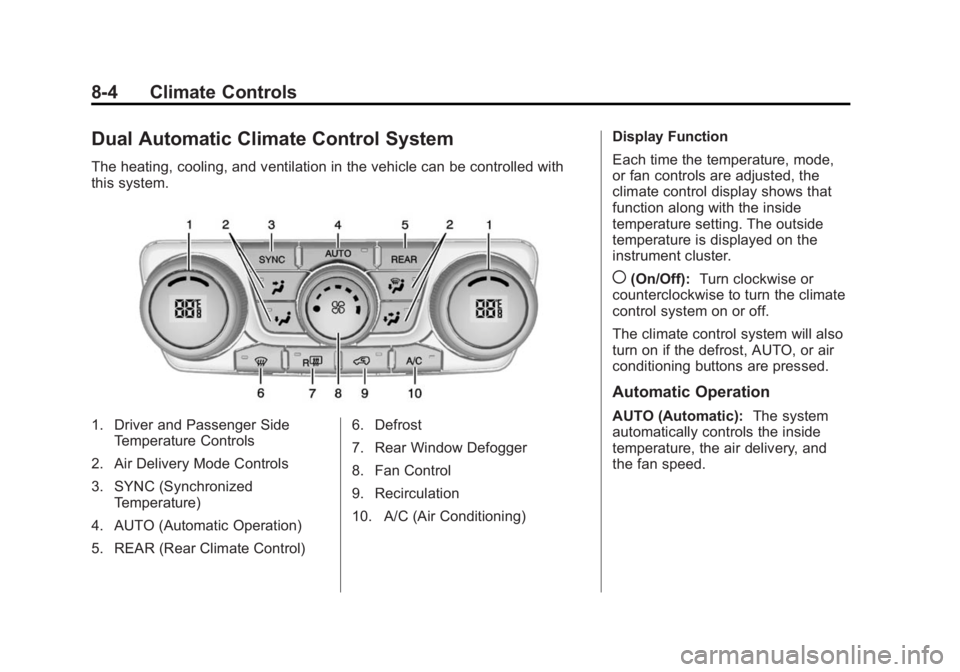
The heating, cooling, and ventilation in the vehicle can be controlled with
this system.
1. Driver and Passenger SideTemperature Controls
2. Air Delivery Mode Controls
3. SYNC (Synchronized Temperature)
4. AUTO (Automatic Operation)
5. REAR (Rear Climate Control) 6. Defrost
7. Rear Window Defogger
8. Fan Control
9. Recirculation
10. A/C (Air Conditioning)Display Function
Each time the temperature, mode,
or fan controls are adjusted, the
climate control display shows that
function along with the inside
temperature setting. The outside
temperature is displayed on the
instrument cluster.
((On/Off):
Turn clockwise or
counterclockwise to turn the climate
control system on or off.
The climate control system will also
turn on if the defrost, AUTO, or air
conditioning buttons are pressed.
Automatic Operation
AUTO (Automatic): The system
automatically controls the inside
temperature, the air delivery, and
the fan speed.
Page 206 of 407
Black plate (5,1)GMC Acadia/Acadia Denali Owner Manual (GMNA-Localizing-U.S./Canada/
Mexico-7576030) - 2015 - CRC - 8/18/14
Climate Controls 8-5
To use automatic mode:
1. Press the AUTO button.When AUTO is selected, the
current temperature(s) is
displayed and the AUTO
indicator light is on.
When AUTO is selected, the air
conditioning and air inlet are
automatically controlled. The air
conditioning runs when the
outside temperature is over 4°C
(40°F). The system is
automatically set to outside air,
unless it is hot outside and then
the air inlet changes to
recirculation mode to help
quickly cool the vehicle. The
recirculation indicator light will
come on.
2. Set the temperature for the driver and passenger. To find a comfortable setting,
start with a 22°C (73°F)
temperature setting and allow
about 20 minutes for the system
to regulate. Use the driver side
or passenger side temperature
control to adjust the temperature
setting as necessary. The
system will remain at the
selected setting. Choosing the
warmest or coolest temperatures
does not cause the vehicle to
heat or cool more quickly.
To avoid blowing cold air in cold
weather, the system delays
turning on the fan until warm air
is available. Turn the fan knob to
override this delay and select
the fan speed.
Temperature Control
The driver and passenger side
temperature controls are used to
adjust the temperature of the air
coming through the system. The
temperature can be adjusted even if
the system is turned off since
outside air still enters the vehicle,
unless the recirculation mode is
selected. See
“Recirculation” later in
this section.
Driver Side Temperature
Control: Turn clockwise or
counterclockwise to increase or
decrease the driver side
temperature. The driver side
temperature display will show the
temperature setting.
Passenger Side Temperature
Control: Turn clockwise or
counterclockwise to increase or
decrease the passenger side
temperature. The passenger side
display will show the temperature
setting.
Page 207 of 407
Black plate (6,1)GMC Acadia/Acadia Denali Owner Manual (GMNA-Localizing-U.S./Canada/
Mexico-7576030) - 2015 - CRC - 8/18/14
8-6 Climate Controls
SYNC (Synchronized
Temperature):Press to set the
passenger temperature to match the
driver temperature setting.
Manual Operation
The air delivery mode or fan speed
can be manually adjusted.
9(Fan Control): Turn the knob
clockwise or counterclockwise to
increase or decrease the fan speed.
Turning the fan control knob while in
automatic control places the fan
speed under manual control.
The air delivery mode remains in
automatic control. The fan setting
displays momentarily and then no
longer displays.
Air Delivery Modes: Press
H,),
6, or-to change the direction of
the airflow in the vehicle. An
indicator light comes on in the
selected mode button. Pressing a
mode button while the system is off
changes the air delivery mode
without turning the system on. Changing the air delivery mode
while in automatic control places the
system into manual control. The air
delivery mode button indicator
displays, and the AUTO button
indicator light turns off.
H(Vent):
Air is directed to the
instrument panel outlets.
)(Bi-Level): Air is divided
between the instrument panel and
floor outlets. Some air is directed
towards the windshield and side
window outlets. Cooler air is
directed to the upper outlets and
warmer air to the floor outlets.
6(Floor): Air is directed to the
floor outlets, with some of the air
directed to the windshield, side
window, and second row floor
outlets. In this mode, the system
uses outside air.
-(Defog): This mode clears the
windows of fog or moisture. Air is
directed to the windshield, floor
outlets, and side window vents.
When this mode is selected, the
system turns off recirculation and runs the air conditioning compressor
unless the outside temperature is
less than 4°C (40°F). Do not drive
the vehicle until all the windows are
clear.
0(Defrost):
Press to turn the
defrost on or off. This mode quickly
clears the windshield of fog or frost.
Air is directed to the windshield,
side window, and floor vents. In this
mode, outside air is pulled inside
the vehicle. The air conditioning
system runs automatically in this
setting, unless the outside
temperature is less than 4°C (40°F).
Do not drive the vehicle until all the
windows are clear.
Air Conditioning
A/C (Air Conditioning): Press to
turn the air conditioning on and off.
An indicator light comes on when
A/C is on.
The A/C does not work when the
outside temperature is below 4°C
(40°F). If A/C is pressed the
indicator flashes three times and
Page 209 of 407
Black plate (8,1)GMC Acadia/Acadia Denali Owner Manual (GMNA-Localizing-U.S./Canada/
Mexico-7576030) - 2015 - CRC - 8/18/14
8-8 Climate Controls
{Caution
Using a razor blade or sharp
object on the inside rear window
can damage the antenna or
defogger. Repairs would not be
covered by the vehicle warranty.
Do not stick anything to the rear
window.
Sensors
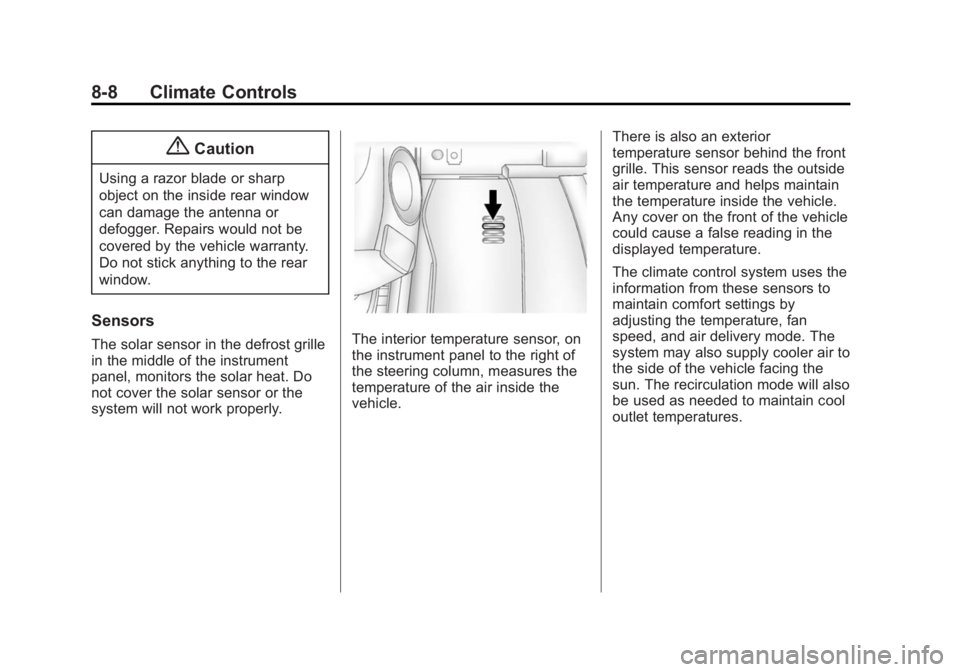
The solar sensor in the defrost grille
in the middle of the instrument
panel, monitors the solar heat. Do
not cover the solar sensor or the
system will not work properly.The interior temperature sensor, on
the instrument panel to the right of
the steering column, measures the
temperature of the air inside the
vehicle.There is also an exterior
temperature sensor behind the front
grille. This sensor reads the outside
air temperature and helps maintain
the temperature inside the vehicle.
Any cover on the front of the vehicle
could cause a false reading in the
displayed temperature.
The climate control system uses the
information from these sensors to
maintain comfort settings by
adjusting the temperature, fan
speed, and air delivery mode. The
system may also supply cooler air to
the side of the vehicle facing the
sun. The recirculation mode will also
be used as needed to maintain cool
outlet temperatures.
Page 210 of 407
Black plate (9,1)GMC Acadia/Acadia Denali Owner Manual (GMNA-Localizing-U.S./Canada/
Mexico-7576030) - 2015 - CRC - 8/18/14
Climate Controls 8-9
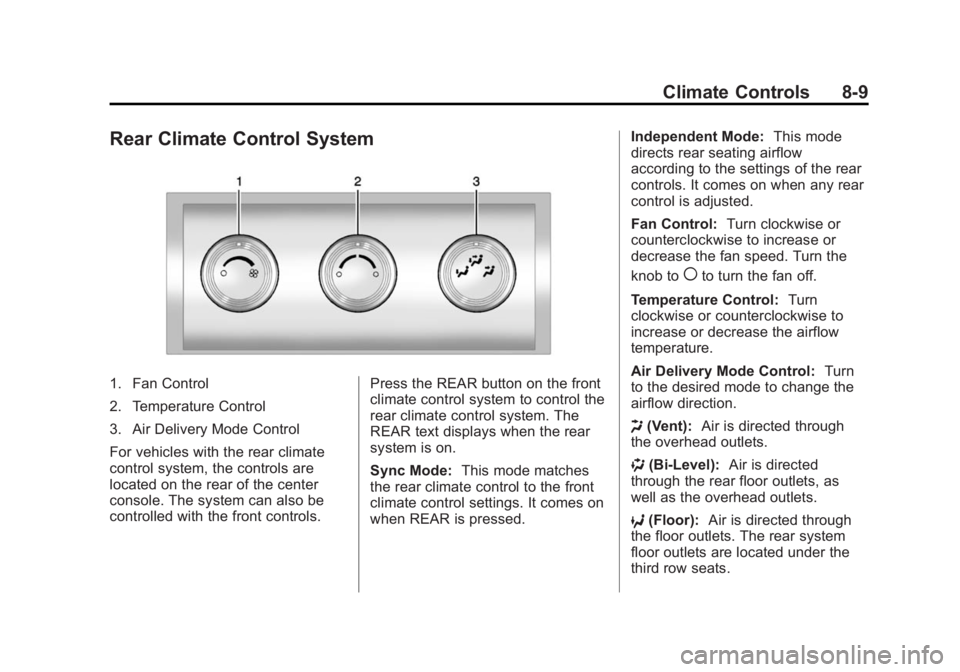
Rear Climate Control System
1. Fan Control
2. Temperature Control
3. Air Delivery Mode Control
For vehicles with the rear climate
control system, the controls are
located on the rear of the center
console. The system can also be
controlled with the front controls.Press the REAR button on the front
climate control system to control the
rear climate control system. The
REAR text displays when the rear
system is on.
Sync Mode:
This mode matches
the rear climate control to the front
climate control settings. It comes on
when REAR is pressed. Independent Mode:
This mode
directs rear seating airflow
according to the settings of the rear
controls. It comes on when any rear
control is adjusted.
Fan Control: Turn clockwise or
counterclockwise to increase or
decrease the fan speed. Turn the
knob to
(to turn the fan off.
Temperature Control: Turn
clockwise or counterclockwise to
increase or decrease the airflow
temperature.
Air Delivery Mode Control: Turn
to the desired mode to change the
airflow direction.
H (Vent): Air is directed through
the overhead outlets.
) (Bi-Level): Air is directed
through the rear floor outlets, as
well as the overhead outlets.
6 (Floor): Air is directed through
the floor outlets. The rear system
floor outlets are located under the
third row seats.
Page 211 of 407
Black plate (10,1)GMC Acadia/Acadia Denali Owner Manual (GMNA-Localizing-U.S./Canada/
Mexico-7576030) - 2015 - CRC - 8/18/14
8-10 Climate Controls
Rear Climate Control System (with Rear Seat Audio)
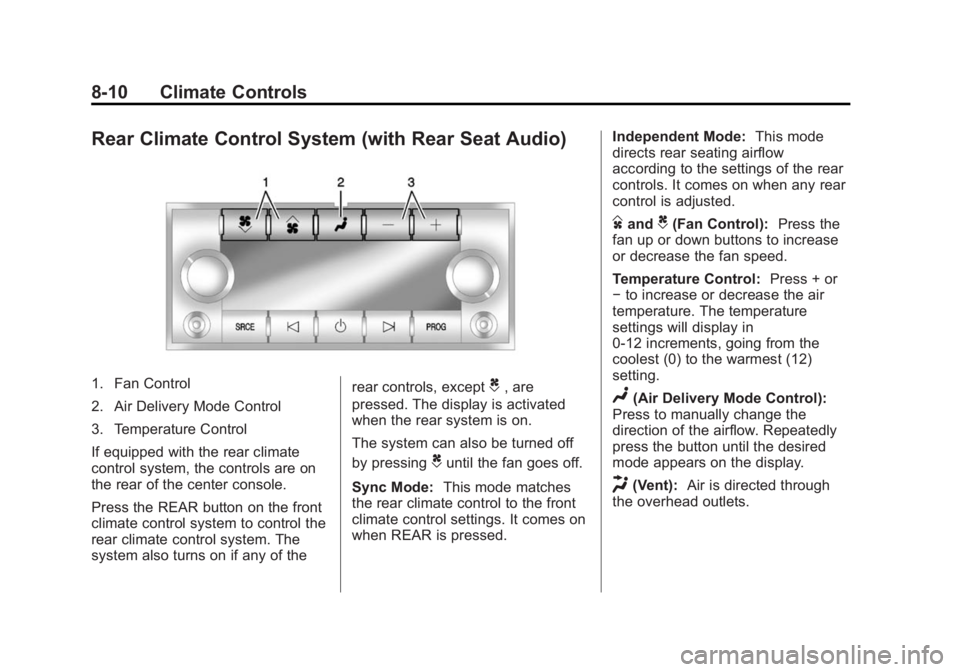
1. Fan Control
2. Air Delivery Mode Control
3. Temperature Control
If equipped with the rear climate
control system, the controls are on
the rear of the center console.
Press the REAR button on the front
climate control system to control the
rear climate control system. The
system also turns on if any of therear controls, exceptC, are
pressed. The display is activated
when the rear system is on.
The system can also be turned off
by pressing
Cuntil the fan goes off.
Sync Mode: This mode matches
the rear climate control to the front
climate control settings. It comes on
when REAR is pressed. Independent Mode:
This mode
directs rear seating airflow
according to the settings of the rear
controls. It comes on when any rear
control is adjusted.
DandC(Fan Control): Press the
fan up or down buttons to increase
or decrease the fan speed.
Temperature Control: Press + or
− to increase or decrease the air
temperature. The temperature
settings will display in
0-12 increments, going from the
coolest (0) to the warmest (12)
setting.
N(Air Delivery Mode Control):
Press to manually change the
direction of the airflow. Repeatedly
press the button until the desired
mode appears on the display.
H(Vent): Air is directed through
the overhead outlets.
Page 229 of 407
Black plate (16,1)GMC Acadia/Acadia Denali Owner Manual (GMNA-Localizing-U.S./Canada/
Mexico-7576030) - 2015 - CRC - 8/18/14
9-16 Driving and Operating
If the vehicle cannot be pulled over,
and must be shut off while driving,
turn the ignition to ACC/
ACCESSORY.
ACC (ACC/ACCESSORY):This is
the position in which you can
operate the electrical accessories or
items plugged into the accessory
power outlets. This position unlocks
the ignition and steering wheel. Use
this position if the vehicle must be
pushed or towed.
R(ON/RUN): This position can be
used to operate the electrical
accessories and to display some
instrument panel warning and
indicator lights. This position can
also be used for service and
diagnostics, and to verify the proper
operation of the malfunction
indicator lamp as may be required
for emission inspection purposes.
The switch stays in this position
when the engine is running. The
transmission is also unlocked in this
position. If you leave the key in the
ACC/ACCESSORY or ON/RUN
position with the engine off, the battery could be drained. You may
not be able to start the vehicle if the
battery is allowed to drain for an
extended period of time.
/(START):
This is the position
that starts the engine. When the
engine starts, release the key. The
ignition switch will return to ON/RUN
for driving.
Key Lock Release
The vehicle has an electronic key
lock release system. This system is
to prevent ignition key removal
unless the shift lever is in P (Park).
The key lock release will not work if
the battery is charged less than
9-volts, or uncharged. Try charging
or jump starting the battery. See
Jump Starting on page 10-69
Starting the Engine
Move the shift lever to P (Park) or
N (Neutral). The engine will not start
in any other position. To restart the
engine when the vehicle is already
moving, use N (Neutral) only.
{Caution
Do not try to shift to P (Park) if the
vehicle is moving. If you do, you
could damage the transmission.
Shift to P (Park) only when the
vehicle is stopped.
{Caution
If you add electrical parts or
accessories, you could change
the way the engine operates. Any
resulting damage would not be
covered by the vehicle warranty.
See Add-On Electrical Equipment
on page 9-53.