buttons GMC ACADIA 2015 Owner's Manual
[x] Cancel search | Manufacturer: GMC, Model Year: 2015, Model line: ACADIA, Model: GMC ACADIA 2015Pages: 407, PDF Size: 4.46 MB
Page 10 of 407
Black plate (3,1)GMC Acadia/Acadia Denali Owner Manual (GMNA-Localizing-U.S./Canada/
Mexico-7576030) - 2015 - CRC - 8/18/14
In Brief 1-3
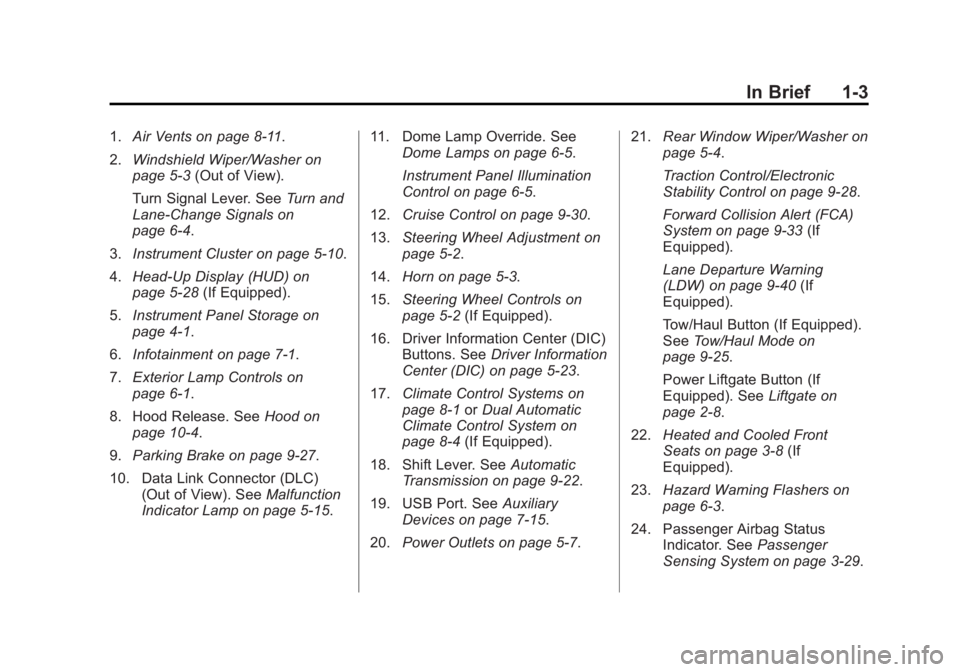
1.Air Vents on page 8-11.
2. Windshield Wiper/Washer on
page 5-3 (Out of View).
Turn Signal Lever. See Turn and
Lane-Change Signals on
page 6-4.
3. Instrument Cluster on page 5-10.
4. Head-Up Display (HUD) on
page 5-28 (If Equipped).
5. Instrument Panel Storage on
page 4-1.
6. Infotainment on page 7-1.
7. Exterior Lamp Controls on
page 6-1.
8. Hood Release. See Hood on
page 10-4.
9. Parking Brake on page 9-27.
10. Data Link Connector (DLC) (Out of View). See Malfunction
Indicator Lamp on page 5-15. 11. Dome Lamp Override. See
Dome Lamps on page 6-5.
Instrument Panel Illumination
Control on page 6-5.
12. Cruise Control on page 9-30.
13. Steering Wheel Adjustment on
page 5-2.
14. Horn on page 5-3.
15. Steering Wheel Controls on
page 5-2 (If Equipped).
16. Driver Information Center (DIC) Buttons. See Driver Information
Center (DIC) on page 5-23.
17. Climate Control Systems on
page 8-1 orDual Automatic
Climate Control System on
page 8-4 (If Equipped).
18. Shift Lever. See Automatic
Transmission on page 9-22.
19. USB Port. See Auxiliary
Devices on page 7-15.
20. Power Outlets on page 5-7. 21.
Rear Window Wiper/Washer on
page 5-4.
Traction Control/Electronic
Stability Control on page 9-28.
Forward Collision Alert (FCA)
System on page 9-33 (If
Equipped).
Lane Departure Warning
(LDW) on page 9-40 (If
Equipped).
Tow/Haul Button (If Equipped).
See Tow/Haul Mode on
page 9-25.
Power Liftgate Button (If
Equipped). See Liftgate on
page 2-8.
22. Heated and Cooled Front
Seats on page 3-8 (If
Equipped).
23. Hazard Warning Flashers on
page 6-3.
24. Passenger Airbag Status Indicator. See Passenger
Sensing System on page 3-29.
Page 16 of 407

Black plate (9,1)GMC Acadia/Acadia Denali Owner Manual (GMNA-Localizing-U.S./Canada/
Mexico-7576030) - 2015 - CRC - 8/18/14
In Brief 1-9
Heated and Cooled Front
Seats
Heated and Cooled Seat ButtonsShown, Heated Seat Buttons Similar
If equipped, the buttons are on the
center stack. To operate, the engine
must be running.
I: If equipped, press to heat the
seatback only.
H: If equipped, press to cool the
entire seat.
J: Press to heat the seat and
seatback. Press the button once for the
highest setting. With each press of
the button, the seat will change to
the next lower setting, and then to
the off setting. The lights indicate
three for the highest setting and one
for the lowest.
See
Heated and Cooled Front Seats
on page 3-8.
Head Restraint
Adjustment
Do not drive until the head restraints
for all occupants are installed and
adjusted properly.
To achieve a comfortable seating
position, change the seatback
recline angle as little as necessary
while keeping the seat and the head
restraint height in the proper
position.
See Head Restraints on page 3-2
and Seat Adjustment on page 3-3.
Safety Belts
Refer to the following sections for
important information on how to use
safety belts properly:
.Safety Belts on page 3-14.
.How to Wear Safety Belts
Properly on page 3-15.
.Lap-Shoulder Belt on page 3-16.
.Lower Anchors and Tethers for
Children (LATCH System) on
page 3-44.
Page 24 of 407
Black plate (17,1)GMC Acadia/Acadia Denali Owner Manual (GMNA-Localizing-U.S./Canada/
Mexico-7576030) - 2015 - CRC - 8/18/14
In Brief 1-17
Storing Radio Station Presets
Up to 30 preset stations can be
stored. AM, FM, and SiriusXM (if
equipped) can be mixed.
1. From the AM, FM, or SiriusXMmain page, press and hold any
1−5 buttons or one of the preset
screen buttons at the bottom of
the screen. After a few seconds,
a beep is heard and the new
preset information displays on
that screen button.
2. Repeat for each preset.
See AM-FM Radio on page 7-6.
Setting the Clock
Press Settings on the Home Page,
then press the Set Time or Set Date
settings screen button to display the
different options for setting the time
and date.
Set Time:
.Press the up or down arrows to
increase or decrease the Hours,
Minutes, AM, PM, or 24 hr on
the clock.
.Press and hold to quickly
increase or decrease the time
settings.
.Press OK or the Back screen
button to save the adjustments
that were made.
Set Date:
.Press the up or down arrows to
increase or decrease the Month,
Day, and Year settings.
.Press and hold to quickly
increase or decrease the date
settings.
.Press OK or the Back screen
button to save the adjustments
that were made.
Satellite Radio
If equipped, vehicles with a
SiriusXM®satellite radio tuner and a
valid SiriusXM satellite radio
subscription can receive SiriusXM
programming.
SiriusXM Satellite Radio
Service
SiriusXM is a satellite radio service
based in the 48 contiguous United
States and 10 Canadian provinces.
SiriusXM satellite radio has a wide
variety of programming and
commercial-free music, coast to
coast, and in digital-quality sound.
A fee is required to receive the
SiriusXM service.
Refer to:
.www.siriusxm.com or call
1-866-635-2349 (U.S.).
.www.xmradio.ca or call
1-877-209-0079 (Canada).
See Satellite Radio on page 7-9.
Page 27 of 407

Black plate (20,1)GMC Acadia/Acadia Denali Owner Manual (GMNA-Localizing-U.S./Canada/
Mexico-7576030) - 2015 - CRC - 8/18/14
1-20 In Brief
SeeSide Blind Zone Alert (SBZA)
on page 9-36.
Rear Vision
Camera (RVC)
If equipped, RVC displays a view of
the area behind the vehicle, on the
center stack display, when the
vehicle is shifted into R (Reverse).
See Rear Vision Camera (RVC) on
page 9-38.
Rear Cross Traffic Alert
(RCTA) System
If equipped, the RCTA system uses
a triangle with an arrow displayed
on the RVC screen to warn of traffic
behind your vehicle that may cross
your vehicle's path while in
R (Reverse). In addition, beeps will
sound.
See “Rear Cross Traffic Alert
(RCTA)” underRear Vision Camera
(RVC) on page 9-38.
Parking Assist
If equipped, this system uses
sensors on the rear bumper to
assist with parking and avoiding
objects while in R (Reverse).
It operates at speeds less than
8 km/h (5 mph). Rear Parking Assist
(RPA) uses audible beeps to
provide distance and system
information.
Keep the sensors on the vehicle's
rear bumper clean to ensure proper
operation.
See Parking Assist on page 9-35.
Power Outlets
The vehicle has 12-volt accessory
power outlets, which can be used to
plug in electrical equipment, such as
a cell phone or MP3 player.
The power outlets are located:
.On the center stack below the
climate controls.
.Inside the center console.
.At the rear of the center console.
.In the rear cargo area.
To use the outlets, remove the
cover.
See Power Outlets on page 5-7.
Universal Remote System
If equipped, the Universal Home
Remote System allows for garage
door openers, security systems, and
home automation devices to be
programmed to work with these
buttons in the vehicle.
SeeUniversal Remote System on
page 5-49.
Page 40 of 407
Black plate (9,1)GMC Acadia/Acadia Denali Owner Manual (GMNA-Localizing-U.S./Canada/
Mexico-7576030) - 2015 - CRC - 8/18/14
Keys, Doors, and Windows 2-9
Manual Liftgate
To unlock the liftgate, press the
power door lock switch or press
K
on the Remote Keyless Entry
(RKE) transmitter twice. See
Remote Keyless Entry (RKE)
System Operation on page 2-2.
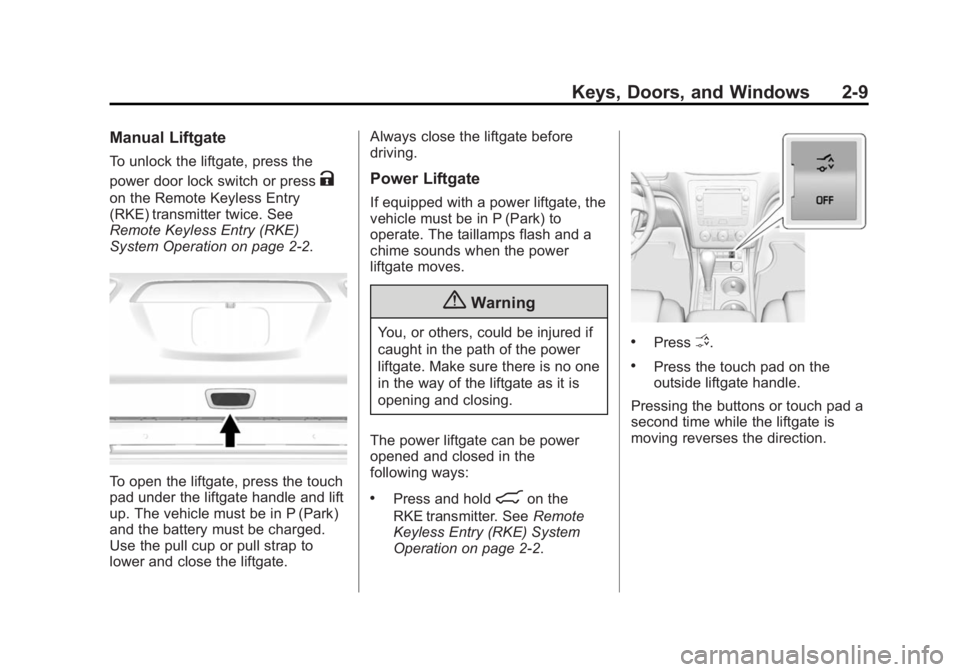
To open the liftgate, press the touch
pad under the liftgate handle and lift
up. The vehicle must be in P (Park)
and the battery must be charged.
Use the pull cup or pull strap to
lower and close the liftgate.Always close the liftgate before
driving.
Power Liftgate
If equipped with a power liftgate, the
vehicle must be in P (Park) to
operate. The taillamps flash and a
chime sounds when the power
liftgate moves.
{Warning
You, or others, could be injured if
caught in the path of the power
liftgate. Make sure there is no one
in the way of the liftgate as it is
opening and closing.
The power liftgate can be power
opened and closed in the
following ways:
.Press and hold8on the
RKE transmitter. See Remote
Keyless Entry (RKE) System
Operation on page 2-2.
.PressO.
.Press the touch pad on the
outside liftgate handle.
Pressing the buttons or touch pad a
second time while the liftgate is
moving reverses the direction.
Page 47 of 407
Black plate (16,1)GMC Acadia/Acadia Denali Owner Manual (GMNA-Localizing-U.S./Canada/
Mexico-7576030) - 2015 - CRC - 8/18/14
2-16 Keys, Doors, and Windows
Automatic Dimming
Mirror
If equipped, the driver outside mirror
automatically adjusts for the glare of
the headlamps from behind. See
Automatic Dimming Rearview Mirror
on page 2-17.
Park Tilt Mirrors
If equipped with memory seats, the
passenger and/or driver mirror tilts
to a preselected position when the
vehicle is in R (Reverse). This
allows the curb to be seen when
parallel parking.The mirror(s) return to the original
position when:
.The vehicle is shifted out of
R (Reverse), or remains in
R (Reverse) for about
30 seconds.
.The ignition is turned off.
.The vehicle is driven in
R (Reverse) above a set speed.
To turn this feature on or off, see
Vehicle Personalization on
page 5-42.
Interior Mirrors
Interior Rearview Mirrors
Adjust the rearview mirror for a clear
view of the area behind your
vehicle.
If equipped with OnStar, the vehicle
may have three control buttons at
the bottom of the mirror. See your
dealer for more information about
OnStar and how to subscribe to it.
See “Onstar,” if equipped.
Do not spray glass cleaner directly
on the mirror. Use a soft towel
dampened with water.
Manual Rearview Mirror
If equipped, push the tab forward for
daytime use and pull it for nighttime
use to avoid glare from the
headlamps from behind.
Page 58 of 407
Black plate (7,1)GMC Acadia/Acadia Denali Owner Manual (GMNA-Localizing-U.S./Canada/
Mexico-7576030) - 2015 - CRC - 8/18/14
Seats and Restraints 3-7
Storing Memory Positions
To save into memory:
1. Adjust the driver seat andseatback recliner, both outside
mirrors, and the power steering
column (if equipped).
Not all vehicles will have the
ability to save and recall the
mirror positions.
2. Press and hold “1”until
two beeps sound.
3. Repeat for a second driver position using “2.”
To recall, press and release “1”or
“2.” The vehicle must be in P (Park).
A single beep will sound. The seat,
outside mirrors, and power steering
column (if equipped) will move to
the positions previously stored for
the identified driver. Memory Remote Recall
The memory feature can recall the
driver seat, outside mirrors, and
power steering column (if equipped)
to stored positions when entering
the vehicle.
To activate, unlock the driver door
with the Remote Keyless
Entry (RKE) transmitter. The driver
seat, outside mirrors, and power
steering column (if equipped) will
move to the memory positions
associated with the transmitter used
to unlock the vehicle.
This feature is turned on or off using
the vehicle personalization menu.
See
Vehicle Personalization on
page 5-42.
To stop recall movement, press one
of the power seat controls, memory
buttons, power mirror buttons, or the
power steering column control (if
equipped).
If something has blocked the driver
seat and/or steering column while
recalling a memory position, the recall may stop. Remove the
obstruction; then press and hold the
appropriate manual control for the
memory item that is not recalling for
two seconds. Try recalling the
memory position again by pressing
the appropriate memory button.
If the memory position is still not
recalling, see your dealer for
service.
Easy Exit Driver Seat
The easy exit feature can move the
driver seat rearward and the power
steering column (if equipped) up
and forward to allow extra room to
exit the vehicle.
S(Easy Exit Positions):
Press to
activate the recall. The vehicle must
be in P (Park).
If this feature is programmed on in
the vehicle personalization menu,
automatic driver seat and power
steering column movement occur
when the ignition key is removed.
Page 59 of 407
Black plate (8,1)GMC Acadia/Acadia Denali Owner Manual (GMNA-Localizing-U.S./Canada/
Mexico-7576030) - 2015 - CRC - 8/18/14
3-8 Seats and Restraints
A single beep sounds. The driver
seat moves back approximately
8 cm (3 in) and the power steering
column (if equipped) moves up and
forward. To move the seat back
farther, press
Sagain until the seat
is all the way back.
If something has blocked the driver
seat while recalling the exit position,
the recall may stop. Remove the
obstruction; then press and hold the
power seat control rearward for
two seconds. Try recalling the exit
position again. If the exit position is
still not recalling, see your dealer for
service.
See Vehicle Personalization on
page 5-42.
Heated and Cooled Front
Seats
{Warning
If you cannot feel temperature
change or pain to the skin, the
seat heater may cause burns. To
reduce the risk of burns, people
with such a condition should use
care when using the seat heater,
especially for long periods of
time. Do not place anything on
the seat that insulates against
heat, such as a blanket, cushion,
cover, or similar item. This may
cause the seat heater to
overheat. An overheated seat
heater may cause a burn or may
damage the seat.
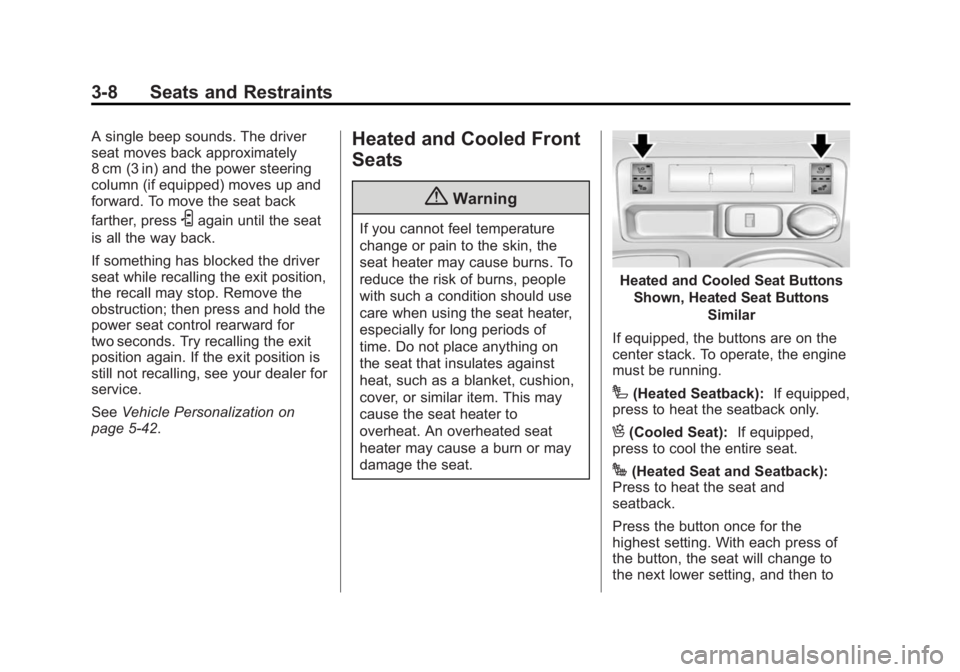
Heated and Cooled Seat Buttons
Shown, Heated Seat Buttons Similar
If equipped, the buttons are on the
center stack. To operate, the engine
must be running.
I(Heated Seatback): If equipped,
press to heat the seatback only.
H(Cooled Seat): If equipped,
press to cool the entire seat.
J(Heated Seat and Seatback):
Press to heat the seat and
seatback.
Press the button once for the
highest setting. With each press of
the button, the seat will change to
the next lower setting, and then to
Page 137 of 407
Black plate (24,1)GMC Acadia/Acadia Denali Owner Manual (GMNA-Localizing-U.S./Canada/
Mexico-7576030) - 2015 - CRC - 8/18/14
5-24 Instruments and Controls
The outside air temperature and
compass, if equipped, also display
on the DIC when viewing the trip
and fuel information. The outside air
temperature automatically appears
in the top right corner of the DIC
display. If there is a problem with
the system that controls the
temperature display, the numbers
will be replaced with dashes. If this
occurs, have the vehicle serviced.
The compass will be shown in the
bottom right corner of the DIC
display. SeeCompass on page 5-4.
The DIC has different displays,
which can be accessed by pressing
the DIC buttons on the center stack.
The DIC also allows some features
to be customized. See Vehicle
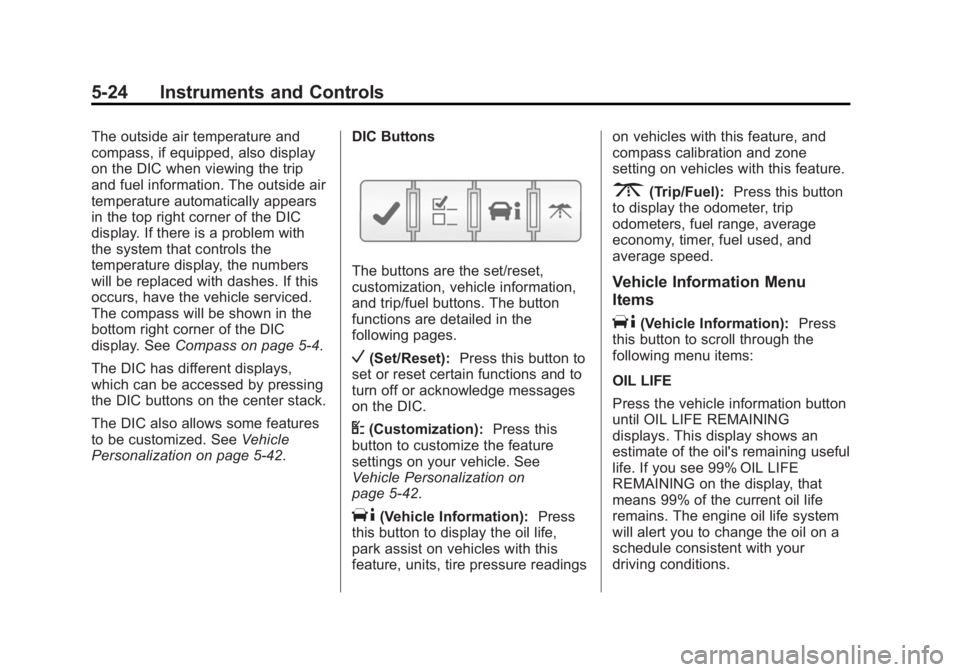
Personalization on page 5-42. DIC Buttons
The buttons are the set/reset,
customization, vehicle information,
and trip/fuel buttons. The button
functions are detailed in the
following pages.
V(Set/Reset):
Press this button to
set or reset certain functions and to
turn off or acknowledge messages
on the DIC.
U(Customization): Press this
button to customize the feature
settings on your vehicle. See
Vehicle Personalization on
page 5-42.
T(Vehicle Information): Press
this button to display the oil life,
park assist on vehicles with this
feature, units, tire pressure readings on vehicles with this feature, and
compass calibration and zone
setting on vehicles with this feature.
3(Trip/Fuel):
Press this button
to display the odometer, trip
odometers, fuel range, average
economy, timer, fuel used, and
average speed.
Vehicle Information Menu
Items
T(Vehicle Information): Press
this button to scroll through the
following menu items:
OIL LIFE
Press the vehicle information button
until OIL LIFE REMAINING
displays. This display shows an
estimate of the oil's remaining useful
life. If you see 99% OIL LIFE
REMAINING on the display, that
means 99% of the current oil life
remains. The engine oil life system
will alert you to change the oil on a
schedule consistent with your
driving conditions.
Page 145 of 407
Black plate (32,1)GMC Acadia/Acadia Denali Owner Manual (GMNA-Localizing-U.S./Canada/
Mexico-7576030) - 2015 - CRC - 8/18/14
5-32 Instruments and Controls
All formats will show the
Turn-By-Turn navigation information
and provide details about the next
driving maneuver to be made. When
you near your destination, the HUD
will display a distance bar that will
fill in the closer you get to your
destination. All navigation
information is provided to the HUD
by the navigation radio, if equipped.
Care of the HUD
Clean the inside of the windshield
as needed to remove any dirt or film
that could reduce the sharpness or
clarity of the HUD image.
To clean the HUD lens, use a soft,
clean cloth that has household glass
cleaner sprayed on it. Wipe the
HUD lens gently, then dry it. Do not
spray cleaner directly on the lens
because the cleaner could leak into
the unit.
HUD Troubleshooting
Check that:
.Nothing is covering the
HUD lens.
.HUD brightness setting is not
too dim or too bright.
.HUD is adjusted to the proper
height.
.Polarized sunglasses are
not worn.
.Windshield and HUD lens are
clean.
If the HUD image is not correct,
contact your dealer.
The windshield is part of the HUD
system. See Windshield
Replacement on page 10-25.
Vehicle Messages
Messages are displayed on the DIC
to notify the driver that the status of
the vehicle has changed and that
some action may be needed by the
driver to correct the condition.
Multiple messages may appear one
after another.
Some messages may not require
immediate action, but you can press
any of the DIC buttons on the
instrument panel to acknowledge
that you received the messages and
to clear them from the display.
Some messages cannot be cleared
from the DIC display because they
are more urgent. These messages
require action before they can be
cleared. You should take any
messages that appear on the
display seriously and remember that
clearing the messages will only
make the messages disappear, not
correct the problem.