buttons GMC ACADIA 2016 User Guide
[x] Cancel search | Manufacturer: GMC, Model Year: 2016, Model line: ACADIA, Model: GMC ACADIA 2016Pages: 371, PDF Size: 5.28 MB
Page 147 of 371
GMC Acadia/Acadia Denali Owner Manual (GMNA-Localizing-U.S./Canada/
Mexico-9159268) - 2016 - crc - 7/31/15
146 Instruments and Controls
for this feature. Then press the
customization button to scroll
through the following settings:
RESTORE ALL (default) :The
customization features will be set to
their factory default settings.
DO NOT RESTORE : The
customization features will not be
set to their factory default settings.
To select a setting, press the set/
reset button while the desired
setting is displayed on the DIC.
EXIT FEATURE SETTINGS
This feature allows you to exit the
feature settings menu.
Press the customization button until
FEATURE SETTINGS PRESS
V
TO EXIT appears in the DIC display.
Press the set/reset button once to
exit the menu.
If you do not exit, pressing the
customization button again will
return you to the beginning of the
feature settings menu.
Exiting the Feature
Settings Menu
The feature settings menu will be
exited when any of the following
occurs:
. The vehicle is shifted out of
P (Park).
. The vehicle is no longer in
ON/RUN.
. The trip/fuel or vehicle
information DIC buttons are
pressed.
. The end of the feature settings
menu is reached and exited.
. A 40-second time period has
elapsed with no selection made.
Universal Remote
System
See Radio Frequency Statement
0 346.
Universal Remote System
Programming
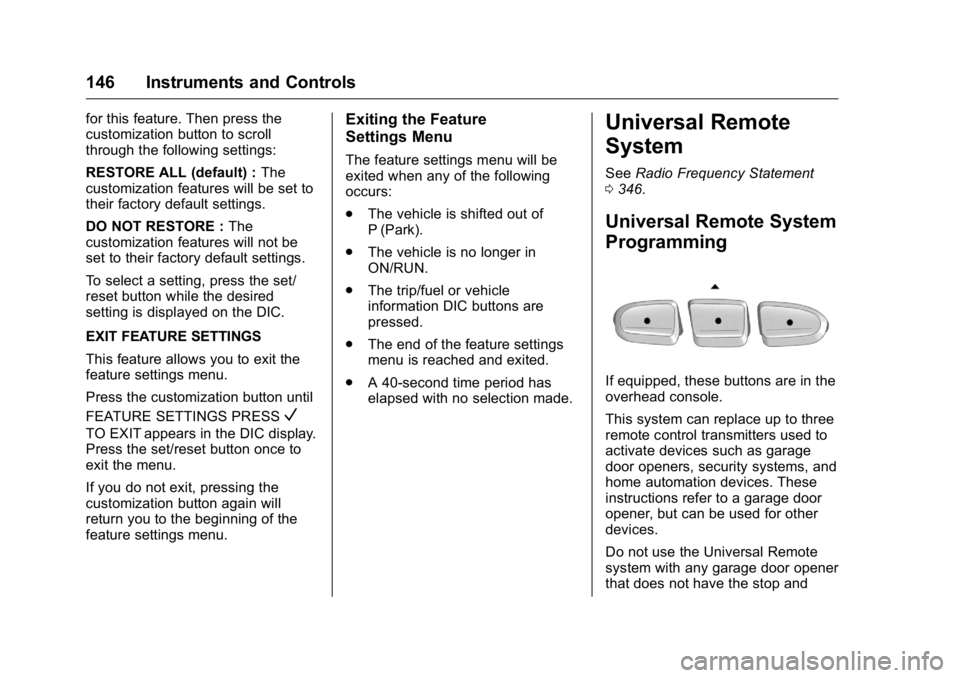
If equipped, these buttons are in the
overhead console.
This system can replace up to three
remote control transmitters used to
activate devices such as garage
door openers, security systems, and
home automation devices. These
instructions refer to a garage door
opener, but can be used for other
devices.
Do not use the Universal Remote
system with any garage door opener
that does not have the stop and
Page 148 of 371
GMC Acadia/Acadia Denali Owner Manual (GMNA-Localizing-U.S./Canada/
Mexico-9159268) - 2016 - crc - 7/31/15
Instruments and Controls 147
reverse feature. This includes any
garage door opener model
manufactured before April 1, 1982.
Read these instructions completely
before programming the Universal
Remote system. It may help to have
another person assist with the
programming process.
Keep the original hand-held
transmitter for use in other vehicles
as well as for future programming.
Erase the programming when
vehicle ownership is terminated.
See“Erasing Universal Remote
System Buttons” later in this
section.
To program a garage door opener,
park outside directly in line with and
facing the garage door opener
receiver. Clear all people and
objects near the garage door.
Make sure the hand-held transmitter
has a new battery for quicker and
more accurate transmission of the
radio-frequency signal.Programming the Universal
Remote System
For questions or help programming
the Universal Remote system, call
1-800-355-3515 or see
www.homelink.com.
Programming involves
time-sensitive actions, and may time
out causing the procedure to be
repeated.
To program up to three devices:
1. Hold the end of the hand-held transmitter about 3 to 8 cm (1
to 3 in) away from the
Universal Remote system
buttons with the indicator light
in view. The hand-held
transmitter was supplied by the
manufacturer of the garage
door opener receiver.
2. At the same time, press and hold both the hand-held
transmitter button and one of
the three Universal Remote
system buttons to be used to
operate the garage door. Do
not release either button until the indicator light changes from
a slow to a rapid flash. Then
release both buttons.
Some garage door openers
may require substitution of
Step 2 with the procedure
under
“Radio Signals for
Canada and Some Gate
Operators” later in this section.
3. Press and hold the newly programmed Universal Remote
system button for five seconds
while watching the indicator
light and garage door
activation.
.If the indicator light stays on
continuously or the garage
door moves when the
button is pressed, then
programming is complete.
There is no need to
complete Steps 4–6.
. If the indicator light does
not come on or the garage
door does not move, a
second button press may
be required. For a second
time, press and hold the
newly programmed button
Page 149 of 371
GMC Acadia/Acadia Denali Owner Manual (GMNA-Localizing-U.S./Canada/
Mexico-9159268) - 2016 - crc - 7/31/15
148 Instruments and Controls
for five seconds. If the light
stays on or the garage door
moves, programming is
complete.
. If the indicator light blinks
rapidly for two seconds,
then changes to a solid light
and the garage door does
not move, continue with
programming Steps 4–6.
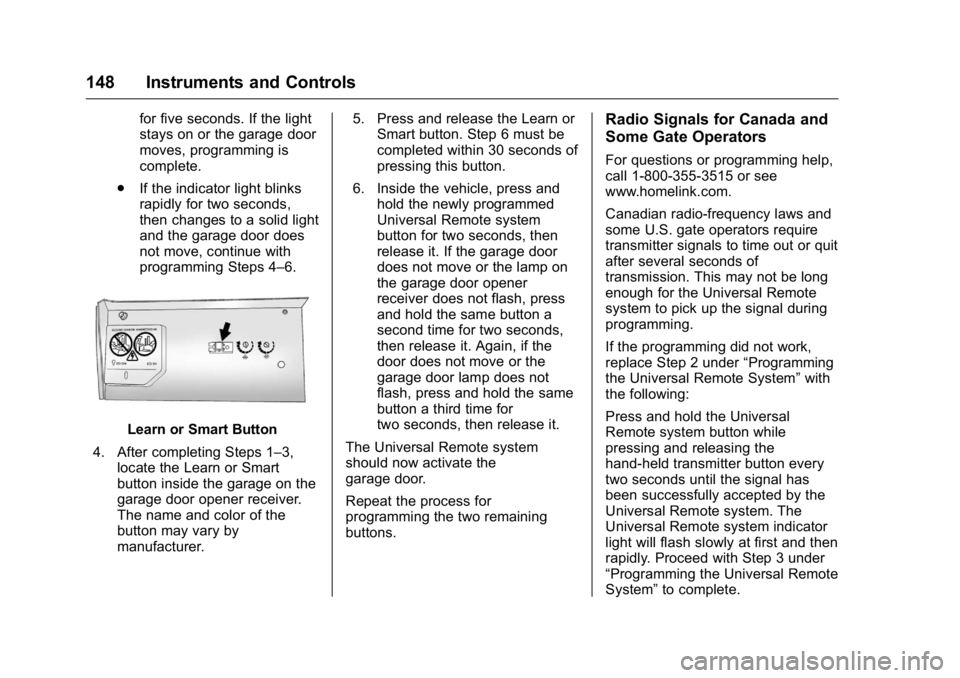
Learn or Smart Button
4. After completing Steps 1–3, locate the Learn or Smart
button inside the garage on the
garage door opener receiver.
The name and color of the
button may vary by
manufacturer. 5. Press and release the Learn or
Smart button. Step 6 must be
completed within 30 seconds of
pressing this button.
6. Inside the vehicle, press and hold the newly programmed
Universal Remote system
button for two seconds, then
release it. If the garage door
does not move or the lamp on
the garage door opener
receiver does not flash, press
and hold the same button a
second time for two seconds,
then release it. Again, if the
door does not move or the
garage door lamp does not
flash, press and hold the same
button a third time for
two seconds, then release it.
The Universal Remote system
should now activate the
garage door.
Repeat the process for
programming the two remaining
buttons.
Radio Signals for Canada and
Some Gate Operators
For questions or programming help,
call 1-800-355-3515 or see
www.homelink.com.
Canadian radio-frequency laws and
some U.S. gate operators require
transmitter signals to time out or quit
after several seconds of
transmission. This may not be long
enough for the Universal Remote
system to pick up the signal during
programming.
If the programming did not work,
replace Step 2 under “Programming
the Universal Remote System” with
the following:
Press and hold the Universal
Remote system button while
pressing and releasing the
hand-held transmitter button every
two seconds until the signal has
been successfully accepted by the
Universal Remote system. The
Universal Remote system indicator
light will flash slowly at first and then
rapidly. Proceed with Step 3 under
“Programming the Universal Remote
System” to complete.
Page 150 of 371
GMC Acadia/Acadia Denali Owner Manual (GMNA-Localizing-U.S./Canada/
Mexico-9159268) - 2016 - crc - 7/31/15
Instruments and Controls 149
Universal Remote System
Operation
Using the Universal Remote
System
Press and hold the appropriate
Universal Remote system button for
at least one-half second. The
indicator light will come on while the
signal is being transmitted.
Erasing Universal Remote
System Buttons
Erase all programmed buttons when
vehicle ownership is terminated.
To erase:1. Press and hold the two outside buttons until the indicator light
begins to flash. This should
take about 10 seconds.
2. Release both buttons.
Reprogramming a Single
Universal Remote System
Button
To reprogram any of the system
buttons: 1. Press and hold any one of the buttons. Do not release the
button.
2. The indicator light will begin to flash after 20 seconds. Without
releasing the button, proceed
with Step 1 under
“Programming the Universal
Remote System.”
Page 159 of 371
GMC Acadia/Acadia Denali Owner Manual (GMNA-Localizing-U.S./Canada/
Mexico-9159268) - 2016 - crc - 7/31/15
158 Infotainment System
functions may gray out when they
are unavailable. Many infotainment
features are also available through
the instrument cluster and steering
wheel controls.
Before driving:
.Become familiar with the
operation, faceplate buttons, and
screen buttons.
. Set up the audio by presetting
favorite stations, setting the
tone, and adjusting the
speakers.
. Set up phone numbers in
advance so they can be called
easily by pressing a single
button or by using a single voice
command if equipped with
Bluetooth phone capability.
See Defensive Driving 0194.
To play the infotainment system with
the ignition off, see Retained
Accessory Power (RAP) 0208.Theft-Deterrent Feature
TheftLock®is designed to
discourage theft of the vehicle's
radio by learning a portion of the
Vehicle Identification Number (VIN).
The radio does not operate if it is
stolen or moved to a different
vehicle.
Page 160 of 371
GMC Acadia/Acadia Denali Owner Manual (GMNA-Localizing-U.S./Canada/
Mexico-9159268) - 2016 - crc - 7/31/15
Infotainment System 159
Overview
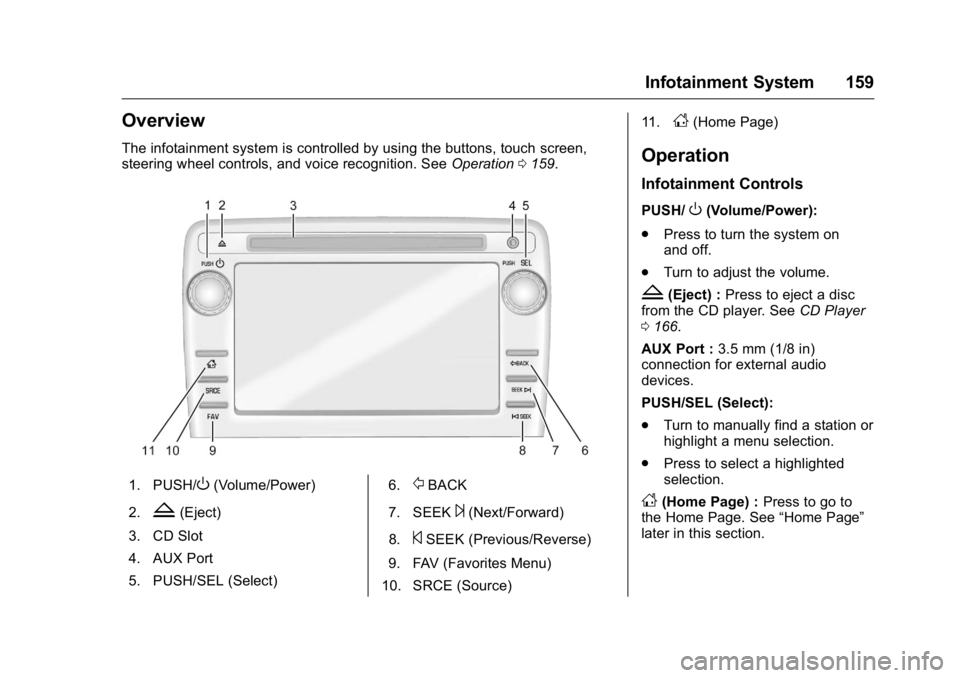
The infotainment system is controlled by using the buttons, touch screen,
steering wheel controls, and voice recognition. SeeOperation0159.
1. PUSH/O(Volume/Power)
2.
Z(Eject)
3. CD Slot
4. AUX Port
5. PUSH/SEL (Select) 6.
/BACK
7. SEEK
¨(Next/Forward)
8.
©SEEK (Previous/Reverse)
9. FAV (Favorites Menu)
10. SRCE (Source) 11.
D(Home Page)
Operation
Infotainment Controls
PUSH/O(Volume/Power):
. Press to turn the system on
and off.
. Turn to adjust the volume.
Z(Eject) : Press to eject a disc
from the CD player. See CD Player
0 166.
AUX Port : 3.5 mm (1/8 in)
connection for external audio
devices.
PUSH/SEL (Select):
. Turn to manually find a station or
highlight a menu selection.
. Press to select a highlighted
selection.
D(Home Page) : Press to go to
the Home Page. See “Home Page”
later in this section.
Page 161 of 371
GMC Acadia/Acadia Denali Owner Manual (GMNA-Localizing-U.S./Canada/
Mexico-9159268) - 2016 - crc - 7/31/15
160 Infotainment System
SRCE (Source) :Press to switch
between AM, FM, CD, and if
equipped, SiriusXM
®, front auxiliary,
rear auxiliary, and iPod/USB.
Press and hold to mute/pause the
system. Press and hold again to
unmute/resume the system.
FAV (Favorites Menu) : In AM, FM,
or SiriusXM (if equipped), press to
change the current favorite page
number above the preset buttons.
Keep pressing to scroll through the
favorites pages. The stored stations
for each list display on the bottom of
the screen. The number of preset
Favorite Pages can be changed by
pressing the Settings button on a
Home Page, then pressing
Favorites Pages, and then selecting
the number of Favorite Pages.
©SEEK (Previous/Reverse):
. AM, FM, SiriusXM (if equipped):
Press to seek to the previous
strong station. Press and hold
for Scan. Press
©again to stop
the scan. .
CD, USB: Press to seek to the
beginning of the current or
previous track.
. CD, USB: Press and hold to
quickly reverse through a track.
Release the button to return to
playing speed. See CD Player
0 166 andAuxiliary Devices
0 169.
SEEK
¨(Next/Forward):
. AM, FM, SiriusXM (if equipped):
Press to seek to the next strong
station. Press and hold for Scan.
Press
¨again to stop the scan.
. CD, USB: Press to seek or skip
the next track or program.
. CD, USB: Press and hold to fast
forward through a track. Release
the button to return to playing
speed. See CD Player0166
and Auxiliary Devices 0169.
/BACK : Press to return to the
previous screen in a menu.
Touchscreen Buttons
Touchscreen buttons are visible on
the screen when available. When a
function is unavailable, the button
may gray out. When a function is
selected, the button may highlight or
animate.
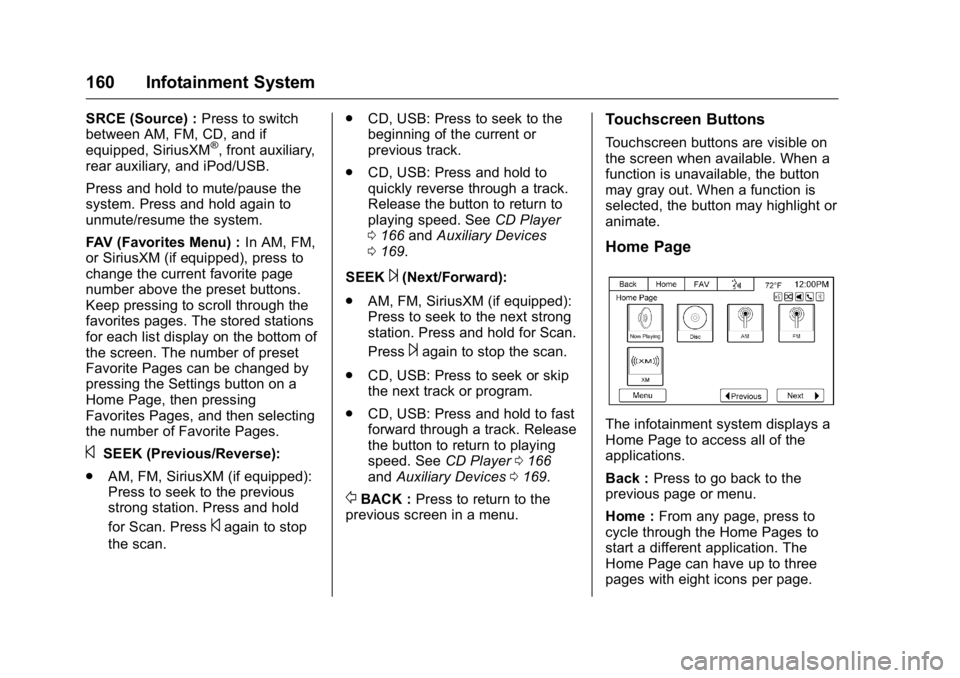
Home Page
The infotainment system displays a
Home Page to access all of the
applications.
Back : Press to go back to the
previous page or menu.
Home : From any page, press to
cycle through the Home Pages to
start a different application. The
Home Page can have up to three
pages with eight icons per page.
Page 165 of 371
GMC Acadia/Acadia Denali Owner Manual (GMNA-Localizing-U.S./Canada/
Mexico-9159268) - 2016 - crc - 7/31/15
164 Infotainment System
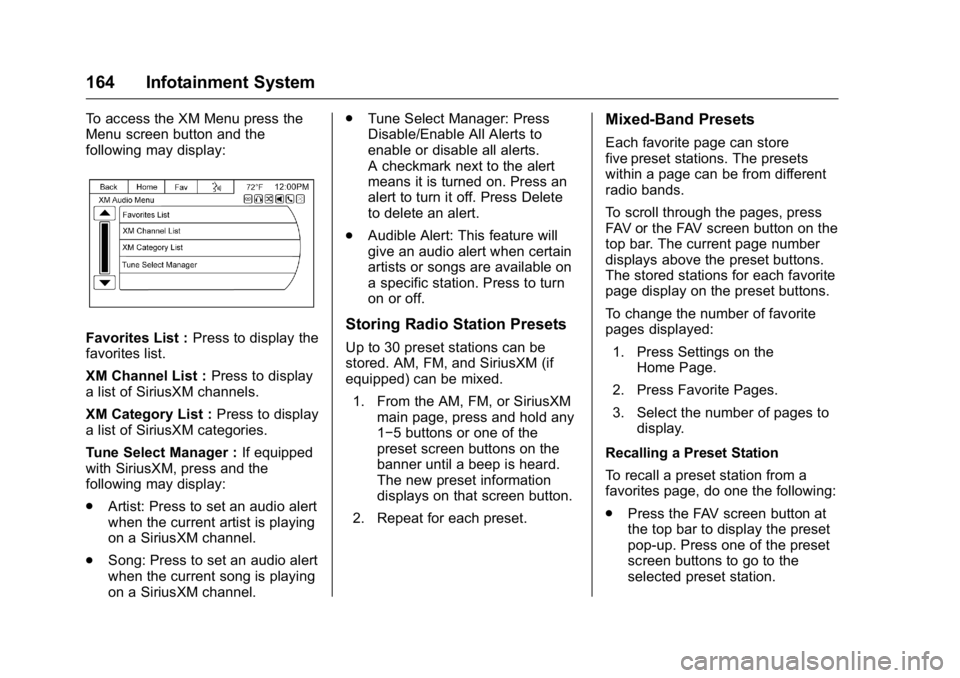
To access the XM Menu press the
Menu screen button and the
following may display:
Favorites List :Press to display the
favorites list.
XM Channel List : Press to display
a list of SiriusXM channels.
XM Category List : Press to display
a list of SiriusXM categories.
Tune Select Manager : If equipped
with SiriusXM, press and the
following may display:
. Artist: Press to set an audio alert
when the current artist is playing
on a SiriusXM channel.
. Song: Press to set an audio alert
when the current song is playing
on a SiriusXM channel. .
Tune Select Manager: Press
Disable/Enable All Alerts to
enable or disable all alerts.
A checkmark next to the alert
means it is turned on. Press an
alert to turn it off. Press Delete
to delete an alert.
. Audible Alert: This feature will
give an audio alert when certain
artists or songs are available on
a specific station. Press to turn
on or off.Storing Radio Station Presets
Up to 30 preset stations can be
stored. AM, FM, and SiriusXM (if
equipped) can be mixed.
1. From the AM, FM, or SiriusXM main page, press and hold any
1−5 buttons or one of the
preset screen buttons on the
banner until a beep is heard.
The new preset information
displays on that screen button.
2. Repeat for each preset.
Mixed-Band Presets
Each favorite page can store
five preset stations. The presets
within a page can be from different
radio bands.
To scroll through the pages, press
FAV or the FAV screen button on the
top bar. The current page number
displays above the preset buttons.
The stored stations for each favorite
page display on the preset buttons.
To change the number of favorite
pages displayed: 1. Press Settings on the Home Page.
2. Press Favorite Pages.
3. Select the number of pages to display.
Recalling a Preset Station
To recall a preset station from a
favorites page, do one the following:
. Press the FAV screen button at
the top bar to display the preset
pop-up. Press one of the preset
screen buttons to go to the
selected preset station.
Page 166 of 371
GMC Acadia/Acadia Denali Owner Manual (GMNA-Localizing-U.S./Canada/
Mexico-9159268) - 2016 - crc - 7/31/15
Infotainment System 165
.In the AM, FM, or SiriusXM (if
equipped) main page, press one
of the preset screen buttons to
go to the selected preset station.
Satellite Radio
If equipped, vehicles with a valid
SiriusXM®satellite radio
subscription can receive SiriusXM
programming.
SiriusXM satellite radio has a wide
variety of programming and
commercial-free music, coast to
coast, and in digital-quality sound.
For more information, see
www.siriusxm.com or call
1-866-635-2349 (U.S.) and
www.xmradio.ca or call
1-877-209-0079 (Canada).
When SiriusXM is active, the station
name, number, category name,
song title, and artist display on the
screen. SiriusXM may update the
background picture at any time.
SiriusXM Categories
SiriusXM stations are organized in
categories.
Adding or Removing SiriusXM
Categories
Using the home page:
1. Press the Settings screen button on the Home Page.
2. Select XM Categories.
3. Select or deselect a category. A checkmark will indicate that
the category is selected.
Press “Show All XM Categories” to
restore all SiriusXM categories.
Radio Reception
Frequency interference and static
can occur during normal radio
reception if items such as phone
chargers, vehicle convenience
accessories, and external electronic
devices are plugged into the
accessory power outlet. If there is
interference or static, unplug the
item from the accessory power
outlet.
FM
FM signals only reach about 16 to
65 km (10 to 40 mi). Although the
radio has a built-in electronic circuit
that automatically works to reduce
interference, some static can occur,
especially around tall buildings or
hills, causing the sound to fade in
and out.
AM
The range for most AM stations is
greater than for FM, especially at
night. The longer range can cause
station frequencies to interfere with
each other. Static can also occur
when things like storms and power
lines interfere with radio reception.
When this happens, try reducing the
treble on the radio.
SiriusXM Satellite Radio
Service
If equipped, SiriusXM Satellite
Radio Service provides digital radio
reception. Tall buildings or hills can
interfere with satellite radio signals,
causing the sound to fade in and
out. In addition, traveling or standing
under heavy foliage, bridges,
Page 169 of 371
GMC Acadia/Acadia Denali Owner Manual (GMNA-Localizing-U.S./Canada/
Mexico-9159268) - 2016 - crc - 7/31/15
168 Infotainment System
.The road is very rough. Try the
disc again when the road is
smoother.
. The disc is dirty, scratched, wet,
or upside down.
. The air is very humid. Try the
disc again later.
. There was a problem while
burning the disc.
. The label is caught in the player.
If the CD is not playing correctly, for
any other reason, try a known
good CD.
If any error continues, contact your
dealer.
MP3
Playing an MP3 CD
To play an MP3 CD, follow the same
instructions as “Playing an
Audio CD.”
The following guidelines must be
met when creating an MP3 disc,
otherwise the CD might not play: .
Sampling rate: 16 kHz,
22.05 kHz, 24 kHz, 32 kHz,
44.1 kHz, and 48 kHz.
. Bit rates supported: 8, 16, 24,
32, 40, 48, 56, 64, 80, 96, 112,
128, 144, 160, 192, 224, 256,
and 320 kbps.
. Maximum number of folders:
eight folders with 255 files per
folder.
. Maximum of 1,000 files on
a disc.
. Recorded on a CD-R or CD-RW
with a maximum capacity of
700 MB.
. The Artist/Album/Song Titles/
Genre information requires a CD
to be fully scanned before the
music navigator works with
these menus. MP3 Audio
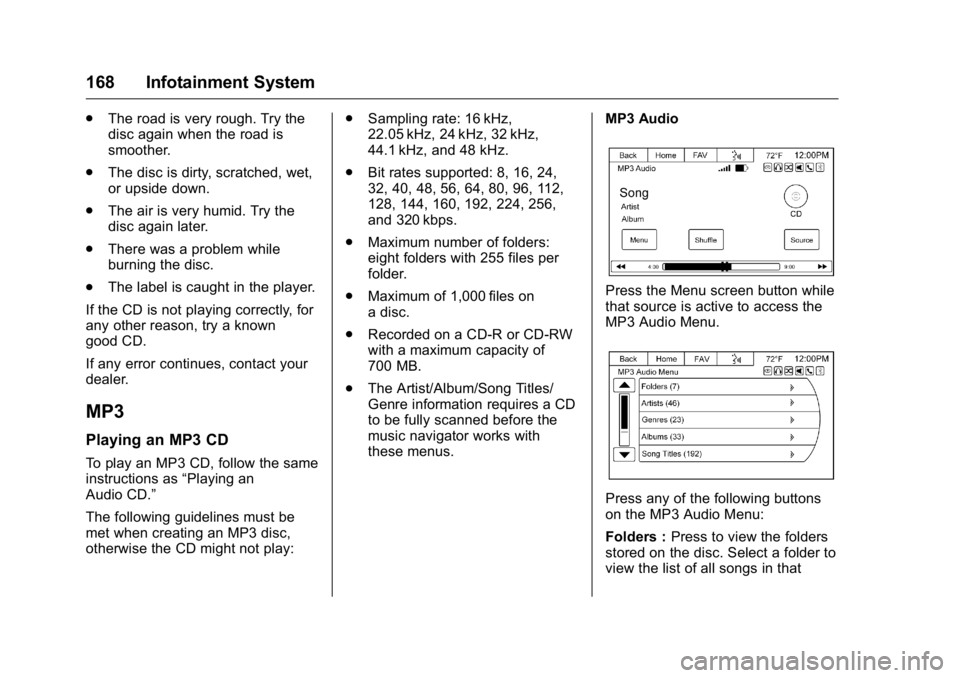
Press the Menu screen button while
that source is active to access the
MP3 Audio Menu.
Press any of the following buttons
on the MP3 Audio Menu:
Folders :
Press to view the folders
stored on the disc. Select a folder to
view the list of all songs in that