wheel GMC ACADIA 2016 Owner's Guide
[x] Cancel search | Manufacturer: GMC, Model Year: 2016, Model line: ACADIA, Model: GMC ACADIA 2016Pages: 371, PDF Size: 5.28 MB
Page 130 of 371

GMC Acadia/Acadia Denali Owner Manual (GMNA-Localizing-U.S./Canada/
Mexico-9159268) - 2016 - crc - 7/31/15
Instruments and Controls 129
information, warnings,
or Turn-By-Turn navigation
information are displayed on
the HUD.
The HUD control is to the right of
the steering wheel.
To adjust the HUD image so that
items are properly displayed:1. Adjust the driver seat to a comfortable position.
2. Start the engine.
3. Adjust the HUD controls.
Use the following settings to adjust
the HUD: 9
(Off): To turn HUD off, rotate the
dimming knob fully counterclockwise
until the HUD display turns off.
Brightness: Turn the knob on the
HUD control clockwise or
counterclockwise to brighten or dim
the display.
y(Up) orz(Down): Press the up
or down arrows to center the HUD
image in your view. The HUD image
can only be adjusted up and down,
not side to side.
? (Page): Press this button to
select the display formats. Release
the page button when the format
number with the desired display is
shown on the HUD.
The HUD image displayed on the
windshield will automatically dim
and brighten to compensate for
outside lighting.
The HUD image can temporarily
light up depending on the angle and
position of the sunlight on the HUD
display. This is normal and will
change when the angle of the
sunlight on the HUD display
changes. Polarized sunglasses could make
the HUD image harder to see.
The three formats are:
English
Metric
Format One : This display gives the
speedometer reading (in English or
metric units), turn signal indication,
high-beam indication, transmission
positions, and outside air
temperature.
Page 137 of 371
GMC Acadia/Acadia Denali Owner Manual (GMNA-Localizing-U.S./Canada/
Mexico-9159268) - 2016 - crc - 7/31/15
136 Instruments and Controls
SERVICE SIDE DETECTION
SYSTEM
If your vehicle has the Side Blind
Zone Alert (SBZA) system and this
message displays, both SBZA
displays will remain on indicating
there is a problem with the SBZA
system. If these displays remain on
after continued driving, the system
needs service. See your dealer. See
Side Blind Zone Alert (SBZA)0226.
SIDE BLIND ZONE ALERT
SYSTEM OFF
If your vehicle has the Side Blind
Zone Alert (SBZA) system, this
message displays when the SBZA
system has been turned off. See
Side Blind Zone Alert (SBZA) 0226
and Driver Information Center (DIC)
0 123.
SIDE DETECTION SYS
TEMPORARILY OFF
If your vehicle has the Side Blind
Zone Alert (SBZA) system, this
message displays when the SBZA
system is disabled because the
sensor cannot detect vehicles in
your blind zone. The sensor may be blocked by mud, dirt, snow, ice,
or slush. This message may also
display during heavy rain or due to
road spray. It may also come on
when driving in isolated areas with
no guardrails, trees, or road signs
and light traffic. Your vehicle does
not need service. For cleaning
instructions, see
“Washing the
Vehicle” inExterior Care 0311. See
Side Blind Zone Alert (SBZA) 0226.
Ride Control System
Messages
SERVICE STABILITRAK
This message displays if there is a
problem with the StabiliTrak®
system. If this message appears, try
to reset the system. Stop; turn off
the engine for at least 15 seconds;
then start the engine again. If this
message still comes on, it means
there is a problem. See your dealer
for service. The vehicle is safe to
drive, however, you do not have the
benefit of StabiliTrak, so reduce
your speed and drive accordingly.
SERVICE TRACTION
CONTROL
This message displays when there
is a problem with the Traction
Control System (TCS). When this
message is displayed, the system
will not limit wheel spin. Adjust your
driving accordingly. See your dealer
for service. See Traction Control/
Electronic Stability Control 0217 for
more information.
TRACTION CONTROL OFF
This message displays when the
Traction Control System (TCS) is
turned off. Adjust your driving
accordingly. See Traction Control/
Electronic Stability Control 0217.
TRACTION CONTROL ON
This message displays when the
Traction Control System (TCS) is
turned on. See Traction Control/
Electronic Stability Control 0217.
This message clears itself after
10 seconds.
Page 139 of 371
GMC Acadia/Acadia Denali Owner Manual (GMNA-Localizing-U.S./Canada/
Mexico-9159268) - 2016 - crc - 7/31/15
138 Instruments and Controls
Loading Information label. SeeTires
0 275, Vehicle Load Limits 0200,
and Tire Pressure 0282.
The DIC also shows the tire
pressure values. See Driver
Information Center (DIC) 0123.
SERVICE TIRE MONITOR
SYSTEM
On vehicles with the Tire Pressure
Monitor System (TPMS), this
message displays if a part on the
TPMS is not working properly. The
tire pressure light also flashes and
then remains on during the same
ignition cycle. See Tire Pressure
Light 0121. Several conditions may
cause this message to appear. See
Tire Pressure Monitor Operation
0 284 for more information. If the
warning comes on and stays on,
there may be a problem with the
TPMS. See your dealer.
TIRE LEARNING ACTIVE
This message displays when the
Tire Pressure Monitor System
(TPMS) is relearning the tire
positions on your vehicle. The tire
positions must be relearned after rotating the tires or after replacing a
tire or sensor. See
Tire Rotation
0 288, Tire Pressure Monitor
System 0283, and Tire Pressure
0 282 for more information.
Transmission Messages
ALL WHEEL DRIVE OFF
If your vehicle has the All-Wheel
Drive (AWD) system, this message
displays when there is a temporary
condition making the AWD system
unavailable. The vehicle will run in
2WD. This could be caused by:
.
A compact spare tire on the
vehicle
. AWD system overheat
. Loss of wheel or vehicle speed
. Certain other vehicle electrical
conditions
This message turns off when the
compact spare tire is replaced by a
full-size tire, the differential fluid
cools or the above conditions are no
longer present and the warning
message is reset. To reset the
warning message manually, turn the ignition off and then back on again
after 30 seconds. If the message
stays on, see your dealer. See
All-Wheel Drive
0215.
SERVICE ALL WHEEL DRIVE
This message displays if a problem
occurs with the All-Wheel Drive
(AWD) system. The vehicle will run
in 2WD. This could be caused by:
.
An electronics problem
. Worn out or overheated clutch
plates
. Various electrical issues
If this message appears, stop as
soon as possible and turn off the
ignition for 30 seconds. Restart the
vehicle and check for the message
on the DIC display. If the message
still displays or appears again when
you begin driving, the system needs
service. See your dealer right away.
SERVICE TRANSMISSION
This message displays when there
is a problem with the transmission.
See your dealer for service.
Page 145 of 371
GMC Acadia/Acadia Denali Owner Manual (GMNA-Localizing-U.S./Canada/
Mexico-9159268) - 2016 - crc - 7/31/15
144 Instruments and Controls
CHIME VOLUME
This feature allows you to select the
volume level of the chime.
Press the customization button until
CHIME VOLUME appears on the
DIC display. Press the set/reset
button once to access the settings
for this feature. Then press the
customization button to scroll
through the following settings:
NORMAL :The chime volume will
be set to a normal level.
LOUD : The chime volume will be
set to a loud level.
NO CHANGE : No change will be
made to this feature. The current
setting will remain.
There is no default for chime
volume. The volume will stay at the
last known setting.
To select a setting, press the set/
reset button while the desired
setting is displayed on the DIC.
PARK TILT MIRRORS
If your vehicle has this feature, it
allows you to select whether or not
the outside mirror(s) will automatically tilt down when the
vehicle is shifted into R (Reverse).
See
Park Tilt Mirrors 042.
Press the customization button until
PARK TILT MIRRORS appears on
the DIC display. Press the set/reset
button once to access the settings
for this feature. Then press the
customization button to scroll
through the following settings:
OFF (default) : Neither outside
mirror will be tilted down when the
vehicle is shifted into R (Reverse).
DRIVER MIRROR : The driver
outside mirror will be tilted down
when the vehicle is shifted into
R (Reverse).
PASSENGER MIRROR : The
passenger outside mirror will be
tilted down when the vehicle is
shifted into R (Reverse).
BOTH MIRRORS : The driver and
passenger outside mirrors will be
tilted down when the vehicle is
shifted into R (Reverse).
NO CHANGE : No change will be
made to this feature. The current
setting will remain. To select a setting, press the set/
reset button while the desired
setting is displayed on the DIC.
EASY EXIT SEAT
If your vehicle has this feature, it
allows you to select your preference
for the automatic easy exit seat
feature. See
Memory Seats 052.
Press the customization button until
EASY EXIT SEAT appears on the
DIC display. Press the set/reset
button once to access the settings
for this feature. Then press the
customization button to scroll
through the following settings:
OFF (default) : No automatic seat
exit recall will occur.
ON : The driver seat will move back
when the key is removed from the
ignition. The steering column will
also move up and forward on
vehicles with the power tilt and
telescopic steering wheel feature.
See Steering Wheel Adjustment
0 104.
The automatic easy exit seat
movement will only occur one time
after the key is removed from the
Page 146 of 371
GMC Acadia/Acadia Denali Owner Manual (GMNA-Localizing-U.S./Canada/
Mexico-9159268) - 2016 - crc - 7/31/15
Instruments and Controls 145
ignition. If the automatic movement
has already occurred, and you put
the key back in the ignition and
remove it again, the seat and
steering column will stay in the
original exit position, unless a
memory recall took place prior to
removing the key again.
NO CHANGE :No change will be
made to this feature. The current
setting will remain.
To select a setting, press the set/
reset button while the desired
setting is displayed on the DIC.
MEMORY SEAT RECALL
If your vehicle has this feature, it
allows you to select your preference
for the remote memory seat recall
feature. See Memory Seats 052.
Press the customization button until
MEMORY SEAT RECALL appears
on the DIC display. Press the set/
reset button once to access the
settings for this feature. Then press
the customization button to scroll
through the following settings:
OFF (default) : No remote memory
seat recall will occur. ON :
The driver seat and outside
mirrors will automatically move to
the stored driving position when the
unlock button on the Remote
Keyless Entry (RKE) transmitter is
pressed. The steering column will
also move on vehicles with the
power tilt and telescopic steering
wheel feature. See Steering Wheel
Adjustment 0104. See “Memory
Remote Recall” underMemory
Seats 052 for information on
matching transmitters to driver
positions.
NO CHANGE : No change will be
made to this feature. The current
setting will remain.
To select a setting, press the set/
reset button while the desired
setting is displayed on the DIC.
REMOTE START
If your vehicle has this feature, it
allows you to turn the remote start
off or on. The remote start feature
allows you to start the engine from
outside of the vehicle using the
Remote Keyless Entry (RKE)
transmitter. See Remote Vehicle
Start 031. Press the customization button until
REMOTE START appears on the
DIC display. Press the set/reset
button once to access the settings
for this feature. Then press the
customization button to scroll
through the following settings:
OFF :
The remote start feature will
be disabled.
ON (default) : The remote start
feature will be enabled.
NO CHANGE : No change will be
made to this feature. The current
setting will remain.
To select a setting, press the set/
reset button while the desired
setting is displayed on the DIC.
FACTORY SETTINGS
This feature allows you to set all of
the customization features back to
their factory default settings.
Press the customization button until
FACTORY SETTINGS appears on
the DIC display. Press the set/reset
button once to access the settings
Page 151 of 371
GMC Acadia/Acadia Denali Owner Manual (GMNA-Localizing-U.S./Canada/
Mexico-9159268) - 2016 - crc - 7/31/15
150 Lighting
Lighting
Exterior Lighting
Exterior Lamp Controls . . . . . . . 150
Headlamp High/Low-BeamChanger . . . . . . . . . . . . . . . . . . . . 150
Flash-to-Pass . . . . . . . . . . . . . . . . 151
Daytime Running Lamps (DRL)/Automatic Headlamp
System . . . . . . . . . . . . . . . . . . . . . . 151
Delayed Headlamps . . . . . . . . . . 151
Hazard Warning Flashers . . . . . 152
Turn and Lane-Change Signals . . . . . . . . . . . . . . . . . . . . . . 152
Fog Lamps . . . . . . . . . . . . . . . . . . . 152
Interior Lighting
Instrument Panel Illumination Control . . . . . . . . . . . . . . . . . . . . . . 153
Courtesy Lamps . . . . . . . . . . . . . . 153
Dome Lamps . . . . . . . . . . . . . . . . . 153
Reading Lamps . . . . . . . . . . . . . . 154
Lighting Features
Entry Lighting . . . . . . . . . . . . . . . . 154
Delayed Entry Lighting . . . . . . . 155
Delayed Exit Lighting . . . . . . . . . 155
Parade Dimming . . . . . . . . . . . . . 155
Battery Load Management . . . 155
Battery Power Protection . . . . . 156
Exterior Lighting
Exterior Lamp Controls
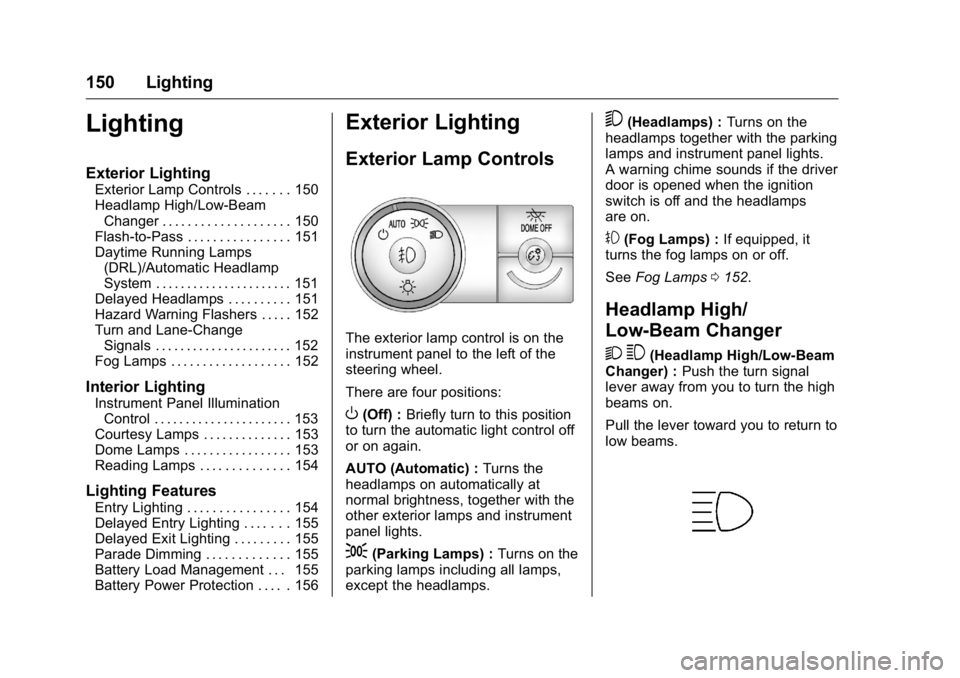
The exterior lamp control is on the
instrument panel to the left of the
steering wheel.
There are four positions:
O(Off) : Briefly turn to this position
to turn the automatic light control off
or on again.
AUTO (Automatic) : Turns the
headlamps on automatically at
normal brightness, together with the
other exterior lamps and instrument
panel lights.
;(Parking Lamps) : Turns on the
parking lamps including all lamps,
except the headlamps.
5(Headlamps) : Turns on the
headlamps together with the parking
lamps and instrument panel lights.
A warning chime sounds if the driver
door is opened when the ignition
switch is off and the headlamps
are on.
#(Fog Lamps) : If equipped, it
turns the fog lamps on or off.
See Fog Lamps 0152.
Headlamp High/
Low-Beam Changer
2 3
(Headlamp High/Low-Beam
Changer) : Push the turn signal
lever away from you to turn the high
beams on.
Pull the lever toward you to return to
low beams.
Page 159 of 371
GMC Acadia/Acadia Denali Owner Manual (GMNA-Localizing-U.S./Canada/
Mexico-9159268) - 2016 - crc - 7/31/15
158 Infotainment System
functions may gray out when they
are unavailable. Many infotainment
features are also available through
the instrument cluster and steering
wheel controls.
Before driving:
.Become familiar with the
operation, faceplate buttons, and
screen buttons.
. Set up the audio by presetting
favorite stations, setting the
tone, and adjusting the
speakers.
. Set up phone numbers in
advance so they can be called
easily by pressing a single
button or by using a single voice
command if equipped with
Bluetooth phone capability.
See Defensive Driving 0194.
To play the infotainment system with
the ignition off, see Retained
Accessory Power (RAP) 0208.Theft-Deterrent Feature
TheftLock®is designed to
discourage theft of the vehicle's
radio by learning a portion of the
Vehicle Identification Number (VIN).
The radio does not operate if it is
stolen or moved to a different
vehicle.
Page 160 of 371
GMC Acadia/Acadia Denali Owner Manual (GMNA-Localizing-U.S./Canada/
Mexico-9159268) - 2016 - crc - 7/31/15
Infotainment System 159
Overview
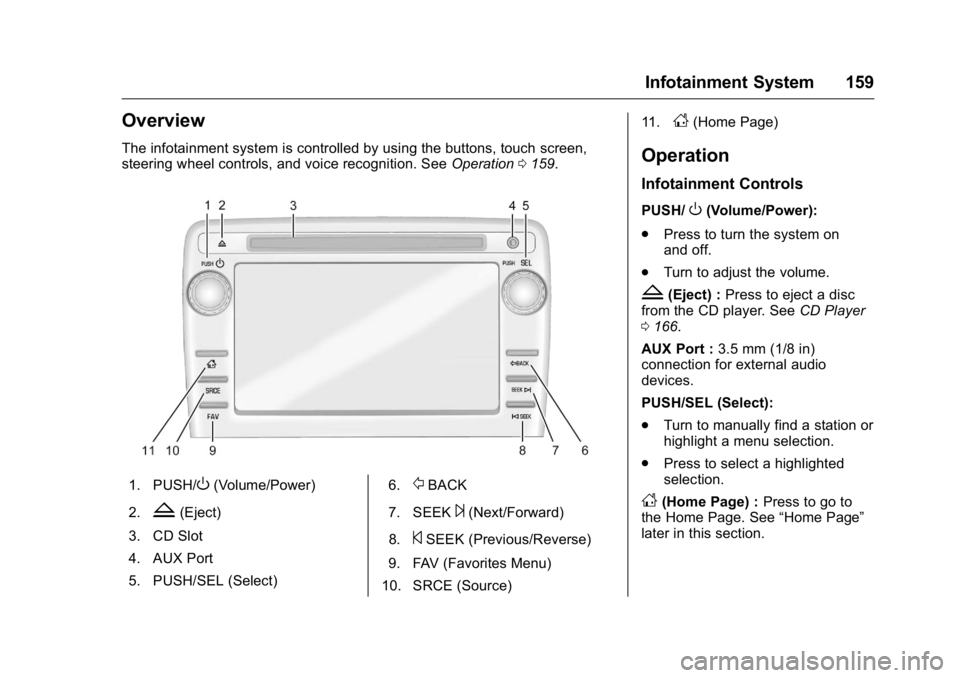
The infotainment system is controlled by using the buttons, touch screen,
steering wheel controls, and voice recognition. SeeOperation0159.
1. PUSH/O(Volume/Power)
2.
Z(Eject)
3. CD Slot
4. AUX Port
5. PUSH/SEL (Select) 6.
/BACK
7. SEEK
¨(Next/Forward)
8.
©SEEK (Previous/Reverse)
9. FAV (Favorites Menu)
10. SRCE (Source) 11.
D(Home Page)
Operation
Infotainment Controls
PUSH/O(Volume/Power):
. Press to turn the system on
and off.
. Turn to adjust the volume.
Z(Eject) : Press to eject a disc
from the CD player. See CD Player
0 166.
AUX Port : 3.5 mm (1/8 in)
connection for external audio
devices.
PUSH/SEL (Select):
. Turn to manually find a station or
highlight a menu selection.
. Press to select a highlighted
selection.
D(Home Page) : Press to go to
the Home Page. See “Home Page”
later in this section.
Page 163 of 371
GMC Acadia/Acadia Denali Owner Manual (GMNA-Localizing-U.S./Canada/
Mexico-9159268) - 2016 - crc - 7/31/15
162 Infotainment System
Radio
AM-FM Radio
Playing the Radio
PUSH/O(Power/Volume):
. Press to turn the radio on or off.
. Turn to increase or decrease the
volume of the active source.
The steering wheel controls can
also be used to adjust the volume.
See Steering Wheel Controls 0105.
Audio Source
To access AM, FM, or SiriusXM
®if
equipped, do one of the following:
. Press the AM, FM, or XM (if
equipped) screen button on the
Home Page.
. Press the SRCE radio button to
scroll through the options.
A source ribbon will appear at
the bottom of the screen
allowing you to select the one
you want.
Infotainment System Settings
Tone Settings
To access the tone settings, press
the Tone Settings button on the
Home Page.
To adjust the settings:
.Bass: Press + or −to change
the level.
. Middle: Press + or −to change
the level.
. Treble: Press + or −to change
the level.
. EQ: Press
oorpto scroll
through the preset EQ options.
. DSP Mode: Press
oorpto
scroll through the preset DSP
modes.
. Fade: Press the F or R button
for more sound from the front or
rear speakers. The middle
position balances the sound
between the front and rear
speakers. .
Balance: Press the L or R button
for more sound from the left or
right speakers. The middle
position balances the sound
between the left and right
speakers.
Finding a Station
Press SRCE to select AM, FM,
or SiriusXM (if equipped).
Turn the PUSH/SEL knob to find a
radio station. To select a preset
station, press FAV to scroll through
the favorite pages and then press a
preset button on the radio or the
screen button.
Seeking a Station
Press
©SEEK or SEEK¨to search
for a station. You may also use the
¨on the steering wheel controls.
Page 175 of 371
GMC Acadia/Acadia Denali Owner Manual (GMNA-Localizing-U.S./Canada/
Mexico-9159268) - 2016 - crc - 7/31/15
174 Infotainment System
ON/RUN or ACC/ACCESSORY
position. The range of the Bluetooth
system can be up to 9.1 m (30 ft).
Not all phones support all functions,
and not all phones work with the
in-vehicle Bluetooth system. See
www.gm.com/bluetooth for more
information on compatible phones.
Voice Recognition
The Bluetooth system uses voice
recognition to interpret voice
commands to dial phone numbers
and name tags.
For additional information, say
“Help”while you are in a voice
recognition menu.
Noise : Keep interior noise levels to
a minimum. The system may not
recognize voice commands if there
is too much background noise.
When to Speak : A short tone
sounds after the system responds
indicating when it is waiting for a
voice command. Wait until the tone
and then speak.
How to Speak : Speak clearly in a
calm and natural voice.
Audio System
When using the in-vehicle Bluetooth
system, sound comes through the
vehicle's front audio system
speakers and overrides the audio
system. Use the audio system
volume knob, during a call, to
change the volume level. The
adjusted volume level remains in
memory for later calls. To prevent
missed calls, a minimum volume
level is used if the volume is turned
down too low.
Bluetooth Controls
Use the buttons located on the
steering wheel to operate the
in-vehicle Bluetooth system. See
Steering Wheel Controls 0105.
b/g(Press To Talk) : Press to
answer incoming calls, confirm
system information, and start
speech recognition.
c/x(End) : Press to end a call,
reject a call, or cancel an operation.
Pairing
A Bluetooth enabled cell phone
must be paired to the Bluetooth
system and then connected to the
vehicle before it can be used. See
the cell phone manufacturer's user
guide for Bluetooth functions before
pairing the cell phone. If a Bluetooth
phone is not connected, calls will be
made using OnStar Hands-Free
Calling, if equipped. See “OnStar”if
equipped.
Pairing Information
. A Bluetooth phone with MP3
capability cannot be paired to
the vehicle as a phone and an
MP3 player at the same time.
. Up to five cell phones can be
paired to the Bluetooth system.
. The pairing process is disabled
when the vehicle is moving.
. Pairing only needs to be
completed once, unless the
pairing information on the cell
phone changes or the cell phone
is deleted from the system.