Tune up GMC ACADIA 2016 Owner's Manual
[x] Cancel search | Manufacturer: GMC, Model Year: 2016, Model line: ACADIA, Model: GMC ACADIA 2016Pages: 371, PDF Size: 5.28 MB
Page 22 of 371
GMC Acadia/Acadia Denali Owner Manual (GMNA-Localizing-U.S./Canada/
Mexico-9159268) - 2016 - crc - 7/31/15
In Brief 21
2. Repeat for each preset.
See AM-FM Radio 0162.
Setting the Clock
See Clock 0108.
Satellite Radio
If equipped, vehicles with a
SiriusXM®satellite radio tuner and a
valid SiriusXM satellite radio
subscription can receive SiriusXM
programming.
SiriusXM Satellite Radio
Service
SiriusXM is a satellite radio service
based in the 48 contiguous United
States and 10 Canadian provinces.
SiriusXM satellite radio has a wide
variety of programming and
commercial-free music, coast to
coast, and in digital-quality sound.
A fee is required to receive the
SiriusXM service.
Refer to:
. www.siriusxm.com or call
1-866-635-2349 (U.S.). .
www.xmradio.ca or call
1-877-209-0079 (Canada).
See Satellite Radio 0165.
Portable Audio Devices
The vehicle has a 3.5 mm (1/8 in)
auxiliary input jack on the faceplate
and a USB port in the center stack.
External devices such as iPods,
laptop computers, MP3 players, CD
changers, USB storage devices,
etc. can be connected to the
auxiliary port using a 3.5 mm (1/8 in)
input jack or the USB port
depending on the audio system.
If equipped, there are two USB
ports on the rear of the center
console that can be used for
charging only. They can charge
devices that draw 2.1 amps or less.
See the device’ s owner manual for
the specification.
See Auxiliary Devices 0169.
Bluetooth®
The Bluetooth®system allows users
with a Bluetooth-enabled mobile
phone to make and receive
hands-free calls using the vehicle
audio system and controls.
The Bluetooth-enabled mobile
phone must be paired with the
in-vehicle Bluetooth system before it
can be used in the vehicle. Not all
phones will support all functions.
See Bluetooth 0173.
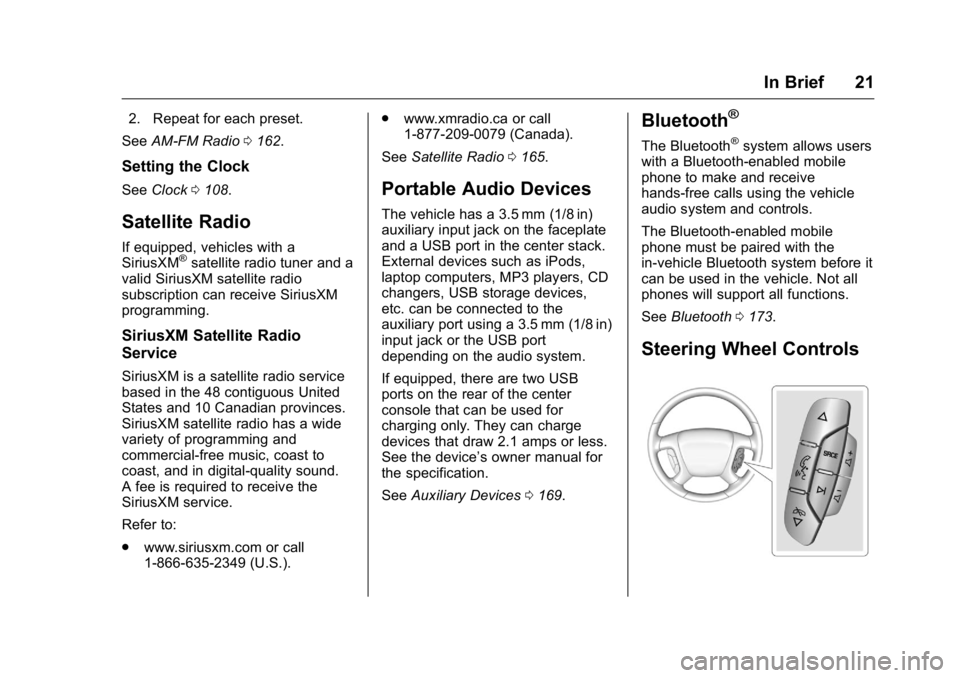
Steering Wheel Controls
Page 165 of 371
GMC Acadia/Acadia Denali Owner Manual (GMNA-Localizing-U.S./Canada/
Mexico-9159268) - 2016 - crc - 7/31/15
164 Infotainment System
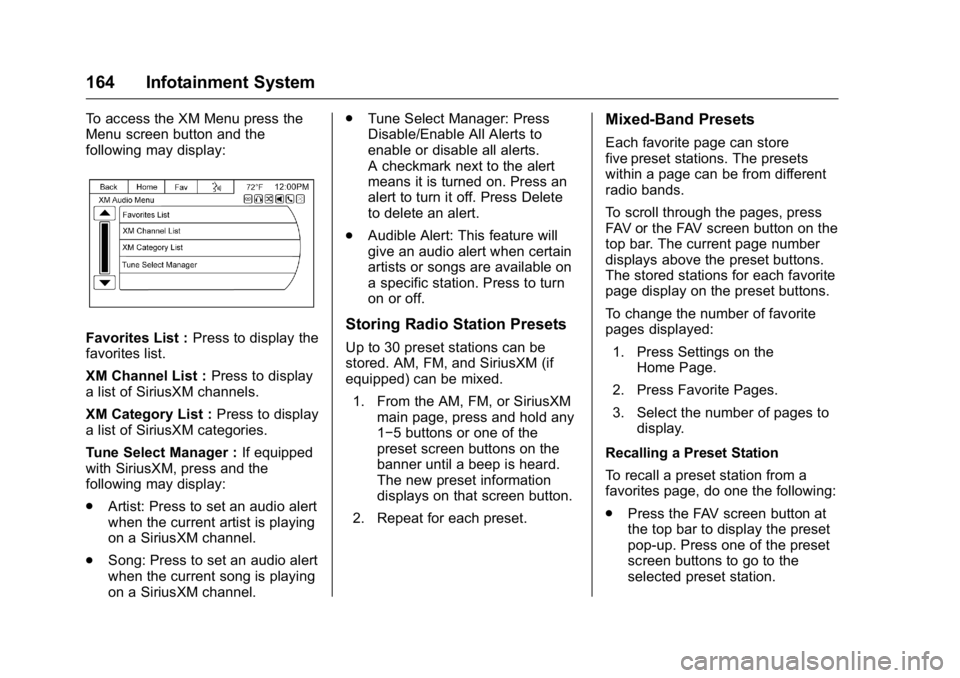
To access the XM Menu press the
Menu screen button and the
following may display:
Favorites List :Press to display the
favorites list.
XM Channel List : Press to display
a list of SiriusXM channels.
XM Category List : Press to display
a list of SiriusXM categories.
Tune Select Manager : If equipped
with SiriusXM, press and the
following may display:
. Artist: Press to set an audio alert
when the current artist is playing
on a SiriusXM channel.
. Song: Press to set an audio alert
when the current song is playing
on a SiriusXM channel. .
Tune Select Manager: Press
Disable/Enable All Alerts to
enable or disable all alerts.
A checkmark next to the alert
means it is turned on. Press an
alert to turn it off. Press Delete
to delete an alert.
. Audible Alert: This feature will
give an audio alert when certain
artists or songs are available on
a specific station. Press to turn
on or off.Storing Radio Station Presets
Up to 30 preset stations can be
stored. AM, FM, and SiriusXM (if
equipped) can be mixed.
1. From the AM, FM, or SiriusXM main page, press and hold any
1−5 buttons or one of the
preset screen buttons on the
banner until a beep is heard.
The new preset information
displays on that screen button.
2. Repeat for each preset.
Mixed-Band Presets
Each favorite page can store
five preset stations. The presets
within a page can be from different
radio bands.
To scroll through the pages, press
FAV or the FAV screen button on the
top bar. The current page number
displays above the preset buttons.
The stored stations for each favorite
page display on the preset buttons.
To change the number of favorite
pages displayed: 1. Press Settings on the Home Page.
2. Press Favorite Pages.
3. Select the number of pages to display.
Recalling a Preset Station
To recall a preset station from a
favorites page, do one the following:
. Press the FAV screen button at
the top bar to display the preset
pop-up. Press one of the preset
screen buttons to go to the
selected preset station.
Page 171 of 371
GMC Acadia/Acadia Denali Owner Manual (GMNA-Localizing-U.S./Canada/
Mexico-9159268) - 2016 - crc - 7/31/15
170 Infotainment System
If equipped, there are two USB
ports on the rear of the center
console that can be used for
charging only. They can charge
devices that draw 2.1 amps or less.
See the device’s owner manual for
the specification.
Using the 3.5 mm (1/8 in)
Auxiliary Input Jack
This is not an audio output; do not
plug a headphone set into the front
auxiliary input jack. Connect an
auxiliary input device such as an
iPod, laptop computer, MP3 player,
CD player, or cassette tape player
to the auxiliary input jack for use as
another source for audio listening.
Drivers are encouraged to set up
any auxiliary device while the
vehicle is in P (Park). See
Defensive Driving 0194 for more
information on driver distraction.
To use an auxiliary input device,
connect a 3.5 mm (1/8 in) cable to
the radio's front auxiliary input jack.
Press SRCE to select the device.
Using the USB Port
The USB port can control a USB
storage device or an iPod using the
radio buttons and knobs.
USB Supported Devices
. USB Flash Drives
. Portable USB Hard Drives
. Fifth generation or later iPod
. iPod classic
®(6th generation)
. iPod nano
®(3G, 4G, 5G,
and 6G)
. iPod touch
®(1G, 2G, 3G,
and 4G)
. iPhone
®(2G, 3G, 3GS, 4, and 5)
. iPad
®(1G, 2G)
Not all iPods and USB drives are
compatible with the USB port.
Make sure the iPod has the latest
firmware from Apple
®for proper
operation. iPod firmware can be
updated using the latest iTunes
®
application. See www.apple.com/
itunes.
For help identifying your iPod, go to
www.apple.com/support.
OnStar System
OnStar®with 4G LTE
If equipped with OnStar 4G LTE, up
to seven devices, such as
smartphones, tablets, and laptops,
can be connected to high-speed
Internet through the vehicle’s built-in
Wi-Fi hotspot.
Page 173 of 371
GMC Acadia/Acadia Denali Owner Manual (GMNA-Localizing-U.S./Canada/
Mexico-9159268) - 2016 - crc - 7/31/15
172 Infotainment System
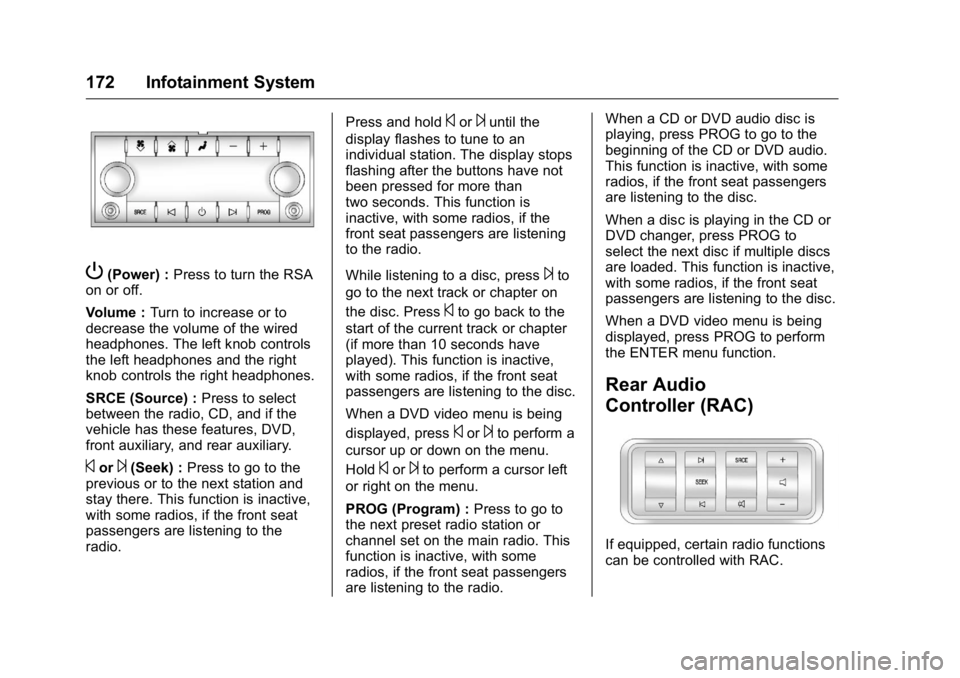
P(Power) :Press to turn the RSA
on or off.
Volume : Turn to increase or to
decrease the volume of the wired
headphones. The left knob controls
the left headphones and the right
knob controls the right headphones.
SRCE (Source) : Press to select
between the radio, CD, and if the
vehicle has these features, DVD,
front auxiliary, and rear auxiliary.
©or¨(Seek) : Press to go to the
previous or to the next station and
stay there. This function is inactive,
with some radios, if the front seat
passengers are listening to the
radio. Press and hold
©or¨until the
display flashes to tune to an
individual station. The display stops
flashing after the buttons have not
been pressed for more than
two seconds. This function is
inactive, with some radios, if the
front seat passengers are listening
to the radio.
While listening to a disc, press
¨to
go to the next track or chapter on
the disc. Press
©to go back to the
start of the current track or chapter
(if more than 10 seconds have
played). This function is inactive,
with some radios, if the front seat
passengers are listening to the disc.
When a DVD video menu is being
displayed, press
©or¨to perform a
cursor up or down on the menu.
Hold
©or¨to perform a cursor left
or right on the menu.
PROG (Program) : Press to go to
the next preset radio station or
channel set on the main radio. This
function is inactive, with some
radios, if the front seat passengers
are listening to the radio. When a CD or DVD audio disc is
playing, press PROG to go to the
beginning of the CD or DVD audio.
This function is inactive, with some
radios, if the front seat passengers
are listening to the disc.
When a disc is playing in the CD or
DVD changer, press PROG to
select the next disc if multiple discs
are loaded. This function is inactive,
with some radios, if the front seat
passengers are listening to the disc.
When a DVD video menu is being
displayed, press PROG to perform
the ENTER menu function.
Rear Audio
Controller (RAC)
If equipped, certain radio functions
can be controlled with RAC.