manual radio set GMC ACADIA 2016 Owner's Manual
[x] Cancel search | Manufacturer: GMC, Model Year: 2016, Model line: ACADIA, Model: GMC ACADIA 2016Pages: 371, PDF Size: 5.28 MB
Page 21 of 371
GMC Acadia/Acadia Denali Owner Manual (GMNA-Localizing-U.S./Canada/
Mexico-9159268) - 2016 - crc - 7/31/15
20 In Brief
Vehicle Features
Radio(s)
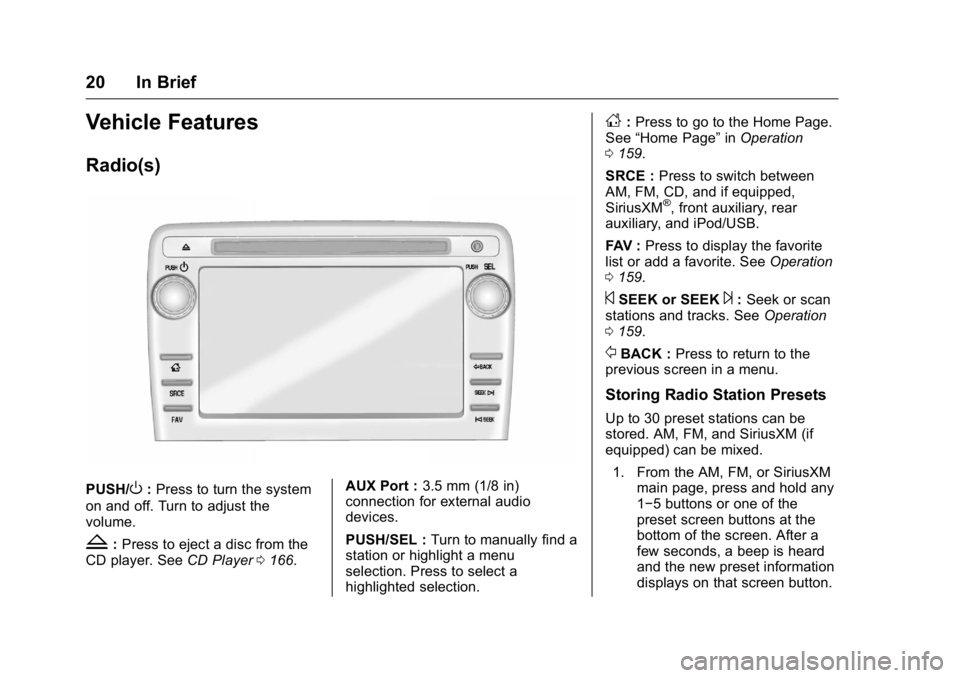
PUSH/O:Press to turn the system
on and off. Turn to adjust the
volume.
Z: Press to eject a disc from the
CD player. See CD Player0166. AUX Port :
3.5 mm (1/8 in)
connection for external audio
devices.
PUSH/SEL : Turn to manually find a
station or highlight a menu
selection. Press to select a
highlighted selection.
D: Press to go to the Home Page.
See “Home Page” inOperation
0 159.
SRCE : Press to switch between
AM, FM, CD, and if equipped,
SiriusXM
®, front auxiliary, rear
auxiliary, and iPod/USB.
FAV : Press to display the favorite
list or add a favorite. See Operation
0 159.
©SEEK or SEEK¨:Seek or scan
stations and tracks. See Operation
0 159.
/BACK : Press to return to the
previous screen in a menu.
Storing Radio Station Presets
Up to 30 preset stations can be
stored. AM, FM, and SiriusXM (if
equipped) can be mixed.
1. From the AM, FM, or SiriusXM main page, press and hold any
1−5 buttons or one of the
preset screen buttons at the
bottom of the screen. After a
few seconds, a beep is heard
and the new preset information
displays on that screen button.
Page 22 of 371
GMC Acadia/Acadia Denali Owner Manual (GMNA-Localizing-U.S./Canada/
Mexico-9159268) - 2016 - crc - 7/31/15
In Brief 21
2. Repeat for each preset.
See AM-FM Radio 0162.
Setting the Clock
See Clock 0108.
Satellite Radio
If equipped, vehicles with a
SiriusXM®satellite radio tuner and a
valid SiriusXM satellite radio
subscription can receive SiriusXM
programming.
SiriusXM Satellite Radio
Service
SiriusXM is a satellite radio service
based in the 48 contiguous United
States and 10 Canadian provinces.
SiriusXM satellite radio has a wide
variety of programming and
commercial-free music, coast to
coast, and in digital-quality sound.
A fee is required to receive the
SiriusXM service.
Refer to:
. www.siriusxm.com or call
1-866-635-2349 (U.S.). .
www.xmradio.ca or call
1-877-209-0079 (Canada).
See Satellite Radio 0165.
Portable Audio Devices
The vehicle has a 3.5 mm (1/8 in)
auxiliary input jack on the faceplate
and a USB port in the center stack.
External devices such as iPods,
laptop computers, MP3 players, CD
changers, USB storage devices,
etc. can be connected to the
auxiliary port using a 3.5 mm (1/8 in)
input jack or the USB port
depending on the audio system.
If equipped, there are two USB
ports on the rear of the center
console that can be used for
charging only. They can charge
devices that draw 2.1 amps or less.
See the device’ s owner manual for
the specification.
See Auxiliary Devices 0169.
Bluetooth®
The Bluetooth®system allows users
with a Bluetooth-enabled mobile
phone to make and receive
hands-free calls using the vehicle
audio system and controls.
The Bluetooth-enabled mobile
phone must be paired with the
in-vehicle Bluetooth system before it
can be used in the vehicle. Not all
phones will support all functions.
See Bluetooth 0173.
Steering Wheel Controls
Page 23 of 371
GMC Acadia/Acadia Denali Owner Manual (GMNA-Localizing-U.S./Canada/
Mexico-9159268) - 2016 - crc - 7/31/15
22 In Brief
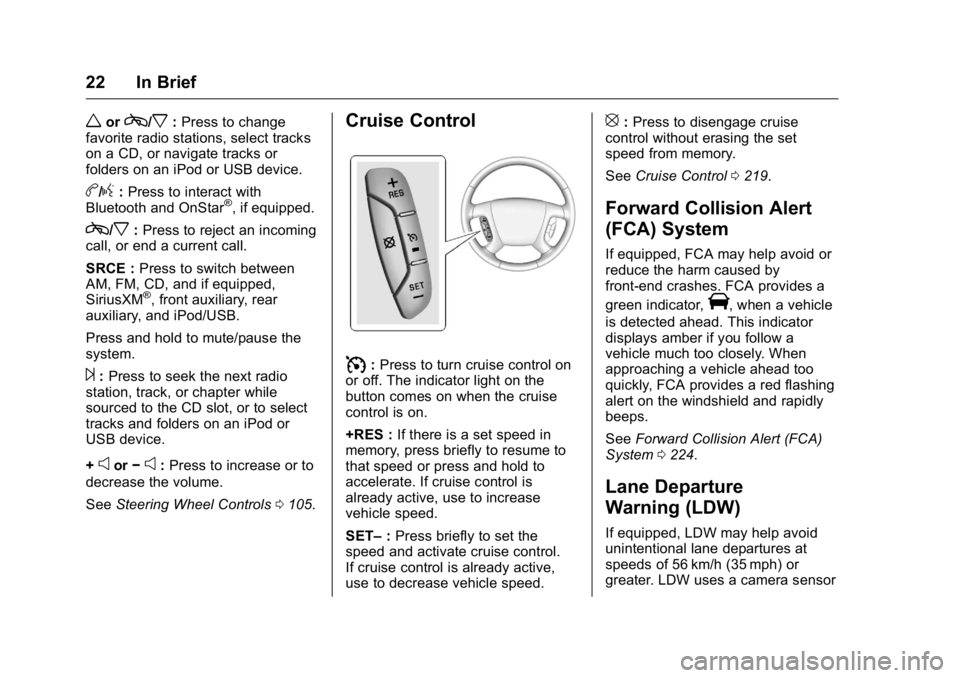
worc/x:Press to change
favorite radio stations, select tracks
on a CD, or navigate tracks or
folders on an iPod or USB device.
b/g: Press to interact with
Bluetooth and OnStar®, if equipped.
c/x: Press to reject an incoming
call, or end a current call.
SRCE : Press to switch between
AM, FM, CD, and if equipped,
SiriusXM
®, front auxiliary, rear
auxiliary, and iPod/USB.
Press and hold to mute/pause the
system.
¨: Press to seek the next radio
station, track, or chapter while
sourced to the CD slot, or to select
tracks and folders on an iPod or
USB device.
+
eor −e:Press to increase or to
decrease the volume.
See Steering Wheel Controls 0105.
Cruise Control
I:Press to turn cruise control on
or off. The indicator light on the
button comes on when the cruise
control is on.
+RES : If there is a set speed in
memory, press briefly to resume to
that speed or press and hold to
accelerate. If cruise control is
already active, use to increase
vehicle speed.
SET– :Press briefly to set the
speed and activate cruise control.
If cruise control is already active,
use to decrease vehicle speed.
[: Press to disengage cruise
control without erasing the set
speed from memory.
See Cruise Control 0219.
Forward Collision Alert
(FCA) System
If equipped, FCA may help avoid or
reduce the harm caused by
front-end crashes. FCA provides a
green indicator,
V, when a vehicle
is detected ahead. This indicator
displays amber if you follow a
vehicle much too closely. When
approaching a vehicle ahead too
quickly, FCA provides a red flashing
alert on the windshield and rapidly
beeps.
See Forward Collision Alert (FCA)
System 0224.
Lane Departure
Warning (LDW)
If equipped, LDW may help avoid
unintentional lane departures at
speeds of 56 km/h (35 mph) or
greater. LDW uses a camera sensor
Page 40 of 371
GMC Acadia/Acadia Denali Owner Manual (GMNA-Localizing-U.S./Canada/
Mexico-9159268) - 2016 - crc - 7/31/15
Keys, Doors, and Windows 39
3. Get out of the vehicle, closethe door, and wait for the
security light to go out.
4. Reach in through the window, unlock the door with the
manual door lock, and open
the door. This should set off the
alarm.
If the alarm does not sound when it
should, but the headlamps flash,
check to see if the horn works. The
horn fuse may be blown. To replace
the fuse, see Fuses and Circuit
Breakers 0265.
If the alarm does not sound or the
headlamps do not flash, see your
dealer for service.
Immobilizer
See Radio Frequency Statement
0 346.
Immobilizer Operation
This vehicle has PASS-Key®III+
(Personalized Automotive Security
System) theft-deterrent system.
PASS-Key III+ is a passive
theft-deterrent system. The system is automatically armed
when the key is removed from the
ignition.
The system is automatically
disarmed when the key is turned to
ON/RUN, ACC/ACCESSORY,
or START from the LOCK/OFF
position.
You do not have to manually arm or
disarm the system.
The security light comes on if there
is a problem with arming or
disarming the theft-deterrent
system.
When the PASS-Key III+ system
senses an incorrect key, the vehicle
does not start. Anyone using a
trial-and-error method to start the
vehicle will be discouraged because
of the high number of electrical key
codes.
If the engine does not start and the
security light on the instrument
panel comes on when trying to start
the vehicle, there may be a problem
with the theft-deterrent system. Turn
the ignition off and try again.
If the engine still does not start, and
the key appears to be undamaged,
try another ignition key and check
the fuses. See
Fuses and Circuit
Breakers 0265 for additional
information. If the engine still does
not start with the other key, the
vehicle needs service. If the vehicle
does start, the first key may be
faulty. See your dealer who can
service the PASS-Key III+ to have a
new key made. In an emergency,
contact Roadside Assistance. See
Roadside Assistance Program
0 340.
It is possible for the PASS-Key III+
decoder to learn the transponder
value of a new or replacement key.
Up to 10 keys may be programmed
to the vehicle. The following
procedure is for programming
additional keys only. If all currently
programmed keys are lost or do not
operate, you must see your dealer
or a locksmith who can service
PASS-Key III+ to have keys made
and programmed to the system.
Page 106 of 371
GMC Acadia/Acadia Denali Owner Manual (GMNA-Localizing-U.S./Canada/
Mexico-9159268) - 2016 - crc - 7/31/15
Instruments and Controls 105
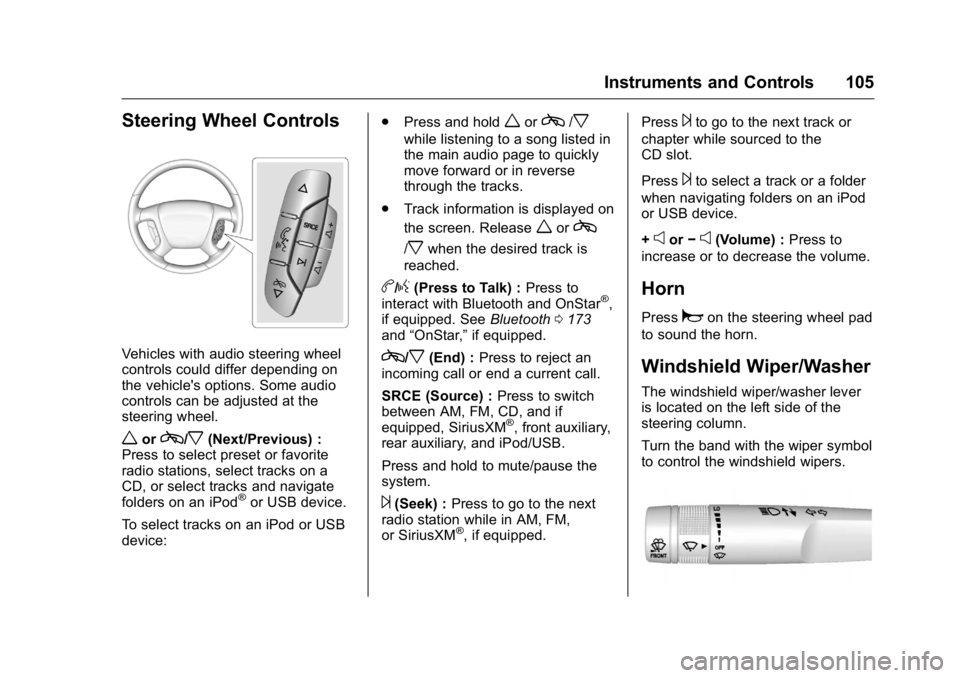
Steering Wheel Controls
Vehicles with audio steering wheel
controls could differ depending on
the vehicle's options. Some audio
controls can be adjusted at the
steering wheel.
worc/x(Next/Previous) :
Press to select preset or favorite
radio stations, select tracks on a
CD, or select tracks and navigate
folders on an iPod
®or USB device.
To select tracks on an iPod or USB
device: .
Press and hold
worc/x
while listening to a song listed in
the main audio page to quickly
move forward or in reverse
through the tracks.
. Track information is displayed on
the screen. Release
worc
/xwhen the desired track is
reached.
b/g(Press to Talk) : Press to
interact with Bluetooth and OnStar®,
if equipped. See Bluetooth0173
and “OnStar,” if equipped.
c/x(End) :Press to reject an
incoming call or end a current call.
SRCE (Source) : Press to switch
between AM, FM, CD, and if
equipped, SiriusXM
®, front auxiliary,
rear auxiliary, and iPod/USB.
Press and hold to mute/pause the
system.
¨(Seek) : Press to go to the next
radio station while in AM, FM,
or SiriusXM
®, if equipped. Press
¨to go to the next track or
chapter while sourced to the
CD slot.
Press
¨to select a track or a folder
when navigating folders on an iPod
or USB device.
+
eor −e(Volume) : Press to
increase or to decrease the volume.
Horn
Pressaon the steering wheel pad
to sound the horn.
Windshield Wiper/Washer
The windshield wiper/washer lever
is located on the left side of the
steering column.
Turn the band with the wiper symbol
to control the windshield wipers.
Page 131 of 371
GMC Acadia/Acadia Denali Owner Manual (GMNA-Localizing-U.S./Canada/
Mexico-9159268) - 2016 - crc - 7/31/15
130 Instruments and Controls
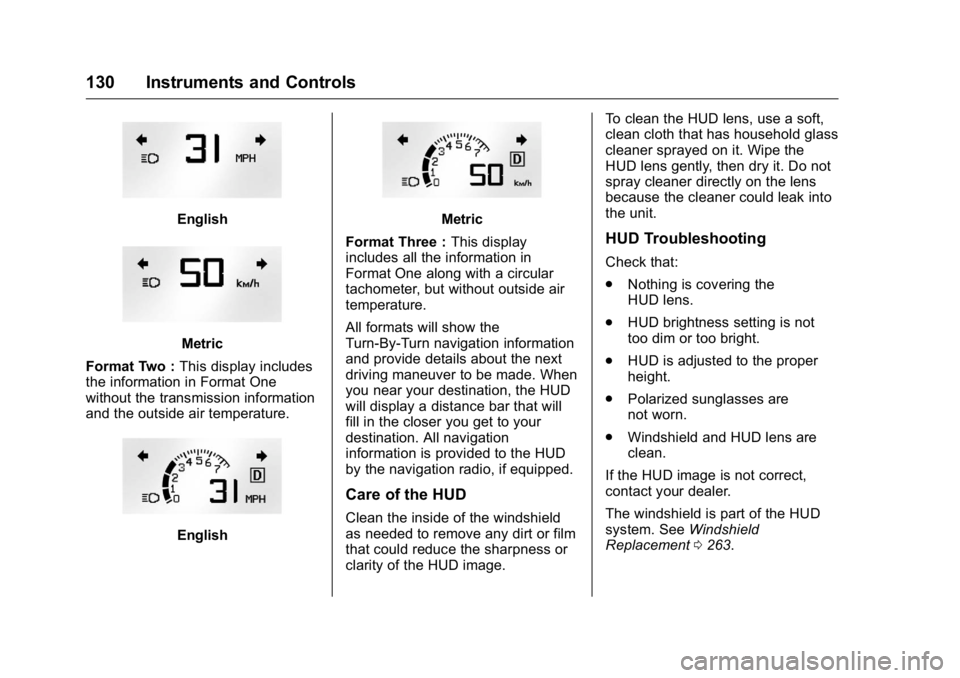
English
Metric
Format Two : This display includes
the information in Format One
without the transmission information
and the outside air temperature.
English
Metric
Format Three : This display
includes all the information in
Format One along with a circular
tachometer, but without outside air
temperature.
All formats will show the
Turn-By-Turn navigation information
and provide details about the next
driving maneuver to be made. When
you near your destination, the HUD
will display a distance bar that will
fill in the closer you get to your
destination. All navigation
information is provided to the HUD
by the navigation radio, if equipped.
Care of the HUD
Clean the inside of the windshield
as needed to remove any dirt or film
that could reduce the sharpness or
clarity of the HUD image. To clean the HUD lens, use a soft,
clean cloth that has household glass
cleaner sprayed on it. Wipe the
HUD lens gently, then dry it. Do not
spray cleaner directly on the lens
because the cleaner could leak into
the unit.
HUD Troubleshooting
Check that:
.
Nothing is covering the
HUD lens.
. HUD brightness setting is not
too dim or too bright.
. HUD is adjusted to the proper
height.
. Polarized sunglasses are
not worn.
. Windshield and HUD lens are
clean.
If the HUD image is not correct,
contact your dealer.
The windshield is part of the HUD
system. See Windshield
Replacement 0263.
Page 147 of 371
GMC Acadia/Acadia Denali Owner Manual (GMNA-Localizing-U.S./Canada/
Mexico-9159268) - 2016 - crc - 7/31/15
146 Instruments and Controls
for this feature. Then press the
customization button to scroll
through the following settings:
RESTORE ALL (default) :The
customization features will be set to
their factory default settings.
DO NOT RESTORE : The
customization features will not be
set to their factory default settings.
To select a setting, press the set/
reset button while the desired
setting is displayed on the DIC.
EXIT FEATURE SETTINGS
This feature allows you to exit the
feature settings menu.
Press the customization button until
FEATURE SETTINGS PRESS
V
TO EXIT appears in the DIC display.
Press the set/reset button once to
exit the menu.
If you do not exit, pressing the
customization button again will
return you to the beginning of the
feature settings menu.
Exiting the Feature
Settings Menu
The feature settings menu will be
exited when any of the following
occurs:
. The vehicle is shifted out of
P (Park).
. The vehicle is no longer in
ON/RUN.
. The trip/fuel or vehicle
information DIC buttons are
pressed.
. The end of the feature settings
menu is reached and exited.
. A 40-second time period has
elapsed with no selection made.
Universal Remote
System
See Radio Frequency Statement
0 346.
Universal Remote System
Programming
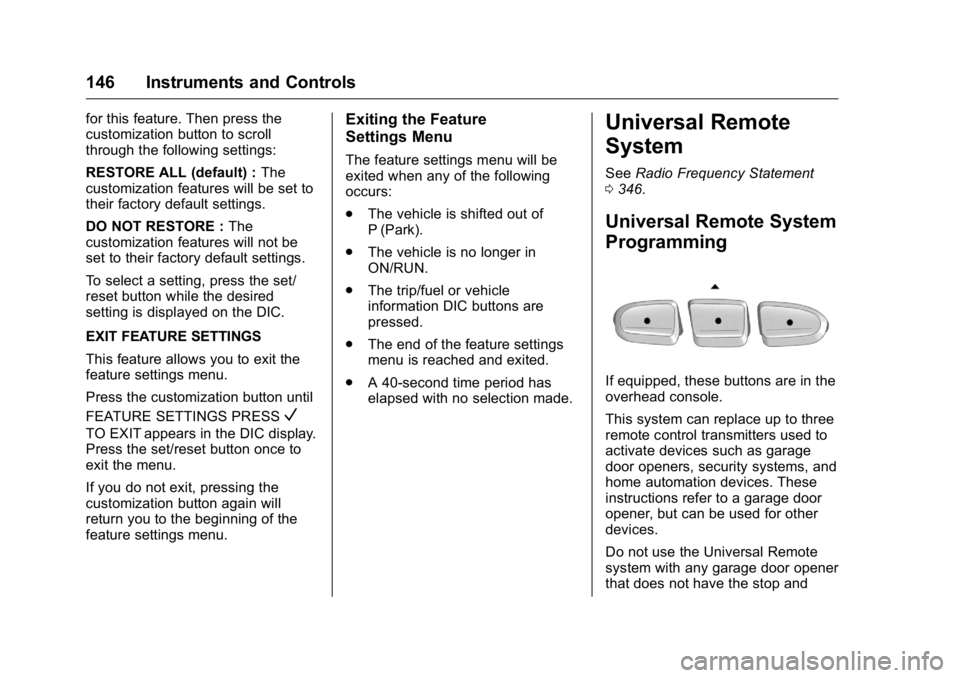
If equipped, these buttons are in the
overhead console.
This system can replace up to three
remote control transmitters used to
activate devices such as garage
door openers, security systems, and
home automation devices. These
instructions refer to a garage door
opener, but can be used for other
devices.
Do not use the Universal Remote
system with any garage door opener
that does not have the stop and
Page 158 of 371
GMC Acadia/Acadia Denali Owner Manual (GMNA-Localizing-U.S./Canada/
Mexico-9159268) - 2016 - crc - 7/31/15
Infotainment System 157
Infotainment
System
Introduction
Infotainment . . . . . . . . . . . . . . . . . . 157
Theft-Deterrent Feature . . . . . . 158
Overview . . . . . . . . . . . . . . . . . . . . . 159
Operation . . . . . . . . . . . . . . . . . . . . . 159
Radio
AM-FM Radio . . . . . . . . . . . . . . . . 162
Satellite Radio . . . . . . . . . . . . . . . . 165
Radio Reception . . . . . . . . . . . . . . 165
Multi-Band Antenna . . . . . . . . . . 166
Audio Players
CD Player . . . . . . . . . . . . . . . . . . . . 166
MP3 . . . . . . . . . . . . . . . . . . . . . . . . . . 168
Auxiliary Devices . . . . . . . . . . . . . 169
OnStar System
OnStar System . . . . . . . . . . . . . . . 170
Rear Seat Infotainment
Rear Seat Audio (RSA)System . . . . . . . . . . . . . . . . . . . . . . 171
Rear Audio Controller (RAC) . . . . . . . . . . . . 172
Phone
Bluetooth . . . . . . . . . . . . . . . . . . . . . 173
Settings
Settings . . . . . . . . . . . . . . . . . . . . . . 179
Trademarks and License
Agreements
Trademarks and LicenseAgreements . . . . . . . . . . . . . . . . . 181
Introduction
Infotainment
Base radio information is included in
this manual. See the infotainment
manual for information on other
available infotainment systems.
Read the following pages to
become familiar with these features.
{Warning
Taking your eyes off the road for
too long or too often while using
any infotainment feature can
cause a crash. You or others
could be injured or killed. Do not
give extended attention to
infotainment tasks while driving.
Limit your glances at the vehicle
displays and focus your attention
on driving. Use voice commands
whenever possible.
The infotainment system has built-in
features intended to help avoid
distraction by disabling some
functions when driving. These
Page 159 of 371
GMC Acadia/Acadia Denali Owner Manual (GMNA-Localizing-U.S./Canada/
Mexico-9159268) - 2016 - crc - 7/31/15
158 Infotainment System
functions may gray out when they
are unavailable. Many infotainment
features are also available through
the instrument cluster and steering
wheel controls.
Before driving:
.Become familiar with the
operation, faceplate buttons, and
screen buttons.
. Set up the audio by presetting
favorite stations, setting the
tone, and adjusting the
speakers.
. Set up phone numbers in
advance so they can be called
easily by pressing a single
button or by using a single voice
command if equipped with
Bluetooth phone capability.
See Defensive Driving 0194.
To play the infotainment system with
the ignition off, see Retained
Accessory Power (RAP) 0208.Theft-Deterrent Feature
TheftLock®is designed to
discourage theft of the vehicle's
radio by learning a portion of the
Vehicle Identification Number (VIN).
The radio does not operate if it is
stolen or moved to a different
vehicle.
Page 162 of 371
GMC Acadia/Acadia Denali Owner Manual (GMNA-Localizing-U.S./Canada/
Mexico-9159268) - 2016 - crc - 7/31/15
Infotainment System 161
Each of these three pages can be
customized to contain your choice
of up to eight per screen. They may
also be re-ordered on each screen
to taste.
FAV (Favorites) :Press to scroll
through the favorites banner on the
bottom of the screen. The favorites
banner stores your favorite radio
and SiriusXM stations (if equipped).
To store a favorite station, press and
hold the desired position on the
banner until a beep is heard.
!(Voice Recognition) : Press to
begin voice recognition. See
Bluetooth 0173.
Menu : Press to enter the Home
Page menu.
qPrevious : Press to go to the
previous Home Page.
Next
r: Press to go to the next
Home Page.
Home Page Features
Some features are disabled when
the vehicle is moving and some
icons may not be active. Now Playing :
Press to display the
active source page. The sources
available are AM, FM, XM (if
equipped), CD, USB, Bluetooth,
or AUX Input.
Settings : Press to display the
Settings menu. See Settings0179.
Tone : Press to display the Tone
Settings menu. The following may
display:
Tone Settings : Press to adjust the
tone settings. The following may
display:
. EQ: Press
oorpto adjust the
equalizer.
. Bass: Press + or −to adjust
the bass.
. Middle: Press + or −to adjust
the middle.
. Treble: Press + or −to adjust the
treble.
. Balance: Press L to hear more
sound from the left speakers or
R for more sound from the right
speakers. The middle position
balances the sound between the
left and right speakers. .
Fade: Press F for more sound
from the front speakers or R for
more sound from the rear
speakers. The middle position
balances the sound between the
front and rear speakers.
DSP Mode : Press
oorpto adjust
the DSP mode, if equipped.
Language
To change the language of the
screens, see Vehicle
Personalization 0140.
English or Metric Units
To change the screens from English
or metric, see Driver Information
Center (DIC) 0123.