warning GMC ACADIA 2017 Owner's Manual
[x] Cancel search | Manufacturer: GMC, Model Year: 2017, Model line: ACADIA, Model: GMC ACADIA 2017Pages: 419, PDF Size: 5.89 MB
Page 247 of 419
GMC Acadia/Acadia Denali Owner Manual (GMNA-Localizing-U.S./Canada/
Mexico-9803770) - 2017 - crc - 7/12/16
246 Driving and Operating
Passing Another Vehicle While
Using Cruise Control
Use the accelerator pedal to
increase the vehicle speed. When
you take your foot off the pedal, the
vehicle will slow down to the
previous set cruise speed.
While pressing the accelerator pedal
or shortly following the release to
override cruise, briefly applying SET
−will result in cruise set to the
current vehicle speed.
Using Cruise Control on Hills
How well the cruise control will work
on hills depends upon the vehicle
speed, load, and the steepness of
the hills. When going up steep hills,
you might have to step on the
accelerator pedal to maintain your
speed. While on a hill, the
transmission may downshift in order
to use engine braking to slow the
vehicle and maintain the set speed.
Also, you may have to brake or shift
to a lower gear to keep your speed
down. If the brake pedal is applied,
cruise control disengages. Ending Cruise Control
There are four ways to end cruise
control:
.
Step lightly on the brake pedal.
. Press
*.
. Shift the transmission to
N (Neutral).
. Press
J.
Erasing Speed Memory
The cruise control set speed is
erased from memory if
Jis
pressed or if the ignition is
turned off.
Adaptive Cruise Control
If equipped with Adaptive Cruise
Control (ACC), it allows the driver to
select the cruise control set speed
and following gap. Read this entire
section before using this system.
The following gap is the following
time between your vehicle and a
vehicle detected directly ahead in
your path, moving in the same
direction. If no vehicle is detected in
your path, ACC works like regular cruise control. ACC uses camera
and radar sensors. See
Radio
Frequency Statement 0394.
If a vehicle is detected in your path,
ACC can apply acceleration or
limited, moderate braking to
maintain the selected following gap.
To disengage ACC, apply the brake.
If ACC is controlling your vehicle
speed when the Traction Control
System (TCS) or StabiliTrak
®
electronic stability control system
activates, the ACC may
automatically disengage. See
Traction Control/Electronic Stability
Control 0240. When road
conditions allow ACC to be safely
used, the ACC can be turned
back on.
Turning off the TCS or StabiliTrak
system will disengage the cruise
control.
{Warning
ACC has limited braking ability
and may not have time to slow
the vehicle down enough to avoid
(Continued)
Page 248 of 419
GMC Acadia/Acadia Denali Owner Manual (GMNA-Localizing-U.S./Canada/
Mexico-9803770) - 2017 - crc - 7/12/16
Driving and Operating 247
Warning (Continued)
a collision with another vehicle
you are following. This can occur
when vehicles suddenly slow or
stop ahead, or enter your lane.
Also see“Alerting the Driver” in
this section. Complete attention is
always required while driving and
you should be ready to take
action and apply the brakes. See
Defensive Driving 0211.
{Warning
ACC will not detect or brake for
children, pedestrians, animals,
or other objects.
Do not use ACC when:
. On winding and hilly roads
or when the sensors are
blocked by snow, ice, or dirt.
The system may not detect
(Continued)
Warning (Continued)
a vehicle ahead. Keep the
entire front of the vehicle
clean.
. Visibility is low, such as in
fog, rain, or snow
conditions. ACC
performance is limited under
these conditions.
. On slippery roads where
fast changes in tire traction
can cause excessive
wheel slip.
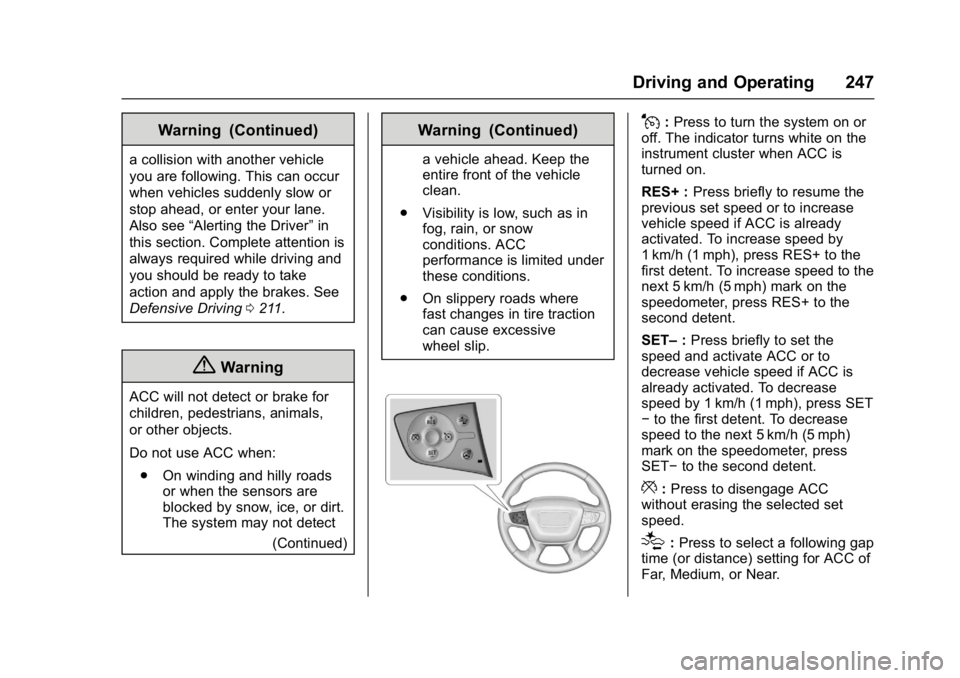
J:Press to turn the system on or
off. The indicator turns white on the
instrument cluster when ACC is
turned on.
RES+ : Press briefly to resume the
previous set speed or to increase
vehicle speed if ACC is already
activated. To increase speed by
1 km/h (1 mph), press RES+ to the
first detent. To increase speed to the
next 5 km/h (5 mph) mark on the
speedometer, press RES+ to the
second detent.
SET– :Press briefly to set the
speed and activate ACC or to
decrease vehicle speed if ACC is
already activated. To decrease
speed by 1 km/h (1 mph), press SET
− to the first detent. To decrease
speed to the next 5 km/h (5 mph)
mark on the speedometer, press
SET− to the second detent.
*:Press to disengage ACC
without erasing the selected set
speed.
[: Press to select a following gap
time (or distance) setting for ACC of
Far, Medium, or Near.
Page 249 of 419
GMC Acadia/Acadia Denali Owner Manual (GMNA-Localizing-U.S./Canada/
Mexico-9803770) - 2017 - crc - 7/12/16
248 Driving and Operating
Setting Adaptive Cruise Control
If
Jis on when not in use, it could
get pressed and go into cruise when
not desired. Keep
Joff when
cruise is not being used.
Select the set speed desired for
cruise. This is the vehicle speed
when no vehicle is detected in
its path.
ACC will not set at a speed less
than 25 km/h (16 mph), although it
can be resumed when driving at
lower speeds.
To set ACC:
1. Press
J.
2. Get up to the desired speed.
3. Press and release SET–.
4. Remove foot from the accelerator.
After ACC is set, it may immediately
apply the brakes if a vehicle ahead
is detected closer than the selected
following gap.
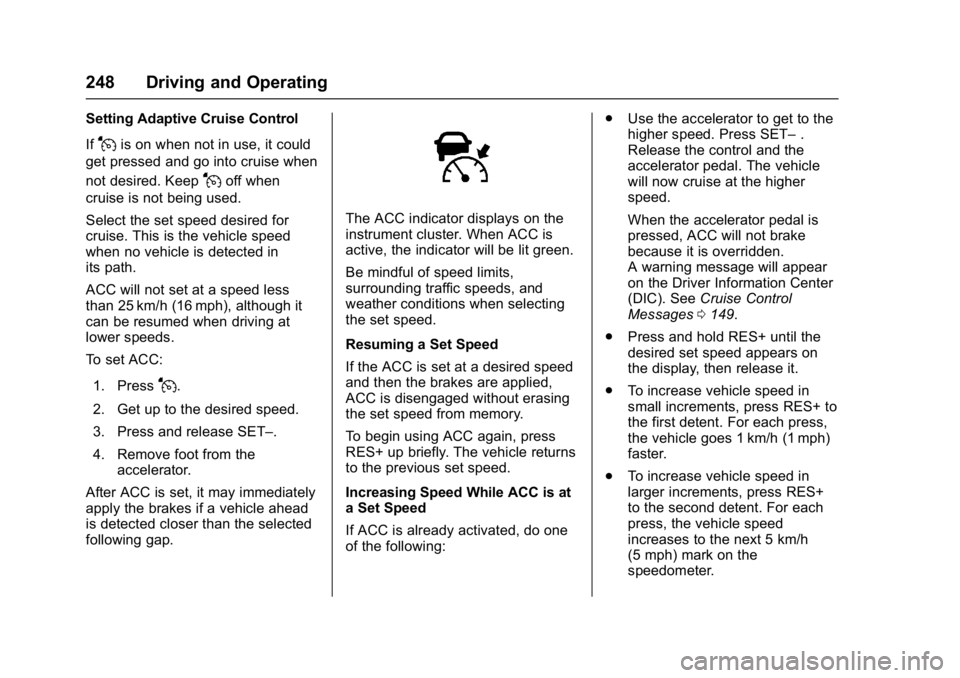
The ACC indicator displays on the
instrument cluster. When ACC is
active, the indicator will be lit green.
Be mindful of speed limits,
surrounding traffic speeds, and
weather conditions when selecting
the set speed.
Resuming a Set Speed
If the ACC is set at a desired speed
and then the brakes are applied,
ACC is disengaged without erasing
the set speed from memory.
To begin using ACC again, press
RES+ up briefly. The vehicle returns
to the previous set speed.
Increasing Speed While ACC is at
a Set Speed
If ACC is already activated, do one
of the following: .
Use the accelerator to get to the
higher speed. Press SET– .
Release the control and the
accelerator pedal. The vehicle
will now cruise at the higher
speed.
When the accelerator pedal is
pressed, ACC will not brake
because it is overridden.
A warning message will appear
on the Driver Information Center
(DIC). See Cruise Control
Messages 0149.
. Press and hold RES+ until the
desired set speed appears on
the display, then release it.
. To increase vehicle speed in
small increments, press RES+ to
the first detent. For each press,
the vehicle goes 1 km/h (1 mph)
faster.
. To increase vehicle speed in
larger increments, press RES+
to the second detent. For each
press, the vehicle speed
increases to the next 5 km/h
(5 mph) mark on the
speedometer.
Page 251 of 419
GMC Acadia/Acadia Denali Owner Manual (GMNA-Localizing-U.S./Canada/
Mexico-9803770) - 2017 - crc - 7/12/16
250 Driving and Operating
If ACC is engaged, driver action
may be required when ACC cannot
apply sufficient braking because of
approaching a vehicle too rapidly.
When this condition occurs, six red
lights will flash on the windshield.
Either eight beeps will sound from
the front, or both sides of the Safety
Alert Seat will pulse five times. See
“Collision/Detection Systems”under
Vehicle Personalization 0157.
See Defensive Driving 0211.
Approaching and Following a
Vehicle
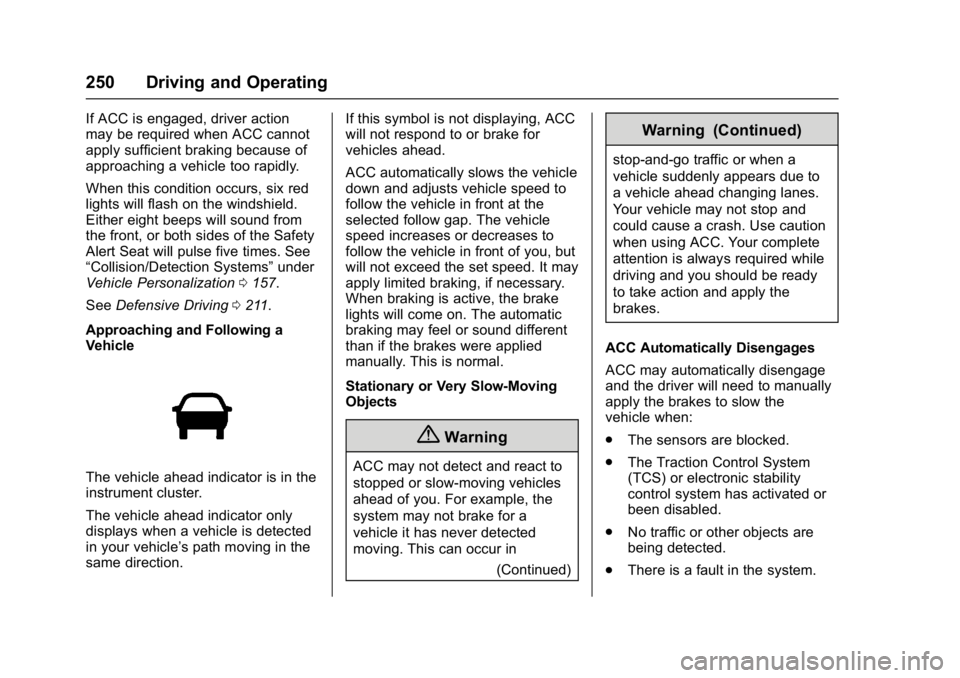
The vehicle ahead indicator is in the
instrument cluster.
The vehicle ahead indicator only
displays when a vehicle is detected
in your vehicle’s path moving in the
same direction. If this symbol is not displaying, ACC
will not respond to or brake for
vehicles ahead.
ACC automatically slows the vehicle
down and adjusts vehicle speed to
follow the vehicle in front at the
selected follow gap. The vehicle
speed increases or decreases to
follow the vehicle in front of you, but
will not exceed the set speed. It may
apply limited braking, if necessary.
When braking is active, the brake
lights will come on. The automatic
braking may feel or sound different
than if the brakes were applied
manually. This is normal.
Stationary or Very Slow-Moving
Objects
{Warning
ACC may not detect and react to
stopped or slow-moving vehicles
ahead of you. For example, the
system may not brake for a
vehicle it has never detected
moving. This can occur in
(Continued)
Warning (Continued)
stop-and-go traffic or when a
vehicle suddenly appears due to
a vehicle ahead changing lanes.
Your vehicle may not stop and
could cause a crash. Use caution
when using ACC. Your complete
attention is always required while
driving and you should be ready
to take action and apply the
brakes.
ACC Automatically Disengages
ACC may automatically disengage
and the driver will need to manually
apply the brakes to slow the
vehicle when:
. The sensors are blocked.
. The Traction Control System
(TCS) or electronic stability
control system has activated or
been disabled.
. No traffic or other objects are
being detected.
. There is a fault in the system.
Page 252 of 419
GMC Acadia/Acadia Denali Owner Manual (GMNA-Localizing-U.S./Canada/
Mexico-9803770) - 2017 - crc - 7/12/16
Driving and Operating 251
The ACC active symbol will not be
displayed when ACC is no longer
active.
Notification to Resume ACC
ACC will maintain a follow gap
behind a detected vehicle and slow
your vehicle to a stop behind that
vehicle.
If the stopped vehicle ahead has
driven away and ACC has not
resumed, the vehicle ahead
indicator will flash as a reminder to
check traffic ahead before
proceeding. In addition, the left and
right sides of the Safety Alert Seat
will pulse three times, or three
beeps will sound. See”Alert Type”
and “Adaptive Cruise Go Notifier” in
“Collision/Detection Systems” under
Vehicle Personalization 0157.
When the vehicle ahead drives
away, press RES+ or the
accelerator pedal to resume cruise
control. If stopped for more than
two minutes or if the driver door is
opened and the driver safety belt is
unbuckled, the ACC automatically
applies the Electric Parking Brake
(EPB) to hold the vehicle. The Electric Parking Brake status light
will turn on. See
Electric Parking
Brake 0237. To resume ACC and
release the EPB, press the
accelerator pedal.
A DIC warning message may
display indicating to shift to P (Park)
before exiting the vehicle. See
Vehicle Messages 0147.
{Warning
If ACC has stopped the vehicle,
and if ACC is disengaged, turned
off, or canceled, the vehicle will
no longer be held at a stop. The
vehicle can move. When ACC is
holding the vehicle at a stop,
always be prepared to manually
apply the brakes.
{Warning
Leaving the vehicle without
placing it in P (Park) can be
dangerous. Do not leave the
(Continued)
Warning (Continued)
vehicle while it is being held at a
stop by ACC. Always place the
vehicle in P (Park) and turn off
the ignition before leaving the
vehicle.
ACC Override
If using the accelerator pedal while
ACC is active, a DIC warning
message will indicate that automatic
braking will not occur. See Vehicle
Messages 0147. ACC will resume
operation when the accelerator
pedal is not being pressed.
{Warning
The ACC will not automatically
apply the brakes if your foot is
resting on the accelerator pedal.
You could crash into a vehicle
ahead of you.
Page 253 of 419
GMC Acadia/Acadia Denali Owner Manual (GMNA-Localizing-U.S./Canada/
Mexico-9803770) - 2017 - crc - 7/12/16
252 Driving and Operating
Curves in the Road
{Warning
On curves, ACC may not detect a
vehicle ahead in your lane. You
could be startled if the vehicle
accelerates up to the set speed,
especially when following a
vehicle exiting or entering exit
ramps. You could lose control of
the vehicle or crash. Do not use
ACC while driving on an entrance
or exit ramp. Always be ready to
use the brakes if necessary.
{Warning
On curves, ACC may respond to
a vehicle in another lane, or may
not have time to react to a vehicle
in your lane. You could crash into
a vehicle ahead of you, or lose
control of your vehicle. Give extra
attention in curves and be ready(Continued)
Warning (Continued)
to use the brakes if necessary.
Select an appropriate speed while
driving in curves.
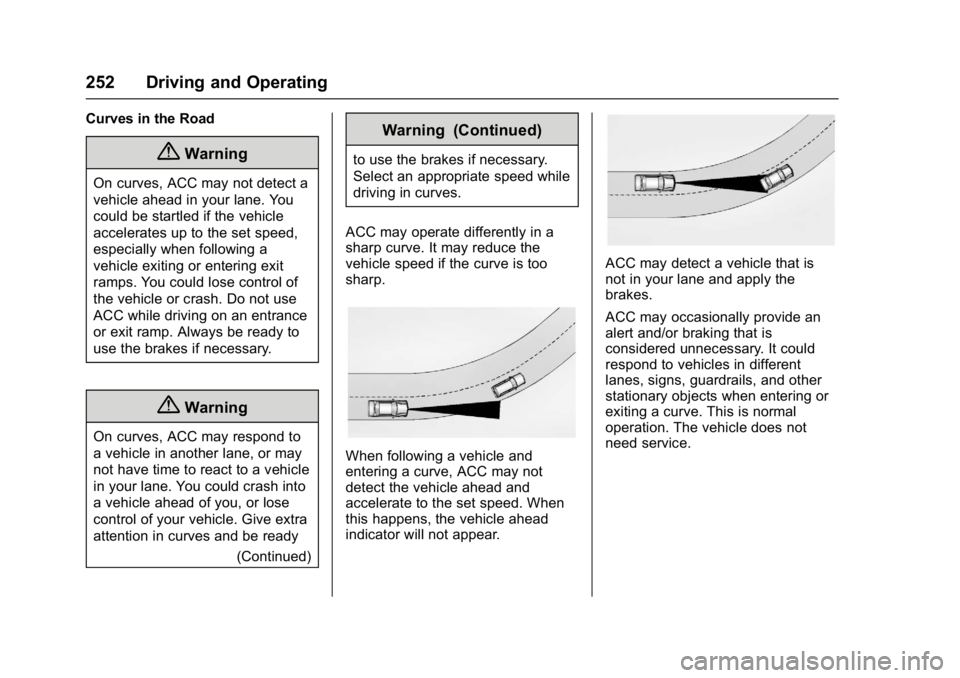
ACC may operate differently in a
sharp curve. It may reduce the
vehicle speed if the curve is too
sharp.
When following a vehicle and
entering a curve, ACC may not
detect the vehicle ahead and
accelerate to the set speed. When
this happens, the vehicle ahead
indicator will not appear.
ACC may detect a vehicle that is
not in your lane and apply the
brakes.
ACC may occasionally provide an
alert and/or braking that is
considered unnecessary. It could
respond to vehicles in different
lanes, signs, guardrails, and other
stationary objects when entering or
exiting a curve. This is normal
operation. The vehicle does not
need service.
Page 255 of 419
GMC Acadia/Acadia Denali Owner Manual (GMNA-Localizing-U.S./Canada/
Mexico-9803770) - 2017 - crc - 7/12/16
254 Driving and Operating
Driver Assistance
Systems
This vehicle may have features that
work together to help avoid crashes
or reduce crash damage while
driving, backing, and parking. Read
this entire section before using
these systems.
{Warning
Do not rely on the Driver
Assistance Systems. These
systems do not replace the need
for paying attention and driving
safely. You may not hear or feel
alerts or warnings provided by
these systems. Failure to use
proper care when driving may
result in injury, death, or vehicle
damage. SeeDefensive
Driving 0211.
(Continued)
Warning (Continued)
Under many conditions, these
systems will not:
. Detect children,
pedestrians, bicyclists,
or animals.
. Detect vehicles or objects
outside the area monitored
by the system.
. Work at all driving speeds.
. Warn you or provide you
with enough time to avoid a
crash.
. Work under poor visibility or
bad weather conditions.
. Work if the detection sensor
is not cleaned or is covered
by ice, snow, mud, or dirt.
(Continued)
Warning (Continued)
.Work if the detection sensor
is covered up, such as with
a sticker, magnet, or metal
plate.
. Work if the area surrounding
the detection sensor is
damaged or not properly
repaired.
Complete attention is always
required while driving, and you
should be ready to take action
and apply the brakes and/or steer
the vehicle to avoid crashes.
Audible or Safety Alert Seat
Some driver assistance features
alert the driver of obstacles by
beeping. To change the volume of
the warning chime, see “Comfort
and Convenience” underVehicle
Personalization 0157.
Page 256 of 419
GMC Acadia/Acadia Denali Owner Manual (GMNA-Localizing-U.S./Canada/
Mexico-9803770) - 2017 - crc - 7/12/16
Driving and Operating 255
If equipped with the Safety Alert
Seat, the driver seat cushion may
provide a vibrating pulse alert
instead of beeping. To change this,
see“Collision/Detection Systems”
under Vehicle
Personalization 0157.
Assistance Systems for
Parking or Backing
If equipped, the Rear Vision Camera
(RVC), Rear Parking Assist (RPA),
Front Parking Assist (FPA),
Surround Vision, Front Vision
Camera, and Rear Cross Traffic
Alert (RCTA) may help the driver
park or avoid objects. Always check
around the vehicle when parking or
backing.
Rear Vision Camera (RVC)
When the vehicle is shifted into
R (Reverse), the RVC displays an
image of the area behind the vehicle
in the infotainment display. The
previous screen displays when the
vehicle is shifted out of R (Reverse)
after a short delay. To return to the
previous screen sooner, press a
button on the infotainment display, shift into P (Park), or reach a vehicle
speed of 8 km/h (5 mph). Select
Front or Rear Camera on the
camera screen to view the front or
rear camera views. Select Guidance
Lines on the camera screen to
enable or disable the guidance
lines.
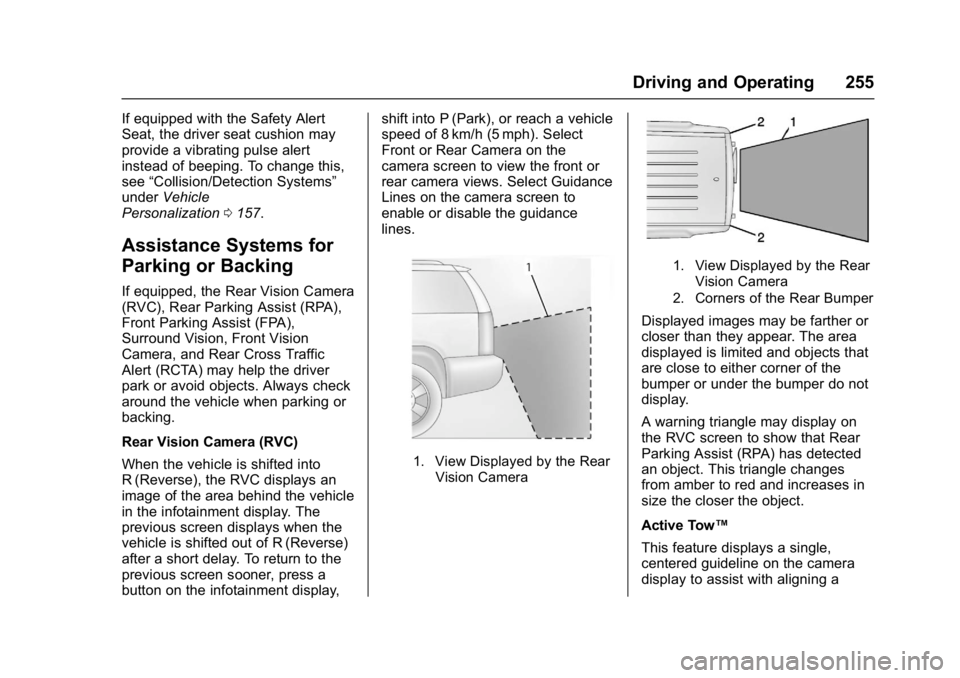
1. View Displayed by the Rear
Vision Camera
1. View Displayed by the RearVision Camera
2. Corners of the Rear Bumper
Displayed images may be farther or
closer than they appear. The area
displayed is limited and objects that
are close to either corner of the
bumper or under the bumper do not
display.
A warning triangle may display on
the RVC screen to show that Rear
Parking Assist (RPA) has detected
an object. This triangle changes
from amber to red and increases in
size the closer the object.
Active Tow™
This feature displays a single,
centered guideline on the camera
display to assist with aligning a
Page 257 of 419
GMC Acadia/Acadia Denali Owner Manual (GMNA-Localizing-U.S./Canada/
Mexico-9803770) - 2017 - crc - 7/12/16
256 Driving and Operating
vehicle’s hitch ball with a trailer
coupler. Select the trailer guidance
line button, then align the trailer
guidance line over the trailer
coupler. Continuously steer the
vehicle to keep the guidance line
centered on the coupler when
backing. RVC Parking Assist
overlays will not display when the
trailer guidance line is active.
To check the trailer when in a
forward gear above 8 km/h (5 mph),
touch CAMERA on the infotainment
display to view the rear camera.
Press X to exit the view or it will be
removed automatically after
eight seconds.
{Warning
Use Active Tow only to help back
the vehicle to a trailer hitch or,
when travelling above 8 km/h
(5 mph), to briefly check the
status of your trailer. Do not use
for any other purpose, such as
making lane change decisions.
Before making a lane change,(Continued)
Warning (Continued)
always check the mirrors and
glance over your shoulder.
Improper use could result in
serious injury to you or others.
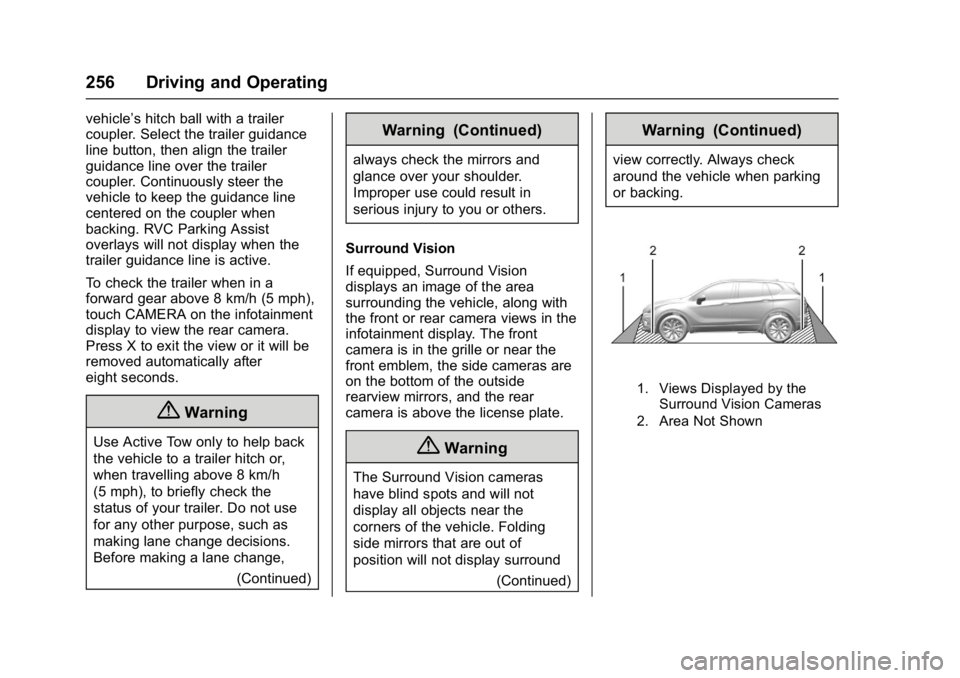
Surround Vision
If equipped, Surround Vision
displays an image of the area
surrounding the vehicle, along with
the front or rear camera views in the
infotainment display. The front
camera is in the grille or near the
front emblem, the side cameras are
on the bottom of the outside
rearview mirrors, and the rear
camera is above the license plate.
{Warning
The Surround Vision cameras
have blind spots and will not
display all objects near the
corners of the vehicle. Folding
side mirrors that are out of
position will not display surround (Continued)
Warning (Continued)
view correctly. Always check
around the vehicle when parking
or backing.
1. Views Displayed by theSurround Vision Cameras
2. Area Not Shown
Page 258 of 419
GMC Acadia/Acadia Denali Owner Manual (GMNA-Localizing-U.S./Canada/
Mexico-9803770) - 2017 - crc - 7/12/16
Driving and Operating 257
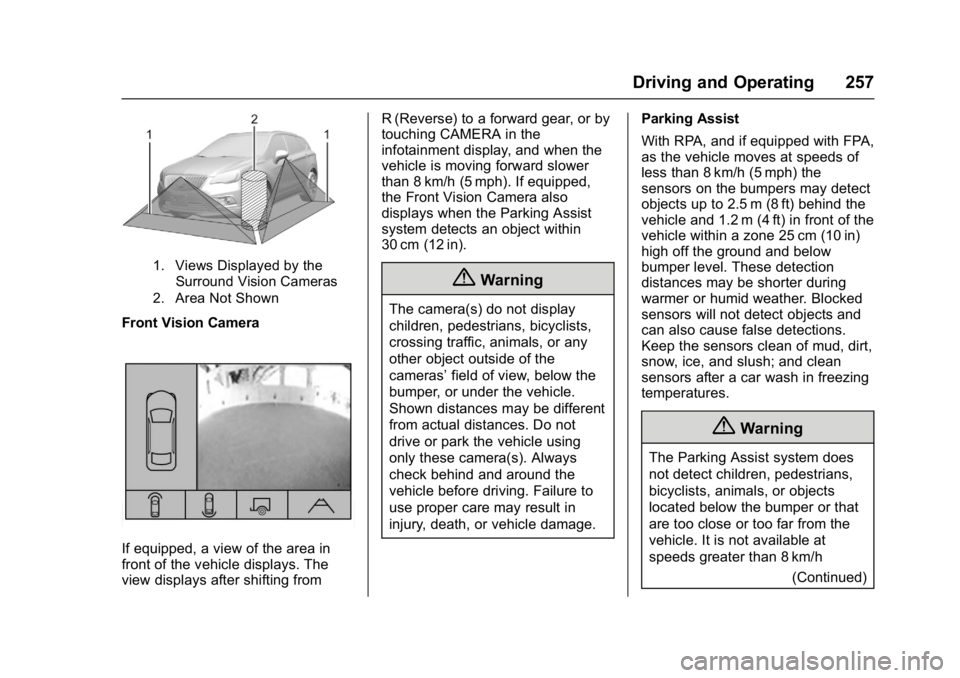
1. Views Displayed by theSurround Vision Cameras
2. Area Not Shown
Front Vision Camera
If equipped, a view of the area in
front of the vehicle displays. The
view displays after shifting from R (Reverse) to a forward gear, or by
touching CAMERA in the
infotainment display, and when the
vehicle is moving forward slower
than 8 km/h (5 mph). If equipped,
the Front Vision Camera also
displays when the Parking Assist
system detects an object within
30 cm (12 in).
{Warning
The camera(s) do not display
children, pedestrians, bicyclists,
crossing traffic, animals, or any
other object outside of the
cameras’
field of view, below the
bumper, or under the vehicle.
Shown distances may be different
from actual distances. Do not
drive or park the vehicle using
only these camera(s). Always
check behind and around the
vehicle before driving. Failure to
use proper care may result in
injury, death, or vehicle damage. Parking Assist
With RPA, and if equipped with FPA,
as the vehicle moves at speeds of
less than 8 km/h (5 mph) the
sensors on the bumpers may detect
objects up to 2.5 m (8 ft) behind the
vehicle and 1.2 m (4 ft) in front of the
vehicle within a zone 25 cm (10 in)
high off the ground and below
bumper level. These detection
distances may be shorter during
warmer or humid weather. Blocked
sensors will not detect objects and
can also cause false detections.
Keep the sensors clean of mud, dirt,
snow, ice, and slush; and clean
sensors after a car wash in freezing
temperatures.
{Warning
The Parking Assist system does
not detect children, pedestrians,
bicyclists, animals, or objects
located below the bumper or that
are too close or too far from the
vehicle. It is not available at
speeds greater than 8 km/h
(Continued)