page 34 GMC ACADIA 2017 User Guide
[x] Cancel search | Manufacturer: GMC, Model Year: 2017, Model line: ACADIA, Model: GMC ACADIA 2017Pages: 419, PDF Size: 5.89 MB
Page 146 of 419
GMC Acadia/Acadia Denali Owner Manual (GMNA-Localizing-U.S./Canada/
Mexico-9803770) - 2017 - crc - 7/12/16
Instruments and Controls 145
DIC Info Pages
The following is the list of all
possible DIC info page displays.
Some may not be available for your
particular vehicle. Some items may
not be turned on by default but can
be turned on through the Options
app. See“DIC Info Page Options”
earlier in this section.
Speed : Shows the vehicle speed in
either kilometers per hour (km/h) or
miles per hour (mph). The vehicle
odometer is also shown on
this page.
Trip A or Trip B, Average Fuel
Economy, and Average Speed :
Shows the current distance traveled,
in either kilometers (km) or
miles (mi), since the trip odometer
was last reset.
The Average Fuel Economy display
shows the approximate average
liters per 100 kilometers (L/100 km)
or miles per gallon (mpg). This
number is calculated based on the
number of L/100 km (mpg) recorded
since the last time this menu item
was reset. This number reflects only
the approximate average fuel economy that the vehicle has right
now, and will change as driving
conditions change.
The Average Speed display shows
the average speed of the vehicle in
kilometers per hour (km/h) or miles
per hour (mph). This average is
calculated based on the various
vehicle speeds recorded since the
last reset of this value.
Press and hold
Vwhile this display
is active to reset the trip odometer,
the average fuel economy, and the
average speed. Or press
pand
select reset in the menu.
Fuel Range and Instantaneous
Fuel Economy : Shows the
approximate distance the vehicle
can be driven without refueling.
LOW will be displayed when the
vehicle is low on fuel. The fuel
range estimate is based on an
average of the vehicle's fuel
economy over recent driving history
and the amount of fuel remaining in
the fuel tank. The Instantaneous Fuel Economy
display shows the current fuel
economy in either liters per
100 kilometers (L/100 km) or miles
per gallon (mpg). This number
reflects only the approximate fuel
economy that the vehicle has right
now and changes frequently as
driving conditions change.
Timer and Fuel Used :
Can be
used as a timer. To start the timer,
press
Vwhile this display is active.
The display will show the amount of
time that has passed since the timer
was last reset. To stop the timer,
press
Vbriefly while this display is
active and the timer is running. To
reset the timer to zero, press and
hold
Vwhile this display is active.
This also shows the number of
liters (L) or gallons (gal) of fuel used
since the last reset of this
menu item.
Oil Life : Shows an estimate of the
oil's remaining useful life.
If REMAINING OIL LIFE 99% is
displayed, that means 99% of the
current oil life remains.
Page 148 of 419
GMC Acadia/Acadia Denali Owner Manual (GMNA-Localizing-U.S./Canada/
Mexico-9803770) - 2017 - crc - 7/12/16
Instruments and Controls 147
Off Road :Displays vehicle pitch
and roll information, road wheel
angle, and four-wheel drive (4WD)
status.
Following Distance : The following
distance to a moving vehicle ahead
in your path is indicated in following
time in seconds. See Forward
Collision Alert (FCA) System 0259.
Blank Page : Shows no
information.
Transmission Fluid Temperature
Gauge : Shows the temperature of
the automatic transmission fluid in
either degrees Celsius (°C) or
degrees Fahrenheit (°F).Vehicle Messages
Messages displayed on the DIC
indicate the status of the vehicle or
some action that may be needed to
correct a condition. Multiple
messages may appear one after
another.
The messages that do not require
immediate action can be
acknowledged and cleared by
pressing
V.
The messages that require
immediate action cannot be cleared
until that action is performed.
All messages should be taken
seriously; clearing the message
does not correct the problem.
The following are the possible
messages and some information
about them.
Battery Voltage and
Charging Messages
BATTERY LOW START
VEHICLE
When the vehicle’ s battery is
severely discharged, this message
will display and four chimes will
sound. Start the vehicle
immediately. If the vehicle is not
started and the battery continues to
discharge, the climate controls,
heated seats, and audio systems
will shut off and the vehicle may
require a jump start. These systems
will function again after the vehicle
is started.
BATTERY SAVER ACTIVE
This message displays when the
battery voltage drops below
expected levels and features are
disabled. Turn off all unnecessary
accessory features.
Page 158 of 419
GMC Acadia/Acadia Denali Owner Manual (GMNA-Localizing-U.S./Canada/
Mexico-9803770) - 2017 - crc - 7/12/16
Instruments and Controls 157
SHIFT TO PARK
This message displays when the
transmission needs to be shifted to
P (Park). This may appear when
turning the ignition off if the vehicle
is not in P (Park).
TRANSMISSION HOT—IDLE
ENGINE
This message displays and a chime
sounds if the transmission fluid in
the vehicle gets hot. Driving with the
transmission fluid temperature high
can cause damage to the vehicle.
Stop the vehicle and let it idle to
allow the transmission to cool. This
message clears when the fluid
temperature reaches a safe level.
Vehicle Reminder
Messages
ICE POSSIBLE DRIVE
WITH CARE
This message is displayed when ice
conditions are possible.
REAR SEAT REMINDER
This message displays under
certain conditions indicating there
may be an item or passenger in the
rear seat. Check before exiting the
vehicle.
Vehicle Speed Messages
REDUCE SPEED FOR HILL
DESCENT CONTROL
This message displays when
attempting to enable Hill Descent
Control (HDC) when the vehicle
speed is too high. See Hill Descent
Control (HDC) 0242.
Washer Fluid Messages
WASHER FLUID LOW ADD
FLUID
This message may display when the
washer fluid level is low. Fill the
windshield washer reservoir as soon
as possible. See Engine
Compartment Overview 0285 for
the location of the windshield
washer reservoir. Also, see Washer
Fluid 0298.
Vehicle
Personalization
Use the audio system controls to
access the personalization menus
for customizing vehicle features.
The following are all possible
personalization features. Depending
on the vehicle, some may not be
available.
Base Radio with Touchscreen
Audio System Controls
{:Press to access the Home
Page Menu.
QorR: Touch to scroll through the
menus or setup items.
0: Touch to exit or return to the
previous screen or menu.
Uplevel Radio Audio System
Controls
1. Press the desired feature to display a list of available
options.
2. Press to select the desired feature setting.
Page 179 of 419
GMC Acadia/Acadia Denali Owner Manual (GMNA-Localizing-U.S./Canada/
Mexico-9803770) - 2017 - crc - 7/12/16
178 Infotainment System
Infotainment
System
Introduction
Infotainment . . . . . . . . . . . . . . . . . . 178
Theft-Deterrent Feature . . . . . . 179
Overview . . . . . . . . . . . . . . . . . . . . . 180
Home Page . . . . . . . . . . . . . . . . . . 181
Operation . . . . . . . . . . . . . . . . . . . . . 181
Radio
AM-FM Radio . . . . . . . . . . . . . . . . 182
Satellite Radio . . . . . . . . . . . . . . . . 183
Radio Reception . . . . . . . . . . . . . . 185
Multi-Band Antenna . . . . . . . . . . 185
Audio Players
USB Port . . . . . . . . . . . . . . . . . . . . . 186
Auxiliary Devices . . . . . . . . . . . . . 191
Phone
Bluetooth (Overview) . . . . . . . . . 192
Bluetooth (InfotainmentControls) . . . . . . . . . . . . . . . . . . . . 193
Apple CarPlay and Android Auto . . . . . . . . . . . . . . . . 197
Hands-Free Phone . . . . . . . . . . . 198
Trademarks and License
Agreements
Trademarks and License Agreements . . . . . . . . . . . . . . . . . 200
Introduction
Infotainment
Base radio information is included in
this manual. See the infotainment
manual for information on other
available infotainment systems.
Read the following pages to
become familiar with the features.
{Warning
Taking your eyes off the road for
too long or too often while using
any infotainment feature can
cause a crash. You or others
could be injured or killed. Do not
give extended attention to
infotainment tasks while driving.
Limit your glances at the vehicle
displays and focus your attention
on driving. Use voice commands
whenever possible.
The infotainment system has built-in
features intended to help avoid
distraction by disabling some
functions when driving. These
Page 181 of 419
GMC Acadia/Acadia Denali Owner Manual (GMNA-Localizing-U.S./Canada/
Mexico-9803770) - 2017 - crc - 7/12/16
180 Infotainment System
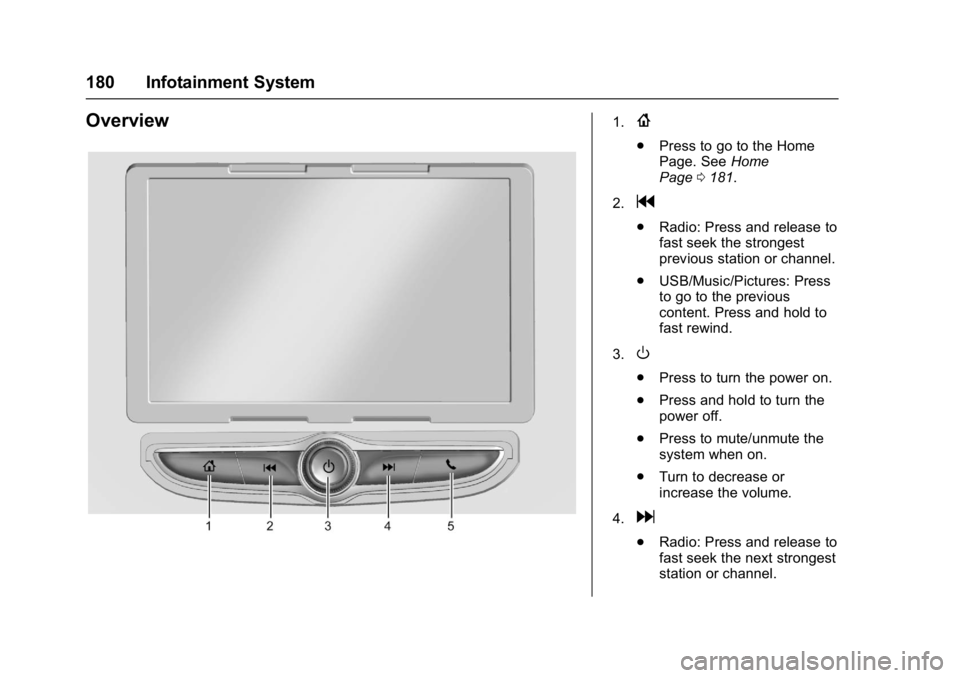
Overview1.{
.Press to go to the Home
Page. See Home
Page 0181.
2.
g
. Radio: Press and release to
fast seek the strongest
previous station or channel.
. USB/Music/Pictures: Press
to go to the previous
content. Press and hold to
fast rewind.
3.
O
. Press to turn the power on.
. Press and hold to turn the
power off.
. Press to mute/unmute the
system when on.
. Turn to decrease or
increase the volume.
4.
d
. Radio: Press and release to
fast seek the next strongest
station or channel.
Page 182 of 419
GMC Acadia/Acadia Denali Owner Manual (GMNA-Localizing-U.S./Canada/
Mexico-9803770) - 2017 - crc - 7/12/16
Infotainment System 181
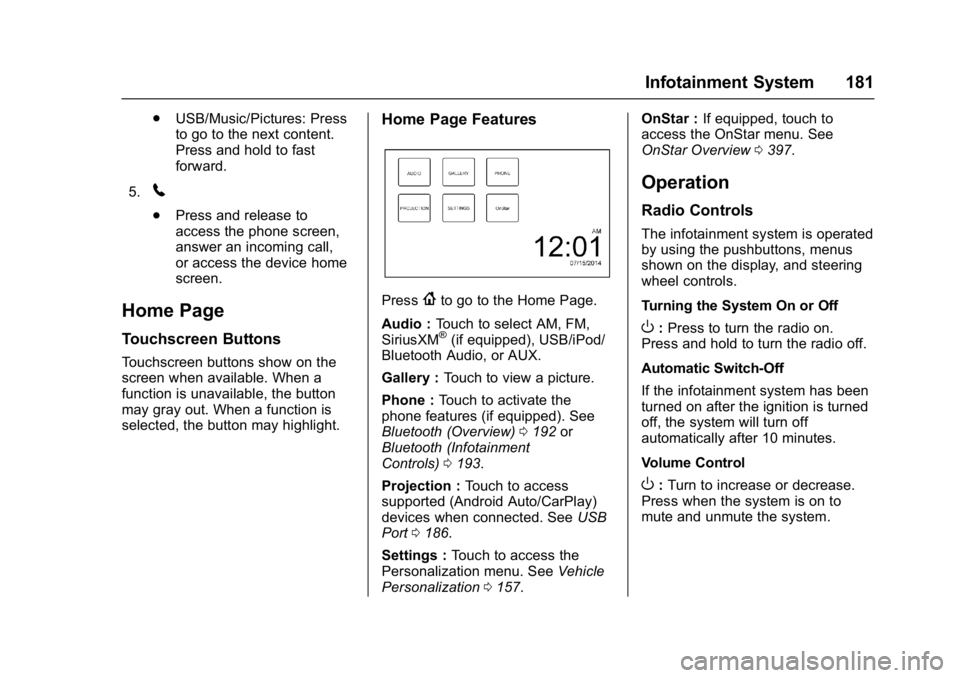
.USB/Music/Pictures: Press
to go to the next content.
Press and hold to fast
forward.
5.
5
. Press and release to
access the phone screen,
answer an incoming call,
or access the device home
screen.
Home Page
Touchscreen Buttons
Touchscreen buttons show on the
screen when available. When a
function is unavailable, the button
may gray out. When a function is
selected, the button may highlight.
Home Page Features
Press{to go to the Home Page.
Audio : Touch to select AM, FM,
SiriusXM
®(if equipped), USB/iPod/
Bluetooth Audio, or AUX.
Gallery : Touch to view a picture.
Phone : Touch to activate the
phone features (if equipped). See
Bluetooth (Overview) 0192 or
Bluetooth (Infotainment
Controls) 0193.
Projection : Touch to access
supported (Android Auto/CarPlay)
devices when connected. See USB
Port 0186.
Settings : Touch to access the
Personalization menu. See Vehicle
Personalization 0157. OnStar :
If equipped, touch to
access the OnStar menu. See
OnStar Overview 0397.
Operation
Radio Controls
The infotainment system is operated
by using the pushbuttons, menus
shown on the display, and steering
wheel controls.
Turning the System On or Off
O:Press to turn the radio on.
Press and hold to turn the radio off.
Automatic Switch-Off
If the infotainment system has been
turned on after the ignition is turned
off, the system will turn off
automatically after 10 minutes.
Volume Control
O: Turn to increase or decrease.
Press when the system is on to
mute and unmute the system.
Page 183 of 419
GMC Acadia/Acadia Denali Owner Manual (GMNA-Localizing-U.S./Canada/
Mexico-9803770) - 2017 - crc - 7/12/16
182 Infotainment System
System Settings
Auto Volume
This feature automatically adjusts
the radio volume to compensate for
road and wind noise.
The level of volume compensation
can be selected, or the feature can
be turned off.
Auto Volume Settings1. Touch SETTINGS from the home screen.
2. Select Radio.
3. Select Auto Volume and choose between selections.
4. Touch
3to go back to the
source screen. Tone Settings
The tone settings can be set for
each radio band and each audio
player source.
Custom Tone Settings
1. Touch SETTINGS from the home screen.
2. Select Radio.
3. Select Tone Settings. .Bass, Midrange, or Treble:
Touch −or +.
. Fader or Balance: Adjust
the front/rear or left/right
speakers by dragging the
dot in the vehicle image on
the screen.
4. Touch
3to go back to the
source screen.
Radio
AM-FM Radio
Playing the Radio
Audio Source Menu
{: Press to go to the Home Page.
O:Press to turn on, mute,
or unmute the system. Press and
hold to turn off the system.
Selecting a Band
1. Press{.
2. Touch AUDIO.
3. Touch Source.
4. Select AM, FM, or SXM (if equipped).
The last station that was playing
starts playing again.
Selecting a Station
Seek Tuning
If the radio station is not known:
Press
gordto automatically
search for available radio stations.
Page 184 of 419
GMC Acadia/Acadia Denali Owner Manual (GMNA-Localizing-U.S./Canada/
Mexico-9803770) - 2017 - crc - 7/12/16
Infotainment System 183
Direct Tune
From the AM or FM menu:1. Touch Tune.
2. Enter the station number.
3. Touch Go.
Favorites
1. Touch
SorTto scroll through
the favorite pages.
2. Touch the station to select it.
Update Station List
. From the AM or FM menu, touch
Menu, then touch Update Station
List. The broadcasting list
updating will begin.
. During the AM or FM
broadcasting list update, touch
Cancel to stop the updates.
Station List 1. From the AM or FM menu, touch Menu.
2. Select Station List.
3. Touch
QorRto scroll through
the list. Touch the station to
select it.
Menu
Touch to choose between available
menus for the current source.
Storing a Station as a Favorite
Stations from all bands can be
stored in any order in the favorite
pages.
Up to 25 stations can be stored.
Storing Stations
To store the station to a position in
the list, touch the corresponding
button 1−5 until a beep is heard.
1. Select the desired station.
2. Touch
SorTto select the
desired page of saved
favorites.
3. Touch and hold any of the preset buttons to save the
current radio station to that
button of the selected
favorites page.
To change a preset button, tune to
the new desired radio station and
touch and hold the preset button.
Satellite Radio
If equipped, vehicles with an
SiriusXM®Satellite Radio tuner and
a valid SiriusXM Satellite Radio
subscription can receive SiriusXM
programming.
SiriusXM Satellite Radio
Service
SiriusXM is a satellite radio service
based in the 48 contiguous United
States and 10 Canadian provinces.
SiriusXM Satellite Radio has a wide
variety of programming and
commercial-free music, coast to
coast, and in digital-quality sound.
During your trial or when you
subscribe, you will get unlimited
access to SiriusXM Radio Online for
when you are not in the vehicle.
A service fee is required to receive
the SiriusXM service. If SiriusXM
service needs to be reactivated, the
radio will display "No Subscription
Please Renew" on channel SXM1.
For more information, contact
SiriusXM at www.siriusxm.com or
1-888-601-6296 (U.S.), and
www.siriusxm.ca or 1-877-438-9677
(Canada).
Page 185 of 419
GMC Acadia/Acadia Denali Owner Manual (GMNA-Localizing-U.S./Canada/
Mexico-9803770) - 2017 - crc - 7/12/16
184 Infotainment System
Listening to SiriusXM Radio
1. Press{.
2. Touch AUDIO.
3. Touch Source.
4. Touch SXM and the most recent listened to SiriusXM
channel will display.
Selecting a Category
From Menu, touch Categories, then
touch the desired category or from
Categories, touch
QorRto find the
desired channel. Touch the channel
to select it.
Selecting a Channel
Pressgordto seek the previous
or next channel.
Using the Preset Buttons
Up to five favorites pages can be
saved, and each page can store up
to five channels.
To change a preset button, tune to
the new desired channel and hold
the button. Listening to Preset Channels
1. Touch
SorTrepeatedly to
select the desired
favorites page.
2. Touch the preset button to listen to the channel.
Using the SiriusXM Menu
Operation
1. Touch MENU on the SXM radio screen.
2. Touch the menu to select the desired item or to display the
detail menu item.
3. Touch
0to return to the
previous menu.
Channel List 1. Touch Channel List from the SXM menu. The channel list is
displayed.
2. Touch
QorRto find the
desired channel. Touch the
channel to select it. Tone Settings
1. Touch Tone Settings. See “Tone Settings” under
Operation 0181.
2. Touch
0.
Auto Volume 1. Touch Auto Volume. See “Auto
Volume” under
Operation 0181.
2. Touch
0.
Categories 1. Touch Categories.
2. Touch
QorRto find the
desired category. Touch the
category to select it.
Explicit Content Filter
When on, only a filtered list of
channels will be received. When off,
all regular SXM programming
subscribed to will be received. 1. Touch SXM Explicit Filter.
2. Select to enable or disable.
Page 198 of 419
GMC Acadia/Acadia Denali Owner Manual (GMNA-Localizing-U.S./Canada/
Mexico-9803770) - 2017 - crc - 7/12/16
Infotainment System 197
Playing Music Randomly
Touch
Zduring playback. Touch
again to return to normal play.
This function may not be supported
depending on the Bluetooth device.
Do not change the track too quickly
when playing Bluetooth music.
Conditions that may occur when
playing Bluetooth music:
. It takes time to transmit data
from the Bluetooth device to the
infotainment system.
. If the cell phone or Bluetooth
device is not in the waiting
screen mode, it may not
automatically play.
. The infotainment system
transmits the order to play from
the Bluetooth device in the
Bluetooth music play mode.
If this is done in a different
mode, then the device transmits
the order to stop. Depending on
the Bluetooth device options,
this order to play/stop may take
time to activate. .
If the Bluetooth music playback
is not functioning, then check to
see if the Bluetooth device is in
the waiting screen mode.
. Sounds may be cut off during
the Bluetooth music playback.
. The infotainment system outputs
the audio from the cell phone or
Bluetooth device as it is
transmitted.
Apple CarPlay and
Android Auto
If equipped, Android Auto™ and/or
Apple CarPlay™ capability may be
available through a compatible
smartphone. If available, a
PROJECTION icon will appear on
the Home Page of the infotainment
display.
To use Android Auto and/or Apple
CarPlay:
1. Download the Android Auto app to your phone from the
Google™ Play store. There is
no app required for Apple
CarPlay. 2. Connect your Android phone or
Apple iPhone by using the
compatible phone USB cable
and plugging into a USB data
port. For best performance, use
the device’ s factory-provided
USB cable. Aftermarket or
third-party cables may
not work.
The PROJECTION icon on the
Home Page will change to
ANDROID AUTO or APPLE
CARPLAY depending on the phone.
Android Auto and/or Apple CarPlay
may automatically launch upon USB
connection. If not, press the
ANDROID AUTO and/or APPLE
CARPLAY icon on the Home Page
to launch.
For further information on how to set
up Android Auto and Apple CarPlay
in the vehicle, see my. gmc.com or
see Customer Assistance
Offices 0386.
Android Auto is provided by Google
and is subject to Google’s terms
and privacy policy. CarPlay is
provided by Apple and is subject to
Apple’ s terms and privacy policy.