lock GMC ACADIA 2017 Repair Manual
[x] Cancel search | Manufacturer: GMC, Model Year: 2017, Model line: ACADIA, Model: GMC ACADIA 2017Pages: 419, PDF Size: 5.89 MB
Page 154 of 419
GMC Acadia/Acadia Denali Owner Manual (GMNA-Localizing-U.S./Canada/
Mexico-9803770) - 2017 - crc - 7/12/16
Instruments and Controls 153
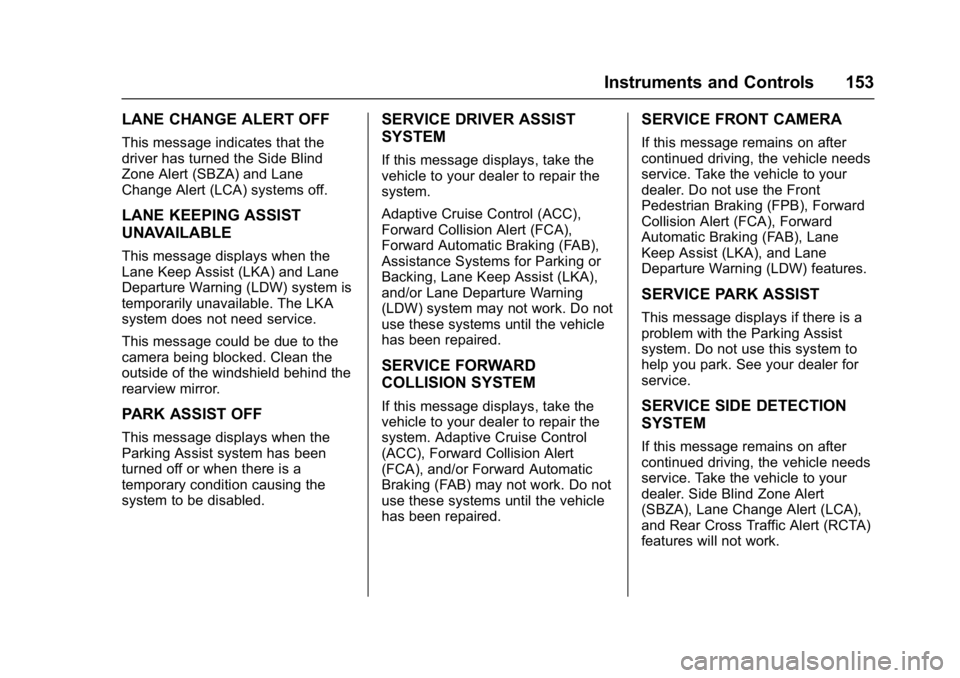
LANE CHANGE ALERT OFF
This message indicates that the
driver has turned the Side Blind
Zone Alert (SBZA) and Lane
Change Alert (LCA) systems off.
LANE KEEPING ASSIST
UNAVAILABLE
This message displays when the
Lane Keep Assist (LKA) and Lane
Departure Warning (LDW) system is
temporarily unavailable. The LKA
system does not need service.
This message could be due to the
camera being blocked. Clean the
outside of the windshield behind the
rearview mirror.
PARK ASSIST OFF
This message displays when the
Parking Assist system has been
turned off or when there is a
temporary condition causing the
system to be disabled.
SERVICE DRIVER ASSIST
SYSTEM
If this message displays, take the
vehicle to your dealer to repair the
system.
Adaptive Cruise Control (ACC),
Forward Collision Alert (FCA),
Forward Automatic Braking (FAB),
Assistance Systems for Parking or
Backing, Lane Keep Assist (LKA),
and/or Lane Departure Warning
(LDW) system may not work. Do not
use these systems until the vehicle
has been repaired.
SERVICE FORWARD
COLLISION SYSTEM
If this message displays, take the
vehicle to your dealer to repair the
system. Adaptive Cruise Control
(ACC), Forward Collision Alert
(FCA), and/or Forward Automatic
Braking (FAB) may not work. Do not
use these systems until the vehicle
has been repaired.
SERVICE FRONT CAMERA
If this message remains on after
continued driving, the vehicle needs
service. Take the vehicle to your
dealer. Do not use the Front
Pedestrian Braking (FPB), Forward
Collision Alert (FCA), Forward
Automatic Braking (FAB), Lane
Keep Assist (LKA), and Lane
Departure Warning (LDW) features.
SERVICE PARK ASSIST
This message displays if there is a
problem with the Parking Assist
system. Do not use this system to
help you park. See your dealer for
service.
SERVICE SIDE DETECTION
SYSTEM
If this message remains on after
continued driving, the vehicle needs
service. Take the vehicle to your
dealer. Side Blind Zone Alert
(SBZA), Lane Change Alert (LCA),
and Rear Cross Traffic Alert (RCTA)
features will not work.
Page 155 of 419
GMC Acadia/Acadia Denali Owner Manual (GMNA-Localizing-U.S./Canada/
Mexico-9803770) - 2017 - crc - 7/12/16
154 Instruments and Controls
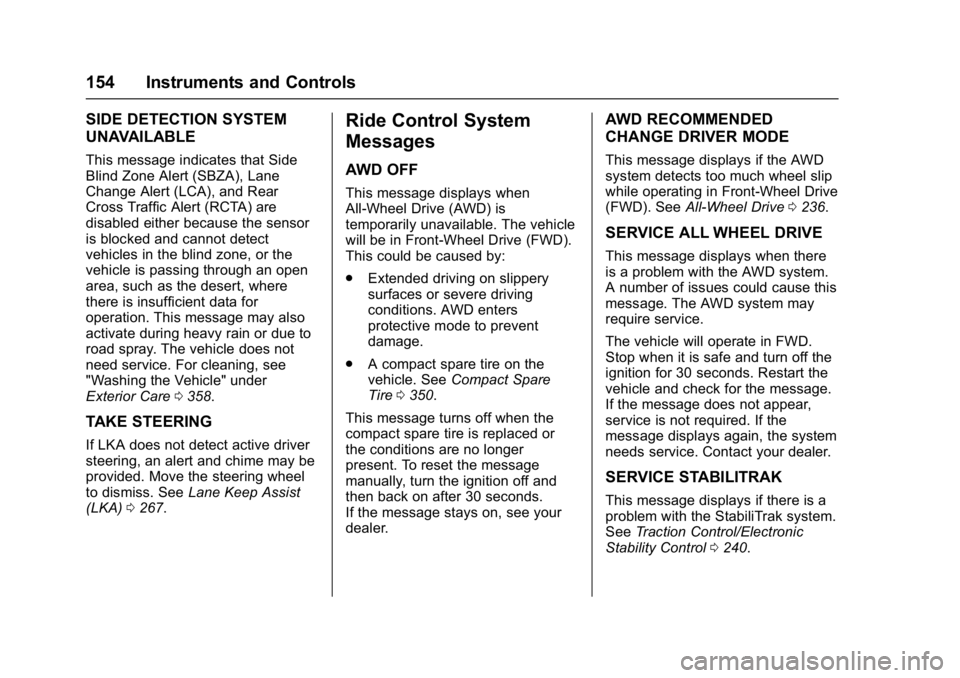
SIDE DETECTION SYSTEM
UNAVAILABLE
This message indicates that Side
Blind Zone Alert (SBZA), Lane
Change Alert (LCA), and Rear
Cross Traffic Alert (RCTA) are
disabled either because the sensor
is blocked and cannot detect
vehicles in the blind zone, or the
vehicle is passing through an open
area, such as the desert, where
there is insufficient data for
operation. This message may also
activate during heavy rain or due to
road spray. The vehicle does not
need service. For cleaning, see
"Washing the Vehicle" under
Exterior Care0358.
TAKE STEERING
If LKA does not detect active driver
steering, an alert and chime may be
provided. Move the steering wheel
to dismiss. See Lane Keep Assist
(LKA) 0267.
Ride Control System
Messages
AWD OFF
This message displays when
All-Wheel Drive (AWD) is
temporarily unavailable. The vehicle
will be in Front-Wheel Drive (FWD).
This could be caused by:
.
Extended driving on slippery
surfaces or severe driving
conditions. AWD enters
protective mode to prevent
damage.
. A compact spare tire on the
vehicle. See Compact Spare
Tire 0350.
This message turns off when the
compact spare tire is replaced or
the conditions are no longer
present. To reset the message
manually, turn the ignition off and
then back on after 30 seconds.
If the message stays on, see your
dealer.
AWD RECOMMENDED
CHANGE DRIVER MODE
This message displays if the AWD
system detects too much wheel slip
while operating in Front-Wheel Drive
(FWD). See All-Wheel Drive 0236.
SERVICE ALL WHEEL DRIVE
This message displays when there
is a problem with the AWD system.
A number of issues could cause this
message. The AWD system may
require service.
The vehicle will operate in FWD.
Stop when it is safe and turn off the
ignition for 30 seconds. Restart the
vehicle and check for the message.
If the message does not appear,
service is not required. If the
message displays again, the system
needs service. Contact your dealer.
SERVICE STABILITRAK
This message displays if there is a
problem with the StabiliTrak system.
See Traction Control/Electronic
Stability Control 0240.
Page 159 of 419
GMC Acadia/Acadia Denali Owner Manual (GMNA-Localizing-U.S./Canada/
Mexico-9803770) - 2017 - crc - 7/12/16
158 Instruments and Controls
3. PressoBACK on the
faceplate or the
0screen
button to return to the previous
menu or exit.
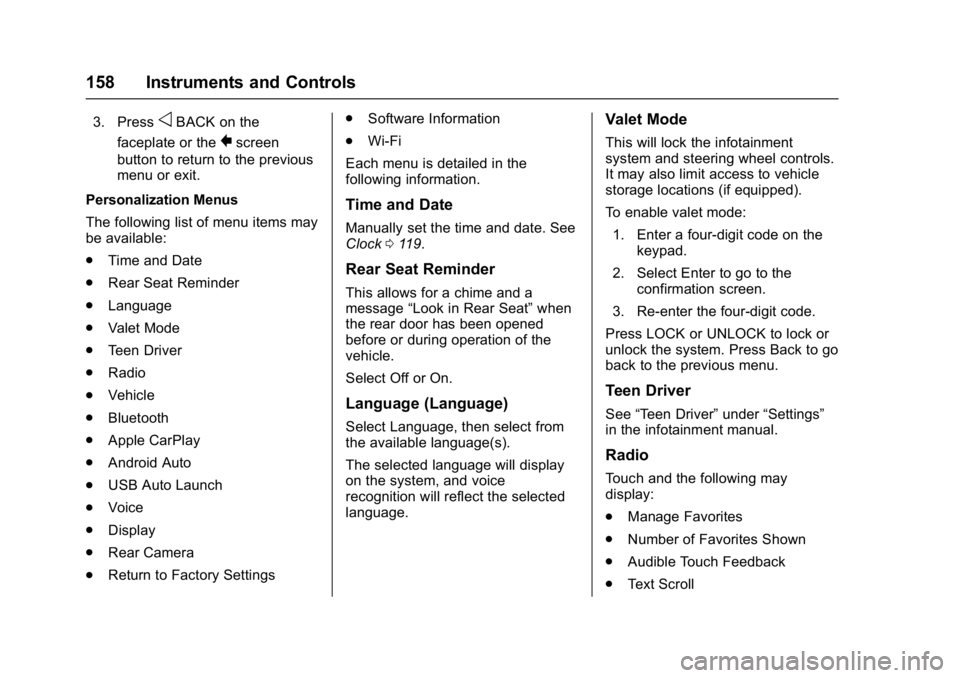
Personalization Menus
The following list of menu items may
be available:
. Time and Date
. Rear Seat Reminder
. Language
. Valet Mode
. Teen Driver
. Radio
. Vehicle
. Bluetooth
. Apple CarPlay
. Android Auto
. USB Auto Launch
. Voice
. Display
. Rear Camera
. Return to Factory Settings .
Software Information
. Wi-Fi
Each menu is detailed in the
following information.
Time and Date
Manually set the time and date. See
Clock 0119.
Rear Seat Reminder
This allows for a chime and a
message “Look in Rear Seat” when
the rear door has been opened
before or during operation of the
vehicle.
Select Off or On.
Language (Language)
Select Language, then select from
the available language(s).
The selected language will display
on the system, and voice
recognition will reflect the selected
language.
Valet Mode
This will lock the infotainment
system and steering wheel controls.
It may also limit access to vehicle
storage locations (if equipped).
To enable valet mode:
1. Enter a four-digit code on the keypad.
2. Select Enter to go to the confirmation screen.
3. Re-enter the four-digit code.
Press LOCK or UNLOCK to lock or
unlock the system. Press Back to go
back to the previous menu.
Teen Driver
See “Teen Driver” under“Settings”
in the infotainment manual.
Radio
Touch and the following may
display:
. Manage Favorites
. Number of Favorites Shown
. Audible Touch Feedback
. Text Scroll
Page 160 of 419
GMC Acadia/Acadia Denali Owner Manual (GMNA-Localizing-U.S./Canada/
Mexico-9803770) - 2017 - crc - 7/12/16
Instruments and Controls 159
.Tone Settings
. Auto Volume
. Bose Audio Pilot
. Maximum Start Up Volume
Manage Favorites
This allows favorites to be edited.
See “Manage Favorites” in
“Settings” under“Radio” in the
infotainment manual.
Number of Favorites Shown
Touch to set the number of favorites
to display.
Select the desired number or select
Auto and the infotainment system
will automatically adjust the number
of favorites shown.
Audible Touch Feedback
This allows Audible Touch
Feedback to be turned on or off.
Select Off or On.
Text Scroll
Select to see text scroll on the
screen.
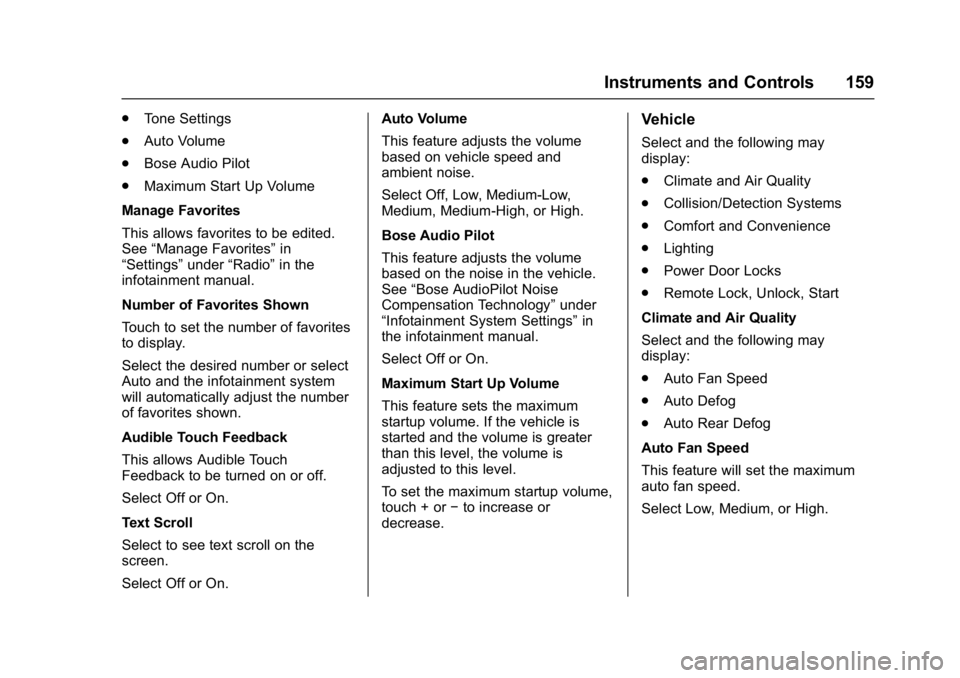
Select Off or On. Auto Volume
This feature adjusts the volume
based on vehicle speed and
ambient noise.
Select Off, Low, Medium-Low,
Medium, Medium-High, or High.
Bose Audio Pilot
This feature adjusts the volume
based on the noise in the vehicle.
See
“Bose AudioPilot Noise
Compensation Technology” under
“Infotainment System Settings” in
the infotainment manual.
Select Off or On.
Maximum Start Up Volume
This feature sets the maximum
startup volume. If the vehicle is
started and the volume is greater
than this level, the volume is
adjusted to this level.
To set the maximum startup volume,
touch + or −to increase or
decrease.Vehicle
Select and the following may
display:
. Climate and Air Quality
. Collision/Detection Systems
. Comfort and Convenience
. Lighting
. Power Door Locks
. Remote Lock, Unlock, Start
Climate and Air Quality
Select and the following may
display:
. Auto Fan Speed
. Auto Defog
. Auto Rear Defog
Auto Fan Speed
This feature will set the maximum
auto fan speed.
Select Low, Medium, or High.
Page 162 of 419
GMC Acadia/Acadia Denali Owner Manual (GMNA-Localizing-U.S./Canada/
Mexico-9803770) - 2017 - crc - 7/12/16
Instruments and Controls 161
.Chime Volume
. Reverse Tilt Mirror
. Auto Wipe in Reverse Gear
. Automatic Vehicle Hold
Auto Memory Recall
This feature automatically recalls
the current driver ’s previously stored
1 or 2 button positions when
entering the vehicle. See Memory
Seats 060.
Select Off or On.
Easy Exit Options
This feature automatically recalls
the current driver ’s previously stored
Exit button position when exiting the
vehicle. See Memory Seats 060.
Select Off or On.
Chime Volume
This allows the selection of the
chime volume level.
Touch + or −to adjust the volume. Reverse Tilt Mirror
When on, both the driver and
passenger outside mirrors will tilt
downward when the vehicle is
shifted to R (Reverse) to improve
visibility of the ground near the rear
wheels. They will return to their
previous driving position when the
vehicle is shifted out of R (Reverse)
or the engine is turned off.
Select Off, On - Driver and
Passenger, On - Driver, or On -
Passenger.
Auto Wipe in Reverse Gear
When on and the front wiper is on,
the rear wiper will automatically
activate when the vehicle is shifted
to R (Reverse).
Select Off or On.
Automatic Vehicle Hold
This allows the duration of the
Automatic Vehicle Hold to be
changed. See
Automatic Vehicle
Hold (AVH) 0239.
Select Long and Auto Park Brake
On or Short and Auto Park
Brake Off.Lighting
Select and the following may
display:
. Vehicle Locator Lights
. Exit Lighting
Vehicle Locator Lights
This feature will flash the exterior
lamps and allows some of the
exterior lamps and most of the
interior lamps to turn on briefly when
Kon the Remote Keyless Entry
(RKE) transmitter is pressed to
locate the vehicle.
Select Off or On.
Exit Lighting
This allows the selection of how
long the exterior lamps stay on
when leaving the vehicle when it is
dark outside.
Select Off, 30 Seconds, 60
Seconds, or 120 Seconds.
Power Door Locks
Select and the following may
display:
. Unlocked Door Anti-Lockout
Page 163 of 419
GMC Acadia/Acadia Denali Owner Manual (GMNA-Localizing-U.S./Canada/
Mexico-9803770) - 2017 - crc - 7/12/16
162 Instruments and Controls
.Auto Door Unlock
. Delayed Door Lock
Unlocked Door Anti-Lockout
When on, this feature will keep the
driver door from locking when the
door is open. If Off is selected, the
Delayed Door Lock menu will be
available.
Select Off or On.
Auto Door Unlock
This allows selection of which of the
doors will automatically unlock when
the vehicle is shifted into P (Park).
Select Off, All Doors, or Driver Door.
Delayed Door Lock
When on, this feature will delay the
locking of the doors. To override the
delay, press the power door lock
switch on the door.
Select Off or On.
Remote Lock, Unlock, Start
Select and the following may
display:
. Remote Unlock Light Feedback .
Remote Lock Feedback
. Remote Door Unlock
. Remote Start Auto Cool Seats
. Remote Start Auto Heat Seats
. Remote Window Operation
. Passive Door Unlock
. Passive Door Lock
. Remote Left in Vehicle Alert
Remote Unlock Light Feedback
When on, the exterior lamps will
flash when unlocking the vehicle
with the RKE transmitter.
Select Off or Flash Lights.
Remote Lock Feedback
This allows selection of what type of
feedback is given when locking the
vehicle with the RKE transmitter.
Select Off, Lights and Horn, Lights
Only, or Horn Only.
Remote Door Unlock
This allows selection of which doors
will unlock when pressing
Kon the
RKE transmitter. Select All Doors or Driver Door.
Remote Start Auto Cool Seats
If equipped and turned on, this
feature will turn the ventilated seats
on when using remote start on
warm days.
Select Off or On.
Remote Start Auto Heat Seats
If equipped and turned on, this
feature will turn the heated seats on
when using remote start on
cold days.
Select Off or On.
Remote Window Operation
If equipped, this feature enables the
remote operation of all windows
from the RKE transmitter. See
“Remote Window Operation”
in
Power Windows 050.
Select Off or On.
Passive Door Unlock
This allows the selection of what
doors will unlock when using the
button on the driver door to unlock
the vehicle.
Page 164 of 419
GMC Acadia/Acadia Denali Owner Manual (GMNA-Localizing-U.S./Canada/
Mexico-9803770) - 2017 - crc - 7/12/16
Instruments and Controls 163
Select All Doors or Driver Door.
Passive Door Lock
This allows passive locking to be
turned on or off and selects
feedback. SeeRemote Keyless
Entry (RKE) System Operation 029.
Select Off, On with Horn
Chirp, or On.
Remote Left in Vehicle Alert
This feature sounds an alert when
the RKE transmitter is left in the
vehicle. This menu also enables
Remote No Longer In Vehicle Alert.
Select Off or On.
Bluetooth
Select and the following may
display:
. Device Information
. Pair New Device
. Device Management
. Change Pairing PIN
. Ringtones
. Sort Order
. Voice Mail Numbers .
Text Message Alerts
Device Information
See information about the device
name, address, and PIN code.
Pair New Device
Select to pair a new device. See
“Pairing” in“Infotainment Controls”
under “Bluetooth” in the infotainment
manual.
Device Management
Select to connect to a different
phone source, disconnect a phone,
or delete a phone.
Change Pairing PIN
Select to change the PIN of a
device.
Ringtones
Touch to change the ring tone for
the specific phone. The phone does
not need to be connected to change
the ring tone.
Sort Order
Select to change the order of the
contacts list. Select First/Last or Last/First.
Voice Mail Numbers
This feature displays the voice mail
number for all connected phones.
To change the voice mail number,
select EDIT or press the EDIT
button. Type a new number, then
select SAVE or press the SAVE
button.
Text Message Alerts
This allows the feature to be turned
on or off.
Select Off or On.
Apple CarPlay
Select and the following may
display:
.
Apple CarPlay
. Manage Apple CarPlay Devices
Apple CarPlay
This feature allows Apple devices to
be connected to the infotainment
system through a USB port.
Select Off or On.
Page 172 of 419
GMC Acadia/Acadia Denali Owner Manual (GMNA-Localizing-U.S./Canada/
Mexico-9803770) - 2017 - crc - 7/12/16
Lighting 171
The high beams may not turn off
automatically if the system cannot
detect another vehicle's lamps
because of any of the following:
.The other vehicle's lamps are
missing, damaged, obstructed
from view, or otherwise
undetected.
. The other vehicle's lamps are
covered with dirt, snow, and/or
road spray.
. The other vehicle's lamps cannot
be detected due to dense
exhaust, smoke, fog, snow, road
spray, mist, or other airborne
obstructions.
. The vehicle's windshield is dirty,
cracked, or obstructed by
something that blocks the view
of the light sensor.
. The vehicle is loaded such that
the front end points upward,
causing the light sensor to aim
high and not detect headlamps
and taillamps.
. Driving on winding or hilly roads. The automatic high-beam
headlamps may need to be disabled
if any of the above conditions exist.
Exterior Lamps Off
Reminder
A warning chime sounds if the driver
door is opened while the ignition is
off and the exterior lamps are on.
Headlamp High/
Low-Beam Changer
3
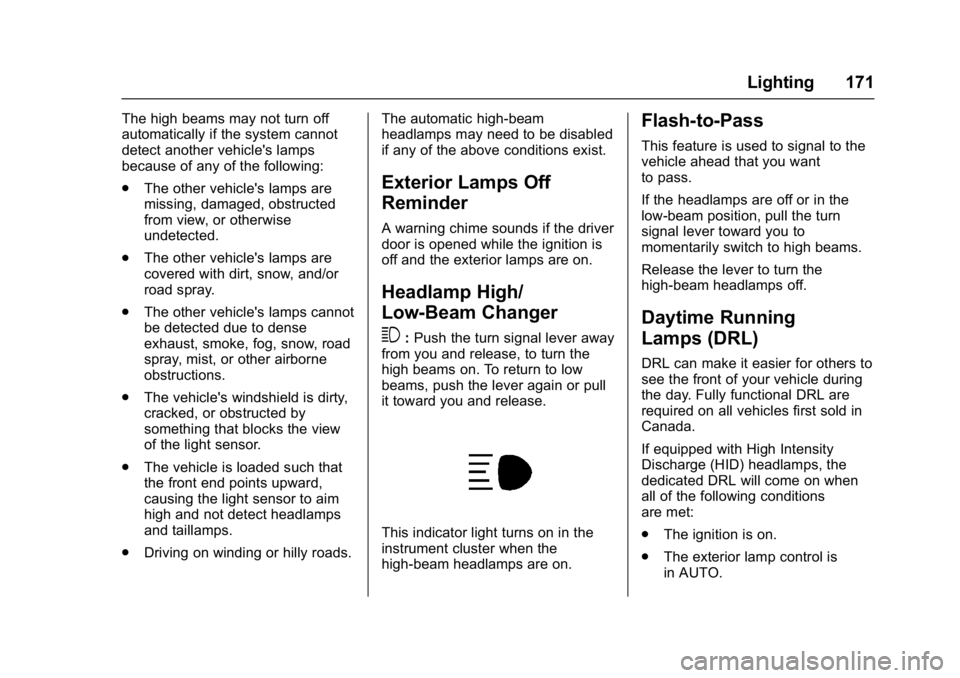
:
Push the turn signal lever away
from you and release, to turn the
high beams on. To return to low
beams, push the lever again or pull
it toward you and release.
This indicator light turns on in the
instrument cluster when the
high-beam headlamps are on.
Flash-to-Pass
This feature is used to signal to the
vehicle ahead that you want
to pass.
If the headlamps are off or in the
low-beam position, pull the turn
signal lever toward you to
momentarily switch to high beams.
Release the lever to turn the
high-beam headlamps off.
Daytime Running
Lamps (DRL)
DRL can make it easier for others to
see the front of your vehicle during
the day. Fully functional DRL are
required on all vehicles first sold in
Canada.
If equipped with High Intensity
Discharge (HID) headlamps, the
dedicated DRL will come on when
all of the following conditions
are met:
. The ignition is on.
. The exterior lamp control is
in AUTO.
Page 192 of 419
GMC Acadia/Acadia Denali Owner Manual (GMNA-Localizing-U.S./Canada/
Mexico-9803770) - 2017 - crc - 7/12/16
Infotainment System 191
Viewing Pictures1. Connect the USB device to the USB port.
2. Touch the screen to open to full screen. Touch the screen again
to return to the previous
screen.
If the USB device is already
connected:
1. Press
{.
2. Touch GALLERY.
Some features are disabled while
the vehicle is in motion.
Viewing a Slide Show
1. Touch
zfrom the picture
screen.
2. Touch the screen to cancel the slide show during the slide
show playback.
Viewing a Previous or Next
Picture
Touch
SorTfrom the picture
screen. Rotating a Picture
Touch
wfrom the picture screen.
Enlarging a Picture
Touch
xfrom the picture screen.
Using the USB Picture Menu 1. Touch MENU from the picture screen.
2. Touch the appropriate menu: .Slide Show Time: Allows
selection of the slide show
interval.
. Clock, Temp. Display:
Allows selection of On or
Off to show the clock and
temperature on the full
screen.
. Display Settings: Adjusts
for Brightness and Contrast.
3. Touch
0to exit.
Auxiliary Devices
Using the Auxiliary Input Jack
Settings menus and functions may
vary depending on vehicle options.
The auxiliary input jack can be used
to connect external audio devices
such as an iPod
®, iPhone®, MP3
player, CD player, and other
supported devices for use as
another source for audio listening.
This input jack is not an audio
output; do not plug headphones into
the front auxiliary input jack.
The auxiliary input jack is in the
center stack. The infotainment
system can play music connected
by the auxiliary device.
Play will begin when the system has
finished reading the information on
the device.
Page 204 of 419
GMC Acadia/Acadia Denali Owner Manual (GMNA-Localizing-U.S./Canada/
Mexico-9803770) - 2017 - crc - 7/12/16
Climate Controls 203
Automatic Operation
The system automatically controls
the following four functions to heat
or cool the vehicle to the desired
temperature:
.Fan Speed
. Air Delivery Mode
. Air Conditioning
. Recirculation
When the AUTO indicator light is lit,
all four functions are operating
automatically. Each function can be
manually set and the selected
setting will be shown. This cancels
full automatic operation and the
AUTO indicator light turns off.
Functions that are not manually set
will continue to be automatically
controlled, although the AUTO
indicator light will not be lit.
To place the system in
automatic mode: 1. Press AUTO.
2. Set the driver and passenger temperature. To find your comfort setting,
start with 22 °C (72 °F) and
allow the system time to
stabilize. Then adjust the
temperature as needed for best
comfort.
To improve fuel efficiency and to
cool the vehicle faster, recirculation
may be automatically selected in
warm weather.
The recirculation light will not come
on when automatically controlled.
Press
@to manually select
recirculation; press it again to select
outside air.
Do not cover the solar sensor on the
top of the instrument panel near the
windshield. This sensor regulates
air temperature based on sun load.
See “Sensors” later in this section.
Manual Operation
O:Press to turn the climate control
system on or off. Outside air still
enters the vehicle and is directed to
the floor. This direction can be
changed by pressing the air
delivery mode.
9: Turn clockwise or
counterclockwise to increase or
decrease the fan speed. Press the
knob to turn the fan off.
Press AUTO to return to automatic
operation.
Driver and Passenger
Temperature Control : The
temperature can be adjusted
separately for the driver and
passenger.
Turn the knob clockwise or
counterclockwise to increase or
decrease the driver or passenger
temperature setting.
SYNC : Press to link the passenger
and rear climate temperature
settings to the driver setting. The
SYNC indicator light will turn on.
When the passenger or rear climate
temperature settings are adjusted,
the SYNC indicator light is off.
The driver side or passenger side
temperature display shows the
temperature setting increasing or
decreasing.