radio controls GMC ACADIA 2018 User Guide
[x] Cancel search | Manufacturer: GMC, Model Year: 2018, Model line: ACADIA, Model: GMC ACADIA 2018Pages: 423, PDF Size: 7.26 MB
Page 155 of 423
GMC Acadia/Acadia Denali Owner Manual (GMNA-Localizing-U.S./Canada/
Mexico-11349114) - 2018 - crc - 9/21/17
154 Instruments and Controls
Tone Settings
Select to adjust the radio tone. See
Operation0176 or“Tone Settings”
under “AM-FM Radio” in the
infotainment manual.
Auto Volume
This feature adjusts the volume
based on vehicle speed and
ambient noise.
Select Off, Low, Medium-Low,
Medium, Medium-High, or High.
Bose Audio Pilot
This feature adjusts the volume
based on the noise in the vehicle.
See “Bose AudioPilot Noise
Compensation Technology” under
“Infotainment System Settings” in
the infotainment manual.
Select Off or On.
Maximum Startup Volume
This feature sets the maximum
startup volume. If the vehicle is
started and the volume is greater
than this level, the volume is
adjusted to this level. To set the maximum startup volume,
touch + or
−to increase or
decrease.
Vehicle
Select and the following may
display:
. Climate and Air Quality
. Collision/Detection Systems
. Comfort and Convenience
. Lighting
. Power Door Locks
. Remote Lock, Unlock, Start
Climate and Air Quality
Select and the following may
display:
.Auto Fan Speed
. Auto Defog
. Auto Rear Defog
Auto Fan Speed
This feature will set the maximum
auto fan speed.
Select Low, Medium, or High. Auto Defog
When set to On, the front defog will
automatically react to temperature
and humidity conditions that may
cause fogging.
Select Off or On.
Auto Rear Defog
If equipped, this allows the Auto
Rear Defog to be turned on or off.
This feature will automatically turn
on the rear window defogger when it
is cold outside.
Select Off or On.
Collision/Detection Systems
Select the Collision/Detection
Systems menu and the following
may be displayed if equipped:
.
Alert Type
. Forward Collision System
. Front Pedestrian Detection
. Rear Cross Traffic Alert
. Adaptive Cruise Go Notifier
. Lane Change Alert
Page 160 of 423
GMC Acadia/Acadia Denali Owner Manual (GMNA-Localizing-U.S./Canada/
Mexico-11349114) - 2018 - crc - 9/21/17
Instruments and Controls 159
Android Auto
This feature allows Android devices
to be connected to the infotainment
system through a USB port.
Select Off or On.
Manage Android Auto Devices
Select to manage Android devices.
Android Auto must be on for this
feature to be accessed.
USB Auto Launch
This allows Android and Apple
CarPlay devices to automatically
connect when plugged into the
USB port.
Select Off or On.
Voice
Select and the following may
display:
.Confidence Threshold
. Prompt Length
. Audio Feedback Speed
. Display “What Can I Say?” TipsConfidence Threshold
This feature allows the adjustment
of the sensitivity of the speech
recognition system.
Select Confirm More or
Confirm Less.
Prompt Length
This feature adjusts the voice
prompt length.
Select Short or Long.
Audio Feedback Speed
This feature adjusts the audio
feedback speed.
Select Slow, Medium, or Fast.
Display
“What Can I Say?” Tips
This feature gives voice
command tips.
Select Off or On.
Display
Select and the following may
display:
. Mode
. Calibrate Touchscreen .
Turn Display Off
Mode
Select to change the display screen
for day or night driving.
Select Auto, Day, or Night.
Calibrate Touchscreen
Select to calibrate the touchscreen,
then follow the prompts.
Turn Display Off
Select to turn the display off. Touch
anywhere on the infotainment
display area or press any controls
on the radio center stack to turn the
display on.
Rear Camera
This allows for Rear Parking Assist
Symbols and Guidance Lines to be
turned off or on.
Select Off or On for the desired
feature.
See Assistance Systems for Parking
or Backing 0252.
Page 161 of 423
GMC Acadia/Acadia Denali Owner Manual (GMNA-Localizing-U.S./Canada/
Mexico-11349114) - 2018 - crc - 9/21/17
160 Instruments and Controls
Return to Factory Settings
Select and the following may
display:
.Restore Vehicle Settings
. Clear All Private Data
. Restore Radio Settings
Restore Vehicle Settings
This allows selection of restoring
vehicle settings.
Select Restore or Cancel.
Clear All Private Data
This allows selection to clear all
private information from the vehicle.
Select Delete or Cancel.
Restore Radio Settings
This allows selection to restore
radio settings.
Select Restore or Cancel.
Software Information
Touch to view the version of the
infotainment system software.
Wi-Fi
Select and the following may
display:
. Wi-Fi
. Manage Wi-Fi Networks
Wi-Fi
This feature allows Wi-Fi networks
to be turned off or on.
Select Off or On.
Manage Wi-Fi Networks
Select to manage Wi-Fi networks.
Wi-Fi must be on for this feature to
be accessed.
Universal Remote
System
See Radio Frequency Statement
0 394.
Universal Remote System
Programming
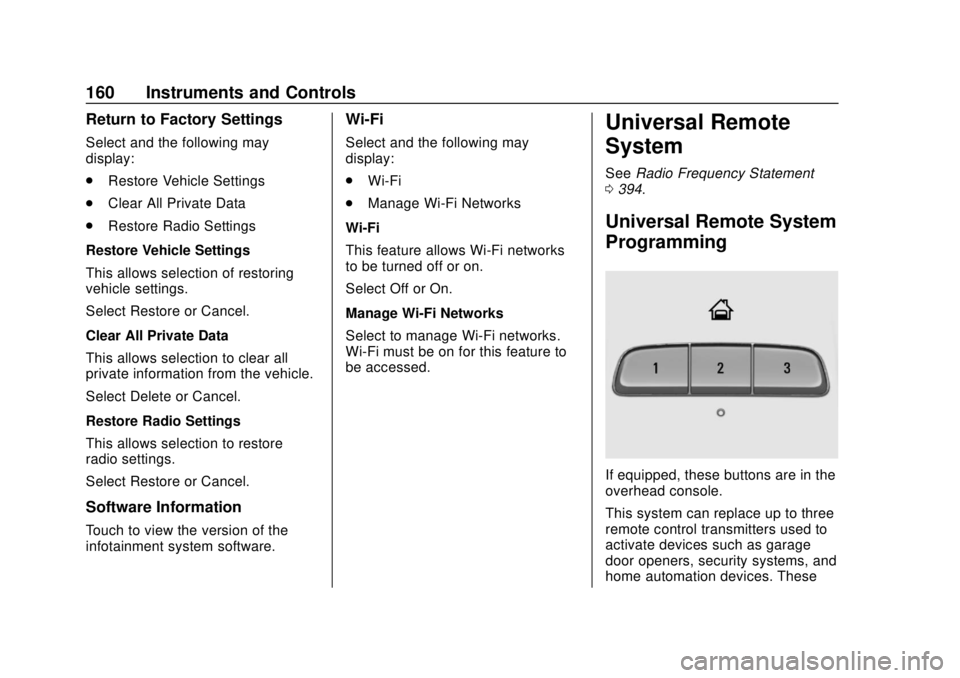
If equipped, these buttons are in the
overhead console.
This system can replace up to three
remote control transmitters used to
activate devices such as garage
door openers, security systems, and
home automation devices. These
Page 162 of 423
GMC Acadia/Acadia Denali Owner Manual (GMNA-Localizing-U.S./Canada/
Mexico-11349114) - 2018 - crc - 9/21/17
Instruments and Controls 161
instructions refer to a garage door
opener, but can be used for other
devices.
Do not use the Universal Remote
system with any garage door opener
that does not have the stop and
reverse feature. This includes any
garage door opener model
manufactured before April 1, 1982.
Read these instructions completely
before programming the Universal
Remote system. It may help to have
another person assist with the
programming process.
Keep the original hand-held
transmitter for use in other vehicles
as well as for future programming.
Erase the programming when
vehicle ownership is terminated.
See“Erasing Universal Remote
System Buttons” later in this
section.
To program a garage door opener,
park outside directly in line with and
facing the garage door opener
receiver. Clear all people and
objects near the garage door. Make sure the hand-held transmitter
has a new battery for quicker and
more accurate transmission of the
radio-frequency signal.
Programming the Universal
Remote System
For questions or programming help,
see www.homelink.com/gm or call
1-800-355-3515.
Programming involves
time-sensitive actions, and may time
out causing the procedure to be
repeated.
To program up to three devices:
1. Hold the end of the hand-held transmitter about 3 to 8 cm (1
to 3 in) away from the
Universal Remote system
buttons with the indicator light
in view. The hand-held
transmitter was supplied by the
manufacturer of the garage
door opener receiver.
2. At the same time, press and hold both the hand-held
transmitter button and one of
the three Universal Remote system buttons to be used to
operate the garage door. Do
not release either button until
the indicator light changes from
a slow to a rapid flash. Then
release both buttons.
Some garage door openers
may require substitution of
Step 2 with the procedure
under
“Radio Signals for
Canada and Some Gate
Operators” later in this section.
3. Press and hold the newly programmed Universal Remote
system button for five seconds
while watching the indicator
light and garage door
activation.
.If the indicator light stays on
continuously or the garage
door moves when the
button is pressed, then
programming is complete.
There is no need to
complete Steps 4–6.
. If the indicator light does
not come on or the garage
door does not move, a
Page 163 of 423
GMC Acadia/Acadia Denali Owner Manual (GMNA-Localizing-U.S./Canada/
Mexico-11349114) - 2018 - crc - 9/21/17
162 Instruments and Controls
second button press may
be required. For a second
time, press and hold the
newly programmed button
for five seconds. If the light
stays on or the garage door
moves, programming is
complete.
. If the indicator light blinks
rapidly for two seconds,
then changes to a solid light
and the garage door does
not move, continue with
programming Steps 4–6.
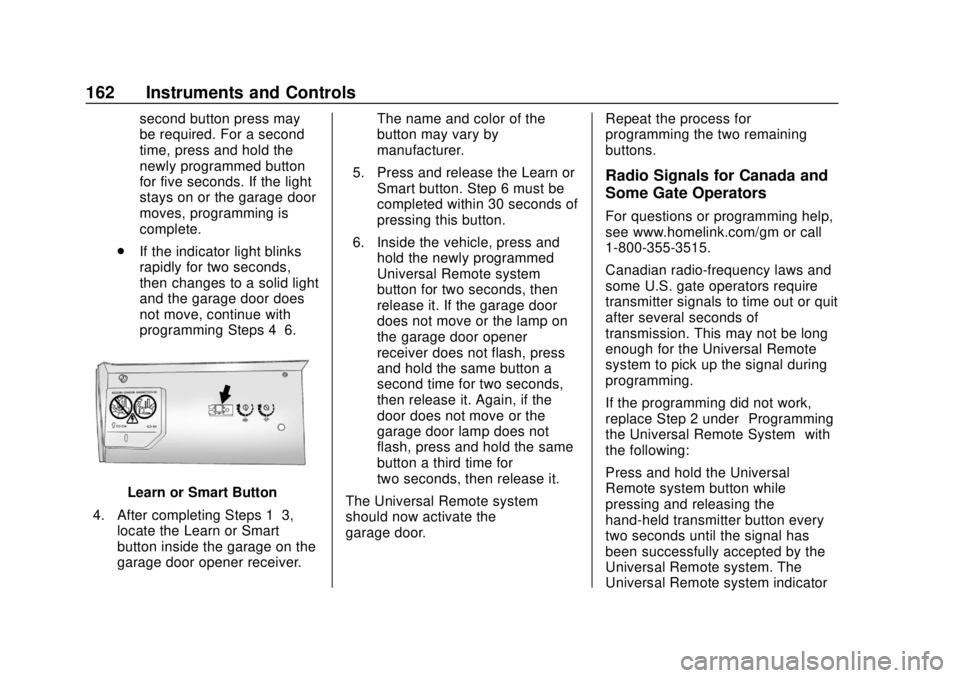
Learn or Smart Button
4. After completing Steps 1–3, locate the Learn or Smart
button inside the garage on the
garage door opener receiver. The name and color of the
button may vary by
manufacturer.
5. Press and release the Learn or Smart button. Step 6 must be
completed within 30 seconds of
pressing this button.
6. Inside the vehicle, press and hold the newly programmed
Universal Remote system
button for two seconds, then
release it. If the garage door
does not move or the lamp on
the garage door opener
receiver does not flash, press
and hold the same button a
second time for two seconds,
then release it. Again, if the
door does not move or the
garage door lamp does not
flash, press and hold the same
button a third time for
two seconds, then release it.
The Universal Remote system
should now activate the
garage door. Repeat the process for
programming the two remaining
buttons.
Radio Signals for Canada and
Some Gate Operators
For questions or programming help,
see www.homelink.com/gm or call
1-800-355-3515.
Canadian radio-frequency laws and
some U.S. gate operators require
transmitter signals to time out or quit
after several seconds of
transmission. This may not be long
enough for the Universal Remote
system to pick up the signal during
programming.
If the programming did not work,
replace Step 2 under
“Programming
the Universal Remote System” with
the following:
Press and hold the Universal
Remote system button while
pressing and releasing the
hand-held transmitter button every
two seconds until the signal has
been successfully accepted by the
Universal Remote system. The
Universal Remote system indicator
Page 174 of 423
GMC Acadia/Acadia Denali Owner Manual (GMNA-Localizing-U.S./Canada/
Mexico-11349114) - 2018 - crc - 9/21/17
Infotainment System 173
Infotainment
System
Introduction
Infotainment . . . . . . . . . . . . . . . . . . 173
Theft-Deterrent Feature . . . . . . 174
Overview . . . . . . . . . . . . . . . . . . . . . 175
Home Page . . . . . . . . . . . . . . . . . . 176
Operation . . . . . . . . . . . . . . . . . . . . . 176
Software Updates . . . . . . . . . . . . 177
Radio
AM-FM Radio . . . . . . . . . . . . . . . . 178
Satellite Radio . . . . . . . . . . . . . . . . 179
Radio Reception . . . . . . . . . . . . . . 180
Multi-Band Antenna . . . . . . . . . . 181
Audio Players
USB Port . . . . . . . . . . . . . . . . . . . . . 181
Auxiliary Devices . . . . . . . . . . . . . 187
Phone
Bluetooth (Overview) . . . . . . . . . 188
Bluetooth (InfotainmentControls) . . . . . . . . . . . . . . . . . . . . 189
Apple CarPlay and Android Auto . . . . . . . . . . . . . . . . 193
Hands-Free Phone . . . . . . . . . . . 194
Trademarks and License
Agreements
Trademarks and License Agreements . . . . . . . . . . . . . . . . . 196
Introduction
Infotainment
Base radio information is included in
this manual. See the infotainment
manual for information on other
available infotainment systems.
Read the following pages to
become familiar with the features.
{Warning
Taking your eyes off the road for
too long or too often while using
any infotainment feature can
cause a crash. You or others
could be injured or killed. Do not
give extended attention to
infotainment tasks while driving.
Limit your glances at the vehicle
displays and focus your attention
on driving. Use voice commands
whenever possible.
The infotainment system has built-in
features intended to help avoid
distraction by disabling some
Page 177 of 423
GMC Acadia/Acadia Denali Owner Manual (GMNA-Localizing-U.S./Canada/
Mexico-11349114) - 2018 - crc - 9/21/17
176 Infotainment System
4.6
.Radio: Press and release to
go to the next station or
channel. Press and hold to
fast seek the next strongest
station or channel.
. USB/BT Music/Pictures:
Press and hold to go to the
next content. Press and
hold to fast forward.
5.
#
. Press and release to
access the phone screen,
answer an incoming call,
or access the device home
screen. Press and hold to
access Press to Talk.
Home Page
Infotainment Display Buttons
Infotainment display buttons show
on the screen when available. When
a function is unavailable, the button
may gray out. When a function is
selected, the button may highlight.
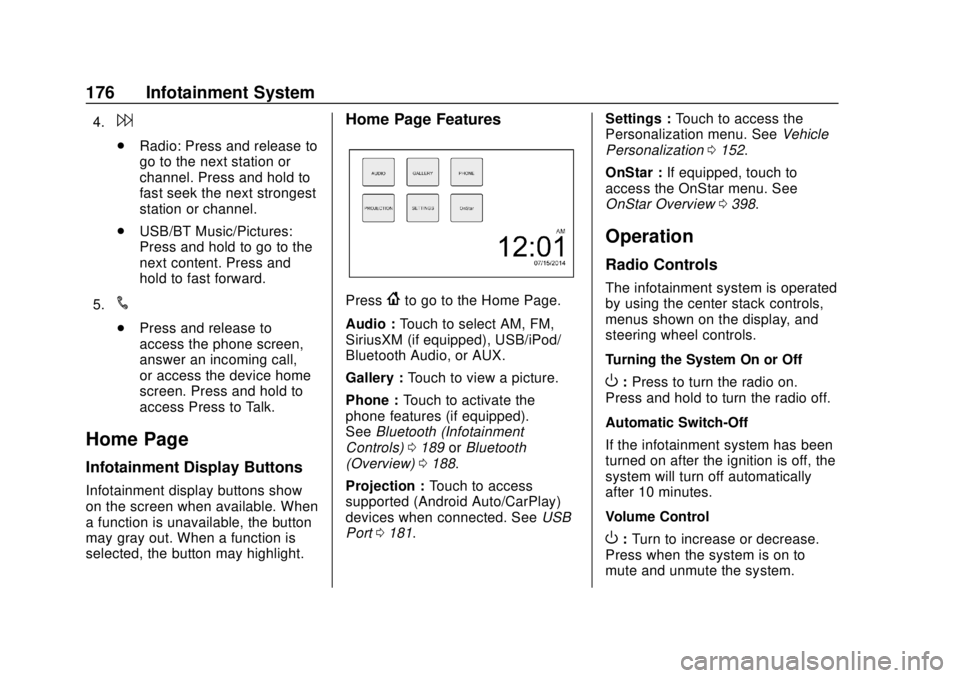
Home Page Features
Press{to go to the Home Page.
Audio : Touch to select AM, FM,
SiriusXM (if equipped), USB/iPod/
Bluetooth Audio, or AUX.
Gallery : Touch to view a picture.
Phone : Touch to activate the
phone features (if equipped).
See Bluetooth (Infotainment
Controls) 0189 orBluetooth
(Overview) 0188.
Projection : Touch to access
supported (Android Auto/CarPlay)
devices when connected. See USB
Port 0181. Settings :
Touch to access the
Personalization menu. See Vehicle
Personalization 0152.
OnStar : If equipped, touch to
access the OnStar menu. See
OnStar Overview 0398.
Operation
Radio Controls
The infotainment system is operated
by using the center stack controls,
menus shown on the display, and
steering wheel controls.
Turning the System On or Off
O:Press to turn the radio on.
Press and hold to turn the radio off.
Automatic Switch-Off
If the infotainment system has been
turned on after the ignition is off, the
system will turn off automatically
after 10 minutes.
Volume Control
O: Turn to increase or decrease.
Press when the system is on to
mute and unmute the system.
Page 186 of 423
GMC Acadia/Acadia Denali Owner Manual (GMNA-Localizing-U.S./Canada/
Mexico-11349114) - 2018 - crc - 9/21/17
Infotainment System 185
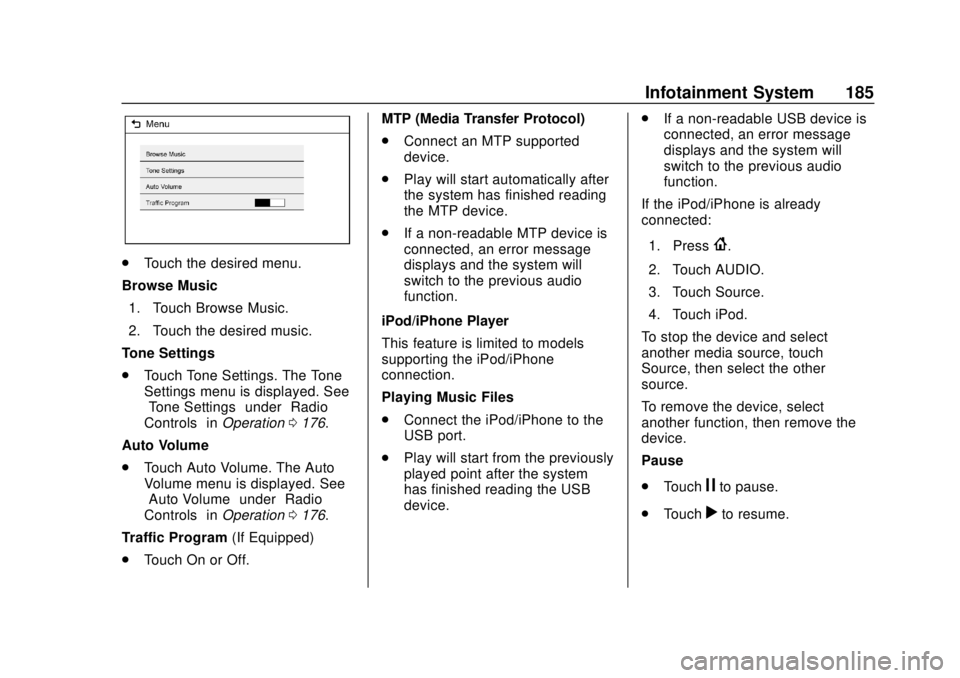
.Touch the desired menu.
Browse Music 1. Touch Browse Music.
2. Touch the desired music.
Tone Settings
. Touch Tone Settings. The Tone
Settings menu is displayed. See
“Tone Settings” under“Radio
Controls” inOperation 0176.
Auto Volume
. Touch Auto Volume. The Auto
Volume menu is displayed. See
“Auto Volume” under“Radio
Controls” inOperation 0176.
Traffic Program (If Equipped)
. Touch On or Off. MTP (Media Transfer Protocol)
.
Connect an MTP supported
device.
. Play will start automatically after
the system has finished reading
the MTP device.
. If a non-readable MTP device is
connected, an error message
displays and the system will
switch to the previous audio
function.
iPod/iPhone Player
This feature is limited to models
supporting the iPod/iPhone
connection.
Playing Music Files
. Connect the iPod/iPhone to the
USB port.
. Play will start from the previously
played point after the system
has finished reading the USB
device. .
If a non-readable USB device is
connected, an error message
displays and the system will
switch to the previous audio
function.
If the iPod/iPhone is already
connected:
1. Press
{.
2. Touch AUDIO.
3. Touch Source.
4. Touch iPod.
To stop the device and select
another media source, touch
Source, then select the other
source.
To remove the device, select
another function, then remove the
device.
Pause
. Touch
jto pause.
. Touch
rto resume.
Page 187 of 423
GMC Acadia/Acadia Denali Owner Manual (GMNA-Localizing-U.S./Canada/
Mexico-11349114) - 2018 - crc - 9/21/17
186 Infotainment System
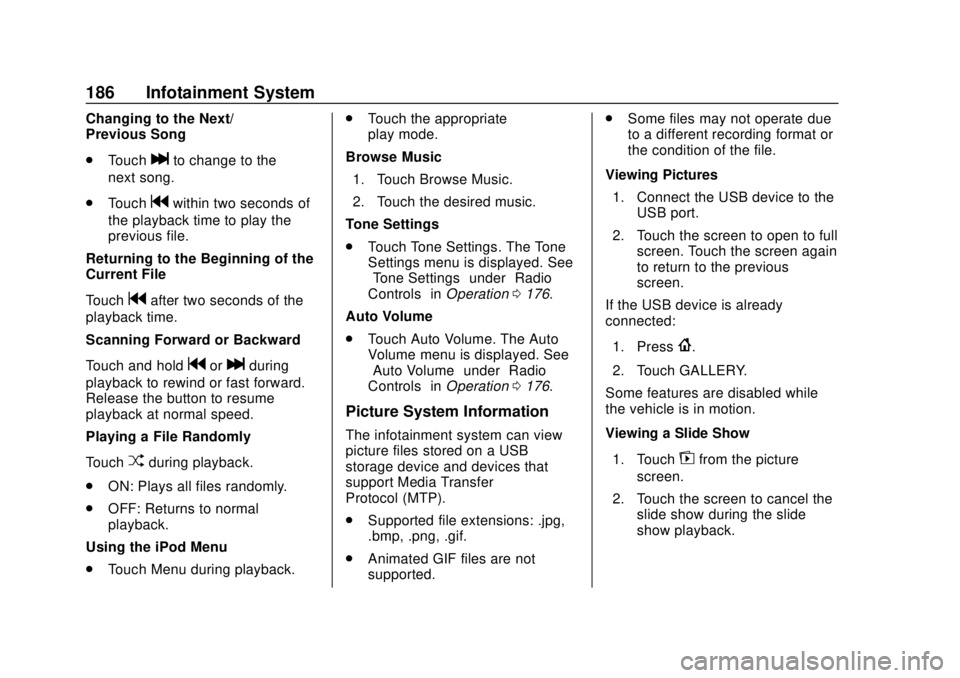
Changing to the Next/
Previous Song
.Touch
lto change to the
next song.
. Touch
gwithin two seconds of
the playback time to play the
previous file.
Returning to the Beginning of the
Current File
Touch
gafter two seconds of the
playback time.
Scanning Forward or Backward
Touch and hold
gorlduring
playback to rewind or fast forward.
Release the button to resume
playback at normal speed.
Playing a File Randomly
Touch
Zduring playback.
. ON: Plays all files randomly.
. OFF: Returns to normal
playback.
Using the iPod Menu
. Touch Menu during playback. .
Touch the appropriate
play mode.
Browse Music 1. Touch Browse Music.
2. Touch the desired music.
Tone Settings
. Touch Tone Settings. The Tone
Settings menu is displayed. See
“Tone Settings” under“Radio
Controls” inOperation 0176.
Auto Volume
. Touch Auto Volume. The Auto
Volume menu is displayed. See
“Auto Volume” under“Radio
Controls” inOperation 0176.
Picture System Information
The infotainment system can view
picture files stored on a USB
storage device and devices that
support Media Transfer
Protocol (MTP).
.
Supported file extensions: .jpg,
.bmp, .png, .gif.
. Animated GIF files are not
supported. .
Some files may not operate due
to a different recording format or
the condition of the file.
Viewing Pictures 1. Connect the USB device to the USB port.
2. Touch the screen to open to full screen. Touch the screen again
to return to the previous
screen.
If the USB device is already
connected:
1. Press
{.
2. Touch GALLERY.
Some features are disabled while
the vehicle is in motion.
Viewing a Slide Show
1. Touch
zfrom the picture
screen.
2. Touch the screen to cancel the slide show during the slide
show playback.
Page 312 of 423
GMC Acadia/Acadia Denali Owner Manual (GMNA-Localizing-U.S./Canada/
Mexico-11349114) - 2018 - crc - 9/21/17
Vehicle Care 311
FusesUsage
F14 Left front heated seat
F15 Instrument panel switch bank
F16 Sunroof
F17 Body control module 1
F18 Instrument cluster
F19 –
F20 Rear seat entertainment
F21 Body control module 4
F22 Infotainment USB data/Aux jack
F23 Body control module 2
F24 USB charger/ Wireless charging
F25 Parking assist
F26 CIM
F27 Video Fuses
Usage
F28 Heating, ventilation, and air
conditioning
display
F29 Radio
F30 Steering wheel adjustment controls
F31 Front blower
F32 DC AC inverter
F33 Driver power seat
F34 Passenger power seat
F35 Battery IEC 1 feed
F36 Electric power steering
F37 Rear seat entertainment/USB
charge/Wireless
charging module
F38 Body control module 8
F39 – Circuit
Breakers Usage
F40 –
F41 –
F42 Auxiliary power outlet/Lighter
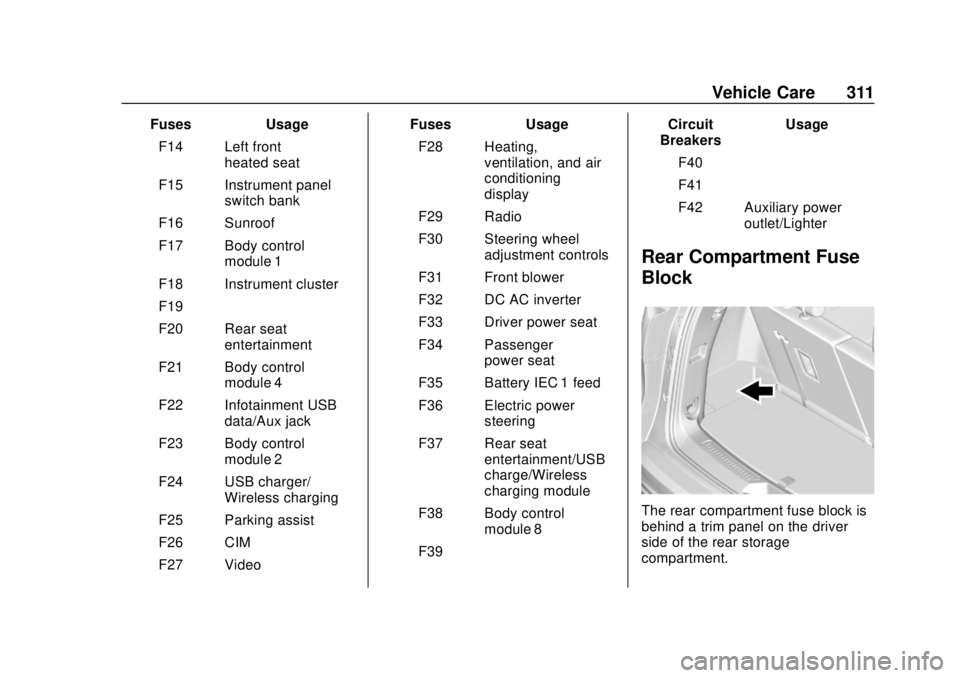
Rear Compartment Fuse
Block
The rear compartment fuse block is
behind a trim panel on the driver
side of the rear storage
compartment.