bluetooth GMC ACADIA 2019 User Guide
[x] Cancel search | Manufacturer: GMC, Model Year: 2019, Model line: ACADIA, Model: GMC ACADIA 2019Pages: 429, PDF Size: 6.38 MB
Page 190 of 429
GMC Acadia/Acadia Denali Owner Manual (GMNA-Localizing-U.S./Canada/
Mexico-12146149) - 2019 - crc - 7/30/18
Infotainment System 189
Bluetooth Controls
If equipped with Bluetooth capability,
use the infotainment controls on the
center stack and the steering wheel
to operate the system.
Steering Wheel Controls
SeeSteering Wheel Controls 0119.
Bluetooth (Infotainment
Controls)
To use infotainment controls to
access the menu system, see
Overview 0175.
Pairing
A Bluetooth-enabled cell phone
must be paired to the Bluetooth
system and then connected to the
vehicle before it can be used. See
your cell phone manufacturer's user
guide for Bluetooth functions before
pairing the cell phone. If a Bluetooth
phone is not connected, calls will be
made using OnStar Hands-Free
Calling, if available. See OnStar
Overview 0404. Pairing Information
.
A Bluetooth phone with MP3
capability cannot be paired to
the vehicle as a phone and an
MP3 player at the same time.
. Up to 10 cell phones can be
paired to the Bluetooth system.
. The pairing process is disabled
when the vehicle is moving.
. Pairing only needs to be
completed once, unless the
pairing information on the cell
phone changes or the cell phone
is deleted from the system.
. Only one paired cell phone can
be connected to the Bluetooth
system at a time.
. If multiple paired cell phones are
within range of the system, the
system connects to the first
available paired cell phone in the
order that they were first paired.
When the Bluetooth device and
infotainment system are
successfully paired, the phone book
is downloaded automatically. This is
dependent on the type of phone paired. If the automatic download
does not occur, proceed with the
phone book download on the
phone.
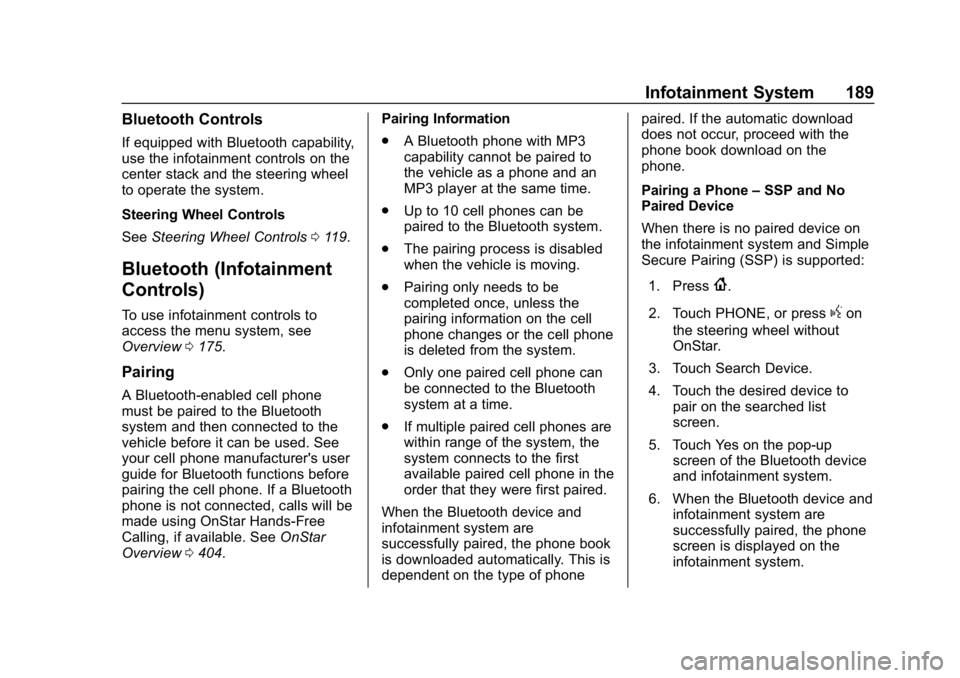
Pairing a Phone
–SSP and No
Paired Device
When there is no paired device on
the infotainment system and Simple
Secure Pairing (SSP) is supported:
1. Press
{.
2. Touch PHONE, or press
gon
the steering wheel without
OnStar.
3. Touch Search Device.
4. Touch the desired device to pair on the searched list
screen.
5. Touch Yes on the pop-up screen of the Bluetooth device
and infotainment system.
6. When the Bluetooth device and infotainment system are
successfully paired, the phone
screen is displayed on the
infotainment system.
Page 191 of 429
GMC Acadia/Acadia Denali Owner Manual (GMNA-Localizing-U.S./Canada/
Mexico-12146149) - 2019 - crc - 7/30/18
190 Infotainment System
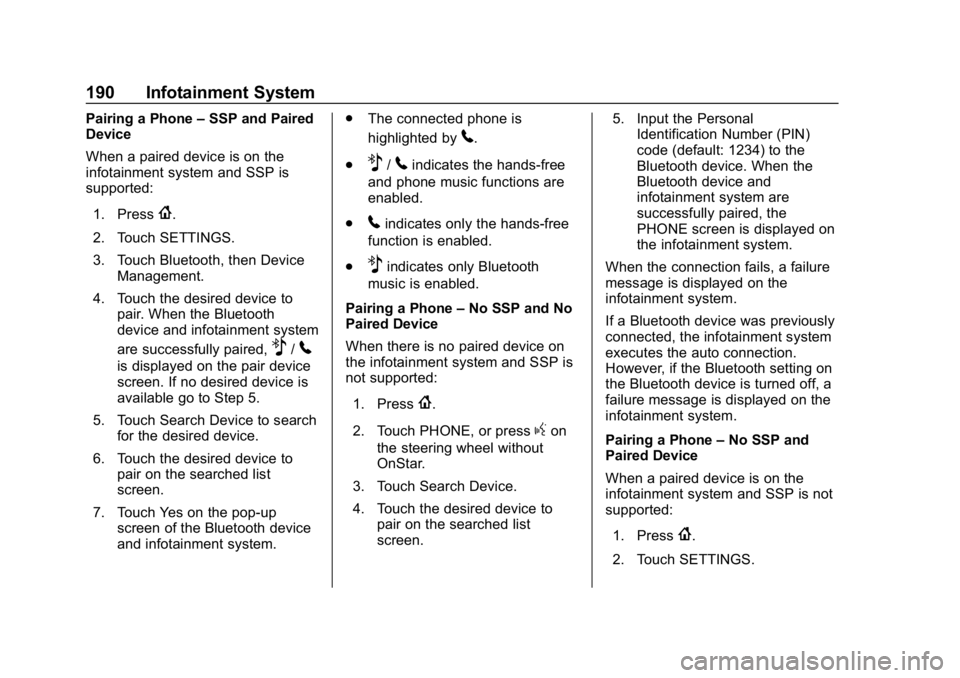
Pairing a Phone–SSP and Paired
Device
When a paired device is on the
infotainment system and SSP is
supported:
1. Press
{.
2. Touch SETTINGS.
3. Touch Bluetooth, then Device Management.
4. Touch the desired device to pair. When the Bluetooth
device and infotainment system
are successfully paired,
Z/5
is displayed on the pair device
screen. If no desired device is
available go to Step 5.
5. Touch Search Device to search for the desired device.
6. Touch the desired device to pair on the searched list
screen.
7. Touch Yes on the pop-up screen of the Bluetooth device
and infotainment system. .
The connected phone is
highlighted by
5.
.
Z/5indicates the hands-free
and phone music functions are
enabled.
.
5indicates only the hands-free
function is enabled.
.
Zindicates only Bluetooth
music is enabled.
Pairing a Phone –No SSP and No
Paired Device
When there is no paired device on
the infotainment system and SSP is
not supported:
1. Press
{.
2. Touch PHONE, or press
gon
the steering wheel without
OnStar.
3. Touch Search Device.
4. Touch the desired device to pair on the searched list
screen. 5. Input the Personal
Identification Number (PIN)
code (default: 1234) to the
Bluetooth device. When the
Bluetooth device and
infotainment system are
successfully paired, the
PHONE screen is displayed on
the infotainment system.
When the connection fails, a failure
message is displayed on the
infotainment system.
If a Bluetooth device was previously
connected, the infotainment system
executes the auto connection.
However, if the Bluetooth setting on
the Bluetooth device is turned off, a
failure message is displayed on the
infotainment system.
Pairing a Phone –No SSP and
Paired Device
When a paired device is on the
infotainment system and SSP is not
supported:
1. Press
{.
2. Touch SETTINGS.
Page 192 of 429
GMC Acadia/Acadia Denali Owner Manual (GMNA-Localizing-U.S./Canada/
Mexico-12146149) - 2019 - crc - 7/30/18
Infotainment System 191
3. Touch Bluetooth, then DeviceManagement.
4. Touch the desired device to pair. When the Bluetooth
device and infotainment system
are successfully paired,
Z/5
is displayed on the pair device
screen. If no desired device is
available go to Step 5.
5. Touch Search Device to search for the desired device.
6. Touch the desired device to pair on the searched list
screen.
7. Input the Personal Identification Number (PIN)
code (default: 1234) to the
Bluetooth device. When the
Bluetooth device and
infotainment system are
successfully paired,
Z/5is
displayed on the pair device
screen.
. The connected phone is
highlighted by
5. .
Z/5indicates the hands-free
and phone music functions are
enabled.
.
5indicates only the hands-free
function is enabled.
.
Zindicates only Bluetooth
music is enabled.
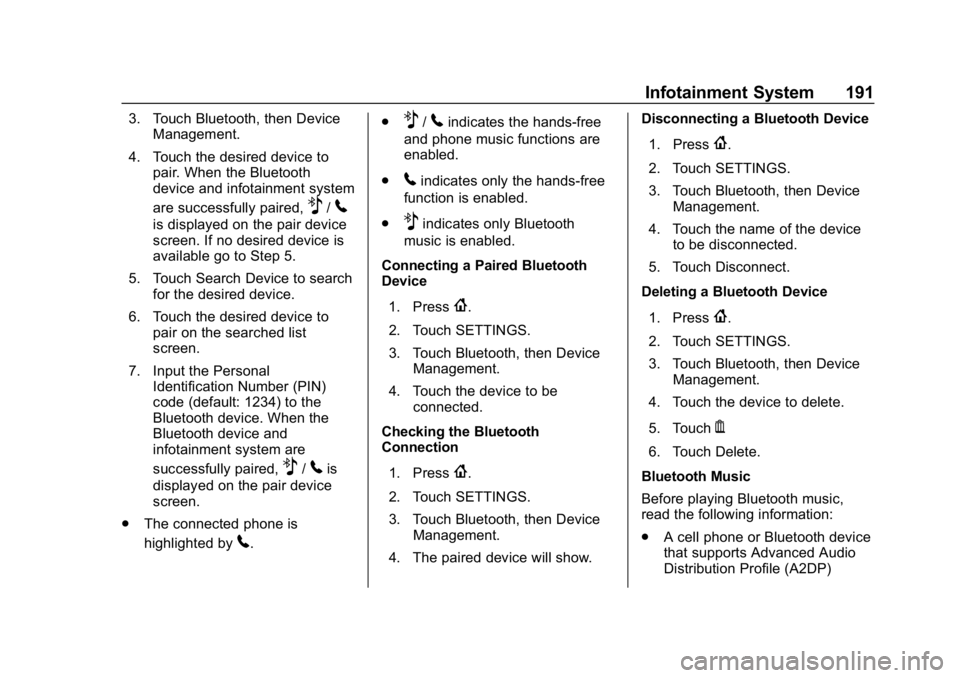
Connecting a Paired Bluetooth
Device
1. Press
{.
2. Touch SETTINGS.
3. Touch Bluetooth, then Device Management.
4. Touch the device to be connected.
Checking the Bluetooth
Connection
1. Press
{.
2. Touch SETTINGS.
3. Touch Bluetooth, then Device Management.
4. The paired device will show. Disconnecting a Bluetooth Device
1. Press
{.
2. Touch SETTINGS.
3. Touch Bluetooth, then Device Management.
4. Touch the name of the device to be disconnected.
5. Touch Disconnect.
Deleting a Bluetooth Device
1. Press
{.
2. Touch SETTINGS.
3. Touch Bluetooth, then Device Management.
4. Touch the device to delete.
5. Touch
Y.
6. Touch Delete.
Bluetooth Music
Before playing Bluetooth music,
read the following information:
. A cell phone or Bluetooth device
that supports Advanced Audio
Distribution Profile (A2DP)
Page 193 of 429
GMC Acadia/Acadia Denali Owner Manual (GMNA-Localizing-U.S./Canada/
Mexico-12146149) - 2019 - crc - 7/30/18
192 Infotainment System
versions over 1.2 must be
registered and connected to the
product.
. From the cell phone or Bluetooth
device, find the Bluetooth device
type to set/connect the item as a
stereo headset.
.
ewill appear on the screen if
the stereo headset is
successfully connected.
. The sound played by the
Bluetooth device is delivered
through the infotainment system.
. Bluetooth music can be played
only when a Bluetooth device
has been connected. To play
Bluetooth music, connect the
Bluetooth phone to the
infotainment system.
. If the Bluetooth device is
disconnected while playing
phone music, the music is
discontinued. The audio
streaming function may not be
supported in some Bluetooth
phones. Only one function can
be used at a time between the
Bluetooth hands-free or Phone music function. For example,
if you convert to Bluetooth
hands-free while playing Phone
music, the music is
discontinued. Playing music from
the car is not possible when
there are no music files stored in
the cell phone.
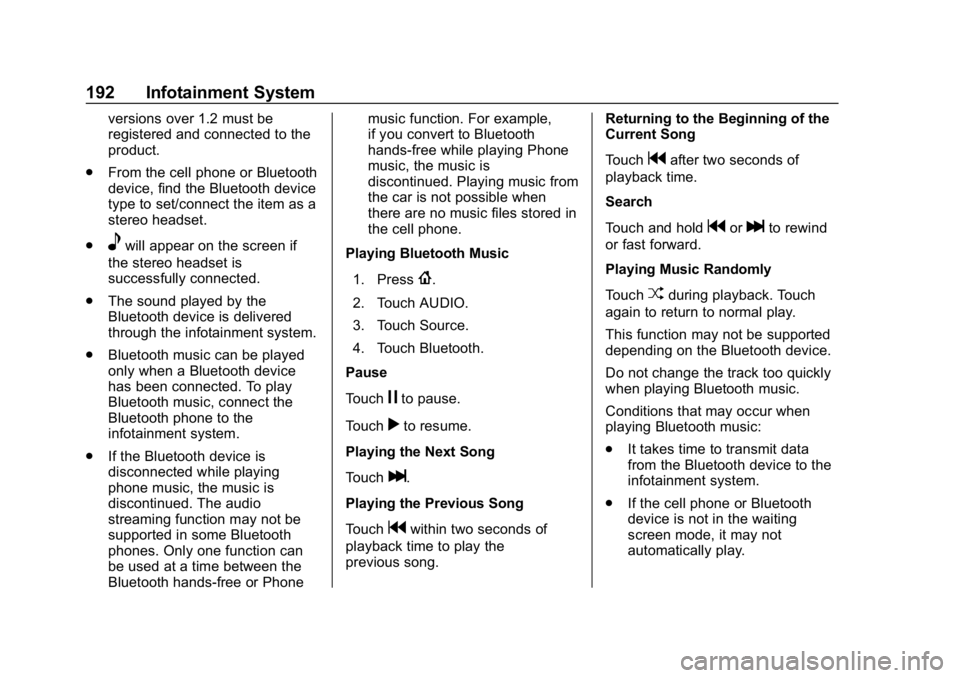
Playing Bluetooth Music
1. Press
{.
2. Touch AUDIO.
3. Touch Source.
4. Touch Bluetooth.
Pause
Touch
jto pause.
Touch
rto resume.
Playing the Next Song
Touch
l.
Playing the Previous Song
Touch
gwithin two seconds of
playback time to play the
previous song. Returning to the Beginning of the
Current Song
Touch
gafter two seconds of
playback time.
Search
Touch and hold
gorlto rewind
or fast forward.
Playing Music Randomly
Touch
Zduring playback. Touch
again to return to normal play.
This function may not be supported
depending on the Bluetooth device.
Do not change the track too quickly
when playing Bluetooth music.
Conditions that may occur when
playing Bluetooth music:
. It takes time to transmit data
from the Bluetooth device to the
infotainment system.
. If the cell phone or Bluetooth
device is not in the waiting
screen mode, it may not
automatically play.
Page 194 of 429
GMC Acadia/Acadia Denali Owner Manual (GMNA-Localizing-U.S./Canada/
Mexico-12146149) - 2019 - crc - 7/30/18
Infotainment System 193
.The infotainment system
transmits the order to play from
the Bluetooth device in the
Bluetooth music play mode.
If this is done in a different
mode, then the device transmits
the order to stop. Depending on
the Bluetooth device options,
this order to play/stop may take
time to activate.
. If the Bluetooth music playback
is not functioning, then check to
see if the Bluetooth device is in
the waiting screen mode.
. Sounds may be cut off during
the Bluetooth music playback.
. The infotainment system outputs
the audio from the cell phone or
Bluetooth device as it is
transmitted.
Apple CarPlay and
Android Auto
If equipped, Android Auto and/or
Apple CarPlay capability may be
available through a compatible
smartphone. If available, PROJECTION will appear on the
Home Page of the infotainment
display.
To use Android Auto or Apple
CarPlay:
1. Download the Android Auto app to your phone from the
Google Play store. No app is
required for Apple CarPlay.
2. Connect an Android phone or iPhone by using the compatible
phone USB cable and plugging
into a USB data port. For best
performance, use the device’ s
factory-provided USB cable.
Aftermarket or third-party
cables may not work.
3. When the phone is first connected to activate Apple
CarPlay or Android Auto, the
message “Device Projection
Privacy Consent” will appear.
. Select Continue to launch
Apple CarPlay or
Android Auto. .
Select Disable to remove
Apple CarPlay and Android
Auto capability from the
vehicle Settings menu.
Other functions may
still work.
PROJECTION on the Home Page
will change to Android Auto or Apple
CarPlay depending on the phone.
Android Auto and/or Apple CarPlay
may automatically launch upon USB
connection. If not, touch the
ANDROID AUTO and/or APPLE
CARPLAY icon on the Home Page
to launch.
Press
{on the center stack to
return to the Home Page.
For further information on how to set
up Android Auto and Apple CarPlay
in the vehicle, see my.gmc.com or
see Customer Assistance Offices
0 392.
Android Auto is provided by Google
and is subject to Google’s terms
and privacy policy. Apple CarPlay is
provided by Apple and is subject to
Apple’ s terms and privacy policy.
Data plan rates apply. For Android
Page 195 of 429
GMC Acadia/Acadia Denali Owner Manual (GMNA-Localizing-U.S./Canada/
Mexico-12146149) - 2019 - crc - 7/30/18
194 Infotainment System
Auto support see https://
support.google.com/androidauto.
For Apple CarPlay support see
www.apple.com/ios/carplay/. Apple
or Google may change or suspend
availability at any time. Android
Auto, Android, Google, Google Play,
and other marks are trademarks of
Google Inc.; Apple CarPlay is a
trademark of Apple Inc.
Hands-Free Phone
General Information
Vehicles with a Hands-Free Phone
system can use a Bluetooth-capable
cell phone with a hands-free profile
to make and receive phone calls.
The infotainment system and voice
control are used to operate the
system. Not all phones support all
functions and not all phones work
with the Hands-Free Phone system.
Hands-Free Phone Controls
Use the buttons on the infotainment
system and the steering wheel to
operate the Hands-Free Phone
system.Steering Wheel Controls
Steering wheel controls can be
used to:
.
Answer incoming calls.
. Confirm system information.
. End a call.
. Decline a call.
. Cancel an operation.
. Make outgoing calls using the
call list.
g:Press to answer incoming calls.
i:Press to end a call, decline a
call, or cancel an operation.
Making a Call by Entering a Phone
Number
. Press
{, then touch PHONE on
the screen.
. Press
gon the steering wheel.
If a wrong number is entered, touch
}to delete the number one digit at
a time, or touch and hold
}to
delete all digits of the number. Switching a Call to the Cell Phone
(Private Mode)
To switch the call from the cell
phone to hands-free:
1. Touch
0.
2. Touch
0again to switch back
to hands-free.
Turning the Microphone On
and Off
Touch
3to turn the microphone on
or off.
Calling by Redial
To call by using redial:
. Press
ion the steering wheel
controls to display the redial
guidance screen.
. Touch
5on the screen.
Redialing is not possible when there
is no call history.
Page 196 of 429
GMC Acadia/Acadia Denali Owner Manual (GMNA-Localizing-U.S./Canada/
Mexico-12146149) - 2019 - crc - 7/30/18
Infotainment System 195
Taking Calls
When a phone call comes through
the connected Bluetooth cell phone,
the audio system will be muted or
paused and the phone will ring with
the relevant information displayed.
Press
ion the steering wheel
controls, or touch
5on the screen.
To decline the call, press
ion the
steering wheel controls or touch
Reject on the screen.
Using the Contacts Menu
1. Touch contacts on the phone screen.
2. Touch
QorRto scroll through
the list.
3. Touch the phone book entry to call.
4. If there is more than one number associated with the
name, touch the number
to dial. Searching for Contacts Entries
1. Touch contacts on the phone screen.
2. Touch
9on the contacts
screen.
3. Use the keypad to input the name to search. For details,
see “Searching for a Name”
following.
4. Touch the phone book entry to call.
5. If there is more than one number associated with the
name, touch the number
to dial.
When the Bluetooth device and
infotainment system are
successfully paired, the phone book
will download. Some phones may
not download automatically. If this
happens, connect it again or
proceed with the phone book
download on the phone. Searching for a Name
Select characters by using the
keypad on the phone book screen.
As characters are selected, the
names that include those characters
will display on the phone book
screen. As more characters of the
name are entered, the list of
possible names is shortened.
To search for the name Alex:
1. Touch (abc) to select the first character.
2. Touch (jkl) three times to select the second character.
3. Touch (def) two times to select the third character.
4. Touch (wxy) two times to select the fourth character.
Making a Call from Call History 1. Touch Call History on the phone screen.
2. Touch one of the following for:
.
WAll calls history.
.
[Dialed calls.
Page 197 of 429
GMC Acadia/Acadia Denali Owner Manual (GMNA-Localizing-U.S./Canada/
Mexico-12146149) - 2019 - crc - 7/30/18
196 Infotainment System
.YMissed calls.
.
XReceived calls.
3. Select the contact entry to call.
Making a Call with Speed Dial
Numbers
Touch and hold the speed dial
number using the keypad on the
phone screen.
Only speed dial numbers already
stored on the cell phone can be
used for speed dial calls. Up to
two-digit speed dial numbers are
supported.
For two-digit speed dial numbers,
touch and hold the second digit to
make a call to the speed dial
number.
Trademarks and
License Agreements
FCC Information
See Radio Frequency Statement
0 400.
Bluetooth
The Bluetooth word mark and logos
are owned by the Bluetooth SIG,
Inc. and any use of such marks by
General Motors is under license.
Other trademarks and trade names
are those of their respective owners.
“Made for iPod” and“Made for
iPhone” mean that an electronic
accessory has been designed to
connect specifically to iPod or
iPhone and has been certified by
the developer to meet Apple
performance standards. iPod and iPhone are trademarks of
Apple Computer, Inc., registered in
the U.S. and other countries.
Fees and Taxes: Subscription fee,
taxes, one time activation fee, and
other fees may apply. Subscription
fee is consumer only. All fees and
programming subject to change.
Subscriptions subject to Customer
Agreement available at
www.siriusxm.com or
www.siriusxm.ca. SiriusXM service
only available in the 48 contiguous
United States and Canada.
In Canada: Some deterioration of
service may occur in extreme
northern latitudes. This is beyond
the control of SiriusXM Satellite
Radio.
Page 418 of 429

GMC Acadia/Acadia Denali Owner Manual (GMNA-Localizing-U.S./Canada/-
Mexico-12146149) - 2019 - crc - 7/30/18
Index 417
Appearance Care (cont'd)Interior . . . . . . . . . . . . . . . . . . . . . . . . 368
Apple CarPlay and Android Auto . . . . . . . . . . . . . . . . . . 193
Armrest Storage . . . . . . . . . . . . . . . . 112
Assistance Program, Roadside . . . . . . . . . . . . . . . . . . . . . . 394
Assistance Systems for Driving . . . . . . . . . . . . . . . . . . . . . . . . 257
Assistance Systems for Parking and Backing . . . . . . . . . . 253
Audio Theft-Deterrent Feature . . . . . . . 174
Auto Stop
Stop/Start System . . . . . . . . . . . . 224
Automatic Dimming Mirrors . . . . . . . . . . . . . . . . 50
Door Locks . . . . . . . . . . . . . . . . . . . . . 39
Forward Braking . . . . . . . . . . . . . . 259
Headlamp System . . . . . . . . . . . . 167
Transmission . . . . . . . . . . . . . . . . . 230
Transmission Fluid . . . . . . . . . . . 294
Automatic Transmission
Manual Mode . . . . . . . . . . . . . . . . . 232
Shift Lock Control FunctionCheck . . . . . . . . . . . . . . . . . . . . . . . 305
Auxiliary Devices . . . . . . . . . . . . . . . . . . . . . . . 187B
Battery
Exterior Lighting BatterySaver . . . . . . . . . . . . . . . . . . . . . . . 172
Load Management . . . . . . . . . . . . 171
Power Protection . . . . . . . . . . . . . 171
Battery - North America . . . . 304, 356
Blade Replacement, Wiper . . . . . 306
Bluetooth Overview . . . . . . . . . . . . . . . . 188, 189
Brake Parking, Electric . . . . . . . . . . . . . . 234
System Warning Light . . . . . . . . 138
Brakes . . . . . . . . . . . . . . . . . . . . . . . . . . 302
Antilock . . . . . . . . . . . . . . . . . . . . . . . 233
Assist . . . . . . . . . . . . . . . . . . . . . . . . . 235
Fluid . . . . . . . . . . . . . . . . . . . . . . . . . . 303
Braking . . . . . . . . . . . . . . . . . . . . . . . . . 207 Automatic Forward . . . . . . . . . . . 259
Braking System Front Pedestrian (FPB) . . . . . . . 261
Break-In, New Vehicle . . . . . . . . . . 221
Bulb Replacement Halogen Bulbs . . . . . . . . . . . . . . . . 309
Headlamp Aiming . . . . . . . . . . . . . 308
Headlamps . . . . . . . . . . . . . . . . . . . 309
License Plate Lamps . . . . . . . . . 309
Buying New Tires . . . . . . . . . . . . . . . 335
C
Calibration . . . . . . . . . . . . . . . . . . . . . . 122
California
Perchlorate MaterialsRequirements . . . . . . . . . . . . . . . 286
California Proposition
65 Warning . . . . . . . . . .285, 304, 356, Back Cover
Canadian Vehicle Owners . . . . . . . . 2
Capacities and
Specifications . . . . . . . . . . . . . . . . . 387
Carbon Monoxide Engine Exhaust . . . . . . . . . . . . . . . 229
Liftgate . . . . . . . . . . . . . . . . . . . . . . . . . 41
Winter Driving . . . . . . . . . . . . . . . . 215
Cargo Cover . . . . . . . . . . . . . . . . . . . . . . . . . .113
Management System . . . . . . . . . .114
Tie-Downs . . . . . . . . . . . . . . . . . . . . .113
Caution, Danger, and Warning . . . . 2
Center Console Storage . . . . . . . . 112
Chains, Tire . . . . . . . . . . . . . . . . . . . . 340
Charging System Light . . . . . . . . . 136
Check Engine Light (MalfunctionIndicator) . . . . . . . . . . . . . . . . . . . . 136
Page 424 of 429

GMC Acadia/Acadia Denali Owner Manual (GMNA-Localizing-U.S./Canada/-
Mexico-12146149) - 2019 - crc - 7/30/18
Index 423
OnStar Emergency . . . . . . . . . . . . . 405
OnStar Overview . . . . . . . . . . . . . . . 404
OnStar Security . . . . . . . . . . . . . . . . 406
OperationFog Lamps . . . . . . . . . . . . . . . . . . . 168
Infotainment System . . . . . . . . . . 176
Outlets
Power . . . . . . . . . . . . . . . . . . . . . . . . 124
Overheating, Engine . . . . . . . . . . . . 300
Overview . . . . . . . . . . . . . . . . . . . . . . . 175
P
Park Shifting Into . . . . . . . . . . . . . . . . . . . 226
Shifting Out of . . . . . . . . . . . . . . . . 227
Park Assist . . . . . . . . . . . . . . . . . . . . . 253
Parking Brake and P (Park)Mechanism Check . . . . . . . . . . 305
Extended . . . . . . . . . . . . . . . . . . . . . 228
Over Things That Burn . . . . . . . 228
Parking or Backing Assistance Systems . . . . . . . . . . 253
Passenger Airbag Status Indicator . . . . . . . . . . . . . . . . . . . . . . 135
Passenger Compartment Air
Filter . . . . . . . . . . . . . . . . . . . . . . . . . . 204
Passenger Sensing System . . . . . 85 Pedestrian Ahead Indicator . . . . . 141
Perchlorate Materials
Requirements, California . . . . . . 286
Personalization Vehicle . . . . . . . . . . . . . . . . . . . . . . . 152
Phone Apple CarPlay and
Android Auto . . . . . . . . . . . . . . . . 193
Bluetooth . . . . . . . . . . . . . . . . 188, 189
Hands-Free . . . . . . . . . . . . . . . . . . . 194
Port
USB . . . . . . . . . . . . . . . . . . . . . . . . . . 181
Power Door Locks . . . . . . . . . . . . . . . . . . . . . 39
Mirrors . . . . . . . . . . . . . . . . . . . . . . . . . . 49
Outlets . . . . . . . . . . . . . . . . . . . . . . . 124
Protection, Battery . . . . . . . . . . . . 171
Retained Accessory (RAP) . . . 226
Seat Adjustment . . . . . . . . . . . . . . . . 59
Windows . . . . . . . . . . . . . . . . . . . . . . . 51
Pregnancy, Using Seat Belts . . . . 76
Privacy
Vehicle Data Recording . . . . . . . 402
Program Courtesy Transportation . . . . . . 396
Prohibited Fuels . . . . . . . . . . . . . . . . 268 Proposition
65 Warning,
California . . . . . . . . . . . .285, 304, 356,
Back Cover
Publication Ordering Information . . . . . . . . . . . . . . . . . . . . 399
R
Radio Frequency Statement . . . . 400
Radio Reception . . . . . . . . . . . . . . . . 180
RadiosAM-FM Radio . . . . . . . . . . . . . . . . . 178
Satellite . . . . . . . . . . . . . . . . . . . . . . . 179
Reading Lamps . . . . . . . . . . . . . . . . . 170
Rear Climate Control System . . . 201
Rear Seats . . . . . . . . . . . . . . . . . . . . . . 66 Heated . . . . . . . . . . . . . . . . . . . . . . . . . 69
Rear Storage . . . . . . . . . . . . . . . . . . . 112
Rear Vision Camera (RVC) . . . . . 253
Rear Window Washer/Wiper . . . . 121
Rearview Mirrors . . . . . . . . . . . . . . . . 50 Automatic Dimming . . . . . . . . . . . . . 50
Reclining Seatbacks . . . . . . . . . . . . . 59
Recommended Fuel . . . . . . . . . . . . . . . . . . . . . . . . . . 268
Recommended Fluids and
Lubricants . . . . . . . . . . . . . . . . . . . . . 383