change time GMC ACADIA 2019 Owner's Guide
[x] Cancel search | Manufacturer: GMC, Model Year: 2019, Model line: ACADIA, Model: GMC ACADIA 2019Pages: 429, PDF Size: 6.38 MB
Page 195 of 429
GMC Acadia/Acadia Denali Owner Manual (GMNA-Localizing-U.S./Canada/
Mexico-12146149) - 2019 - crc - 7/30/18
194 Infotainment System
Auto support see https://
support.google.com/androidauto.
For Apple CarPlay support see
www.apple.com/ios/carplay/. Apple
or Google may change or suspend
availability at any time. Android
Auto, Android, Google, Google Play,
and other marks are trademarks of
Google Inc.; Apple CarPlay is a
trademark of Apple Inc.
Hands-Free Phone
General Information
Vehicles with a Hands-Free Phone
system can use a Bluetooth-capable
cell phone with a hands-free profile
to make and receive phone calls.
The infotainment system and voice
control are used to operate the
system. Not all phones support all
functions and not all phones work
with the Hands-Free Phone system.
Hands-Free Phone Controls
Use the buttons on the infotainment
system and the steering wheel to
operate the Hands-Free Phone
system.Steering Wheel Controls
Steering wheel controls can be
used to:
.
Answer incoming calls.
. Confirm system information.
. End a call.
. Decline a call.
. Cancel an operation.
. Make outgoing calls using the
call list.
g:Press to answer incoming calls.
i:Press to end a call, decline a
call, or cancel an operation.
Making a Call by Entering a Phone
Number
. Press
{, then touch PHONE on
the screen.
. Press
gon the steering wheel.
If a wrong number is entered, touch
}to delete the number one digit at
a time, or touch and hold
}to
delete all digits of the number. Switching a Call to the Cell Phone
(Private Mode)
To switch the call from the cell
phone to hands-free:
1. Touch
0.
2. Touch
0again to switch back
to hands-free.
Turning the Microphone On
and Off
Touch
3to turn the microphone on
or off.
Calling by Redial
To call by using redial:
. Press
ion the steering wheel
controls to display the redial
guidance screen.
. Touch
5on the screen.
Redialing is not possible when there
is no call history.
Page 197 of 429
GMC Acadia/Acadia Denali Owner Manual (GMNA-Localizing-U.S./Canada/
Mexico-12146149) - 2019 - crc - 7/30/18
196 Infotainment System
.YMissed calls.
.
XReceived calls.
3. Select the contact entry to call.
Making a Call with Speed Dial
Numbers
Touch and hold the speed dial
number using the keypad on the
phone screen.
Only speed dial numbers already
stored on the cell phone can be
used for speed dial calls. Up to
two-digit speed dial numbers are
supported.
For two-digit speed dial numbers,
touch and hold the second digit to
make a call to the speed dial
number.
Trademarks and
License Agreements
FCC Information
See Radio Frequency Statement
0 400.
Bluetooth
The Bluetooth word mark and logos
are owned by the Bluetooth SIG,
Inc. and any use of such marks by
General Motors is under license.
Other trademarks and trade names
are those of their respective owners.
“Made for iPod” and“Made for
iPhone” mean that an electronic
accessory has been designed to
connect specifically to iPod or
iPhone and has been certified by
the developer to meet Apple
performance standards. iPod and iPhone are trademarks of
Apple Computer, Inc., registered in
the U.S. and other countries.
Fees and Taxes: Subscription fee,
taxes, one time activation fee, and
other fees may apply. Subscription
fee is consumer only. All fees and
programming subject to change.
Subscriptions subject to Customer
Agreement available at
www.siriusxm.com or
www.siriusxm.ca. SiriusXM service
only available in the 48 contiguous
United States and Canada.
In Canada: Some deterioration of
service may occur in extreme
northern latitudes. This is beyond
the control of SiriusXM Satellite
Radio.
Page 224 of 429
GMC Acadia/Acadia Denali Owner Manual (GMNA-Localizing-U.S./Canada/
Mexico-12146149) - 2019 - crc - 7/30/18
Driving and Operating 223
ON/RUN/START (Green Indicator
Light) :This mode is for driving and
starting. With the ignition off, and
the brake pedal applied, pressing
the button once will place the
ignition system in ON/RUN/START.
Once engine cranking begins,
release the button. Engine cranking
will continue until the engine starts.
See Starting the Engine 0223. The
ignition will then remain in ON/RUN.
Service Mode
This power mode is available for
service and diagnostics, and to
verify the proper operation of the
malfunction indicator lamp as may
be required for emission inspection
purposes. With the vehicle off, and
the brake pedal not applied,
pressing and holding the button for
more than five seconds will place
the vehicle in Service Mode. The
instruments and audio systems will
operate as they do in ON/RUN, but
the vehicle will not be able to be
driven. The engine will not start in
Service Mode. Press the button
again to turn the vehicle off.Starting the Engine
Move the shift lever to P (Park) or
N (Neutral). The engine will not start
in any other position. To restart the
engine when the vehicle is already
moving, use N (Neutral) only.
Caution
Do not try to shift to P (Park) if the
vehicle is moving. If you do, you
could damage the transmission.
Shift to P (Park) only when the
vehicle is stopped.
Caution
If you add electrical parts or
accessories, you could change
the way the engine operates. Any
resulting damage would not be
covered by the vehicle warranty.
See Add-On Electrical Equipment
0 283.
Starting Procedure
1. With the Keyless Access
system, the RKE transmitter
must be in the vehicle. Press
ENGINE START/STOP with the
brake pedal applied. When the
engine begins cranking, let go
of the button.
The idle speed will go down as
the engine gets warm. Do not
race the engine immediately
after starting it.
If the RKE transmitter is not in
the vehicle, if there is
interference, or if the RKE
battery is low, the Driver
Information Center (DIC) will
display a message.
Caution
Cranking the engine for long
periods of time, by returning the
ignition to the START position
immediately after cranking has
ended, can overheat and damage
the cranking motor, and drain the
(Continued)
Page 234 of 429
GMC Acadia/Acadia Denali Owner Manual (GMNA-Localizing-U.S./Canada/
Mexico-12146149) - 2019 - crc - 7/30/18
Driving and Operating 233
Drive Systems
All-Wheel Drive
Vehicles with this feature can
operate in AWD Mode. SeeDriver
Mode Control 0239.
Brakes
Antilock Brake
System (ABS)
This vehicle has an Antilock Brake
System (ABS), an advanced
electronic braking system that helps
prevent a braking skid.
When the vehicle begins to drive
away, ABS checks itself.
A momentary motor or clicking noise
may be heard while this test is going
on, and it may even be noticed that
the brake pedal moves a little. This
is normal.
If there is a problem with ABS, this
warning light stays on. See Antilock
Brake System (ABS) Warning Light
0 139. If driving safely on a wet road and it
becomes necessary to slam on the
brakes and continue braking to
avoid a sudden obstacle, a
computer senses the wheels are
slowing down. If one of the wheels
is about to stop rolling, the computer
will separately work the brakes at
each wheel.
ABS can change the brake pressure
to each wheel, as required, faster
than any driver could. This can help
you steer around the obstacle while
braking hard.
As the brakes are applied, the
computer keeps receiving updates
on wheel speed and controls
braking pressure accordingly.
Remember: ABS does not change
the time needed to get a foot up to
the brake pedal or always decrease
stopping distance. If you get too
close to the vehicle in front of you,
there will not be enough time to
apply the brakes if that vehicle
suddenly slows or stops. Always
leave enough room up ahead to
stop, even with ABS.
Page 244 of 429
GMC Acadia/Acadia Denali Owner Manual (GMNA-Localizing-U.S./Canada/
Mexico-12146149) - 2019 - crc - 7/30/18
Driving and Operating 243
Adaptive Cruise Control
If equipped with Adaptive Cruise
Control (ACC), it allows the driver to
select the cruise control set speed
and following gap. Read this entire
section before using this system.
The following gap is the following
time between your vehicle and a
vehicle detected directly ahead in
your path, moving in the same
direction. If no vehicle is detected in
your path, ACC works like regular
cruise control. ACC uses camera
and radar sensors. SeeRadio
Frequency Statement 0400.
If a vehicle is detected in your path,
ACC can apply acceleration or
limited, moderate braking to
maintain the selected following gap.
To disengage ACC, apply the brake.
If ACC is controlling your vehicle
speed when the Traction Control
System (TCS) or StabiliTrak/
Electronic Stability Control (ESC)
system activates, the ACC may
automatically disengage. See
Traction Control/Electronic Stability
Control 0236. When road conditions allow ACC to be safely
used, the ACC can be turned
back on.
Turning off the TCS or StabiliTrak/
ESC system will disengage the
cruise control.
{Warning
ACC has limited braking ability
and may not have time to slow
the vehicle down enough to avoid
a collision with another vehicle
you are following. This can occur
when vehicles suddenly slow or
stop ahead, or enter your lane.
Also see
“Alerting the Driver” in
this section. Complete attention is
always required while driving and
you should be ready to take
action and apply the brakes. See
Defensive Driving 0207.
{Warning
ACC will not detect or brake for
children, pedestrians, animals,
or other objects.
Do not use ACC when:
. On winding and hilly roads
or when the sensors are
blocked by snow, ice, or dirt.
The system may not detect
a vehicle ahead. Keep the
entire front of the vehicle
clean.
. Visibility is low, such as in
fog, rain, or snow
conditions. ACC
performance is limited under
these conditions.
. On slippery roads where
fast changes in tire traction
can cause excessive
wheel slip.
Page 248 of 429

GMC Acadia/Acadia Denali Owner Manual (GMNA-Localizing-U.S./Canada/
Mexico-12146149) - 2019 - crc - 7/30/18
Driving and Operating 247
The speedometer reading can be
displayed in either English or metric
units. SeeInstrument Cluster 0127.
The increment value used depends
on the units displayed.
Selecting the Follow Distance Gap
When a slower moving vehicle is
detected ahead within the selected
following gap, ACC will adjust the
vehicle's speed and attempt to
maintain the follow distance gap
selected.
Press
[on the steering wheel to
adjust the following gap. Each press
cycles the gap button through three
settings: Far, Medium, or Near.
When pressed, the current gap
setting displays briefly on the
instrument cluster. The gap setting
will be maintained until it is
changed.
Since each gap setting corresponds
to a following time (Far, Medium,
or Near), the following distance will
vary based on vehicle speed. The
faster the vehicle speed, the further
back your vehicle will follow a vehicle detected ahead. Consider
traffic and weather conditions when
selecting the following gap. The
range of selectable gaps may not be
appropriate for all drivers and
driving conditions.
Changing the gap setting
automatically changes the alert
timing sensitivity (Far, Medium,
or Near) for the Forward Collision
Alert (FCA) feature. See
Forward
Collision Alert (FCA) System 0257.
Alerting the Driver
If ACC is engaged, driver action
may be required when ACC cannot
apply sufficient braking because of
approaching a vehicle too rapidly.
When this condition occurs, six red
lights will flash on the windshield.
Either eight beeps will sound from
the front, or both sides of the Safety Alert Seat will pulse five times. See
“Collision/Detection Systems”
under
Vehicle Personalization 0152.
See Defensive Driving 0207.
Approaching and Following a
Vehicle
The vehicle ahead indicator is in the
instrument cluster.
The vehicle ahead indicator only
displays when a vehicle is detected
in your vehicle’s path moving in the
same direction.
If this symbol is not displaying, ACC
will not respond to or brake for
vehicles ahead.
ACC automatically slows the vehicle
down and adjusts vehicle speed to
follow the vehicle in front at the
selected follow gap. The vehicle
speed increases or decreases to
Page 253 of 429
GMC Acadia/Acadia Denali Owner Manual (GMNA-Localizing-U.S./Canada/
Mexico-12146149) - 2019 - crc - 7/30/18
252 Driving and Operating
Warning (Continued)
Under many conditions, these
systems will not:. Detect children,
pedestrians, bicyclists,
or animals.
. Detect vehicles or objects
outside the area monitored
by the system.
. Work at all driving speeds.
. Warn you or provide you
with enough time to avoid a
crash.
. Work under poor visibility or
bad weather conditions.
. Work if the detection sensor
is not cleaned or is covered
by ice, snow, mud, or dirt.
. Work if the detection sensor
is covered up, such as with
a sticker, magnet, or metal
plate.
(Continued)
Warning (Continued)
.Work if the area surrounding
the detection sensor is
damaged or not properly
repaired.
Complete attention is always
required while driving, and you
should be ready to take action
and apply the brakes and/or steer
the vehicle to avoid crashes.
Audible or Safety Alert Seat
Some driver assistance features
alert the driver of obstacles by
beeping. To change the volume of
the warning chime, see “Comfort
and Convenience” underVehicle
Personalization 0152.
If equipped with the Safety Alert
Seat, the driver seat cushion may
provide a vibrating pulse alert
instead of beeping. To change this,
see “Collision/Detection Systems”
under Vehicle Personalization
0 152. Cleaning
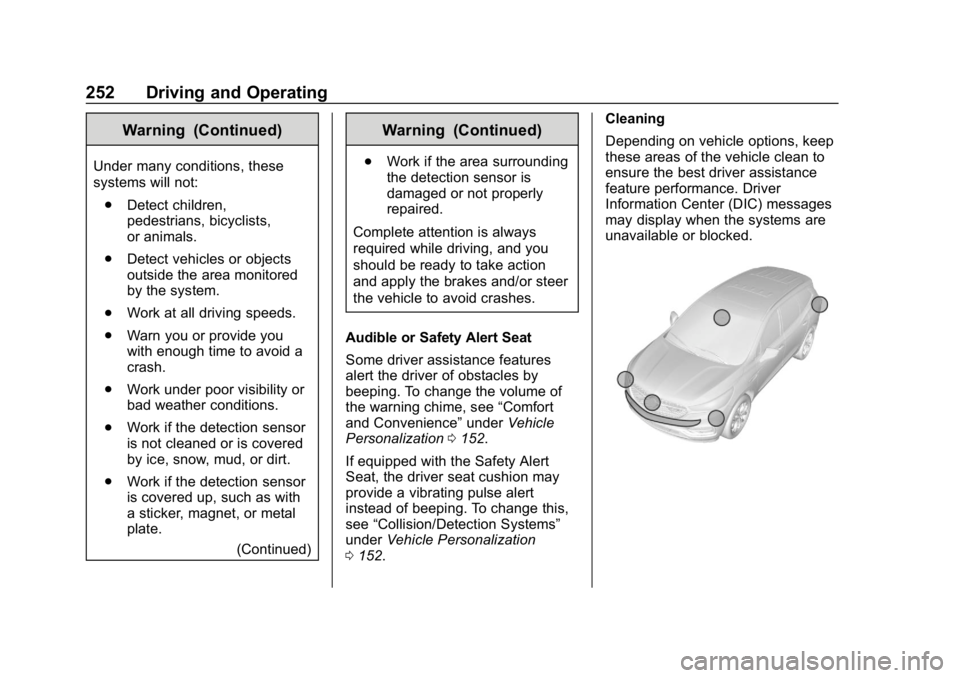
Depending on vehicle options, keep
these areas of the vehicle clean to
ensure the best driver assistance
feature performance. Driver
Information Center (DIC) messages
may display when the systems are
unavailable or blocked.
Page 257 of 429
GMC Acadia/Acadia Denali Owner Manual (GMNA-Localizing-U.S./Canada/
Mexico-12146149) - 2019 - crc - 7/30/18
256 Driving and Operating
warmer or humid weather. Blocked
sensors will not detect objects and
can also cause false detections.
Keep the sensors clean of mud, dirt,
snow, ice, and slush; and clean
sensors after a car wash in freezing
temperatures.
{Warning
The Park Assist system does not
detect children, pedestrians,
bicyclists, animals, or objects
located below the bumper or that
are too close or too far from the
vehicle. It is not available at
speeds greater than 8 km/h
(5 mph). To prevent injury, death,
or vehicle damage, even with
Park Assist, always check the
area around the vehicle and
check all mirrors before moving
forward or backing.The instrument cluster may have a
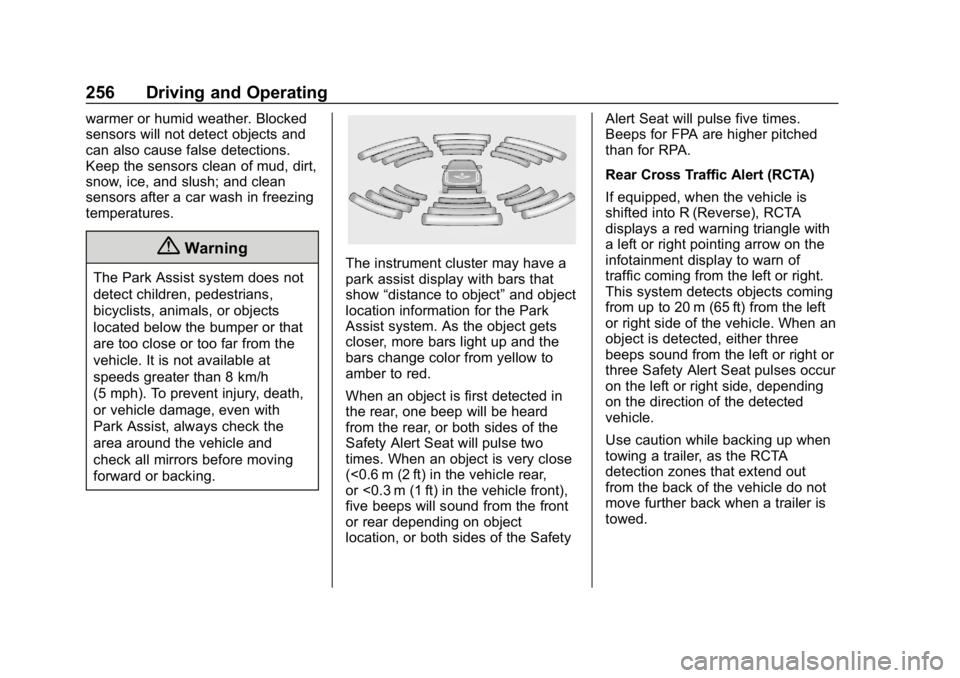
park assist display with bars that
show“distance to object” and object
location information for the Park
Assist system. As the object gets
closer, more bars light up and the
bars change color from yellow to
amber to red.
When an object is first detected in
the rear, one beep will be heard
from the rear, or both sides of the
Safety Alert Seat will pulse two
times. When an object is very close
(<0.6 m (2 ft) in the vehicle rear,
or <0.3 m (1 ft) in the vehicle front),
five beeps will sound from the front
or rear depending on object
location, or both sides of the Safety Alert Seat will pulse five times.
Beeps for FPA are higher pitched
than for RPA.
Rear Cross Traffic Alert (RCTA)
If equipped, when the vehicle is
shifted into R (Reverse), RCTA
displays a red warning triangle with
a left or right pointing arrow on the
infotainment display to warn of
traffic coming from the left or right.
This system detects objects coming
from up to 20 m (65 ft) from the left
or right side of the vehicle. When an
object is detected, either three
beeps sound from the left or right or
three Safety Alert Seat pulses occur
on the left or right side, depending
on the direction of the detected
vehicle.
Use caution while backing up when
towing a trailer, as the RCTA
detection zones that extend out
from the back of the vehicle do not
move further back when a trailer is
towed.
Page 258 of 429
GMC Acadia/Acadia Denali Owner Manual (GMNA-Localizing-U.S./Canada/
Mexico-12146149) - 2019 - crc - 7/30/18
Driving and Operating 257
Turning the Features On or Off
PressXon the center console to
turn on or off the Front and Rear
Park Assist and the Rear Cross
Traffic Alert (RCTA). The indicator
light in the button comes on when
the features are on and turns off
when the features have been
disabled.
Turn off park assist and RCTA when
towing a trailer.
To turn off the RPA symbols or
guidance lines (on some models)
see “Rear Camera” underVehicle
Personalization 0152.
RCTA can be turned off through
“Collision/Detection Systems” under
Vehicle Personalization 0152
Assistance Systems for
Driving
If equipped, when driving the
vehicle in a forward gear, Forward
Collision Alert (FCA), Lane
Departure Warning (LDW), Lane
Keep Assist (LKA), Side Blind Zone
Alert (SBZA), Lane Change Alert (LCA), Forward Automatic Braking
(FAB), and/or the Front Pedestrian
Braking (FPB) System can help to
avoid a crash or reduce crash
damage.
Forward Collision Alert
(FCA) System
If equipped, the FCA system may
help to avoid or reduce the harm
caused by front-end crashes. When
approaching a vehicle ahead too
quickly, FCA provides a red flashing
alert on the windshield and rapidly
beeps or pulses the driver seat.
FCA also lights an amber visual
alert if following another vehicle
much too closely.
FCA detects vehicles within a
distance of approximately 60 m
(197 ft) and operates at speeds
above 8 km/h (5 mph). If the vehicle
has Adaptive Cruise Control (ACC),
it can detect vehicles to distances of
approximately 110 m (360 ft) and
operates at all speeds. See
Adaptive Cruise Control
0243.
{Warning
FCA is a warning system and
does not apply the brakes. When
approaching a slower-moving or
stopped vehicle ahead too rapidly,
or when following a vehicle too
closely, FCA may not provide a
warning with enough time to help
avoid a crash. It also may not
provide any warning at all. FCA
does not warn of pedestrians,
animals, signs, guardrails,
bridges, construction barrels,
or other objects. Be ready to take
action and apply the brakes. See
Defensive Driving 0207.
FCA can be disabled with either the
FCA steering wheel control or,
if equipped, through vehicle
personalization. See “Collision/
Detection Systems” underVehicle
Personalization 0152.
Page 260 of 429
GMC Acadia/Acadia Denali Owner Manual (GMNA-Localizing-U.S./Canada/
Mexico-12146149) - 2019 - crc - 7/30/18
Driving and Operating 259
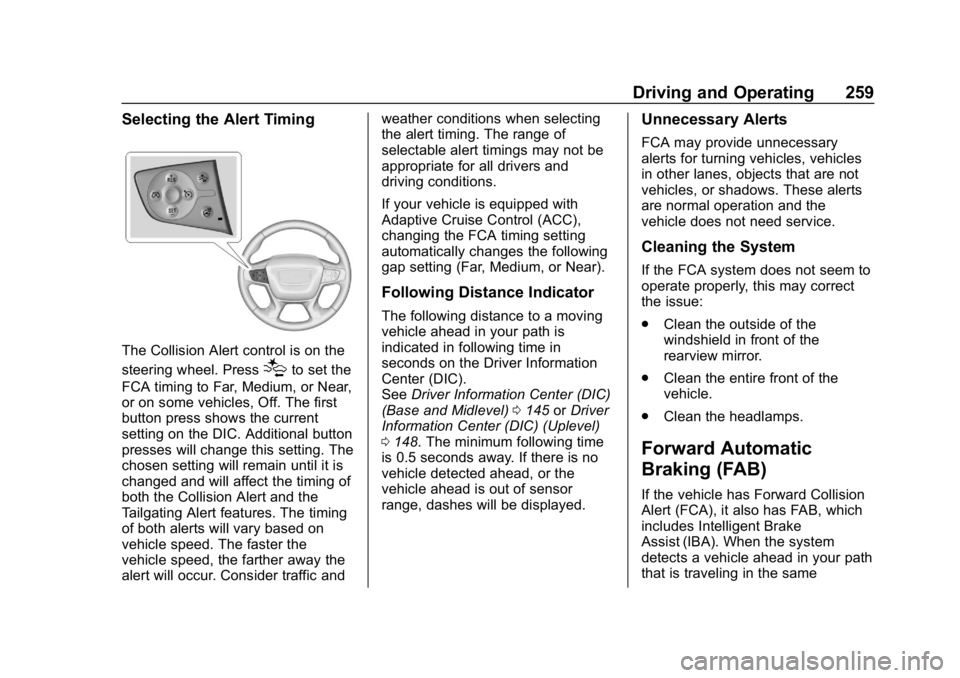
Selecting the Alert Timing
The Collision Alert control is on the
steering wheel. Press
[to set the
FCA timing to Far, Medium, or Near,
or on some vehicles, Off. The first
button press shows the current
setting on the DIC. Additional button
presses will change this setting. The
chosen setting will remain until it is
changed and will affect the timing of
both the Collision Alert and the
Tailgating Alert features. The timing
of both alerts will vary based on
vehicle speed. The faster the
vehicle speed, the farther away the
alert will occur. Consider traffic and weather conditions when selecting
the alert timing. The range of
selectable alert timings may not be
appropriate for all drivers and
driving conditions.
If your vehicle is equipped with
Adaptive Cruise Control (ACC),
changing the FCA timing setting
automatically changes the following
gap setting (Far, Medium, or Near).
Following Distance Indicator
The following distance to a moving
vehicle ahead in your path is
indicated in following time in
seconds on the Driver Information
Center (DIC).
See
Driver Information Center (DIC)
(Base and Midlevel) 0145 orDriver
Information Center (DIC) (Uplevel)
0 148. The minimum following time
is 0.5 seconds away. If there is no
vehicle detected ahead, or the
vehicle ahead is out of sensor
range, dashes will be displayed.
Unnecessary Alerts
FCA may provide unnecessary
alerts for turning vehicles, vehicles
in other lanes, objects that are not
vehicles, or shadows. These alerts
are normal operation and the
vehicle does not need service.
Cleaning the System
If the FCA system does not seem to
operate properly, this may correct
the issue:
. Clean the outside of the
windshield in front of the
rearview mirror.
. Clean the entire front of the
vehicle.
. Clean the headlamps.
Forward Automatic
Braking (FAB)
If the vehicle has Forward Collision
Alert (FCA), it also has FAB, which
includes Intelligent Brake
Assist (IBA). When the system
detects a vehicle ahead in your path
that is traveling in the same