steering wheel GMC ACADIA 2019 Owner's Guide
[x] Cancel search | Manufacturer: GMC, Model Year: 2019, Model line: ACADIA, Model: GMC ACADIA 2019Pages: 429, PDF Size: 6.38 MB
Page 177 of 429
GMC Acadia/Acadia Denali Owner Manual (GMNA-Localizing-U.S./Canada/
Mexico-12146149) - 2019 - crc - 7/30/18
176 Infotainment System
4.6
.Radio: Press and release to
go to the next station or
channel. Press and hold to
fast seek the next strongest
station or channel.
. USB/BT Music/Pictures:
Press and hold to go to the
next content. Press and
hold to fast forward.
5.
v
. Press and release to
access the phone screen,
answer an incoming call,
or access the device home
screen.
Home Page
Infotainment Display Buttons
Infotainment display buttons show
on the screen when available. When
a function is unavailable, the button
may gray out. When a function is
selected, the button may highlight.
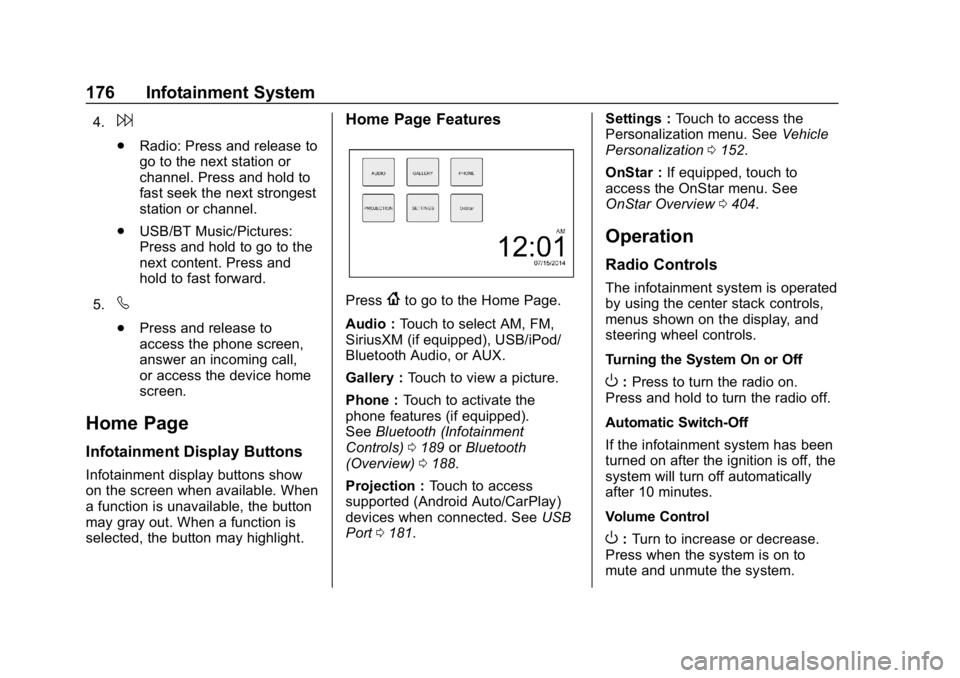
Home Page Features
Press{to go to the Home Page.
Audio : Touch to select AM, FM,
SiriusXM (if equipped), USB/iPod/
Bluetooth Audio, or AUX.
Gallery : Touch to view a picture.
Phone : Touch to activate the
phone features (if equipped).
See Bluetooth (Infotainment
Controls) 0189 orBluetooth
(Overview) 0188.
Projection : Touch to access
supported (Android Auto/CarPlay)
devices when connected. See USB
Port 0181. Settings :
Touch to access the
Personalization menu. See Vehicle
Personalization 0152.
OnStar : If equipped, touch to
access the OnStar menu. See
OnStar Overview 0404.
Operation
Radio Controls
The infotainment system is operated
by using the center stack controls,
menus shown on the display, and
steering wheel controls.
Turning the System On or Off
O:Press to turn the radio on.
Press and hold to turn the radio off.
Automatic Switch-Off
If the infotainment system has been
turned on after the ignition is off, the
system will turn off automatically
after 10 minutes.
Volume Control
O: Turn to increase or decrease.
Press when the system is on to
mute and unmute the system.
Page 190 of 429
GMC Acadia/Acadia Denali Owner Manual (GMNA-Localizing-U.S./Canada/
Mexico-12146149) - 2019 - crc - 7/30/18
Infotainment System 189
Bluetooth Controls
If equipped with Bluetooth capability,
use the infotainment controls on the
center stack and the steering wheel
to operate the system.
Steering Wheel Controls
SeeSteering Wheel Controls 0119.
Bluetooth (Infotainment
Controls)
To use infotainment controls to
access the menu system, see
Overview 0175.
Pairing
A Bluetooth-enabled cell phone
must be paired to the Bluetooth
system and then connected to the
vehicle before it can be used. See
your cell phone manufacturer's user
guide for Bluetooth functions before
pairing the cell phone. If a Bluetooth
phone is not connected, calls will be
made using OnStar Hands-Free
Calling, if available. See OnStar
Overview 0404. Pairing Information
.
A Bluetooth phone with MP3
capability cannot be paired to
the vehicle as a phone and an
MP3 player at the same time.
. Up to 10 cell phones can be
paired to the Bluetooth system.
. The pairing process is disabled
when the vehicle is moving.
. Pairing only needs to be
completed once, unless the
pairing information on the cell
phone changes or the cell phone
is deleted from the system.
. Only one paired cell phone can
be connected to the Bluetooth
system at a time.
. If multiple paired cell phones are
within range of the system, the
system connects to the first
available paired cell phone in the
order that they were first paired.
When the Bluetooth device and
infotainment system are
successfully paired, the phone book
is downloaded automatically. This is
dependent on the type of phone paired. If the automatic download
does not occur, proceed with the
phone book download on the
phone.
Pairing a Phone
–SSP and No
Paired Device
When there is no paired device on
the infotainment system and Simple
Secure Pairing (SSP) is supported:
1. Press
{.
2. Touch PHONE, or press
gon
the steering wheel without
OnStar.
3. Touch Search Device.
4. Touch the desired device to pair on the searched list
screen.
5. Touch Yes on the pop-up screen of the Bluetooth device
and infotainment system.
6. When the Bluetooth device and infotainment system are
successfully paired, the phone
screen is displayed on the
infotainment system.
Page 191 of 429
GMC Acadia/Acadia Denali Owner Manual (GMNA-Localizing-U.S./Canada/
Mexico-12146149) - 2019 - crc - 7/30/18
190 Infotainment System
Pairing a Phone–SSP and Paired
Device
When a paired device is on the
infotainment system and SSP is
supported:
1. Press
{.
2. Touch SETTINGS.
3. Touch Bluetooth, then Device Management.
4. Touch the desired device to pair. When the Bluetooth
device and infotainment system
are successfully paired,
Z/5
is displayed on the pair device
screen. If no desired device is
available go to Step 5.
5. Touch Search Device to search for the desired device.
6. Touch the desired device to pair on the searched list
screen.
7. Touch Yes on the pop-up screen of the Bluetooth device
and infotainment system. .
The connected phone is
highlighted by
5.
.
Z/5indicates the hands-free
and phone music functions are
enabled.
.
5indicates only the hands-free
function is enabled.
.
Zindicates only Bluetooth
music is enabled.
Pairing a Phone –No SSP and No
Paired Device
When there is no paired device on
the infotainment system and SSP is
not supported:
1. Press
{.
2. Touch PHONE, or press
gon
the steering wheel without
OnStar.
3. Touch Search Device.
4. Touch the desired device to pair on the searched list
screen. 5. Input the Personal
Identification Number (PIN)
code (default: 1234) to the
Bluetooth device. When the
Bluetooth device and
infotainment system are
successfully paired, the
PHONE screen is displayed on
the infotainment system.
When the connection fails, a failure
message is displayed on the
infotainment system.
If a Bluetooth device was previously
connected, the infotainment system
executes the auto connection.
However, if the Bluetooth setting on
the Bluetooth device is turned off, a
failure message is displayed on the
infotainment system.
Pairing a Phone –No SSP and
Paired Device
When a paired device is on the
infotainment system and SSP is not
supported:
1. Press
{.
2. Touch SETTINGS.
Page 195 of 429
GMC Acadia/Acadia Denali Owner Manual (GMNA-Localizing-U.S./Canada/
Mexico-12146149) - 2019 - crc - 7/30/18
194 Infotainment System
Auto support see https://
support.google.com/androidauto.
For Apple CarPlay support see
www.apple.com/ios/carplay/. Apple
or Google may change or suspend
availability at any time. Android
Auto, Android, Google, Google Play,
and other marks are trademarks of
Google Inc.; Apple CarPlay is a
trademark of Apple Inc.
Hands-Free Phone
General Information
Vehicles with a Hands-Free Phone
system can use a Bluetooth-capable
cell phone with a hands-free profile
to make and receive phone calls.
The infotainment system and voice
control are used to operate the
system. Not all phones support all
functions and not all phones work
with the Hands-Free Phone system.
Hands-Free Phone Controls
Use the buttons on the infotainment
system and the steering wheel to
operate the Hands-Free Phone
system.Steering Wheel Controls
Steering wheel controls can be
used to:
.
Answer incoming calls.
. Confirm system information.
. End a call.
. Decline a call.
. Cancel an operation.
. Make outgoing calls using the
call list.
g:Press to answer incoming calls.
i:Press to end a call, decline a
call, or cancel an operation.
Making a Call by Entering a Phone
Number
. Press
{, then touch PHONE on
the screen.
. Press
gon the steering wheel.
If a wrong number is entered, touch
}to delete the number one digit at
a time, or touch and hold
}to
delete all digits of the number. Switching a Call to the Cell Phone
(Private Mode)
To switch the call from the cell
phone to hands-free:
1. Touch
0.
2. Touch
0again to switch back
to hands-free.
Turning the Microphone On
and Off
Touch
3to turn the microphone on
or off.
Calling by Redial
To call by using redial:
. Press
ion the steering wheel
controls to display the redial
guidance screen.
. Touch
5on the screen.
Redialing is not possible when there
is no call history.
Page 196 of 429
GMC Acadia/Acadia Denali Owner Manual (GMNA-Localizing-U.S./Canada/
Mexico-12146149) - 2019 - crc - 7/30/18
Infotainment System 195
Taking Calls
When a phone call comes through
the connected Bluetooth cell phone,
the audio system will be muted or
paused and the phone will ring with
the relevant information displayed.
Press
ion the steering wheel
controls, or touch
5on the screen.
To decline the call, press
ion the
steering wheel controls or touch
Reject on the screen.
Using the Contacts Menu
1. Touch contacts on the phone screen.
2. Touch
QorRto scroll through
the list.
3. Touch the phone book entry to call.
4. If there is more than one number associated with the
name, touch the number
to dial. Searching for Contacts Entries
1. Touch contacts on the phone screen.
2. Touch
9on the contacts
screen.
3. Use the keypad to input the name to search. For details,
see “Searching for a Name”
following.
4. Touch the phone book entry to call.
5. If there is more than one number associated with the
name, touch the number
to dial.
When the Bluetooth device and
infotainment system are
successfully paired, the phone book
will download. Some phones may
not download automatically. If this
happens, connect it again or
proceed with the phone book
download on the phone. Searching for a Name
Select characters by using the
keypad on the phone book screen.
As characters are selected, the
names that include those characters
will display on the phone book
screen. As more characters of the
name are entered, the list of
possible names is shortened.
To search for the name Alex:
1. Touch (abc) to select the first character.
2. Touch (jkl) three times to select the second character.
3. Touch (def) two times to select the third character.
4. Touch (wxy) two times to select the fourth character.
Making a Call from Call History 1. Touch Call History on the phone screen.
2. Touch one of the following for:
.
WAll calls history.
.
[Dialed calls.
Page 202 of 429
GMC Acadia/Acadia Denali Owner Manual (GMNA-Localizing-U.S./Canada/
Mexico-12146149) - 2019 - crc - 7/30/18
Climate Controls 201
Heated Mirror :If equipped with
heated outside mirrors, the mirrors
heat to help clear fog or frost from
the surface of the mirror when the
rear window defog button is
pressed. See Heated Mirrors 049.
Remote Start Climate Control
Operation : If equipped with remote
start, the climate control system
may run when the vehicle is started
remotely. The rear defog may come
on during remote start based on
cold ambient conditions. The rear
defog indicator light does not come
on during a remote start.
If equipped, the heated seats will
turn on if it is cold outside or the
ventilated seats will turn on if it is
hot outside. The heated and
ventilated seat indicator lights may
not come on during a remote start.
If equipped, the heated steering
wheel will come on in a remote start
if it is cold outside. The heated
steering wheel indicator light may
not come on.Sensors
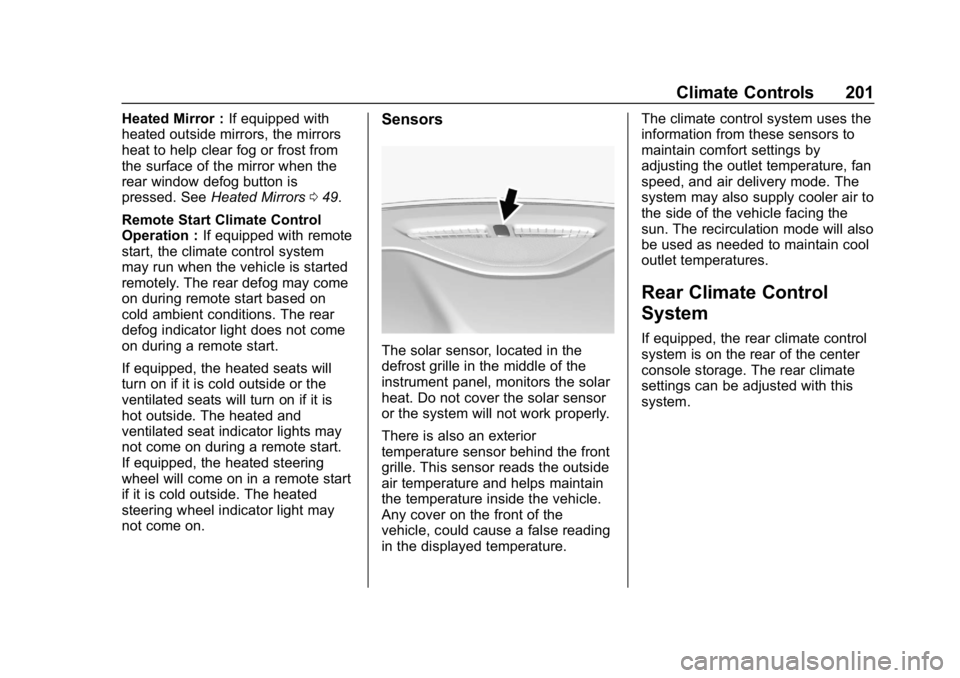
The solar sensor, located in the
defrost grille in the middle of the
instrument panel, monitors the solar
heat. Do not cover the solar sensor
or the system will not work properly.
There is also an exterior
temperature sensor behind the front
grille. This sensor reads the outside
air temperature and helps maintain
the temperature inside the vehicle.
Any cover on the front of the
vehicle, could cause a false reading
in the displayed temperature. The climate control system uses the
information from these sensors to
maintain comfort settings by
adjusting the outlet temperature, fan
speed, and air delivery mode. The
system may also supply cooler air to
the side of the vehicle facing the
sun. The recirculation mode will also
be used as needed to maintain cool
outlet temperatures.
Rear Climate Control
System
If equipped, the rear climate control
system is on the rear of the center
console storage. The rear climate
settings can be adjusted with this
system.
Page 206 of 429
GMC Acadia/Acadia Denali Owner Manual (GMNA-Localizing-U.S./Canada/
Mexico-12146149) - 2019 - crc - 7/30/18
Driving and Operating 205
Driving and
Operating
Driving Information
Distracted Driving . . . . . . . . . . . . 206
Defensive Driving . . . . . . . . . . . . . 207
Drunk Driving . . . . . . . . . . . . . . . . . 207
Control of a Vehicle . . . . . . . . . . . 207
Braking . . . . . . . . . . . . . . . . . . . . . . . 207
Steering . . . . . . . . . . . . . . . . . . . . . . 208
Off-Road Recovery . . . . . . . . . . . 208
Loss of Control . . . . . . . . . . . . . . . 209
Off-Road Driving . . . . . . . . . . . . . 209
Driving on Wet Roads . . . . . . . . 214
Hill and Mountain Roads . . . . . 215
Winter Driving . . . . . . . . . . . . . . . . 215
If the Vehicle Is Stuck . . . . . . . . 217
Vehicle Load Limits . . . . . . . . . . . 217
Starting and Operating
New Vehicle Break-In . . . . . . . . . 221
Ignition Positions . . . . . . . . . . . . . 221
Starting the Engine . . . . . . . . . . . 223
Stop/Start System . . . . . . . . . . . . 224
Engine Heater . . . . . . . . . . . . . . . . 225
Retained AccessoryPower (RAP) . . . . . . . . . . . . . . . . 226
Shifting Into Park . . . . . . . . . . . . . 226 Shifting out of Park . . . . . . . . . . . 227
Parking over Things
That Burn . . . . . . . . . . . . . . . . . . . 228
Active Fuel Management . . . . . 228
Extended Parking . . . . . . . . . . . . 228
Engine Exhaust
Engine Exhaust . . . . . . . . . . . . . . 229
Running the Vehicle While Parked . . . . . . . . . . . . . . . . . . . . . . 229
Automatic Transmission
Automatic Transmission . . . . . . 230
Manual Mode . . . . . . . . . . . . . . . . . 232
Tow/Haul Mode . . . . . . . . . . . . . . . 232
Drive Systems
All-Wheel Drive . . . . . . . . . . . . . . . 233
Brakes
Antilock BrakeSystem (ABS) . . . . . . . . . . . . . . . 233
Electric Parking Brake . . . . . . . . 234
Brake Assist . . . . . . . . . . . . . . . . . . 235
Hill Start Assist (HSA) . . . . . . . . 235
Ride Control Systems
Traction Control/Electronic Stability Control . . . . . . . . . . . . . 236
Hill Descent Control (HDC) . . . 238
Driver Mode Control . . . . . . . . . . 239
Cruise Control
Cruise Control . . . . . . . . . . . . . . . . 240
Adaptive Cruise Control . . . . . . 243
Driver Assistance Systems
Driver Assistance Systems . . . 251
Assistance Systems for Parking or Backing . . . . . . . . . . 253
Assistance Systems for Driving . . . . . . . . . . . . . . . . . . . . . . 257
Forward Collision Alert (FCA) System . . . . . . . . . . . . . . . . . . . . . . 257
Forward Automatic Braking (FAB) . . . . . . . . . . . . . . . 259
Front Pedestrian Braking (FPB) System . . . . . . . . . . . . . . . 261
Side Blind Zone Alert (SBZA) . . . . . . . . . . . . . . . . 263
Lane Change Alert (LCA) . . . . . 264
Lane Departure Warning (LDW) . . . . . . . . . . . . . 265
Lane Keep Assist (LKA) . . . . . . 266
Fuel
Top Tier Fuel . . . . . . . . . . . . . . . . . 268
Recommended Fuel . . . . . . . . . . 268
Prohibited Fuels . . . . . . . . . . . . . . 268
Fuels in Foreign Countries . . . 269
Fuel Additives . . . . . . . . . . . . . . . . 269
Filling the Tank . . . . . . . . . . . . . . . 269
Page 207 of 429
GMC Acadia/Acadia Denali Owner Manual (GMNA-Localizing-U.S./Canada/
Mexico-12146149) - 2019 - crc - 7/30/18
206 Driving and Operating
Filling a Portable FuelContainer . . . . . . . . . . . . . . . . . . . 270
Trailer Towing
General TowingInformation . . . . . . . . . . . . . . . . . . 271
Driving Characteristics and Towing Tips . . . . . . . . . . . . . . . . . 271
Trailer Towing . . . . . . . . . . . . . . . . 275
Towing Equipment . . . . . . . . . . . . 278
Trailer Sway Control (TSC) . . . 281
Conversions and Add-Ons
Add-On Electrical Equipment . . . . . . . . . . . . . . . . . . 283
Driving Information
Distracted Driving
Distraction comes in many forms
and can take your focus from the
task of driving. Exercise good
judgment and do not let other
activities divert your attention away
from the road. Many local
governments have enacted laws
regarding driver distraction. Become
familiar with the local laws in
your area.
To avoid distracted driving, keep
your eyes on the road, keep your
hands on the steering wheel, and
focus your attention on driving.
. Do not use a phone in
demanding driving situations.
Use a hands-free method to
place or receive necessary
phone calls.
. Watch the road. Do not read,
take notes, or look up
information on phones or other
electronic devices. .
Designate a front seat
passenger to handle potential
distractions.
. Become familiar with vehicle
features before driving, such as
programming favorite radio
stations and adjusting climate
control and seat settings.
Program all trip information into
any navigation device prior to
driving.
. Wait until the vehicle is parked
to retrieve items that have fallen
to the floor.
. Stop or park the vehicle to tend
to children.
. Keep pets in an appropriate
carrier or restraint.
. Avoid stressful conversations
while driving, whether with a
passenger or on a cell phone.
Page 209 of 429
GMC Acadia/Acadia Denali Owner Manual (GMNA-Localizing-U.S./Canada/
Mexico-12146149) - 2019 - crc - 7/30/18
208 Driving and Operating
Once the power assist is used up, it
can take longer to stop and the
brake pedal will be harder to push.
Steering
Electric Power Steering
The vehicle has electric power
steering. It does not have power
steering fluid. Regular maintenance
is not required.
If power steering assist is lost due
to a system malfunction, the vehicle
can be steered, but may require
increased effort.
If the steering assist is used for an
extended period of time while the
vehicle is not moving, power assist
may be reduced.
If the steering wheel is turned until it
reaches the end of its travel and is
held against that position for an
extended period of time, power
steering assist may be reduced.
Normal use of the power steering
assist should return when the
system cools down.See your dealer if there is a
problem.
Curve Tips
.
Take curves at a reasonable
speed.
. Reduce speed before entering a
curve.
. Maintain a reasonable steady
speed through the curve.
. Wait until the vehicle is out of
the curve before accelerating
gently into the straightaway.
Steering in Emergencies
.There are some situations when
steering around a problem may
be more effective than braking.
. Holding both sides of the
steering wheel allows you to turn
180 degrees without removing
a hand.
. The Antilock Brake System
(ABS) allows steering while
braking.
Off-Road Recovery
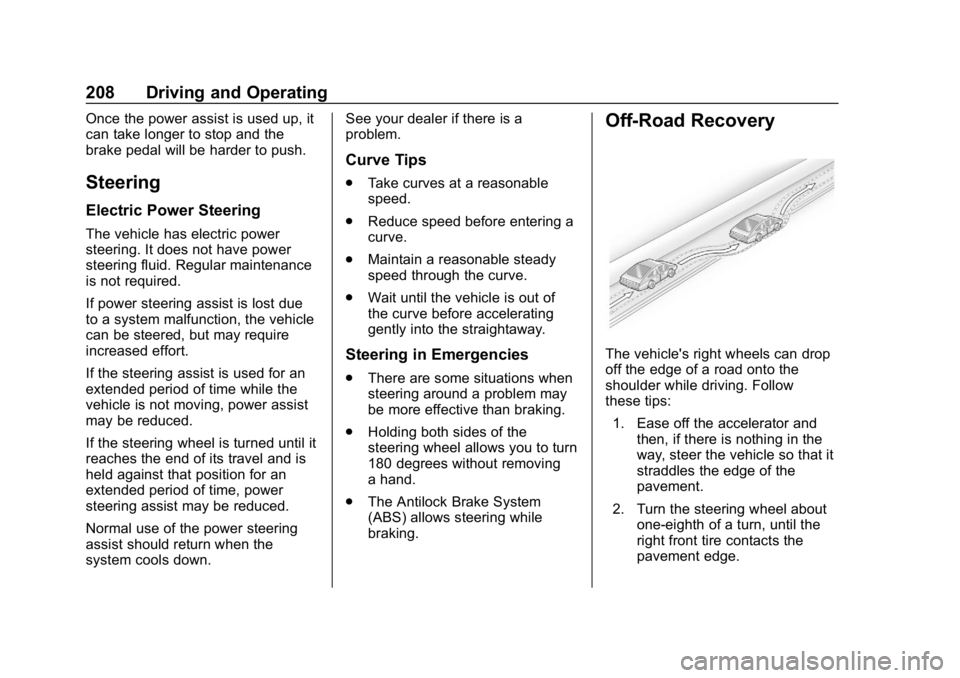
The vehicle's right wheels can drop
off the edge of a road onto the
shoulder while driving. Follow
these tips:
1. Ease off the accelerator and then, if there is nothing in the
way, steer the vehicle so that it
straddles the edge of the
pavement.
2. Turn the steering wheel about one-eighth of a turn, until the
right front tire contacts the
pavement edge.
Page 210 of 429
GMC Acadia/Acadia Denali Owner Manual (GMNA-Localizing-U.S./Canada/
Mexico-12146149) - 2019 - crc - 7/30/18
Driving and Operating 209
3. Turn the steering wheel to gostraight down the roadway.
Loss of Control
Skidding
There are three types of skids that
correspond to the vehicle's three
control systems:
.Braking Skid —wheels are not
rolling.
. Steering or Cornering Skid —
too much speed or steering in a
curve causes tires to slip and
lose cornering force.
. Acceleration Skid —too much
throttle causes the driving
wheels to spin.
Defensive drivers avoid most skids
by taking reasonable care suited to
existing conditions, and by not
overdriving those conditions. But
skids are always possible. If the vehicle starts to slide, follow
these suggestions:
.
Ease your foot off the
accelerator pedal and steer the
way you want the vehicle to go.
The vehicle may straighten out.
Be ready for a second skid if it
occurs.
. Slow down and adjust your
driving according to weather
conditions. Stopping distance
can be longer and vehicle
control can be affected when
traction is reduced by water,
snow, ice, gravel, or other
material on the road. Learn to
recognize warning clues —such
as enough water, ice, or packed
snow on the road to make a
mirrored surface —and slow
down when you have any doubt.
. Try to avoid sudden steering,
acceleration, or braking,
including reducing vehicle speed
by shifting to a lower gear. Any
sudden changes could cause
the tires to slide. Remember: Antilock brakes help
avoid only the braking skid.
Off-Road Driving
All-wheel-drive vehicles can be
used for off-road driving. Vehicles
without all-wheel drive and vehicles
not equipped with All Terrain (AT) or
On-Off Road (OOR) tires must not
be driven off-road except on a level,
solid surface. To contact the tire
manufacturer for more information
about the original equipment tires,
see the warranty manual.
Controlling the vehicle is the key to
successful off-road driving. One of
the best ways to control the vehicle
is to control the speed.
{Warning
When driving off-road, bouncing
and quick changes in direction
can easily throw you out of
position. This could cause you to
lose control and crash. You and
your passengers should always
wear seat belts.