buttons GMC ACADIA 2022 User Guide
[x] Cancel search | Manufacturer: GMC, Model Year: 2022, Model line: ACADIA, Model: GMC ACADIA 2022Pages: 397, PDF Size: 6.98 MB
Page 131 of 397
GMC Acadia/Acadia Denali Owner Manual (GMNA-Localizing-U.S./Canada/
Mexico-15170041) - 2022 - CRC - 10/6/21
130 Instruments and Controls
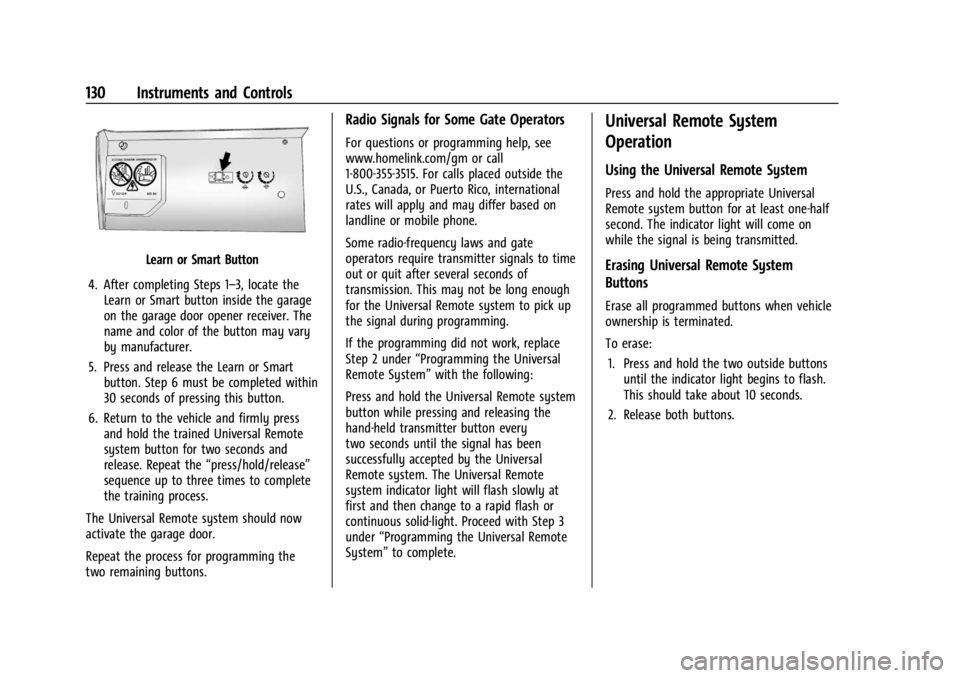
Learn or Smart Button
4. After completing Steps 1–3, locate the Learn or Smart button inside the garage
on the garage door opener receiver. The
name and color of the button may vary
by manufacturer.
5. Press and release the Learn or Smart button. Step 6 must be completed within
30 seconds of pressing this button.
6. Return to the vehicle and firmly press and hold the trained Universal Remote
system button for two seconds and
release. Repeat the “press/hold/release”
sequence up to three times to complete
the training process.
The Universal Remote system should now
activate the garage door.
Repeat the process for programming the
two remaining buttons.
Radio Signals for Some Gate Operators
For questions or programming help, see
www.homelink.com/gm or call
1-800-355-3515. For calls placed outside the
U.S., Canada, or Puerto Rico, international
rates will apply and may differ based on
landline or mobile phone.
Some radio-frequency laws and gate
operators require transmitter signals to time
out or quit after several seconds of
transmission. This may not be long enough
for the Universal Remote system to pick up
the signal during programming.
If the programming did not work, replace
Step 2 under “Programming the Universal
Remote System” with the following:
Press and hold the Universal Remote system
button while pressing and releasing the
hand-held transmitter button every
two seconds until the signal has been
successfully accepted by the Universal
Remote system. The Universal Remote
system indicator light will flash slowly at
first and then change to a rapid flash or
continuous solid-light. Proceed with Step 3
under “Programming the Universal Remote
System” to complete.
Universal Remote System
Operation
Using the Universal Remote System
Press and hold the appropriate Universal
Remote system button for at least one-half
second. The indicator light will come on
while the signal is being transmitted.
Erasing Universal Remote System
Buttons
Erase all programmed buttons when vehicle
ownership is terminated.
To erase:
1. Press and hold the two outside buttons until the indicator light begins to flash.
This should take about 10 seconds.
2. Release both buttons.
Page 132 of 397
GMC Acadia/Acadia Denali Owner Manual (GMNA-Localizing-U.S./Canada/
Mexico-15170041) - 2022 - CRC - 10/6/21
Instruments and Controls 131
Reprogramming a Single Universal
Remote System Button
To reprogram any of the system buttons:1. Press and hold any one of the buttons. Do not release the button.
2. The indicator light will begin to flash after 20 seconds. Without releasing the
button, proceed with Step 1 under
“Programming the Universal Remote
System.”
Page 137 of 397
GMC Acadia/Acadia Denali Owner Manual (GMNA-Localizing-U.S./Canada/
Mexico-15170041) - 2022 - CRC - 10/6/21
136 Lighting
Interior Lighting
Instrument Panel Illumination
Control
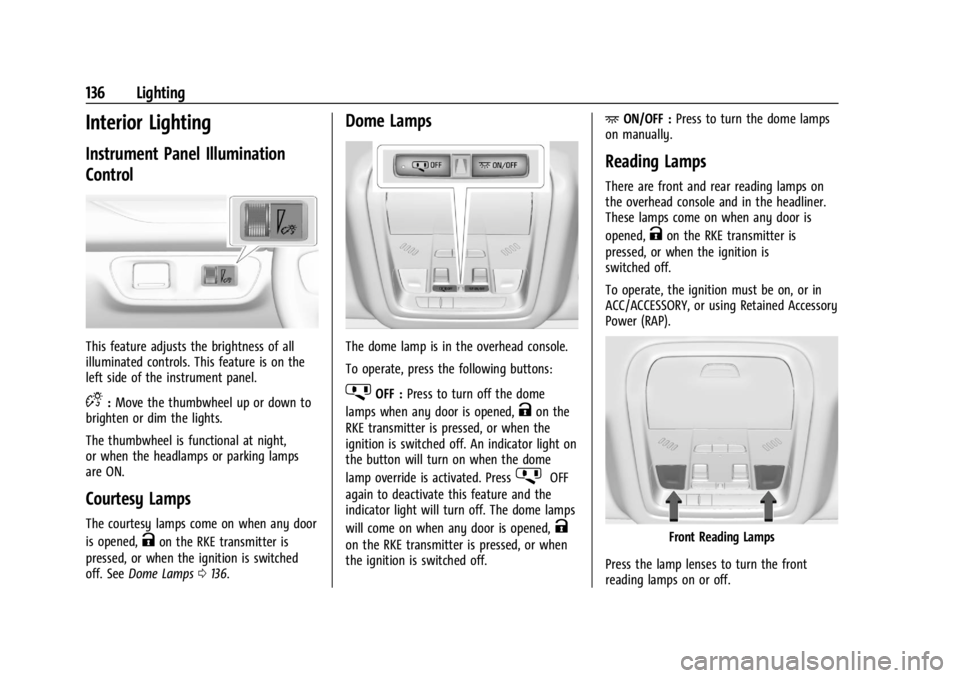
This feature adjusts the brightness of all
illuminated controls. This feature is on the
left side of the instrument panel.
D:Move the thumbwheel up or down to
brighten or dim the lights.
The thumbwheel is functional at night,
or when the headlamps or parking lamps
are ON.
Courtesy Lamps
The courtesy lamps come on when any door
is opened,
Kon the RKE transmitter is
pressed, or when the ignition is switched
off. See Dome Lamps 0136.
Dome Lamps
The dome lamp is in the overhead console.
To operate, press the following buttons:
jOFF : Press to turn off the dome
lamps when any door is opened,
Kon the
RKE transmitter is pressed, or when the
ignition is switched off. An indicator light on
the button will turn on when the dome
lamp override is activated. Press
jOFF
again to deactivate this feature and the
indicator light will turn off. The dome lamps
will come on when any door is opened,
K
on the RKE transmitter is pressed, or when
the ignition is switched off. +
ON/OFF : Press to turn the dome lamps
on manually.
Reading Lamps
There are front and rear reading lamps on
the overhead console and in the headliner.
These lamps come on when any door is
opened,
Kon the RKE transmitter is
pressed, or when the ignition is
switched off.
To operate, the ignition must be on, or in
ACC/ACCESSORY, or using Retained Accessory
Power (RAP).
Front Reading Lamps
Press the lamp lenses to turn the front
reading lamps on or off.
Page 138 of 397
GMC Acadia/Acadia Denali Owner Manual (GMNA-Localizing-U.S./Canada/
Mexico-15170041) - 2022 - CRC - 10/6/21
Lighting 137
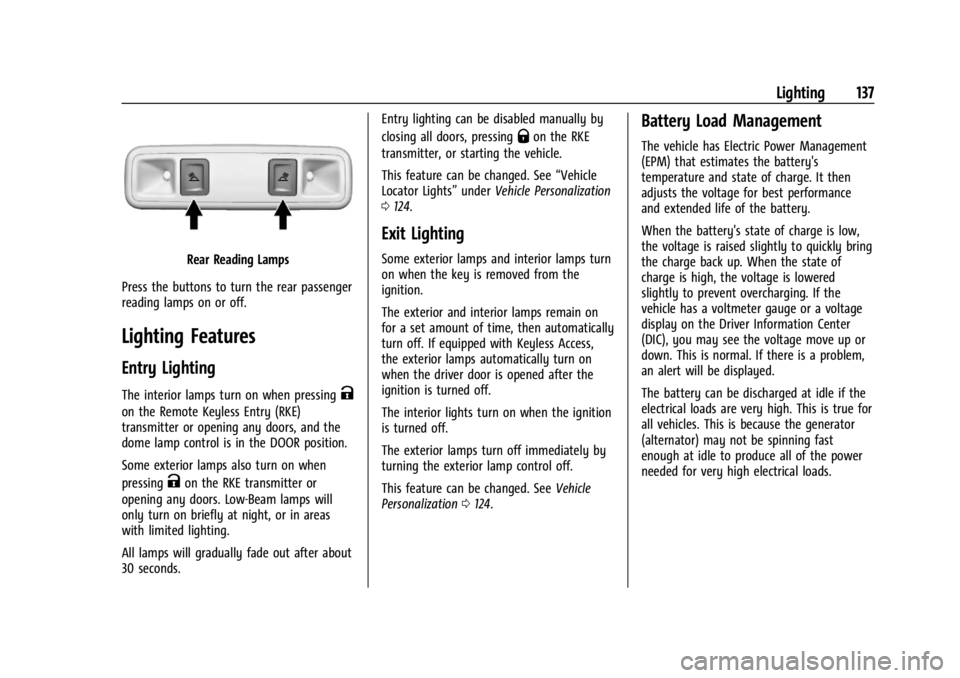
Rear Reading Lamps
Press the buttons to turn the rear passenger
reading lamps on or off.
Lighting Features
Entry Lighting
The interior lamps turn on when pressingK
on the Remote Keyless Entry (RKE)
transmitter or opening any doors, and the
dome lamp control is in the DOOR position.
Some exterior lamps also turn on when
pressing
Kon the RKE transmitter or
opening any doors. Low-Beam lamps will
only turn on briefly at night, or in areas
with limited lighting.
All lamps will gradually fade out after about
30 seconds. Entry lighting can be disabled manually by
closing all doors, pressing
Qon the RKE
transmitter, or starting the vehicle.
This feature can be changed. See “Vehicle
Locator Lights” underVehicle Personalization
0 124.
Exit Lighting
Some exterior lamps and interior lamps turn
on when the key is removed from the
ignition.
The exterior and interior lamps remain on
for a set amount of time, then automatically
turn off. If equipped with Keyless Access,
the exterior lamps automatically turn on
when the driver door is opened after the
ignition is turned off.
The interior lights turn on when the ignition
is turned off.
The exterior lamps turn off immediately by
turning the exterior lamp control off.
This feature can be changed. See Vehicle
Personalization 0124.
Battery Load Management
The vehicle has Electric Power Management
(EPM) that estimates the battery's
temperature and state of charge. It then
adjusts the voltage for best performance
and extended life of the battery.
When the battery's state of charge is low,
the voltage is raised slightly to quickly bring
the charge back up. When the state of
charge is high, the voltage is lowered
slightly to prevent overcharging. If the
vehicle has a voltmeter gauge or a voltage
display on the Driver Information Center
(DIC), you may see the voltage move up or
down. This is normal. If there is a problem,
an alert will be displayed.
The battery can be discharged at idle if the
electrical loads are very high. This is true for
all vehicles. This is because the generator
(alternator) may not be spinning fast
enough at idle to produce all of the power
needed for very high electrical loads.
Page 244 of 397
GMC Acadia/Acadia Denali Owner Manual (GMNA-Localizing-U.S./Canada/
Mexico-15170041) - 2022 - CRC - 10/6/21
Driving and Operating 243
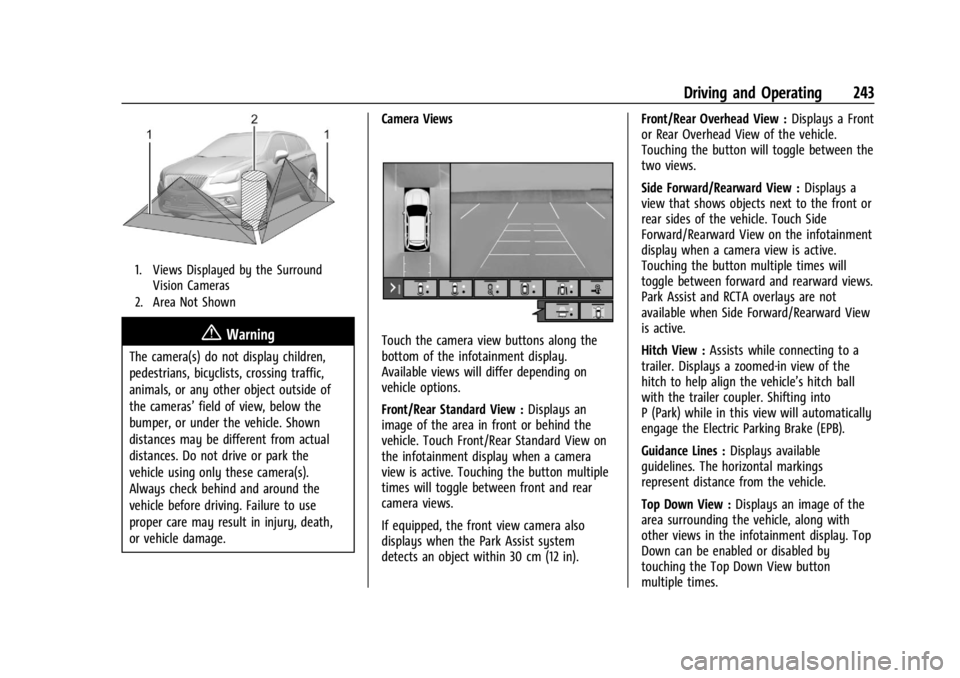
1. Views Displayed by the SurroundVision Cameras
2. Area Not Shown
{Warning
The camera(s) do not display children,
pedestrians, bicyclists, crossing traffic,
animals, or any other object outside of
the cameras’ field of view, below the
bumper, or under the vehicle. Shown
distances may be different from actual
distances. Do not drive or park the
vehicle using only these camera(s).
Always check behind and around the
vehicle before driving. Failure to use
proper care may result in injury, death,
or vehicle damage. Camera Views
Touch the camera view buttons along the
bottom of the infotainment display.
Available views will differ depending on
vehicle options.
Front/Rear Standard View :
Displays an
image of the area in front or behind the
vehicle. Touch Front/Rear Standard View on
the infotainment display when a camera
view is active. Touching the button multiple
times will toggle between front and rear
camera views.
If equipped, the front view camera also
displays when the Park Assist system
detects an object within 30 cm (12 in). Front/Rear Overhead View :
Displays a Front
or Rear Overhead View of the vehicle.
Touching the button will toggle between the
two views.
Side Forward/Rearward View : Displays a
view that shows objects next to the front or
rear sides of the vehicle. Touch Side
Forward/Rearward View on the infotainment
display when a camera view is active.
Touching the button multiple times will
toggle between forward and rearward views.
Park Assist and RCTA overlays are not
available when Side Forward/Rearward View
is active.
Hitch View : Assists while connecting to a
trailer. Displays a zoomed-in view of the
hitch to help align the vehicle’s hitch ball
with the trailer coupler. Shifting into
P (Park) while in this view will automatically
engage the Electric Parking Brake (EPB).
Guidance Lines : Displays available
guidelines. The horizontal markings
represent distance from the vehicle.
Top Down View : Displays an image of the
area surrounding the vehicle, along with
other views in the infotainment display. Top
Down can be enabled or disabled by
touching the Top Down View button
multiple times.
Page 378 of 397
GMC Acadia/Acadia Denali Owner Manual (GMNA-Localizing-U.S./Canada/
Mexico-15170041) - 2022 - CRC - 10/6/21
OnStar 377
OnStar
OnStar Overview
OnStar Overview . . . . . . . . . . . . . . . . . . . . . . 377
OnStar Services
Emergency . . . . . . . . . . . . . . . . . . . . . . . . . . . . 378
Security . . . . . . . . . . . . . . . . . . . . . . . . . . . . . . . 378
OnStar Additional Information
OnStar Additional Information . . . . . . . . . 379
OnStar Overview
=Voice Command Button
QBlue OnStar Button
>Red Emergency Button
This vehicle may be equipped with a
comprehensive, in-vehicle system that can
connect to an OnStar Advisor for Emergency,
Security, Navigation, Connections, and
Diagnostics Services. OnStar services may
require a paid service plan and data plan.
OnStar requires the vehicle battery and
electrical system, cellular service, and GPS
satellite signals to be available and
operating. OnStar acts as a link to existing
emergency service providers. OnStar may
collect information about you and your
vehicle, including location information. See
OnStar User Terms, Privacy Statement, and
Software Terms for more details including
system limitations at www.onstar.com (U.S.)
or www.onstar.ca (Canada). The OnStar system status light is next to
the OnStar buttons. If the status light is:
.Solid Green: System is ready.
.Flashing Green: On a call.
.Red: Indicates a problem.
.Off: System is off. PressQtwice to
speak with an OnStar Advisor.
Press
Qor call 1-888-4ONSTAR
(1-888-466-7827) to speak to an Advisor.
Functionality of the Voice Command button
may vary by vehicle and region.
Press
=to:
.Open the OnStar app on the infotainment
display. If equipped, the infotainment
system has OnStar controls in the
embedded OnStar app on the Home Page.
Most OnStar functions that can be
performed with the buttons can be done
using the app. To open the app, touch the
OnStar icon on the Home Page. App
updates require a corresponding service
plan. Features vary by region and model.
Features are subject to change. For more
information, see my.gmc.com/learn or
press
Q.