radio controls GMC ACADIA 2022 User Guide
[x] Cancel search | Manufacturer: GMC, Model Year: 2022, Model line: ACADIA, Model: GMC ACADIA 2022Pages: 397, PDF Size: 6.98 MB
Page 142 of 397
GMC Acadia/Acadia Denali Owner Manual (GMNA-Localizing-U.S./Canada/
Mexico-15170041) - 2022 - CRC - 10/6/21
Infotainment System 141
.USB/Bluetooth: Press to seek to
the beginning of the current or
previous track. Press and hold to
quickly reverse through a track.
Release to return to playing speed.
SeeUSB Port 0148 or
Bluetooth Audio 0151.
3.{
.Press to go to the Home Page. See
“Home Page” later in this section.
.Press to exit Android Auto or Apple
CarPlay. To enter back into Android
Auto or Apple CarPlay, press and
hold. SeeApple CarPlay and
Android Auto 0172.
4.d
.Radio: Press and release to go to
the next station or channel. Press
and hold to fast seek the next
strongest station or channel.
.USB/Bluetooth: Press to seek the
next track. Press and hold to fast
forward through a track. Release to
return to playing speed. See USB
Port 0148 or
Bluetooth Audio 0151.
5.oBACK
.Press to return to the previous
display in a menu.
6.V
.Turn to highlight a feature. Press
to activate the highlighted feature.
Home Page
The Home Page is where vehicle application
icons are accessed. Some applications are
disabled when the vehicle is moving.
Swipe left or right across the display to
access the pages of icons.
Managing Home Page Icons 1. Touch and hold any of the Home Page icons to enter edit mode.
2. Continue holding the icon and drag it to the desired position.
3. Release your finger to drop the icon in the desired position.
4. To move an application to another page, drag the icon to the edge of the display
toward the desired page.
5. Continue dragging and dropping application icons as desired.
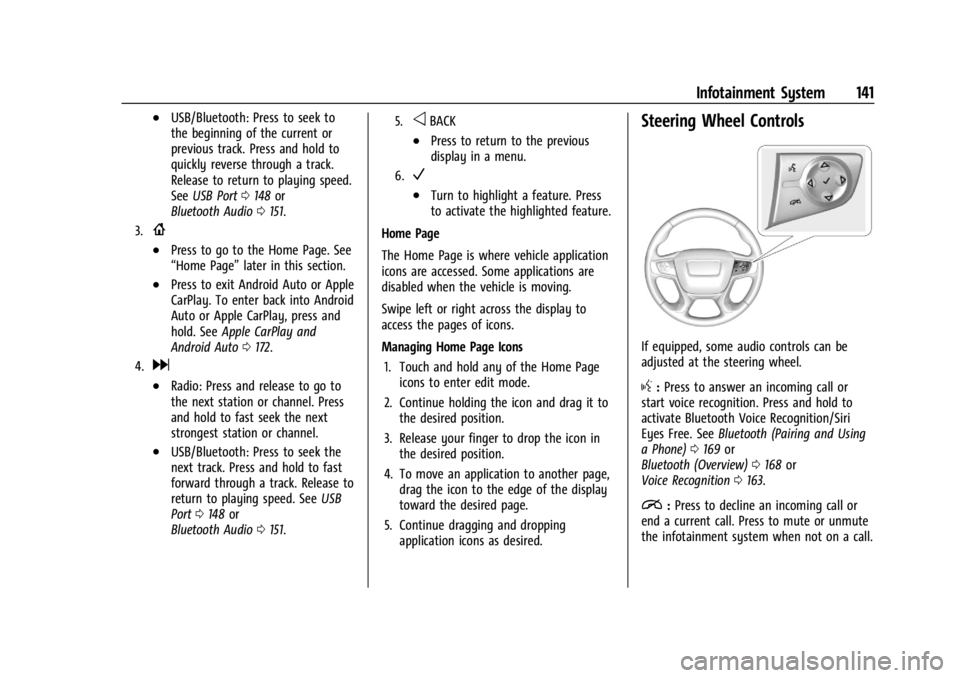
Steering Wheel Controls
If equipped, some audio controls can be
adjusted at the steering wheel.
g:Press to answer an incoming call or
start voice recognition. Press and hold to
activate Bluetooth Voice Recognition/Siri
Eyes Free. See Bluetooth (Pairing and Using
a Phone) 0169 or
Bluetooth (Overview) 0168 or
Voice Recognition 0163.
i:Press to decline an incoming call or
end a current call. Press to mute or unmute
the infotainment system when not on a call.
Page 146 of 397
GMC Acadia/Acadia Denali Owner Manual (GMNA-Localizing-U.S./Canada/
Mexico-15170041) - 2022 - CRC - 10/6/21
Infotainment System 145
Software Updates
Over-the-Air Software Updates
If equipped, see“Updates”underSettings
0 174 for details on software updates.
Radio
AM-FM Radio
Playing the Radio
From the Home Page, touch the Audio icon
to display the active audio source page.
Choose from the three most recently used
sources listed at the left side of the display
or touch the More option to display a list of
available sources. Examples of available
sources may include AM, FM, SXM (if
equipped), MyMedia, USB, and Bluetooth.
Infotainment System Sound Menu
From any of the audio source main pages,
touch Sound to display the following:
Equalizer : Touch to adjust Bass, Midrange,
Treble, and Surround (if equipped) using the
options on the infotainment display. Fade/Balance :
Touch to adjust by using the
controls on the infotainment display or by
tapping/dragging the crosshair.
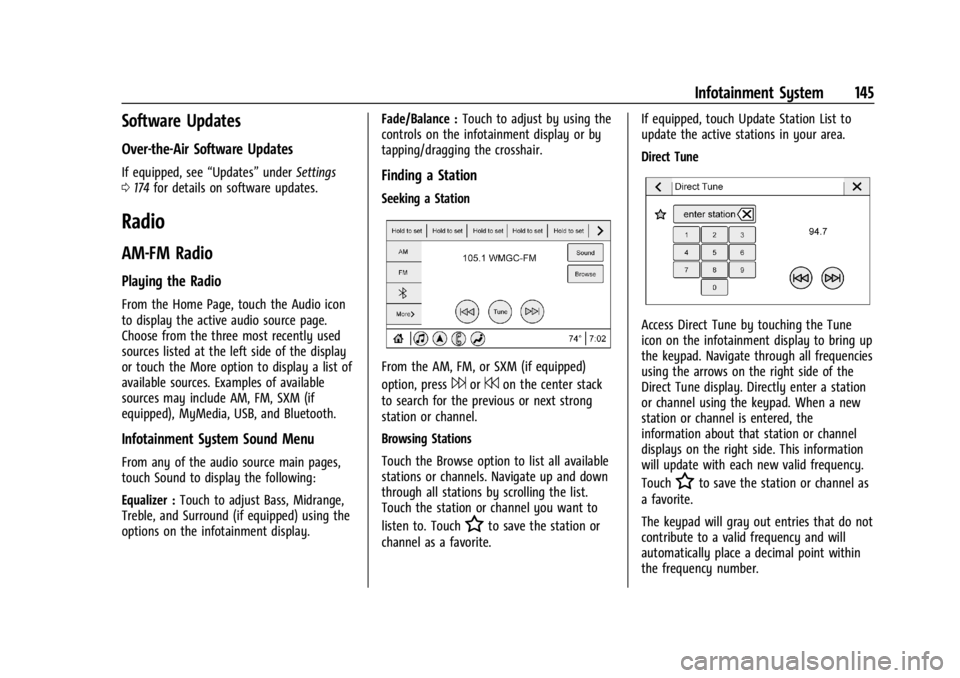
Finding a Station
Seeking a Station
From the AM, FM, or SXM (if equipped)
option, press
6or7on the center stack
to search for the previous or next strong
station or channel.
Browsing Stations
Touch the Browse option to list all available
stations or channels. Navigate up and down
through all stations by scrolling the list.
Touch the station or channel you want to
listen to. Touch
Hto save the station or
channel as a favorite. If equipped, touch Update Station List to
update the active stations in your area.
Direct Tune
Access Direct Tune by touching the Tune
icon on the infotainment display to bring up
the keypad. Navigate through all frequencies
using the arrows on the right side of the
Direct Tune display. Directly enter a station
or channel using the keypad. When a new
station or channel is entered, the
information about that station or channel
displays on the right side. This information
will update with each new valid frequency.
Touch
Hto save the station or channel as
a favorite.
The keypad will gray out entries that do not
contribute to a valid frequency and will
automatically place a decimal point within
the frequency number.
Page 152 of 397
GMC Acadia/Acadia Denali Owner Manual (GMNA-Localizing-U.S./Canada/
Mexico-15170041) - 2022 - CRC - 10/6/21
Infotainment System 151
The songs, artists, albums, and genres are
taken from the file’s song information and
are only displayed if present. The radio
displays the file name as the track name if
the song information is not available.
Supported Apple Devices
To view supported devices, see
my.gmc.com/learn.
Storing and Recalling Media Favorites
To store media favorites, touch Browse to
display a list of media types.
Touch one of the following Browse options
to save a favorite:
Playlists :Touch
Hnext to any playlist to
store the playlist as a favorite. Touch a
saved favorite to recall a favorite playlist.
The first song in the playlist begins to play.
Artists : Touch
Hnext to any artist to
store the artist as a favorite. Touch a saved
favorite to recall a favorite artist. The first
song in the artist list begins to play.
Songs : Touch
Hnext to any song to store
the song as a favorite. Touch a saved
favorite to recall a favorite song. Albums :
Touch
Hnext to any album to
store the album as a favorite. Touch a saved
favorite to recall a favorite album. The first
song in the album list begins to play.
Genres : Touch
Hnext to any genre to
store the genre as a favorite. Touch a saved
favorite to recall a favorite genre. The first
song of the genre begins to play.
Podcasts : Touch
Hnext to any podcast to
store the podcast as a favorite. Touch a
saved favorite to recall a favorite podcast.
The podcast begins to play.
Audiobooks : Touch
Hnext to any
audiobook to store the audiobook as a
favorite. Touch a saved favorite to recall a
favorite audiobook. The first chapter in the
audiobook begins to play.
Media Playback and Mute
USB playback will be paused if the system is
muted. If the steering wheel mute control is
pressed again, playback will resume.
If the source is changed while in mute,
playback resumes and audio will unmute.
Bluetooth Audio
Music may be played from a paired
Bluetooth device. See Bluetooth (Pairing and
Using a Phone) 0169 or
Bluetooth (Overview) 0168 for help pairing
a device.
Volume and song selection may be
controlled by using the infotainment
controls or the mobile device. If Bluetooth is
selected and no volume is present, check the
volume setting on the infotainment system.
Music can be launched by touching
Bluetooth from the recent sources list on
the left of the display or by touching the
More option and then touching the
Bluetooth device.
To play music via Bluetooth:
1. Power on the device, and pair to connect the device.
2. Once paired, touch Audio from the Home Page, then touch Bluetooth from the
recent sources list on the left of the
display.
Bluetooth Sound Menu
See “Infotainment System Sound Menu”
under AM-FM Radio 0145.
Page 165 of 397
GMC Acadia/Acadia Denali Owner Manual (GMNA-Localizing-U.S./Canada/
Mexico-15170041) - 2022 - CRC - 10/6/21
164 Infotainment System
3. Clearly speak one of the commandsdescribed in this section.
A voice recognition system prompt can
be interrupted while it is playing by
pressing
gagain.
Once voice recognition is started, both the
infotainment display and instrument cluster
show the selections and visual dialog
content. These displays can be turned on or
off in the Tutorial Mode under Settings
0 174.
There are three voice prompt modes
supported:
.Informative verbal prompts: This type of
prompt will provide more information
regarding the supported actions.
.Short prompts: This type of prompt will
provide simple instructions about what
can be stated.
.Auto informative prompts: This type of
prompt plays during the first few speech
sessions, then automatically switches to
the short prompt after some experience
has been gained through using the
system.
If a command is not spoken, the voice
recognition system says a help prompt. Prompts and Infotainment Displays
While a voice recognition session is active,
there may be corresponding options
showing on the displays. A selection can be
made by manually touching the option,
or by speaking the number for the option to
select. Manual interaction in the voice
recognition session is permitted. Interaction
during a voice session may be completed
entirely using voice commands while some
manual commands may expedite a task. If a
selection is made using a manual control,
the voice recognition dialog will progress in
the same way as if the selection were made
using a voice command. Once the system
completes the task, or the session is
terminated, the voice recognition dialog
stops.
An example of this type of manual
intervention is touching an entry of a
displayed number list instead of speaking
the number associated with the entry
desired.
Canceling Voice Recognition
.Touch or say
“Cancel”or“Exit” to
terminate the voice recognition session
and show the display where voice
recognition was initiated.
.Pression the steering wheel controls
to terminate the voice recognition session
and show the display where voice
recognition was initiated.
Natural Language Commands
Most languages do not support natural
language commands in sentence form. For
those languages, use direct commands like
the examples shown on the display.
Helpful Hints for Speaking Commands
Voice recognition can understand commands
that are naturally stated in sentence form or
direct commands that state the application
and the task.
For best results:
.Listen for the prompt before saying a
command or reply.
.Speak the command naturally, not too
fast, not too slow.
.Use direct commands without a lot of
extra words. For example, “Call
at work,” “Play” followed by the artist or
song name, or “Tune”followed by the
radio station number.
Page 169 of 397
GMC Acadia/Acadia Denali Owner Manual (GMNA-Localizing-U.S./Canada/
Mexico-15170041) - 2022 - CRC - 10/6/21
168 Infotainment System
Voice Recognition for the Phone
“Call
stored contact. The command may include
location if the contact has location numbers
stored.
“Call
Mobile,” or“On Other” :Initiate a call to a
stored contact and location at home, at
work, on mobile device, or on another
phone.
“Call
to a cell phone number of seven digits,
10 digits, or three digit emergency numbers.
“Pair Phone” :Begin the Bluetooth pairing
process. Follow the instructions on the
infotainment display.
“Redial” :Initiate a call to the last dialed
number.
“Switch Phone” :Select a different
connected cell phone for outgoing calls.
“Voice Keypad” :Begin a dialog to enter
special numbers like international numbers.
The numbers can be entered in groups of
digits with each group of digits being
repeated back by the system. If the group
of digits is not correct, the command
“Delete” will remove the last group of digits and allow them to be re-entered. Once the
entire number has been entered, the
command
“Call”will start dialing the
number.
Phone Assistant Voice Recognition
Press and holdgon the steering wheel
controls to pass through and launch Google
phone assistant or Siri.
For the low radio, whether connected by
Bluetooth or phone projection, the only
available voice recognition is either Siri
(iPhone) or the Google Assistant (Android).
Phone
Bluetooth (Overview)
The Bluetooth-capable system can interact
with many mobile devices, allowing:
.Placement and receipt of calls in a
hands-free mode.
.Sharing of the device’s address book or
contact list with the vehicle.
To minimize driver distraction, before
driving, and with the vehicle parked:
.Become familiar with the features of the
mobile device. Organize the phone book
and contact lists clearly and delete duplicate or rarely used entries.
If possible, program speed dial or other
shortcuts.
.Review the controls and operation of the
infotainment system.
.Pair mobile device(s) to the vehicle. The
system may not work with all mobile
devices. See
“Pairing”later in this section.
Vehicles with a Bluetooth system can use a
Bluetooth-capable mobile device with a
Hands-Free Profile to make and receive
phone calls. The infotainment system and
voice recognition are used to control the
system. The system can be used while the
ignition is on or in accessory mode. The
range of the Bluetooth system can be up to
9.1 m (30 ft). Not all mobile devices support
all functions and not all mobile devices work
with the Bluetooth system. See my.gmc.com
for more information about compatible
mobile devices.
Controls
Use the controls on the center stack and the
steering wheel to operate the Bluetooth
system.
Page 177 of 397

GMC Acadia/Acadia Denali Owner Manual (GMNA-Localizing-U.S./Canada/
Mexico-15170041) - 2022 - CRC - 10/6/21
176 Infotainment System
Touch Auto, Day, or Night to adjust the
display.
.Calibrate Touchscreen: Touch to calibrate
the infotainment display and follow the
prompts.
.Turn Display Off: Touch to turn the
display off. Touch anywhere on the
infotainment display or press any
infotainment control on the center stack
again to turn the display on.
Sounds
Touch and the following may display:
.Maximum Startup Volume: This feature
adjusts the maximum volume of the
infotainment system when you start your
vehicle. To set the maximum startup
volume, touch the controls on the
infotainment display to increase or
decrease.
.Audio Cues: This feature determines if
sounds play when the infotainment
system starts up and shuts down. This
feature can be turned off or on.
.Set Audio Cue Volume: This setting
controls the volume of Audio Cues played
on startup and shut down. Touch the
controls on the infotainment display to
increase or decrease.
.Audible Touch Feedback: This setting
determines if a sound plays when
touching the infotainment display or
radio controls. This feature can be turned
off or on.
Voice
Touch and the following may display:
.Confirm More/Less: This setting specifies
how often the voice recognition system
confirms commands. Touch Confirm More
to have the system check with you more
often before acting on your commands.
.Prompt Length: This setting specifies the
amount of detail the voice recognition
system provides when giving you
feedback. Touch Auto to have the system
automatically adjust to your speech
habits. Touch Informative, Short, or Auto.
.Audio Feedback Speed: Touch Slow,
Medium, or Fast to adjust how quickly
the voice recognition system speaks.
.Friendly Prompts: This setting adjusts the
formality of voice prompts. Touch Off for
shorter prompts. Touch On to hear
prompts with more personality. Touch
Auto to have the prompt match your
command style.
.Tutorial Mode: Touch Off or On to
provide tutorial feedback on the display.
.Allow Prompt Interruptions: This setting
controls whether voice commands can be
spoken before voice prompts finish. Turn
this on to speak commands without
hearing the full prompt. Speaking while
the prompt is still playing will
immediately stop playing the current
prompt and recognize your command.
Background noise may cause accidental
interruptions. Touch Off or On.
Favorites
Touch and the following may display:
.Manage Favorites: Touch to display a list
of Audio, Phone, and Navigation favorites.
Favorites can be moved, renamed,
or deleted.
To move, touch and hold the favorite, and
then drag up or down to rearrange the
position.
.Set Number of Audio Favorites: Touch to
select how many favorites pages can be
viewed from the audio application. The
Auto setting will automatically adjust this
number based on the number of favorites
you have saved. Touch Auto, 5, 10, 15, 20,
25, 30, 35, or 40.
Page 179 of 397
GMC Acadia/Acadia Denali Owner Manual (GMNA-Localizing-U.S./Canada/
Mexico-15170041) - 2022 - CRC - 10/6/21
178 Infotainment System
Apps
The menu may contain the following:
Android Auto
This feature allows you to interact directly
with your mobile device on the infotainment
display. SeeApple CarPlay and Android Auto
0 172.
Touch the controls on the infotainment
display to disable or enable.
Apple CarPlay
This feature allows you to interact directly
with your mobile device on the infotainment
display. See Apple CarPlay and Android Auto
0 172.
Touch the controls on the infotainment
display to disable or enable.
Apps
Touch and the following may display:
.Update Apps Automatically: This allows
downloaded applications to be updated
automatically.
Touch the controls on the infotainment
display to disable or enable.
.About Apps: Touch to view the versions
of the shop software. Audio
Depending on the current audio source,
different options will be available.
Touch and the following may display:
.Tone Settings: Touch to adjust Equalizer,
Fade/Balance, or Sound Mode. See
“Infotainment System Sound Menu”
in
AM-FM Radio 0145.
.Adaptive Volume: This feature adjusts the
volume based on the vehicle speed.
Touch Off, Low, Medium-Low, Medium,
Medium-High, or High.
.Bose AudioPilot Noise Compensation
Technology: If equipped, this feature
adjusts the volume based on the noise in
the vehicle and the speed.
Touch Off or On.
.Manage Favorites: Touch to display a list
of Audio, Mobile Devices, and Navigation
favorites.
Favorites can be moved, renamed,
or deleted.
To move, touch and hold the favorite, and
then drag up or down to rearrange the
position.
.Set Number of Audio Favorites: Touch to
select how many favorites pages can be
viewed from the audio application. The
Auto setting will automatically adjust this
number based on the number of favorites
you have saved. Touch Auto, 5, 10, 15, 20,
25, 30, 35, or 40.
.RDS: If equipped, this allows the Radio
Data System (RDS) to be turned on or off.
Touch the controls on the infotainment
display to disable or enable.
.HD Radio: This allows HD Radio reception
to be turned on or off.
Touch the controls on the infotainment
display to disable or enable.
.Explicit Content Filter: This setting allows
access to explicit content SiriusXM
channels.
Touch Off or On.
.Manage Phones: Select to connect to a
different phone source, disconnect a
phone, or delete a phone.
.Reset Music Index: This allows the music
index to be reset if you are having
difficulty accessing all of the media
content on your device.
Touch Yes or No.
Page 201 of 397
GMC Acadia/Acadia Denali Owner Manual (GMNA-Localizing-U.S./Canada/
Mexico-15170041) - 2022 - CRC - 10/6/21
200 Driving and Operating
Trailer Towing
General Towing Information . . . . . . . . . . . 258
Driving Characteristics andTowing Tips . . . . . . . . . . . . . . . . . . . . . . . . . 258
Trailer Towing . . . . . . . . . . . . . . . . . . . . . . . . . 261
Towing Equipment . . . . . . . . . . . . . . . . . . . . 264
Trailer Sway Control (TSC) . . . . . . . . . . . . . 267
Conversions and Add-Ons
Add-On Electrical Equipment . . . . . . . . . . 268
Driving Information
Driving for Better Fuel Economy
Driving habits can affect fuel mileage. Here
are some driving tips to get the best fuel
economy possible.
.Set the climate controls to the desired
temperature after the engine is started,
or turn them off when not required.
.On AWD vehicles, see Driver Mode Control
0 229.
.Avoid fast starts and accelerate smoothly.
.Brake gradually and avoid abrupt stops.
.Avoid idling the engine for long periods
of time.
.When road and weather conditions are
appropriate, use cruise control.
.Always follow posted speed limits or
drive more slowly when conditions
require.
.Keep vehicle tires properly inflated.
.Combine several trips into a single trip.
.Replace the vehicle's tires with the same
TPC Spec number molded into the tire's
sidewall near the size.
.Follow recommended scheduled
maintenance.
Distracted Driving
Distraction comes in many forms and can
take your focus from the task of driving.
Exercise good judgment and do not let other
activities divert your attention away from
the road. Many local governments have
enacted laws regarding driver distraction.
Become familiar with the local laws in
your area.
To avoid distracted driving, keep your eyes
on the road, keep your hands on the
steering wheel, and focus your attention on
driving.
.Do not use a phone in demanding driving
situations. Use a hands-free method to
place or receive necessary phone calls.
.Watch the road. Do not read, take notes,
or look up information on phones or
other electronic devices.
.Designate a front seat passenger to
handle potential distractions.
.Become familiar with vehicle features
before driving, such as programming
favorite radio stations and adjusting
climate control and seat settings. Program
all trip information into any navigation
device prior to driving.
Page 389 of 397

GMC Acadia/Acadia Denali Owner Manual (GMNA-Localizing-U.S./Canada/-
Mexico-15170041) - 2022 - CRC - 10/6/21
388 Index
Driving (cont'd)If the Vehicle is Stuck . . . . . . . . . . . . . . . . . 209
Impaired . . . . . . . . . . . . . . . . . . . . . . . . . . . . . . . 201
Loss of Control . . . . . . . . . . . . . . . . . . . . . . . . 203
Off-Road . . . . . . . . . . . . . . . . . . . . . . . . . . . . . . . 203
Off-Road Recovery . . . . . . . . . . . . . . . . . . . . . 203
Vehicle Load Limits . . . . . . . . . . . . . . . . . . . . 209
Wet Roads . . . . . . . . . . . . . . . . . . . . . . . . . . . . . 207
Winter . . . . . . . . . . . . . . . . . . . . . . . . . . . . . . . . . 208
Dual Automatic Climate Control System . . . . . . . . . . . . . . . . . . . . . . . . . . . . . . . . 192
E
Electric Brake Boost . . . . . . . . . . . . . . . . . . . . . . 224
Electric Parking Brake . . . . . . . . . . . . . . . . . . . . 225
Electric Parking Brake Light . . . . . . . . . . . . . . .110
Electrical Equipment, Add-On . . . . . . . . . . . . 268
Electrical SystemEngine Compartment Fuse Block . . . . . . . 293
Fuses and Circuit Breakers . . . . . . . . . . . . . 292
Instrument Panel Fuse Block . . . . . . . . . . . 296
Overload . . . . . . . . . . . . . . . . . . . . . . . . . . . . . . . 291
Rear Compartment Fuse Block . . . . . . . . . 298
Emergency OnStar . . . . . . . . . . . . . . . . . . . . . . . . . . . . . . . . . 378
Engine
Air Cleaner/Filter . . . . . . . . . . . . . . . . . . . . . . 278
Check Light (Malfunction Indicator) . . . . 108 Engine (cont'd)
Compartment Overview . . . . . . . . . . . . . . . . 272
Coolant Temperature Gauge . . . . . . . . . . . 105
Coolant Temperature Warning Light . . . . 113
Cooling System . . . . . . . . . . . . . . . . . . . . . . . . 280
Drive Belt Routing . . . . . . . . . . . . . . . . . . . . . 364
Exhaust . . . . . . . . . . . . . . . . . . . . . . . . . . . . . . . . 220
Heater . . . . . . . . . . . . . . . . . . . . . . . . . . . . . . . . . 216
Oil Life System . . . . . . . . . . . . . . . . . . . . . . . . 277
Oil Pressure Light . . . . . . . . . . . . . . . . . . . . . . . 114
Overheating . . . . . . . . . . . . . . . . . . . . . . . . . . . 284
Power Messages . . . . . . . . . . . . . . . . . . . . . . . 124
Running While Parked . . . . . . . . . . . . . . . . . 220
Starting . . . . . . . . . . . . . . . . . . . . . . . . . . . . . . . . 214
Engine Air Filter Life System . . . . . . . . . . . . . 278
Engine Oil Temperature Gauge . . . . . . . . . . . . . . . . . . . . 104
Entry Lighting . . . . . . . . . . . . . . . . . . . . . . . . . . . . 137
Equipment, Towing . . . . . . . . . . . . . . . . . . . . . . 264
Event Data Recorders . . . . . . . . . . . . . . . . . . . . 375
Exit Lighting . . . . . . . . . . . . . . . . . . . . . . . . . . . . . . 137
Extended Parking . . . . . . . . . . . . . . . . . . . . . . . . 219
Extender, Seat Belt . . . . . . . . . . . . . . . . . . . . . . . 54
Exterior Lamp Controls . . . . . . . . . . . . . . . . . . . . 132
Exterior Lamps Off Reminder . . . . . . . . . . . . . 133
Exterior Lighting Battery Saver . . . . . . . . . . .138
F
Filter, Engine Air Cleaner . . . . . . . . . . . . . . . . . . . . . 278
Flash-to-Pass . . . . . . . . . . . . . . . . . . . . . . . . . . . . . . 133
Flashers, Hazard Warning . . . . . . . . . . . . . . . . . 135
Flat Tire . . . . . . . . . . . . . . . . . . . . . . . . . . . . . . . . . 319 Changing . . . . . . . . . . . . . . . . . . . . . . . . . . . . . . 327
Floor Mats . . . . . . . . . . . . . . . . . . . . . . . . . . . . . . . 345
Fluid Automatic Transmission . . . . . . . . . . . . . . . 278
Brakes . . . . . . . . . . . . . . . . . . . . . . . . . . . . . . . . . 286
Washer . . . . . . . . . . . . . . . . . . . . . . . . . . . . . . . . 285
Fog Lamps . . . . . . . . . . . . . . . . . . . . . . . . . . . . . . . . 135
Folding Mirrors . . . . . . . . . . . . . . . . . . . . . . . . . . . .27
Forward Collision Alert (FCA) System . . . . 246
Frequency Statement Radio . . . . . . . . . . . . . . . . . . . . . . . . . . . . . . . . . . 373
Front Fog Lamp Light . . . . . . . . . . . . . . . . . . . . . . . . . . . . . . . . . . . . 115
Front Pedestrian Braking (FPB) System . . . . . . . . . . . . . . . . . . . . . . . . . . . . . . . . 249
Front Seats Adjustment . . . . . . . . . . . . . . . . . . . . . . . . . . . . . 37
Heated and Ventilated . . . . . . . . . . . . . . . . . . 42
Fuel Additives . . . . . . . . . . . . . . . . . . . . . . . . . . . . . . 256
Economy, Driving for Better . . . . . . . . . . . 200
Filling a Portable Fuel Container . . . . . . . 257
Page 394 of 397

GMC Acadia/Acadia Denali Owner Manual (GMNA-Localizing-U.S./Canada/-
Mexico-15170041) - 2022 - CRC - 10/6/21
Index 393
RestraintsWhere to Put . . . . . . . . . . . . . . . . . . . . . . . . . . . . 71
Retained Accessory Power (RAP) . . . . . . . . . . 217
Reverse Tilt Mirrors . . . . . . . . . . . . . . . . . . . . . . . 28
Roads Driving, Wet . . . . . . . . . . . . . . . . . . . . . . . . . . . 207
Roadside Assistance Program . . . . . . . . . . . . 368
Roof
Sunroof . . . . . . . . . . . . . . . . . . . . . . . . . . . . . . . . . 33
Roof Rack System . . . . . . . . . . . . . . . . . . . . . . . . . 89
Rotation, Tires . . . . . . . . . . . . . . . . . . . . . . . . . . . . 313
Routing, Engine Drive Belt . . . . . . . . . . . . . . . 364
Running the Vehicle While Parked . . . . . . . 220
S
Safety Defects Reporting Canadian Government . . . . . . . . . . . . . . . . . 374
General Motors . . . . . . . . . . . . . . . . . . . . . . . . 374
U.S. Government . . . . . . . . . . . . . . . . . . . . . . . 373
Safety Locks . . . . . . . . . . . . . . . . . . . . . . . . . . . . . . .18
Safety System Check . . . . . . . . . . . . . . . . . . . . . 54
Satellite Radio . . . . . . . . . . . . . . . . . . . . . . . . . . . .147
Scheduling Appointments . . . . . . . . . . . . . . . . 370
Sealant Kit, Tire . . . . . . . . . . . . . . . . . . . . . . . . . . . 321
Seat Belts . . . . . . . . . . . . . . . . . . . . . . . . . . . . . . . . . 48 Care . . . . . . . . . . . . . . . . . . . . . . . . . . . . . . . . . . . . 54
Extender . . . . . . . . . . . . . . . . . . . . . . . . . . . . . . . . 54
How to Wear Seat Belts Properly . . . . . . . 49 Seat Belts (cont'd)
Lap-Shoulder Belt . . . . . . . . . . . . . . . . . . . . . . . . 51
Reminders . . . . . . . . . . . . . . . . . . . . . . . . . . . . . 106
Replacing after a Crash . . . . . . . . . . . . . . . . . 54
Use During Pregnancy . . . . . . . . . . . . . . . . . . 53
Seats Adjustment, Front . . . . . . . . . . . . . . . . . . . . . . 37
Head Restraints . . . . . . . . . . . . . . . . . . . . . . . . . 35
Heated and Ventilated Front . . . . . . . . . . . . 42
Heated, Rear . . . . . . . . . . . . . . . . . . . . . . . . . . . . 46
Lumbar Adjustment, Front . . . . . . . . . . . . . . 39
Memory . . . . . . . . . . . . . . . . . . . . . . . . . . . . . . . . 39
Power Adjustment, Front . . . . . . . . . . . . . . . 37
Rear . . . . . . . . . . . . . . . . . . . . . . . . . . . . . . . . . . . . 43
Reclining Seatbacks . . . . . . . . . . . . . . . . . . . . . 38
Third Row Seat . . . . . . . . . . . . . . . . . . . . . . . . . 47
Securing Child Restraints . . . . . . . . . . . . . . . 79, 81
Security Light . . . . . . . . . . . . . . . . . . . . . . . . . . . . . . . . . . . . 115
OnStar . . . . . . . . . . . . . . . . . . . . . . . . . . . . . . . . . 378
Vehicle . . . . . . . . . . . . . . . . . . . . . . . . . . . . . . . . . 25
Vehicle Alarm . . . . . . . . . . . . . . . . . . . . . . . . . . . 25
Service . . . . . . . . . . . . . . . . . . . . . . . . . . . . . . . . . . . 198 Accessories and Modifications . . . . . . . . . 270
Doing Your Own Work . . . . . . . . . . . . . . . . . 270
Maintenance Records . . . . . . . . . . . . . . . . . . 359
Maintenance, General Information . . . . . 347
Parts Identification . . . . . . . . . . . . . . . . . . . . . 360 Service (cont'd)
Scheduling Appointments . . . . . . . . . . . . . . 370
Service Electric Parking Brake Light . . . . . . .110
Services Special Application . . . . . . . . . . . . . . . . . . . . . 353
Servicing System . . . . . . . . . . . . . . . . . . . . . . . . 162
Servicing the Airbag . . . . . . . . . . . . . . . . . . . . . . 64
Settings . . . . . . . . . . . . . . . . . . . . . . . . . . . . . . . . . . .174
Shifting Into Park . . . . . . . . . . . . . . . . . . . . . . . . . . . . . . 218
Out of Park . . . . . . . . . . . . . . . . . . . . . . . . . . . . 219
Side Blind Zone Alert (SBZA) . . . . . . . . . . . . . . 251
Signals, Turn and Lane-Change . . . . . . . . . . . . 135
Software Updates . . . . . . . . . . . . . . . . . . . . . . . . .145
Spare Tire Compact . . . . . . . . . . . . . . . . . . . . . . . . . . . . . . . 332
Special Application Services . . . . . . . . . . . . . . 353
Specifications and Capacities . . . . . . . . . . . . . 361
Speedometer . . . . . . . . . . . . . . . . . . . . . . . . . . . . 103
StabiliTrak OFF Light . . . . . . . . . . . . . . . . . . . . . . . . . . . . . . . 112
Start Assist, Hill . . . . . . . . . . . . . . . . . . . . . . . . . . 226
Start Vehicle, Remote . . . . . . . . . . . . . . . . . . . . . .14
Starting the Engine . . . . . . . . . . . . . . . . . . . . . . .214
Steering . . . . . . . . . . . . . . . . . . . . . . . . . . . . . . . . . 202 Heated Wheel . . . . . . . . . . . . . . . . . . . . . . . . . . 91
Wheel Adjustment . . . . . . . . . . . . . . . . . . . . . . 91
Wheel Controls . . . . . . . . . . . . . . . . . . . . . . . . . 91