service GMC ACADIA 2022 Owner's Guide
[x] Cancel search | Manufacturer: GMC, Model Year: 2022, Model line: ACADIA, Model: GMC ACADIA 2022Pages: 397, PDF Size: 6.98 MB
Page 155 of 397
GMC Acadia/Acadia Denali Owner Manual (GMNA-Localizing-U.S./Canada/
Mexico-15170041) - 2022 - CRC - 10/6/21
154 Infotainment System
turn is completed, the system automatically
brings the zoom back to the originally set
level. If the vehicle is approaching a turn
with the next turn occurring shortly after,
the Auto-Zoom will remain on until both
turns are completed.
Route Preferences
Touch to access the Route Preferences. The
choices are:
.Preferred Route–Choose from two
different route options: Fastest or
Eco-Friendly.
‐ Fastest would be the route with the
shortest drive time.
‐ Eco-Friendly would be the most
fuel-efficient route.
.Avoid on Current Route –Choose any of
the road features to avoid while on route:
‐ Highways
‐ Unpaved Roads
‐ Ferries
‐ Carpool Lanes
‐ Toll Roads
‐ Tunnels
‐ Country Borders Navigation Voice Control
Touch to access the voice control setting
display.
.Navigation Volume
–To adjust the
volume level, touch the up and down
arrows. If the voice guidance prompt is
being heard, volume can also be adjusted
using the knob on the center stack or the
volume switch on the steering wheel.
.Navigation Voice Prompt Level during a
Call. Options available are:
‐ Full Prompt (Selected by default)
‐ Tone Only
‐ None
Traffic Events (If Equipped)
This feature provides a list of events that
are on the route or nearby. Touch
Aand
then select Traffic Events. An OnStar
connected Navigation service plan is
required.
Traffic Preferences (If Equipped)
While in Map View, touch
A, then Settings
and then Map and Navigation Settings to
access Traffic Preferences. When Show
Traffic on Map is turned on, the feature provides an overview of the traffic flow
using different coded colors. The following
options are available for rerouting:
.Auto Reroute to Better Route
–The
system will automatically reroute if the
system detects there is a traffic issue
ahead.
.Ask Before Rerouting (Default) –If the
system detects there is a traffic issue
ahead, it will display a pop-up with
details about the issue. Choose to reroute
or cancel the alert.
.Never Search for Better Route –The
system will not check for a better route
until one of the above options is selected.
Alert Preferences
Set alerts on or off during both inactive and
active guidance views. The following alerts
may be available:
.Road Safety Alerts –Touch to display
upcoming School Zones.
.Traffic Camera Alerts
Manage History
Touch Manage History to access the History
options:
.Clear Recent Destinations –Touch\to
clear the recent destinations.
Page 157 of 397
GMC Acadia/Acadia Denali Owner Manual (GMNA-Localizing-U.S./Canada/
Mexico-15170041) - 2022 - CRC - 10/6/21
156 Infotainment System
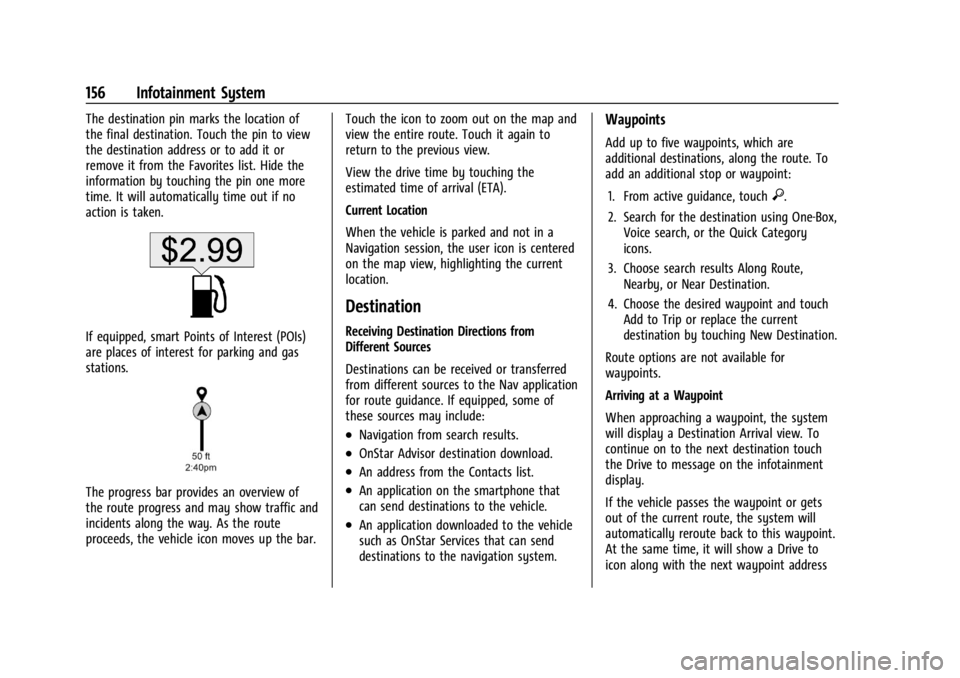
The destination pin marks the location of
the final destination. Touch the pin to view
the destination address or to add it or
remove it from the Favorites list. Hide the
information by touching the pin one more
time. It will automatically time out if no
action is taken.
If equipped, smart Points of Interest (POIs)
are places of interest for parking and gas
stations.
The progress bar provides an overview of
the route progress and may show traffic and
incidents along the way. As the route
proceeds, the vehicle icon moves up the bar.Touch the icon to zoom out on the map and
view the entire route. Touch it again to
return to the previous view.
View the drive time by touching the
estimated time of arrival (ETA).
Current Location
When the vehicle is parked and not in a
Navigation session, the user icon is centered
on the map view, highlighting the current
location.
Destination
Receiving Destination Directions from
Different Sources
Destinations can be received or transferred
from different sources to the Nav application
for route guidance. If equipped, some of
these sources may include:
.Navigation from search results.
.OnStar Advisor destination download.
.An address from the Contacts list.
.An application on the smartphone that
can send destinations to the vehicle.
.An application downloaded to the vehicle
such as OnStar Services that can send
destinations to the navigation system.
Waypoints
Add up to five waypoints, which are
additional destinations, along the route. To
add an additional stop or waypoint:
1. From active guidance, touch
}.
2. Search for the destination using One-Box, Voice search, or the Quick Category
icons.
3. Choose search results Along Route, Nearby, or Near Destination.
4. Choose the desired waypoint and touch Add to Trip or replace the current
destination by touching New Destination.
Route options are not available for
waypoints.
Arriving at a Waypoint
When approaching a waypoint, the system
will display a Destination Arrival view. To
continue on to the next destination touch
the Drive to message on the infotainment
display.
If the vehicle passes the waypoint or gets
out of the current route, the system will
automatically reroute back to this waypoint.
At the same time, it will show a Drive to
icon along with the next waypoint address
Page 158 of 397
GMC Acadia/Acadia Denali Owner Manual (GMNA-Localizing-U.S./Canada/
Mexico-15170041) - 2022 - CRC - 10/6/21
Infotainment System 157
so the current waypoint can be skipped and
guidance can resume to the next waypoint
or destination.
Editing a Waypoint
When waypoints are added during active
guidance, the system allows a stop to be
deleted or the order to be changed. To edit
a waypoint:1. Touch
A.
2. Touch Edit Destinations.
.Modify destination order by touching
and holding the arrow until it is
highlighted. Drag to move the
waypoint up or down the list.
.Delete a waypoint by touchingY.
A pop-up will appear to confirm
waypoint removal. Once the request
is confirmed, the system will remove
the address from the destinations list.
Touch
zon the top right corner so
the system can recalculate the route.
If there is only one address in the
destinations list, the system will
disable the move and delete
functions. The system will not allow
the final destination to be deleted.
Map Information
Road network attributes are contained in the
map database for map information.
Attributes include information such as street
names, street addresses, and turn
restrictions. A detailed area includes all
major highways, service roads, and
residential roads. The detailed areas include
Places of Interest (POIs) such as restaurants,
airports, banks, hospitals, police stations, gas
stations, tourist attractions, and historical
monuments.
If the vehicle does not have an applicable
service plan, the map database may not
include data for newly constructed areas or
map database corrections that are
completed after production. The navigation
system provides full route guidance in the
detailed map areas.
Zoom Control
The zoom control display is shown on the
map view. A few ways to zoom in or
out are:
.Touch + or –to zoom in or out on
the map.
.Double tap with one finger to zoom in or
single tap with two fingers to zoom out
on the map.
.Use the index finger and thumb to zoom
out by pinching and then zoom in by
spreading those two fingers on the map.
Map Gestures and Map Scale
Use the following gestures on the
infotainment display to adjust the map scale
and display options.
.Pinch to zoom in or out.
.Pan the map.
.Use two fingers to tilt down and change
from 2D to 3D. Tilt up to change back
to 2D.
.Rotate the map.
See Using the System 0142.
Mute
When in active guidance, the audio prompts
while using navigation can be muted. Touch
the speaker icon on the right side of the
upper bar. A slash will appear on the
speaker to indicate voice guidance is muted.
Active Guidance View
When a destination is chosen and a
navigation session is active, the navigation
system enters into an Active Guidance
View (AGV).
Page 162 of 397
GMC Acadia/Acadia Denali Owner Manual (GMNA-Localizing-U.S./Canada/
Mexico-15170041) - 2022 - CRC - 10/6/21
Infotainment System 161
Smart Fuel Station Icons
Fuel station prices are shown if available for
nearby stations when the vehicle is low
on fuel.
Smart Parking Icons
When reaching a densely populated
destination and the system determines that
parking may be limited, the system will
attempt to display nearby parking
destinations with pricing information,
if available.
Report an Issue Using POI Details (If
Equipped)
In the POI details page, a POI issue can be
reported if the data is not accurate or the
address is incorrect. Touch Report an Issue
near the bottom of the display to access the
issue selection page. Touch one of the
predefined issues on the selection page,
then touch Send. The system will send the
information for analysis.
Search
Touch Search on the infotainment display to
open the search display. It has a search field
entry box, quick category icon shortcuts,
recents icon, favorites icon, and keyboard.Auto Complete
Enter a partial location in the field entry box
on the search display. Auto complete will
attempt to complete the destination based
on what is being entered. Touch the
suggested item to search.
Search While in Motion with No Front Seat
Passenger Present
The search display will not allow changes or
text input with the keyboard when the
vehicle is in motion. As a result, a display
showing three rows of the most commonly
used categories appears. Touching the search
box will activate speech recognition.
Search While in Motion with Front Seat
Passenger Present
If the system detects that the front seat
passenger is present with both driver and
passenger seat belts buckled, touching the
search icon will display an alert message
that allows the passenger to search for a
destination as if the vehicle were stopped.
Connected Navigation
Connected Navigation is a subscription
service that enables certain capabilities
within the navigation system, such as
Traffic, Smart Search/Routing, and PredictiveNavigation capabilities. The system will
show an alert when the subscription is
expiring and will ask to renew the plan.
Global Positioning System (GPS)
If equipped, the position of the vehicle is
determined by using satellite signals, various
vehicle signals, and map data.
At times, other interference such as the
satellite condition, road configuration,
condition of the vehicle, and/or other
circumstances can affect the navigation
system's ability to determine the accurate
position of the vehicle.
The GPS shows the current position of the
vehicle using signals sent by GPS satellites.
When the vehicle is not receiving signals
from the satellites, a symbol appears in the
status bar.
This system might not be available or
interference can occur if any of the
following are true:
.Signals are obstructed by tall buildings,
trees, large trucks, or a tunnel.
.Satellites are being repaired or improved.
Page 163 of 397
GMC Acadia/Acadia Denali Owner Manual (GMNA-Localizing-U.S./Canada/
Mexico-15170041) - 2022 - CRC - 10/6/21
162 Infotainment System
For more information if the GPS is not
functioning properly, seeProblems with
Route Guidance 0162 and
If the System Needs Service 0162.
Vehicle Positioning
At times, the position of the vehicle on the
map could be inaccurate due to one or more
of the following reasons:
.The road system has changed.
.The vehicle is driving on slippery road
surfaces such as sand, gravel, or snow.
.The vehicle is traveling on winding roads
or long, straight roads.
.The vehicle is approaching a tall building
or a large vehicle.
.The surface streets run parallel to a
freeway.
.The vehicle has been transferred by a
vehicle carrier or a ferry.
.The current position calibration is set
incorrectly.
.The vehicle is traveling at high speed.
.The vehicle changes directions more than
once, or the vehicle is turning on a turn
table in a parking lot.
.The vehicle is entering and/or exiting a
parking lot, garage, or a lot with a roof.
.The GPS signal is not received.
.A roof carrier is installed on the vehicle.
.Tire chains are installed on the vehicle.
.The tires are replaced or worn.
.The tire pressure for the tires is incorrect.
.This is the first navigation use after the
map data is updated.
.The 12-volt battery has been disconnected
for several days.
.The vehicle is driving in heavy traffic
where driving is at low speeds, and the
vehicle is stopped and started repeatedly.
Problems with Route Guidance
Inappropriate route guidance can occur
under one or more of the following
conditions:
.The turn was not made on the road
indicated.
.Route guidance might not be available
when using automatic rerouting for the
next right or left turn.
.The route might not be changed when
using automatic rerouting.
.There is no route guidance when turning
at an intersection.
.Plural names of places might be
announced occasionally.
.It could take a long time to operate
automatic rerouting during high-speed
driving.
.Automatic rerouting might display a route
returning to the set waypoint if heading
for a destination without passing through
a set waypoint.
.The route prohibits the entry of a vehicle
due to a regulation by time or season or
any other regulation which may be given.
.Some routes might not be searched.
.The route to the destination might not be
shown if there are new roads, if roads
have recently changed, or if certain roads
are not listed in the map data. See Maps
0 155.
To recalibrate the vehicle's position on the
map, park with the vehicle running for two
to five minutes, until the vehicle position
updates. Make sure the vehicle is parked in
a location that is safe and has a clear view
of the sky and away from large
obstructions.
If the System Needs Service
If the navigation system needs service, see
your dealer.
Page 164 of 397
GMC Acadia/Acadia Denali Owner Manual (GMNA-Localizing-U.S./Canada/
Mexico-15170041) - 2022 - CRC - 10/6/21
Infotainment System 163
Map Data Updates
The map data in the vehicle is the most
up-to-date information available when the
vehicle was produced. The map data is
updated periodically, provided that the map
information has changed and the vehicle has
a relevant service plan.
See www.gmnavdisc.com for details on
ordering, purchasing, and installing a new or
replacement SD card. Features are subject to
change. For more information on this
feature, see my.gmc.com/learn.
If the vehicle is equipped with Connected
Navigation, which is a subscription service
that enables certain features of the
navigation system, such as Traffic, Smart
Search/Routing, and Predictive Navigation,
then the system will download the latest
map data from the cloud.
Database Coverage Explanations
Coverage areas vary with respect to the
level of map detail available for any given
area. Some areas feature greater levels of
detail than others. If this happens, it does
not mean there is a problem with the
system. As the map data is updated, moredetail can become available for areas that
previously had limited detail. See
Map Data
Updates 0163.
Voice Recognition
If equipped, voice recognition allows for
hands-free operation within the navigation,
audio, phone, and weather applications. This
feature can be started by pressing
gon the
steering wheel or touching
gon the
infotainment display.
However, not all features within these areas
are supported by voice commands.
Generally, only complex tasks that require
multiple manual interactions to complete
are supported by voice commands.
For example, tasks that take more than one
or two touches, such as a song or artist to
play from a media device, would be
supported by voice commands. Other tasks,
like adjusting the volume or seeking up or
down, are audio features that are easily
performed by touching one or two options,
and are not supported by voice commands.
In general there are flexible ways to speak
commands for completing the tasks. If your language supports it, try stating a
one-shot command, such as
“Directions to
address
while stating the address during the
command. Another example of a one-shot
Destination Entry command is, “Directions to
Place of Interest at
commands do not work, try saying, “Take
me to Place of Interest” or“Find address”
and the system will walk you through by
asking additional questions.
Hybrid Speech Recognition
If equipped, this feature helps distinguish
words by using Internet-based information
along with the system’s voice recognition
database. This allows you to speak more
naturally when using voice recognition.
Using Voice Recognition
Voice recognition becomes available once
the system has been initialized. This begins
when the ignition is turned on. Initialization
may take a few moments.
1. Press
gon the steering wheel controls
to activate voice recognition.
2. The audio system mutes and the system plays a prompt.
Page 173 of 397
GMC Acadia/Acadia Denali Owner Manual (GMNA-Localizing-U.S./Canada/
Mexico-15170041) - 2022 - CRC - 10/6/21
172 Infotainment System
Searching Contacts Using the Keypad
To search for contacts using the keypad:1. Touch the Phone icon on the Home Page.
2. Touch Keypad and enter partial phone numbers or contact names using the
digits on the keypad to search.
Results will show on the right side of the
display. Touch one to place a call.
Accepting or Declining a Call
When an incoming call is received, the
infotainment system mutes and a ring tone
is heard in the vehicle.
Accepting a Call
There are two ways to accept a call:
.Pressgon the steering wheel controls.
.Touch Answer on the infotainment
display.
Declining a Call
There are two ways to decline a call:
.Pression the steering wheel controls.
.Touch Ignore on the infotainment display.
Call Waiting
Call waiting must be supported on the
Bluetooth cell phone and enabled by the
wireless service carrier to work.
Accepting a Call
Press
gto answer, then touch Switch on
the infotainment display.
Declining a Call
Press
ito decline, then touch Ignore on
the infotainment display
Switching Between Calls (Call Waiting
Calls Only)
To switch between calls, touch Phone on the
Home Page to display Call View. While in
Call View, touch the call information of the
call on hold to change calls.
Three-Way Calling
Three-way calling must be supported on the
Bluetooth cell phone and enabled by the
wireless service carrier to work.
To start a three-way call while in a
current call:
1. In the Call View, touch Add Call to add another call. 2. Initiate the second call by selecting from
Recents, Contacts, or Keypad.
3. When the second call is active, touch the merge icon to conference the three-way
call together.
Ending a Call
.Pression the steering wheel controls.
.Touch#on the infotainment display,
next to a call, to end only that call.
Dual Tone Multi-Frequency (DTMF) Tones
The in-vehicle Bluetooth system can send
numbers during a call. This is used when
calling a menu-driven phone system. Use the
Keypad to enter the number.
Apple CarPlay and Android Auto
If equipped, Android Auto and/or Apple
CarPlay capability may be available through
a compatible smartphone. If available, the
Android Auto and Apple CarPlay icons will
change from gray to color on the Home
Page of the infotainment display.
Page 174 of 397
GMC Acadia/Acadia Denali Owner Manual (GMNA-Localizing-U.S./Canada/
Mexico-15170041) - 2022 - CRC - 10/6/21
Infotainment System 173
To use Android Auto and/or Apple CarPlay:
For Wired Phone Projection1. Download the Android Auto app to your smartphone from the Google Play store.
There is no app required for Apple
CarPlay.
2. Connect your Android phone or Apple iPhone by using the factory-provided
phone USB cable and plugging into a
USB data port. For best performance, it is
highly recommended to use the device’s
factory-provided USB cable, which should
be replaced after significant wear to
maintain connection quality. Aftermarket
or third-party cables may not work.
3. When the phone is first connected to activate Apple CarPlay or Android Auto,
accept the terms and conditions on both
the infotainment system and the phone.
4. Follow the instructions on the phone.
The Android Auto and Apple CarPlay icons
on the Home Page will illuminate depending
on the smartphone. Android Auto and/or
Apple CarPlay may automatically launch
upon USB connection. If not, touch the
Android Auto or Apple CarPlay icon on the
Home Page to launch. Press{on the center stack to return to the
Home Page.
For Wireless Phone Projection
Verify your phone is wireless compatible by
visiting the Google Android Auto or Apple
CarPlay support page.
1. Download the Android Auto app to your smartphone from the Google Play store.
There is no app required for Apple
CarPlay.
2. For first time connection, there are two ways to set up wireless projection:
.Connect your Android phone or Apple
iPhone by using the factory-provided
phone USB cable and plugging into a
USB data port. For best performance,
it is highly recommended to use the
device’s factory-provided USB cable,
which should be replaced after
significant wear to maintain
connection quality. Aftermarket or
third-party cables may not work.
.Connecting the phone over Bluetooth.
See Bluetooth (Pairing and Using a
Phone) 0169 or
Bluetooth (Overview) 0168.
3. Make sure wireless is turned on the phone for wireless projection to work. 4. When the phone is first connected to
activate Apple CarPlay or Android Auto,
agree to the terms and conditions on
both the infotainment system and the
phone.
5. Follow the instructions on the phone.
The Android Auto and Apple CarPlay icons
on the Home Page will illuminate depending
on the smartphone. Android Auto and/or
Apple CarPlay may automatically launch
upon wireless connection. If not, touch the
Android Auto or Apple CarPlay icon on the
Home Page to launch.
Wireless Carplay and/or Wireless Android
Auto may experience occasional service
disruption due to outside Wi-Fi interference.
To disconnect the phones wireless
projection: 1. Select Settings from the Home Page.
2. Select Phones
3. Touch
4next to the phone to be
disconnected.
4. Turn off Apple CarPlay or Android Auto.
Press
{on the center stack to return to the
Home Page.
Page 176 of 397

GMC Acadia/Acadia Denali Owner Manual (GMNA-Localizing-U.S./Canada/
Mexico-15170041) - 2022 - CRC - 10/6/21
Infotainment System 175
.Use 24-hour Format: Touch to specify the
clock format shown.
Touch Off or On to disable or enable.
Language
This will set the display language used on
the infotainment display. It may also use
the selected language for voice recognition
and audio feedback. Touch Language and
touch the appropriate language.
Phones
Touch to connect to a different cell phone or
mobile device source, disconnect a cell
phone or media device, or delete a cell
phone or media device.
Wi-Fi Networks
This will show connected and available Wi-Fi
networks.
If a 4G LTE data package is not active on the
vehicle, the infotainment system can be
connected to an external protected Wi-Fi
network, such as a mobile device or home
hotspot, to utilize connected services.
Wi-Fi Hotspot
Touch and the following may display:
.Wi-Fi Services: This allows devices to use
the vehicle hotspot. Touch the controls on the infotainment
display to disable or enable.
.Wi-Fi Name: Touch to change the vehicle
Wi-Fi name.
.Wi-Fi Password: Touch to change the
vehicle Wi-Fi password.
.Connected Devices: Touch to show
connected devices.
.Share Hotspot Data: Touch On to allow
devices to use the vehicle hotspot and its
data, or touch Off to allow devices to
only use the vehicle hotspot but not
its data.
Privacy
Touch and the following may display:
.Location Services: This setting enables or
disables sharing of vehicle location
outside the vehicle. Emergency services
will not be affected when Off is selected.
.Data Services: If equipped, this setting
determines if data sharing can be used by
features including Wi-Fi, Hotspot, and
applications. Touch Off to disable data
services. Emergency services and phone
calls, such as calls with OnStar Advisors or
others, will not be affected when Off is
selected.
.Voice Recognition Sharing: This setting
determines if voice commands can be
shared with a cloud-based voice
recognition system. Touch Off to prevent
the sharing and possible recording of your
voice commands with this system. This
may limit the system’s ability to
understand your voice commands and
may disable some features.
.Types: This setting lists all
Android-defined as dangerous permissions
currently used by the infotainment
system, the number of applications that
have requested this permission, and the
number of applications that are allowed
to use this permission.
.Used By Applications: This setting lists all
applications that are requested or are
using Android-defined as dangerous
permissions. Only requested and active
permissions are shown.
Display
Touch and the following may display:
.Mode: This adjusts the appearance of the
navigation map view and any
downloaded apps optimized for day or
night time conditions. Set to Auto for the
display to automatically adjust based on
bright/dark conditions.
Page 184 of 397
GMC Acadia/Acadia Denali Owner Manual (GMNA-Localizing-U.S./Canada/
Mexico-15170041) - 2022 - CRC - 10/6/21
Infotainment System 183
.Reverse Automatic Braking (if equipped)–
the number of times the vehicle detected
that a rearward collision was imminent
and applied the brakes.
.Traction Control –the number of times
the Traction Control System activated to
reduce wheel spin or loss of traction.
.Stability Control –the number of events
which required the use of electronic
stability control.
.Antilock Braking System Active –The
number of Antilock Brake System
activations.
.Tailgating Alerts –the number of times
the driver was alerted for following a
vehicle ahead too closely.
Report Card Data
Cumulative Data is saved for all trips until
the Report Card is reset or until the
maximum count is exceeded. If the
maximum count is exceeded for a Report
Card line item, that item will no longer be
updated in the Report Card until it is reset.
Each item will report a maximum of
1,000 counts. The distance driven will report
a maximum of 64 374 km (40,000 mi). To delete Report Card data, do one of the
following:
.From the Report Card display, touch
Reset.
.Touch Clear All Teen Keys and PIN from
the Teen Driver menu. This will also
unregister any Teen Driver keys and
delete the PIN.
Forgotten PIN
See your dealer to reset the PIN.
Trademarks and License
Agreements
FCC Information
See Radio Frequency Statement 0373.
"Made for iPod," and "Made for iPhone,"
mean that an electronic accessory has been
designed to connect specifically to iPod or
iPhone, respectively, and has been certified
by the developer to meet Apple performance standards. Apple is not
responsible for the operation of this device
or its compliance with safety and regulatory
standards. Please note that the use of this
accessory with iPod or iPhone may affect
wireless performance. iPhone, iPod, iPod
classic, iPod nano, iPod shuffle, and iPod
touch are trademarks of Apple Inc.,
registered in the U.S. and other countries.
If you decide to continue service after your
trial, your selected subscription plan will
automatically renew thereafter. You will be
charged at then-current rates. Fees and taxes
apply. Please see the SiriusXM Customer
Agreement at siriusxm.com for complete
terms and how to cancel, which includes
calling SiriusXM at 1-866-635-2349. All fees
and programming are subject to change.
Fees and Taxes: Subscription fee, taxes, one
time activation fee, and other fees may
apply. Subscription fee is consumer only. All
fees and programming subject to change.
Subscriptions subject to Customer